How to change the Background in Trello

Personalizing your Trello board's background can improve visual organization and make your workspace more inviting. Whether you prefer photos, colors, or patterns, Trello offers multiple customization options to match your workflow style. This guide walks you through the process of changing your board background in just a few clicks.
Quick summary
In this tutorial, you'll learn how to access Trello's background customization menu, browse available options including photos and color themes, and apply or remove backgrounds from your board. You'll discover how to select from pre-designed options or upload your own image to create a truly personalized workspace.
Why this matters
A customized board background helps you visually distinguish between different projects and makes your Trello workspace more engaging. The right background can reduce visual fatigue and create a professional or creative atmosphere depending on your needs. Custom backgrounds also make it easier for teams to quickly identify which board they're viewing at a glance.
Step-by-step guide
- 1
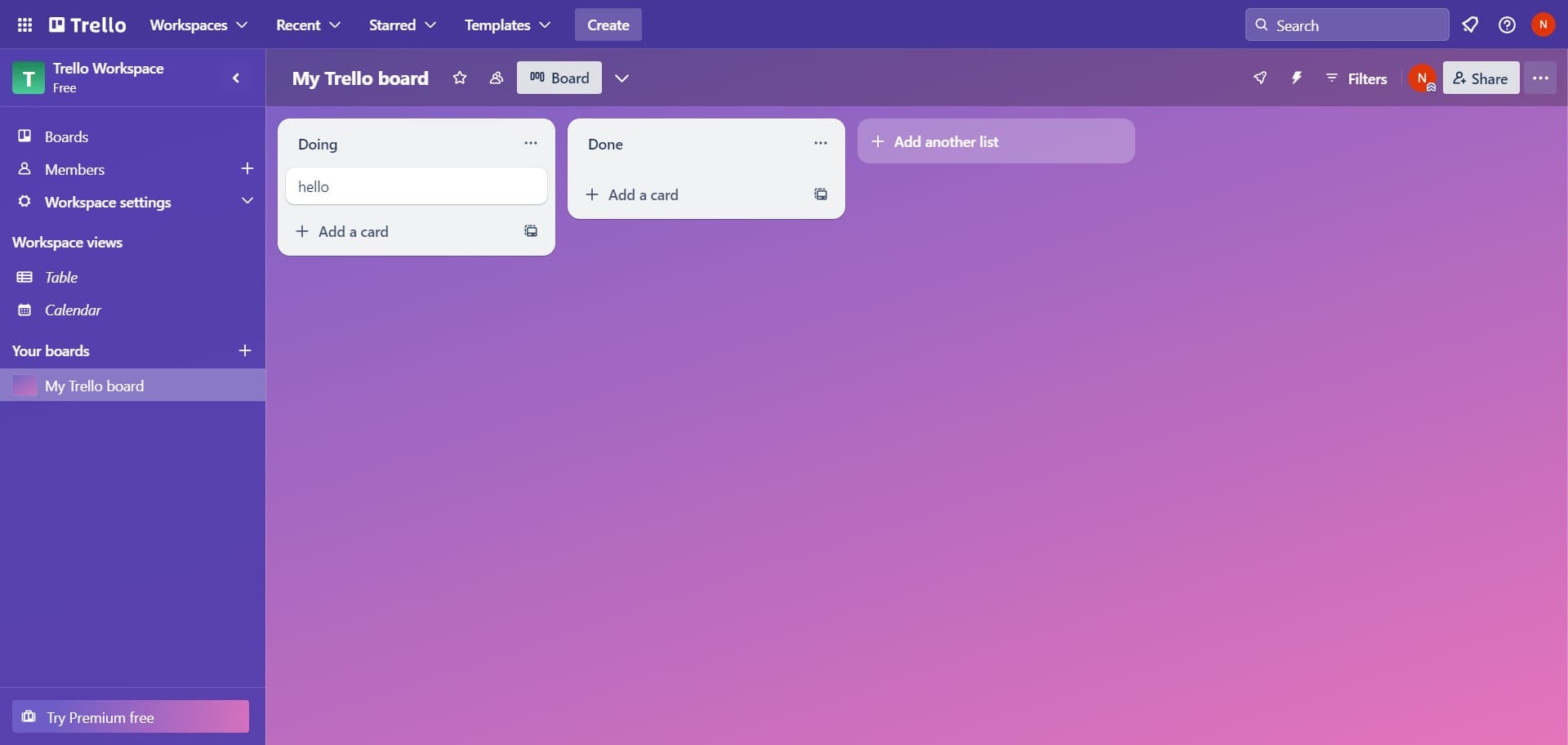
Open your Trello board
Navigate to the Trello board you want to customize. Make sure you have editing permissions for this board before proceeding.
- 2
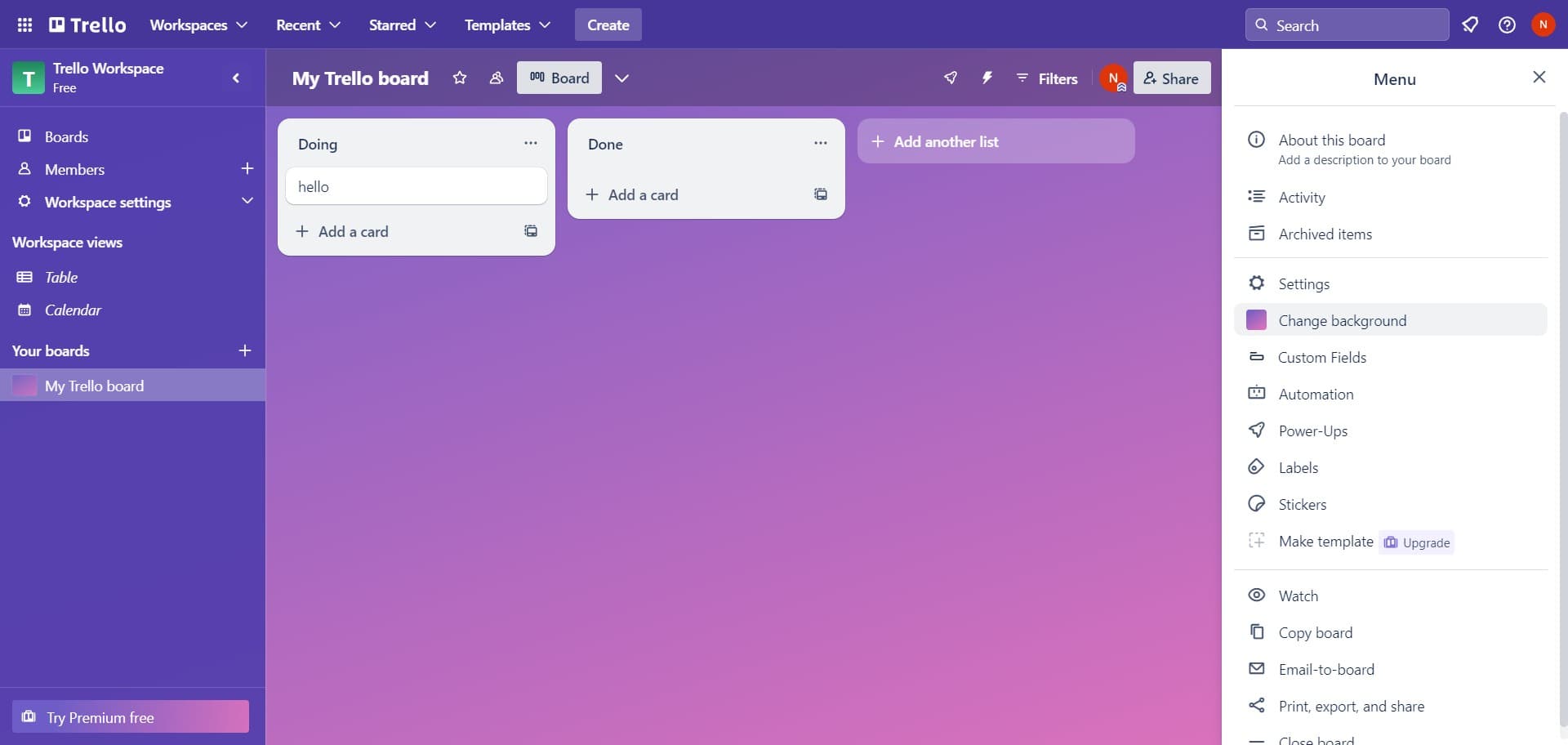
Click on Change background
Look for the background customization option in your board menu. This button will open the background selection panel with all available options.
- 3
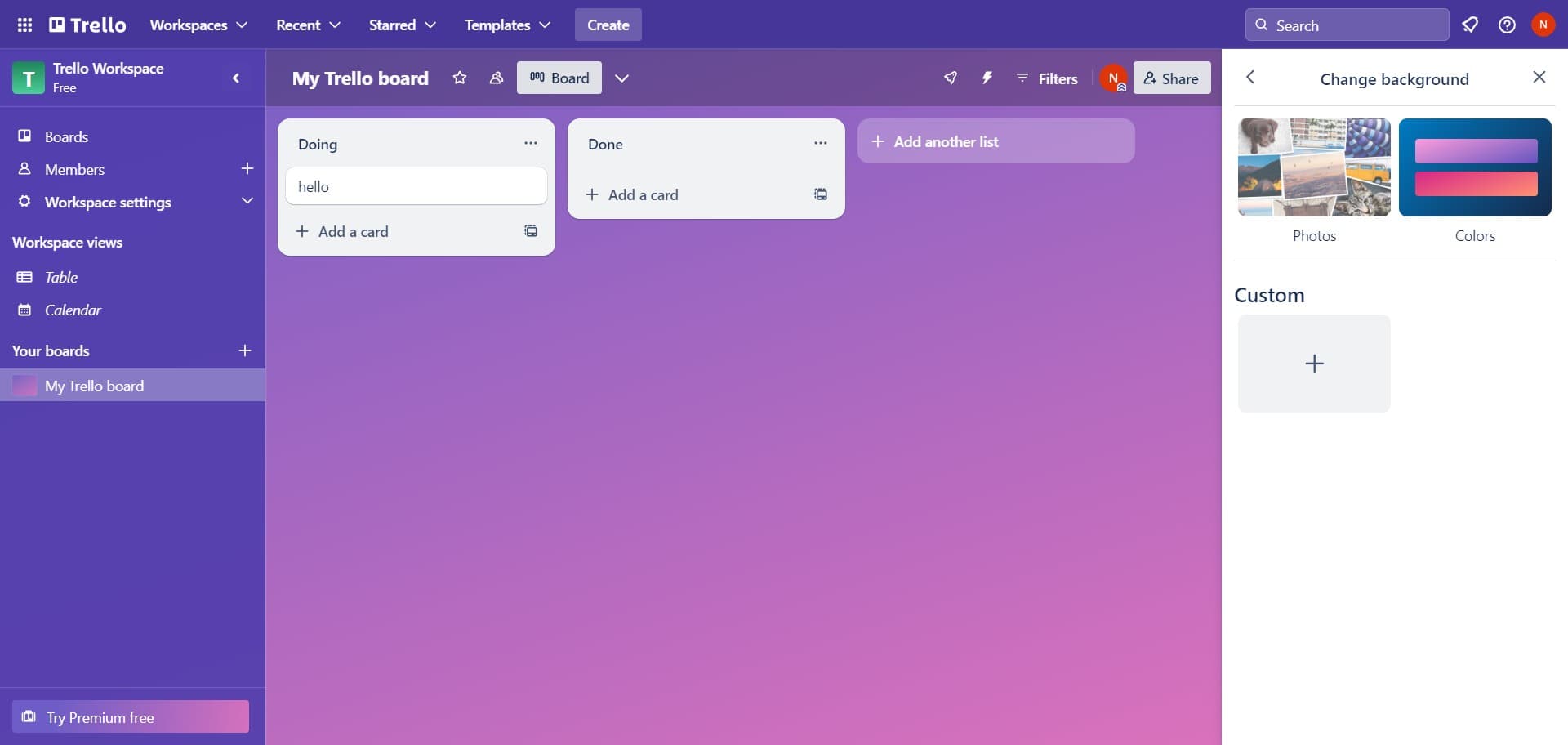
Access the background library
You'll now see the background selection interface with various categories and pre-loaded options. Browse through the available backgrounds to find one that matches your preference.
- 4
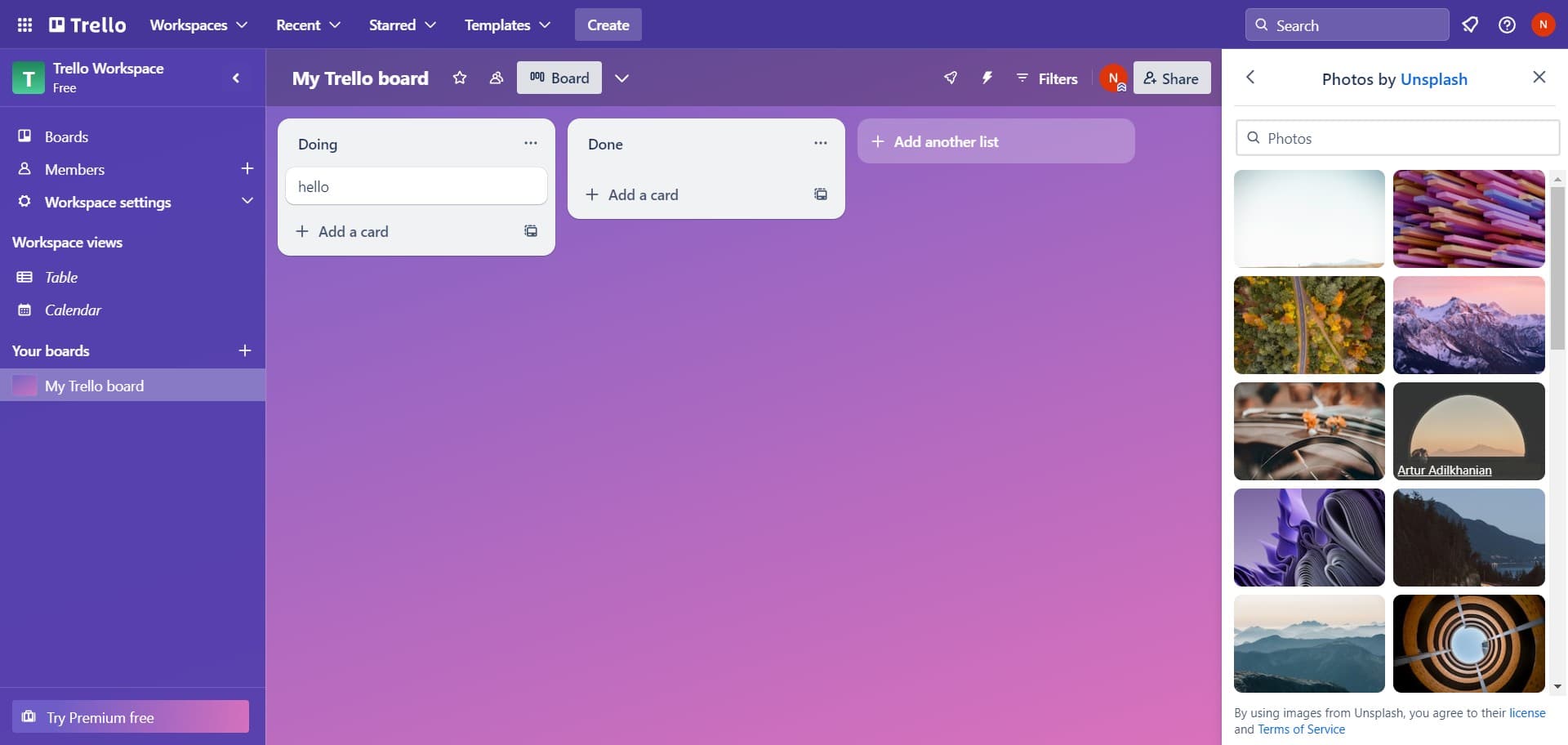
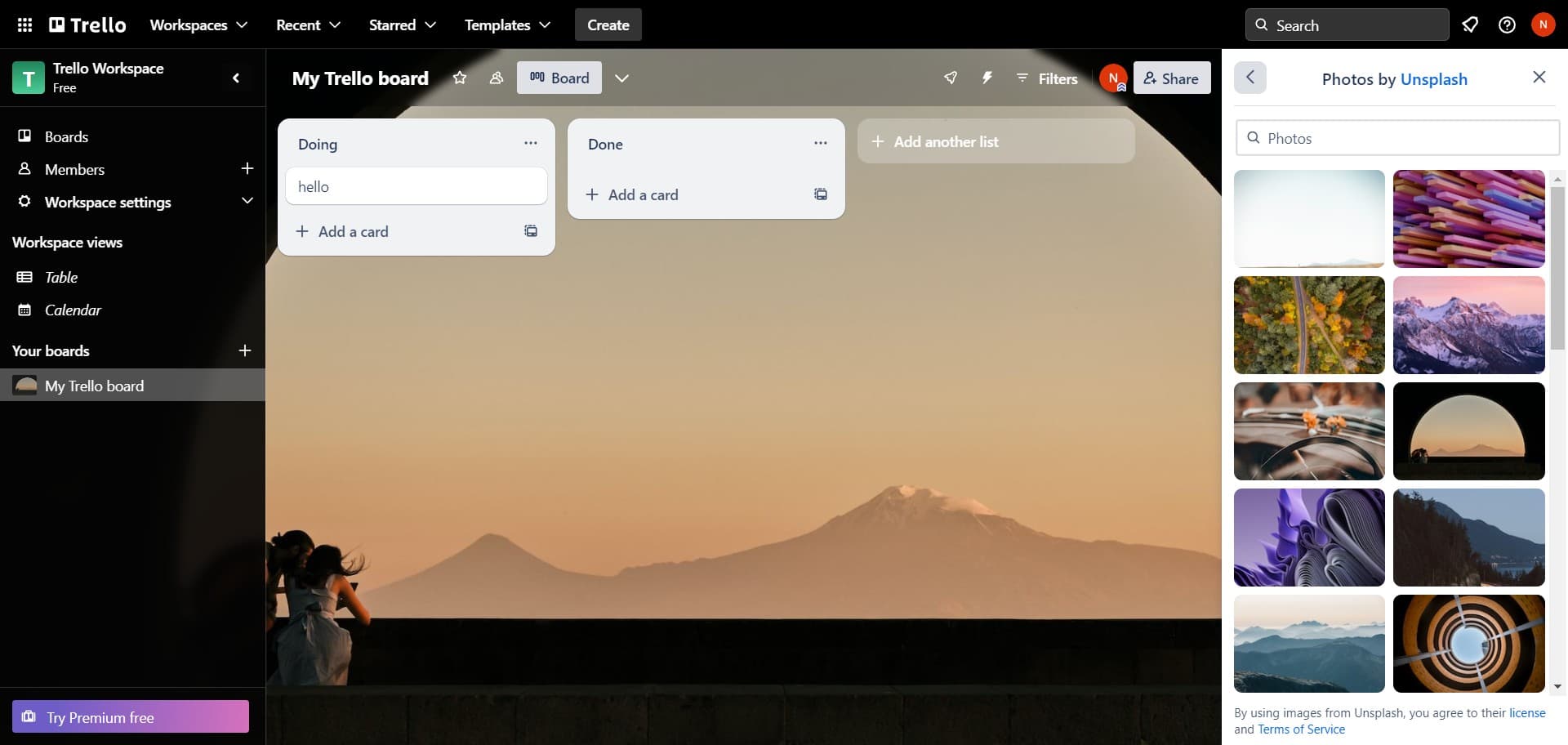
Select a photo by creator
Click on a specific photographer or creator name like Artur Adilkhanian to view their collection of available background images. Each creator offers unique photo styles to choose from.
- 5
Preview background options
As you explore different backgrounds, you'll see previews of how they'll appear on your board. Take time to browse through several options before making your final selection.
- 6
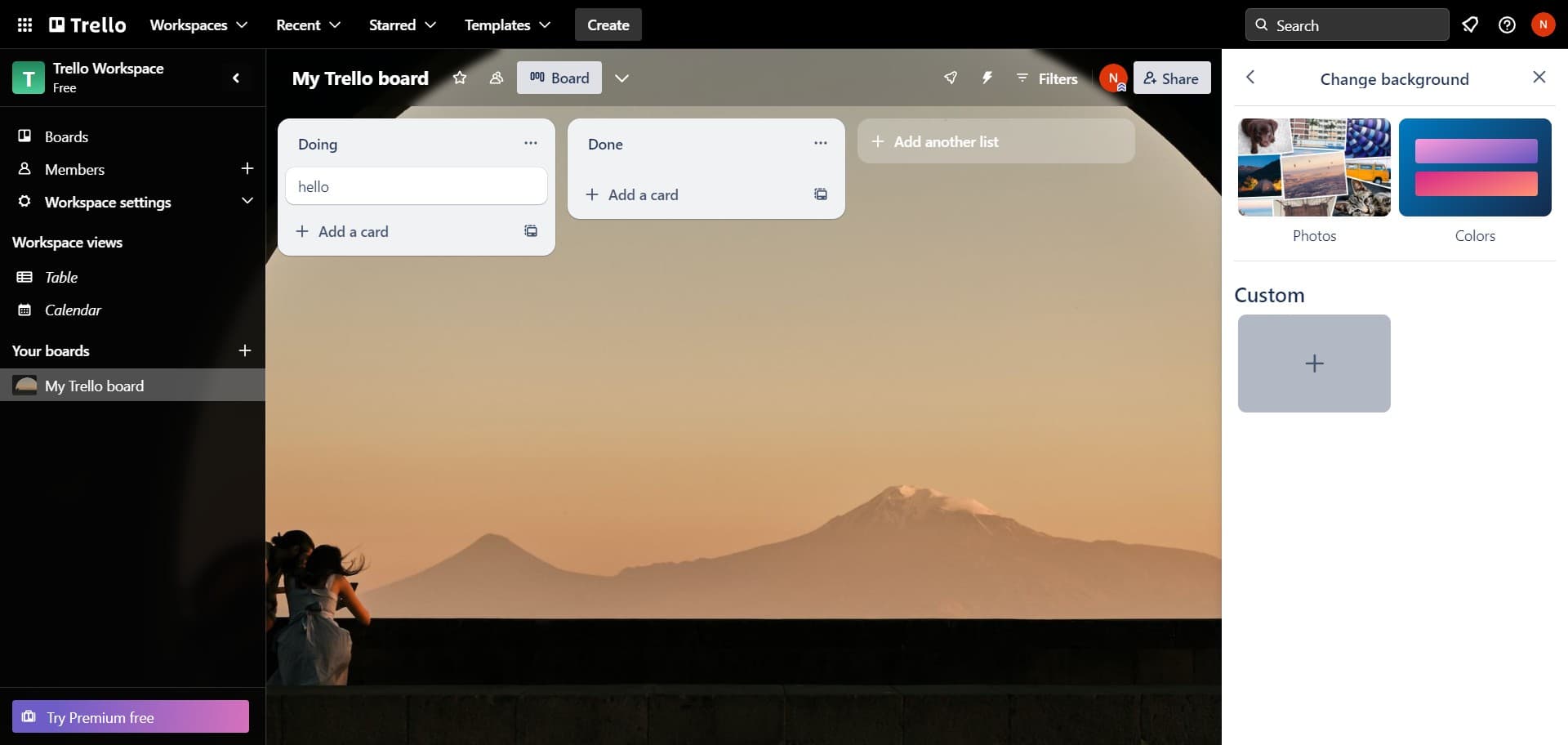
View additional customization
Continue navigating through the background options and customization menu to explore all available choices. You'll see various filters and categories to narrow down your selection.
- 7
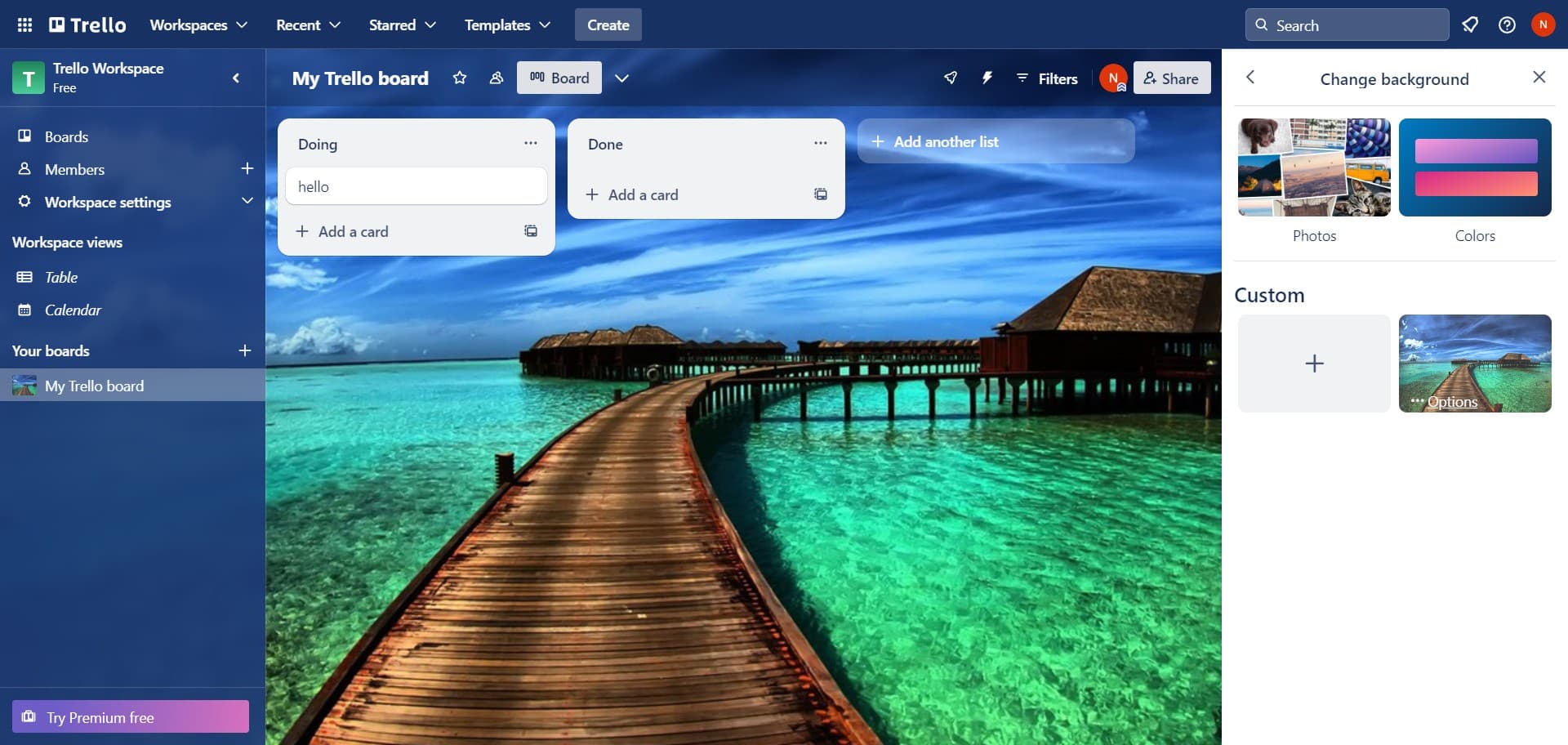
Access color and style options
In addition to photos, you can browse different display formats and color schemes for your background. The customization panel provides multiple ways to personalize your board.
- 8
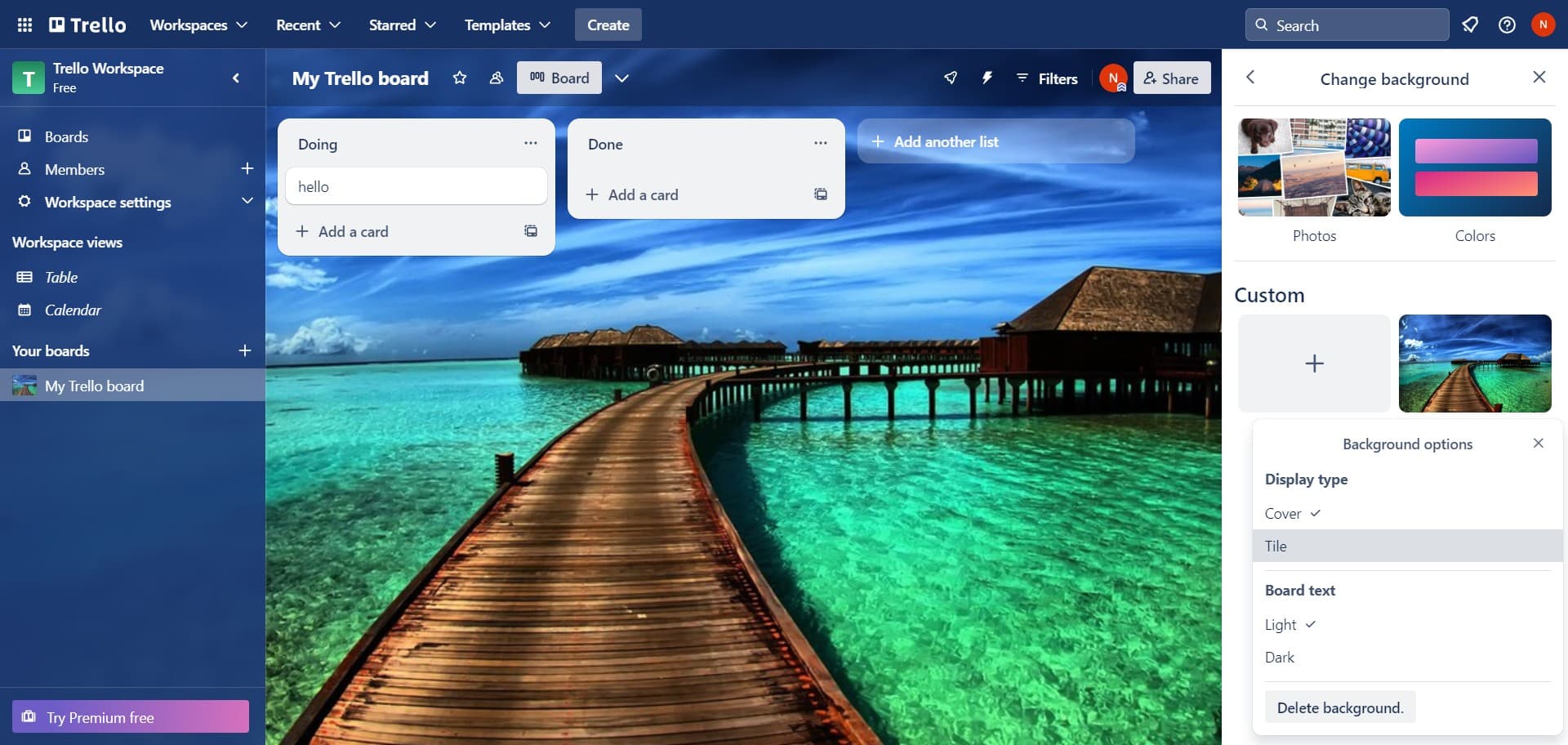
Choose Tile display style
Select the Tile option to see how your background will look when tiled across your board. This display style repeats the background pattern to fill the entire board area.
- 9
Select Dark color theme
Click on the Dark option to apply a dark color background to your board. This theme works well for reducing eye strain and creating a modern aesthetic.
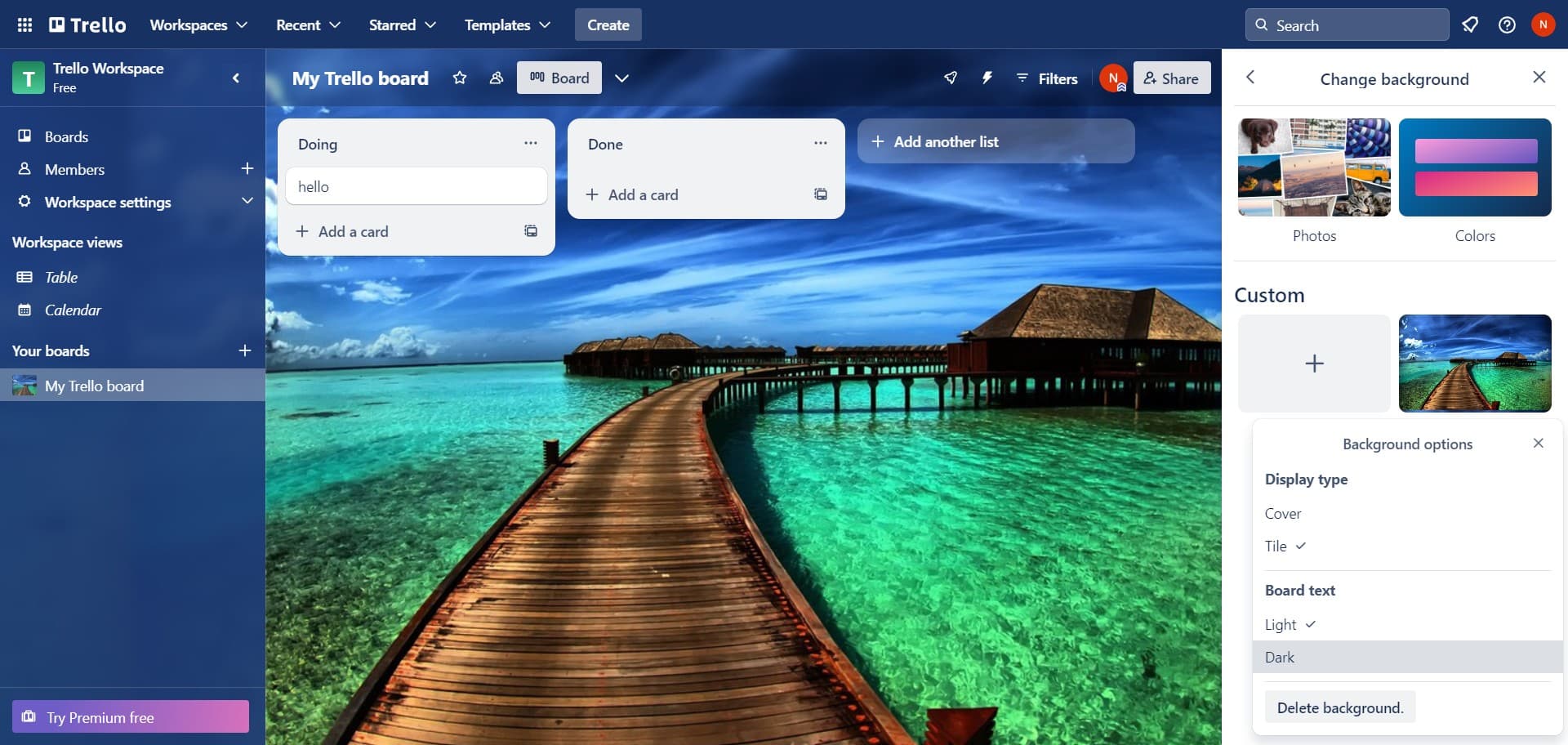
- 10
Remove or delete background
If you want to return your board to a plain background, click the Delete background option. This removes any custom background and restores the default board appearance.
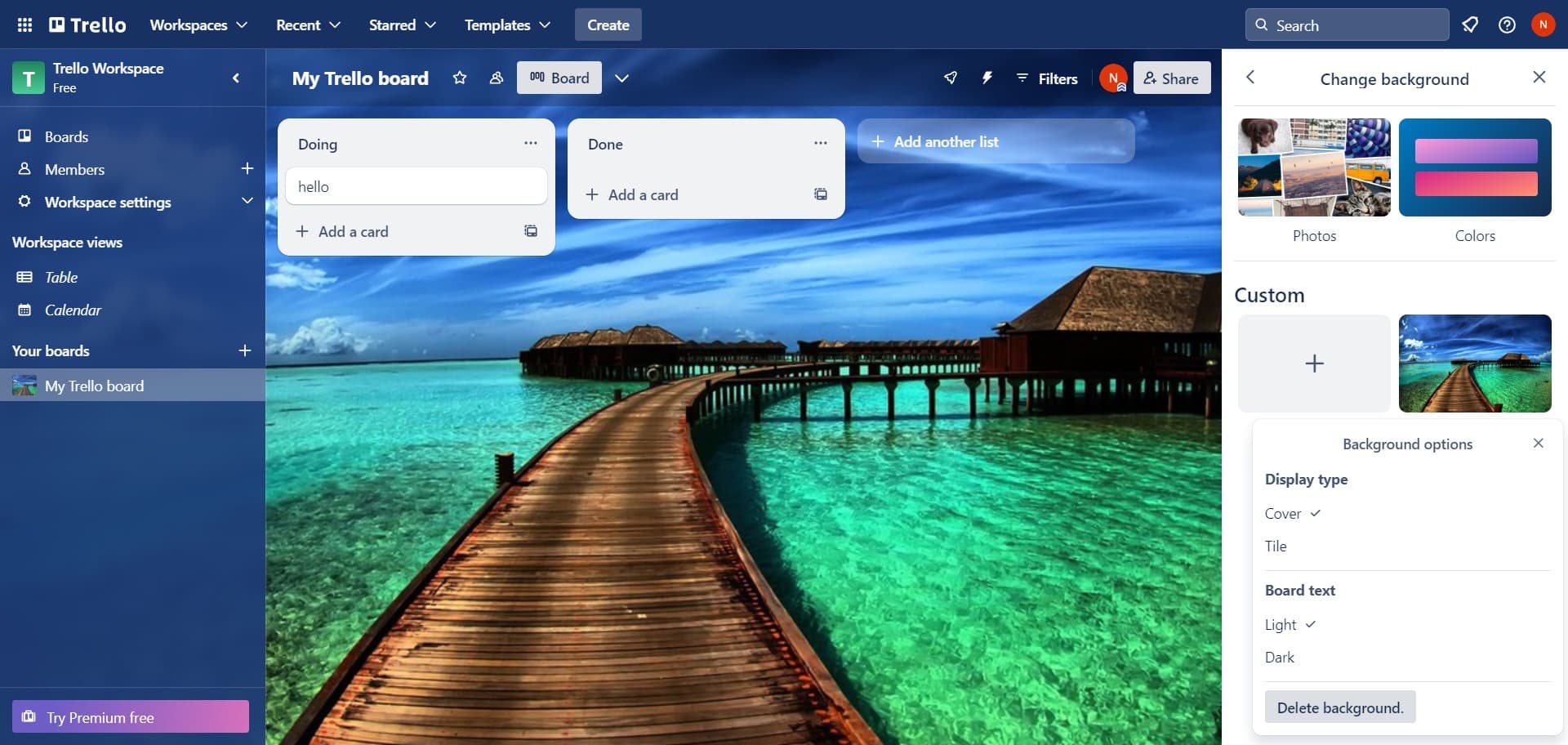
- 11
Access upload functionality
Navigate to the upload section if you want to use your own custom image as a background. The system will prepare the upload interface for your selection.
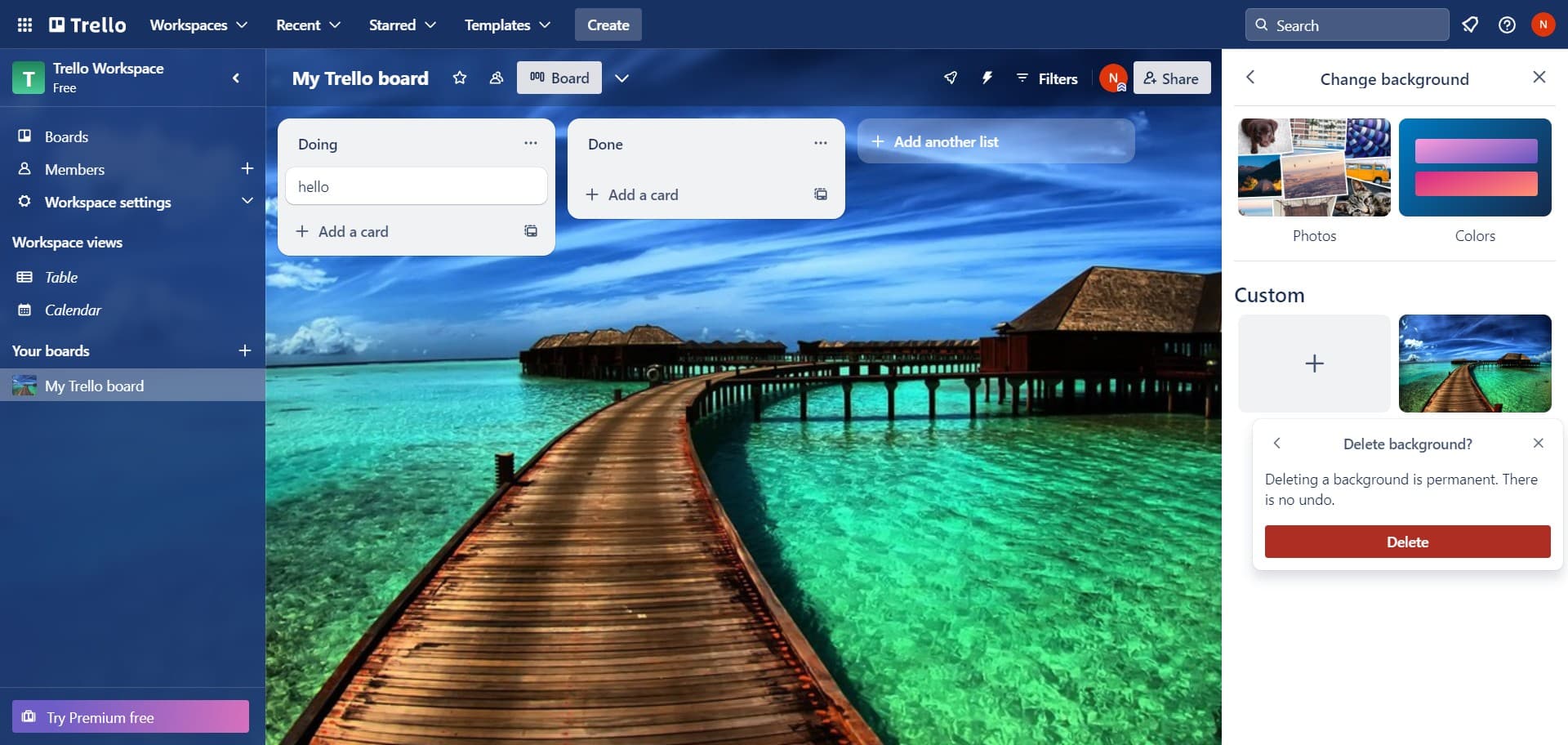
- 12
Upload your custom image
Select and upload an image file from your computer to use as your board background. Once uploaded, Trello will apply your custom image to the board.
Frequently asked questions
Common questions about how to change the background in trello.
Yes, Trello allows you to upload custom images from your computer to use as your board background. Simply navigate to the upload section in the background customization menu and select your image file. The image will be applied to your board once the upload is complete.
Yes, any background changes you make to a board are visible to all members who have access to that board. Everyone will see the same background unless they are viewing the board from an account with different board settings.
Trello typically accepts common image formats such as JPG, PNG, and GIF for custom background uploads. Check Trello's documentation or the upload interface for the most current list of supported file types and size restrictions.
Yes, you can remove any custom background by clicking the Delete background option in the customization menu. This will restore your board to its default appearance without any background image or color.
You typically need to have editing or admin permissions for the board to change its background. If you don't have the necessary permissions, contact your board administrator or workspace owner to request access.