How to invite members to your Trello workspace

Collaborating effectively in Trello requires the right team members in your workspace. This guide walks you through inviting members to your Trello workspace so you can start delegating tasks and managing projects together.
Quick summary
In this tutorial, you'll learn how to navigate to the workspace invitation feature, select team members to invite, and send them workspace invitations. By the end, you'll be able to expand your Trello workspace with new collaborators in just a few clicks.
Why this matters
Inviting members to your workspace is essential for building collaborative teams and ensuring everyone has access to the boards and cards they need. Without proper workspace membership, team members can't view projects, update tasks, or participate in your workflow. Managing workspace invitations centrally also helps maintain security and organization across your team.
Step-by-step guide
- 1
Access the workspace menu
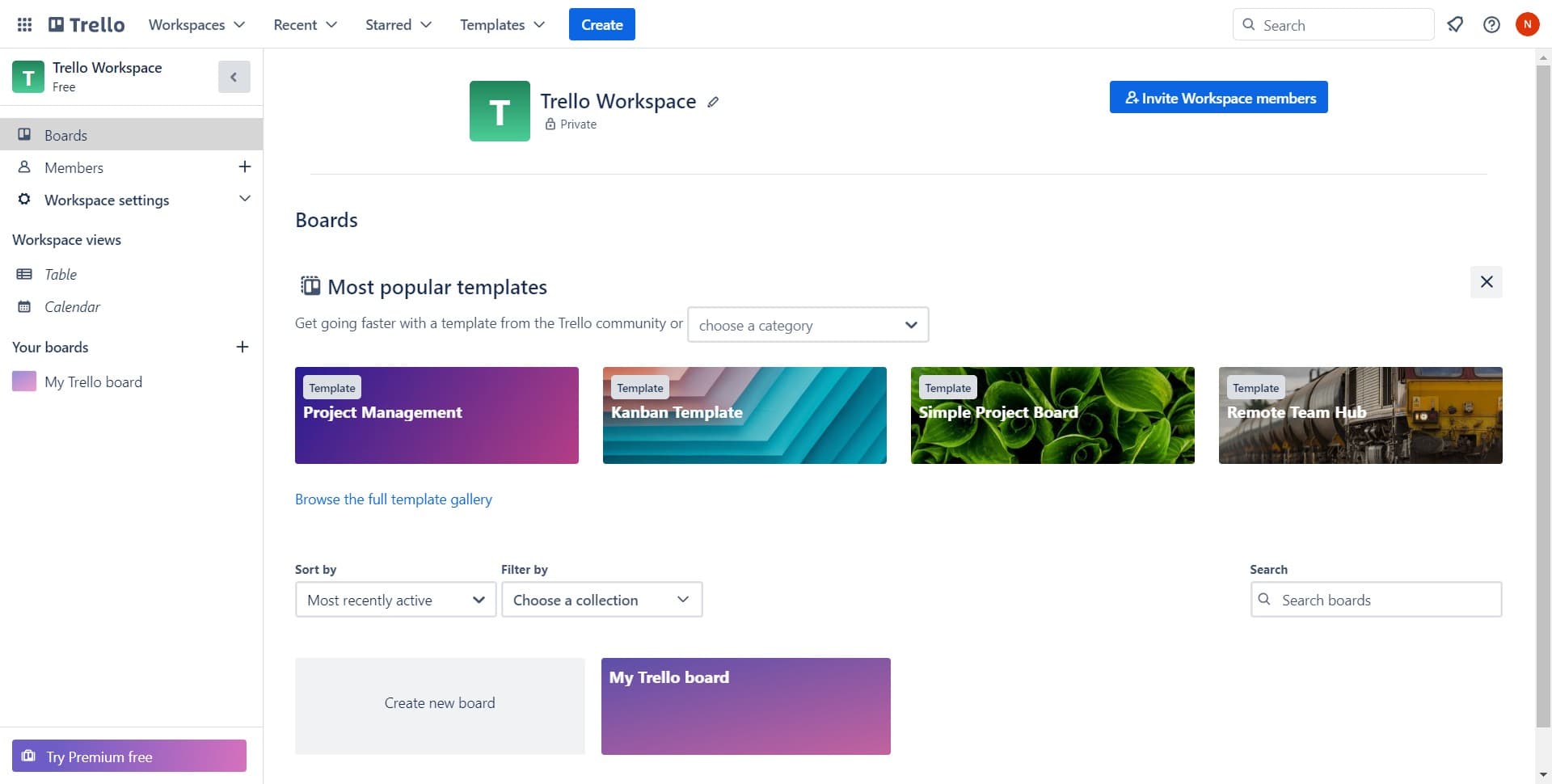
Look for and click on the workspace image or avatar, typically located in the top navigation area. This opens the workspace management options.
- 2
Select invite workspace members
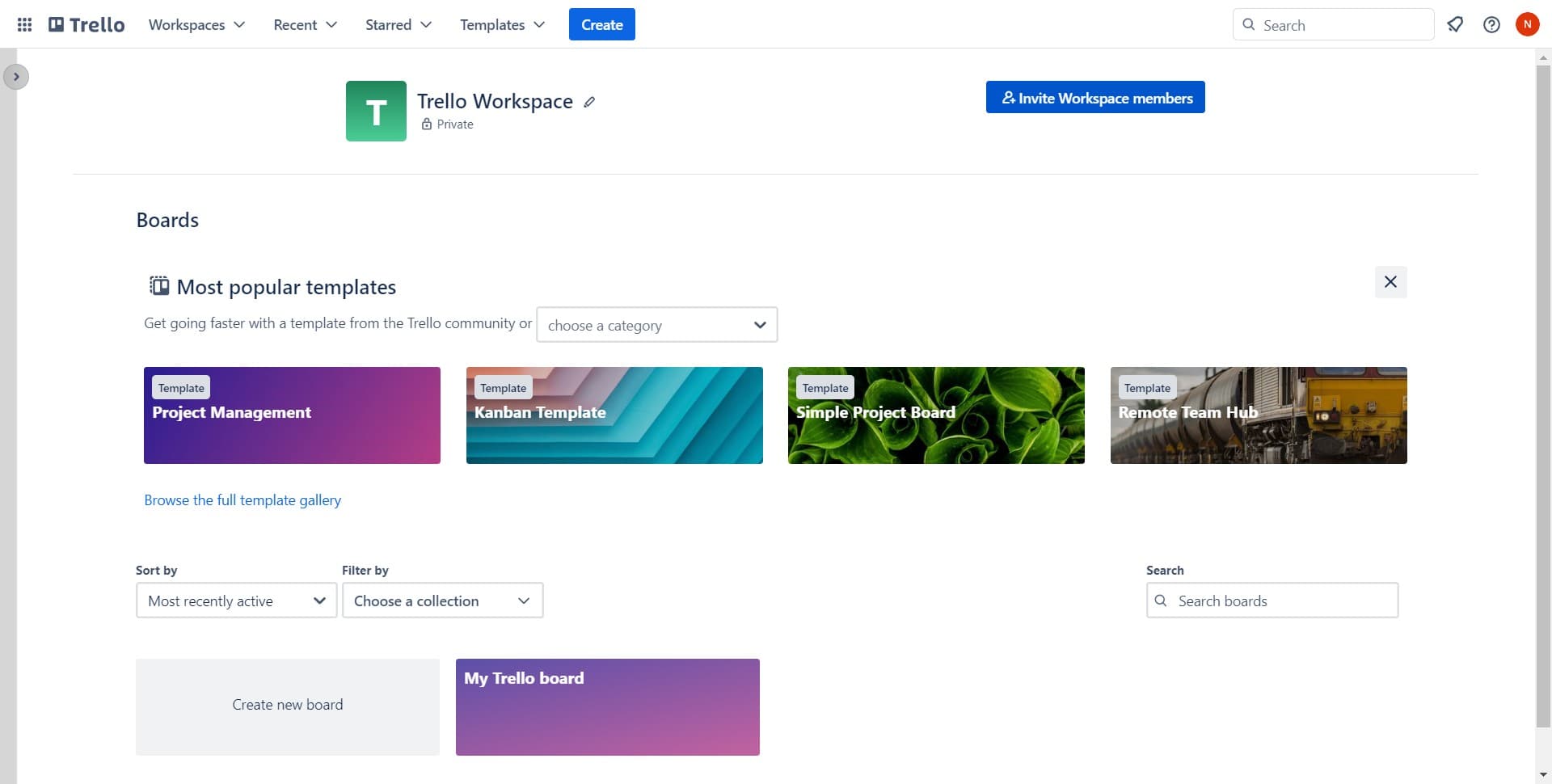
From the dropdown menu, click on 'Invite Workspace members' to access the member invitation interface. This is where you'll manage who joins your workspace.
- 3
Open the invitation input field
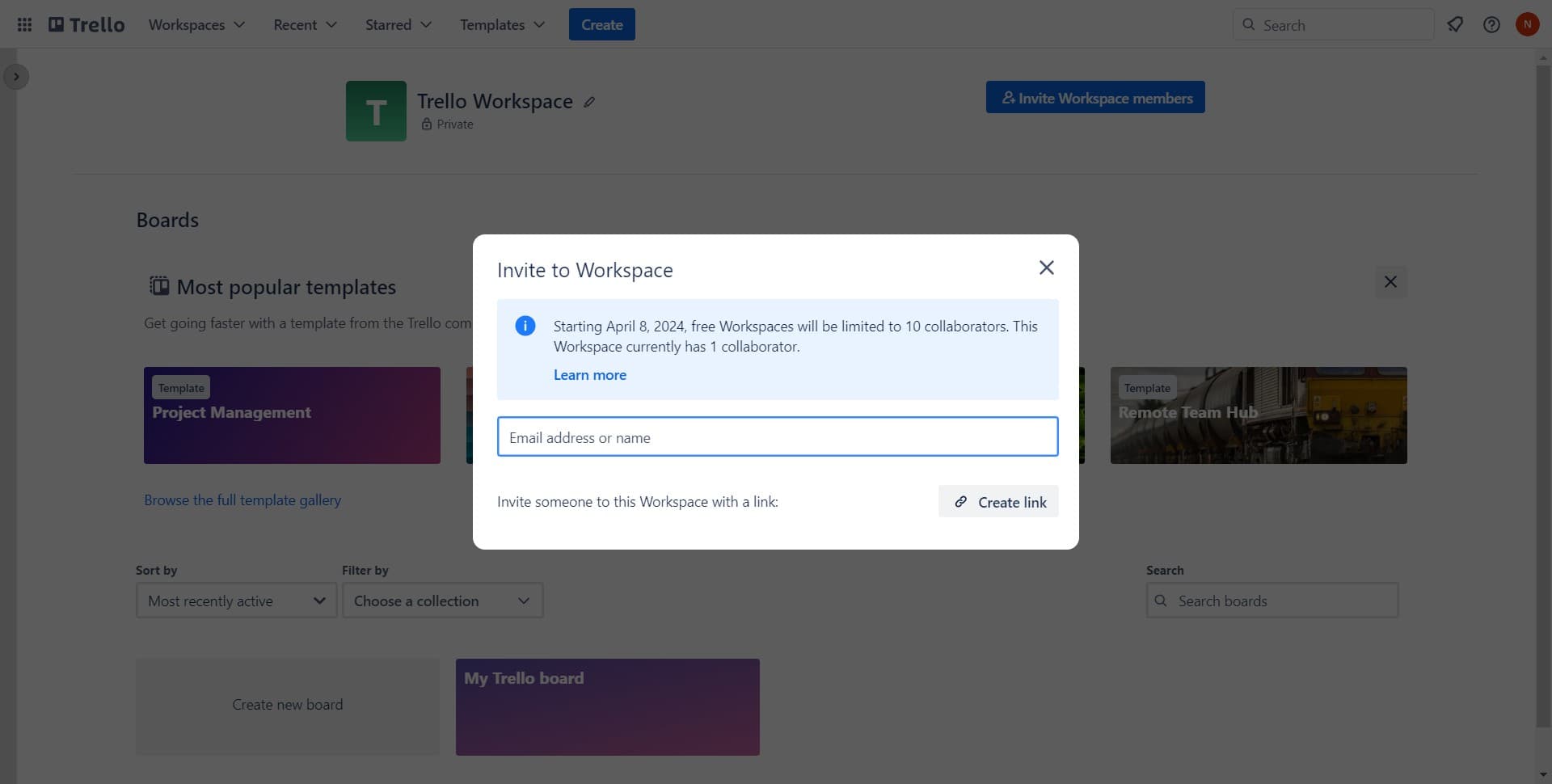
Click in the designated input area to activate the field where you can enter email addresses. This is where you'll specify which members to invite.
- 4
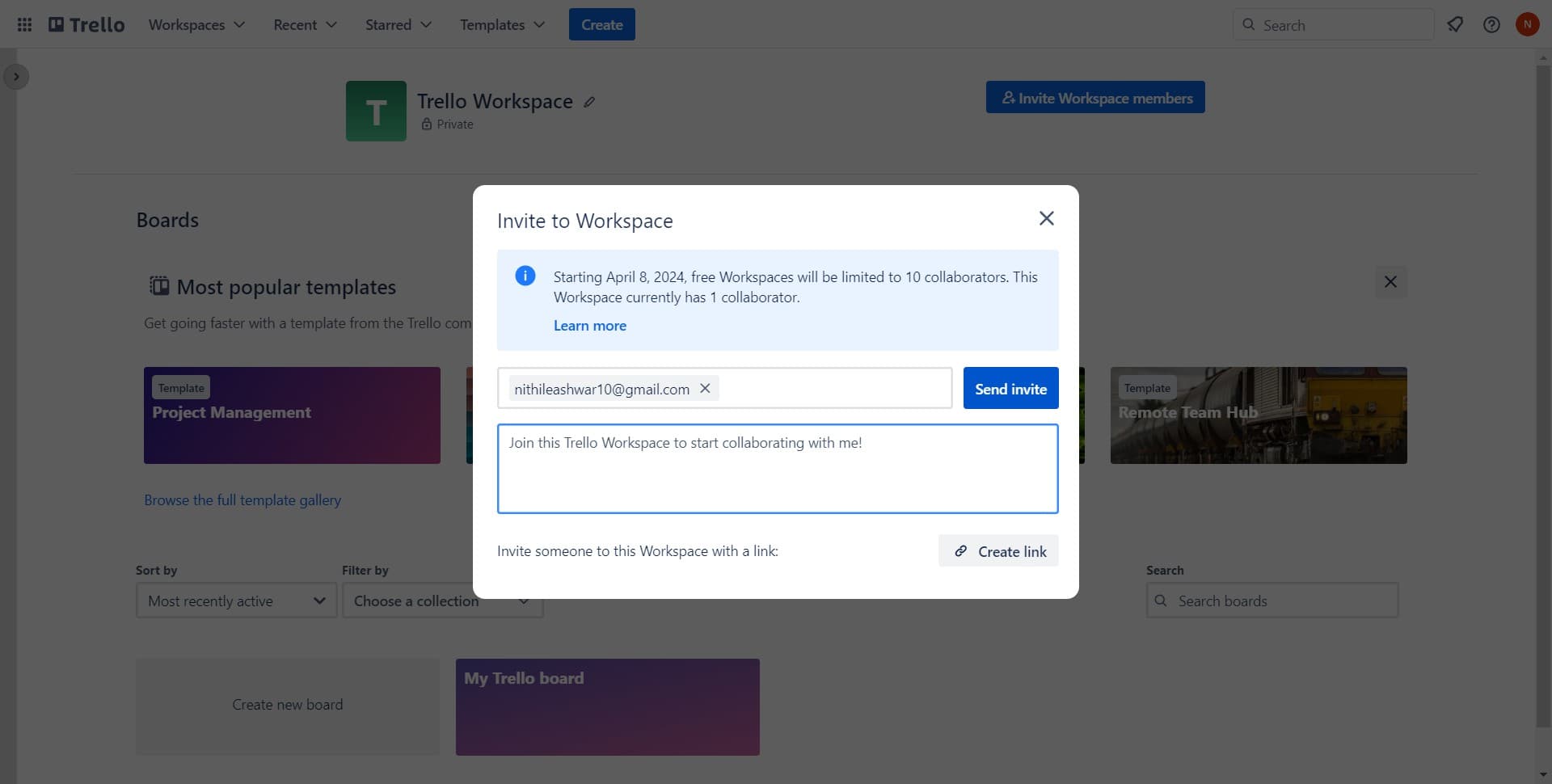
Enter the member email address
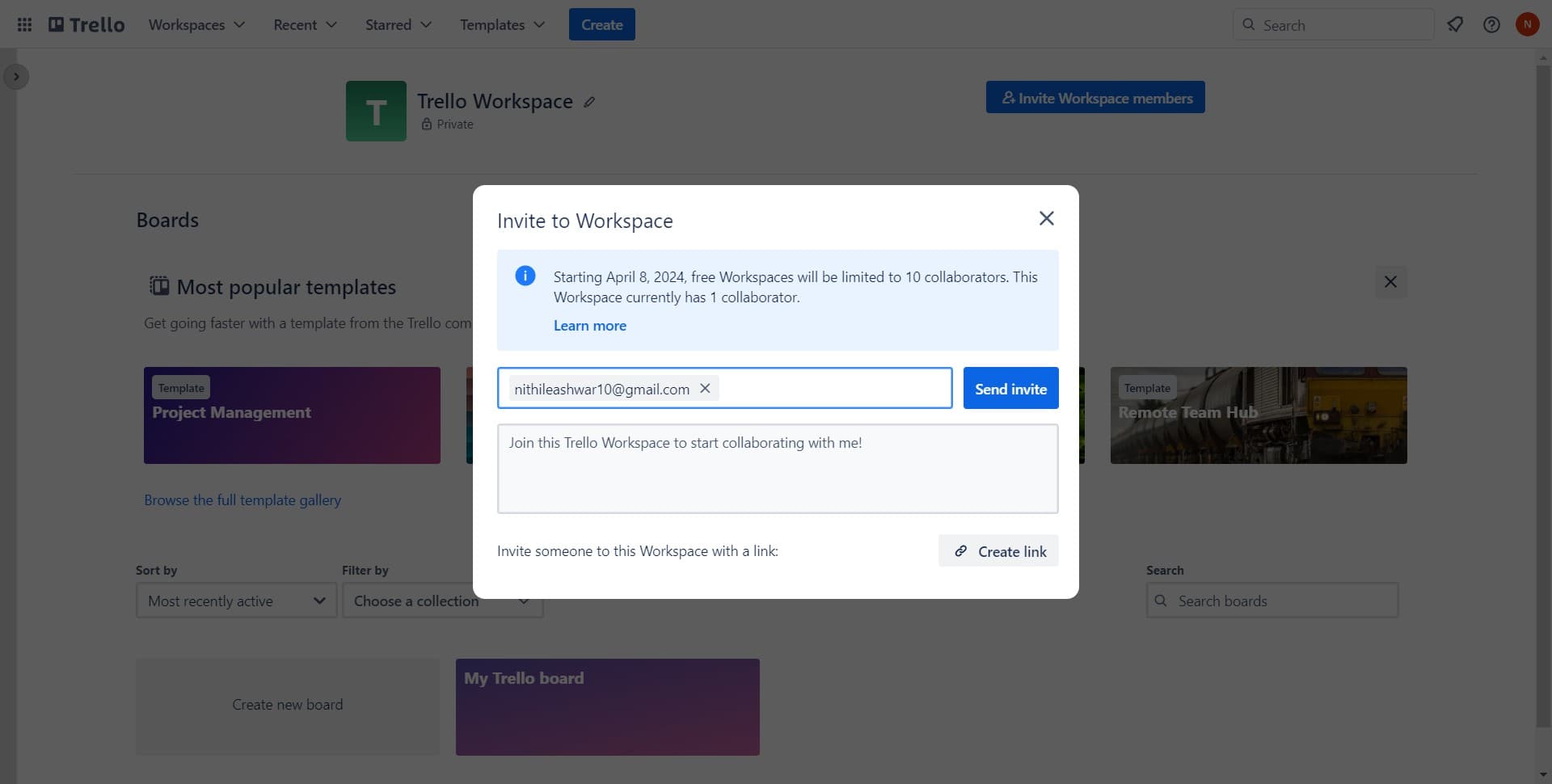
Type or select the email address of the person you want to invite, such as nithileashwar10@gmail.com. You can enter multiple addresses if inviting several members at once.
- 5
Send the workspace invitation
Click the 'Send invite' button to send the invitation to the selected member. They'll receive a notification and can accept to join your workspace.
- 6
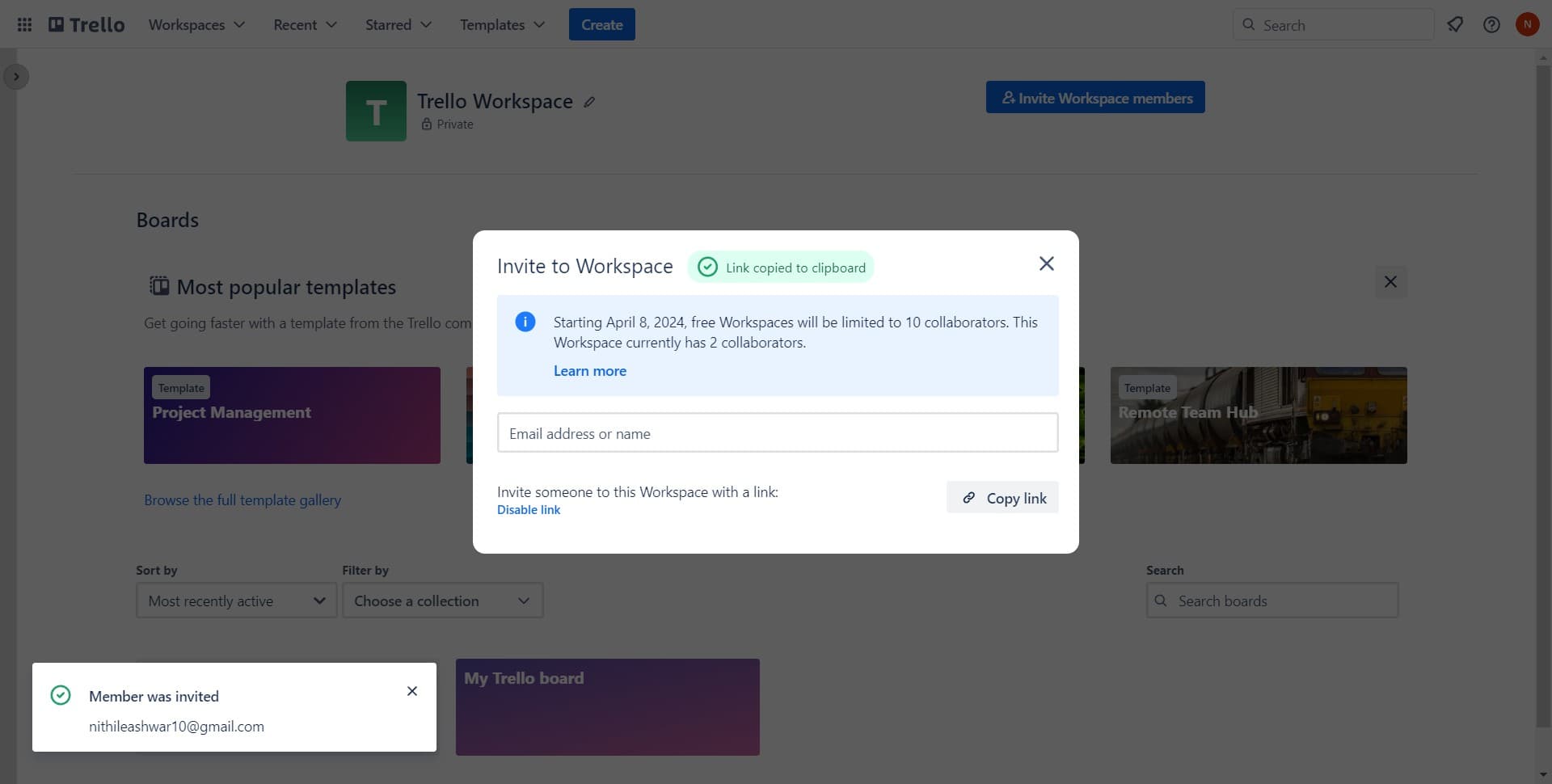
Confirm invitation completion
Click on 'Invite to Works...' to finalize the invitation process or send additional invitations. You can repeat these steps to add more team members as needed.
Frequently asked questions
Common questions about how to invite members to your trello workspace.
Yes, you can invite multiple members by entering multiple email addresses in the invitation field. Enter each email address and Trello will allow you to send invitations to all of them in a single batch. This is more efficient than inviting members one at a time.
The invited member will receive an email notification with a link to join your workspace. They can click the link to accept the invitation and gain access to all boards and cards in your workspace. Until they accept, they won't have access to your workspace content.
Yes, you can manage workspace membership by accessing the same workspace settings. Look for a members or team management option where you can remove members if needed. This is useful if someone no longer needs access to your workspace.
When members join your workspace, they can view all workspace-level boards. However, you can control access to specific boards through board-level permissions if you want to restrict visibility. This gives you flexibility in managing who sees what content.
The number of members you can invite depends on your Trello plan. Free plans have member limits, while paid plans offer higher thresholds. Check your Trello account settings or pricing page to see the specific limit for your plan level.