How to Use Branching and Calculations in Typeform

Typeform's branching and calculation features enable you to create dynamic, personalized forms that adapt to user responses and perform real-time computations. This capability transforms static surveys into intelligent data collection tools that guide respondents down different paths based on their answers and automatically calculate values like scores, totals, or eligibility metrics.
Quick summary
In this tutorial, you'll learn how to set up branching logic to show or hide questions based on previous responses, and how to use calculation fields to automatically compute values within your Typeform. By the end, you'll be able to create conditional form flows and add dynamic calculated fields that enhance user experience and data quality.
Why this matters
Branching and calculations reduce form abandonment by showing only relevant questions, saving respondent time and improving completion rates. These features also eliminate manual data processing by automatically computing results—whether scoring quizzes, calculating totals, or determining eligibility—ensuring accuracy and allowing you to gather insights more efficiently.
Step-by-step guide
- 1
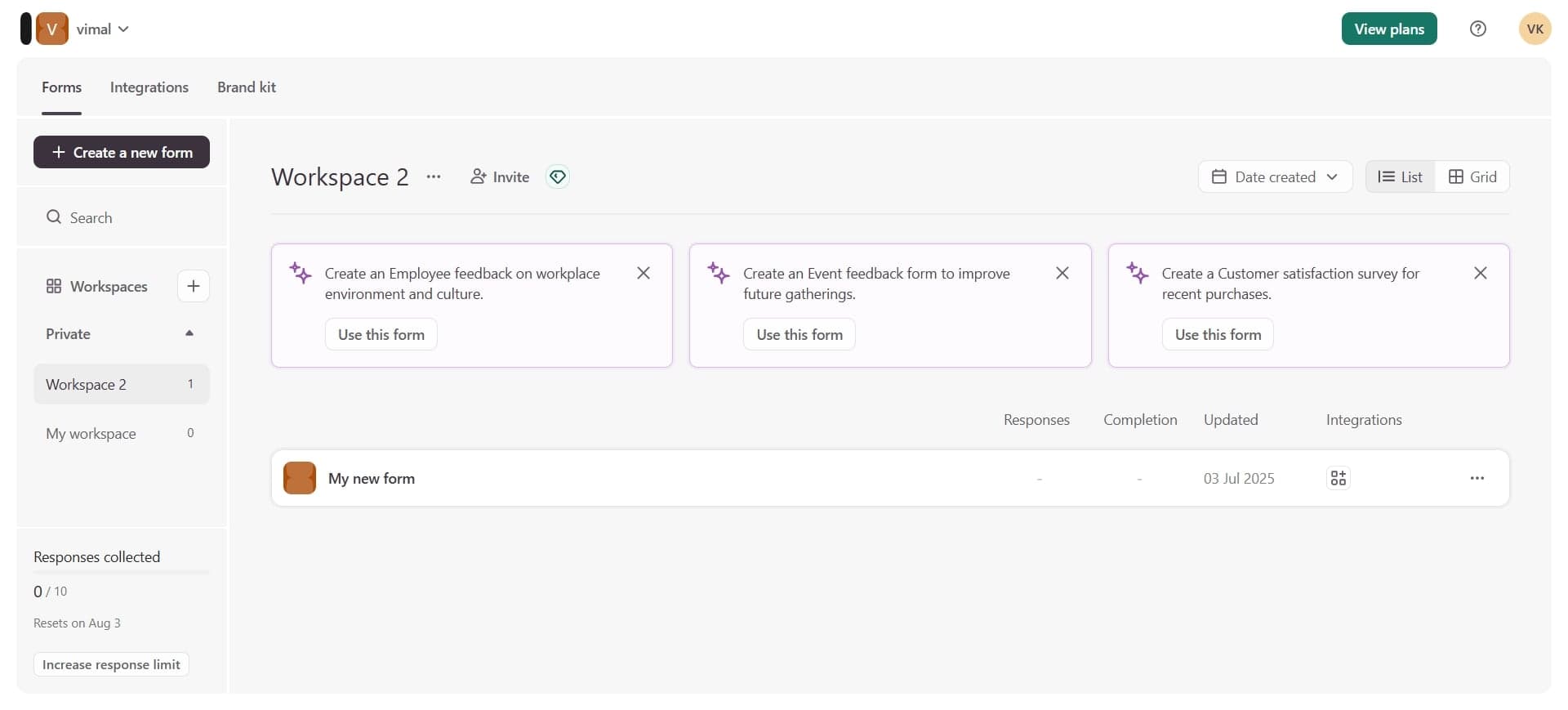
Access your Typeform form
Open Typeform and select the form you want to edit, or create a new form from scratch. You'll be taken to the form builder interface where you can add and configure questions.
- 2
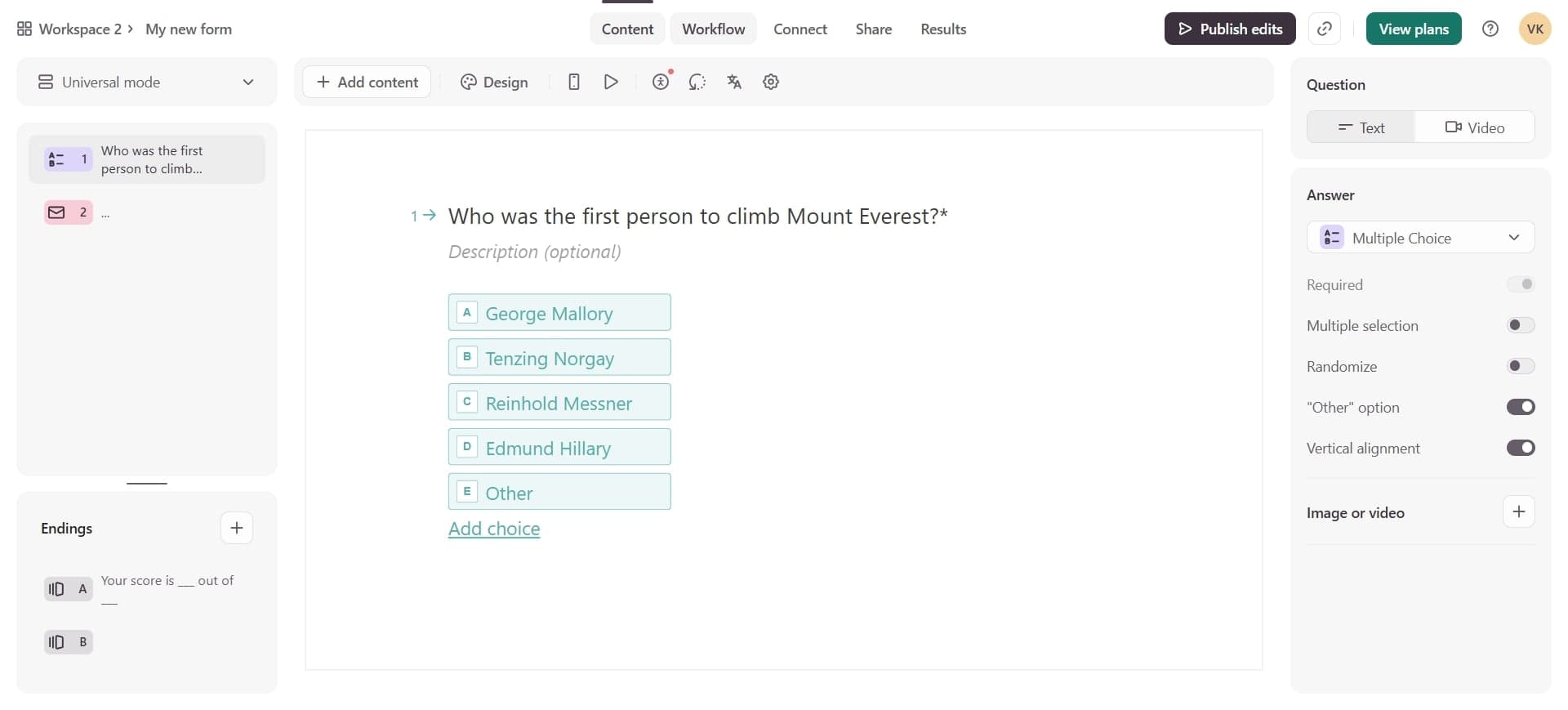
Add questions to your form
Insert the questions that will serve as triggers for your branching logic. Use various question types such as multiple choice, dropdown, or rating scales depending on your form's purpose.
- 3
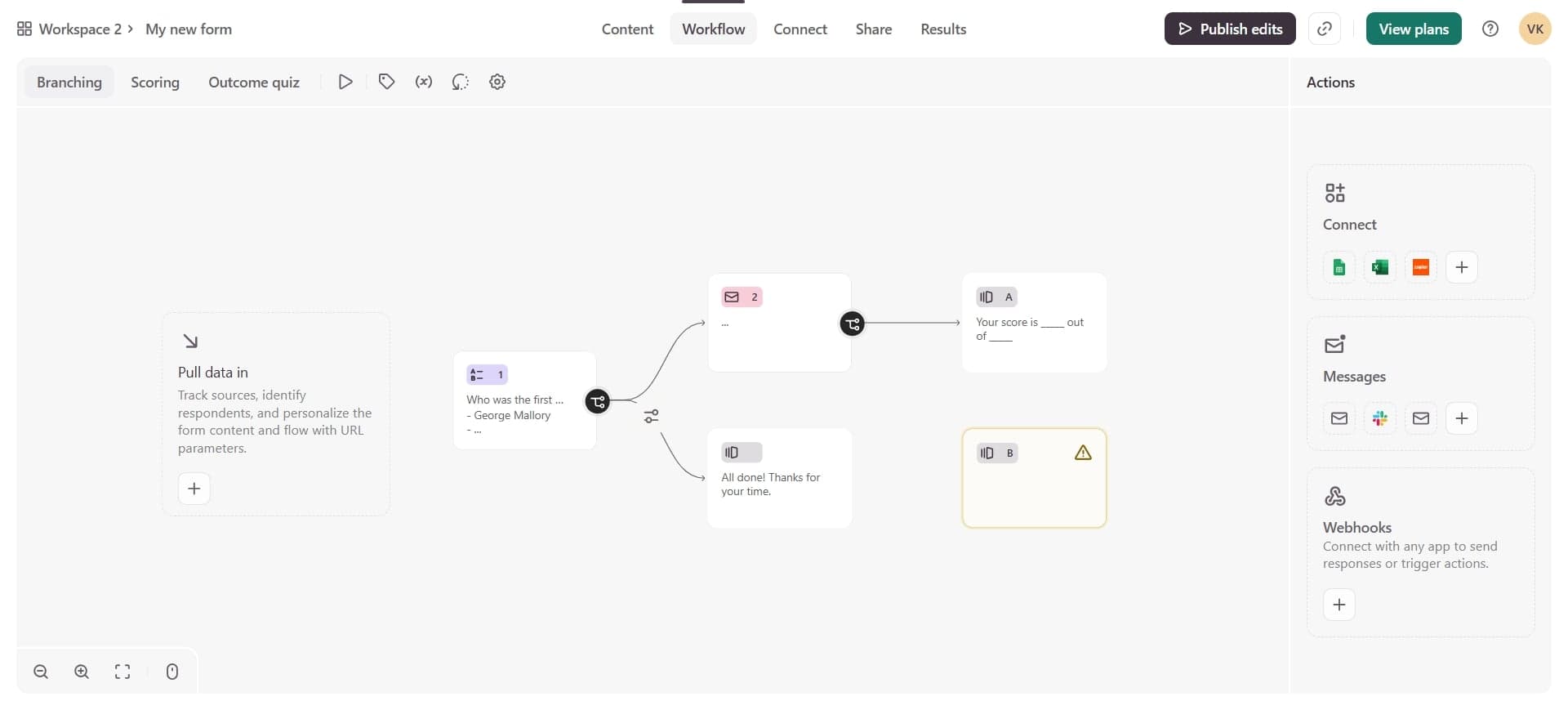
Click on a question to configure it
Select the question that will determine the branching path. This is typically the question whose answer you want to use as a condition for showing or hiding subsequent questions.
- 4
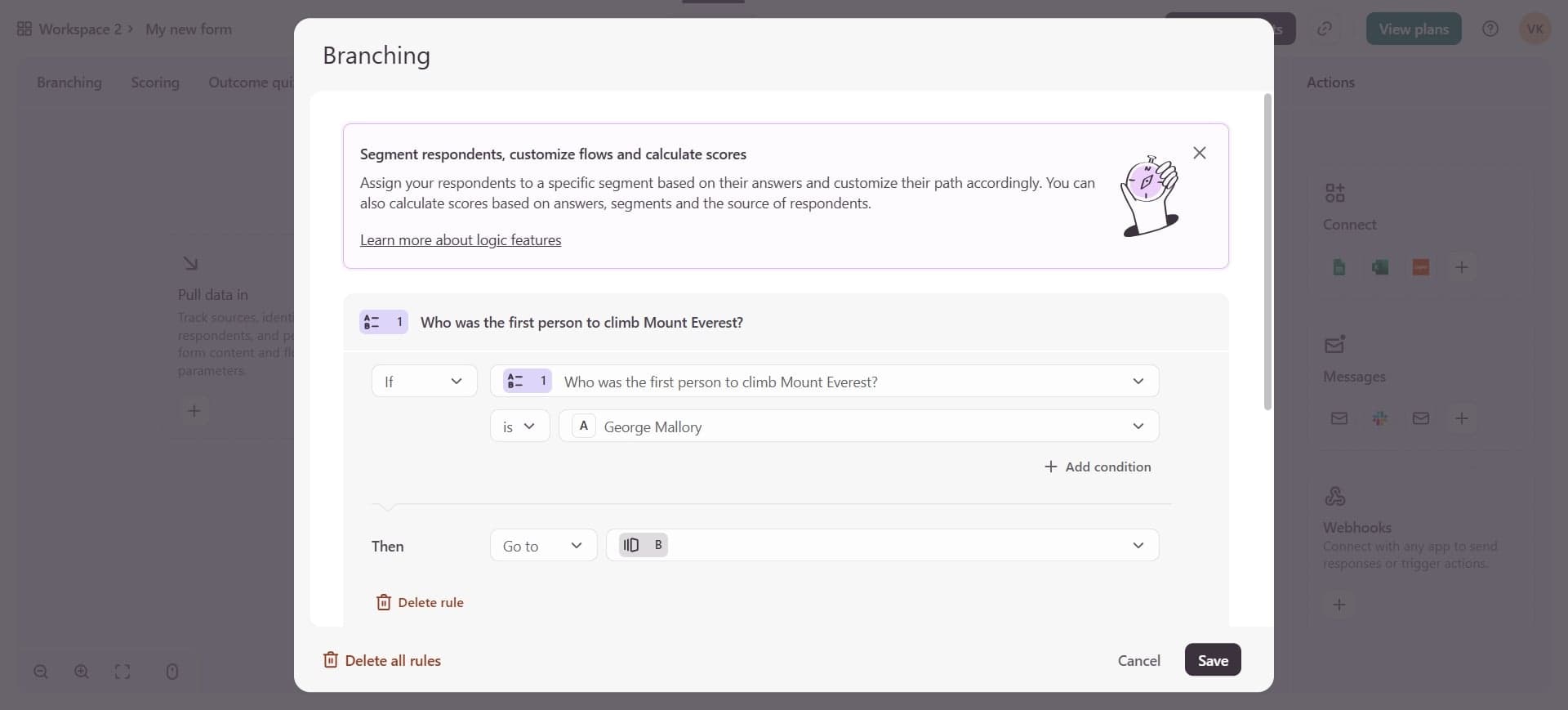
Enable branching on the question
Look for the branching option in the question settings panel. Toggle or click to activate branching, which allows you to set conditional logic based on the respondent's answer.
- 5
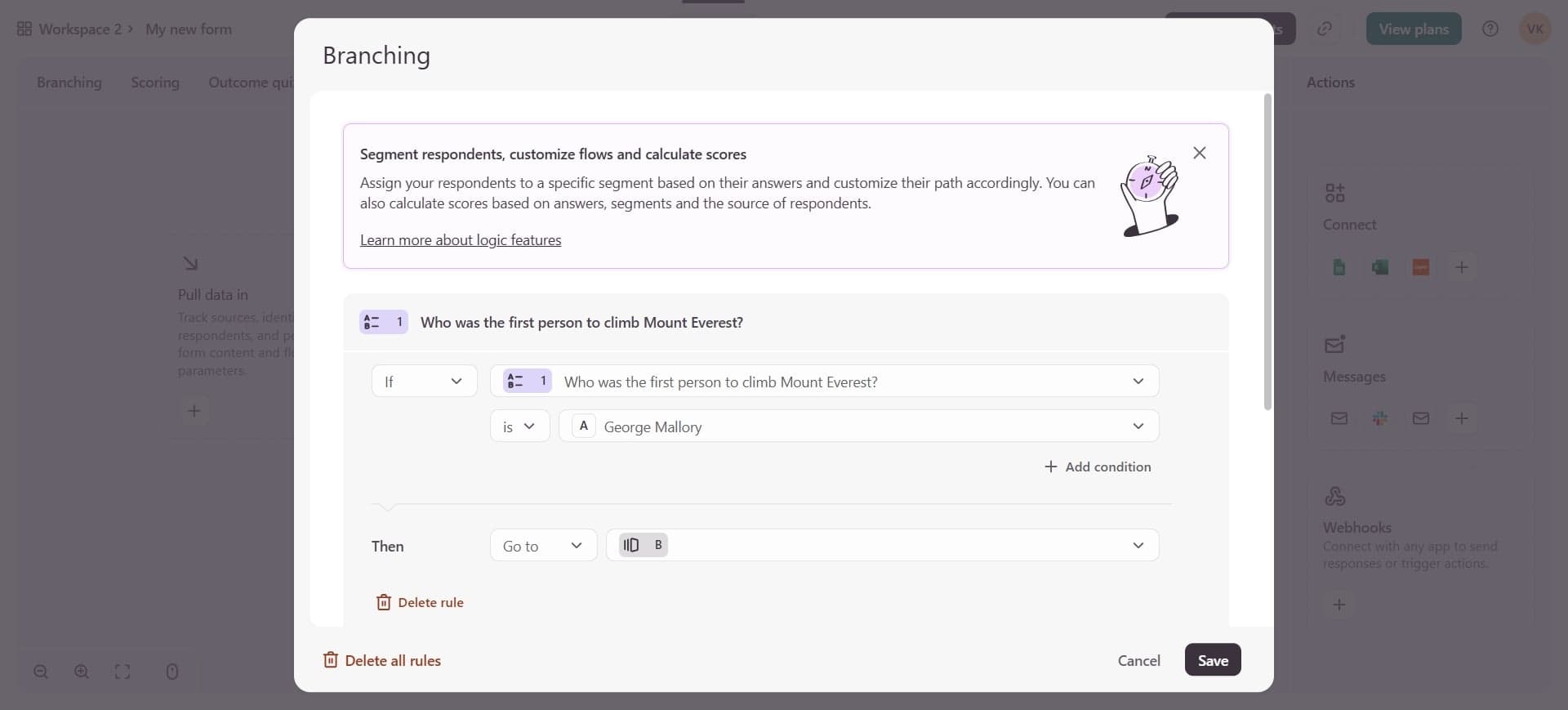
Set up branching conditions
Define which answer options lead to which questions or form sections. For example, you can set it so that answering 'Yes' shows Question 5, while answering 'No' skips to Question 8.
- 6
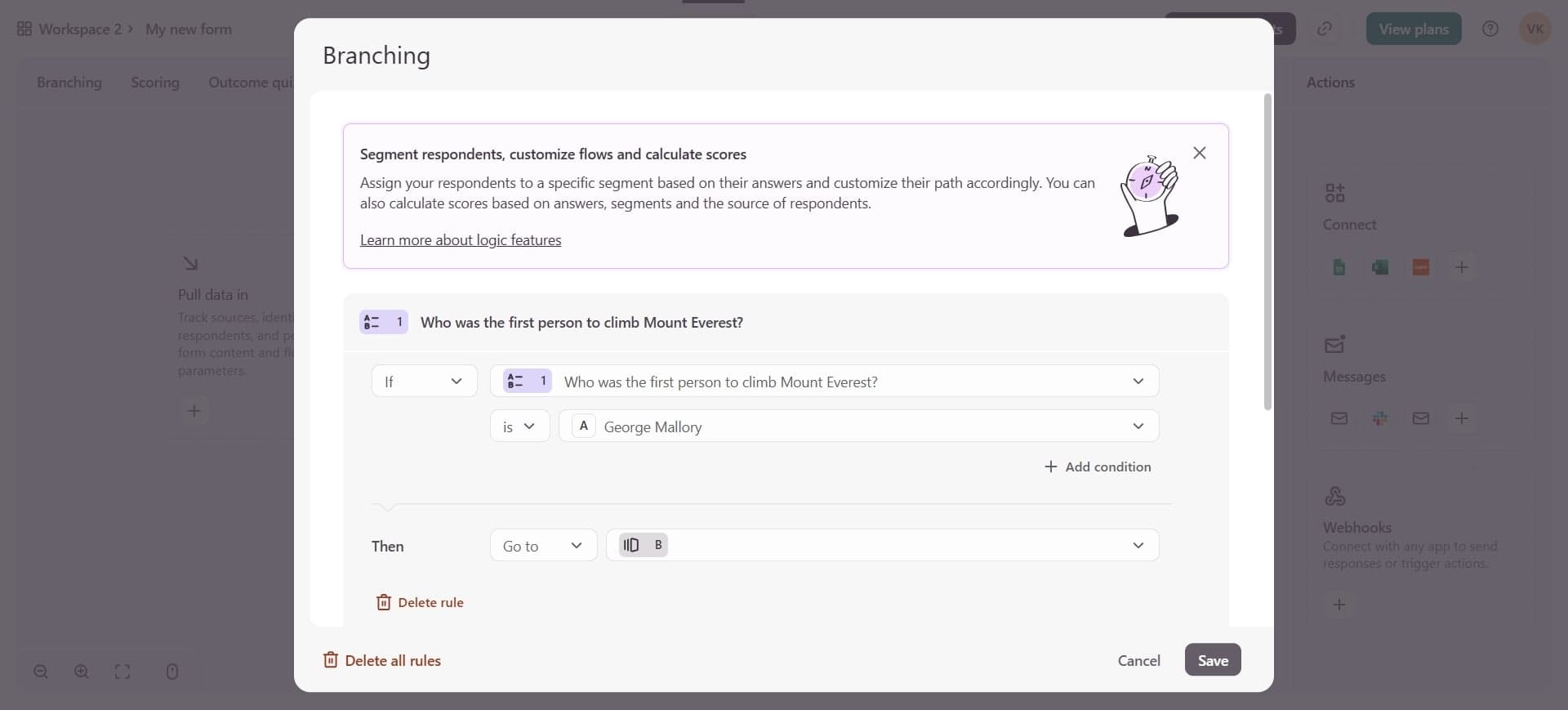
Add a calculation field to your form
Insert a new field and select the calculation or score type. This field will automatically compute values based on answers from other questions in the form.
- 7
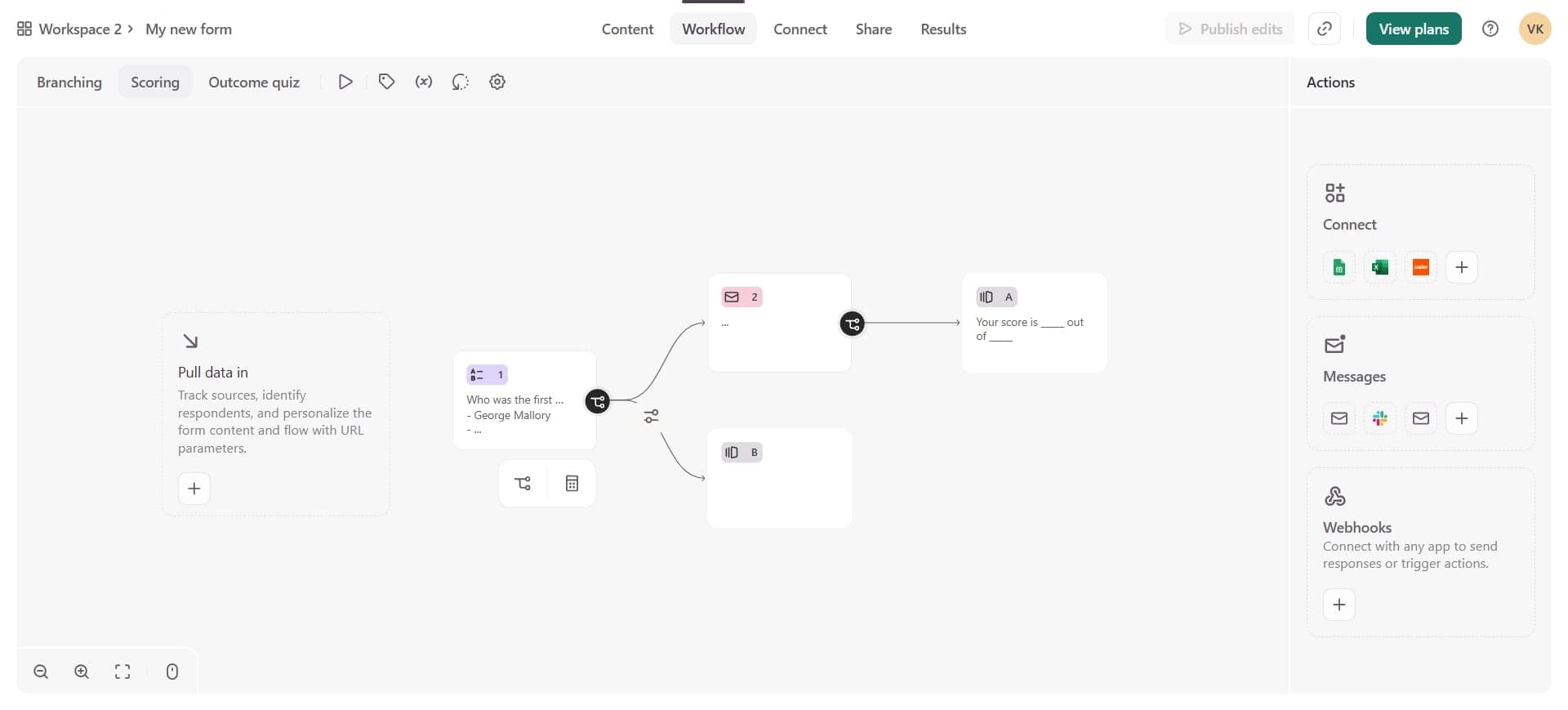
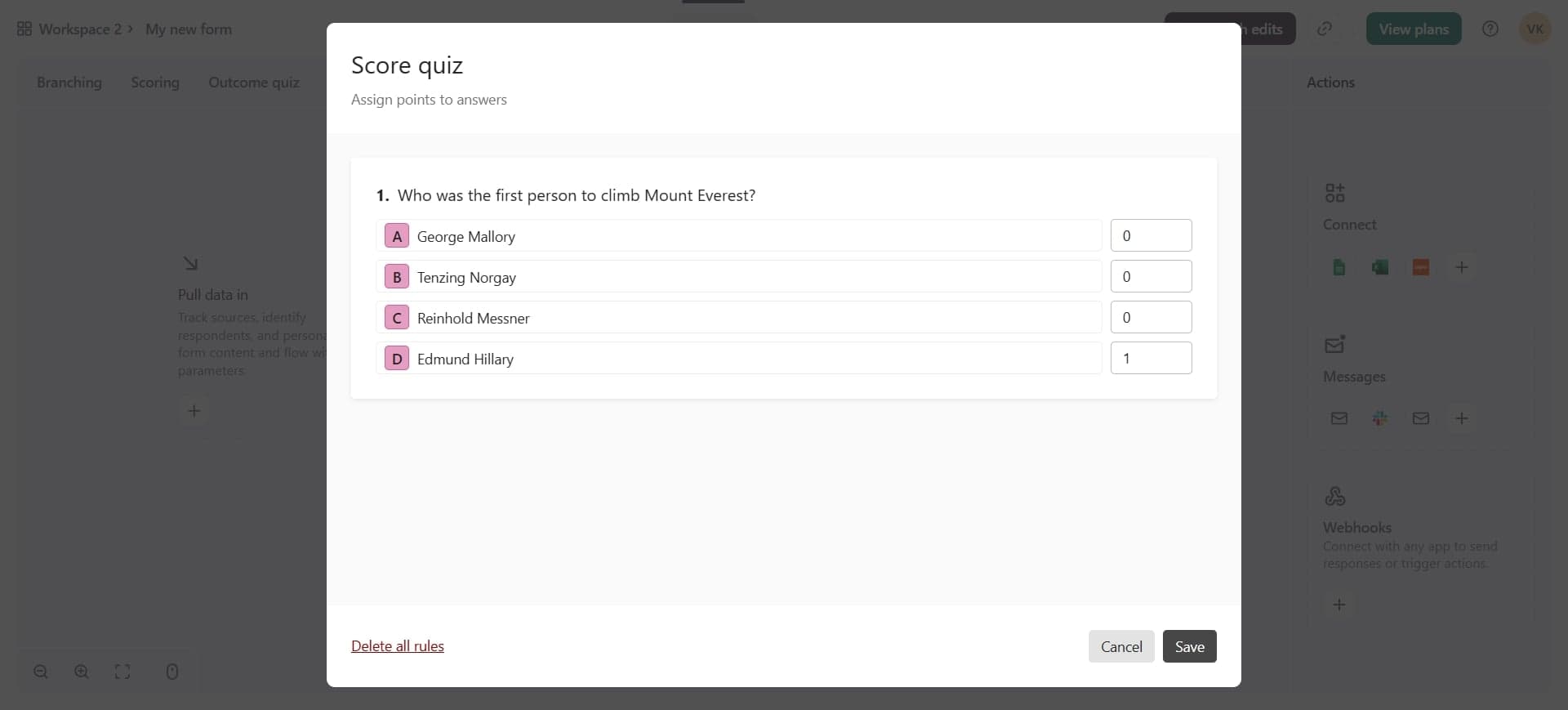
Configure the calculation logic
Set up the formula or scoring rules for your calculation field. You can assign point values to answers, sum multiple responses, or perform arithmetic operations based on user input.
- 8
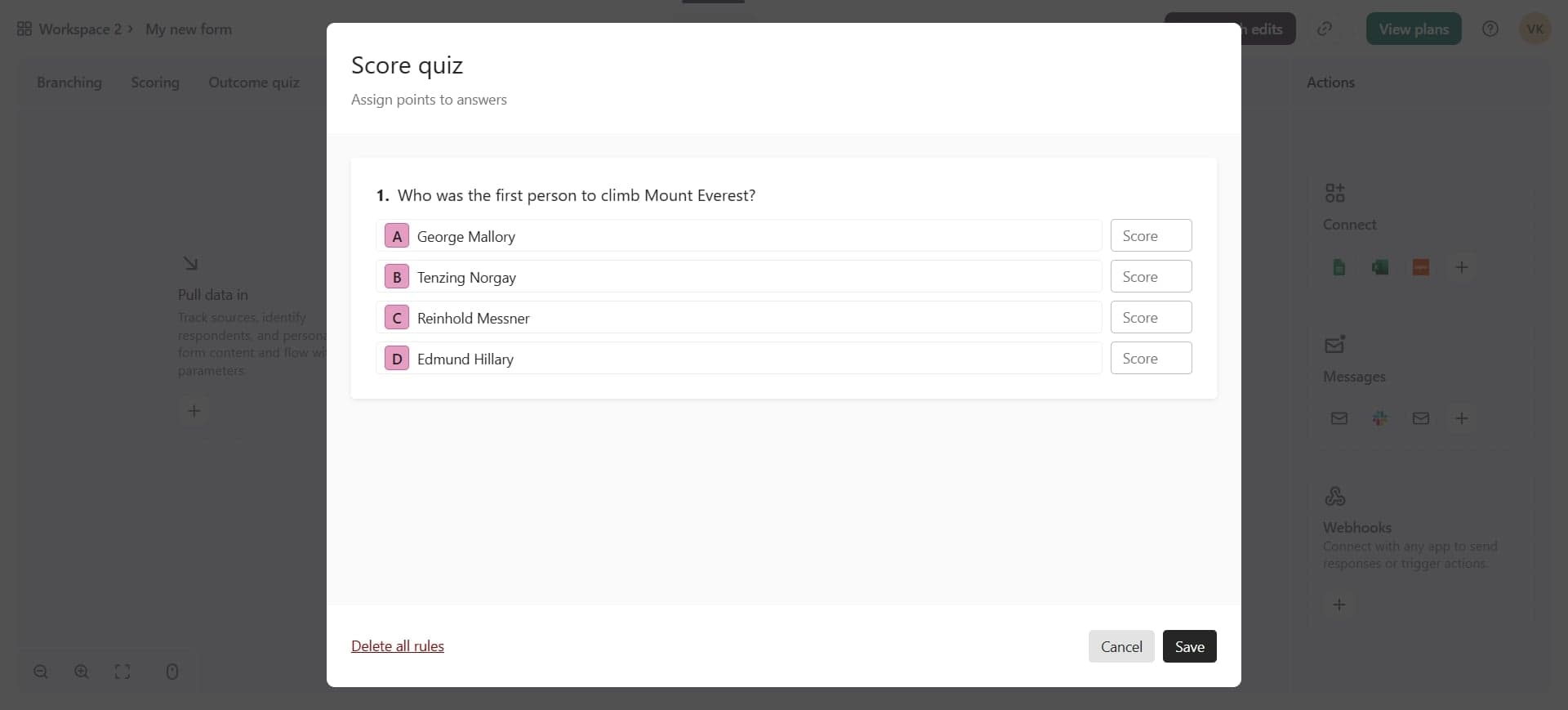
Preview your form with branching
Use the preview feature to test your form by completing it as different respondents would. Verify that branching logic works correctly and calculations display accurate results for each response path.
- 9
Publish your form
Once you're satisfied with the branching and calculations, publish your form and share it with your audience. Your form is now ready to dynamically adapt to respondents and automatically compute results.
Frequently asked questions
Common questions about how to use branching and calculations in typeform.
Yes, Typeform allows you to set up complex branching logic with multiple conditions. You can create branches for each answer option and even combine conditions to route respondents to different sections based on combinations of answers.
You can create scoring calculations for quizzes, sum responses from multiple questions, calculate averages, perform conditional math based on answer values, and assign point values to different options. Calculations can reference any previous question in your form.
Yes, calculation fields can be displayed to respondents to show them their score, total, or computed result immediately after they submit the form or reach that point. You can also hide calculations if you only want to use them for your own data analysis.
Typeform's preview feature lets you test your form by selecting different answer options and verifying that the correct branching paths appear. Go through multiple scenarios to ensure all conditional logic works as intended before sharing the form with respondents.
Yes, branching allows you to skip one question or multiple questions and entire sections. You can route respondents directly to the end of the form or to a specific group of questions based on their answers, significantly reducing form length for irrelevant respondents.