How to Publish Changes to a Typeform

Publishing changes to your Typeform ensures that all updates—from form logic to design tweaks—are live and accessible to respondents. This guide walks you through the process of reviewing and publishing your modifications to make them immediately available to your audience.
Quick summary
In this tutorial, you'll learn how to navigate the publishing workflow in Typeform, verify your changes are correct, and deploy them to your live form. By the end, you'll understand how to manage form updates efficiently and ensure your audience sees the latest version.
Why this matters
Publishing changes promptly keeps your form current and ensures respondents interact with your intended design and logic. Without publishing, modifications remain in draft mode and won't affect live responses, potentially leading to outdated data collection or broken user experiences.
Step-by-step guide
- 1
Access your form editor
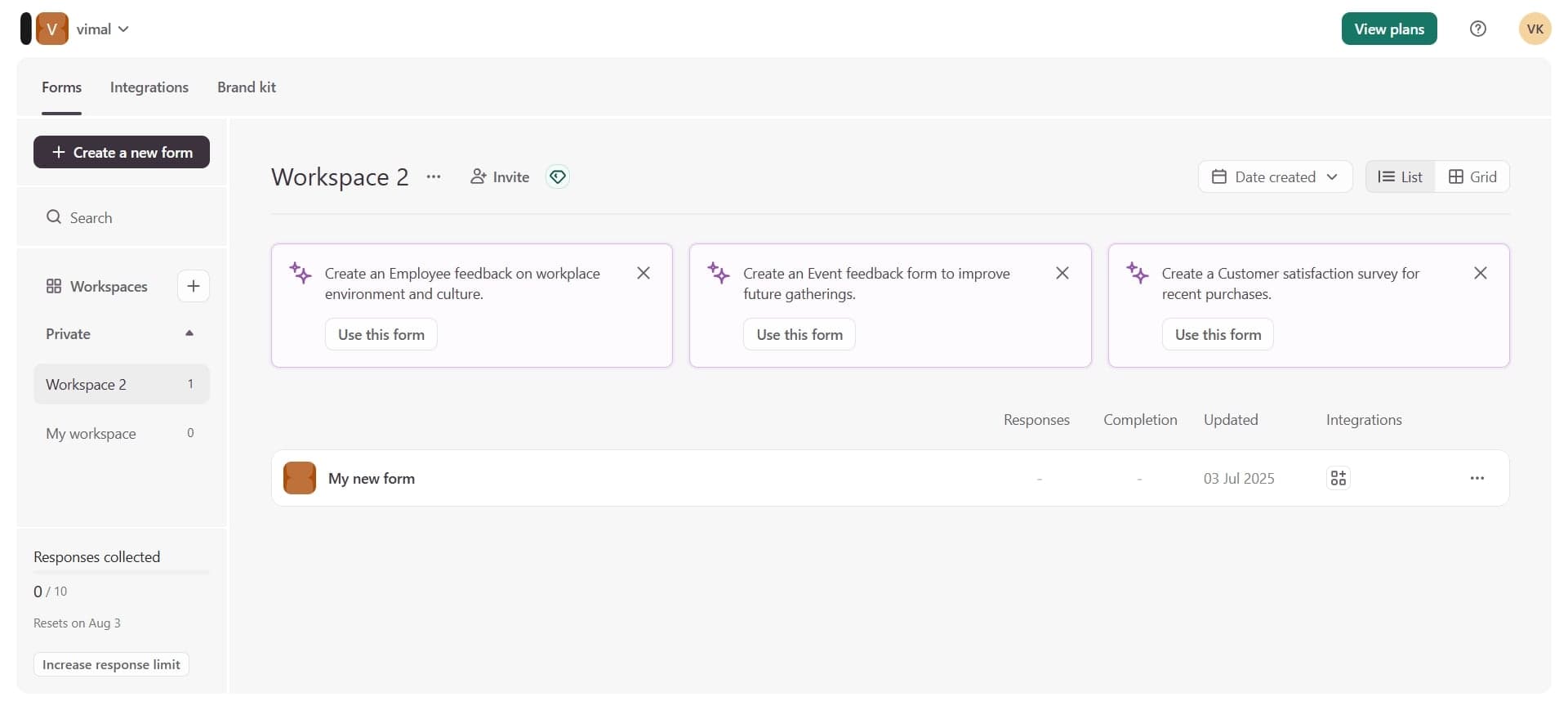
Open Typeform and select the form you want to update. You'll be taken to the form editor where all your questions and settings are displayed.
- 2
Review your changes
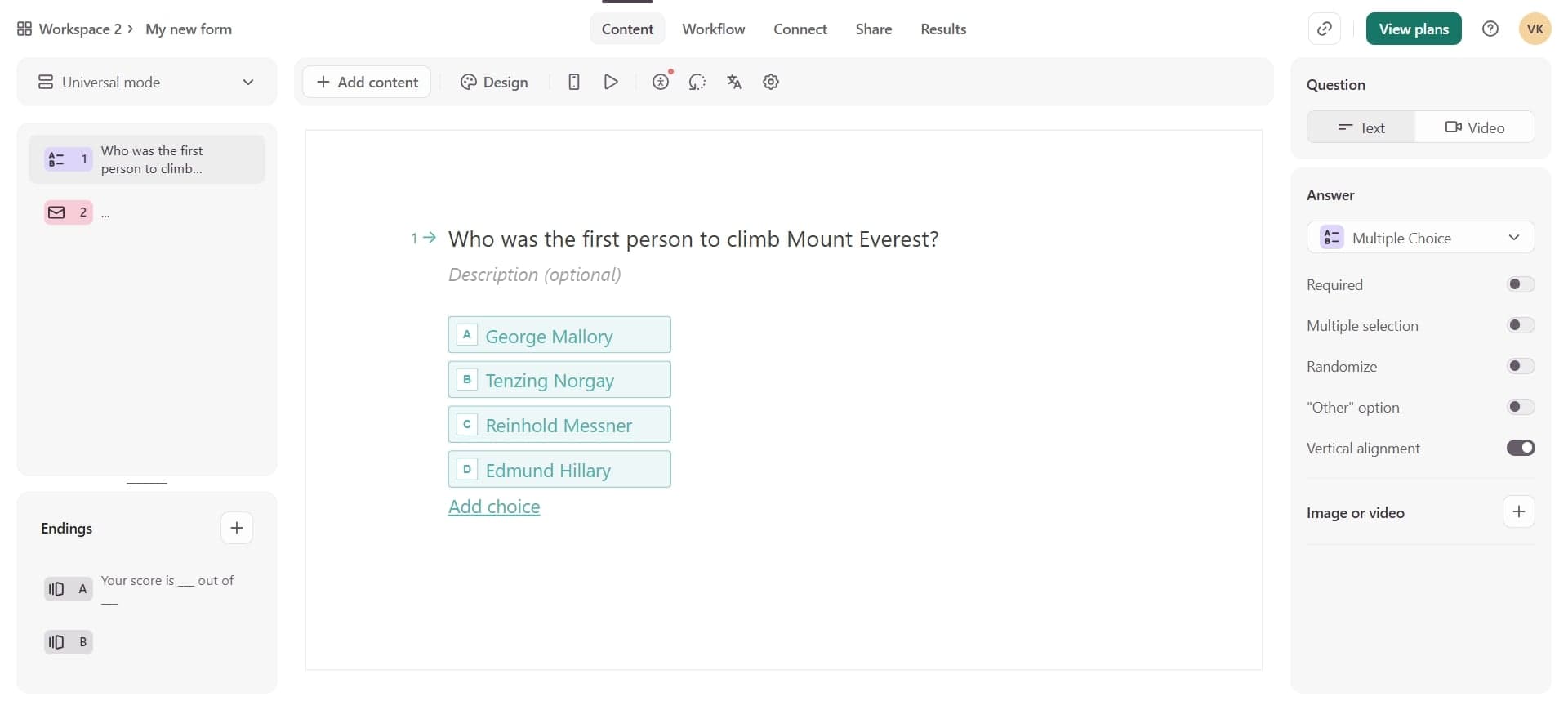
Go through each section of your form to confirm all modifications are correct, including question text, answer options, logic rules, and design elements. This verification step prevents publishing unintended changes.
- 3
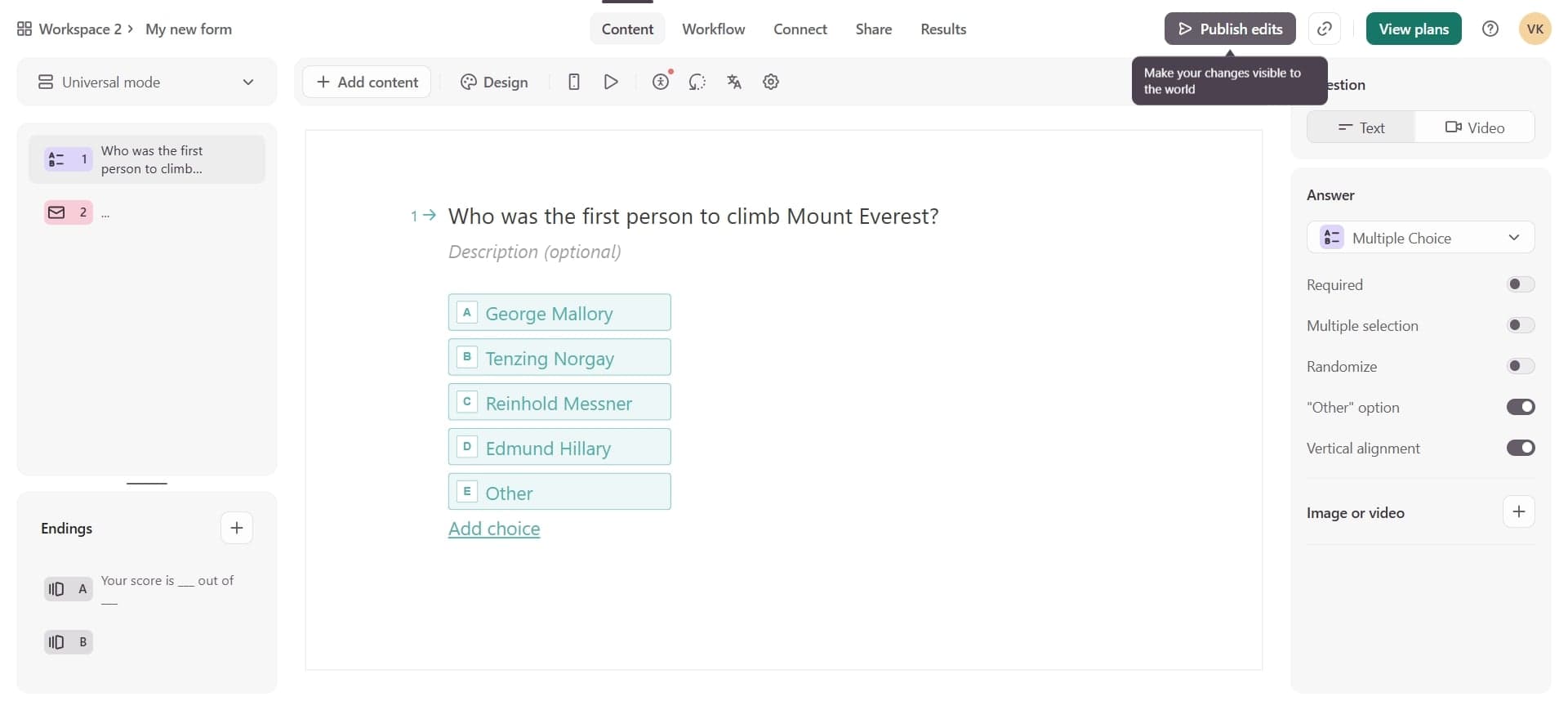
Locate the publish button
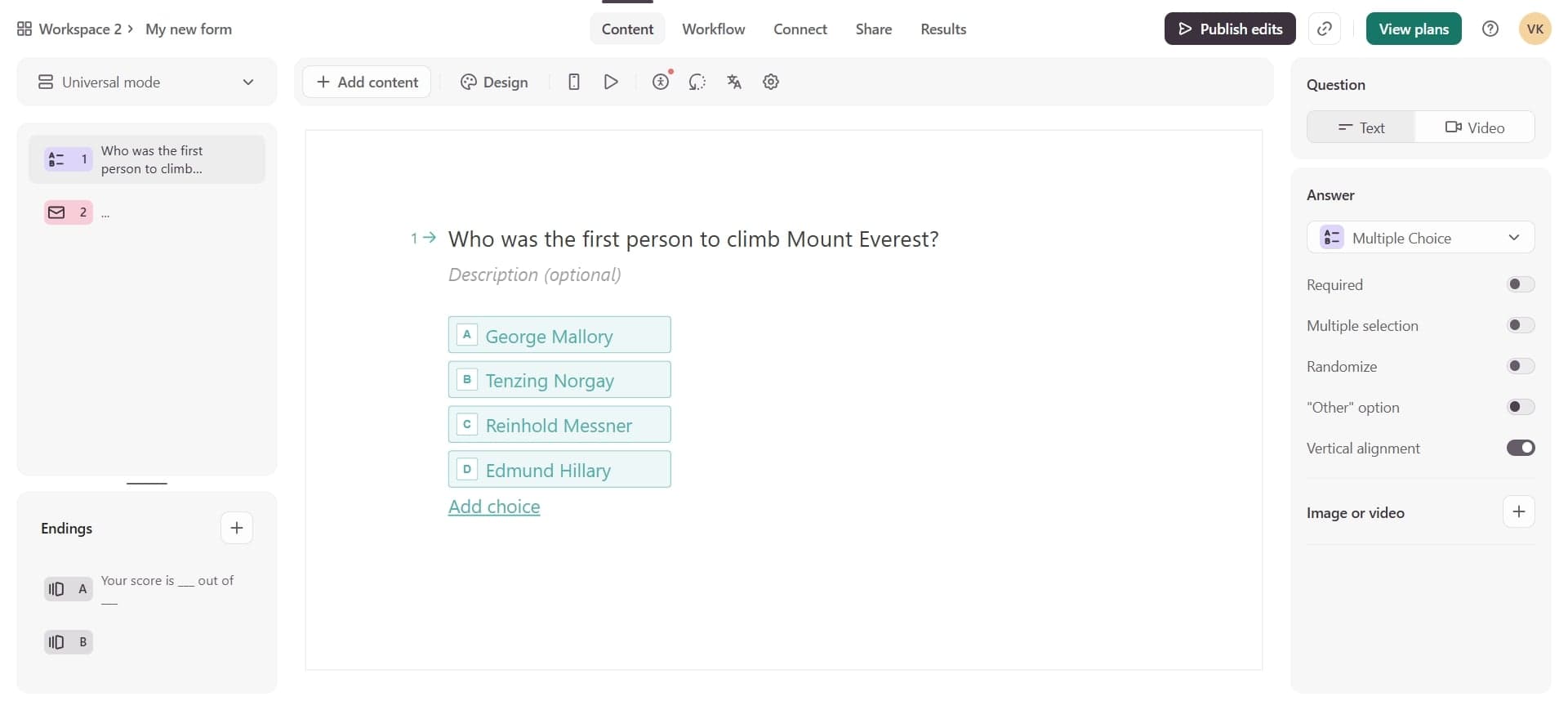
Look for the publish option in the top navigation bar or editor interface. This button is typically prominent to make the publishing action easy to find.
- 4
Click publish to deploy
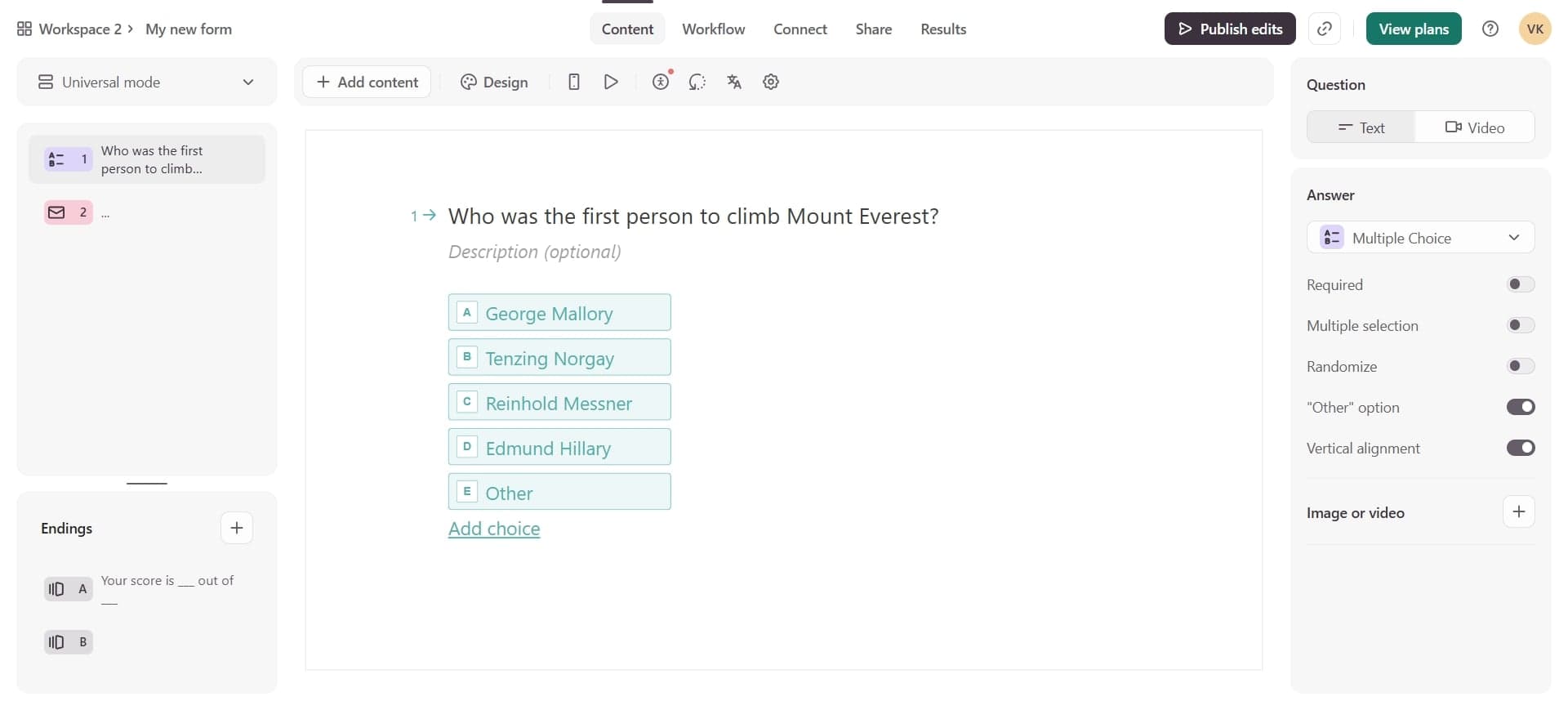
Select the publish button to deploy your changes to the live form. Typeform will confirm the action and your updates will be immediately available to respondents.
- 5
Verify publication status
Check the form status indicator to confirm your changes have been published successfully. You may see a confirmation message or timestamp showing when the update was deployed.
Frequently asked questions
Common questions about how to publish changes to a typeform.
Existing responses remain unchanged and unaffected by new form updates. Only future respondents will see the updated version of your form. Your historical data stays intact regardless of publishing new changes.
Yes, you can make additional changes and republish at any time. If you need to revert to a previous version, Typeform offers version history in some plans, allowing you to restore earlier form states.
Changes are typically live within seconds of publishing. Respondents accessing your form link will see the updated version immediately, though there may be minor delays due to caching on some browsers.
Notification is optional and depends on your use case. For minor updates, notification may not be necessary. However, for significant changes to logic or questions, informing respondents ensures they understand any modifications to the form they're completing.
You can continue working in draft mode without publishing. Your changes will be saved automatically, and you can come back later to review and publish them. Only published versions are visible to your respondents.