How to host a meeting in Zoom via browser

Hosting a meeting in Zoom via your web browser is a quick and convenient alternative to downloading the desktop application. This method allows you to start meetings immediately without installation, making it ideal for users who need flexibility or have device restrictions.
Quick summary
In this tutorial, you'll learn how to host a Zoom meeting directly from your browser. You'll navigate through the Host options, disable your video, and join the meeting using your computer's audio—all without leaving your browser.
Why this matters
Browser-based Zoom hosting eliminates setup friction and works across any device with internet access. This approach is particularly valuable for remote teams, quick stand-ups, or situations where downloading software isn't feasible, ensuring you can start meetings in seconds.
Step-by-step guide
- 1
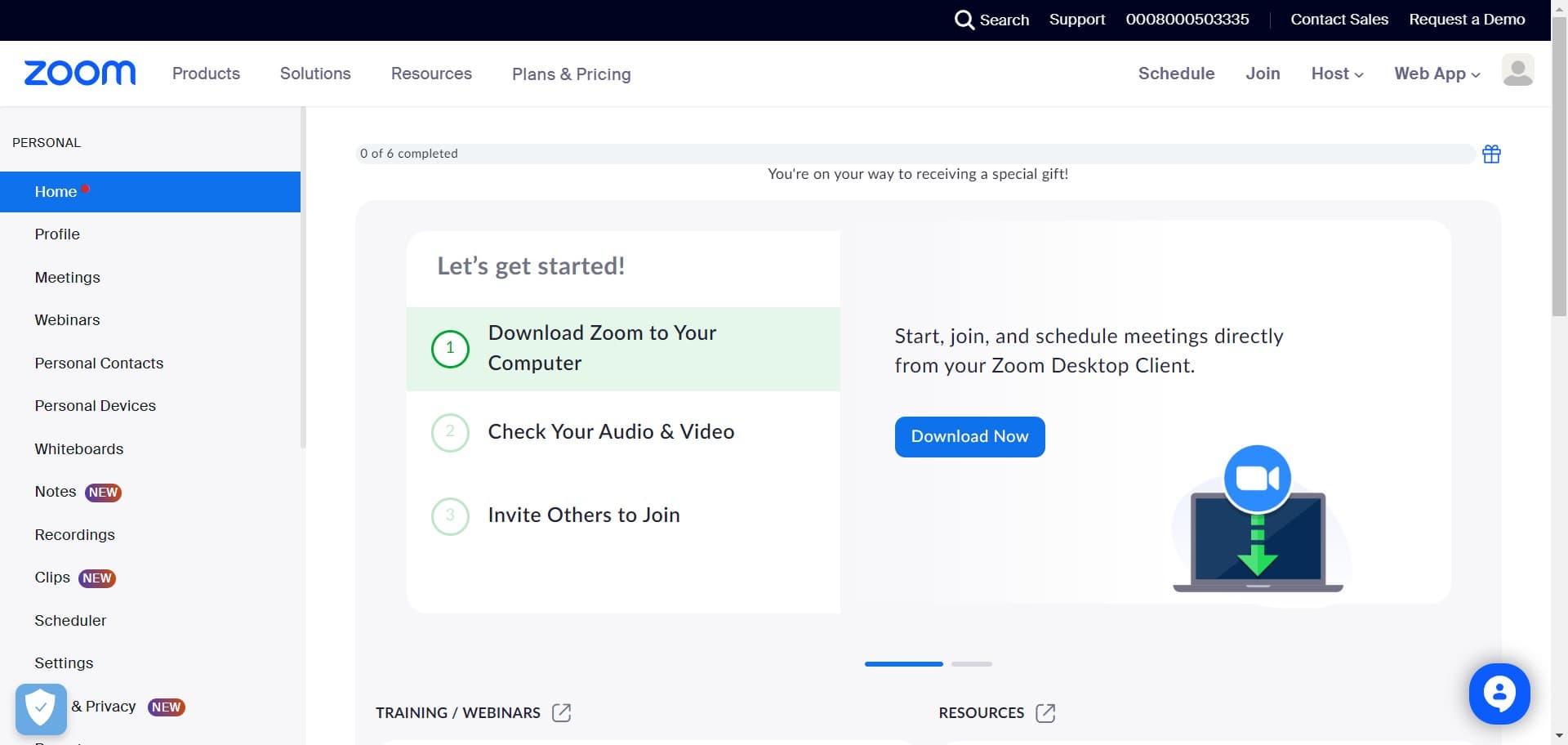
Click on Host
Locate and click the Host button on your Zoom dashboard or home page. This initiates the meeting hosting process and presents you with options for starting your session.
- 2
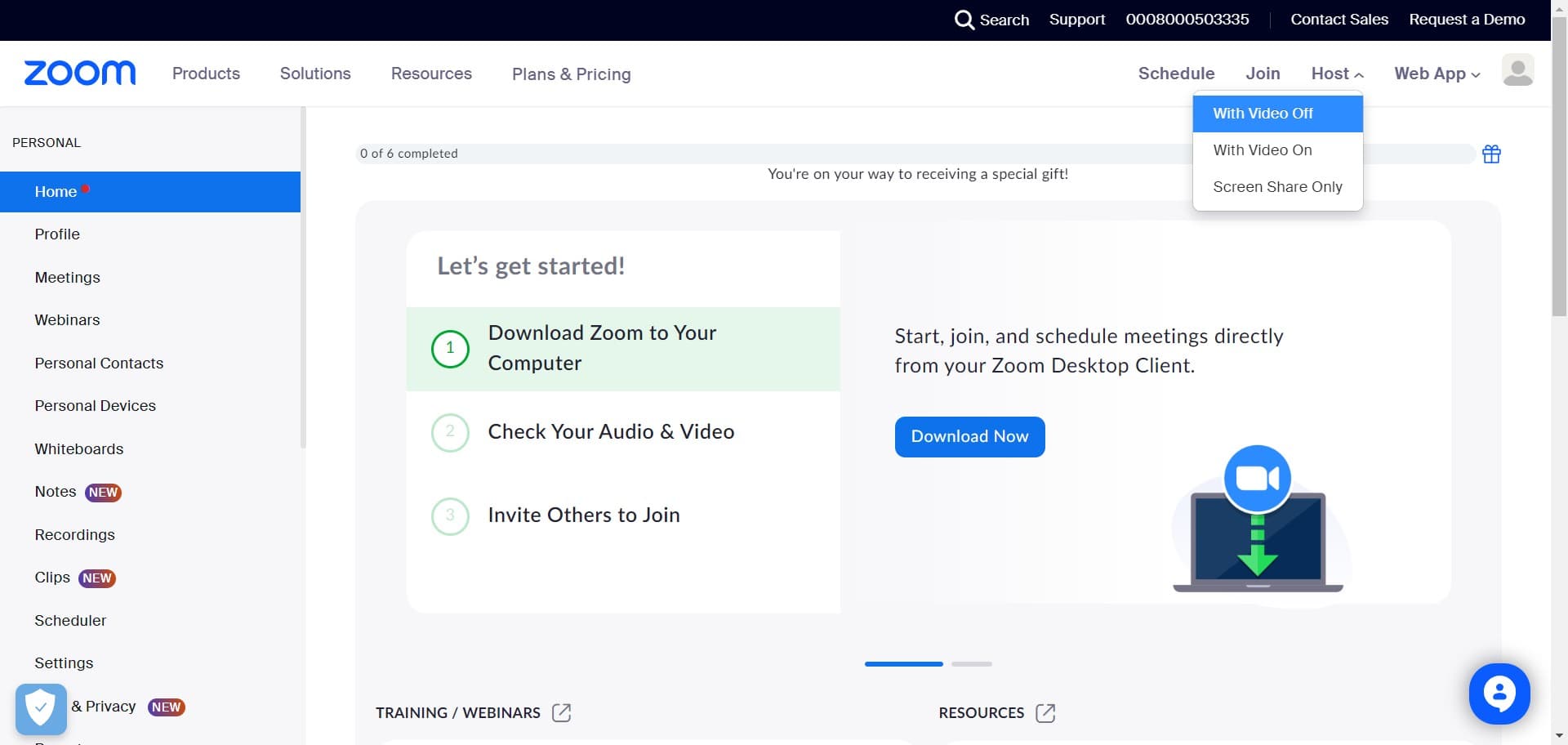
Click on With Video Off
Select the With Video Off option to start your meeting without enabling your camera. This is useful if you prefer privacy or want to conserve bandwidth at the beginning of your session.
- 3
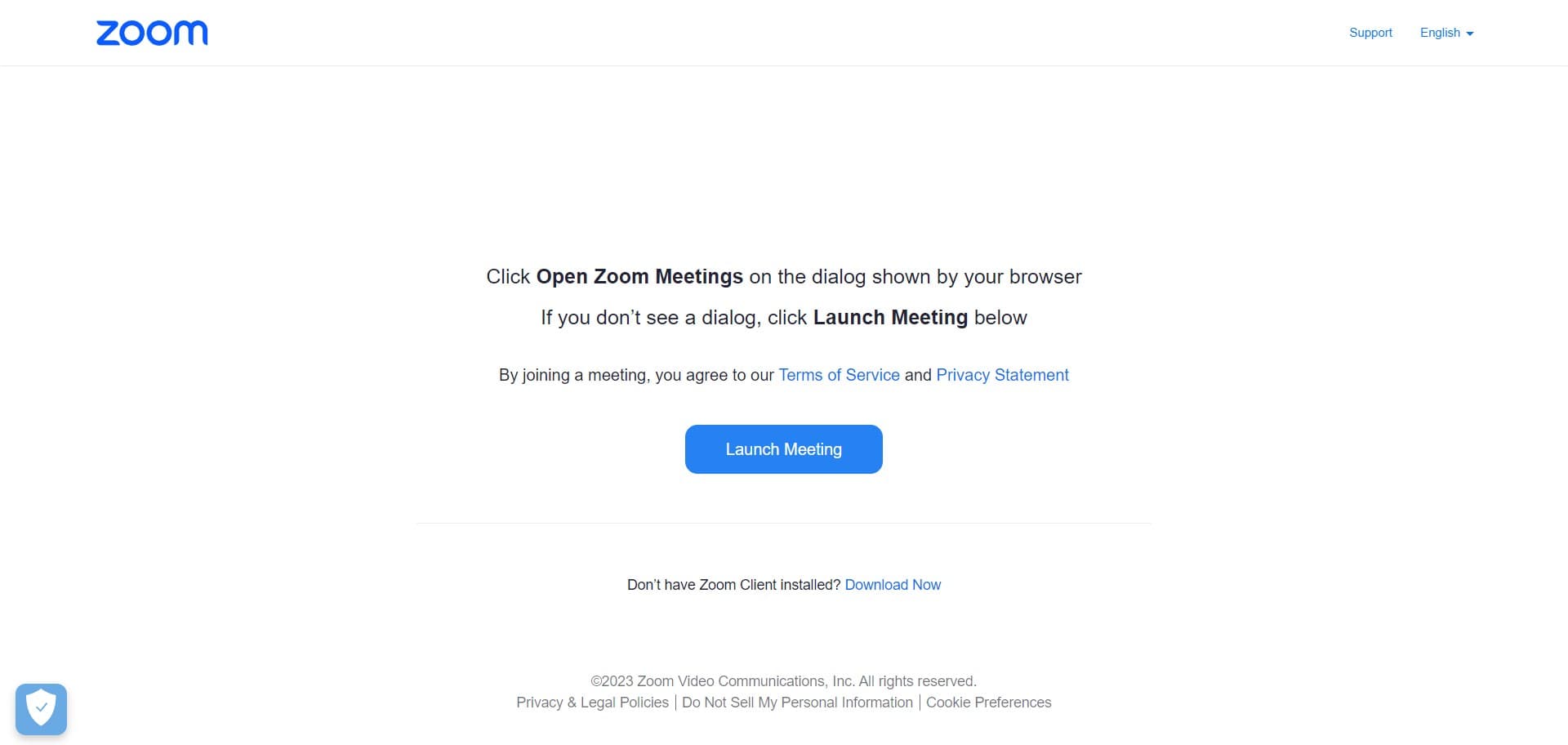
Click on Launch Meeting
Click the Launch Meeting button to proceed with creating your meeting instance. Zoom will begin preparing your meeting room.
- 4
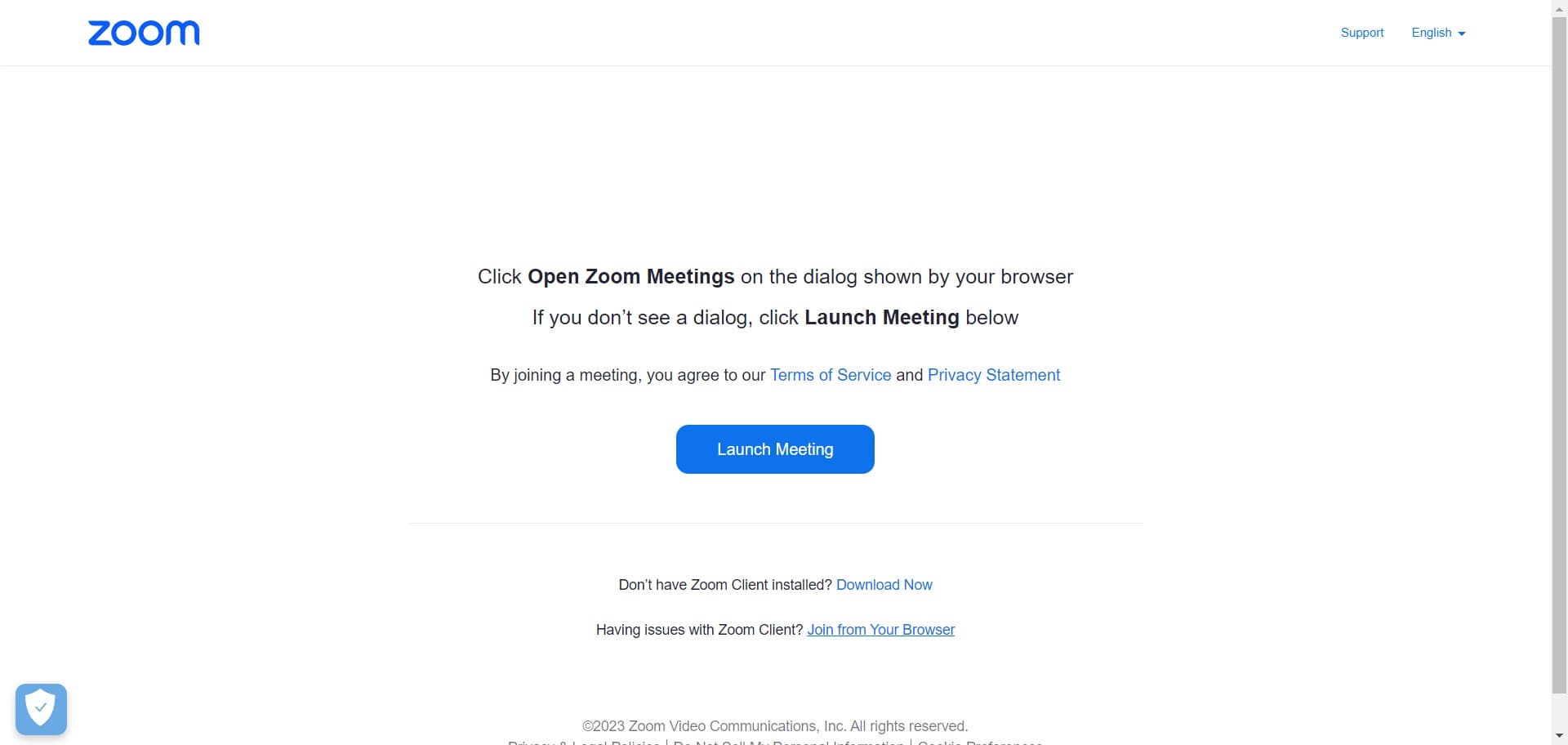
Click on Join from Your Browser
When prompted, select the option to join from your browser instead of downloading the Zoom client. This keeps your meeting entirely within your web browser without additional installations.
- 5
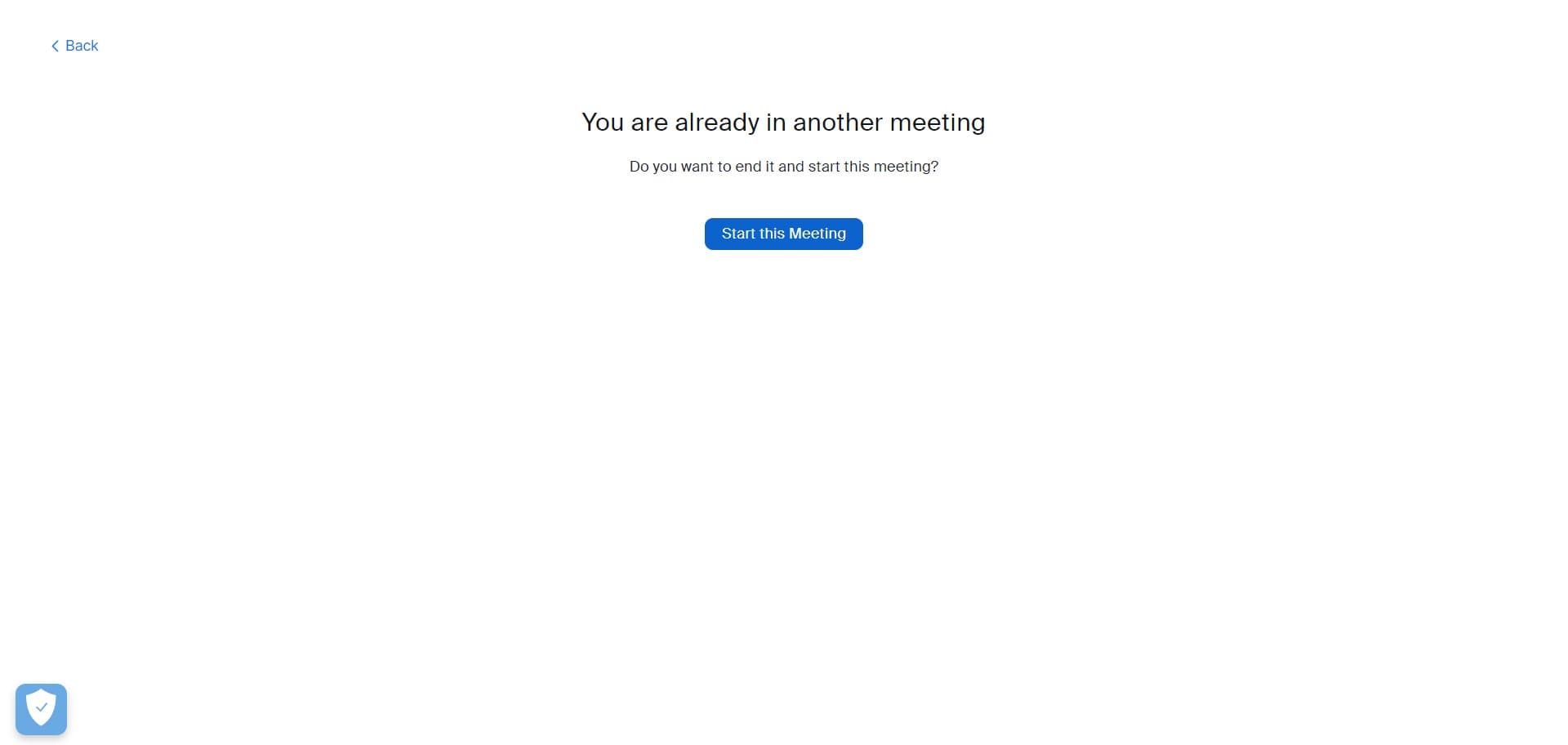
Click on Start this Meeting
Click the Start this Meeting button to activate your meeting room and make it available for participants. Your browser-based meeting environment is now live.
- 6
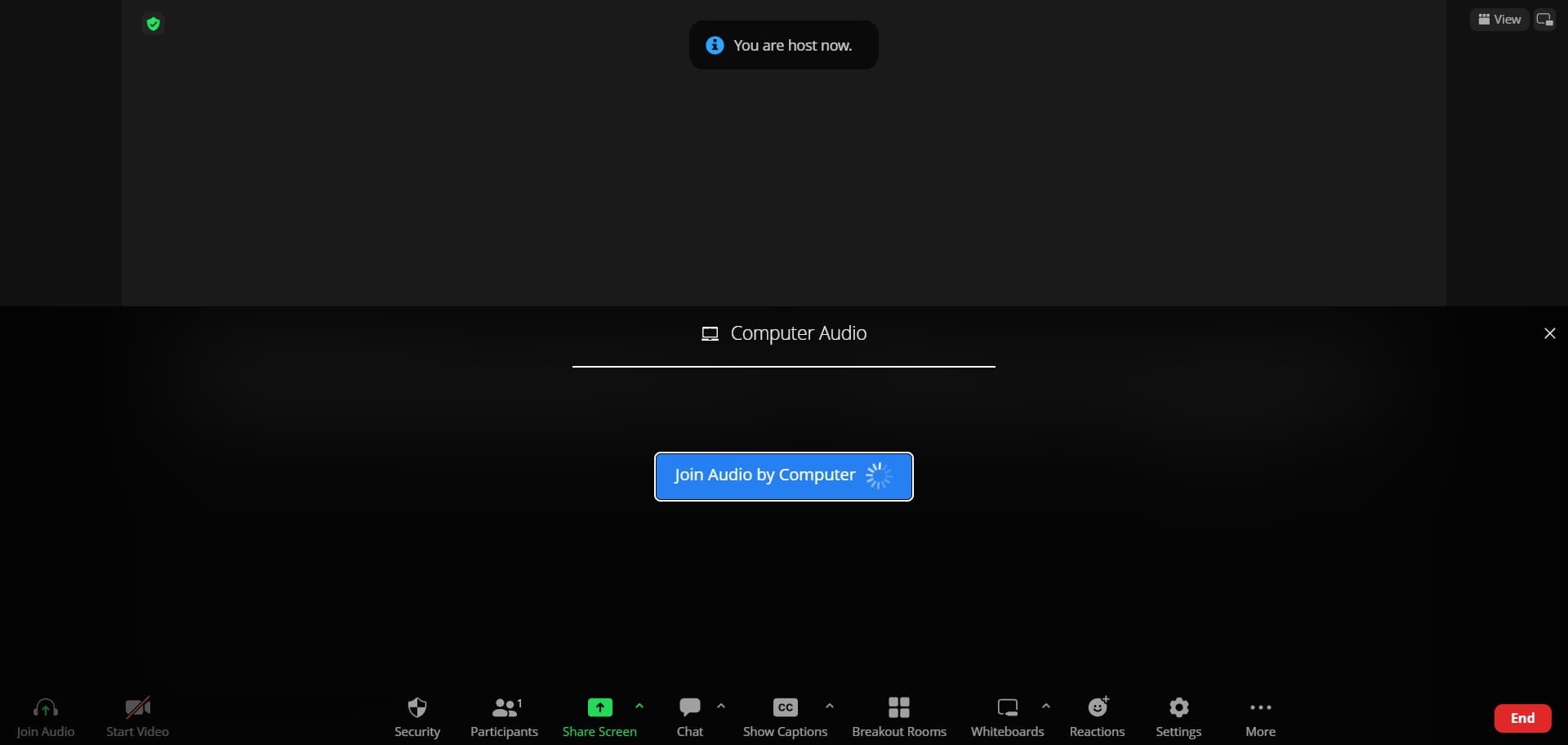
Click on Join Audio by Computer
Select Join Audio by Computer to enable audio through your device's built-in microphone and speakers. This completes your setup and allows participants to hear you during the meeting.
Frequently asked questions
Common questions about how to host a meeting in zoom via browser.
No, you can host Zoom meetings entirely through your web browser without downloading the desktop application. Simply access Zoom from your browser and follow the Host workflow to launch your meeting directly online.
Yes, participants can join your browser-hosted meeting from the Zoom desktop application, mobile app, or their own browser. The meeting room works across all platforms—your choice to use the browser doesn't restrict how others join.
Starting with video off gives you control over when you appear on camera and can help you check your setup before going live. It's also useful if you're in a location where you're not ready to be on camera or want to reduce initial bandwidth usage.
You can enable your camera at any time during the meeting by clicking the camera icon in your meeting controls. The With Video Off option only applies to your initial setup; you have full control over your video throughout the session.
Browser-based hosting offers most core features, but some advanced settings and plugins may be available only in the desktop application. For typical meetings with screen sharing, chat, and participant management, the browser experience is fully functional.