How to Change Your Background on Zoom

Changing your background on Zoom is a practical way to maintain privacy, create a professional appearance, or add visual interest to your video calls. Whether you're working from home or attending a formal meeting, Zoom's background feature gives you control over what appears behind you.
Quick summary
In this tutorial, you'll learn how to upload and apply a custom background in Zoom. We'll walk you through accessing the background settings, uploading your chosen image, and applying it to your video feed.
Why this matters
A professional or customized background helps you present yourself confidently in business meetings, client calls, and virtual events. This feature is especially valuable when your physical environment isn't ideal for video conferencing, allowing you to maintain focus on your message rather than your surroundings.
Step-by-step guide
- 1
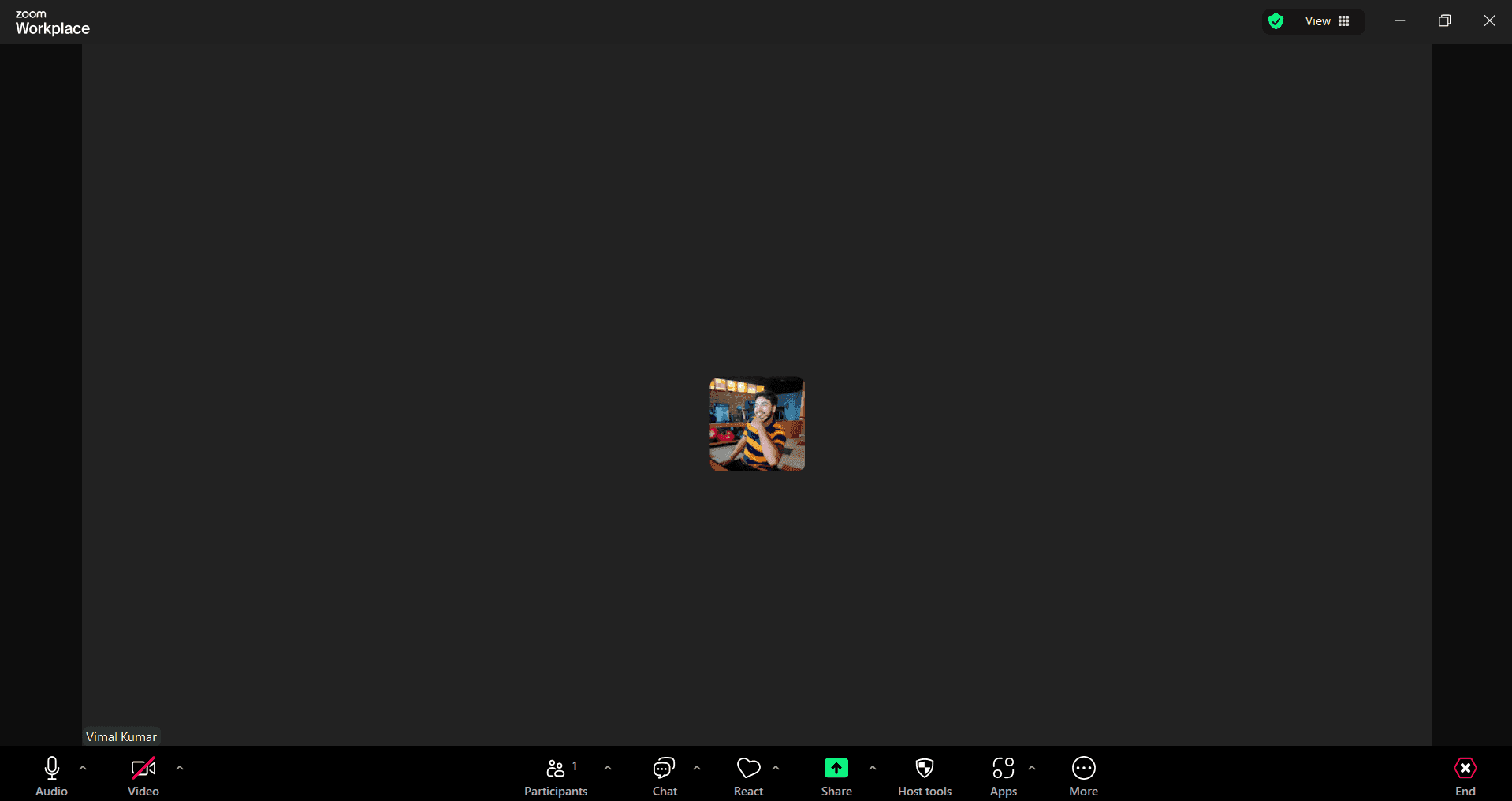
Open Zoom settings menu
Launch Zoom and sign in to your account. Click on your profile picture in the top-right corner and select Settings to access your account preferences.
- 2
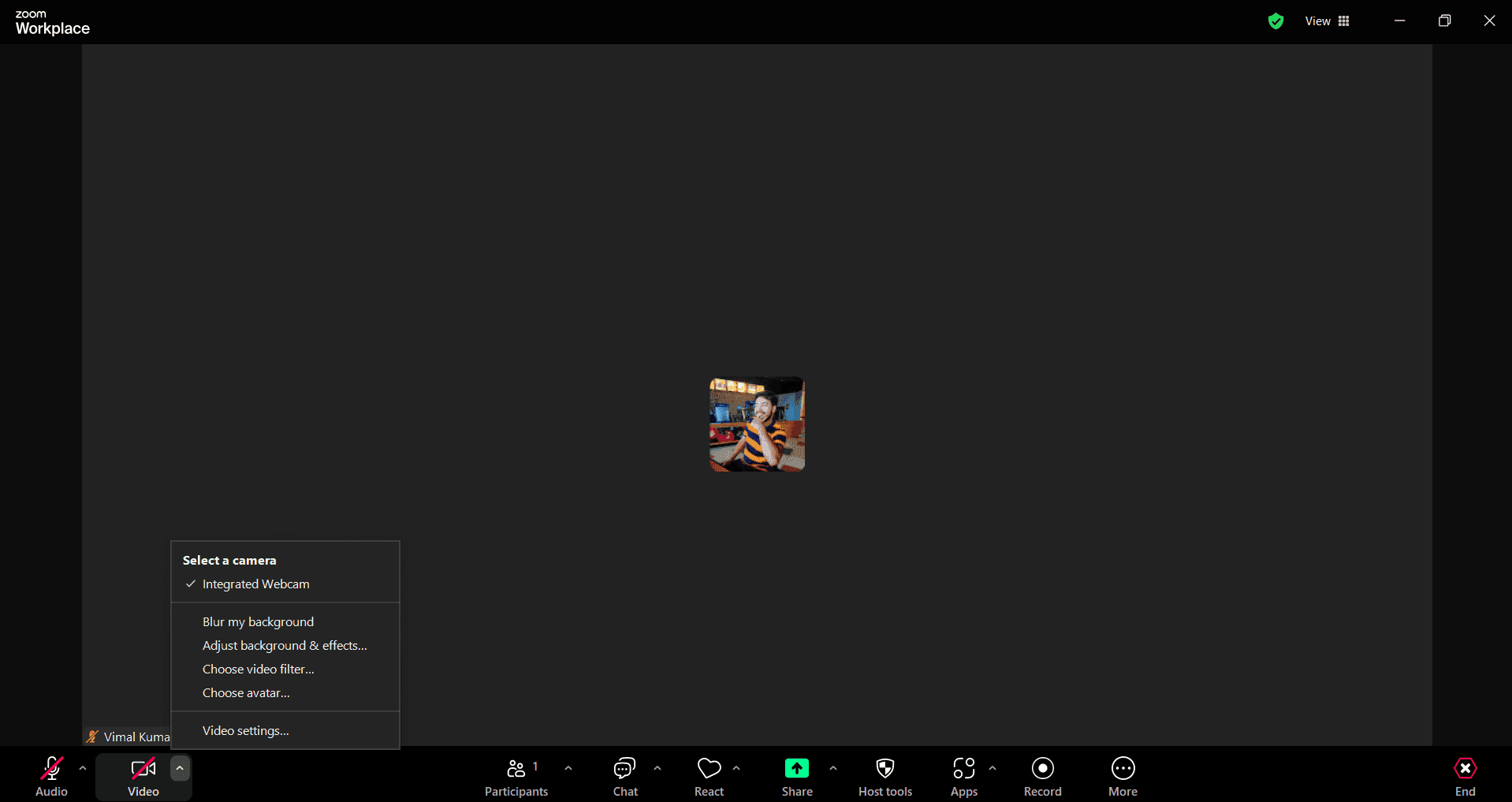
Navigate to virtual background settings
In the Settings menu, locate and click on the Virtual Background option in the left sidebar. This section allows you to manage all your background preferences.
- 3
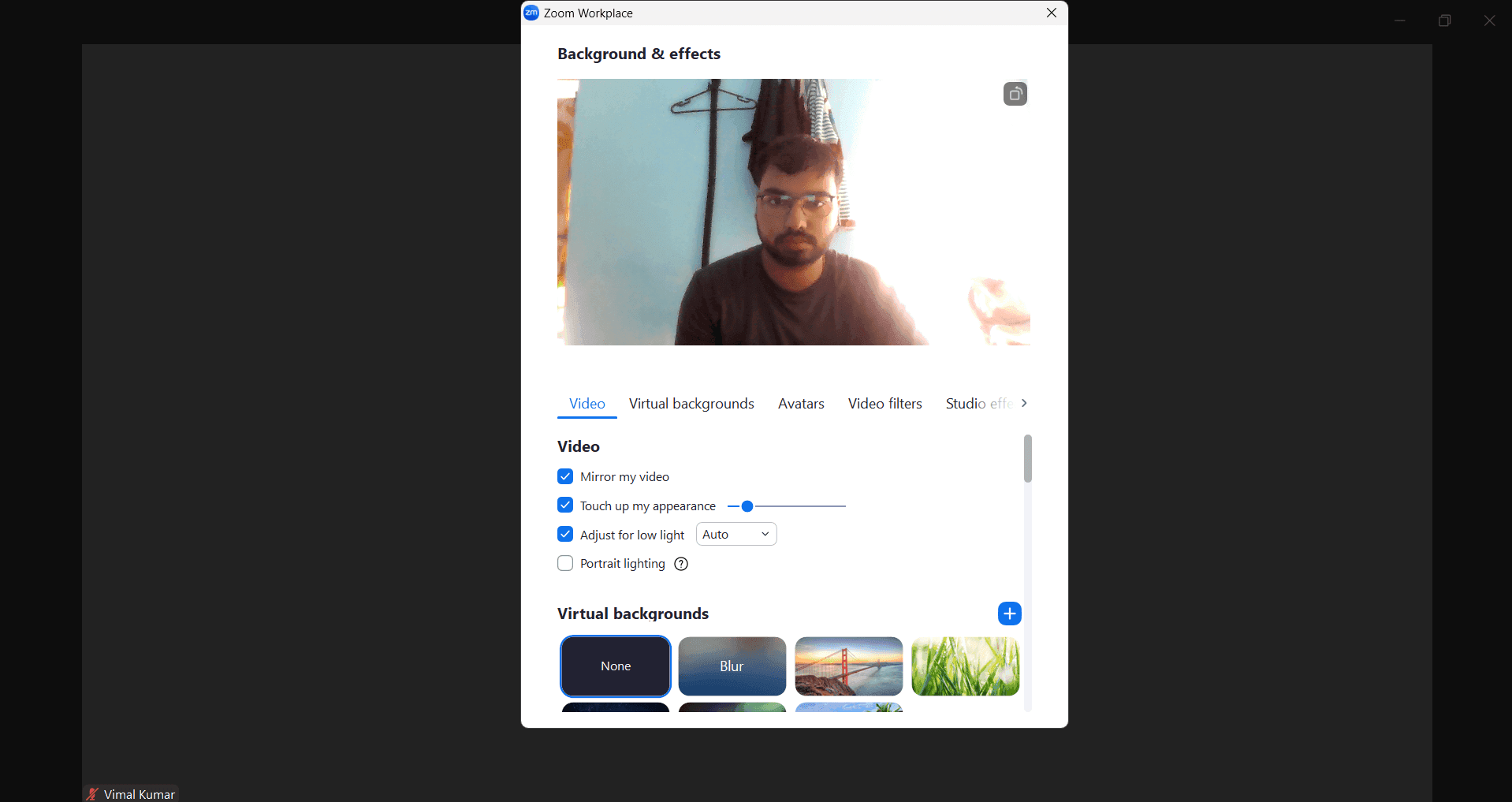
Upload your custom background image
Click the plus icon or Upload button to select an image file from your computer. Zoom accepts common image formats including JPG, PNG, and GIF.
- 4
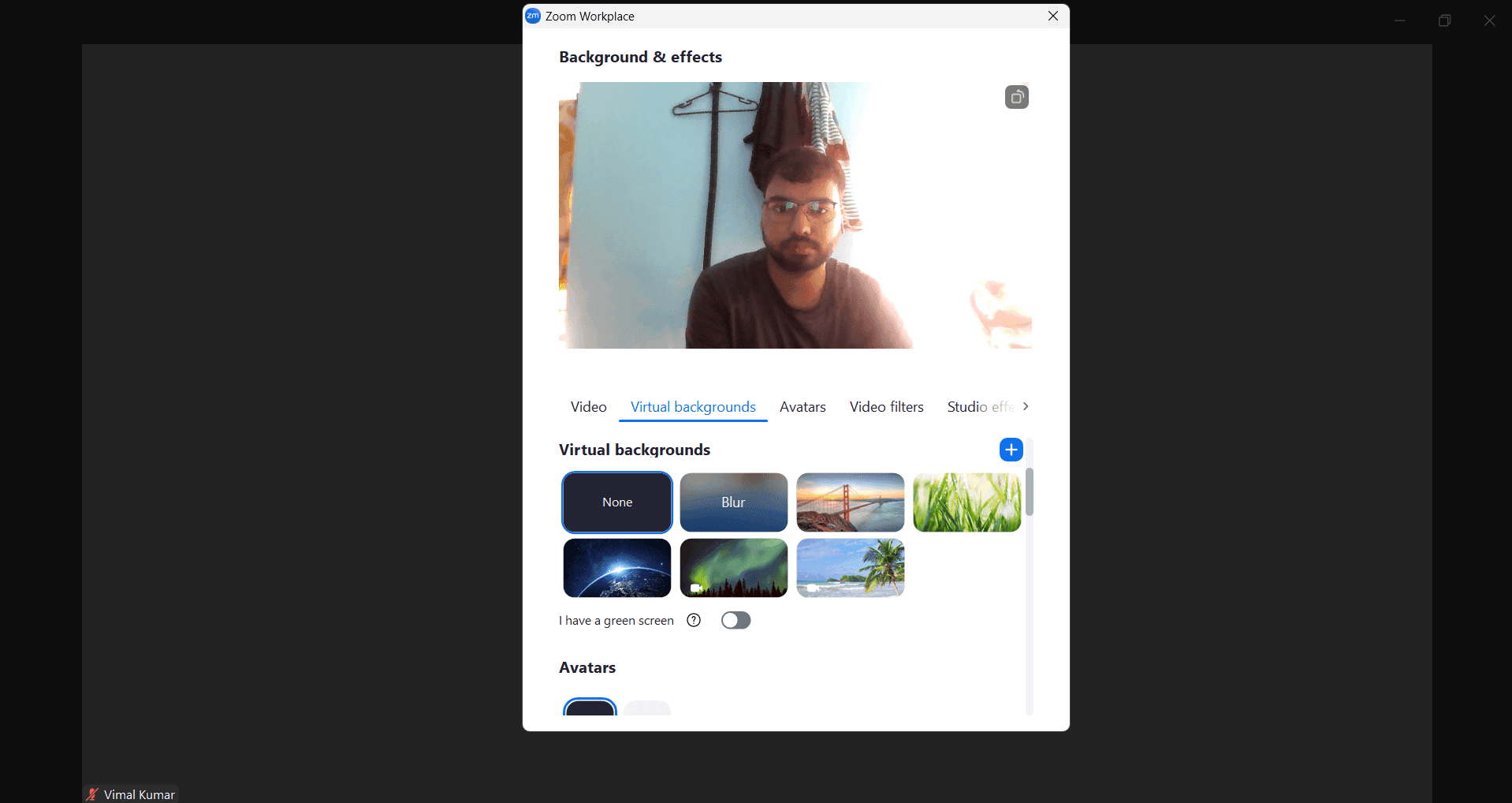
Apply and test your new background
Select your uploaded image from the background library and enable the virtual background toggle. Preview the effect in your video feed to ensure it looks professional and displays correctly.
Frequently asked questions
Common questions about how to change your background on zoom.
Zoom supports JPG, PNG, and GIF file formats for custom background uploads. For best results, use high-resolution images with dimensions of at least 1920x1080 pixels to ensure clarity during video calls.
Yes, you can use virtual backgrounds without a green screen. However, Zoom's background detection works best when there is clear contrast between you and your background. A green screen produces the most polished results, but Zoom's AI can detect edges in many environments.
Virtual backgrounds do use additional processing power and may impact video quality or performance on older computers or slower internet connections. If you experience lag or reduced video quality, try disabling the background or upgrading your internet speed.
Yes, you can change your virtual background at any time during a call. Simply click on the Settings icon in your video preview and select a different background. The change will apply immediately to your video feed.
You can find background images from free stock photo sites like Unsplash, Pexels, or Pixabay, or create your own custom backgrounds. Zoom also provides built-in default backgrounds in the Virtual Background section that you can use without uploading.