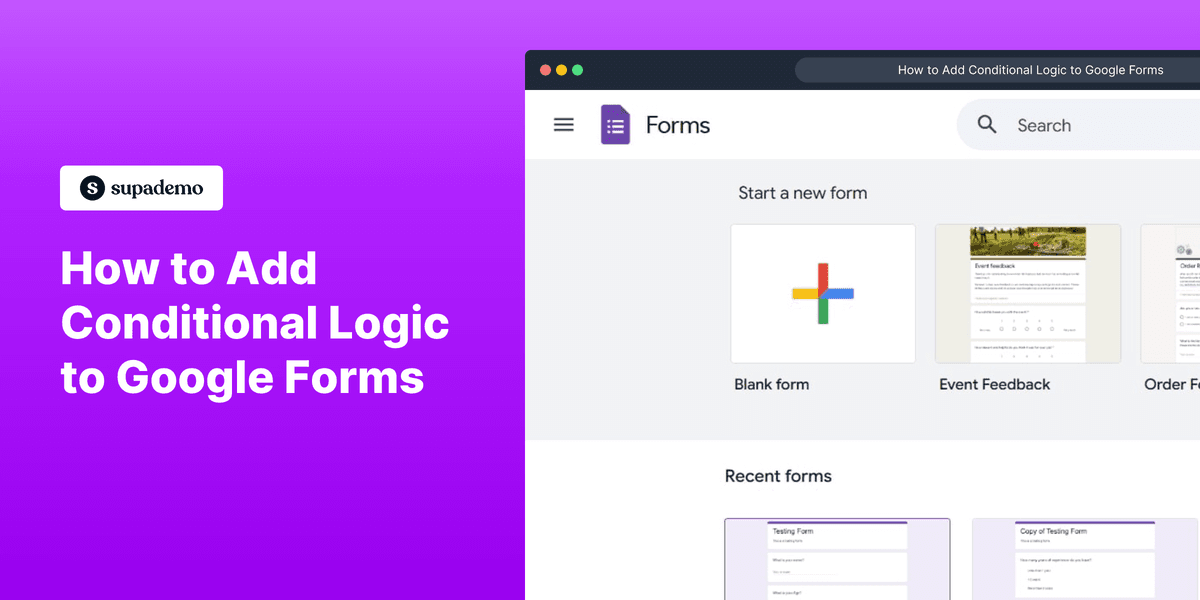
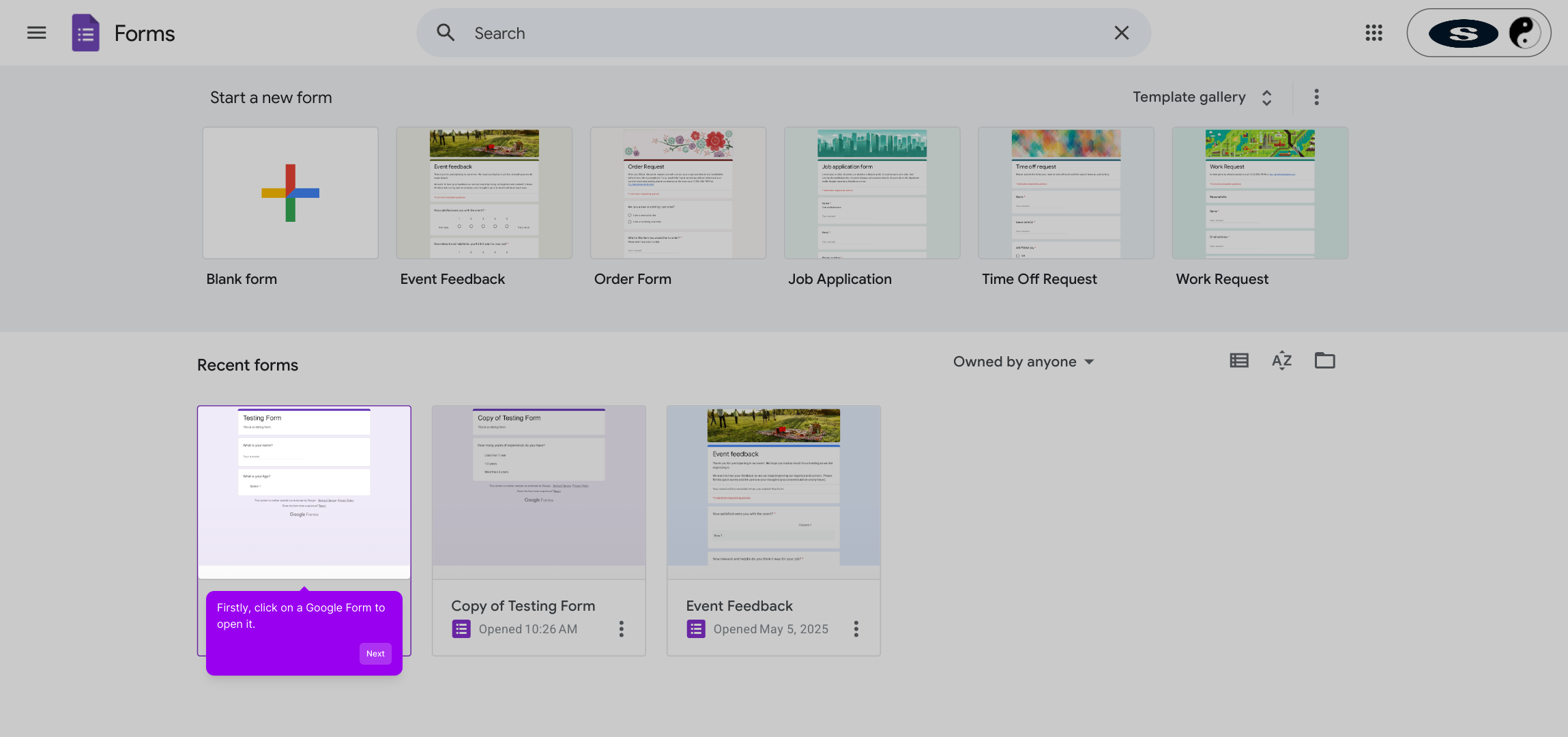
1. Firstly, click on a Google Form to open it.
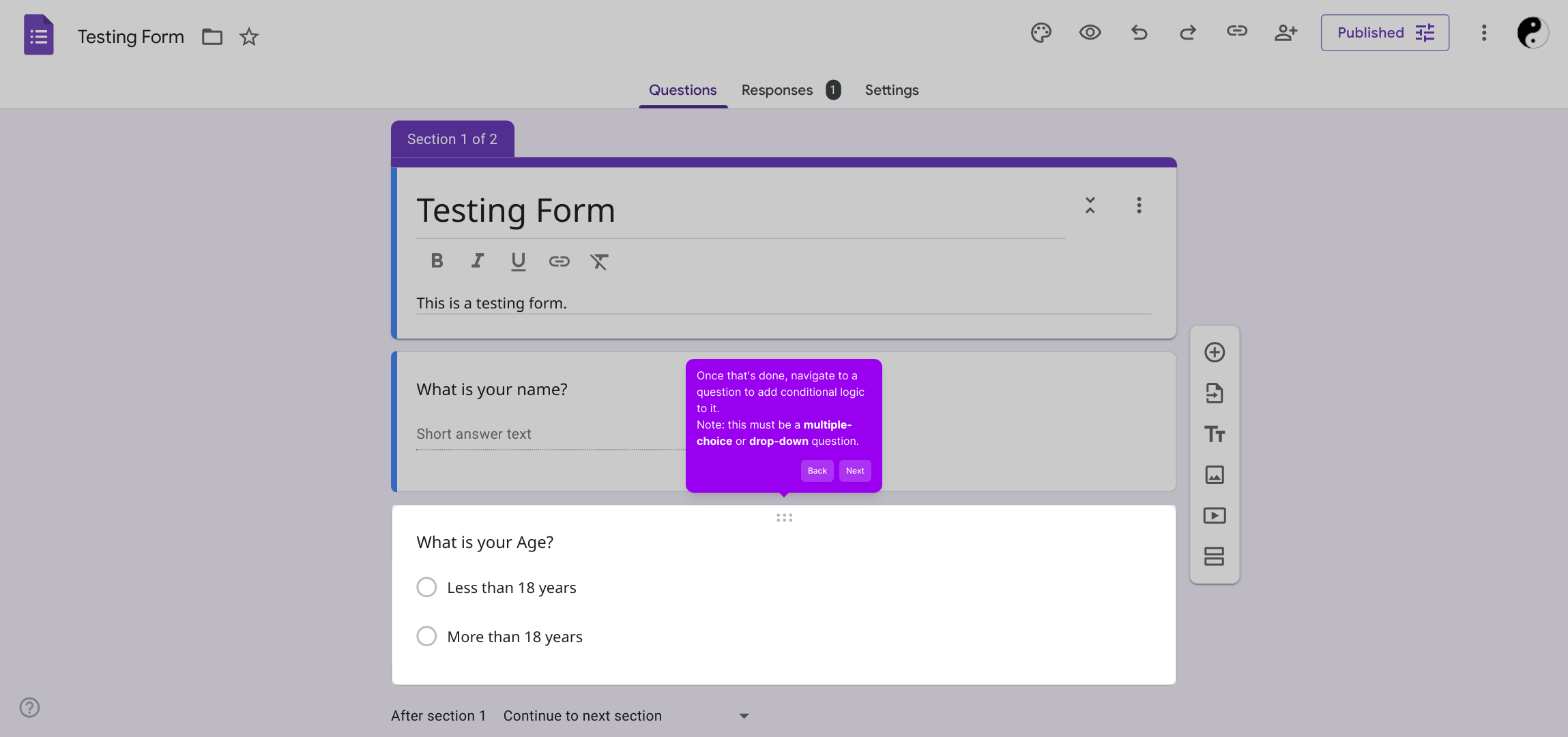
2. Once that's done, navigate to a question to add conditional logic to it.
Note: this must be a multiple-choice or drop-down question.
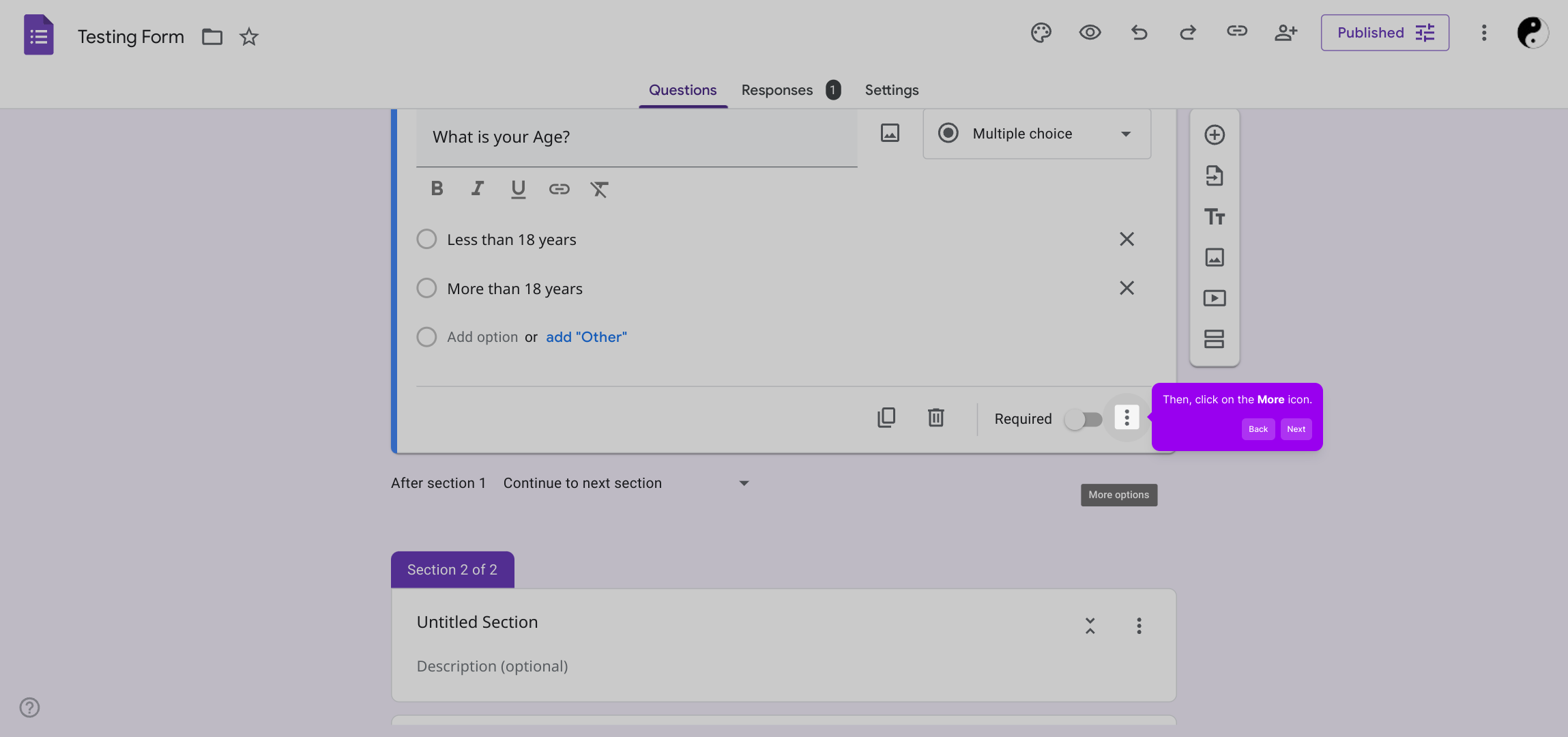
3. Then, click on the More icon.
4. Following that, click on "Go to section based on answer".
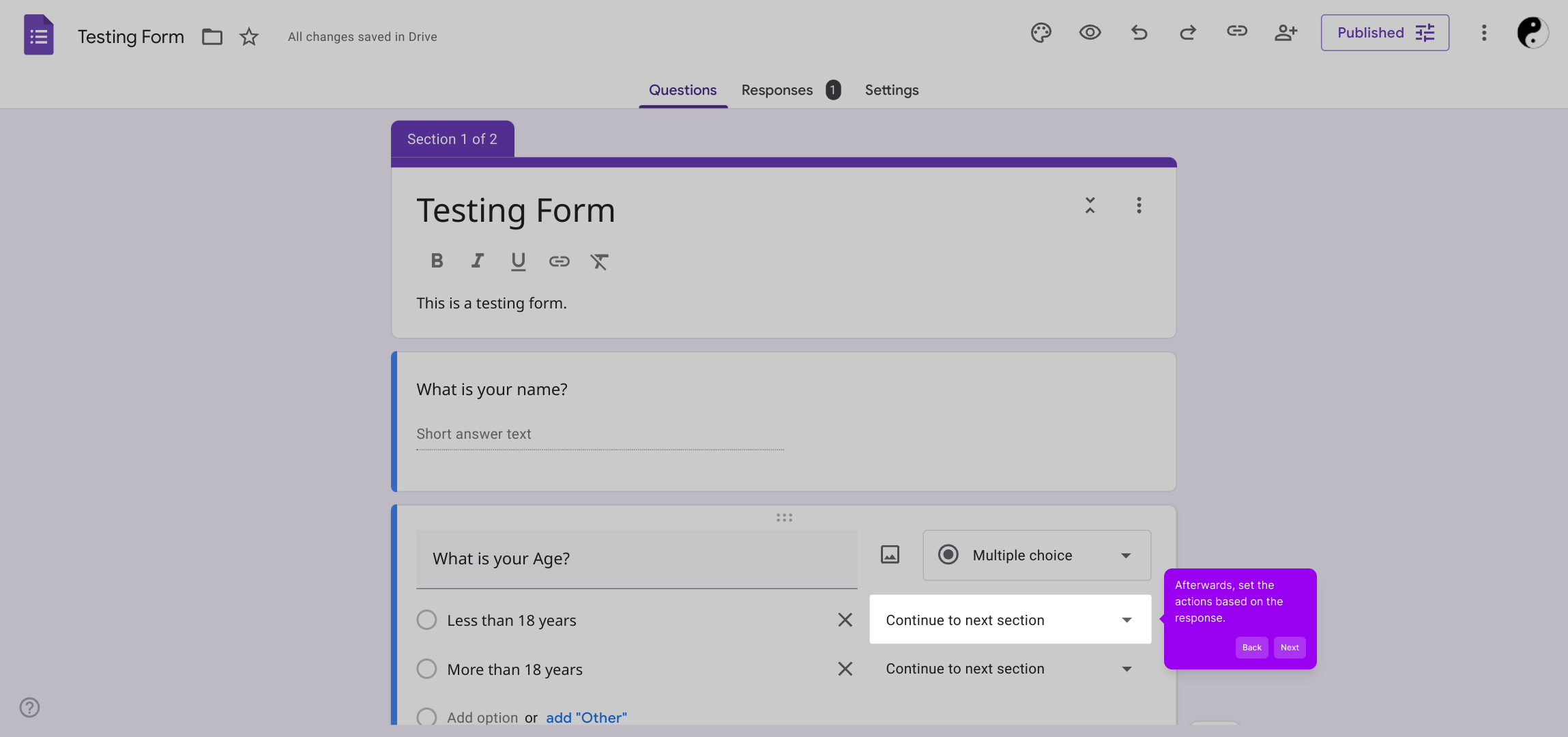
5. Afterwards, set the actions based on the response.
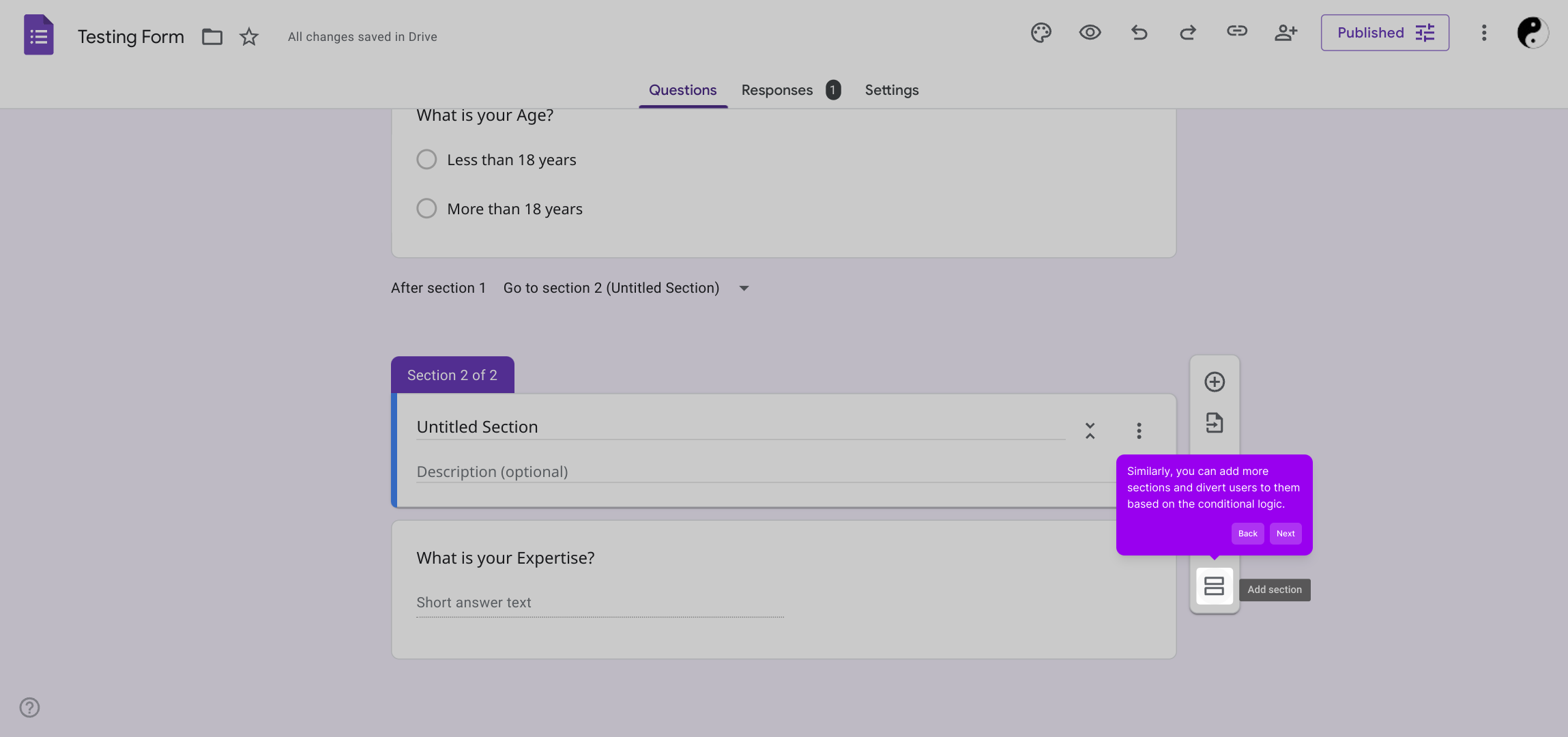
6. Similarly, you can add more sections and divert users to them based on the conditional logic.
7. Create a Supademo in seconds
This interactive demo/guided walkthrough on How to Add Conditional Logic to Google Forms was created using Supademo.
How to Add Conditional Logic to Google Forms : Step-by-Step Guide
Begin by opening your Google Form where you'd like to apply conditional logic. This is your starting point to customize how respondents will navigate through the form.
Next, find the specific question you want to add conditional logic to. Keep in mind this feature works only with multiple-choice or drop-down question types, as these allow for branching based on selected answers.
Once you’ve selected the question, look for the More icon (often represented by three vertical dots) and click it to reveal additional settings related to that question.
From the options that appear, choose "Go to section based on answer." This option allows you to direct respondents to different parts of your form depending on their choice, creating a tailored survey experience.
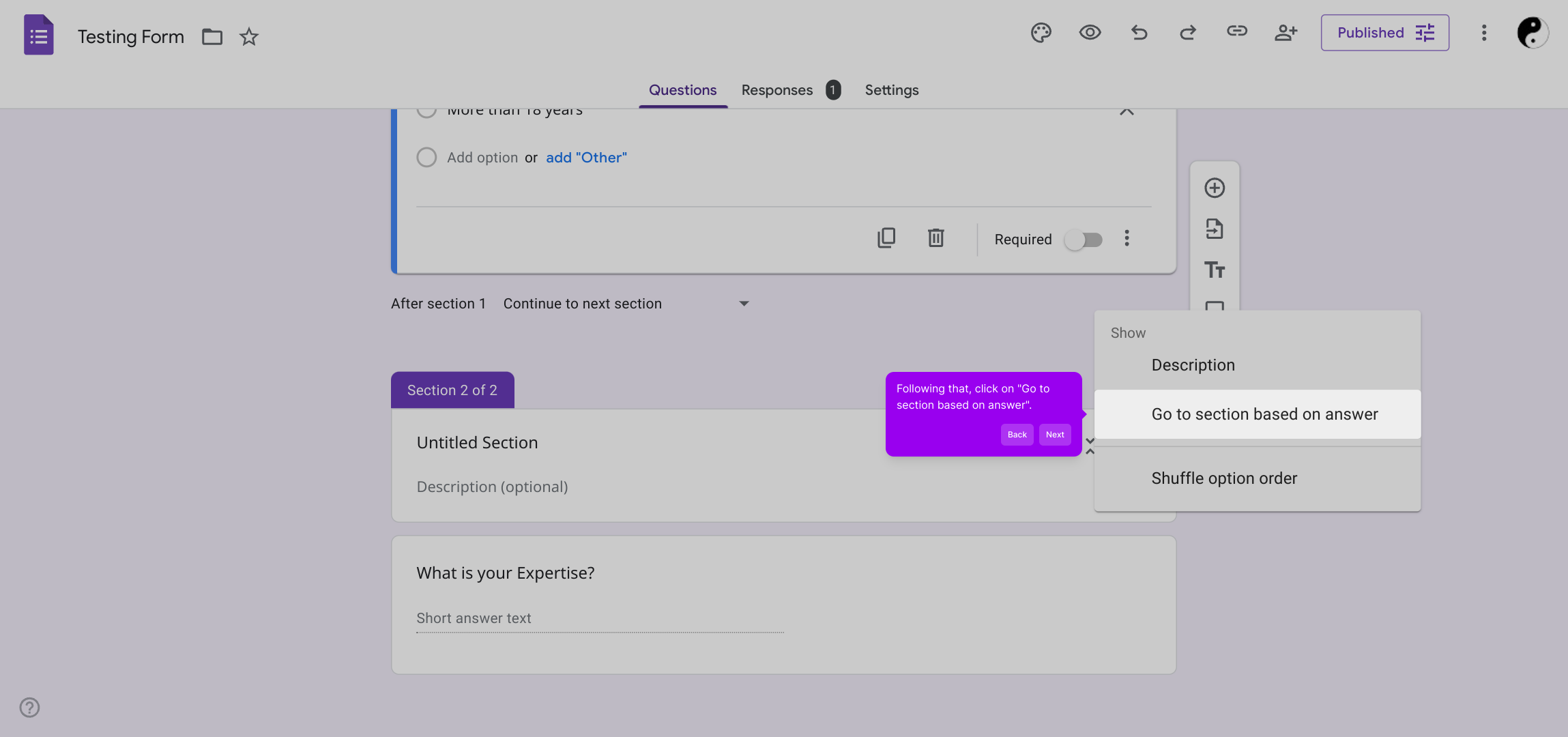
After enabling this feature, you can assign specific sections of the form for each answer option. This lets you control the flow and ultimately gather more relevant information based on respondents' inputs.
Feel free to build out your form with additional sections as needed. By using conditional logic, you can guide users through different pathways, making your form more interactive and efficient.
With everything set up, you’re ready to create your Supademo quickly and effortlessly, showcasing how your form adapts with conditional flows in real time.
Create your own interactive demos in < 5 mins with Supademo
You can create your own interactive product demo in minutes using Supademo. Drive growth, scale enablement, and supercharge product-led onboarding with Supademo.
Sign up for free here with no credit card required.
FAQs
Commonly asked questions about this topic.
What types of questions support conditional logic in Google Forms?
How do I start adding conditional logic to a question in Google Forms?
Can I redirect users to different sections based on their answers?
Is it possible to add multiple conditional rules in one form?
Can I use conditional logic with short answer or paragraph questions?
How do I add new sections to my Google Form for conditional logic?
What happens if I don’t set conditional logic for all answer choices?
Can respondents skip questions with conditional logic applied?
Is there a limit to how many conditional logic rules I can add?
Can I test my conditional logic before sharing the form?

Product Operations Associate
Vimal Kumar helps build and grow Supademo’s team and GTM efforts, with a focus on figuring out growth levers and improving product traction.




