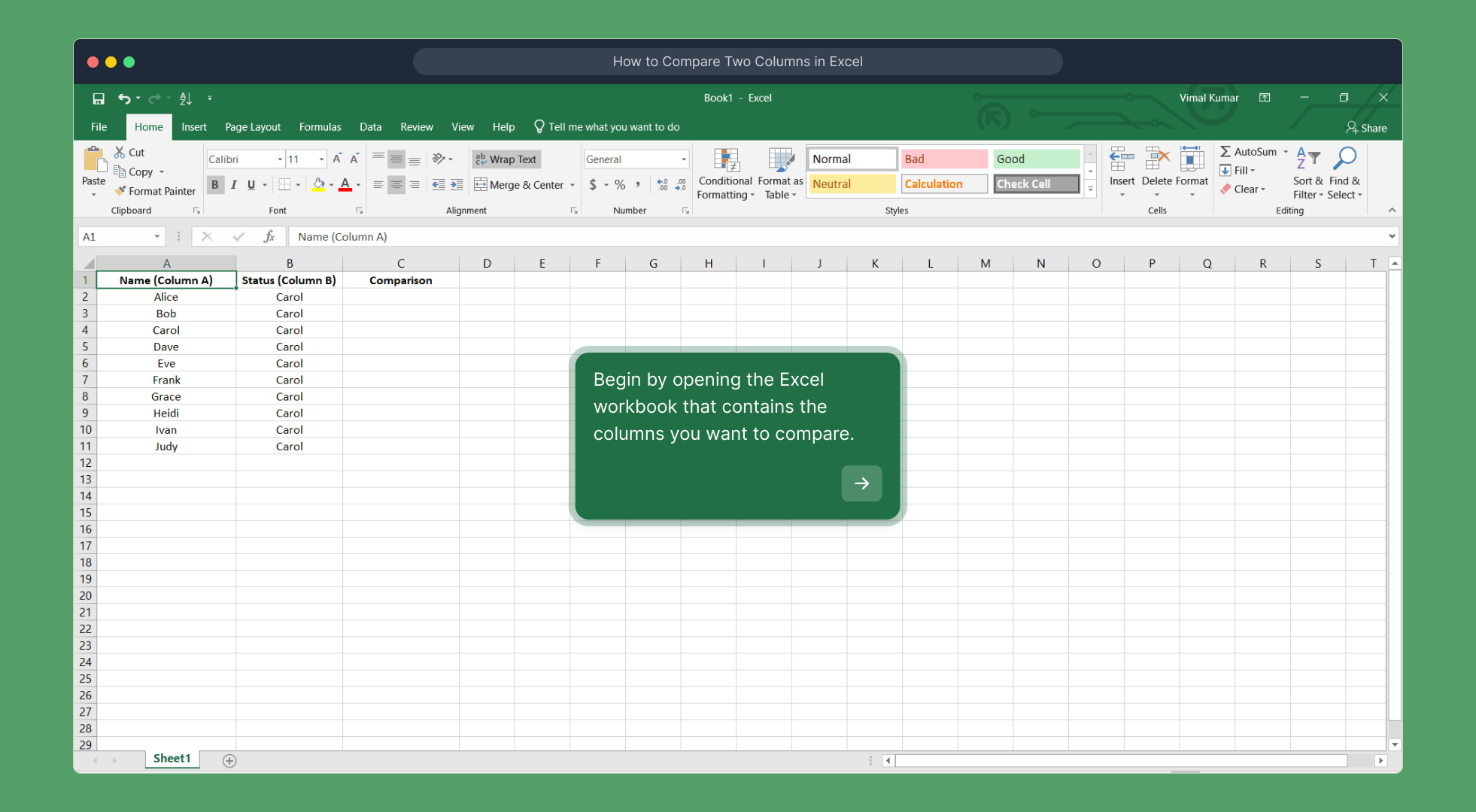
1. Begin by opening the Excel workbook that contains the columns you want to compare.
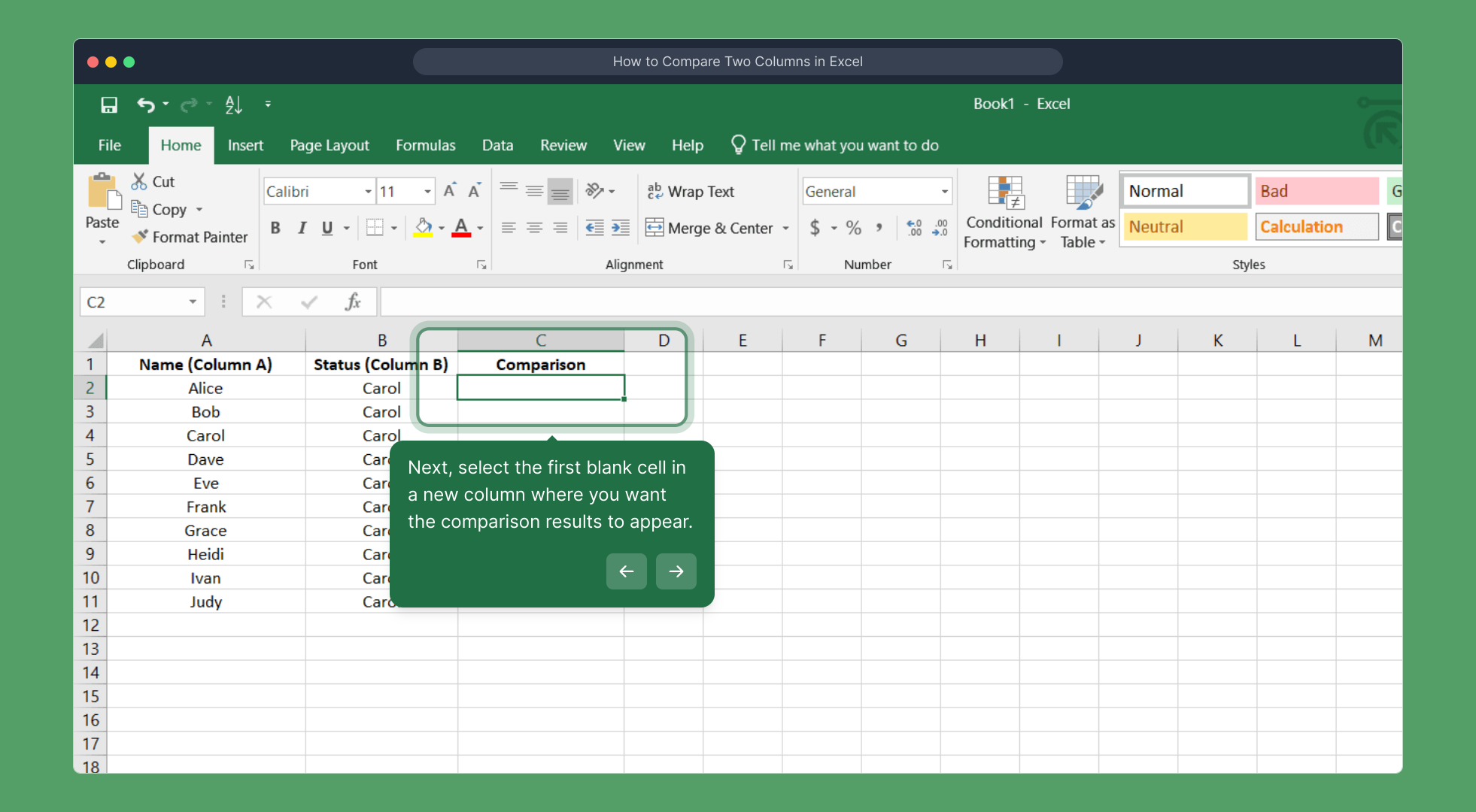
2. Next, select the first blank cell in a new column where you want the comparison results to appear.
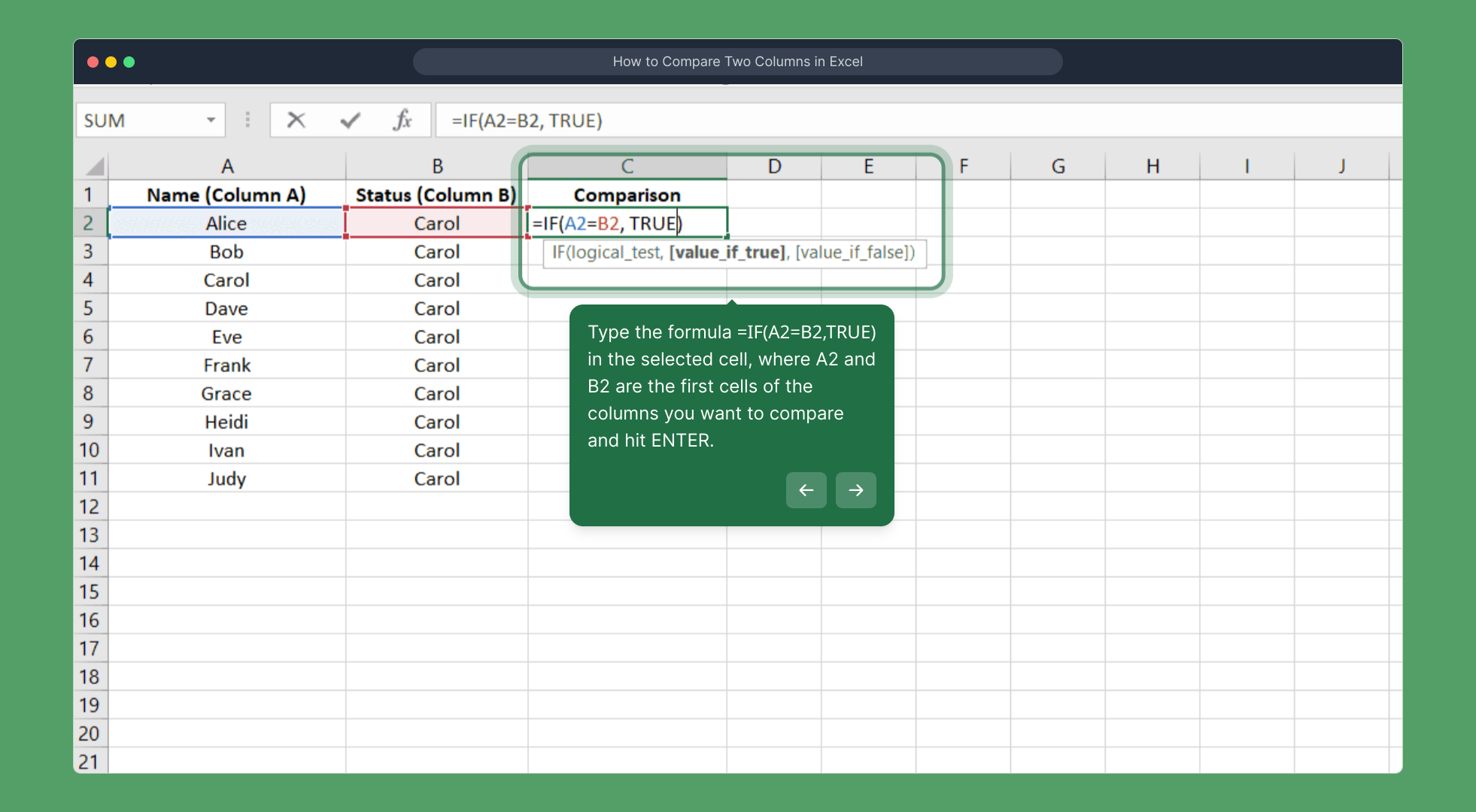
3. Type the formula =IF(A2=B2,TRUE) in the selected cell, where A2 and B2 are the first cells of the columns you want to compare and hit ENTER.
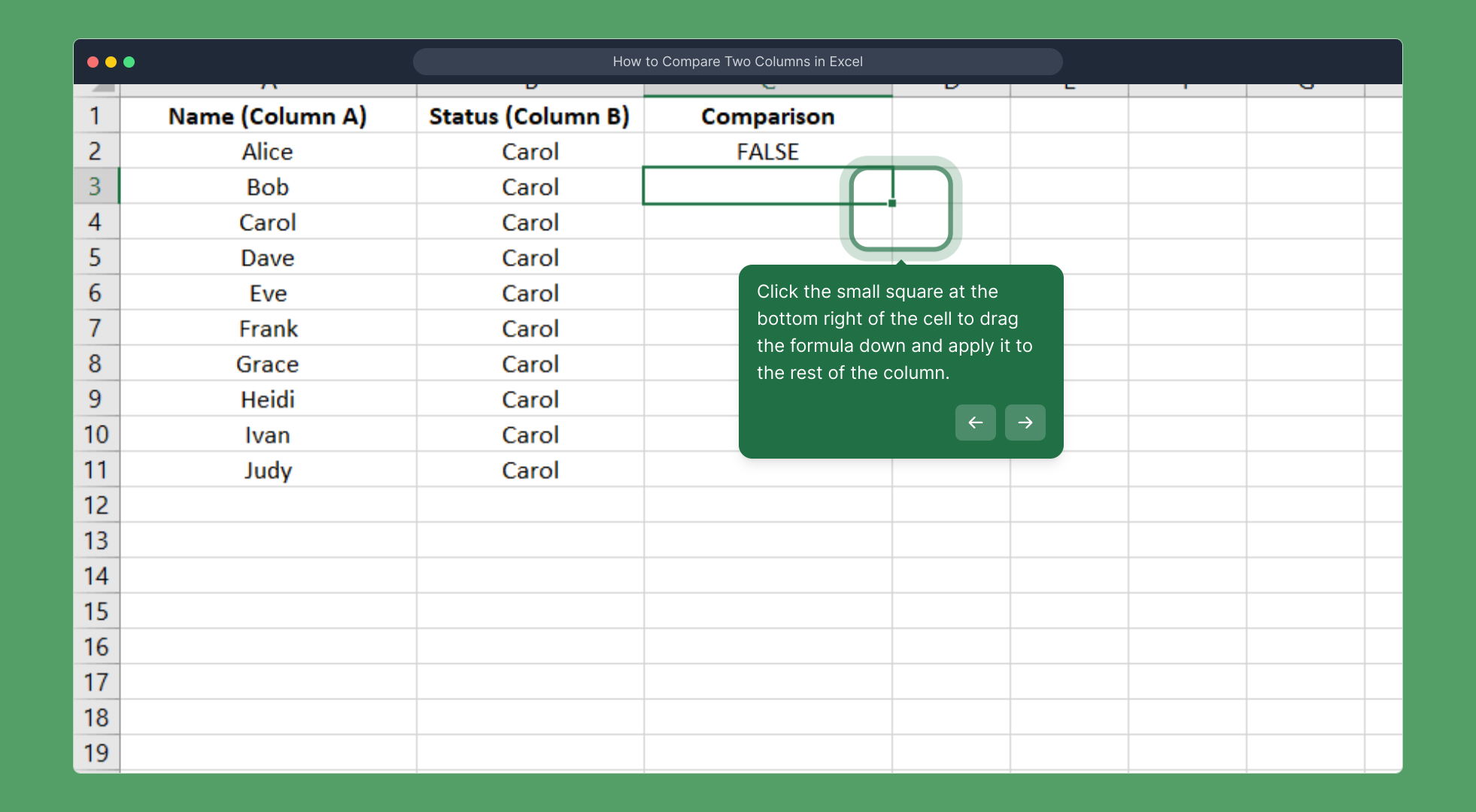
4. Click the small square at the bottom right of the cell to drag the formula down and apply it to the rest of the column.
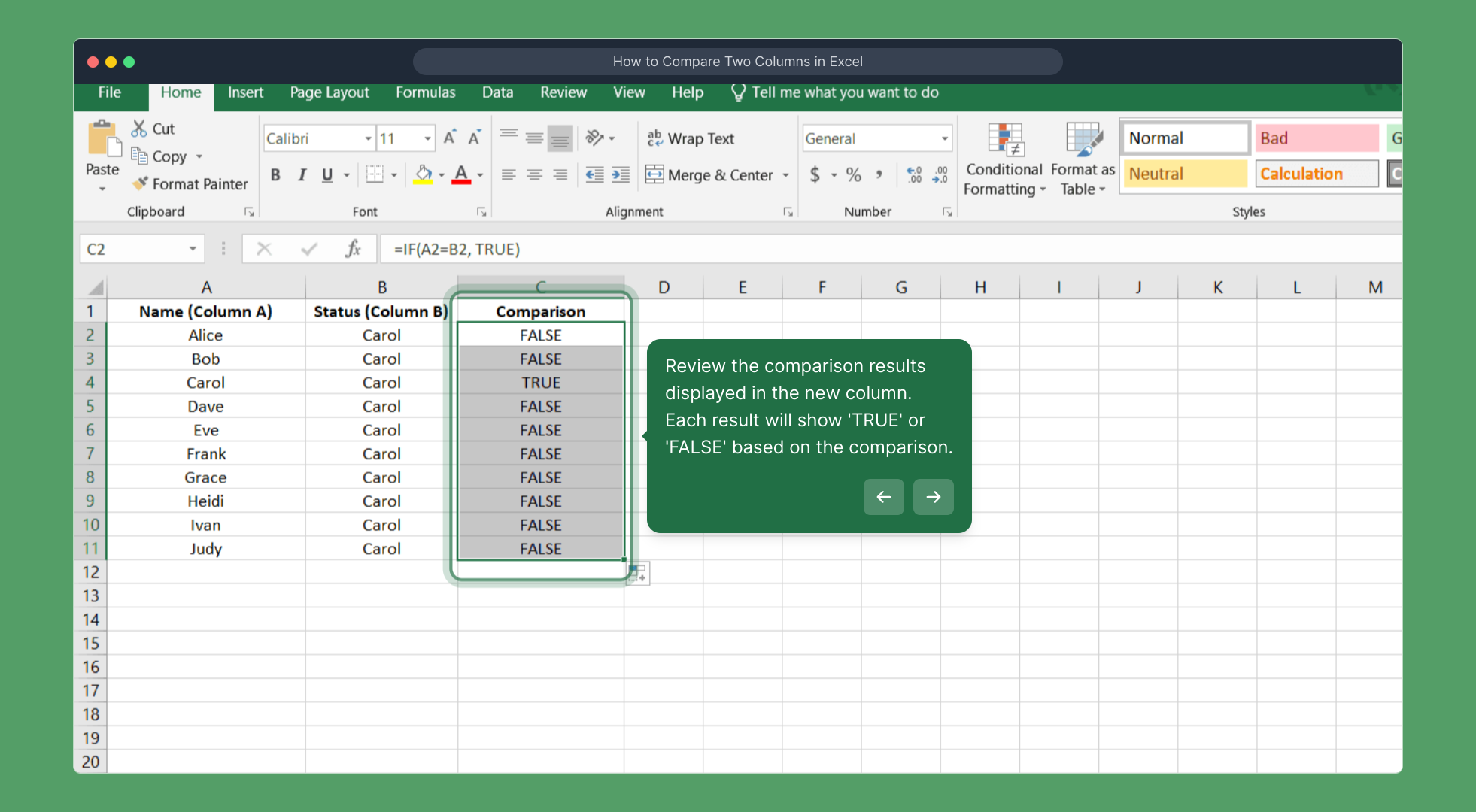
5. Review the comparison results displayed in the new column. Each result will show 'TRUE' or 'FALSE' based on the comparison.
6. Enjoyed the guided demo?
This interactive demo/guided walkthrough on How to Compare Two Columns in Excel was created using Supademo.
How to Compare Two Columns in Excel : Step-by-Step Guide
Start by opening your Excel workbook where your data is stored. Locate the columns you want to compare so you can prepare for the next steps.
Find an empty cell in a new column—ideally beside your existing data—where you want the comparison results to be displayed. This will be the place where your formula’s output appears.
In that blank cell, enter the formula =IF(A2=B2,TRUE). Replace A2 and B2 with the first row cells of the columns you want to compare. Once typed in, press ENTER to see the initial comparison result.
To apply this comparison across all rows, click the small square handle in the lower right corner of the formula cell. Drag it down through the column to extend the formula to the rest of your data range.
Look over the results in your new column. Each cell will show TRUE if the compared cells match, or FALSE if there’s a difference. This makes it easy to spot discrepancies at a glance.
Hope this walkthrough was helpful in guiding you through comparing columns in Excel! Feel free to explore the results and let us know if you want to try out more features.

Create your own interactive demos in < 5 mins with Supademo
You can create your own interactive product demo in minutes using Supademo. Drive growth, scale enablement, and supercharge product-led onboarding with Supademo. Sign up for free here with no credit card required.
FAQs
Commonly asked questions about this topic.
What is the easiest way to compare two columns in Excel?
Can I compare columns with different data types in Excel?
How do I highlight differences between two columns?
What if my columns contain blanks? Will the comparison work?
Is there a way to show custom messages instead of TRUE or FALSE?
Can I compare columns that are in different worksheets?
How do I quickly fill the comparison formula for hundreds of rows?
Does comparing columns with formulas affect workbook performance?
What are alternatives to the IF formula for comparing columns?
Can I compare columns ignoring case sensitivity?

Vimal Kumar
Product Operations Associate
Vimal Kumar helps build and grow Supademo’s team and GTM efforts, with a focus on figuring out growth levers and improving product traction.




