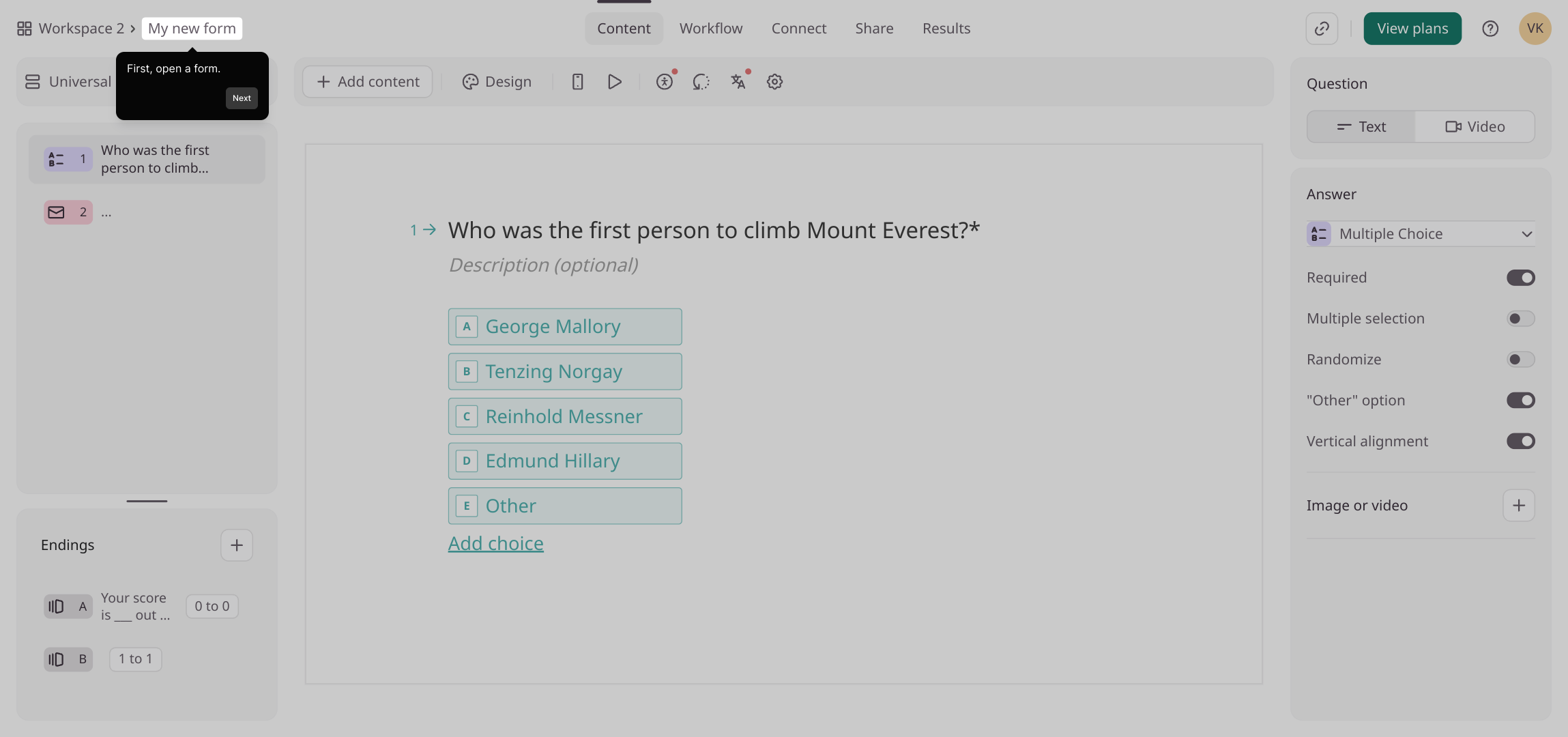
1. First, open a form.
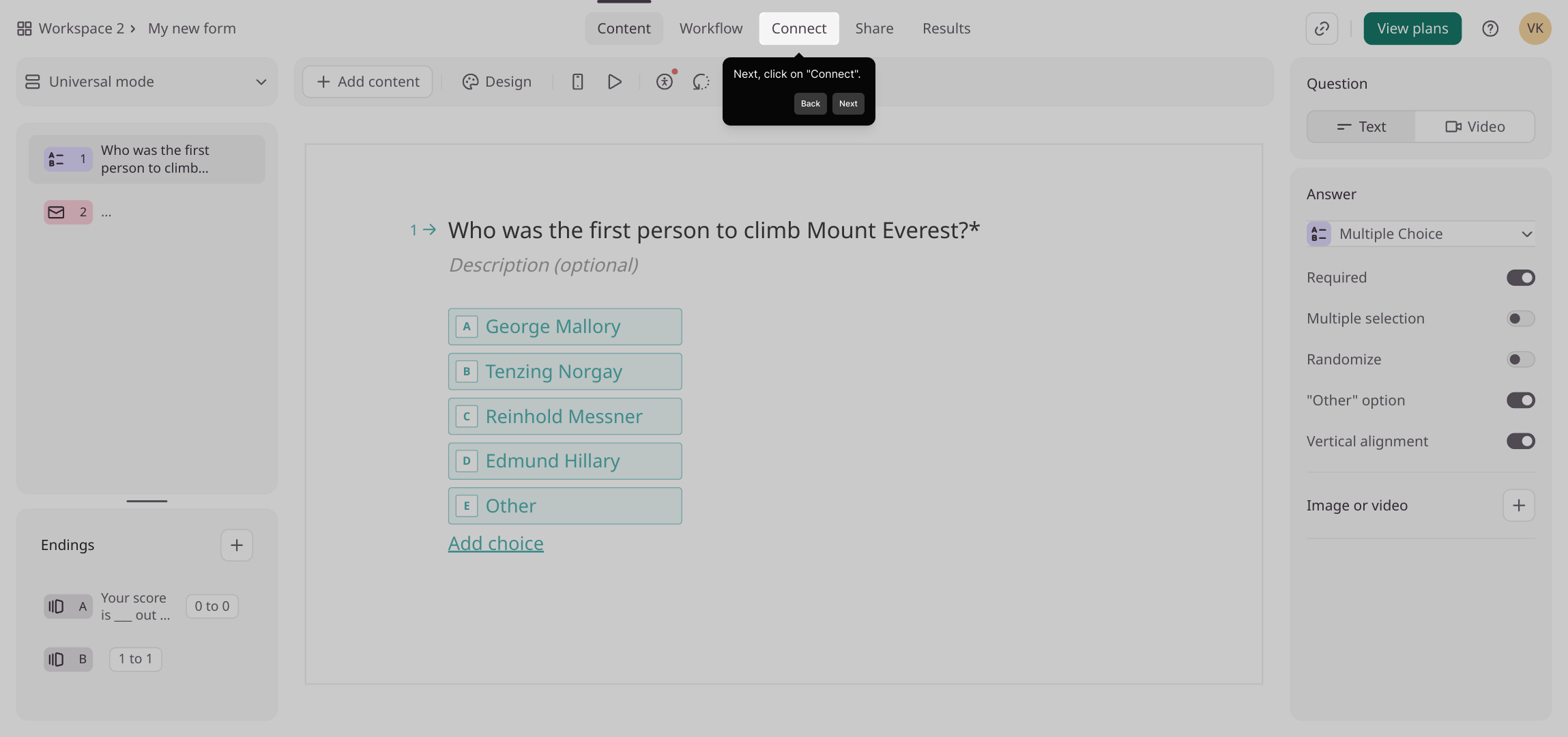
2. Next, click on "Connect".
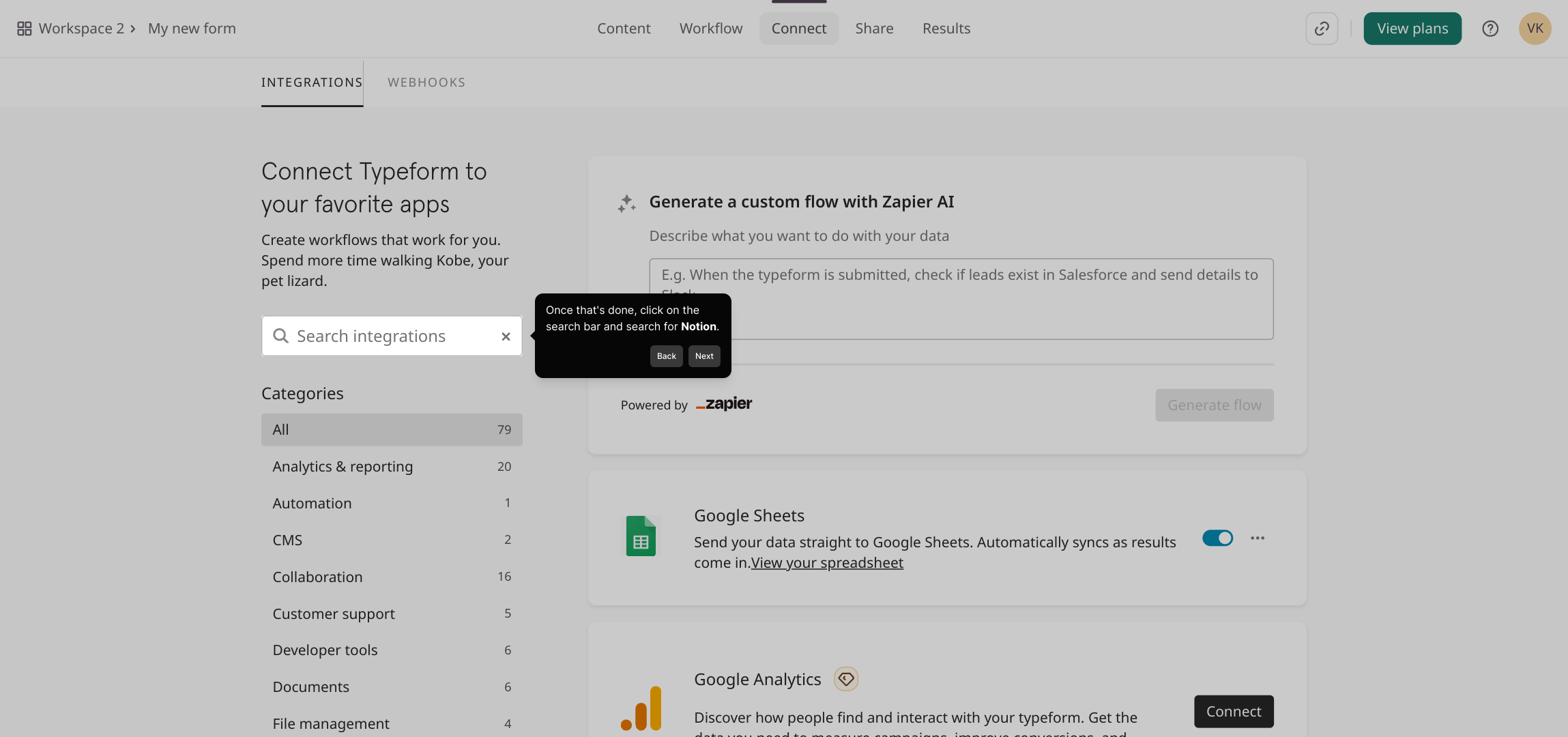
3. Once that's done, click on the search bar and search for Notion.
4. Now, navigate to Noton.
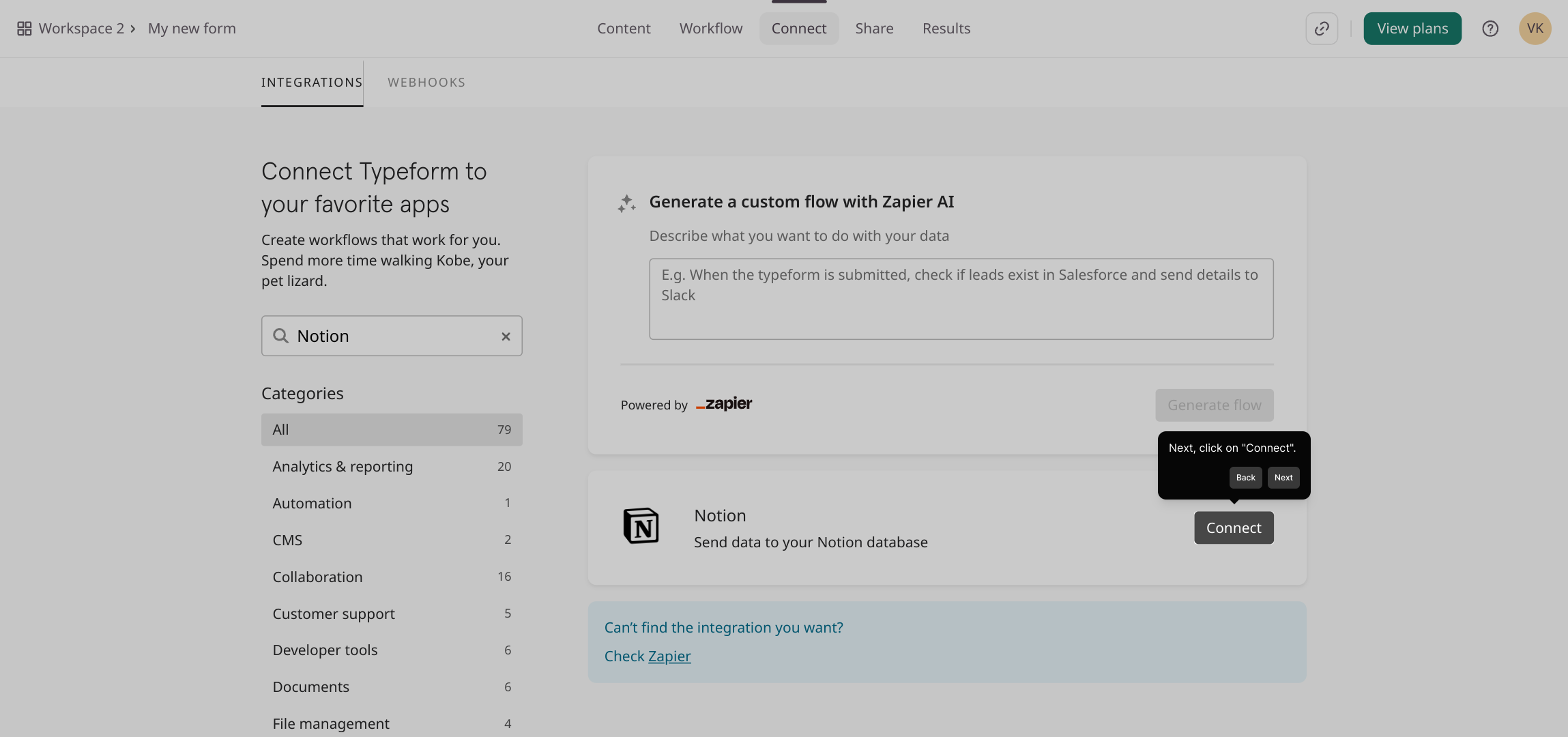
5. Next, click on "Connect".
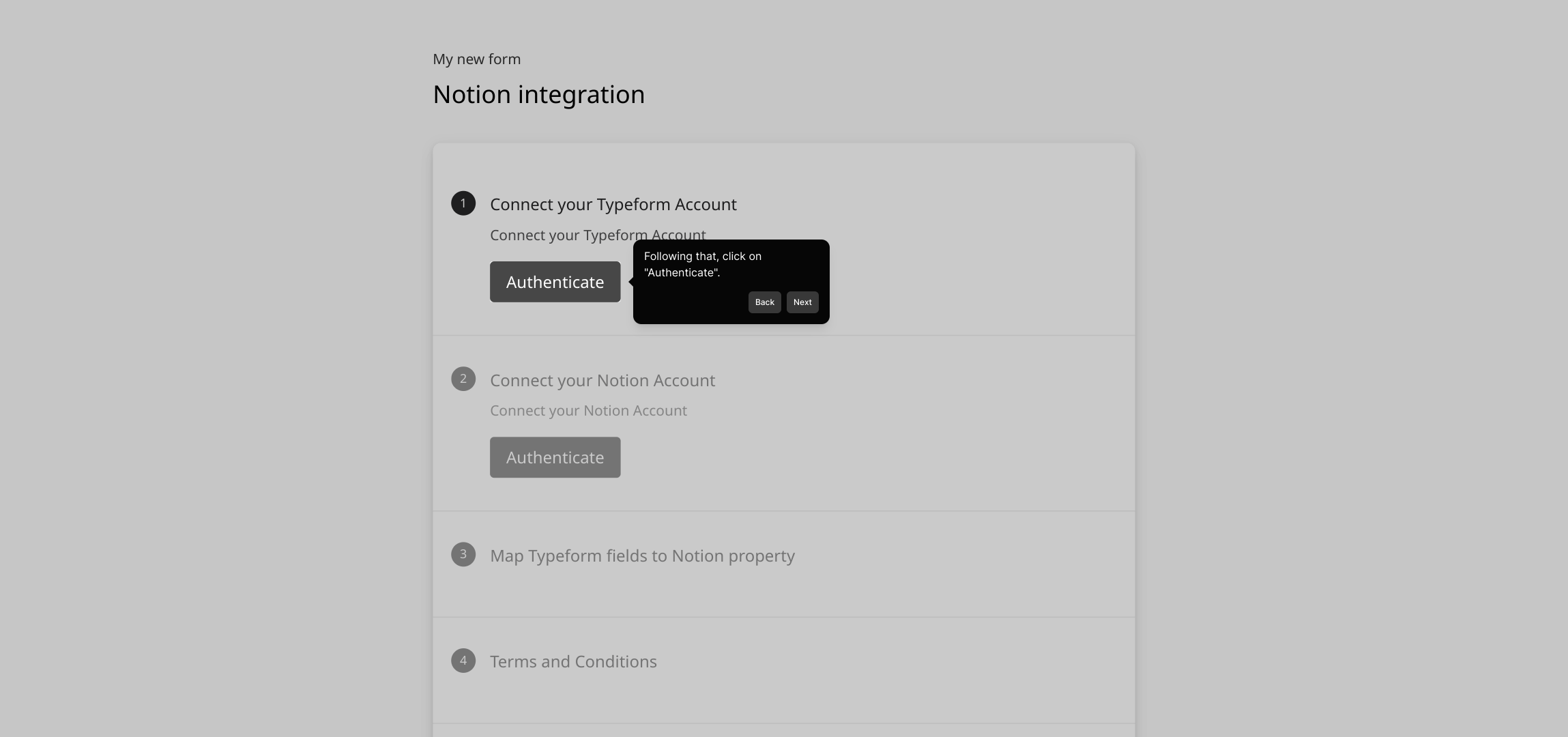
6. Following that, click on "Authenticate".
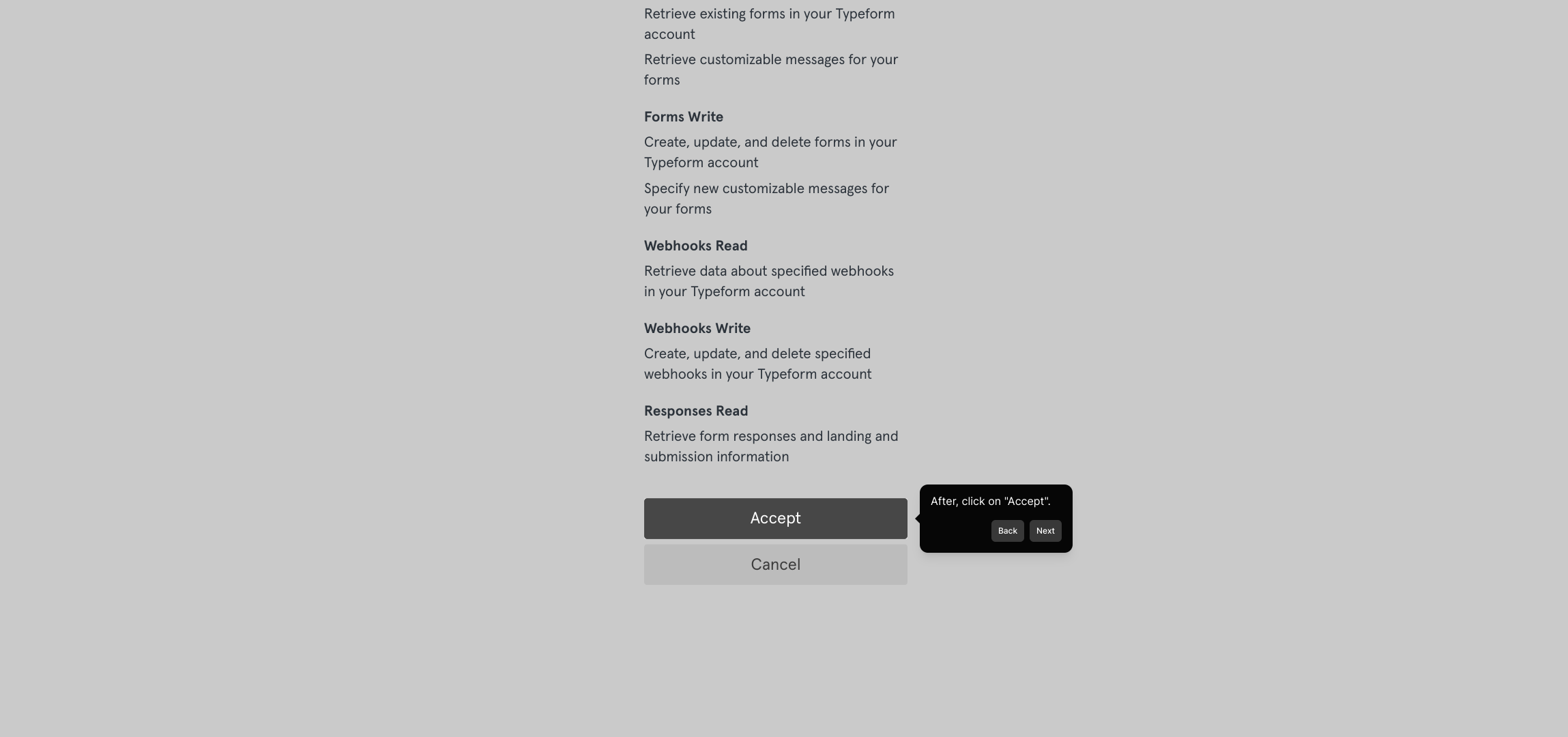
7. After, click on "Accept".
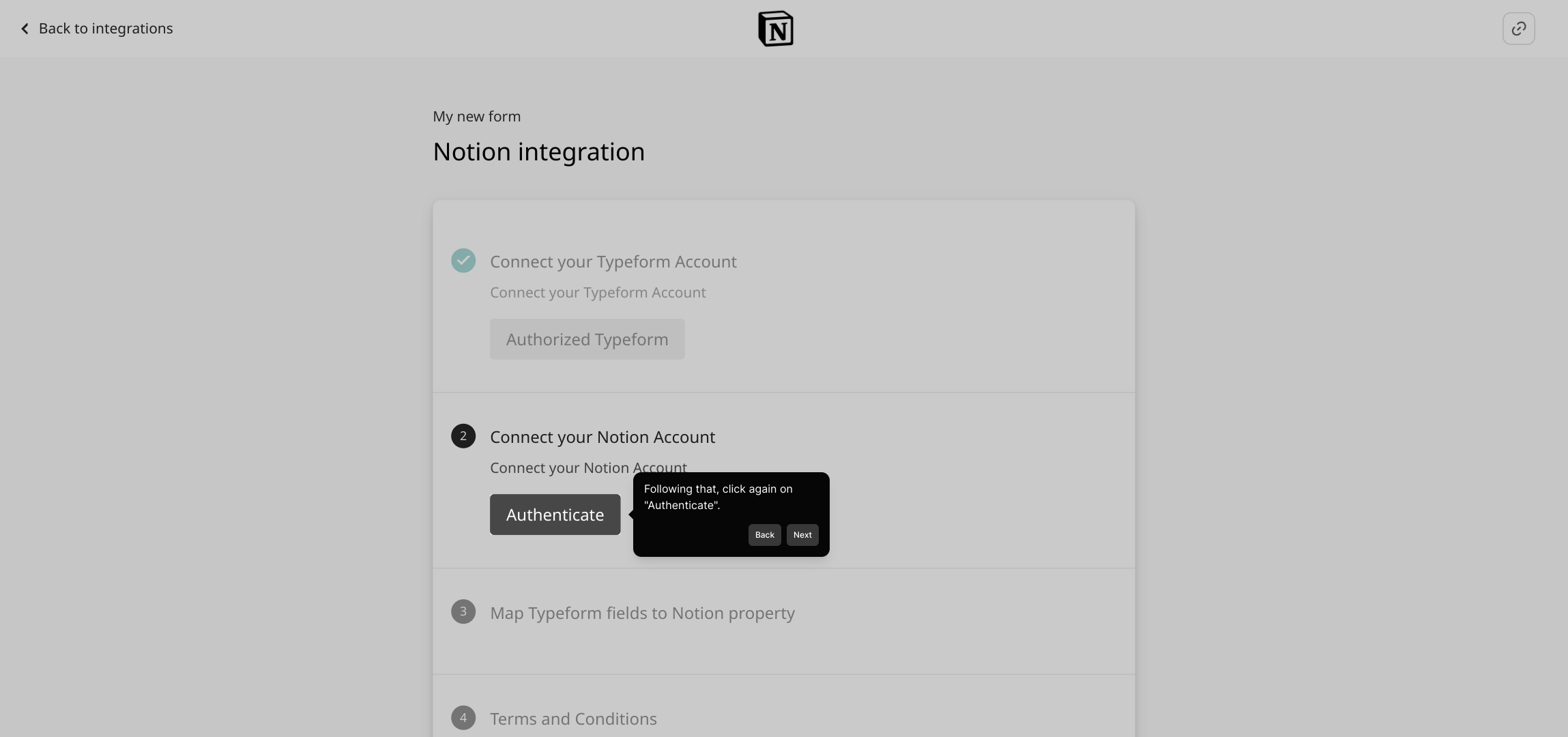
8. Following that, click again on "Authenticate".
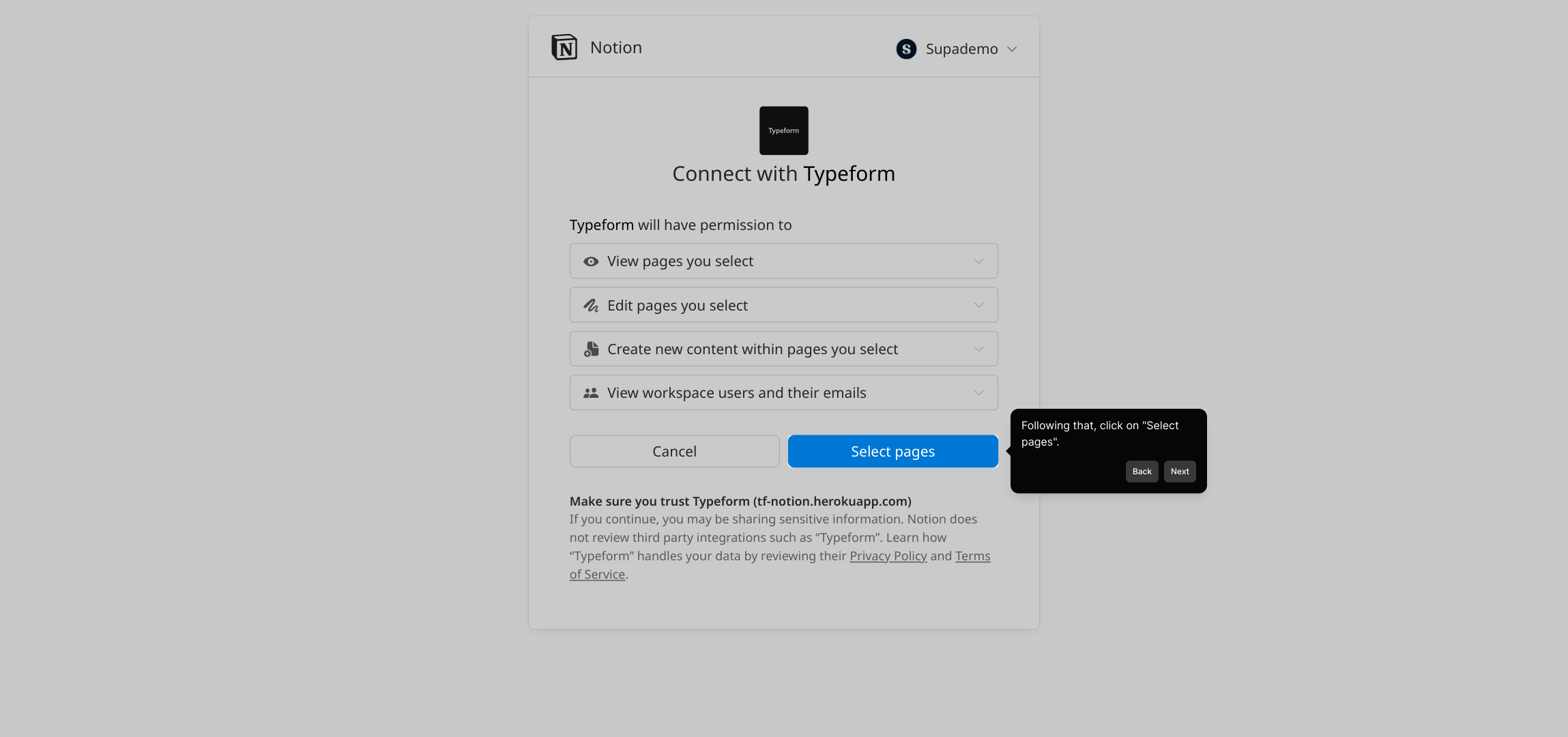
9. Following that, click on "Select pages".
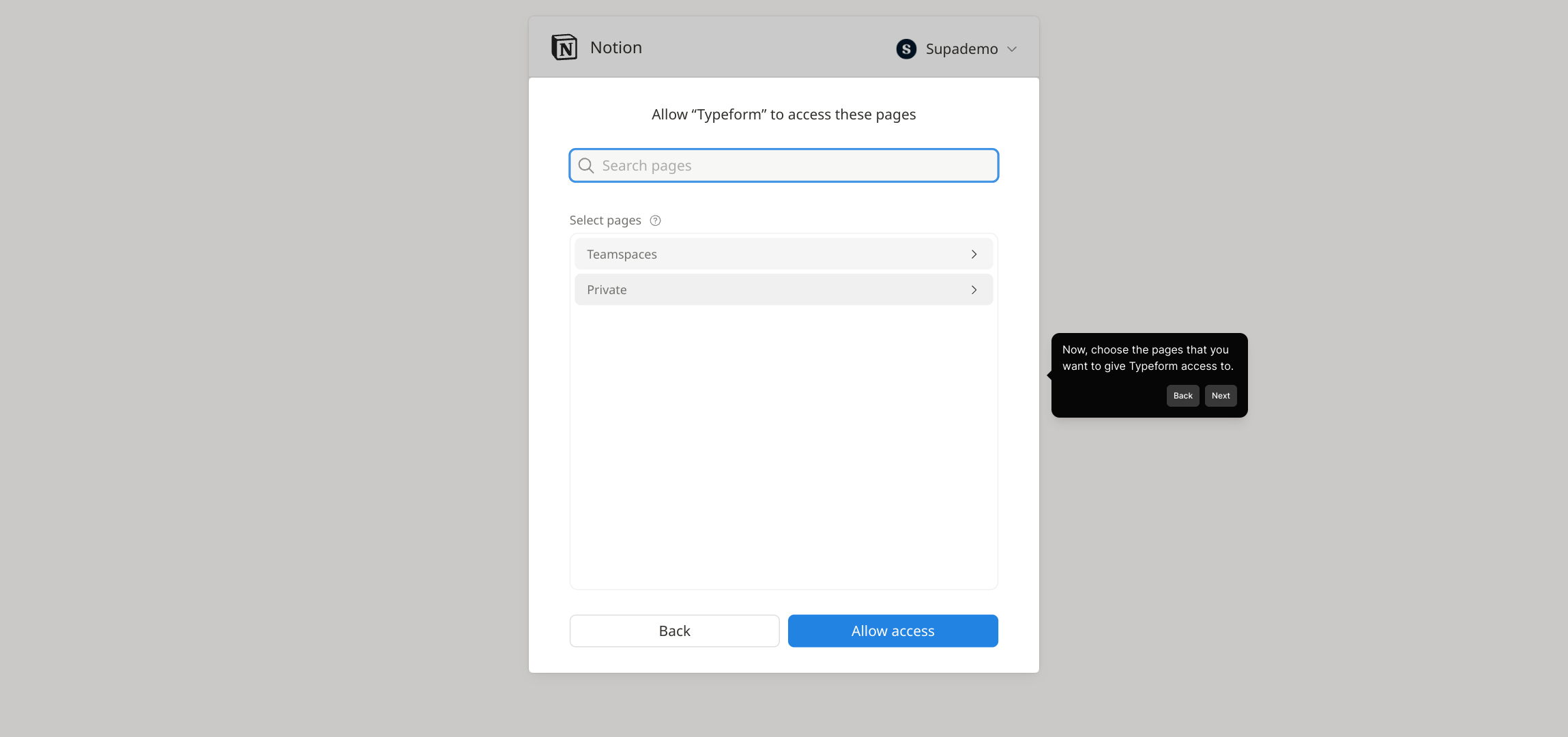
10. Now, choose the pages that you want to give Typeform access to.
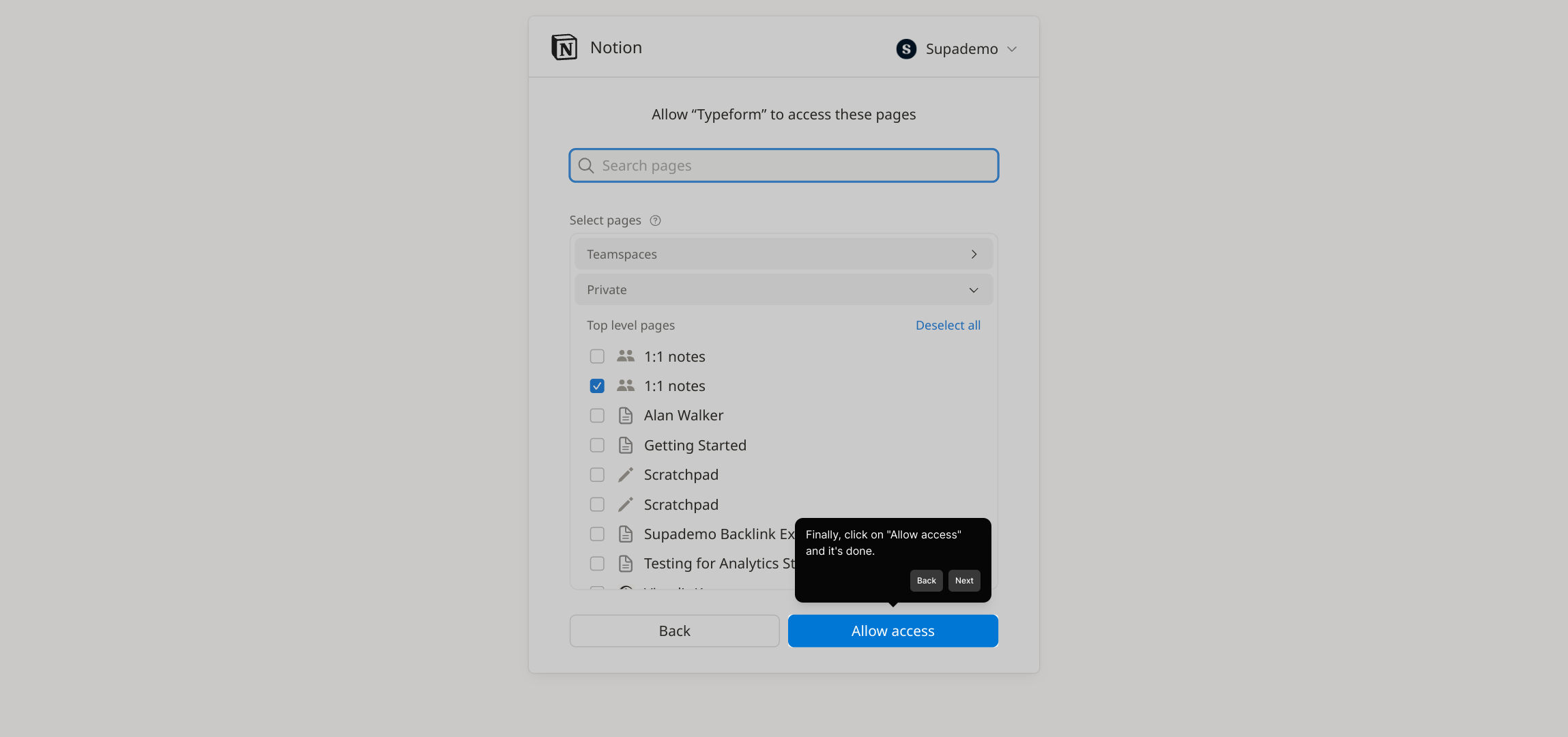
11. Finally, click on "Allow access" and it's done.
12. Create a Supademo in seconds
This interactive demo/guided walkthrough on How to Connect Typeform to Notion was created using Supademo.
How to Connect Typeform to Notion : Step-by-Step Guide
Start by opening the form you want to work with. This is the first step to setting up your integration smoothly.
Once your form is open, look for the "Connect" button and click it to begin linking your form with other services.
Next, in the search bar that appears, type Notion to find the integration option quickly and efficiently.
After locating Notion in the search results, select it to proceed with connecting your account.
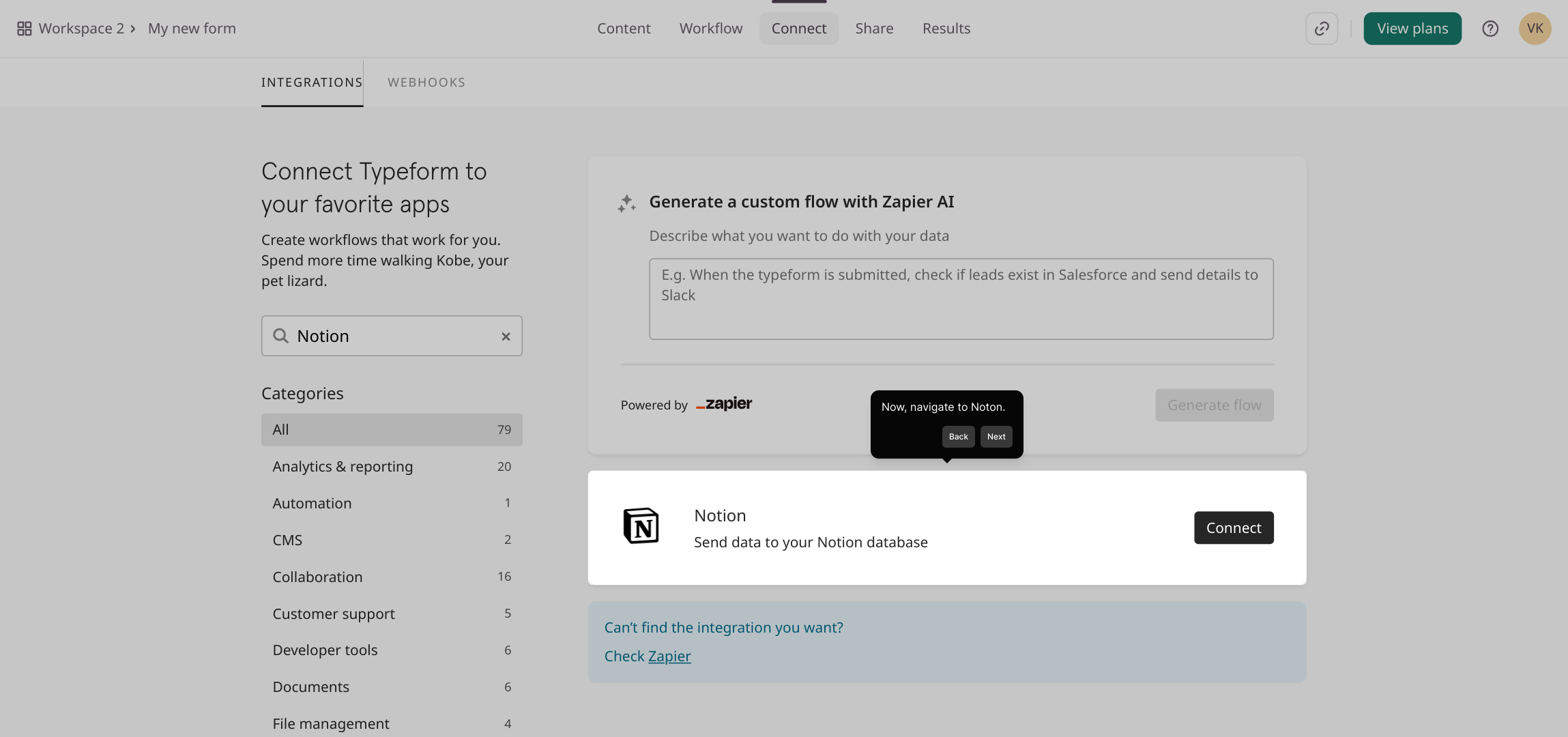
Now, click on the "Connect" button to initiate the connection process between your form and Notion.
To authorize the integration, click on "Authenticate" so you can securely link your Notion account.
When prompted, select "Accept" to grant the necessary permissions for the integration to work properly.
Once permissions are accepted, click "Authenticate" again to complete the connection securely.
Next, choose "Select pages" so you can specify which Notion pages Typeform will have access to.
Carefully pick the Notion pages you'd like to connect—this allows Typeform to interact only with the content you approve.
To finalize, hit the "Allow access" button. This gives Typeform permission to communicate with your selected Notion pages, marking the completion of setup.
With everything connected, you’re ready to create a Supademo in just seconds—streamlining your workflow efficiently.
Create your own interactive demos in < 5 mins with Supademo
You can create your own interactive product demo in minutes using Supademo. Drive growth, scale enablement, and supercharge product-led onboarding with Supademo. Sign up for free here with no credit card required.
FAQs
Commonly asked questions about this topic.
What is Typeform?
What is Notion and why connect it to Typeform?
Do I need a paid plan to connect Typeform to Notion?
How do I authenticate my Notion account in Typeform?
Can I select specific Notion pages to connect with Typeform?
What data from Typeform is sent to Notion?
Is the connection between Typeform and Notion real-time?
What should I do if Notion pages don’t appear during selection?
Can I disconnect Typeform from Notion later?
What are the benefits of using Supademo for this integration?

Product Operations Associate
Vimal Kumar helps build and grow Supademo’s team and GTM efforts, with a focus on figuring out growth levers and improving product traction.




