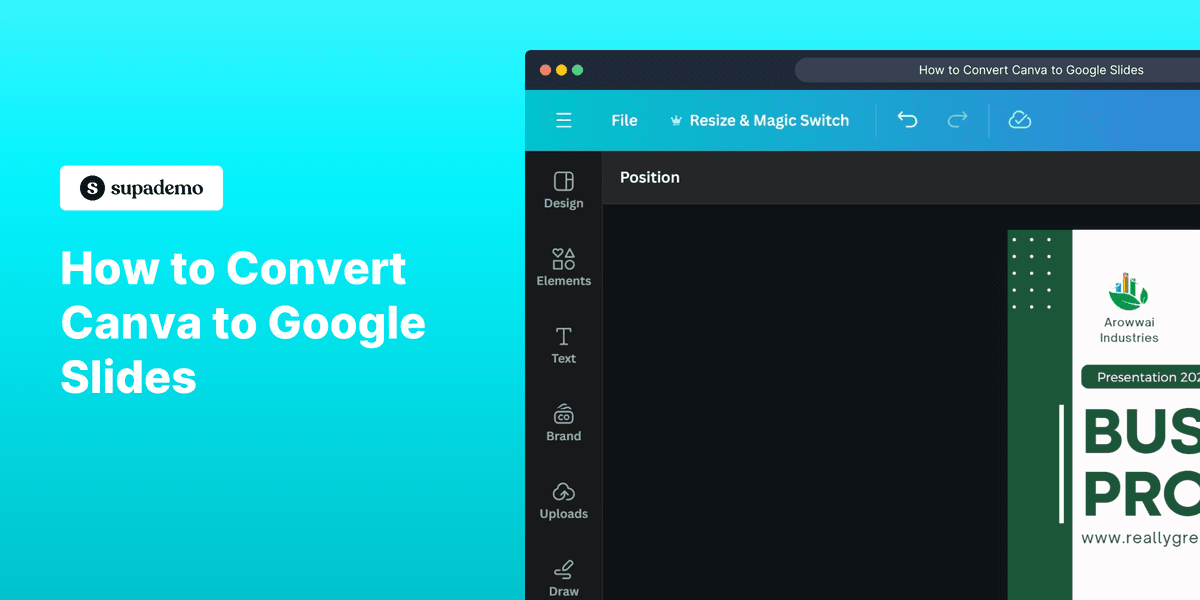
1. First, open the Canva project that you want to convert to Google Slides
2. Click on "Share".
3. Afterwards, click on "More".
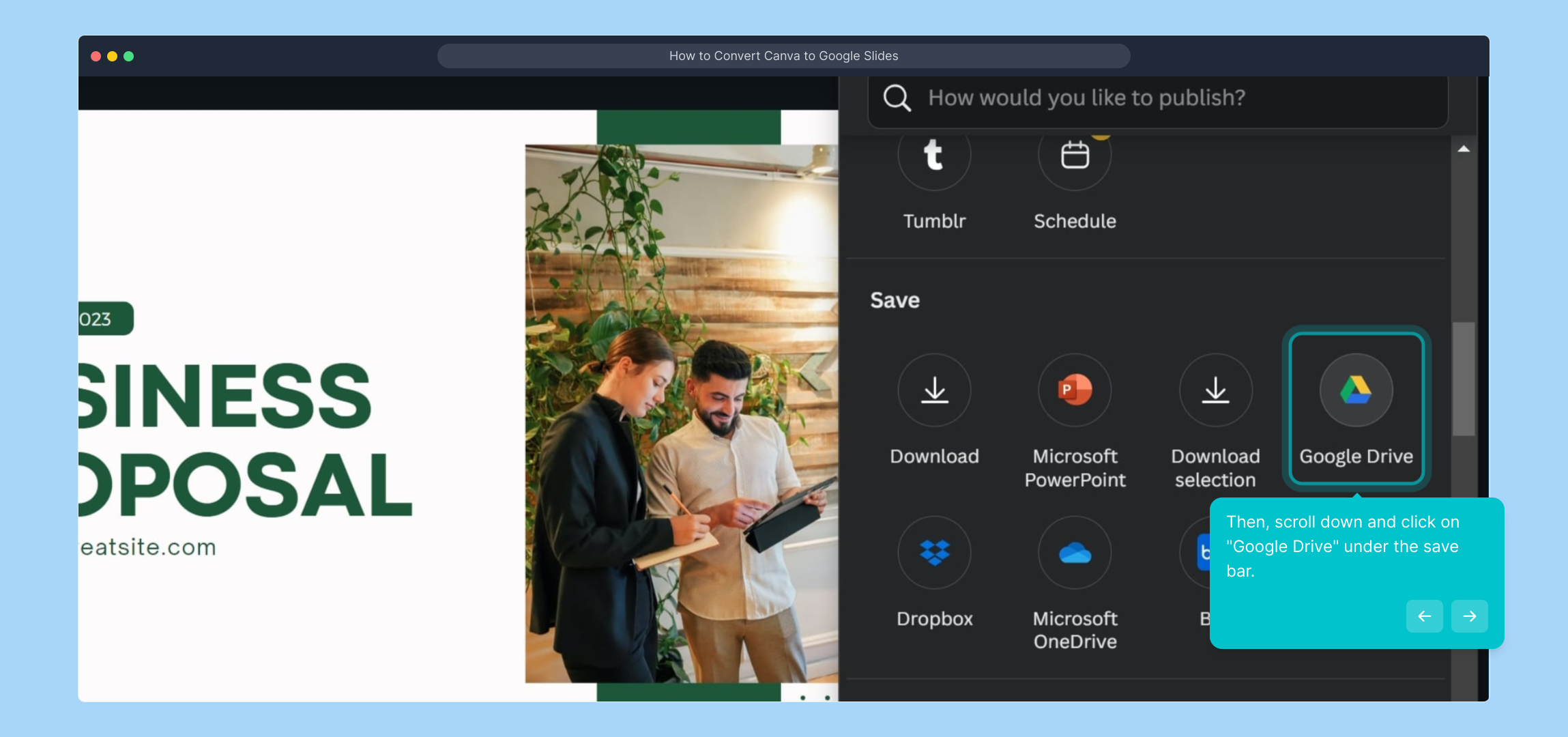
4. Then, scroll down and click on "Google Drive" under the save bar.
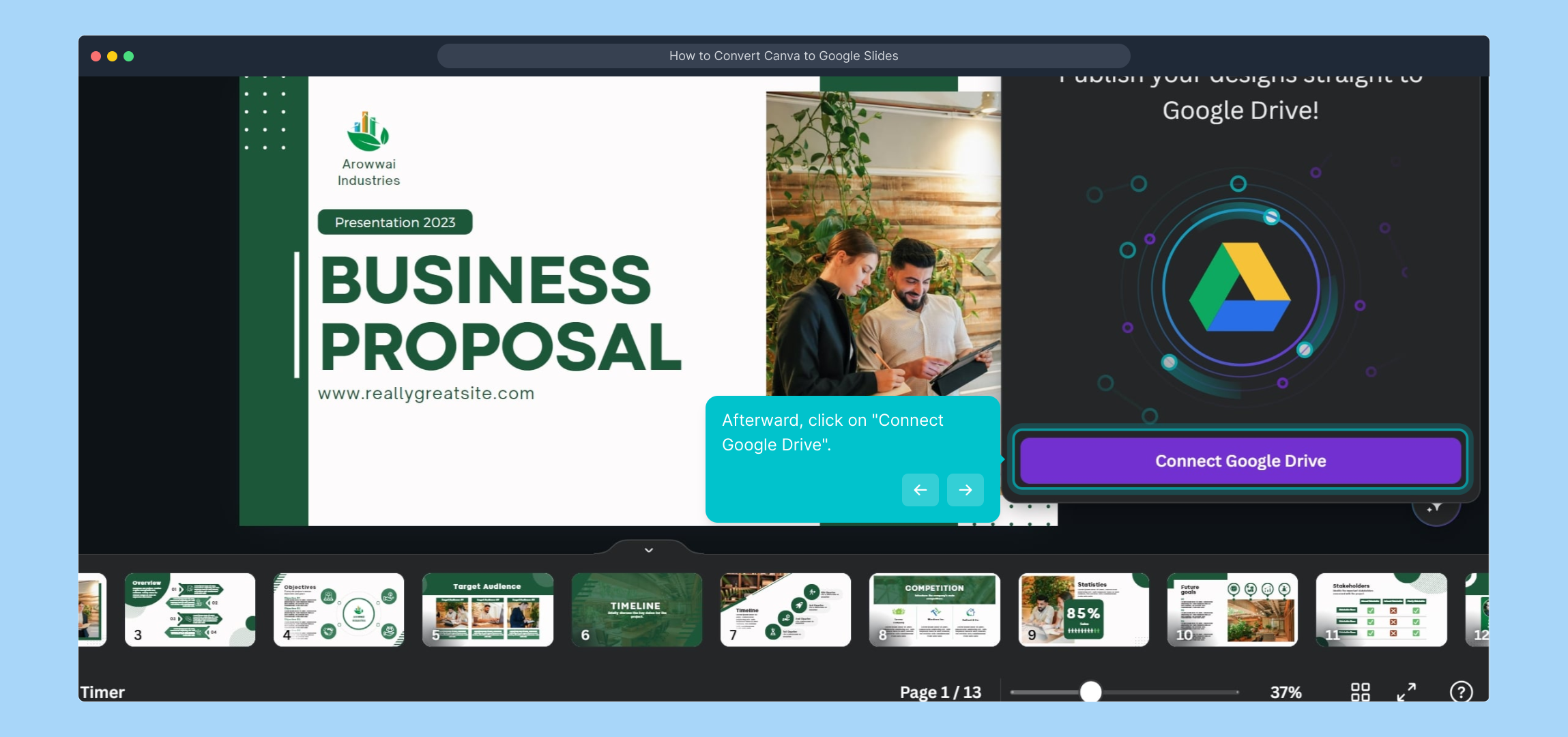
5. Afterward, click on "Connect Google Drive".
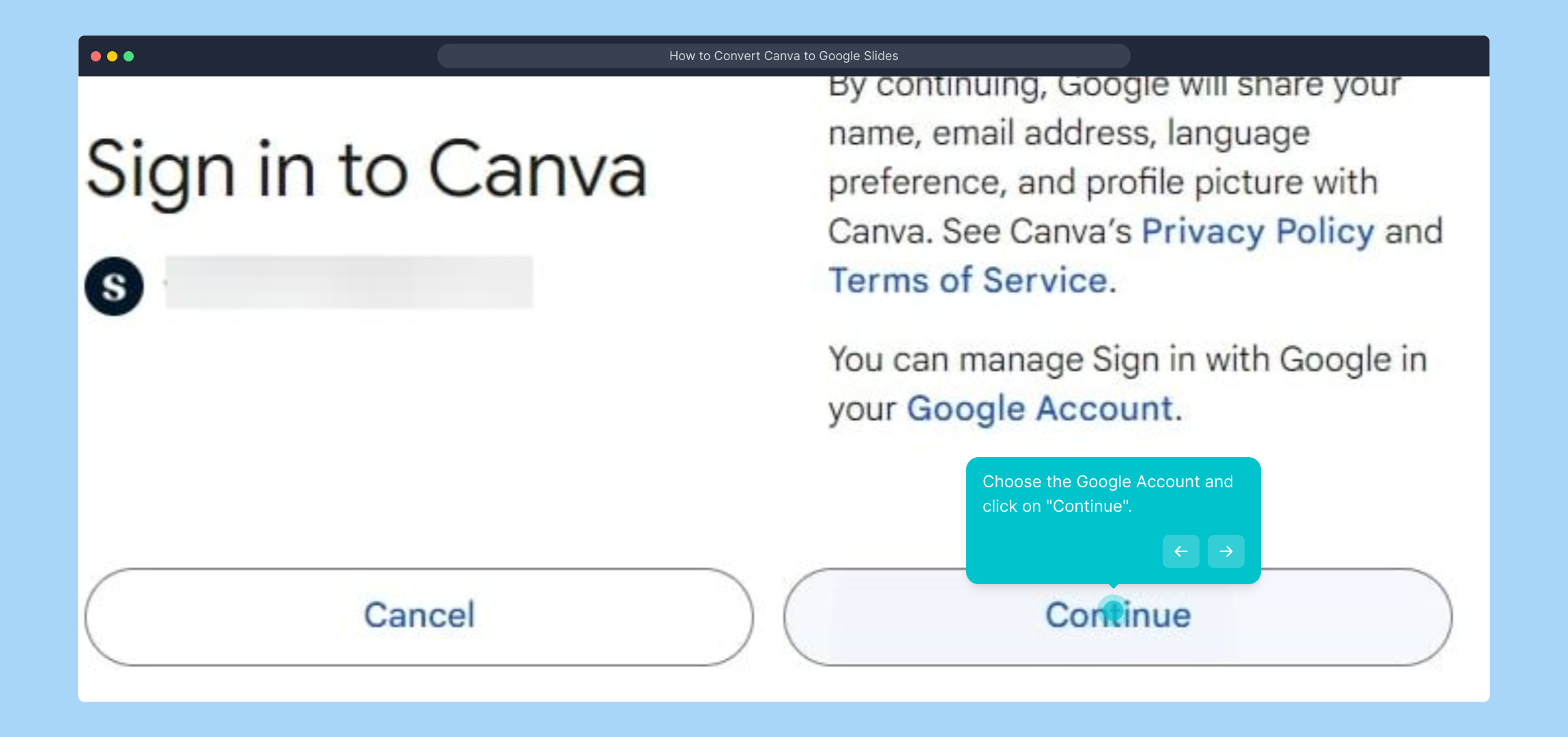
6. Choose the Google Account and click on "Continue".
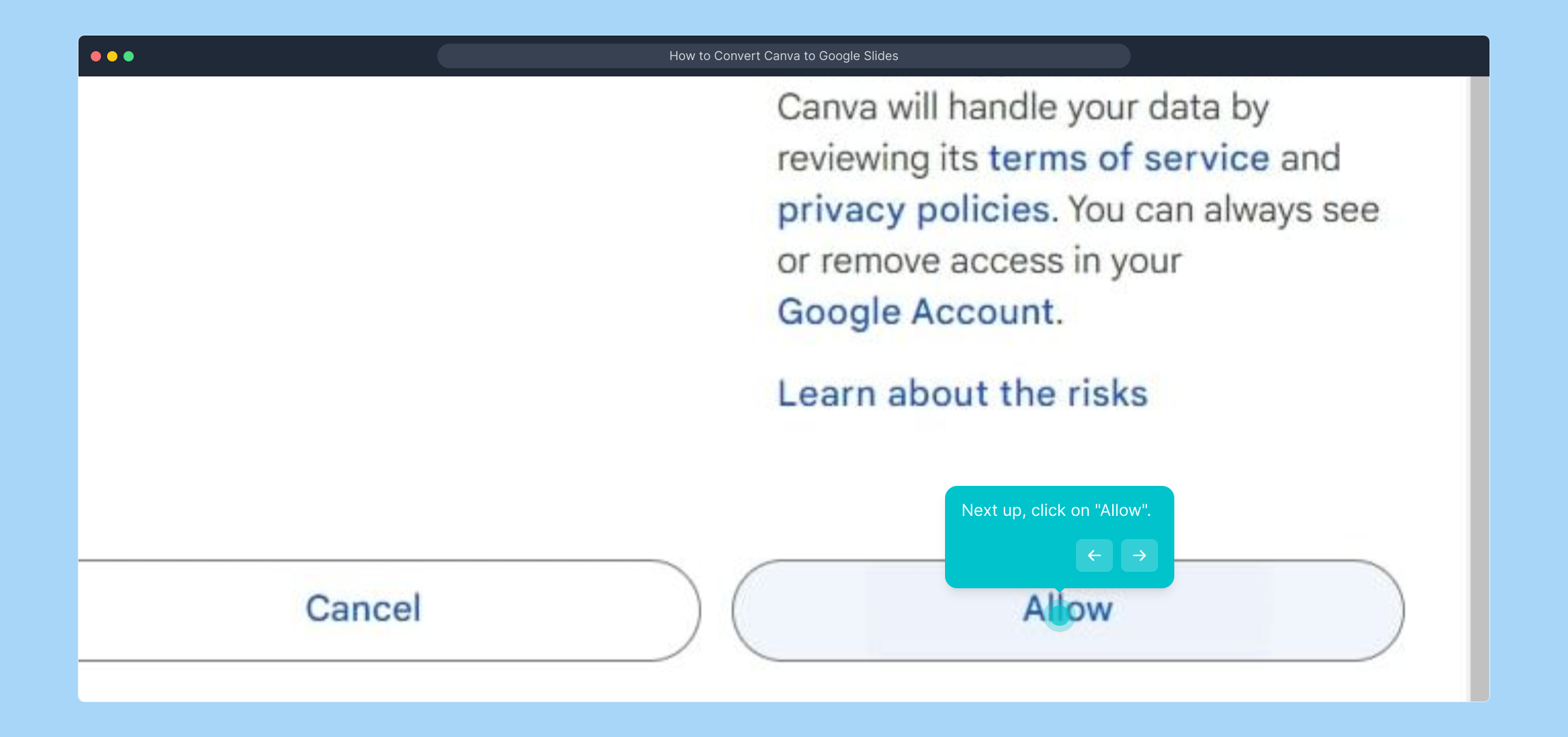
7. Next up, click on "Allow".
8. Click on the "File Type" dropdown menu.
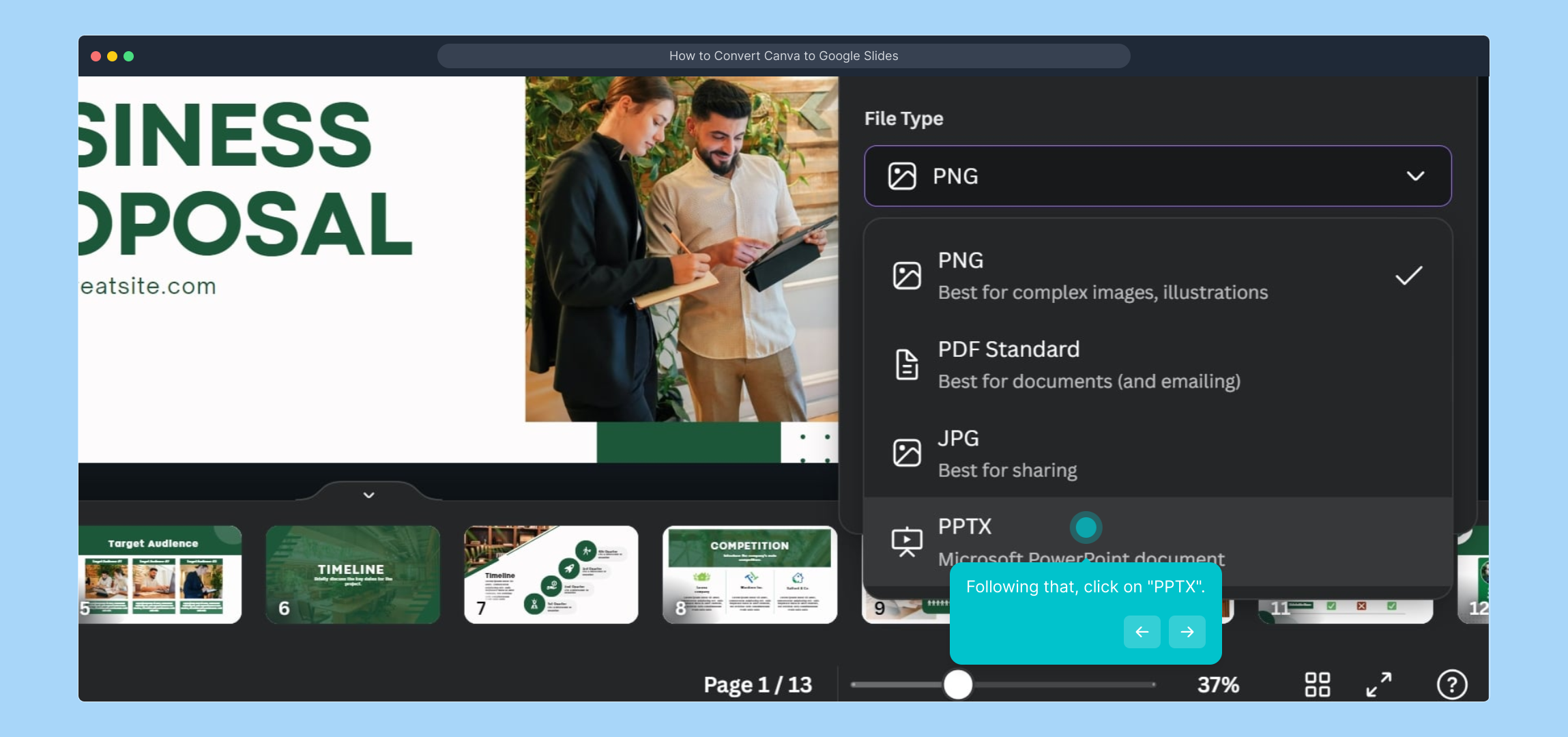
9. Following that, click on "PPTX".
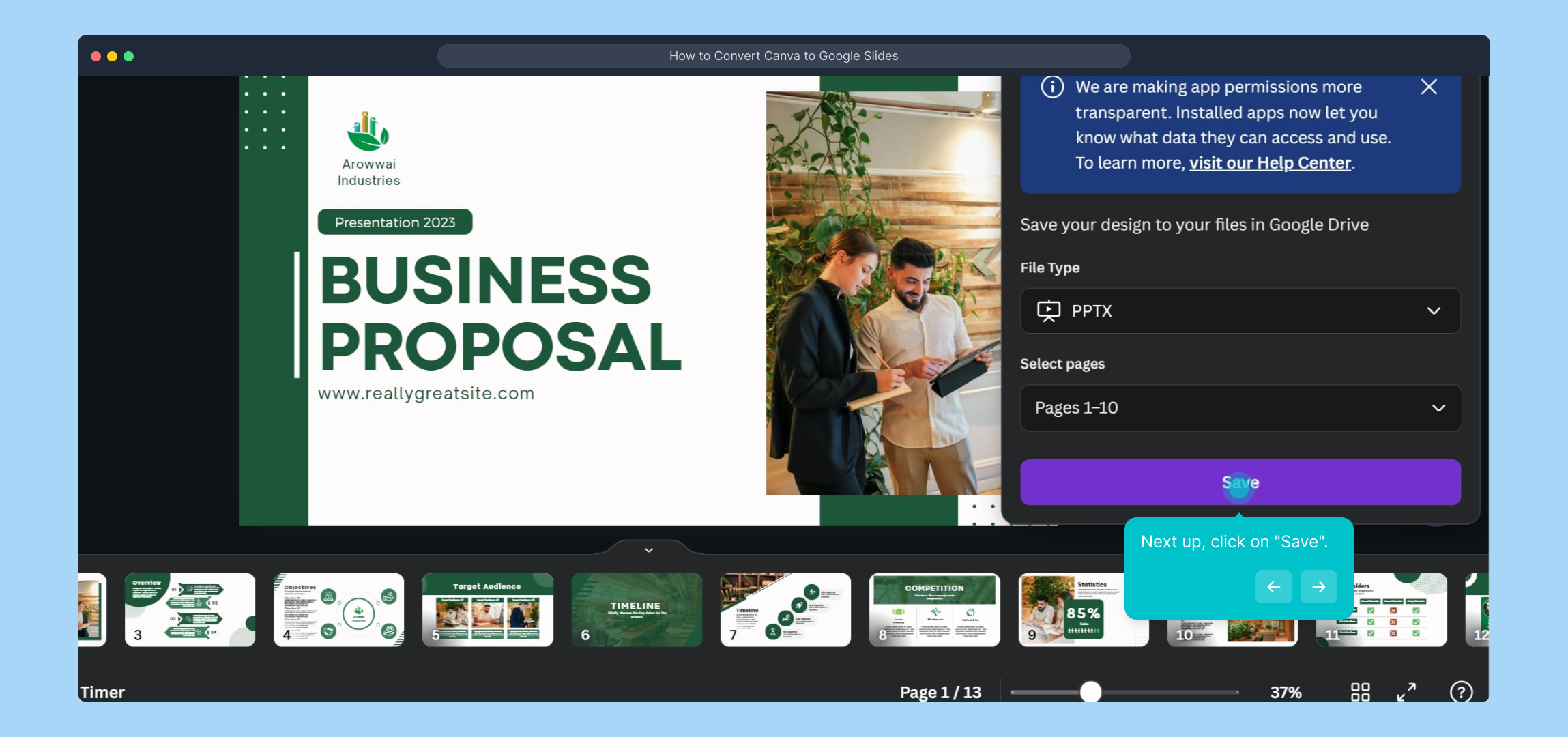
10. Next up, click on "Save".
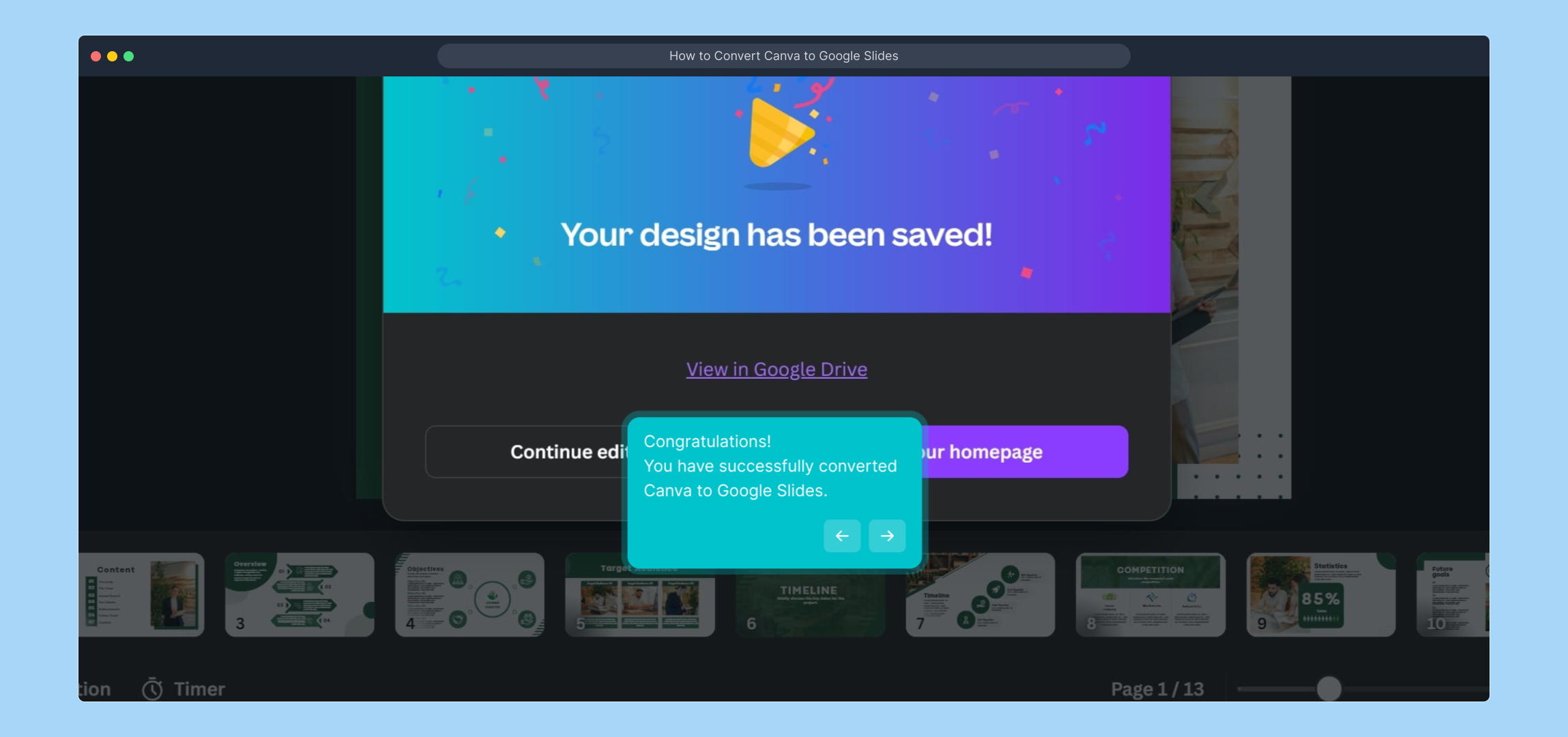
11. Congratulations!
You have successfully converted Canva to Google Slides.
12. Create a Supademo in seconds
This interactive demo/guided walkthrough on How to Convert Canva to Google Slides was created using Supademo.
How to Convert Canva to Google Slides : Step-by-Step Guide
Begin by locating and opening the Canva project you wish to transform into a Google Slides presentation. This is your starting point for exporting your design.
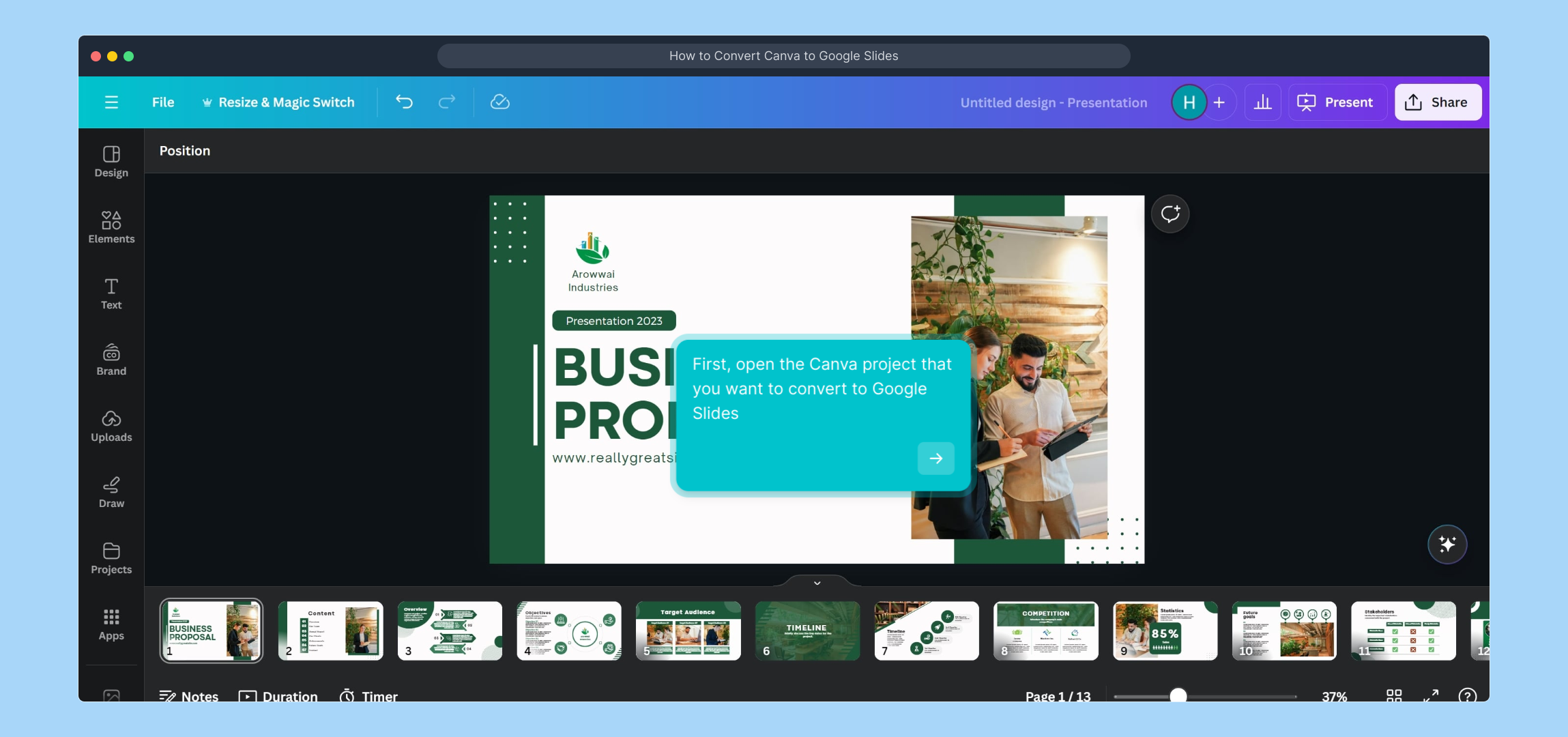
Once your project is open, find and click the “Share” button, usually positioned at the top right of your Canva workspace. This option allows you to access sharing and exporting features.
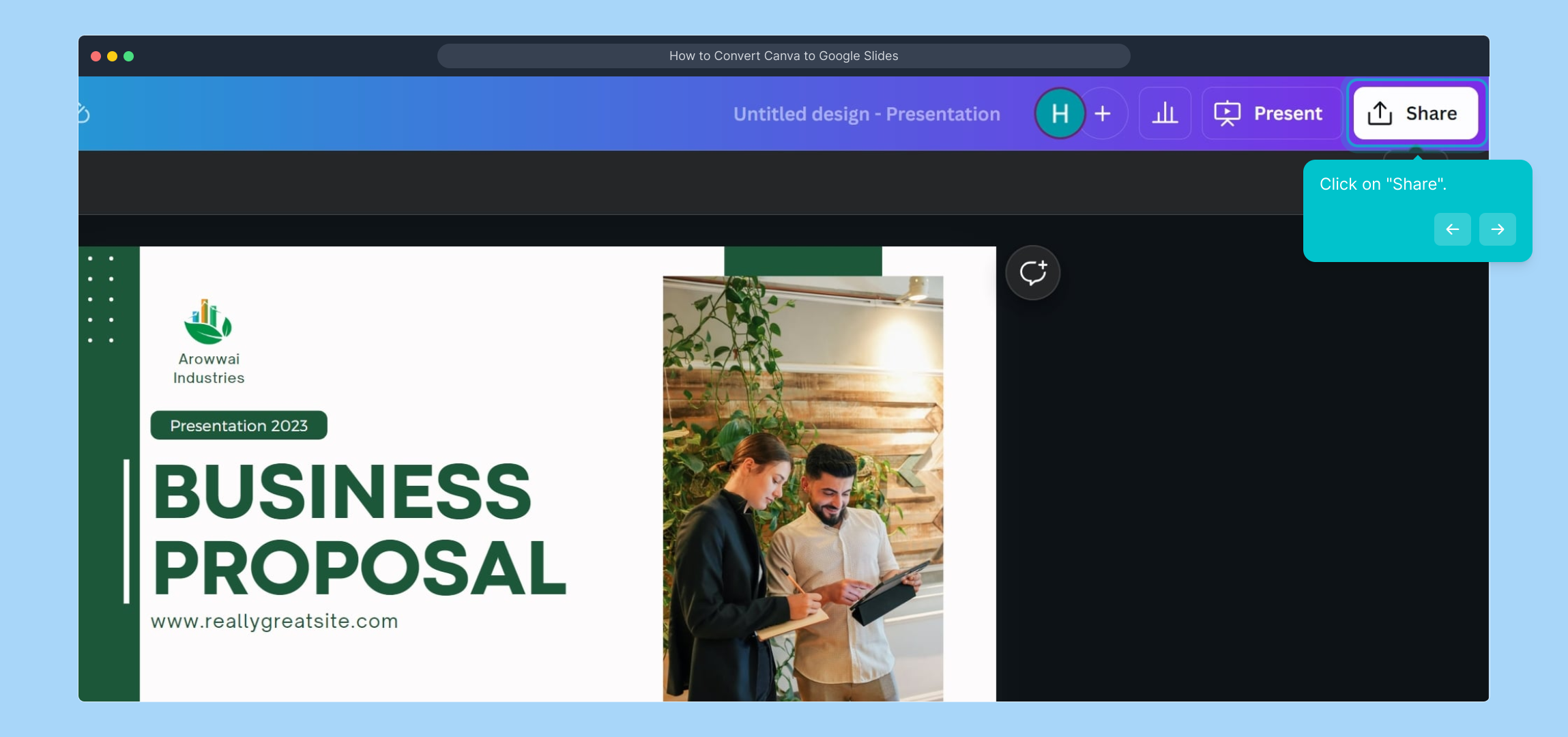
In the sharing menu, select the “More” option to reveal additional ways to export or connect your design with other services not initially displayed.
Scroll through the extended options until you see “Google Drive” listed under the save destinations. Click this to start connecting your Canva project directly to your Drive.
Next, click on “Connect Google Drive” to establish a link between Canva and your Google account, enabling the export process.
A prompt will ask you to select your Google Account. Choose the appropriate account you want to use and press “Continue” to proceed with authorization.
On the subsequent permissions screen, review the access request and then click “Allow” to grant Canva the necessary permissions to save files in your Google Drive.
Back in Canva’s export options, click the “File Type” dropdown menu to view the formats available for saving your project to Google Drive.
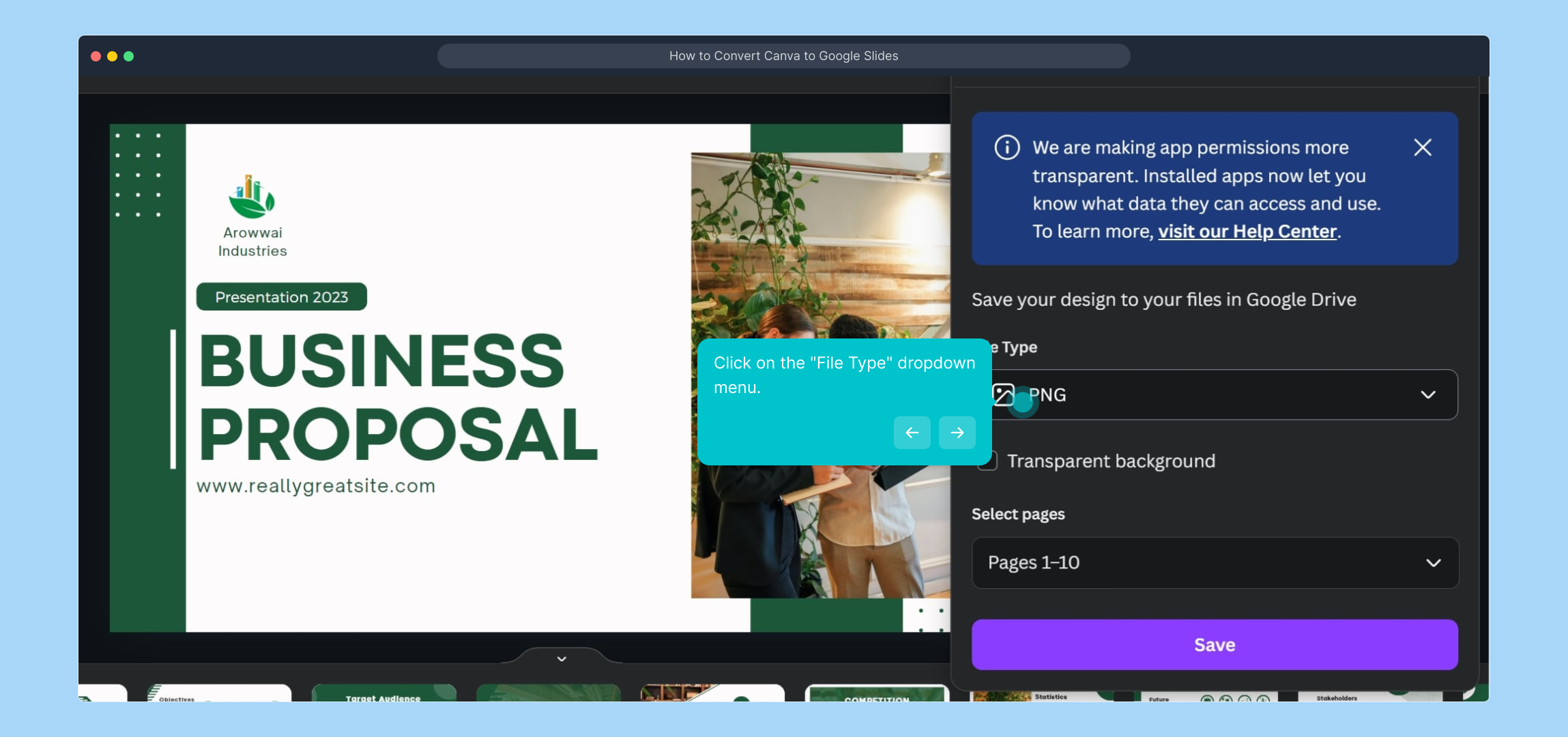
From the file type choices, select “PPTX” which is compatible with Google Slides, ensuring your design will be ready for presentation editing.
Once your format is selected, click “Save” to start exporting your Canva design directly into your Google Drive as a PowerPoint file.
All done! You’ve successfully converted your Canva project into a format that can be opened and edited in Google Slides. Now you can access and customize your presentation online.
Need more quick and effortless tutorials? Create a Supademo in seconds to help guide others through processes like this with clear visuals and instructions.

Create your own interactive demos in < 5 mins with Supademo
You can create your own interactive product demo in minutes using Supademo. Drive growth, scale enablement, and supercharge product-led onboarding with Supademo. Sign up for free here with no credit card required.
FAQs
Commonly asked questions about this topic.
What file format should I use to convert Canva files to Google Slides?
Can I convert a Canva project directly to Google Slides without downloading?
Do I need to grant permissions for Canva to access my Google Drive?
Will the formatting of my Canva design be preserved in Google Slides?
Is Supademo required to convert Canva to Google Slides?
Can I convert Canva projects with multiple pages/slides to Google Slides?
Do I need a paid Canva plan to export files to Google Drive?
What should I do if my Google Slides file doesn’t open correctly after conversion?
Can I edit Canva text and elements after the file is converted to Google Slides?
How long does it take to convert a Canva project to Google Slides?

Product Operations Associate
Vimal Kumar helps build and grow Supademo’s team and GTM efforts, with a focus on figuring out growth levers and improving product traction.




