1. Firstly, open your Jira Project.
2. Click on "Your work".
3. Next, click on "Boards".
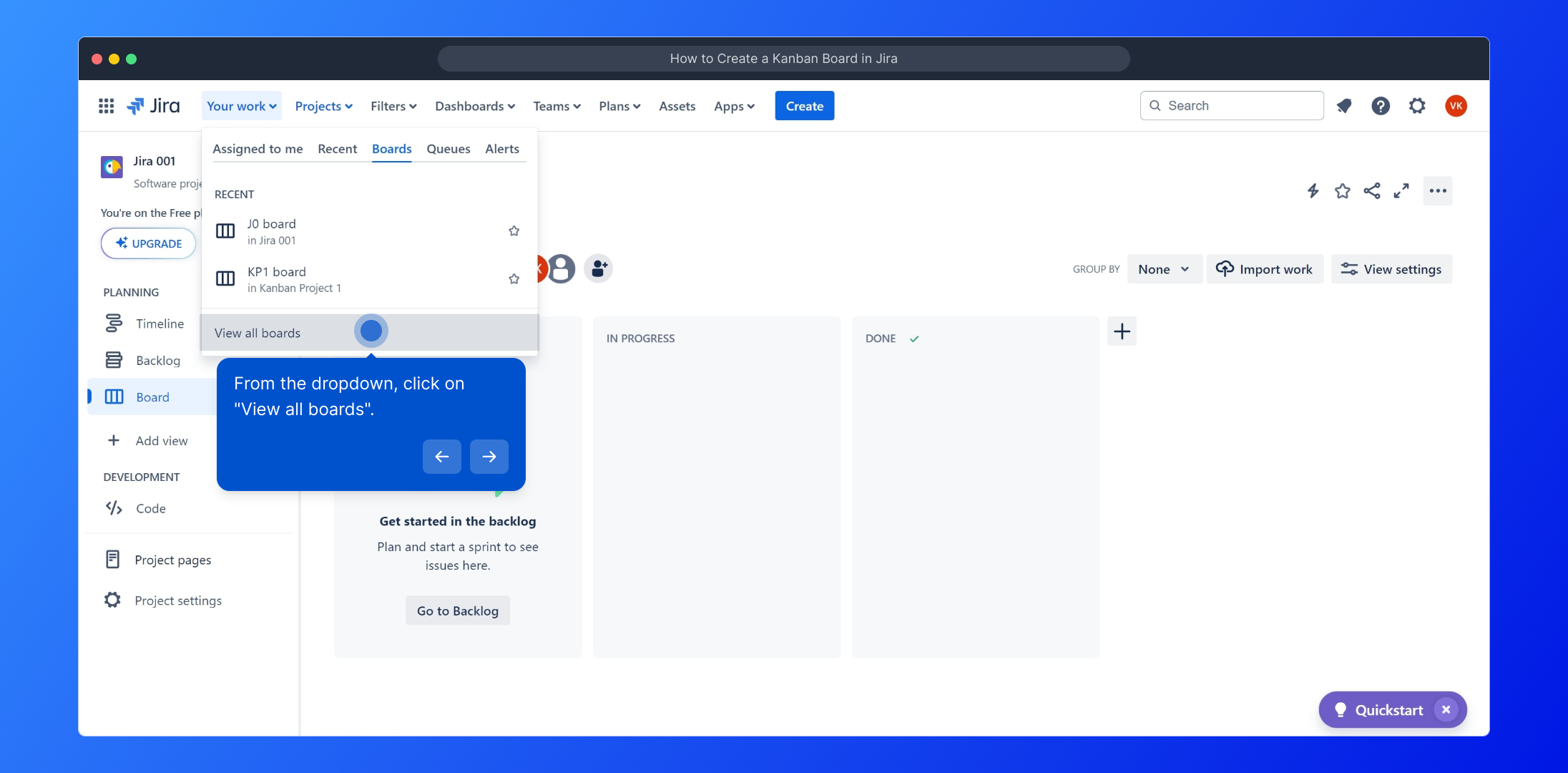
4. From the dropdown, click on "View all boards".
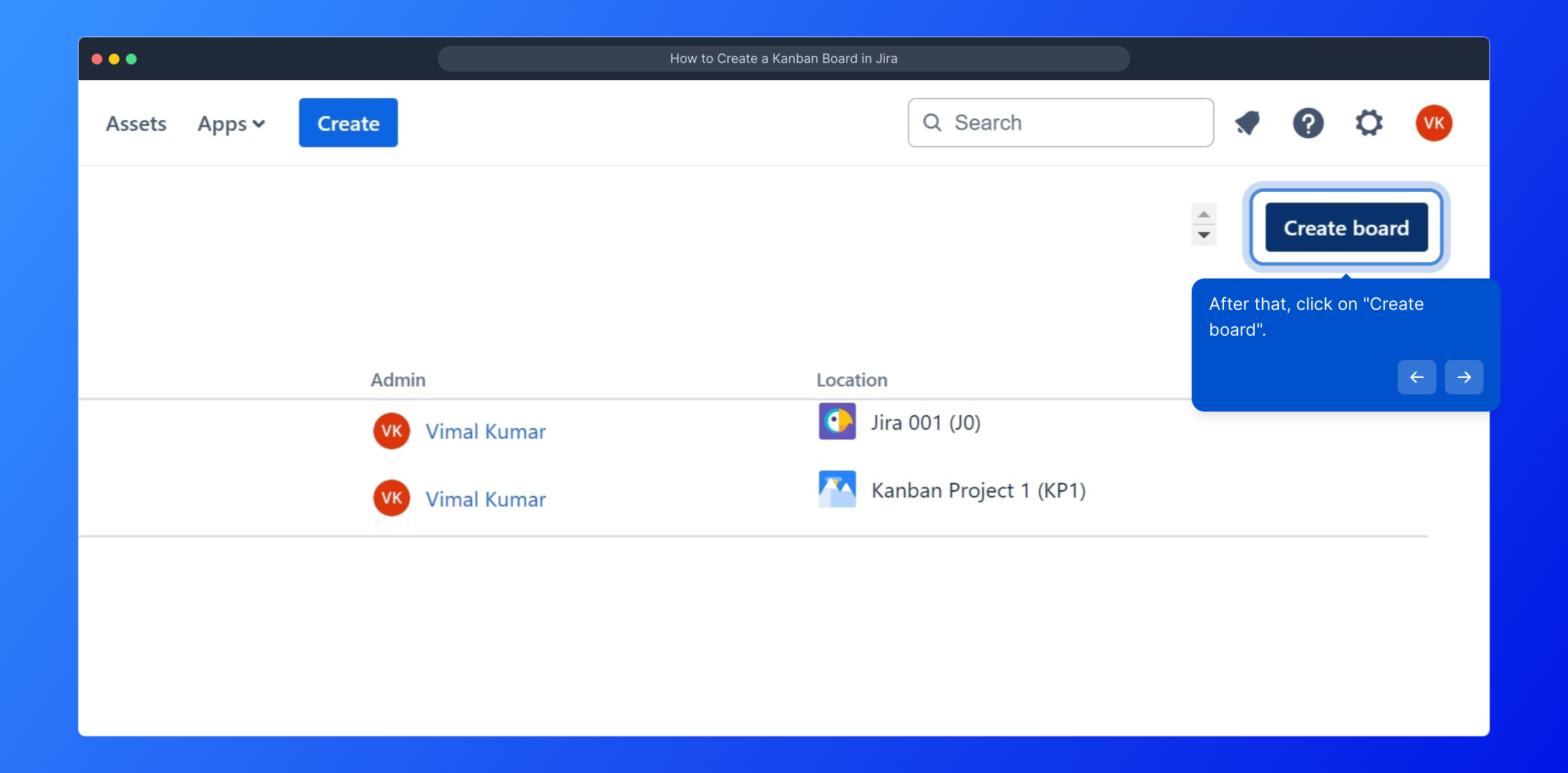
5. After that, click on "Create board".
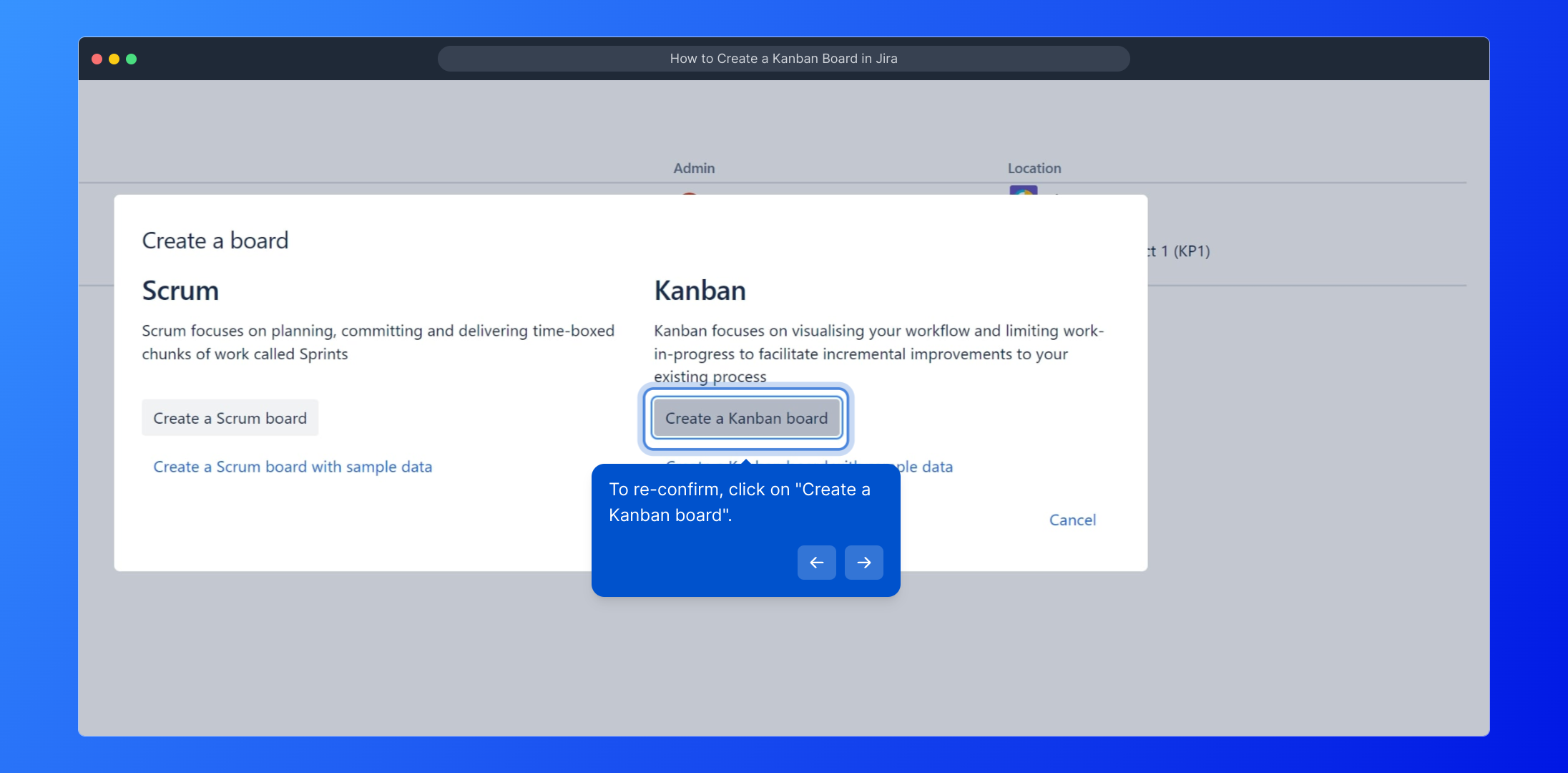
6. To re-confirm, click on "Create a Kanban board".
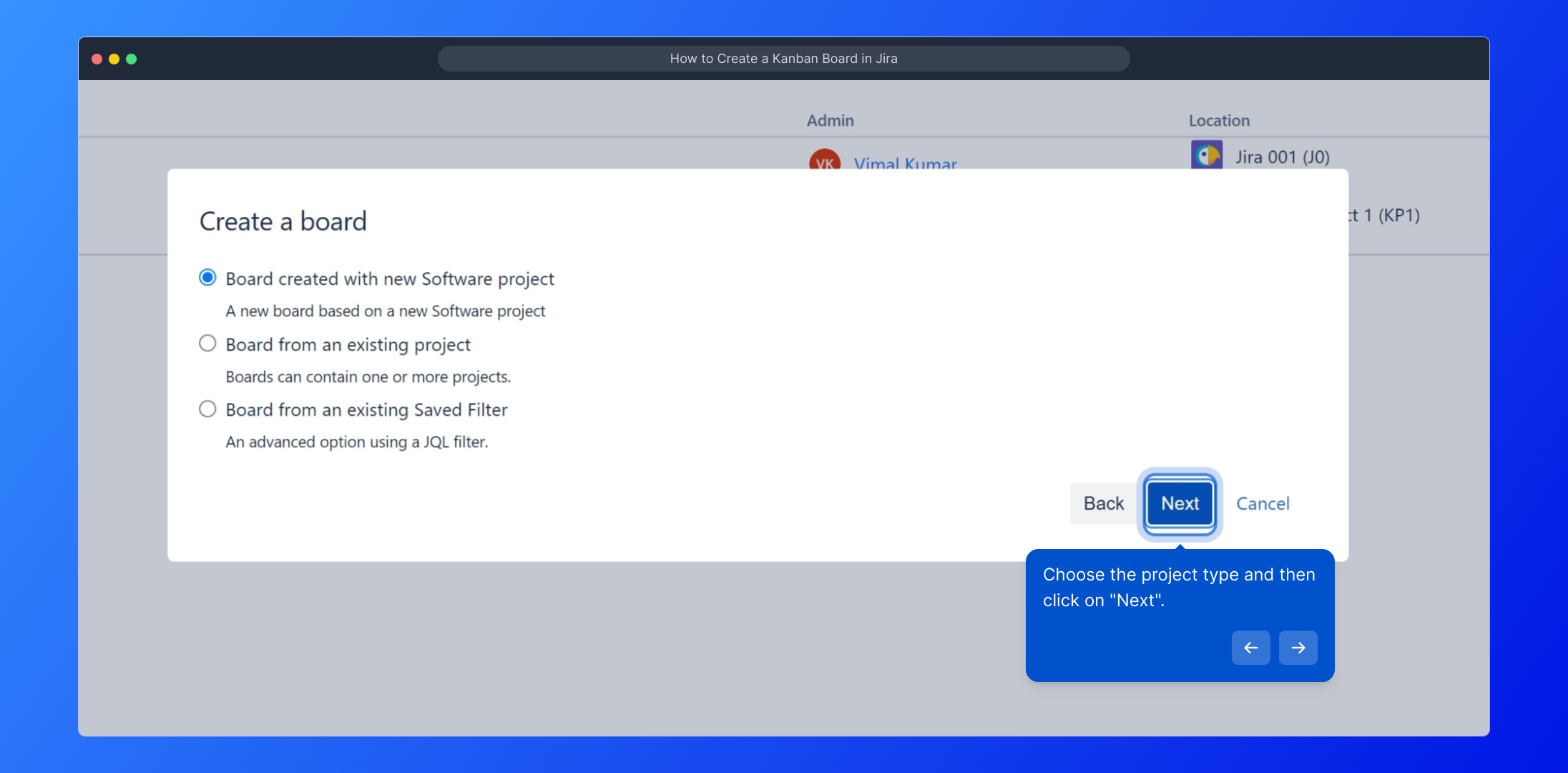
7. Choose the project type and then click on "Next".
8. Video Step (
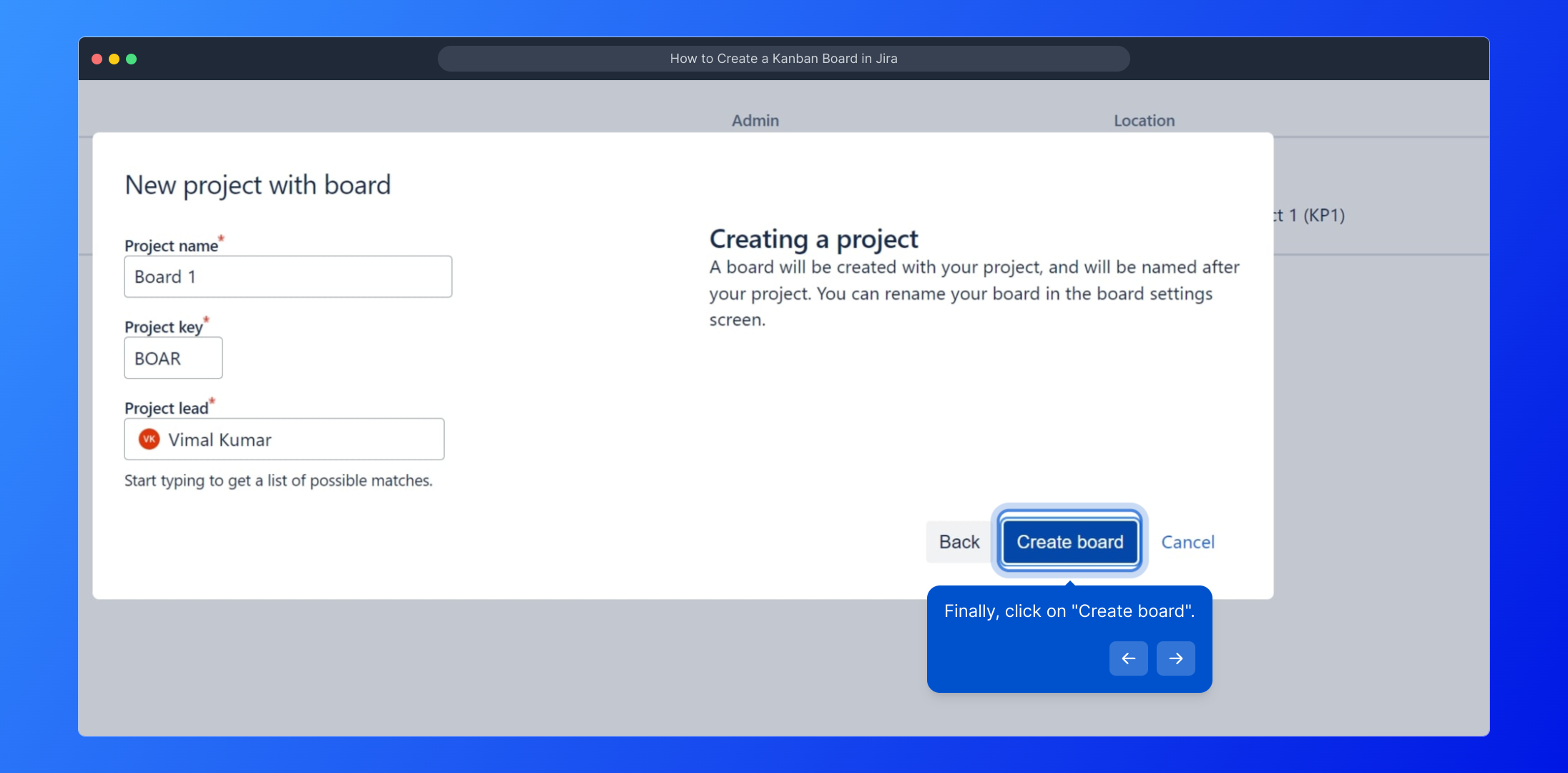
9. Finally, click on "Create board".
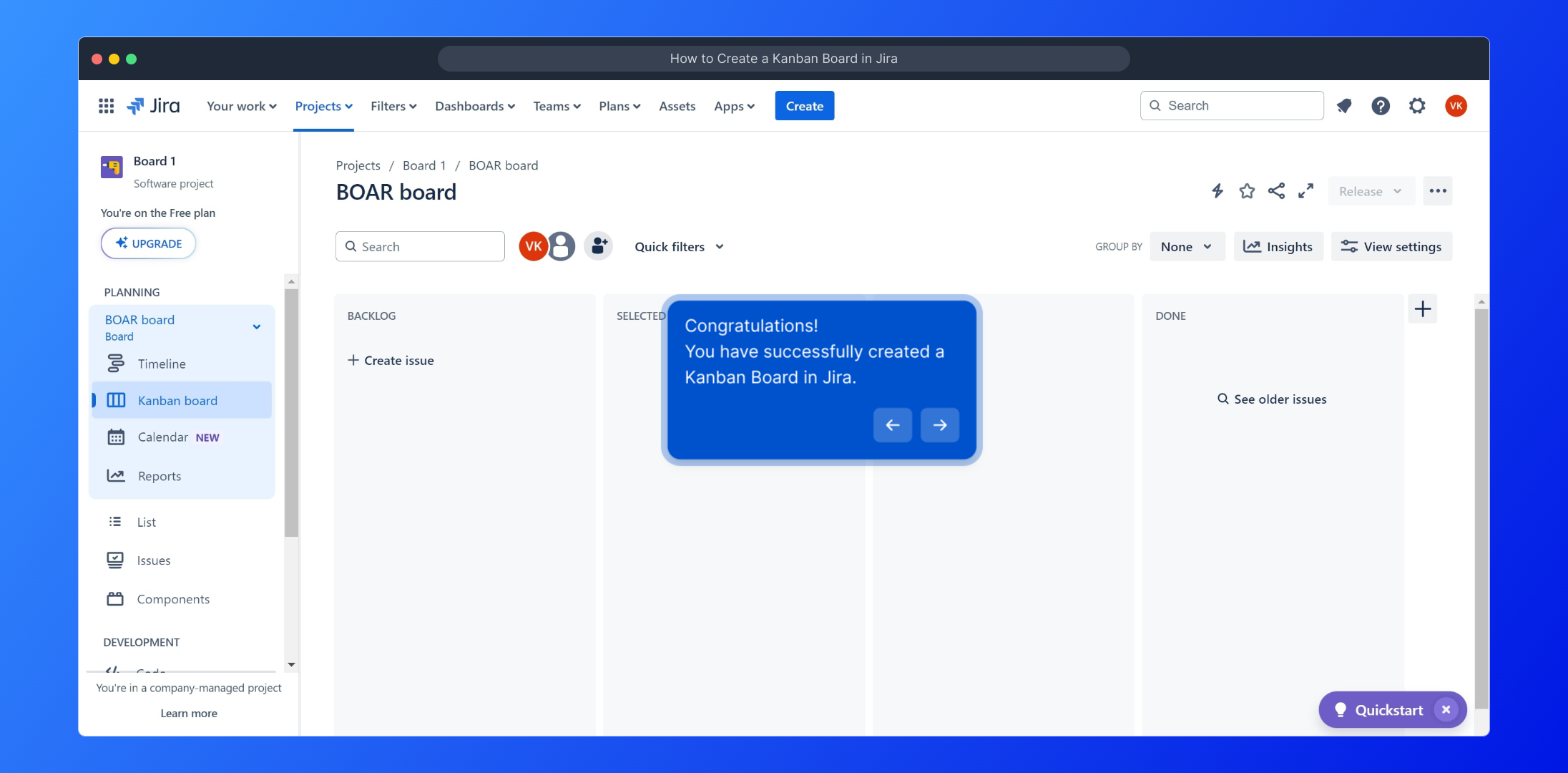
10. Congratulations!
You have successfully created a Kanban Board in Jira.
11. Create a Supademo in seconds
This interactive demo/guided walkthrough on How to Create a Kanban Board in Jira was created using Supademo.
How to Create a Kanban Board in Jira : Step-by-Step Guide
Start by navigating to your Jira project dashboard, where you can manage your ongoing work and settings.
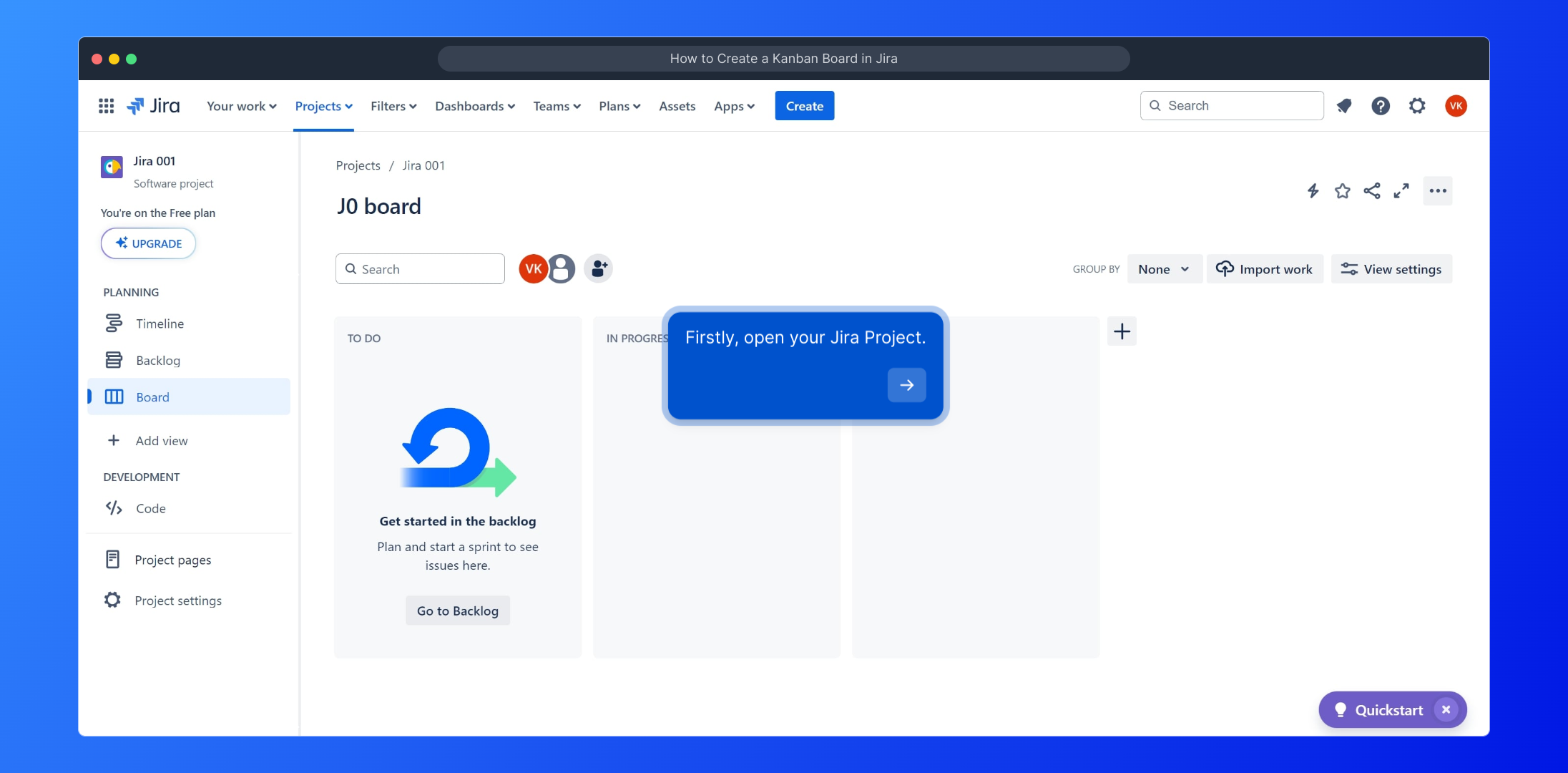
Look for the "Your work" section on the main Jira navigation bar. This is where you can quickly access your tasks, boards, and projects.
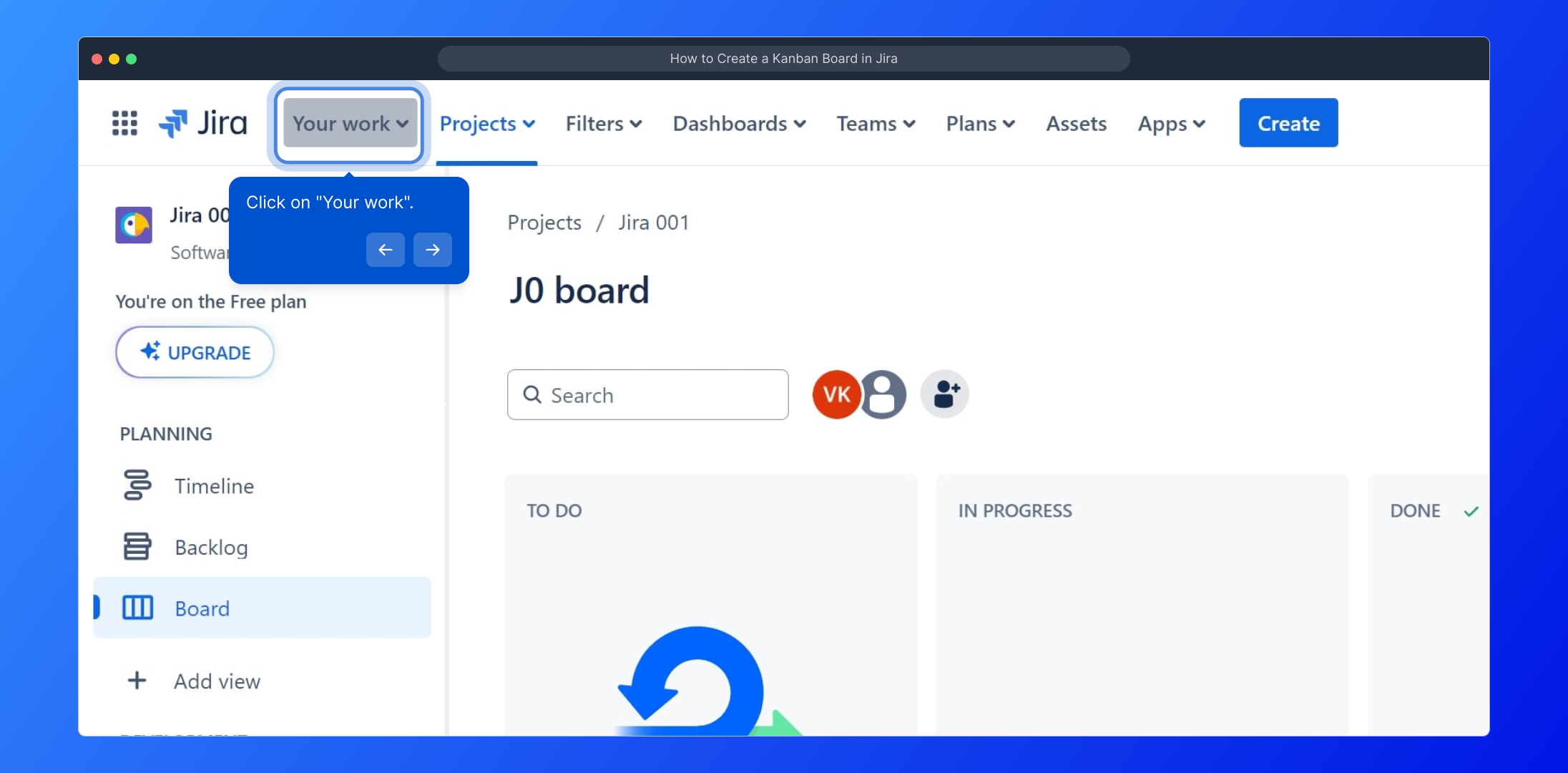
Within the "Your work" area, find and select the "Boards" option. This will help you manage and view different project boards associated with your account.
From the dropdown menu that appears, choose "View all boards" to see a complete list of existing boards where your team’s work is organized.
Next, look for the "Create board" button. This allows you to start setting up a new board tailored to your project’s workflow.
When prompted, confirm your choice by selecting "Create a Kanban board," which is ideal for visualizing and managing work in progress.
Now, specify the type of project you want this board to be connected with, then proceed by clicking on the "Next" button to continue.
For a visual walkthrough, you can watch this step-by-step video by clicking the link below, which will guide you through the process in real-time.
(
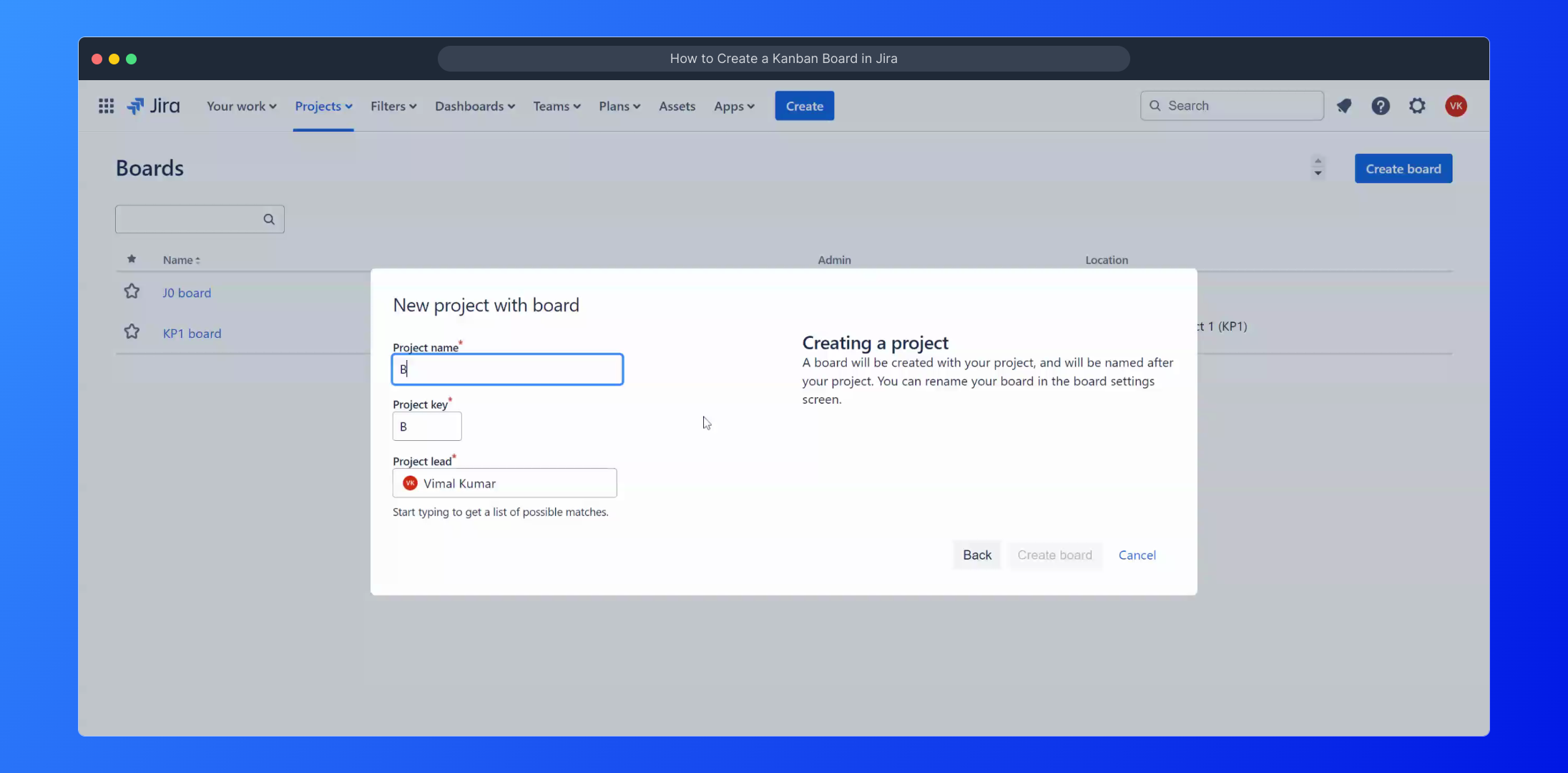
Once everything looks good, complete the setup by clicking on the "Create board" button to bring your new Kanban board to life.
Congratulations on setting up your Kanban board! You’re now ready to start organizing tasks and tracking progress more effectively within Jira.
Want to create your own interactive demos quickly? Supademo lets you build engaging product walkthroughs in just a few seconds.
Create your own interactive demos in < 5 mins with Supademo
You can create your own interactive product demo in minutes using Supademo. Drive growth, scale enablement, and supercharge product-led onboarding with Supademo.
Sign up for free here with no credit card required.
FAQs
Commonly asked questions about this topic.
What is a Kanban board in Jira?
How do I create a Kanban board in Jira?
Can I link a Kanban board to multiple projects?
What are the main columns in a typical Jira Kanban board?
Do I need admin access to create a Kanban board?
How can I customize my Kanban board after creation?
Is there a way to automate task movement on a Kanban board?
Can I use the Kanban board for non-software projects?
What’s the difference between a Scrum board and a Kanban board in Jira?
Where can I find detailed tutorials for managing Jira Kanban boards?

Product Operations Associate
Vimal Kumar helps build and grow Supademo’s team and GTM efforts, with a focus on figuring out growth levers and improving product traction.




