How to Create Freshdesk AI Agent

Vimal Kumar
Vimal Kumar·
How to Create Freshdesk AI Agent
Interactive demo powered by Supademo

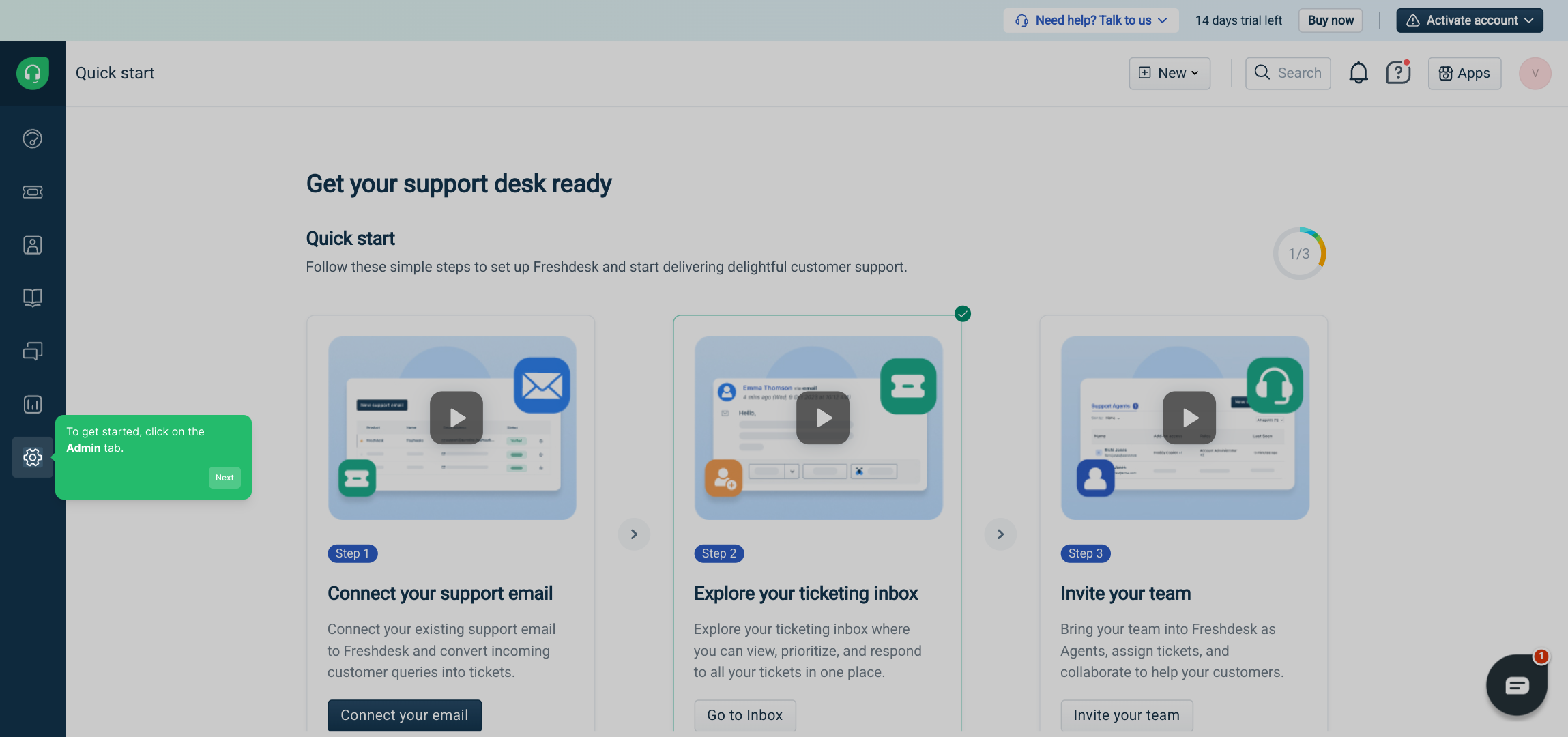
1. To get started, click on the Admin tab.

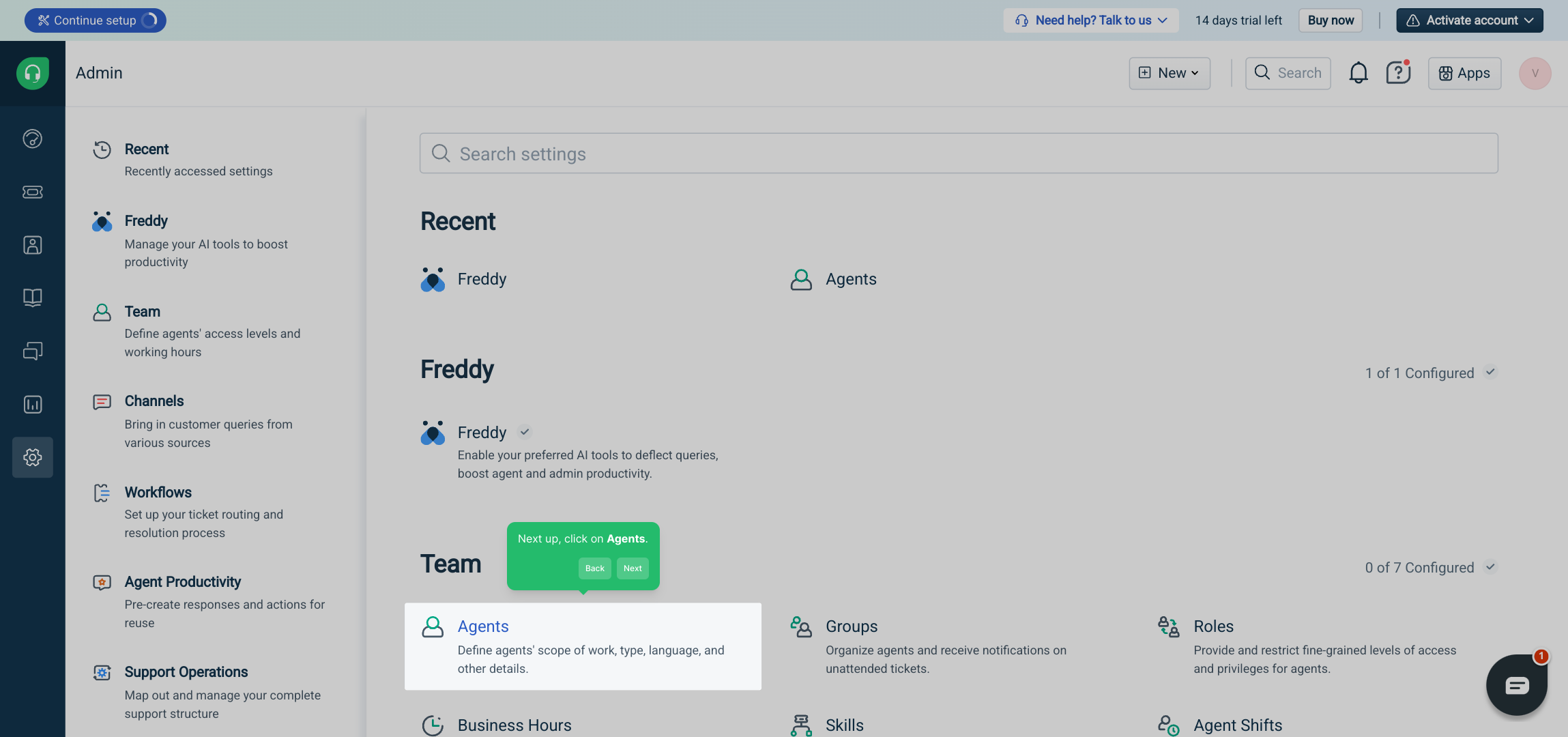
2. Next up, click on Agents.

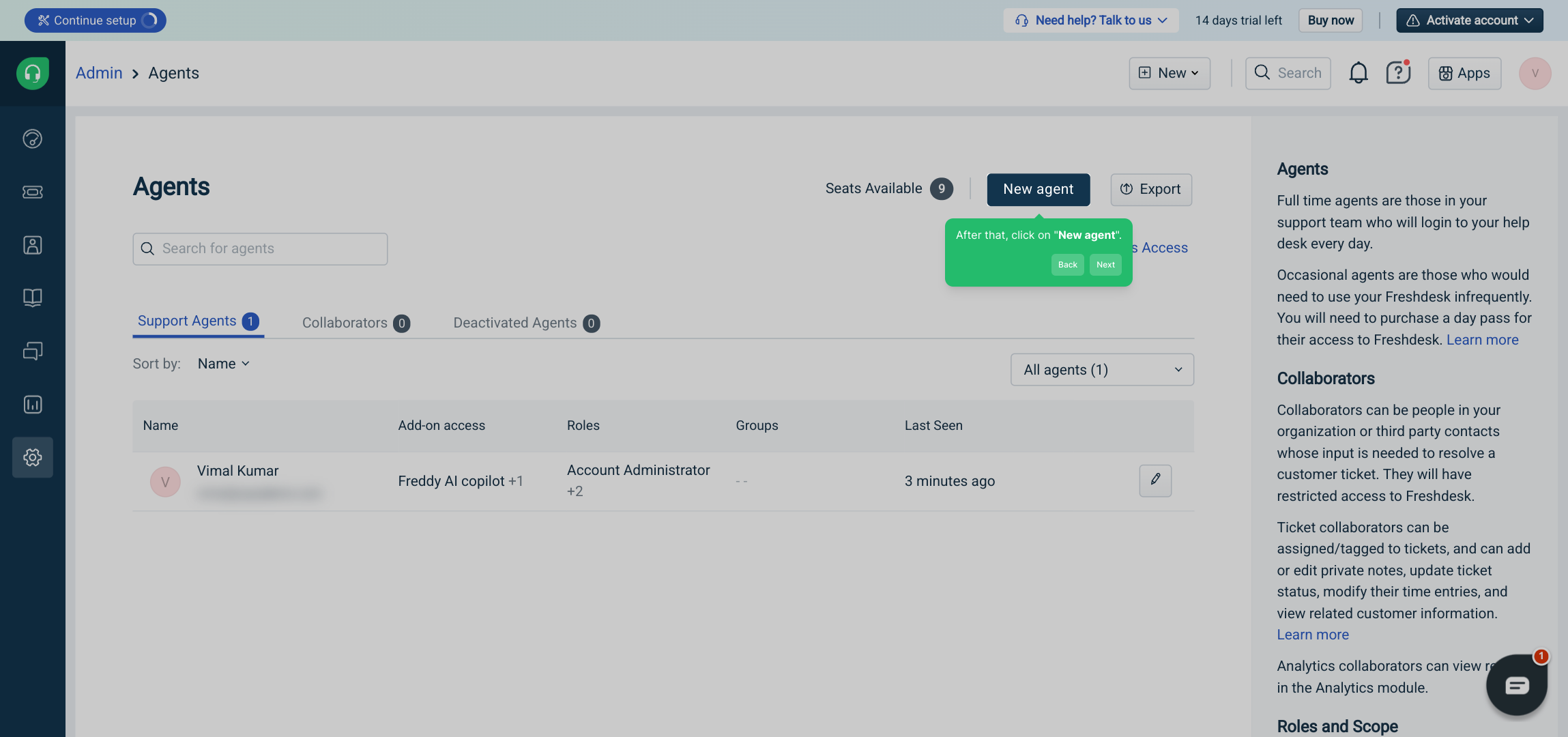
3. After that, click on "New agent".

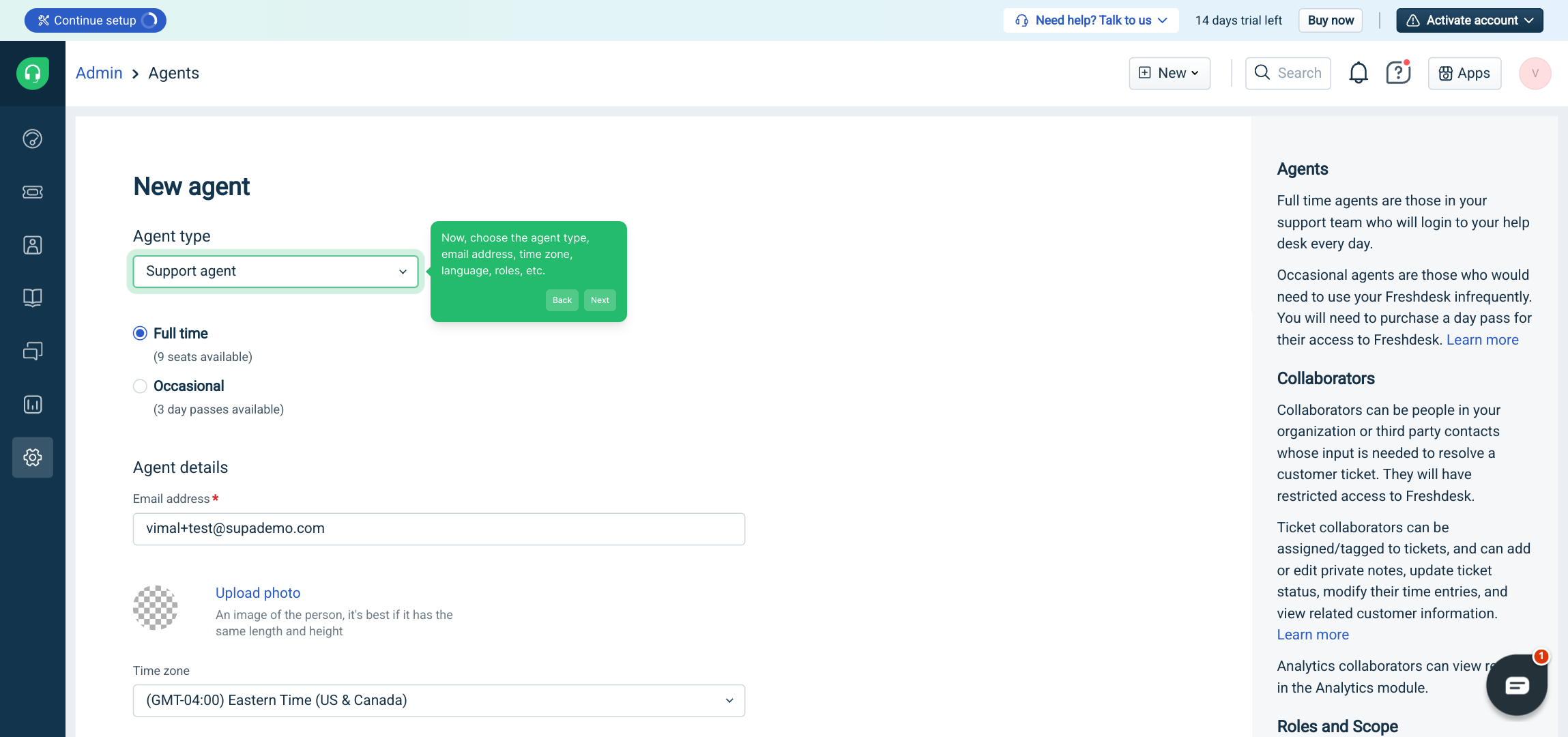
4. Now, choose the agent type, email address, time zone, language, roles, etc.

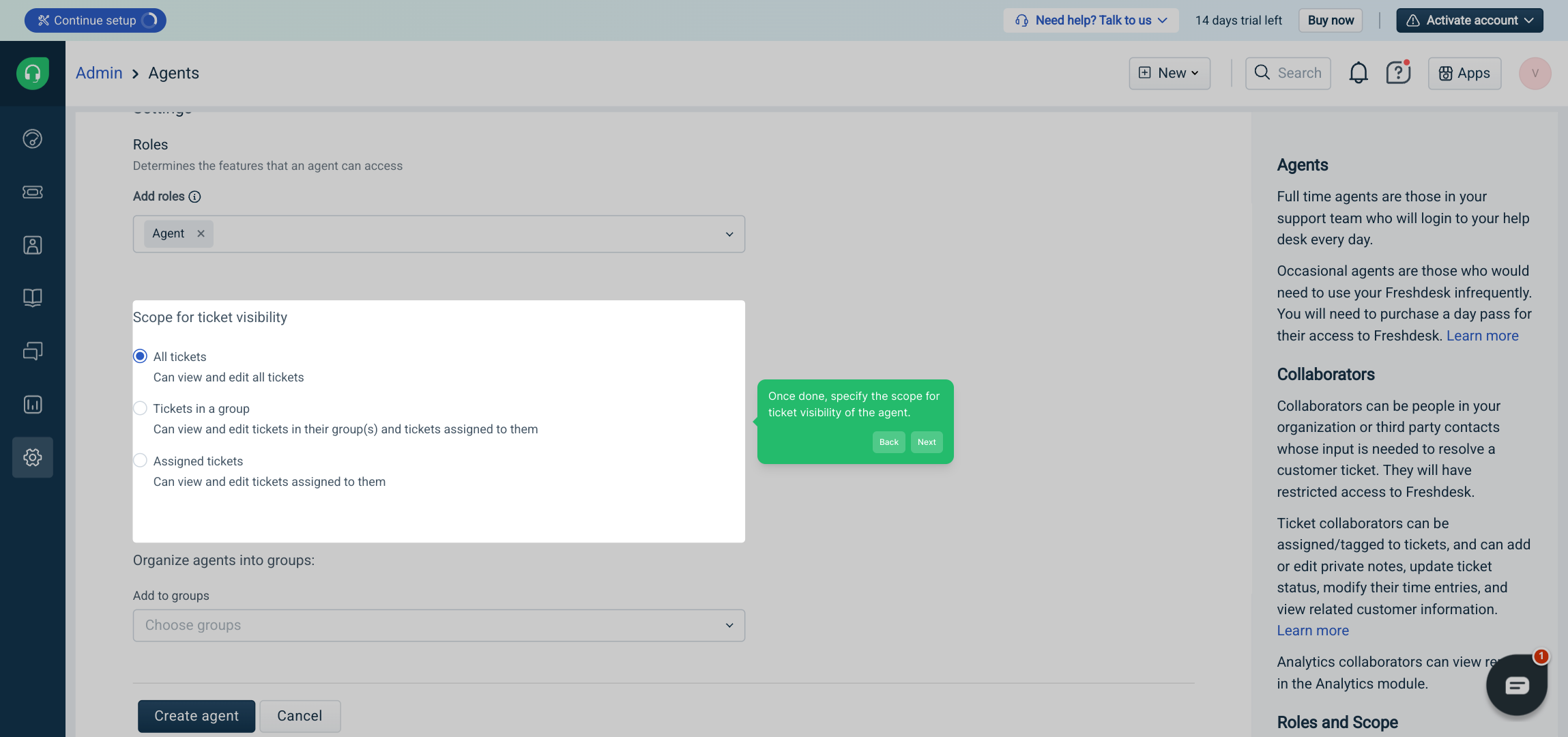
5. Once done, specify the scope for ticket visibility of the agent.

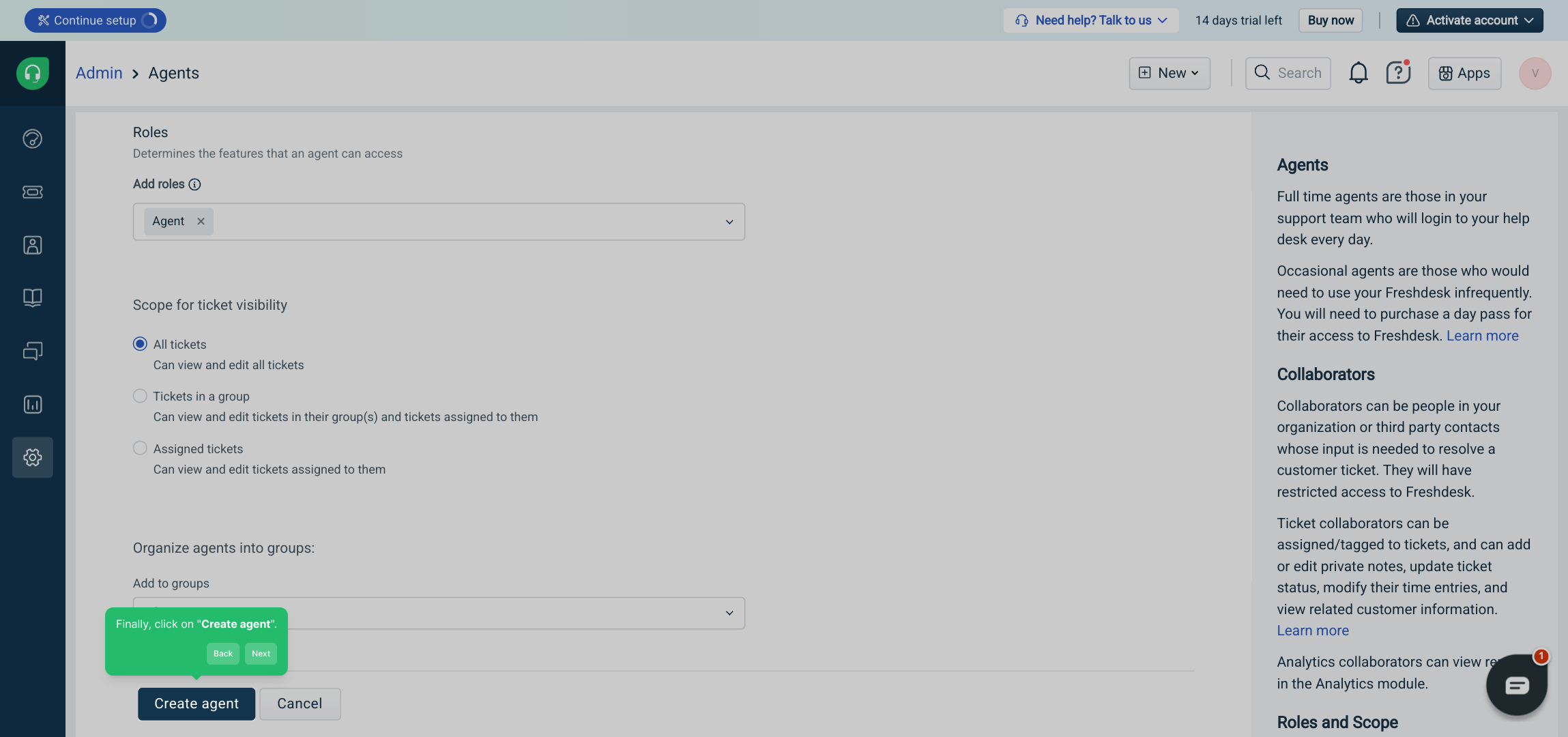
6. Finally, click on "Create agent".

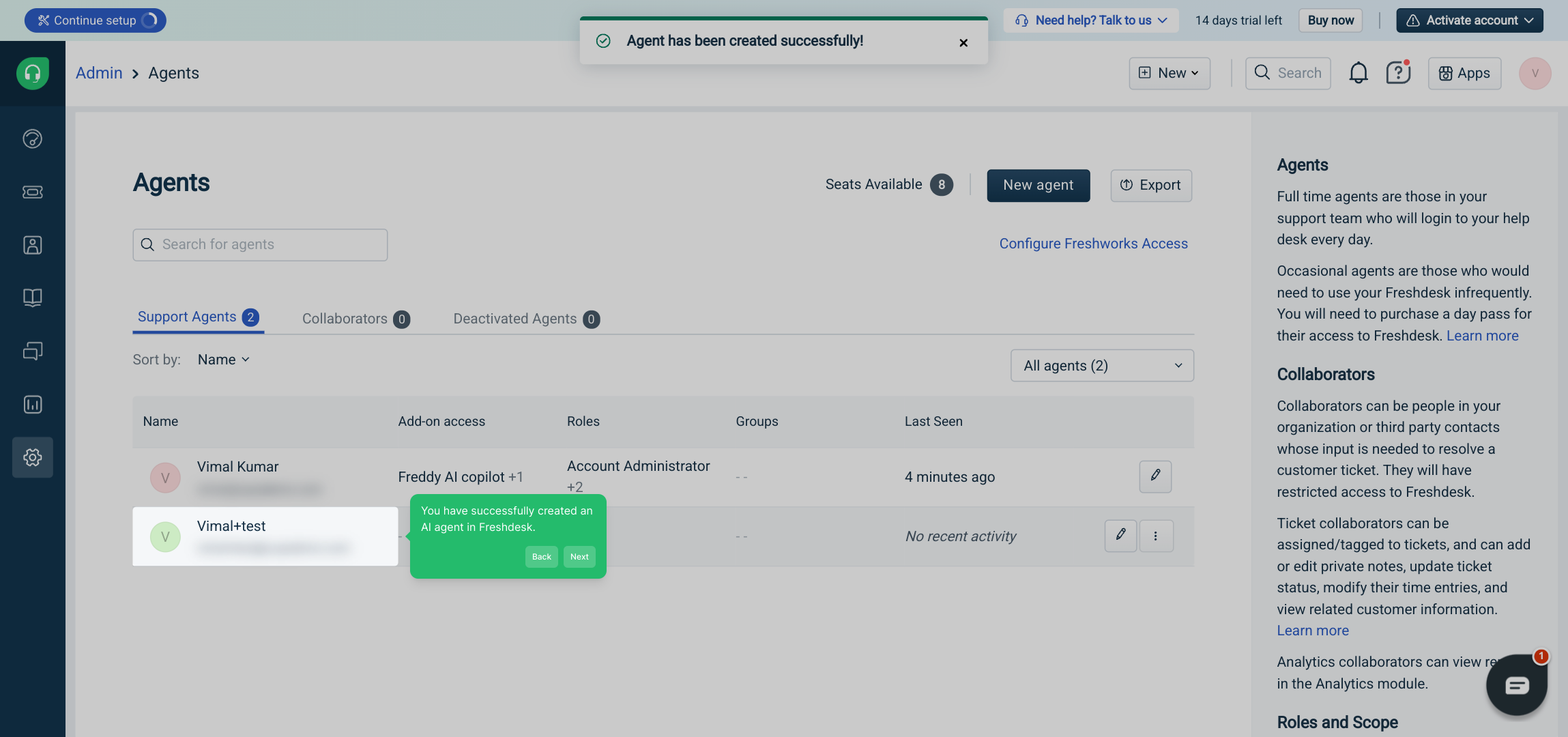
7. You have successfully created an AI agent in Freshdesk.

8. Create a Supademo in seconds

This interactive demo/guided walkthrough on How to Create Freshdesk AI Agent was created using Supademo.


How to Create Freshdesk AI Agent: Step-by-Step Guide

Start by navigating to the Admin section of your dashboard. This area houses all the settings you’ll need to manage your account and configure agents effectively.
1

Once you’re in the Admin panel, look for the Agents option. This is where you can view and manage all the agents assigned to your support team.
2

To add a new team member, select the "New agent" button. This will open the form where you can enter their details and settings.
3

On this screen, fill out the necessary information such as the type of agent, their email address, preferred time zone, language, and assign relevant roles or permissions to define their access level.
4

Next, determine the range of tickets the agent can see by setting their visibility scope. This controls which customer requests they have access to and helps organize your team's workflow.
5

After reviewing all the details, confirm the setup by clicking the "Create agent" button. This will add the new agent to your Freshdesk account.
6

Congratulations! Your AI agent has been successfully added to Freshdesk and is now ready to assist your support team.
7

If you're looking to explore more, you can quickly create a Supademo to experiment with additional features and showcase capabilities in seconds.
8

Create your own interactive demos in < 5 mins with Supademo

You can create your own interactive product demo in minutes using Supademo. Drive growth, scale enablement, and supercharge product-led onboarding with Supademo.
Sign up for free here with no credit card required.


FAQs

Commonly asked questions about this topic.

What is a Freshdesk AI agent?

A Freshdesk AI agent is an automated support agent that uses artificial intelligence to assist with ticket management, answer customer queries, and improve support efficiency within the Freshdesk platform.

How do I start creating a Freshdesk AI agent?

Start by navigating to the Admin tab in your Freshdesk dashboard. From there, select Agents and click the "New agent" button to begin creating your AI agent.

What details are required when creating a new AI agent?

You will need to provide the agent type, email address, time zone, language preferences, roles, and ticket visibility scope to set up your AI agent effectively.

Can I customize ticket visibility for my AI agent?

Yes, while creating the agent, you can specify the scope of tickets the AI agent can view by configuring ticket visibility settings to maintain workflow organization.

Is it necessary to assign roles to the AI agent?

Assigning roles is important as it defines the level of access and permissions an AI agent has when managing tickets and interacting within Freshdesk.

How do I confirm the creation of the AI agent?

Once all details are filled out and reviewed, click the "Create agent" button. A confirmation message will indicate the AI agent is successfully added to your account.

Can the AI agent's language and time zone be changed later?

Yes, you can update the AI agent’s language and time zone settings anytime from the Admin > Agents section within your Freshdesk dashboard.

What roles are available when creating an AI agent?

Freshdesk provides various roles such as Administrator, Support Agent, or Custom roles to tailor access rights and capabilities of your AI agents.

Can I integrate the AI agent with other Freshdesk features?

Yes, the AI agent can interact with Freshdesk features like ticket automation, reporting, and customer support workflows to maximize efficiency.

Where can I learn more about interactive demos like this one?

You can learn more and create your own interactive demos quickly using Supademo, a tool designed to build product walkthroughs, demos, and guides.
Vimal Kumar

Vimal Kumar

Product Operations Associate

Vimal Kumar helps build and grow Supademo’s team and GTM efforts, with a focus on figuring out growth levers and improving product traction.

More from the blog

How to Remove 'Powered by Shopify'

How to Remove 'Powered by Shopify'

Learn how to easily remove the 'Powered by Shopify' text from your online store with step-by-step instructions and tips to customize your Shopify storefront.

Vimal Kumar
Vimal KumarJan 3, 2026
How to Add Products to Shopify

How to Add Products to Shopify

Learn step-by-step how to add products to your Shopify store effortlessly, including tips on product details, images, pricing, and inventory management to boost your online sales.

Vimal Kumar
Vimal KumarDec 17, 2025
How to Deactivate Your Shopify Store

How to Deactivate Your Shopify Store

Learn step-by-step how to deactivate your Shopify store easily, including important considerations and tips to pause or close your shop without losing data.

Vimal Kumar
Vimal KumarDec 17, 2025
How to Remove 'Powered by Shopify'

How to Remove 'Powered by Shopify'

Learn how to easily remove the 'Powered by Shopify' text from your online store with step-by-step instructions and tips to customize your Shopify storefront.

Vimal Kumar
Vimal KumarDec 17, 2025
How to Create a Shopify Account

How to Create a Shopify Account

Learn step-by-step how to create a Shopify account quickly and easily, set up your online store, and start selling your products in no time.

Vimal Kumar
Vimal KumarDec 17, 2025
How to Create a Stripe Account

How to Create a Stripe Account

Learn how to create a Stripe account quickly and easily with our step-by-step guide, perfect for beginners looking to start accepting online payments.

Vimal Kumar
Vimal KumarDec 17, 2025