
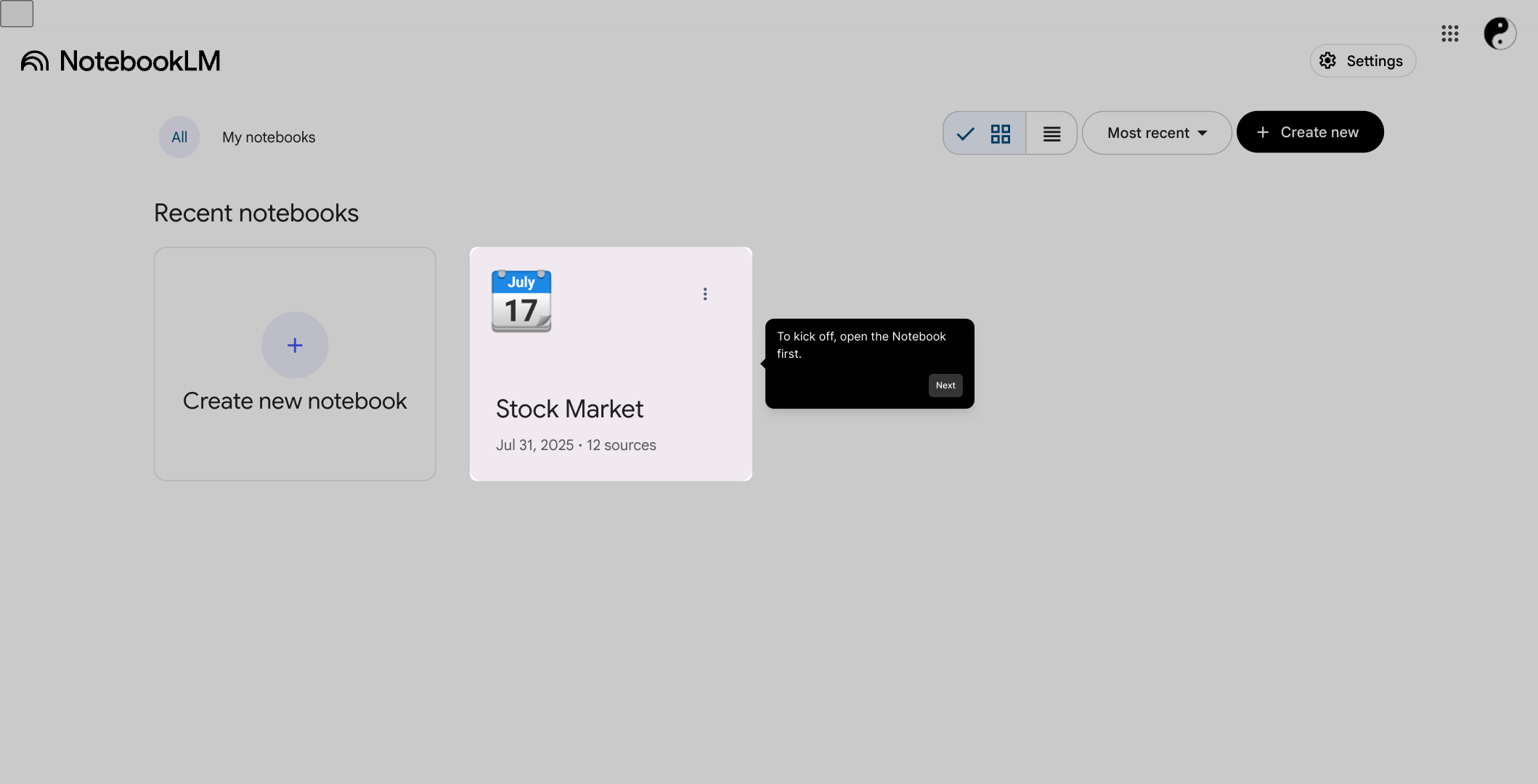
1. To kick off, open the Notebook first.
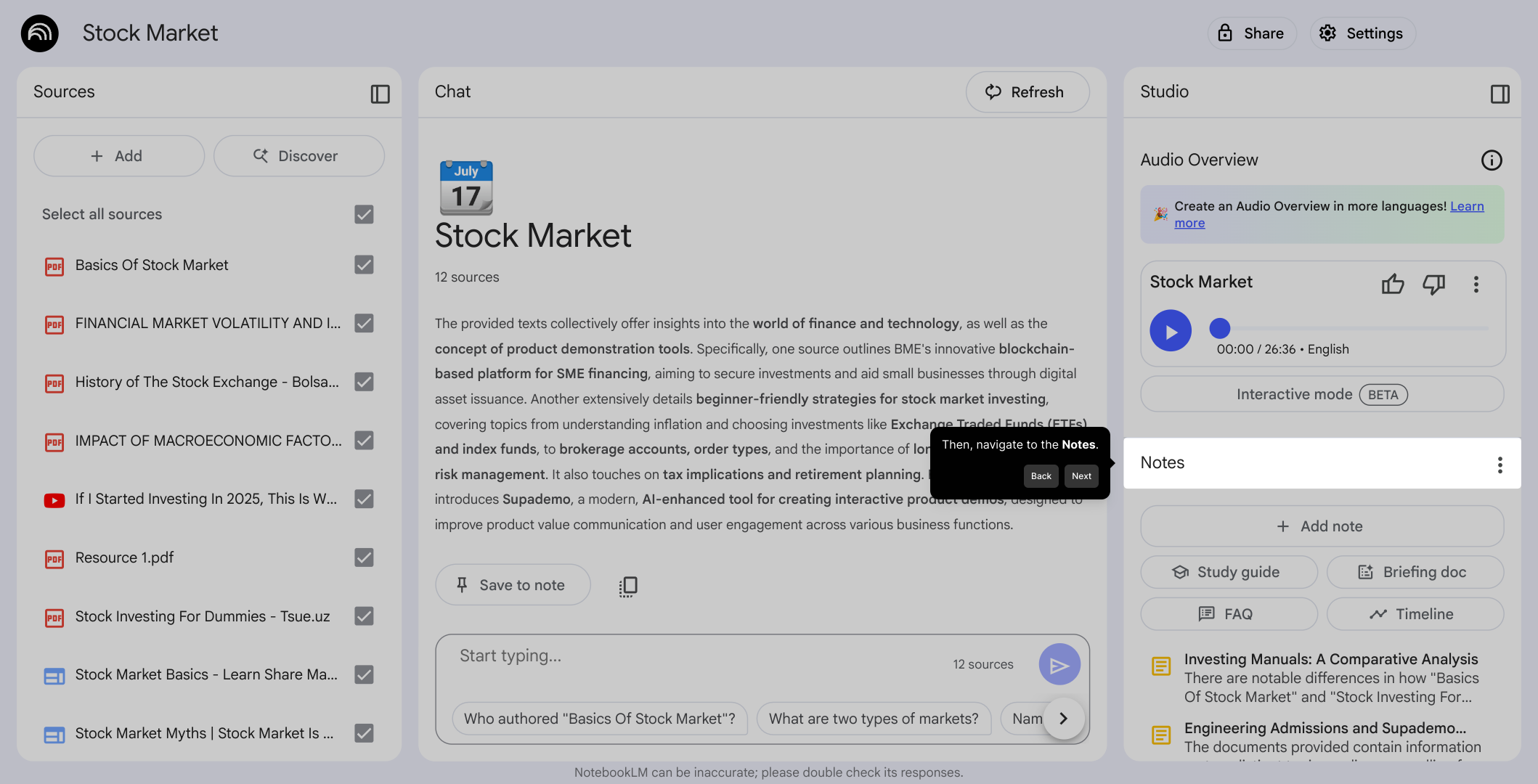
2. Then, navigate to the Notes.
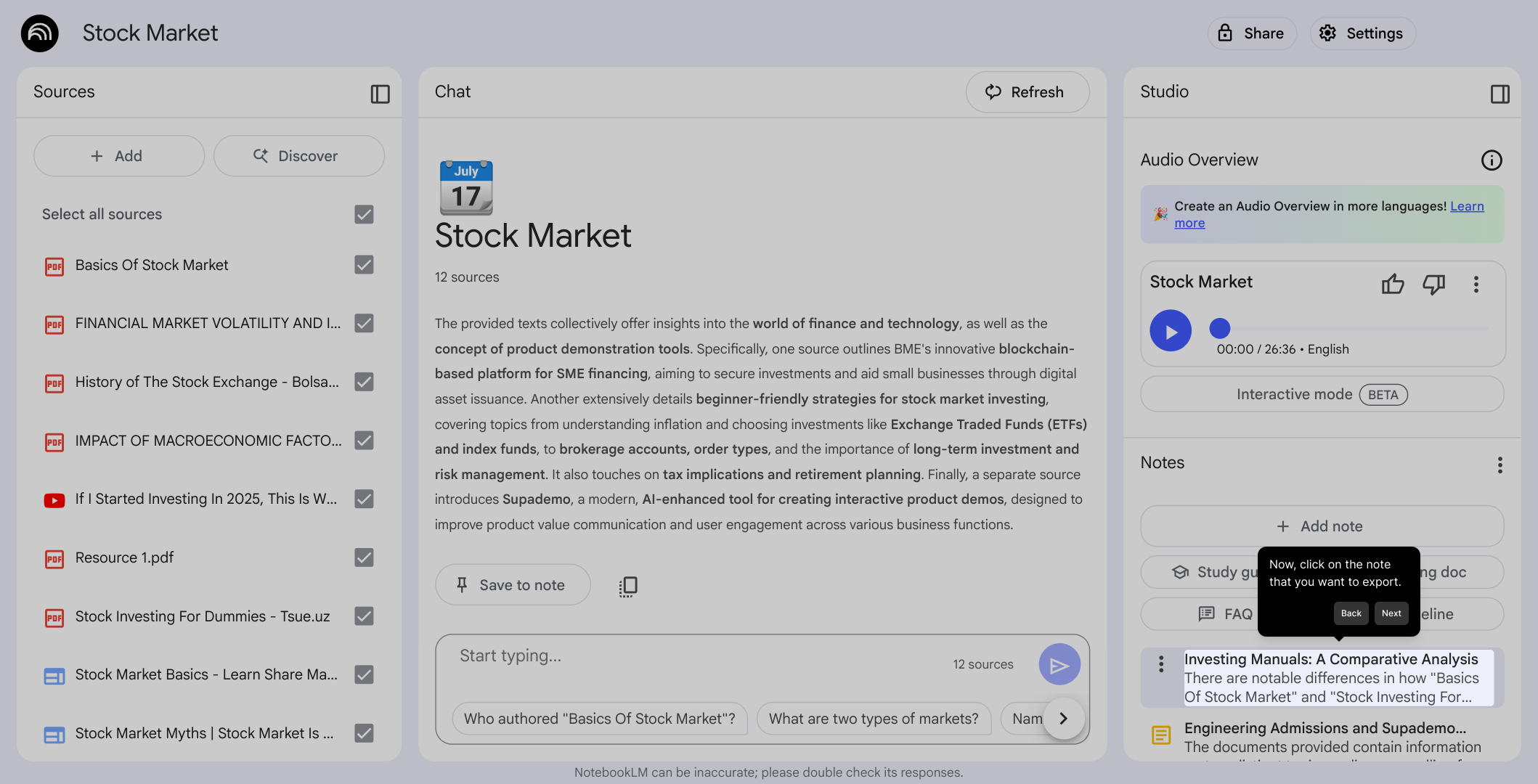
3. Now, click on the note that you want to export.
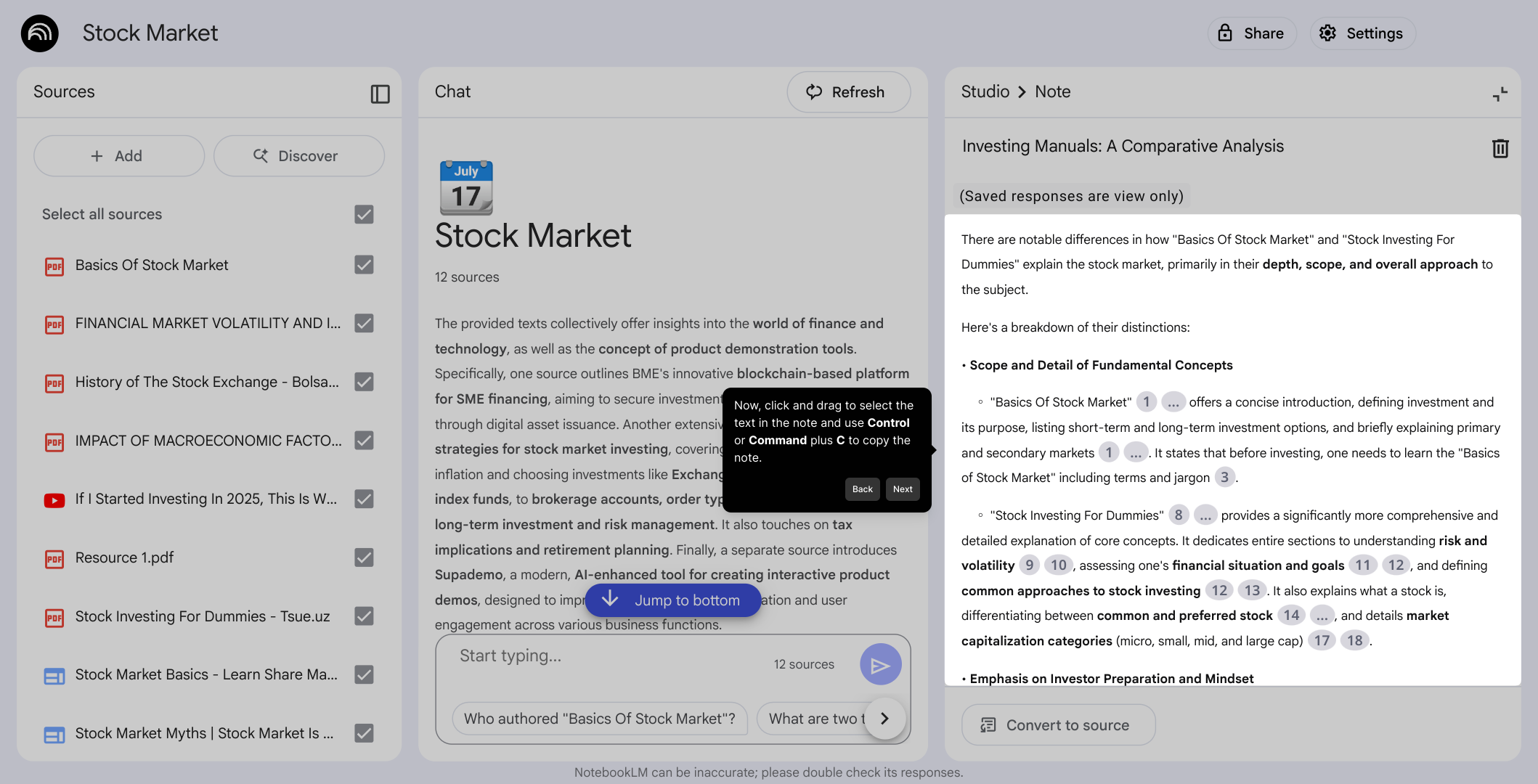
4. Now, click and drag to select the text in the note and use Control or Command plus C to copy the note.
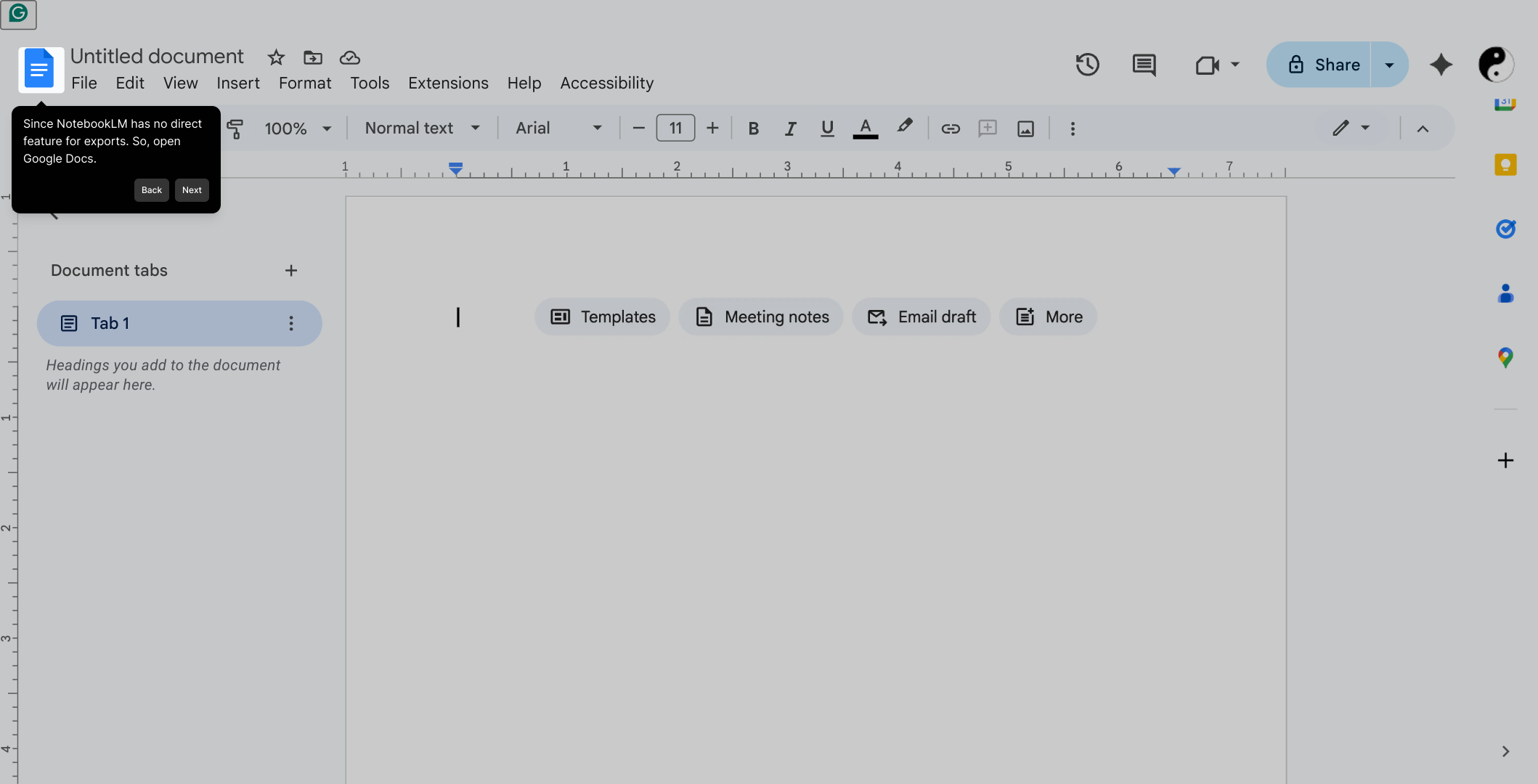
5. Since NotebookLM has no direct feature for exports. So, open Google Docs.
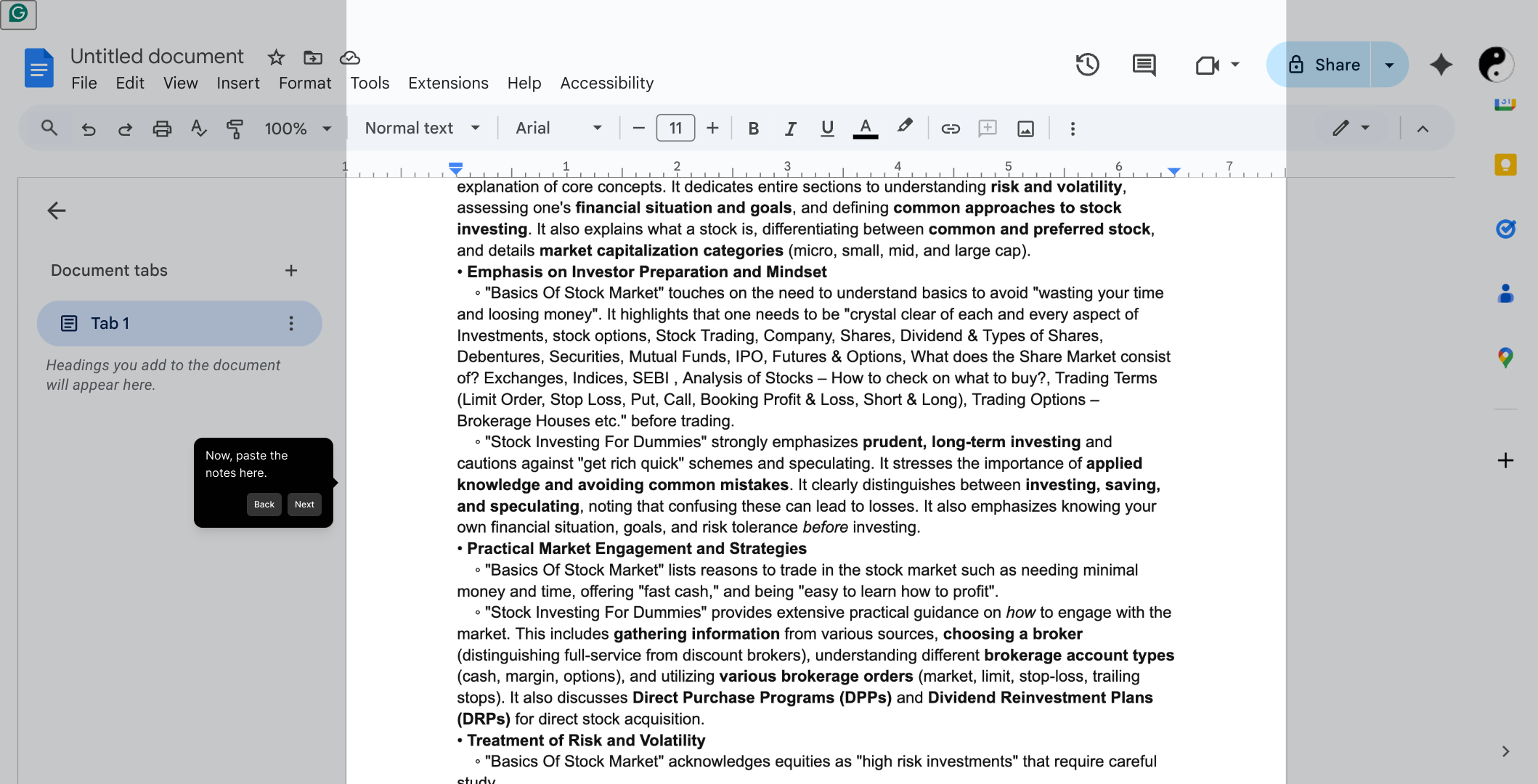
6. Now, paste the
notes here.
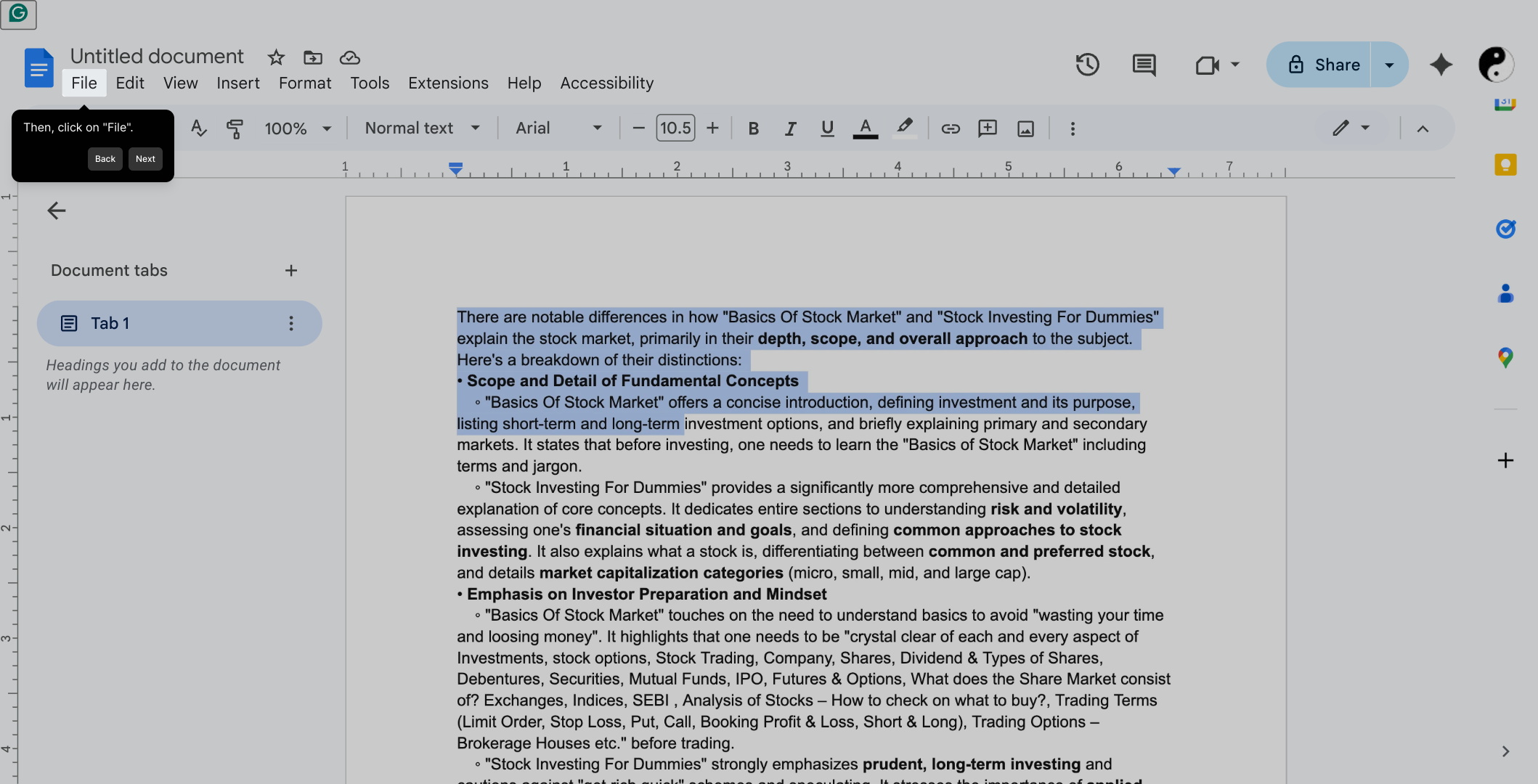
7. Then, click on "File".
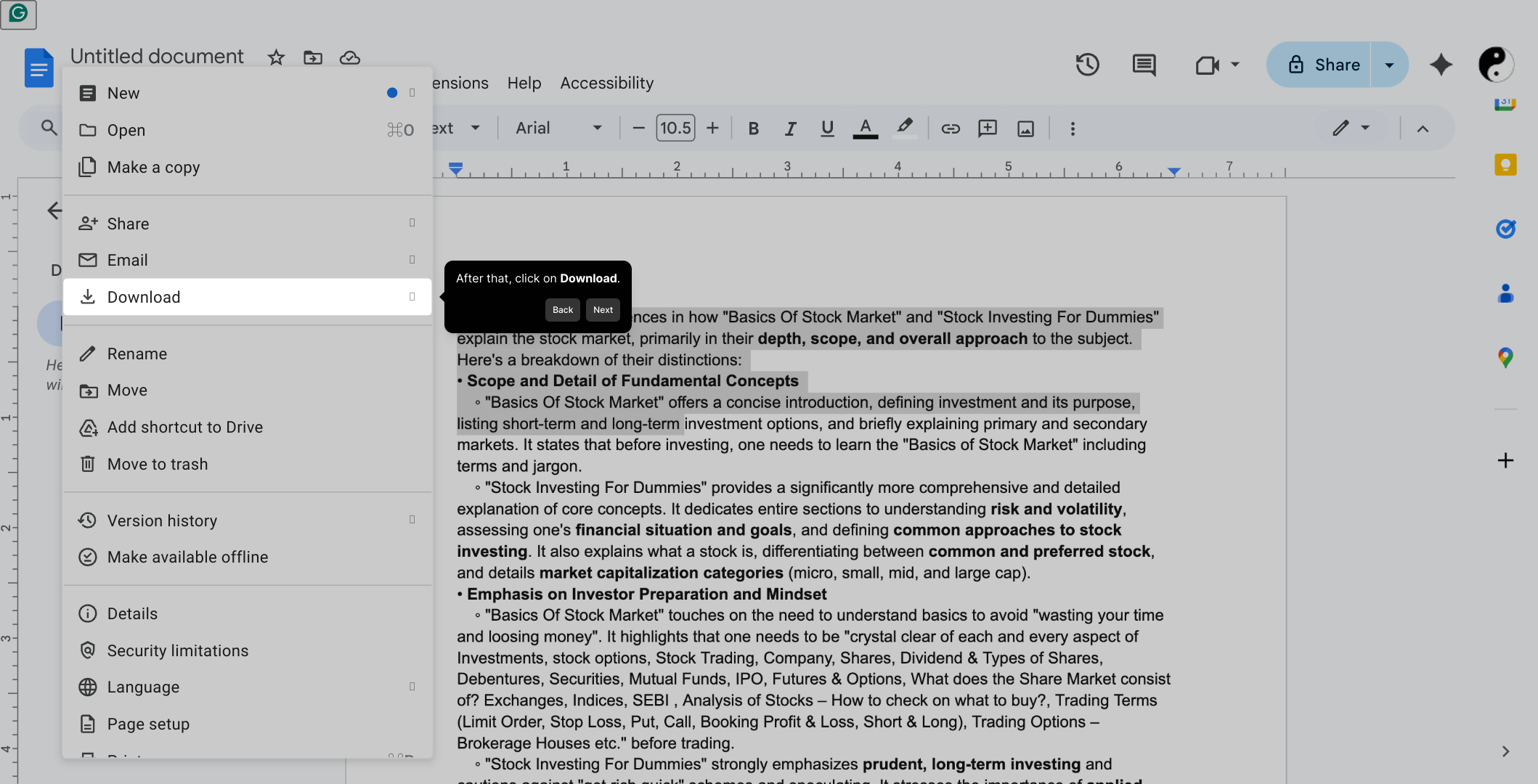
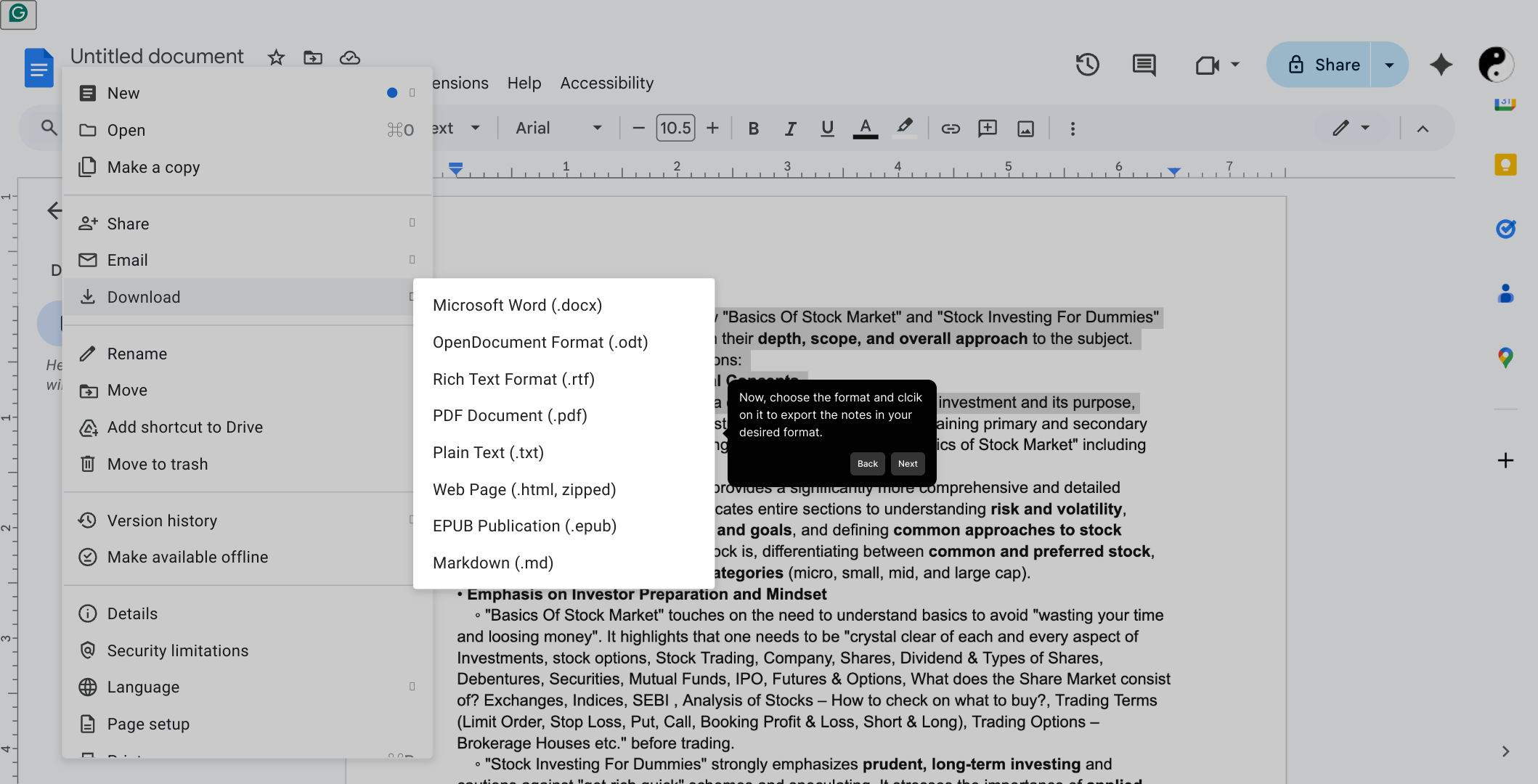
8. After that, click on Download.
9. Now, choose the format and clcik on it to export the notes in your desired format.
10. Create a Supademo in seconds
This interactive demo/guided walkthrough on How to Export Notes from NotebookLM was created using Supademo.
How to Export Notes from NotebookLM : Step-by-Step Guide
Begin by launching the Notebook application on your device. This is where all your notes are stored and managed.
Next, locate and open the Notes section in the Notebook interface. This area contains all the notes you’ve created or collected.
From your list of notes, select the specific one that you wish to export. This will bring up the full content of that note for review.
Click and drag your cursor over the text in the note to highlight it. Then, press Control (or Command on a Mac) along with the C key to copy the selected text to your clipboard.
Since the Notebook application does not offer a built-in export option, you’ll need to use another tool. Open Google Docs in your web browser to prepare for pasting your note.
Once your Google Docs document is open, click inside the blank page and paste the text you copied from your note. This allows you to format or save the content as needed.
Now, look for the “File” menu at the top-left corner of the Google Docs window and click on it. This menu contains all the options for managing your document.
Within the “File” dropdown, find and select the Download option. This governs how you can save your document locally to your computer.
You will now see several formats available for download. Choose the one that best fits your needs—such as PDF or Microsoft Word—and click on it to begin downloading your exported note.
With these simple steps, you can quickly turn your notes into shareable files and get more done in less time.
Create your own interactive demos in < 5 mins with Supademo
You can create your own interactive product demo in minutes using Supademo. Drive growth, scale enablement, and supercharge product-led onboarding with Supademo. Sign up for free here with no credit card required.
FAQs
Commonly asked questions about this topic.
What is NotebookLM?
Does NotebookLM have a built-in export feature?
How do I copy notes from NotebookLM?
Can I export NotebookLM notes as PDFs?
Are there any format options available when exporting notes?
Is using Google Docs the only way to export notes from NotebookLM?
Can I export multiple notes at once from NotebookLM?
Are there any plans to add native export features to NotebookLM?
What keyboard shortcuts can I use to copy and paste notes?
Can I export notes from NotebookLM on mobile devices?

Product Operations Associate
Vimal Kumar helps build and grow Supademo’s team and GTM efforts, with a focus on figuring out growth levers and improving product traction.


