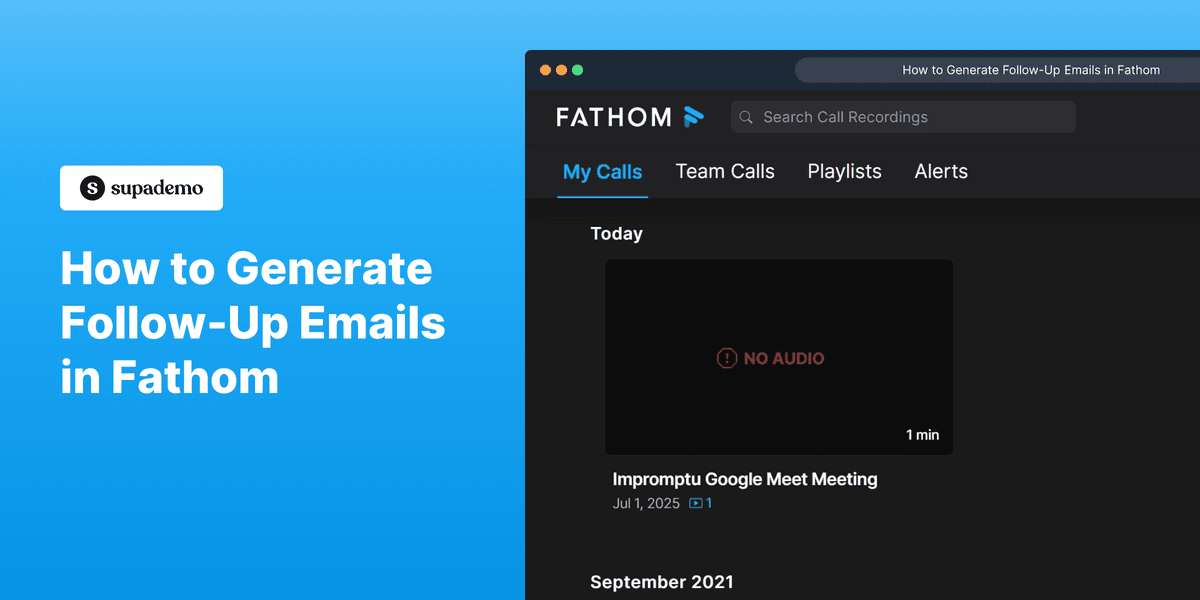
How to Generate Follow-Up Emails in Fathom

Vimal Kumar
Vimal Kumar·
How to Generate Follow-Up Emails in Fathom
Interactive demo powered by Supademo

1. Recorded with Supademo

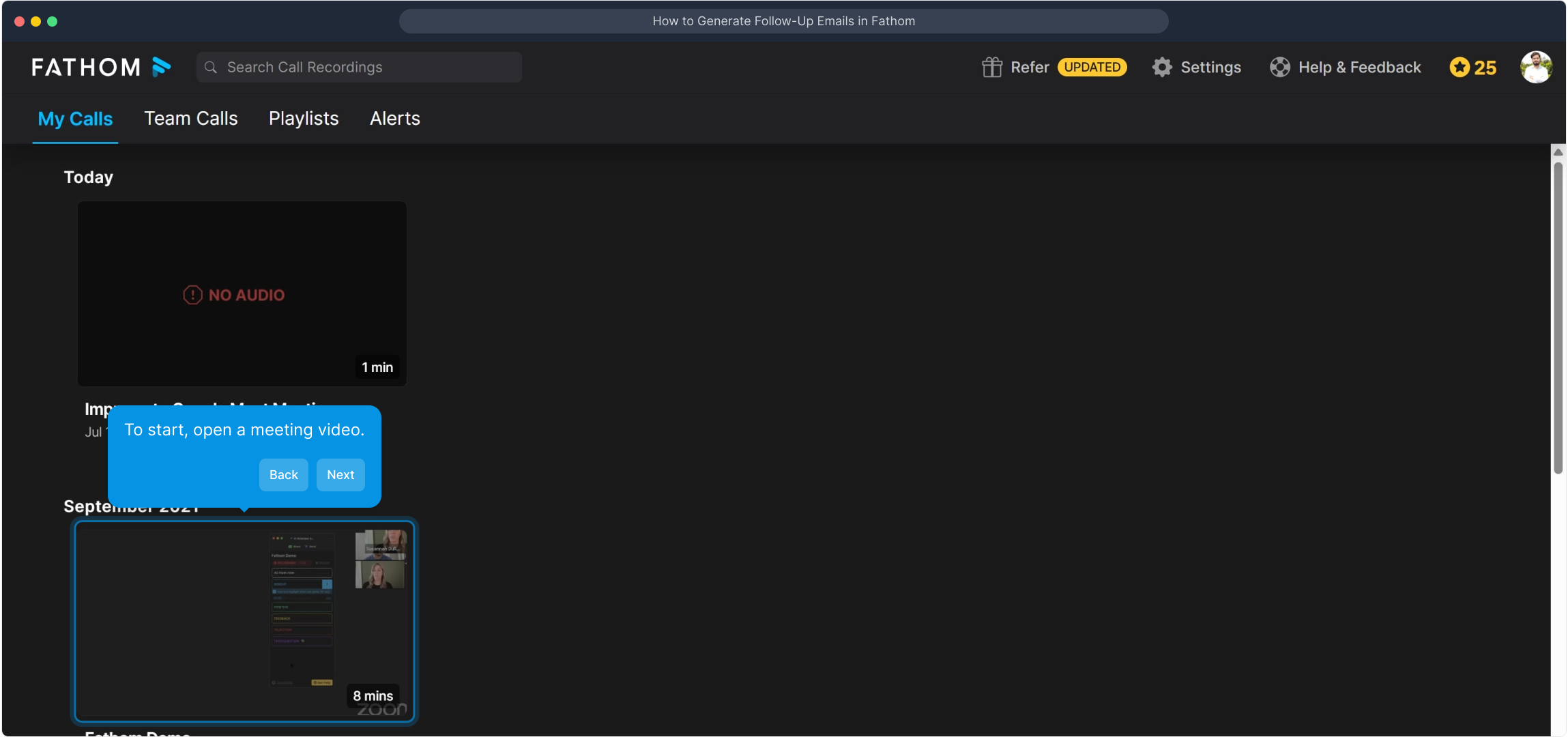
2. To start, open a meeting video.

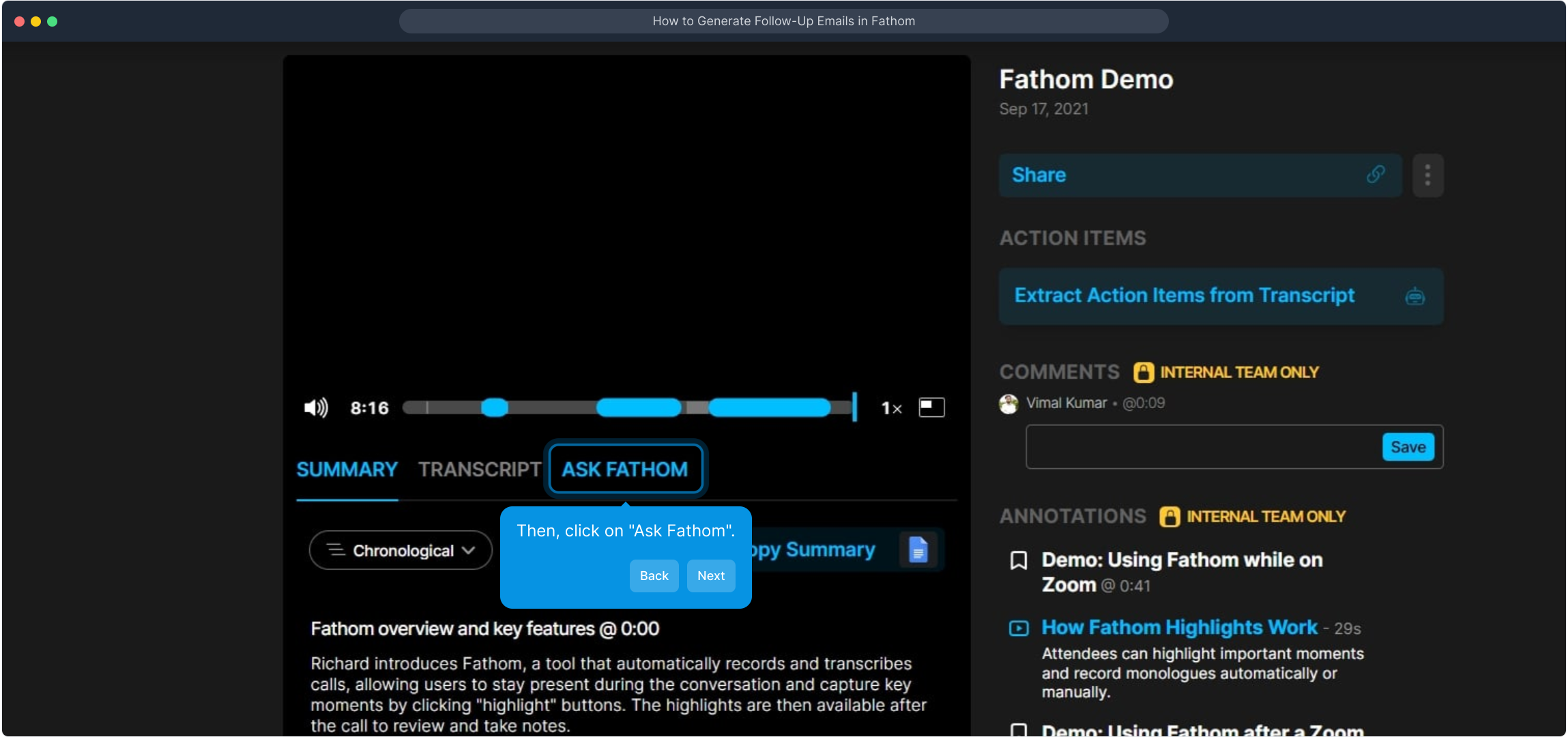
3. Then, click on "Ask Fathom".

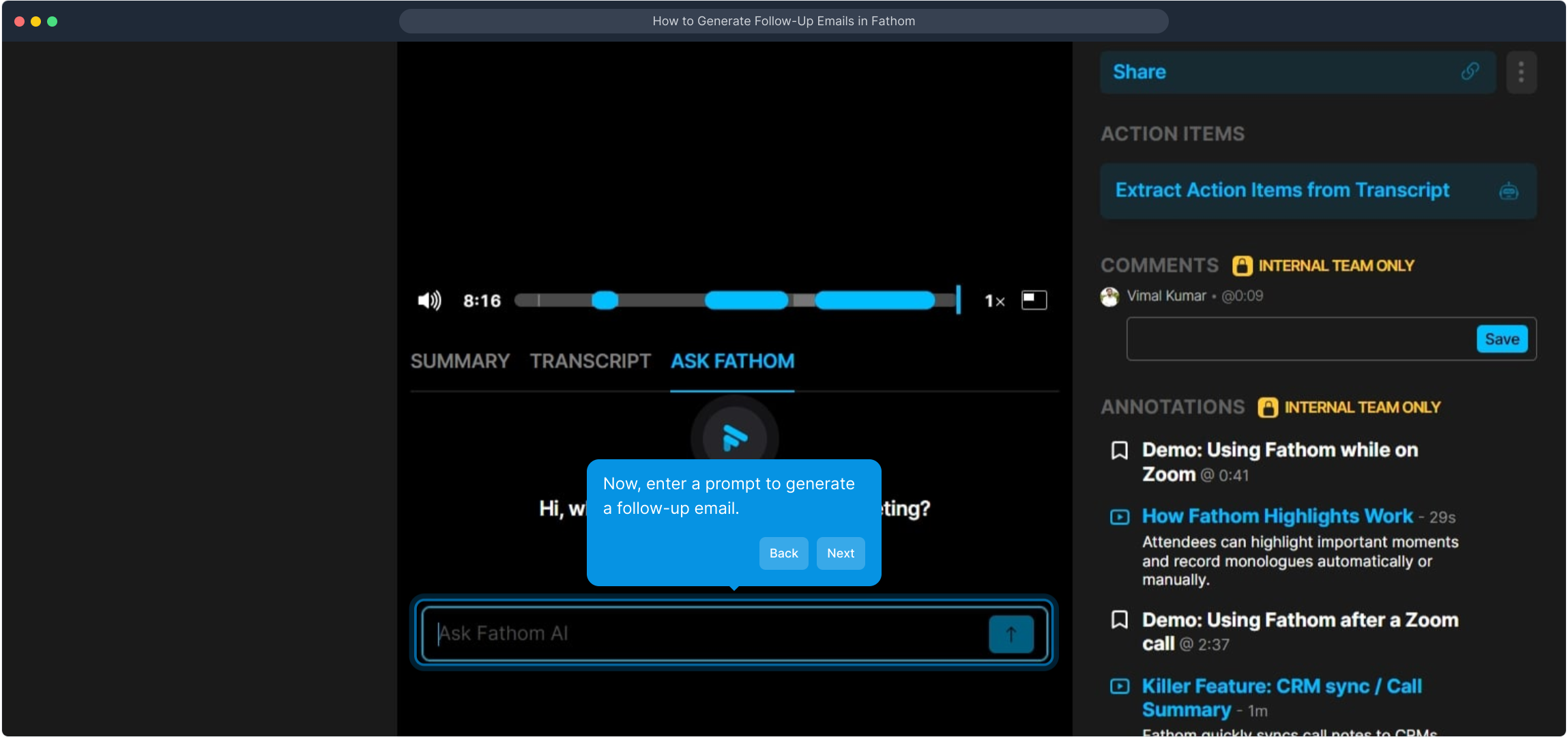
4. Now, enter a prompt to generate a follow-up email.

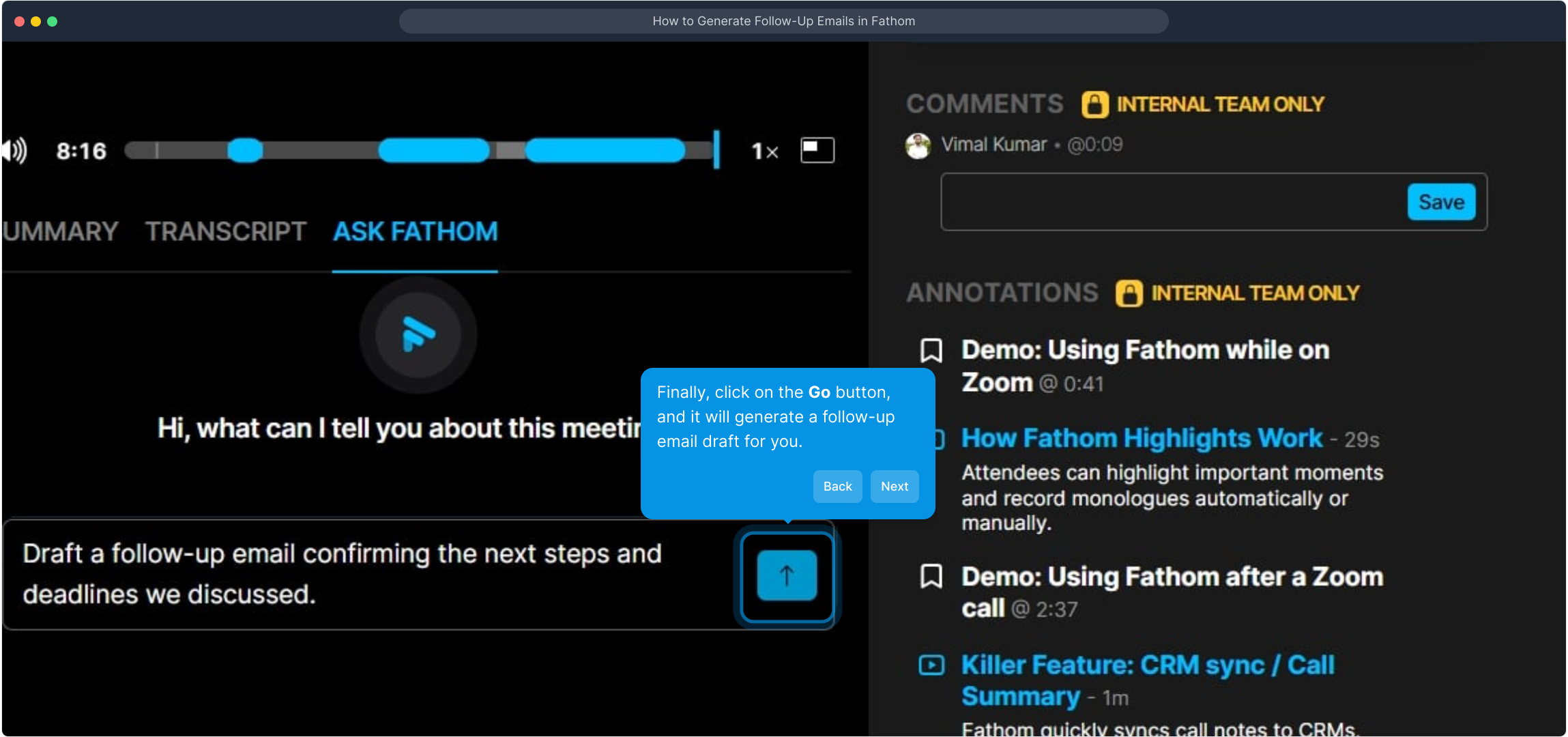
5. Finally, click on the Go button, and it will generate a follow-up email draft for you.

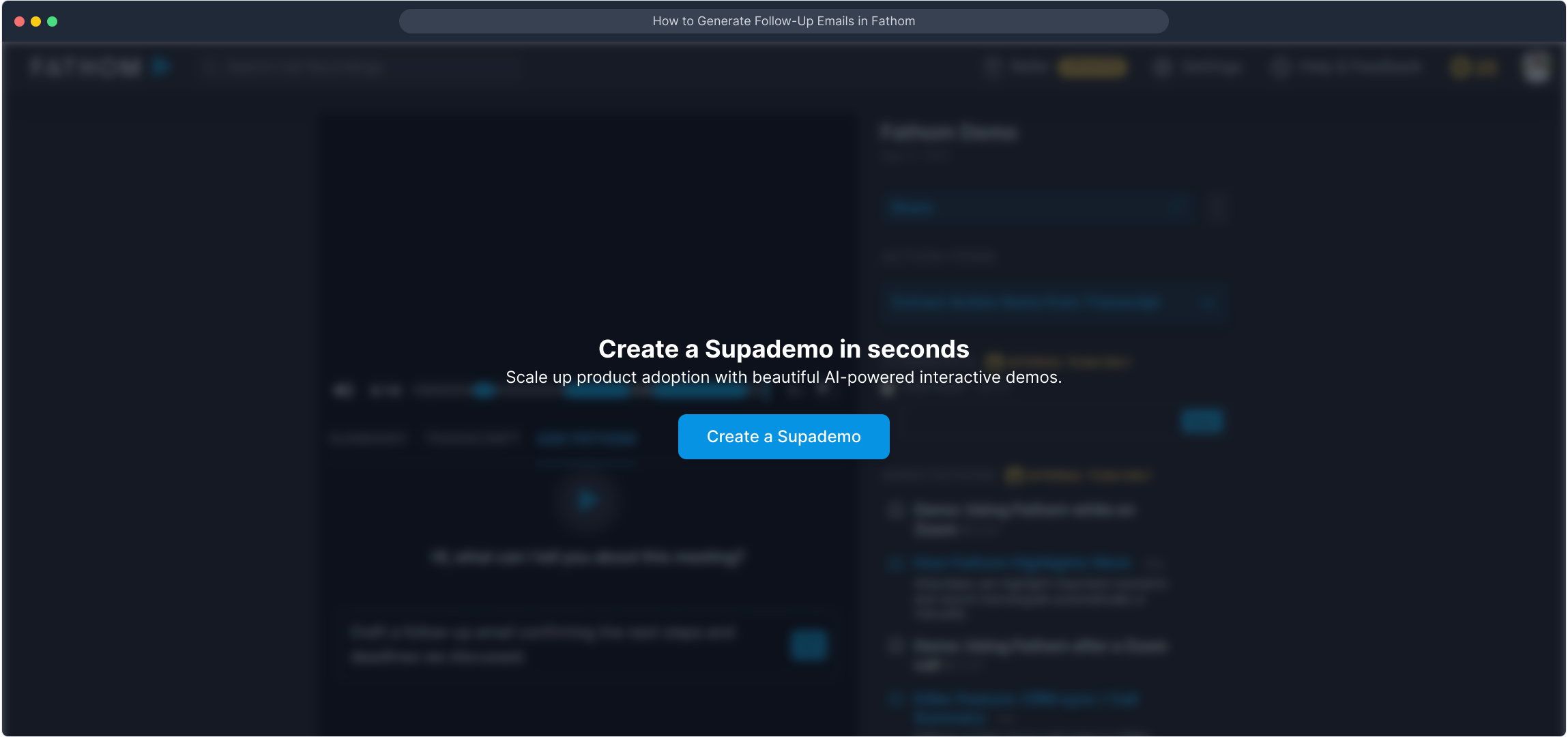
6. Create a Supademo in seconds

This interactive demo/guided walkthrough on How to Generate Follow-Up Emails in Fathom was created using Supademo.


How to Generate Follow-Up Emails in Fathom : Step-by-Step Guide

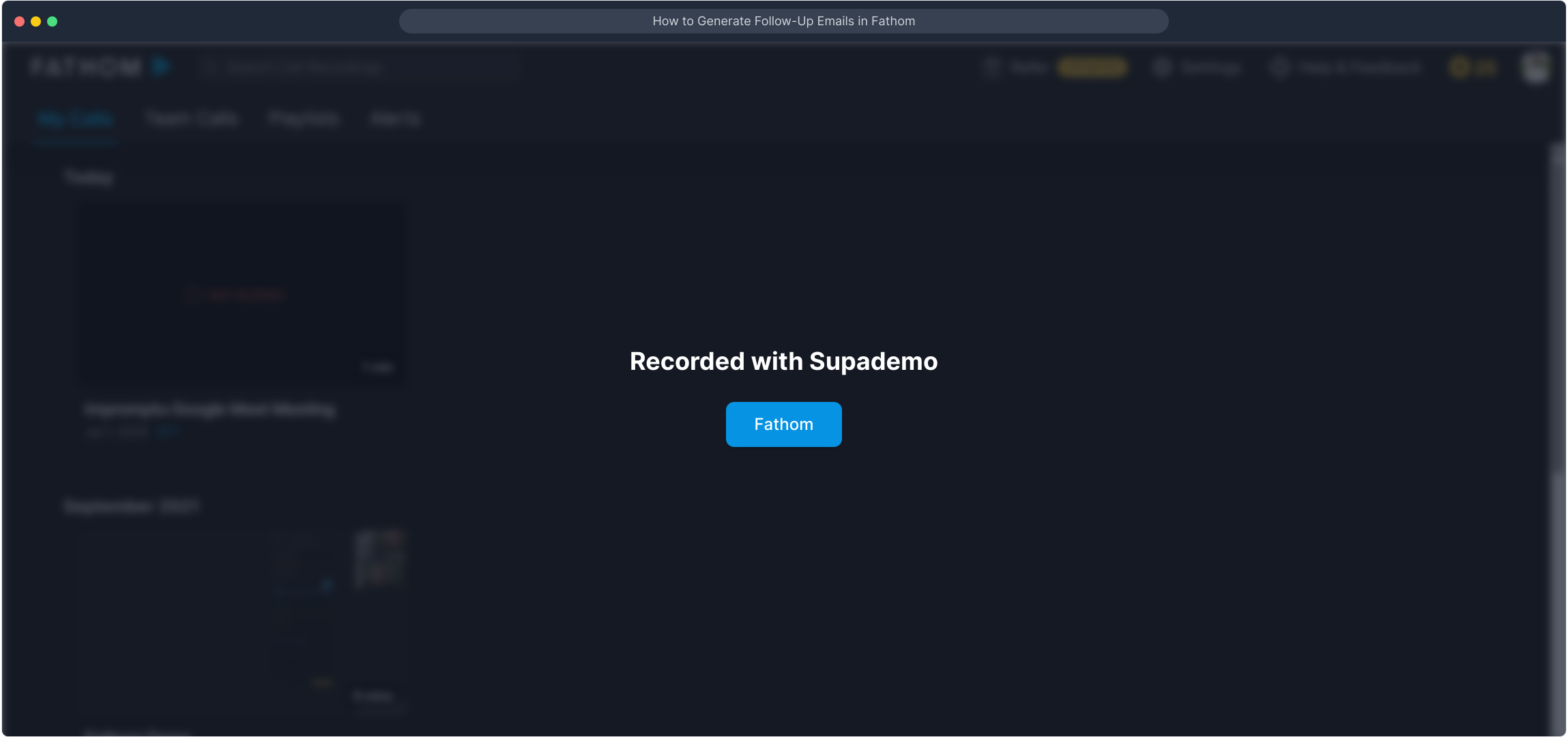
Welcome to Supademo! This is where your meeting recordings are securely saved and ready for you to explore.
1

Begin by selecting a meeting video from your library. This allows you to review the session you want to interact with.
2

Next, look for the "Ask Fathom" option within the video interface. Clicking this will enable you to engage directly with the content.
3

Once you’ve activated "Ask Fathom," type in a prompt describing the follow-up email you want to create. This helps tailor the response specifically to your needs.
4

When you're ready, click the Go button to generate a polished follow-up email draft automatically crafted based on your prompt.
5

With Supademo, you can effortlessly create detailed demos in moments—saving you time and making your presentations more impactful.
6

Create your own interactive demos in < 5 mins with Supademo

You can create your own interactive product demo in minutes using Supademo. Drive growth, scale enablement, and supercharge product-led onboarding with Supademo. Sign up for free here with no credit card required.


FAQs

Commonly asked questions about this topic.

What is the primary benefit of generating follow-up emails in Fathom?

Generating follow-up emails in Fathom helps you quickly create personalized and relevant email drafts based on your meeting recordings, saving time and improving communication efficiency after meetings.

How do I start the process of generating a follow-up email in Fathom?

Start by opening a recorded meeting video in Fathom. Then, use the "Ask Fathom" feature to input your email prompt for generating a follow-up email draft.

Can I customize the follow-up email generated by Fathom?

Yes. You provide a prompt describing the tone and content you want, enabling Fathom to tailor the follow-up email draft to your specific needs before sending or editing further.

Is it necessary to watch the entire meeting video before generating a follow-up email?

No, you don’t have to watch the entire video. Fathom analyzes the meeting content and uses AI to generate an email based on key points you highlight or prompt you provide.

What if the generated follow-up email requires edits?

The draft generated by Fathom is fully editable. You can modify the content, tone, and structure to better fit your communication style before sending.

Does Fathom support generating follow-up emails for all types of meetings?

Fathom can generate follow-up emails for a broad range of meeting types, including sales, project updates, and client discussions, as long as the meeting is recorded within Fathom.

How does the "Ask Fathom" feature work in generating emails?

"Ask Fathom" lets you interact directly with your meeting transcript and video, allowing you to input prompts that guide AI to create tailor-made follow-up emails based on the meeting’s content.

Is internet connectivity required to generate follow-up emails in Fathom?

Yes, since generating follow-up emails in Fathom involves AI processing and accessing your recordings stored in the cloud, an active internet connection is necessary.

Can I use Fathom-generated emails directly in my email client?

After generating the draft, you can copy the email content and paste it into your preferred email client for sending, allowing further personalization if desired.

Are there any templates available when generating follow-up emails?

Fathom’s email generation is based on AI prompts rather than fixed templates, providing flexibility to create personalized emails according to the specific context of your meeting.
Vimal Kumar
Vimal Kumar

Product Operations Associate

Vimal Kumar helps build and grow Supademo’s team and GTM efforts, with a focus on figuring out growth levers and improving product traction.


More from the blog

How to Remove 'Powered by Shopify'

How to Remove 'Powered by Shopify'

Learn how to easily remove the 'Powered by Shopify' text from your online store with step-by-step instructions and tips to customize your Shopify storefront.

Vimal Kumar
Vimal KumarJan 3, 2026
How to Add Products to Shopify

How to Add Products to Shopify

Learn step-by-step how to add products to your Shopify store effortlessly, including tips on product details, images, pricing, and inventory management to boost your online sales.

Vimal Kumar
Vimal KumarDec 17, 2025
How to Deactivate Your Shopify Store

How to Deactivate Your Shopify Store

Learn step-by-step how to deactivate your Shopify store easily, including important considerations and tips to pause or close your shop without losing data.

Vimal Kumar
Vimal KumarDec 17, 2025
How to Remove 'Powered by Shopify'

How to Remove 'Powered by Shopify'

Learn how to easily remove the 'Powered by Shopify' text from your online store with step-by-step instructions and tips to customize your Shopify storefront.

Vimal Kumar
Vimal KumarDec 17, 2025
How to Create a Shopify Account

How to Create a Shopify Account

Learn step-by-step how to create a Shopify account quickly and easily, set up your online store, and start selling your products in no time.

Vimal Kumar
Vimal KumarDec 17, 2025
How to Create a Stripe Account

How to Create a Stripe Account

Learn how to create a Stripe account quickly and easily with our step-by-step guide, perfect for beginners looking to start accepting online payments.

Vimal Kumar
Vimal KumarDec 17, 2025


