How to Make a Copy of a Google Form

Vimal Kumar
Vimal Kumar·
How to Make a Copy of a Google Form
Interactive demo powered by Supademo

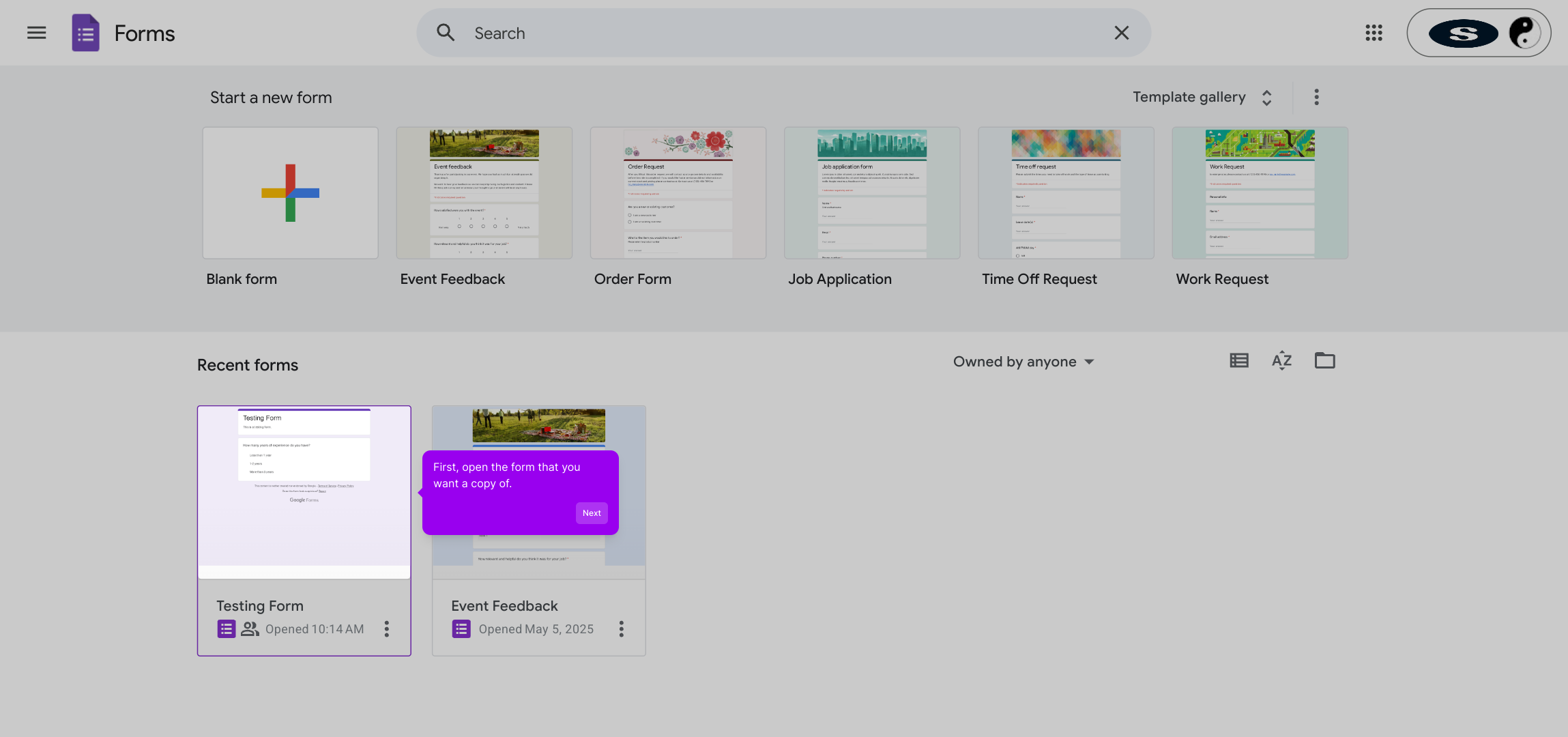
1. First, open the form that you want a copy of.

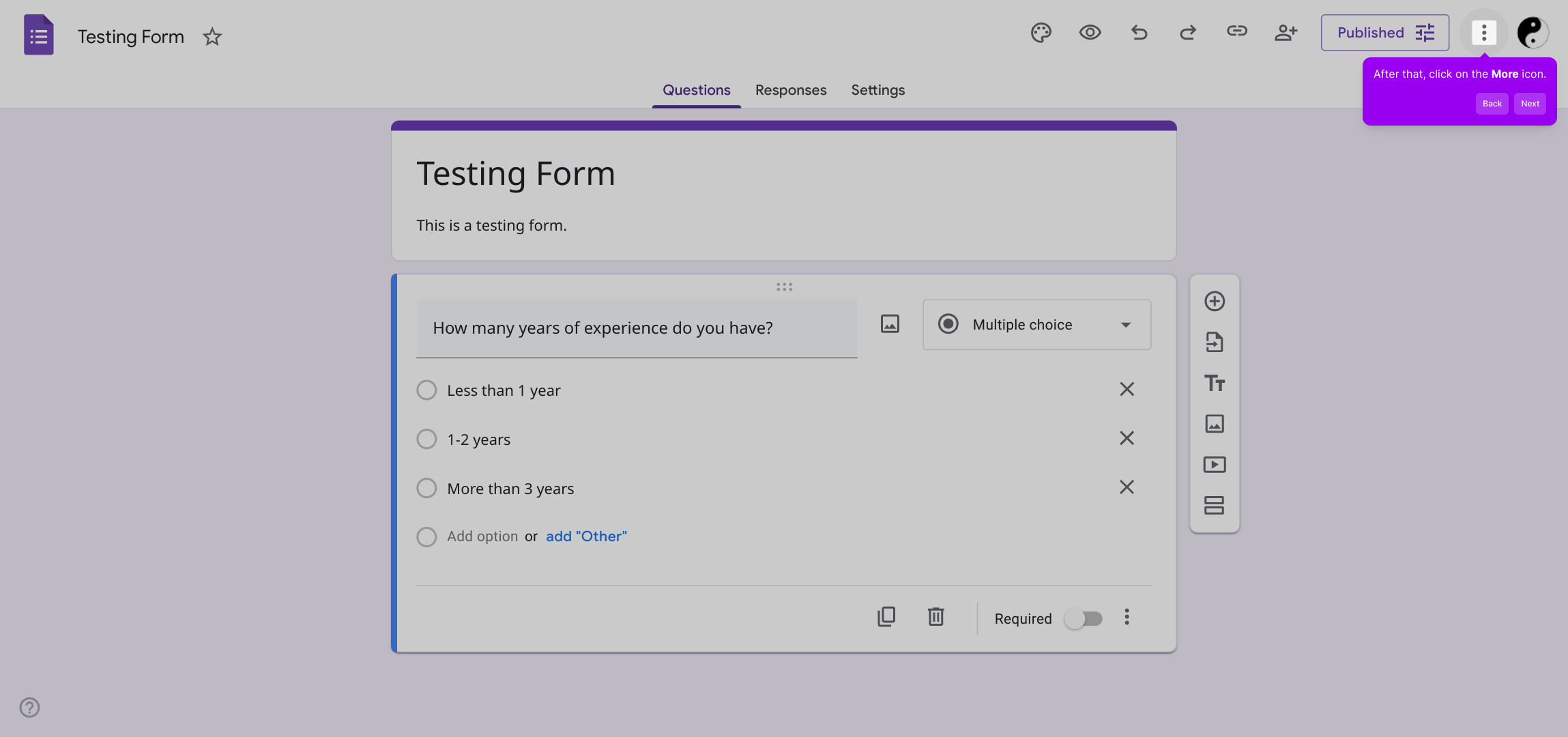
2. After that, click on the More icon.

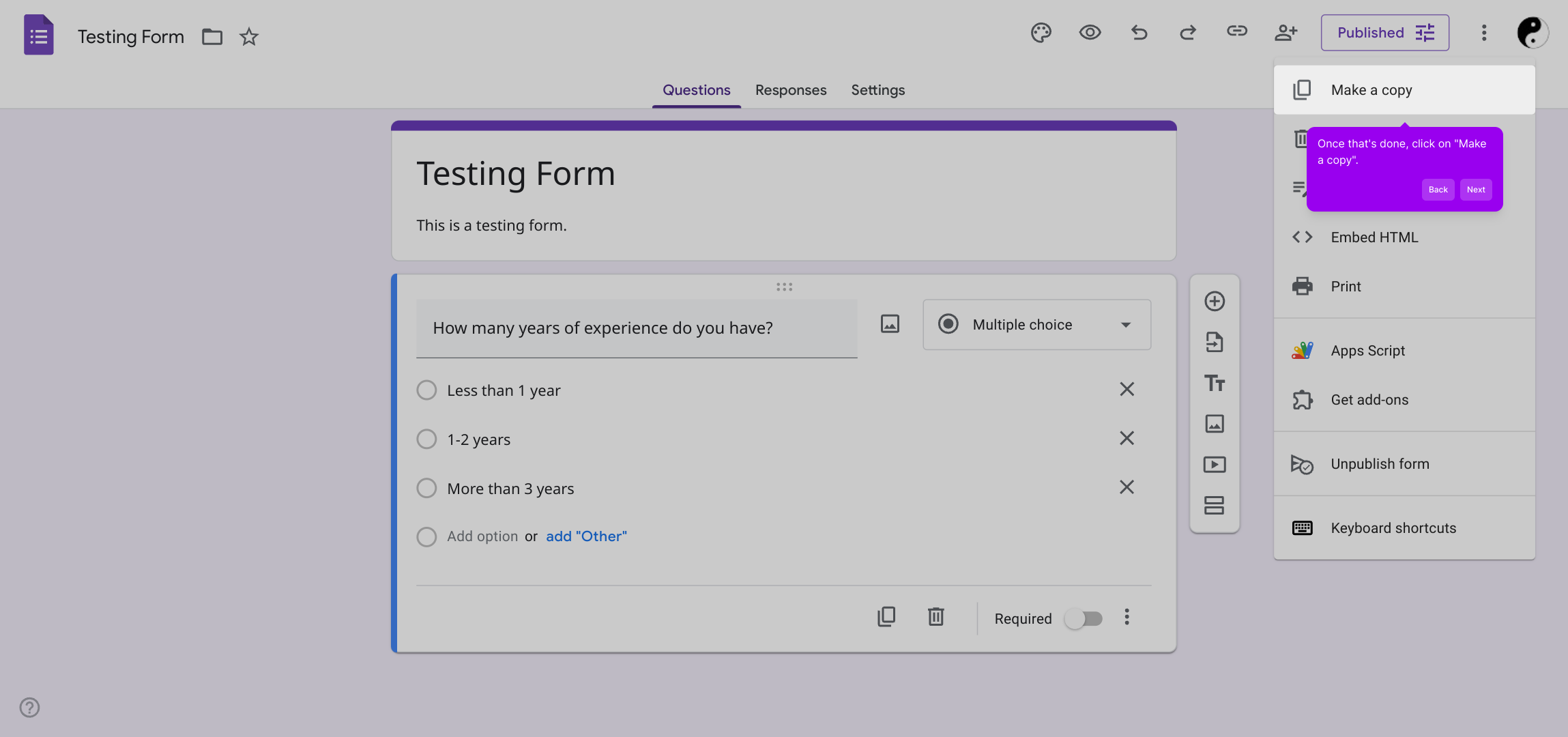
3. Once that's done, click on "Make a copy".

4. Now, name the new form.

5. Following that, choose the storage location.

6. Finally, click on "Make a copy," and it's done.

7. Create a Supademo in seconds

This interactive demo/guided walkthrough on How to Make a Copy of a Google Form was created using Supademo.


How to Make a Copy of a Google Form : Step-by-Step Guide

Begin by locating and opening the form you wish to duplicate. This will serve as your starting point for creating an exact copy.
1

Next, look for the More options icon, typically represented by three dots, and click on it to reveal additional settings related to your form.
2

From the menu that appears, select the option labeled "Make a copy." This initiates the process to duplicate your current form.
3

A prompt will appear asking you to provide a name for your new form. Choose a clear and descriptive title to easily identify it later.
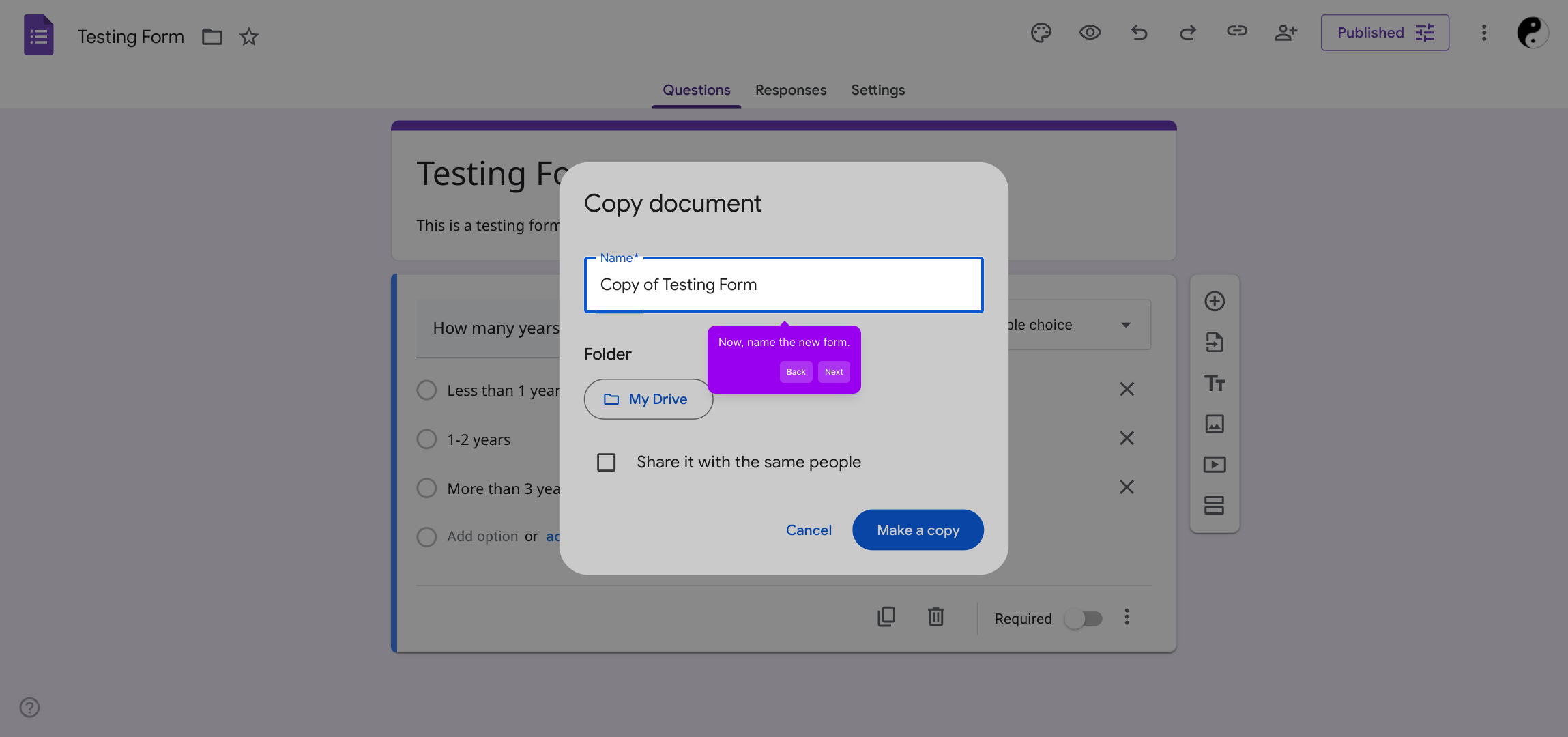
4

After naming, pick where you want to save this copy. Selecting the appropriate location helps keep your forms well organized.
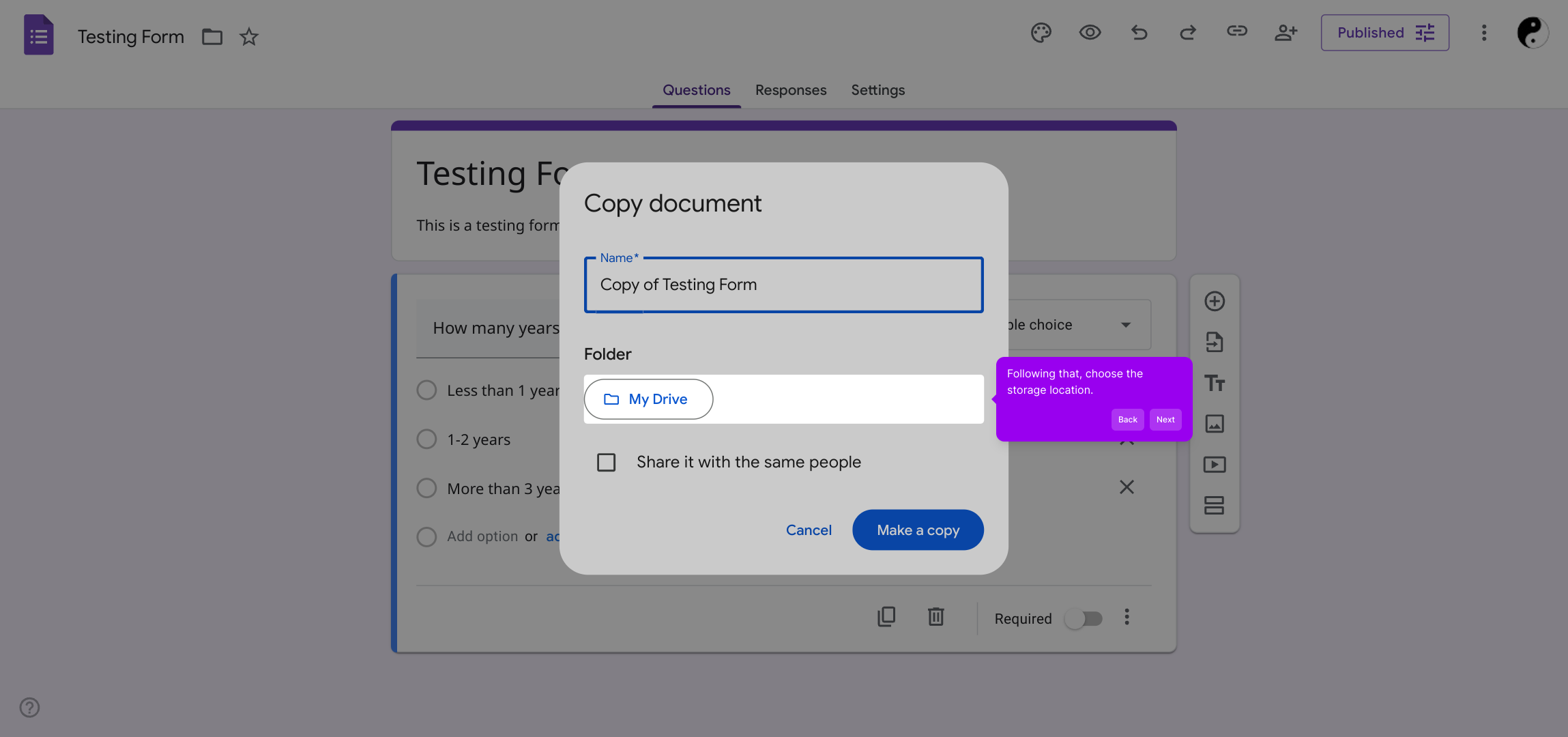
5

To finish, confirm your choices by clicking “Make a copy.” Your new form will be created and ready for use shortly.
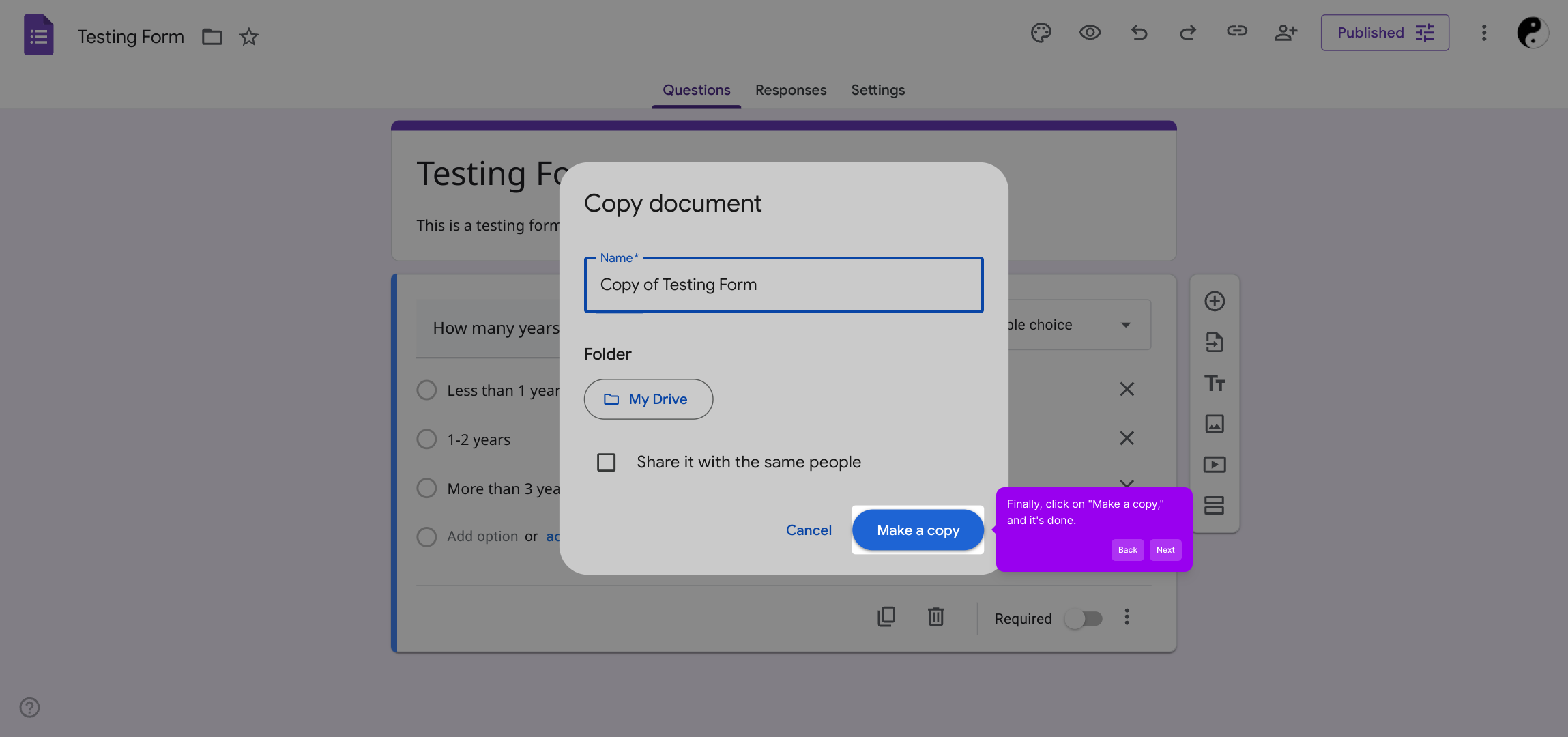
6

With these simple steps completed, you’ll have a fully functional Supademo form quickly and effortlessly.
7

Create your own interactive demos in < 5 mins with Supademo

You can create your own interactive product demo in minutes using Supademo. Drive growth, scale enablement, and supercharge product-led onboarding with Supademo. Sign up for free here with no credit card required.


FAQs

Commonly asked questions about this topic.

How do I make a copy of a Google Form?

Open the form, click the More icon (three dots), then select "Make a copy." Name the new form, choose a storage location, and confirm by clicking “Make a copy.” Your duplicate form will be created instantly.

Will the copied Google Form have the same settings as the original?

Yes, the copied Google Form retains all questions, settings, and formatting from the original. However, response data or linked spreadsheets are not carried over to the copy.

Can I change the storage location when copying a Google Form?

Yes, when making a copy, you are prompted to select the folder or drive location to save the new form. This helps you organize your forms more efficiently.

Is it possible to copy a Google Form on a mobile device?

Currently, copying Google Forms is easiest on desktop via the Google Forms web interface. The mobile app may not have a direct copy option, but you can access forms via mobile browser to perform the copy.

Does copying a form duplicate the form responses as well?

No, the responses submitted to the original form are not copied. The new form starts with no responses to ensure a fresh form for new submissions.

Can collaborators be copied along with the Google Form?

When you make a copy, the collaborators from the original form are not transferred. You need to manually share the copied form with others as needed.

How do I rename the copied Google Form?

After selecting “Make a copy,” you will be prompted to enter a name for the new form. You can rename it there or later by opening the form and editing the title.

Is there a limit to how many times I can copy a Google Form?

No official limit exists on the number of copies you can make. You can duplicate forms as often as needed to create multiple versions or backups.

Can I copy Google Forms that are owned by others?

You can only make copies of forms that you have access to. If the owner restricts copying via sharing settings, you might not be able to duplicate the form.

What happens to the linked spreadsheet when I copy a Google Form?

The copy does not include the linked spreadsheet data. If you want responses collected in a spreadsheet, you need to link a new spreadsheet to the copied form manually.
Vimal Kumar
Vimal Kumar

Product Operations Associate

Vimal Kumar helps build and grow Supademo’s team and GTM efforts, with a focus on figuring out growth levers and improving product traction.


More from the blog

How to Remove 'Powered by Shopify'

How to Remove 'Powered by Shopify'

Learn how to easily remove the 'Powered by Shopify' text from your online store with step-by-step instructions and tips to customize your Shopify storefront.

Vimal Kumar
Vimal KumarJan 3, 2026
How to Add Products to Shopify

How to Add Products to Shopify

Learn step-by-step how to add products to your Shopify store effortlessly, including tips on product details, images, pricing, and inventory management to boost your online sales.

Vimal Kumar
Vimal KumarDec 17, 2025
How to Deactivate Your Shopify Store

How to Deactivate Your Shopify Store

Learn step-by-step how to deactivate your Shopify store easily, including important considerations and tips to pause or close your shop without losing data.

Vimal Kumar
Vimal KumarDec 17, 2025
How to Remove 'Powered by Shopify'

How to Remove 'Powered by Shopify'

Learn how to easily remove the 'Powered by Shopify' text from your online store with step-by-step instructions and tips to customize your Shopify storefront.

Vimal Kumar
Vimal KumarDec 17, 2025
How to Create a Shopify Account

How to Create a Shopify Account

Learn step-by-step how to create a Shopify account quickly and easily, set up your online store, and start selling your products in no time.

Vimal Kumar
Vimal KumarDec 17, 2025
How to Create a Stripe Account

How to Create a Stripe Account

Learn how to create a Stripe account quickly and easily with our step-by-step guide, perfect for beginners looking to start accepting online payments.

Vimal Kumar
Vimal KumarDec 17, 2025


