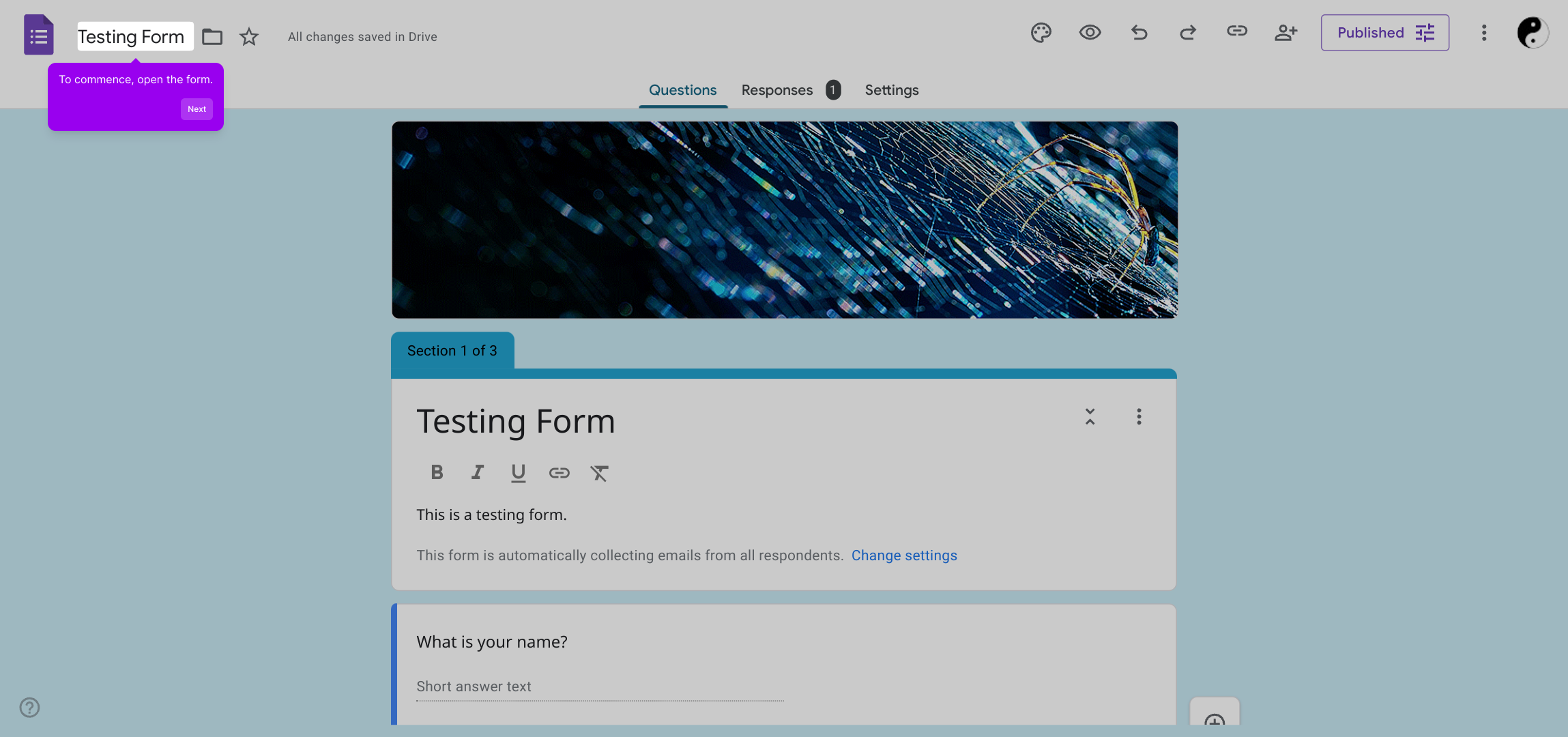
1. To commence, open the form.
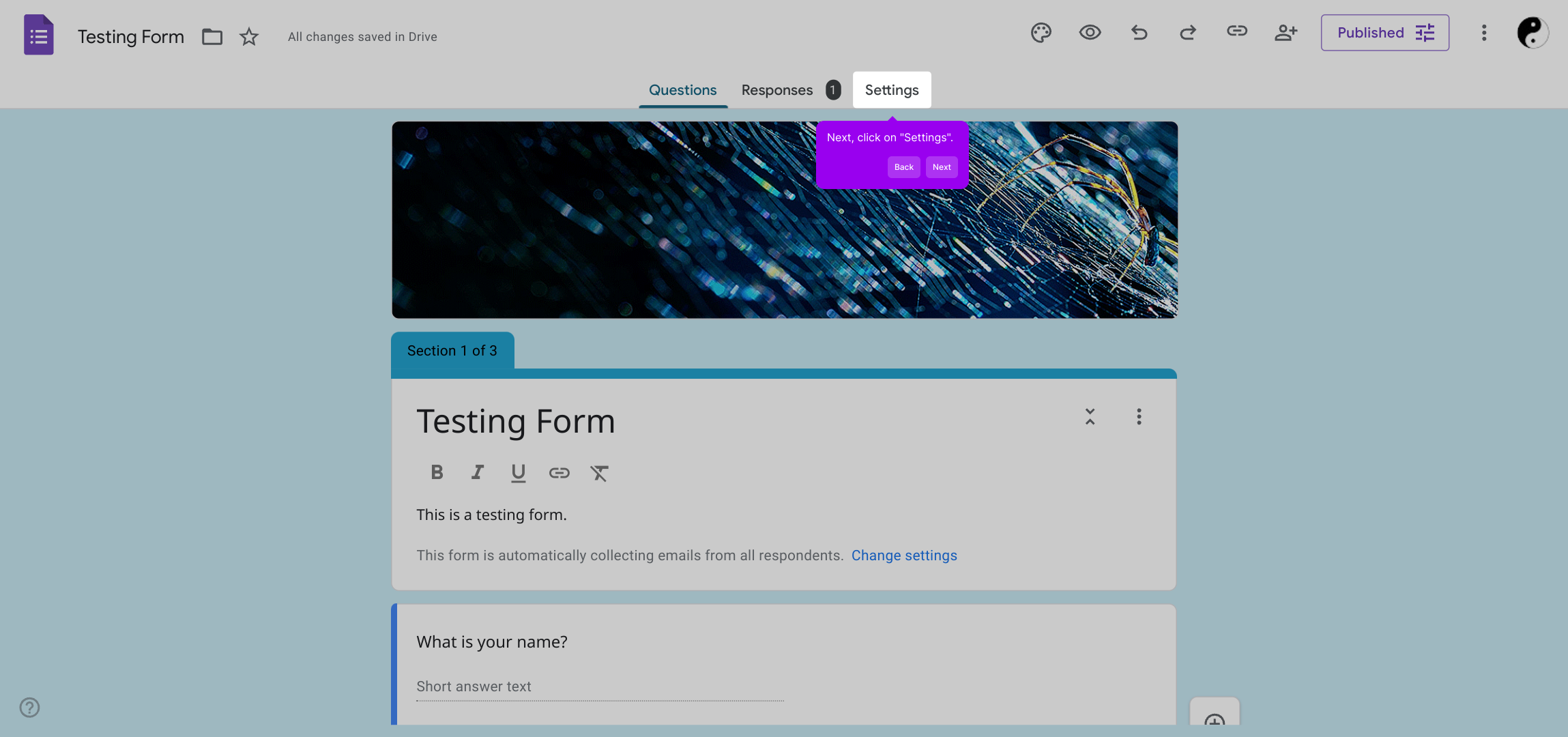
2. Next, click on "Settings".
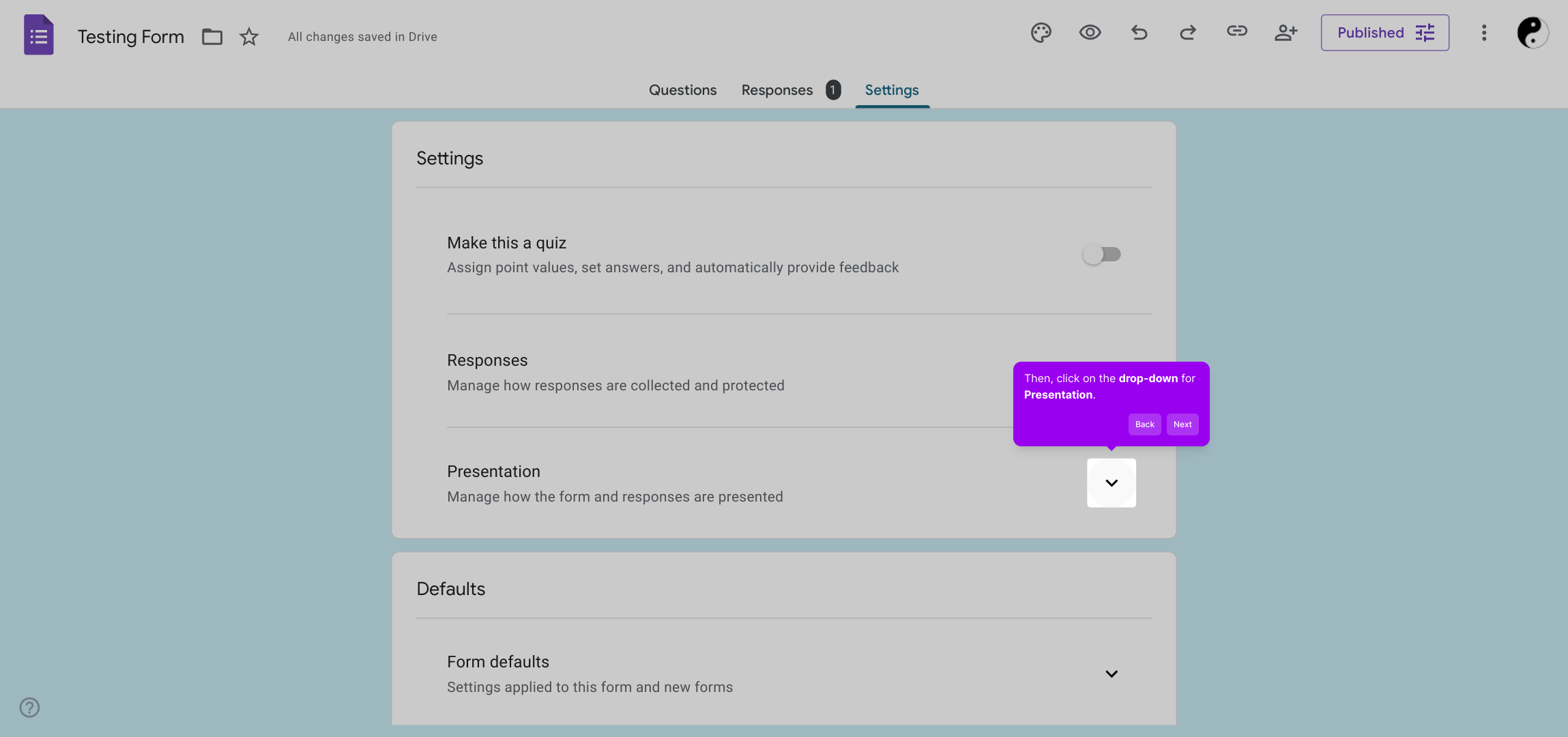
3. Then, click on the drop-down for Presentation.
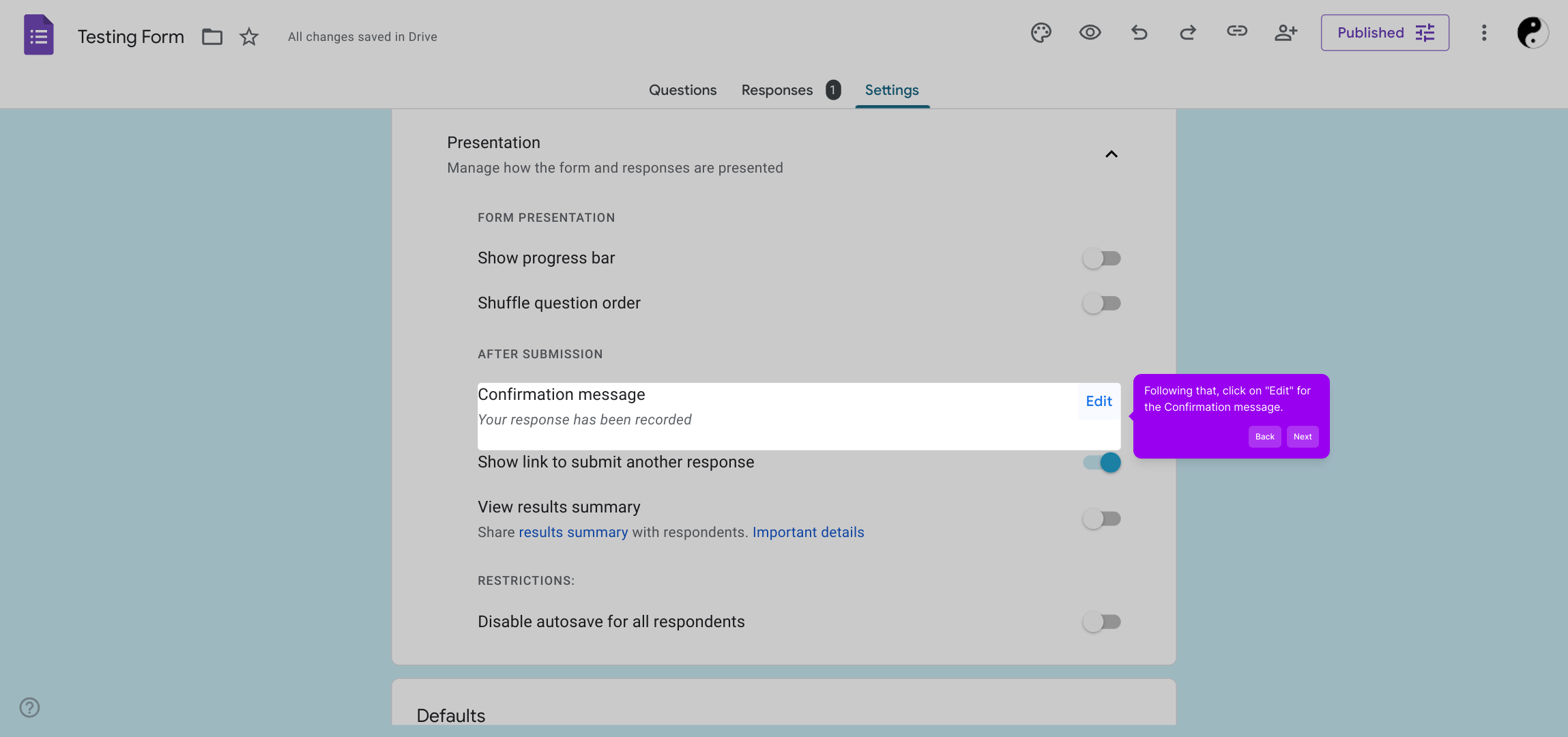
4. Following that, click on "Edit" for the Confirmation message.
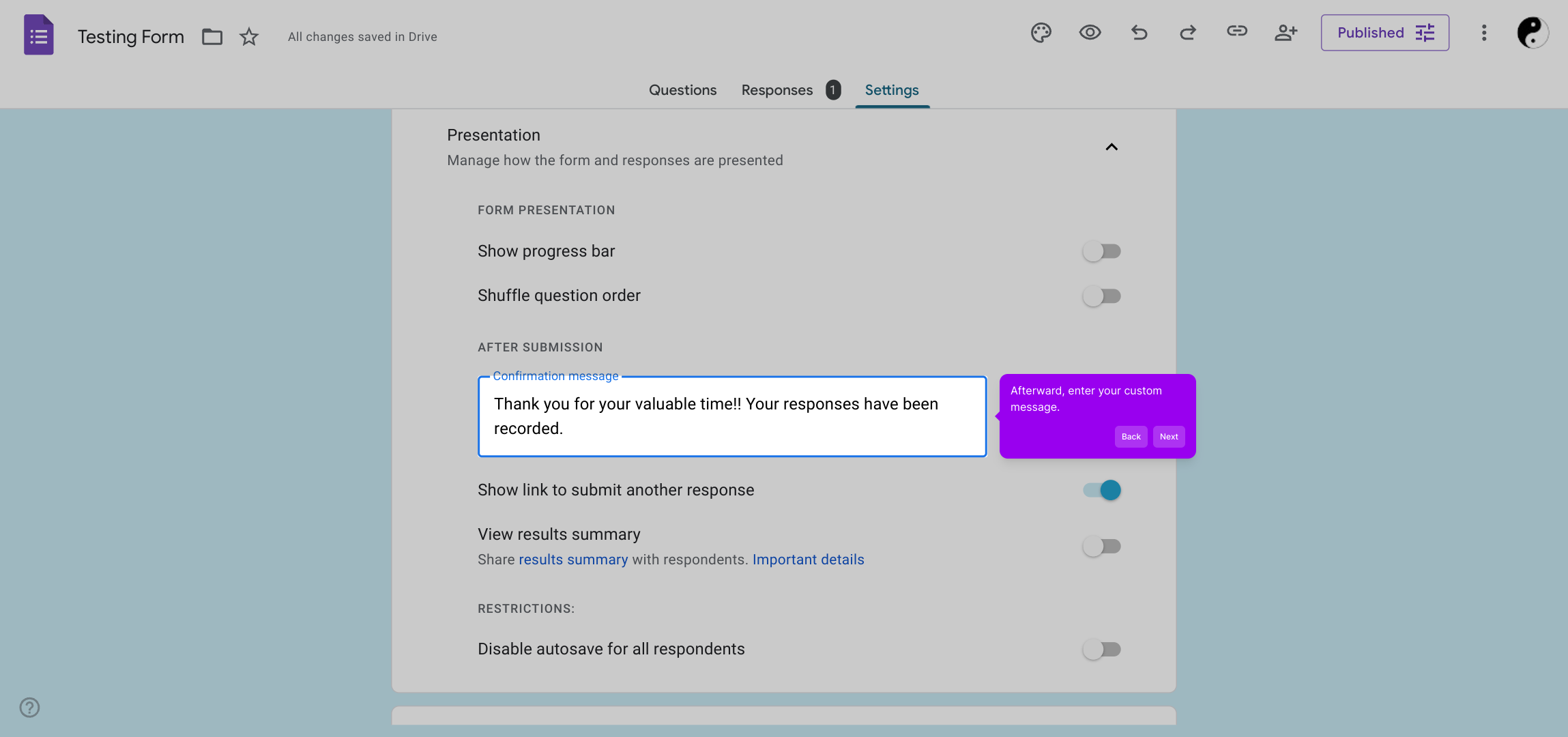
5. Afterward, enter your custom message.
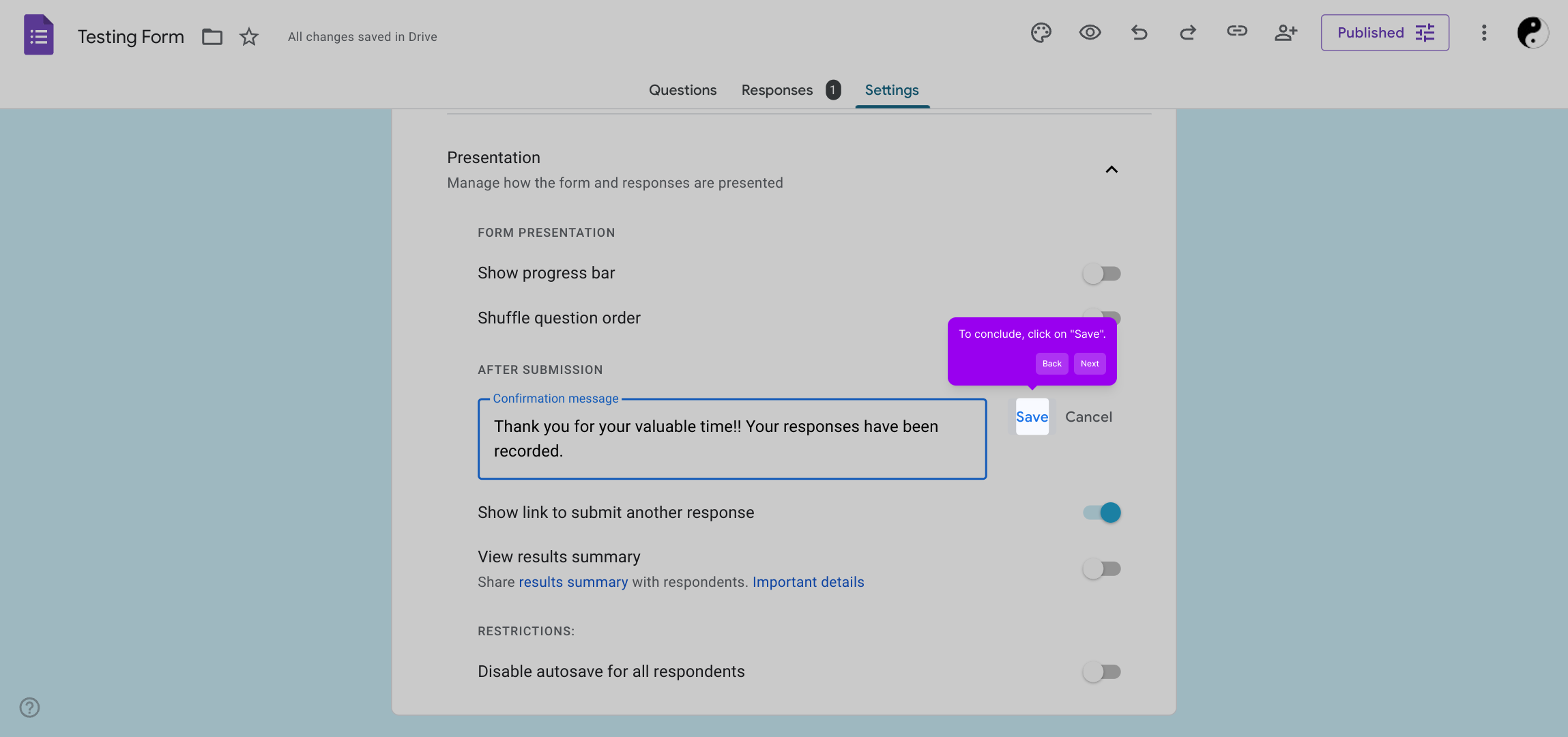
6. To conclude, click on "Save".
7. Create a Supademo in seconds
This interactive demo/guided walkthrough on How to Show a Custom Thank You Message in Google Forms was created using Supademo.
How to Show a Custom Thank You Message in Google Forms : Step-by-Step Guide
Start by opening the form you want to customize. This is where you'll begin making the necessary adjustments to tailor the experience for your users.
Once the form is open, look for the "Settings" option in the menu. Clicking here will give you access to all the configuration options for your form.
In the Settings panel, find the Presentation section. Click the drop-down arrow next to it to reveal additional display options that control how your form behaves and appears.
Next, locate the Confirmation message settings within this section. Click on the "Edit" button so you can personalize the message that users will see after submitting the form.
Now, type in the custom message you'd like your users to receive. This message can acknowledge their submission and provide any next steps or important info.
After entering your message, make sure to save your changes by clicking the "Save" button. This ensures your customization is applied and ready to be seen by your form users.
With everything set, you’re all set to create and share your own Supademo quickly. This streamlined process makes it easy to customize and launch your demos in no time.
Create your own interactive demos in < 5 mins with Supademo
You can create your own interactive product demo in minutes using Supademo. Drive growth, scale enablement, and supercharge product-led onboarding with Supademo. Sign up for free here with no credit card required.
FAQs
Commonly asked questions about this topic.
What is the purpose of a custom Thank You message in Google Forms?
Where can I find the Confirmation message setting in Google Forms?
Can I use rich text or images in the custom Thank You message?
How do I save my custom Thank You message after editing?
Is the custom Thank You message visible on mobile devices?
Can I create different Thank You messages for different sections of my form?
Will my custom Thank You message appear if users submit the form multiple times?
Can I automate follow-up actions based on the submission using this Thank You message?
What if I do not set a custom Thank You message, what will users see?
Is there a limit to the length of the custom Thank You message?

Product Operations Associate
Vimal Kumar helps build and grow Supademo’s team and GTM efforts, with a focus on figuring out growth levers and improving product traction.




