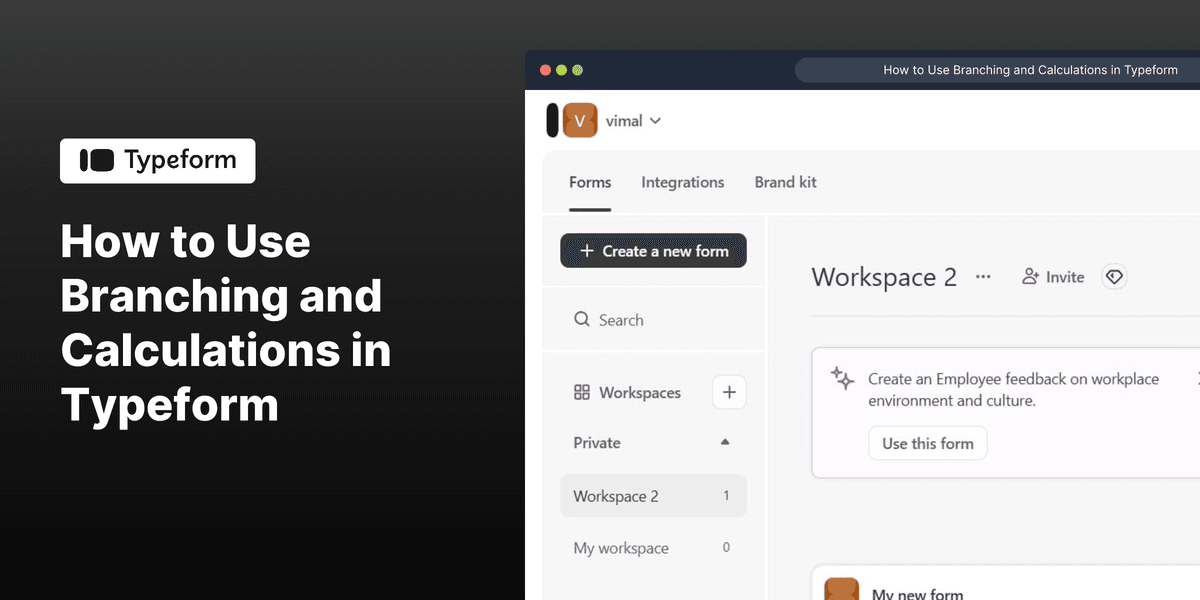
How to Use Branching and Calculations in Typeform

Vimal Kumar
Vimal Kumar·
How to Use Branching and Calculations in Typeform
Interactive demo powered by Supademo

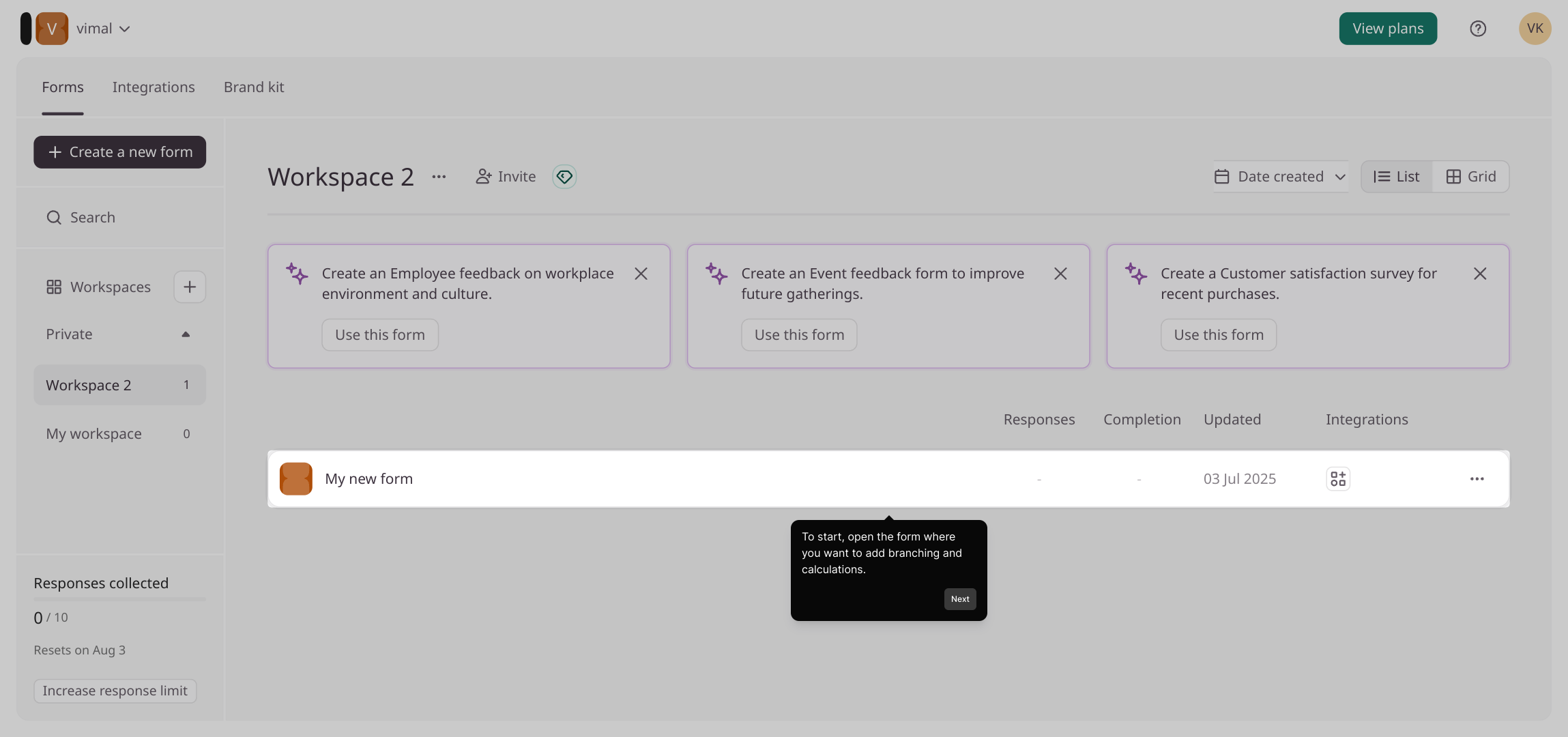
1. To start, open the form where you want to add branching and calculations.

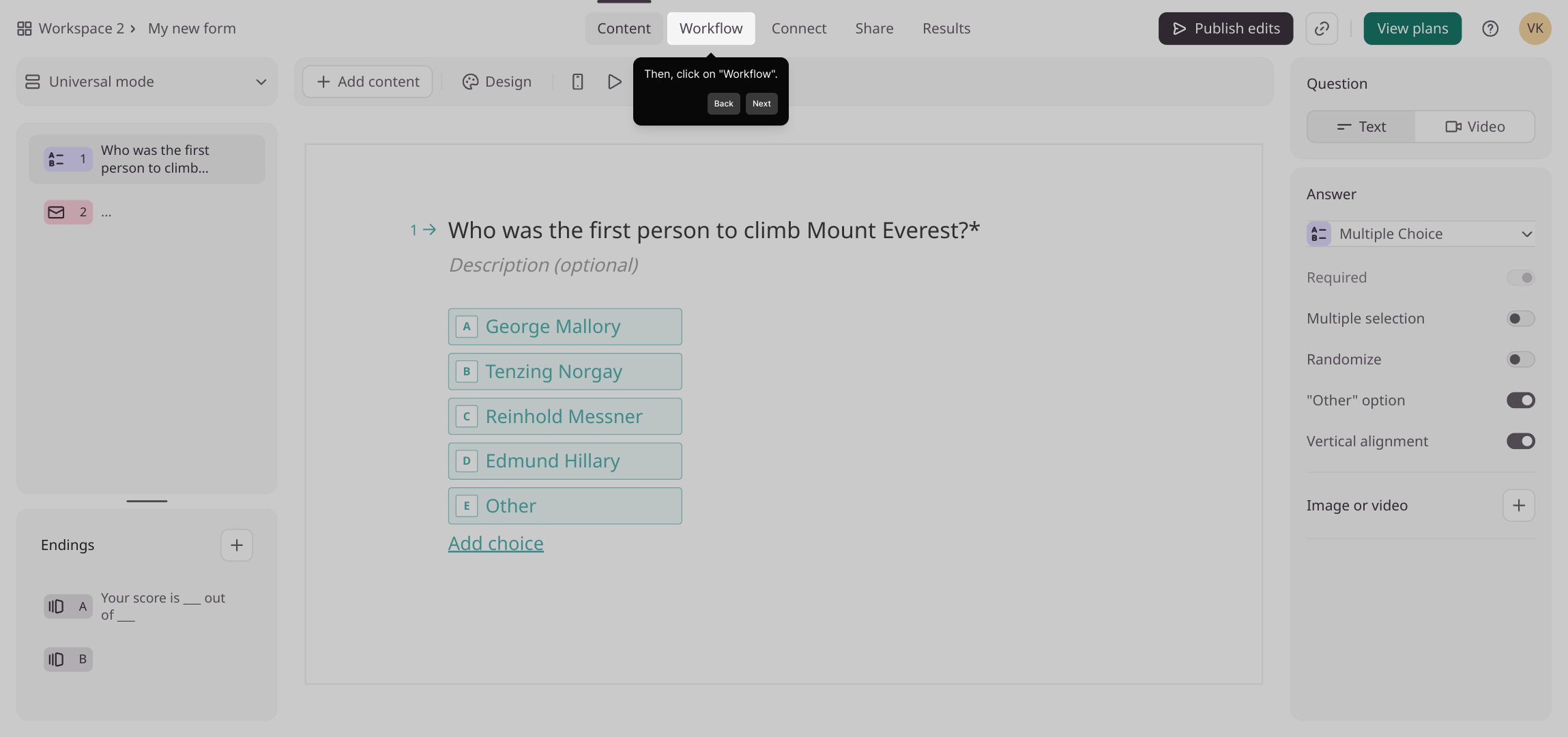
2. Then, click on "Workflow".

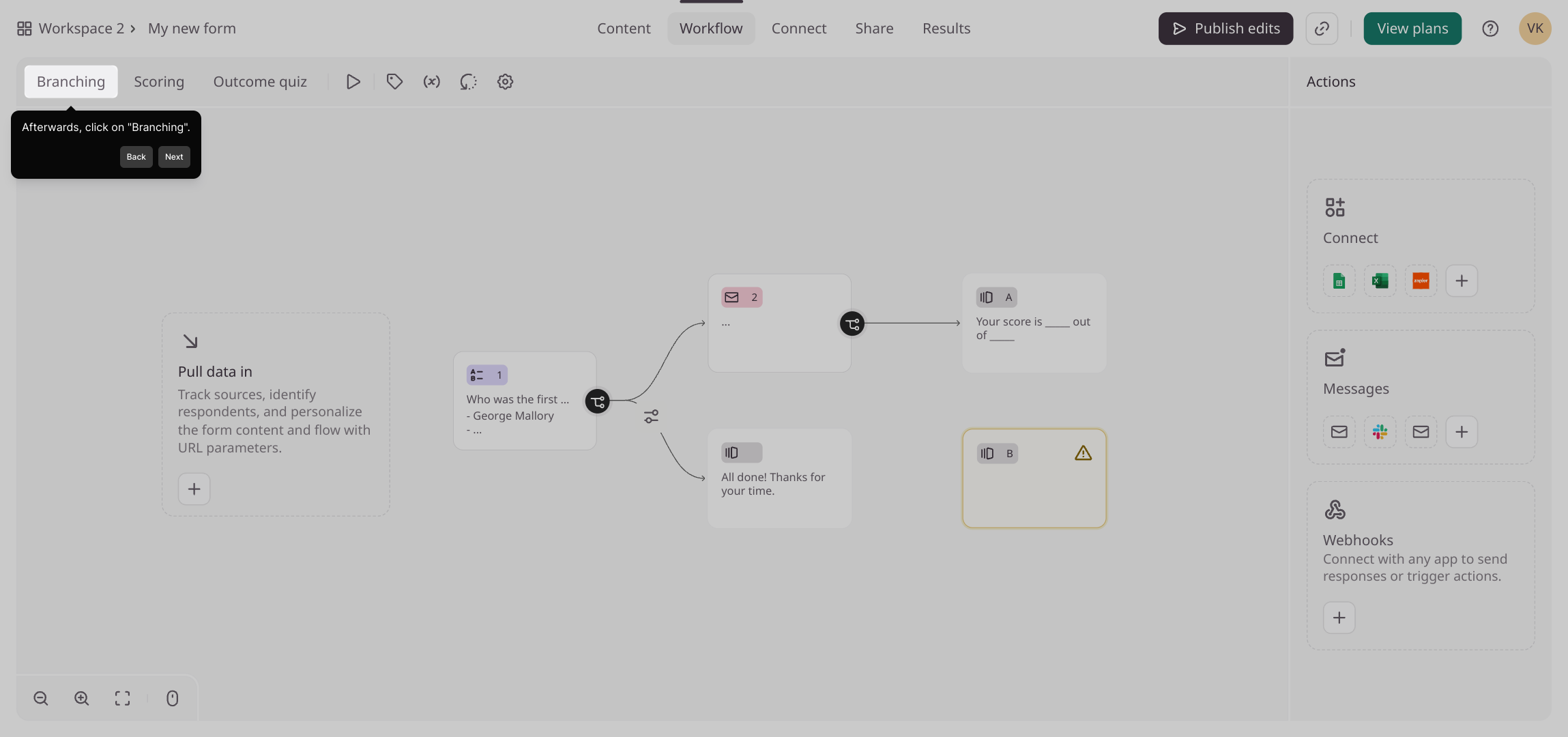
3. Afterwards, click on "Branching".

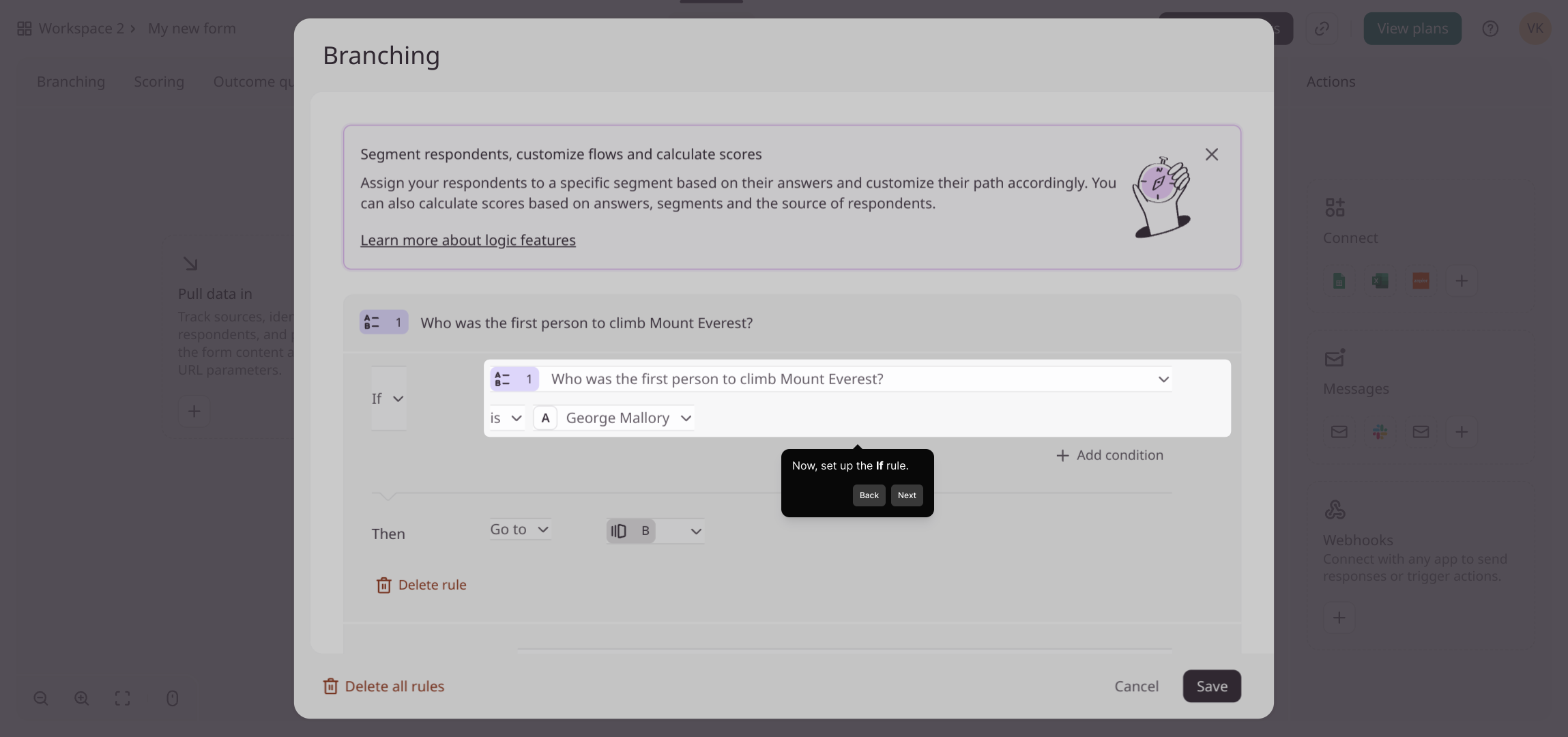
4. Now, set up the If rule.

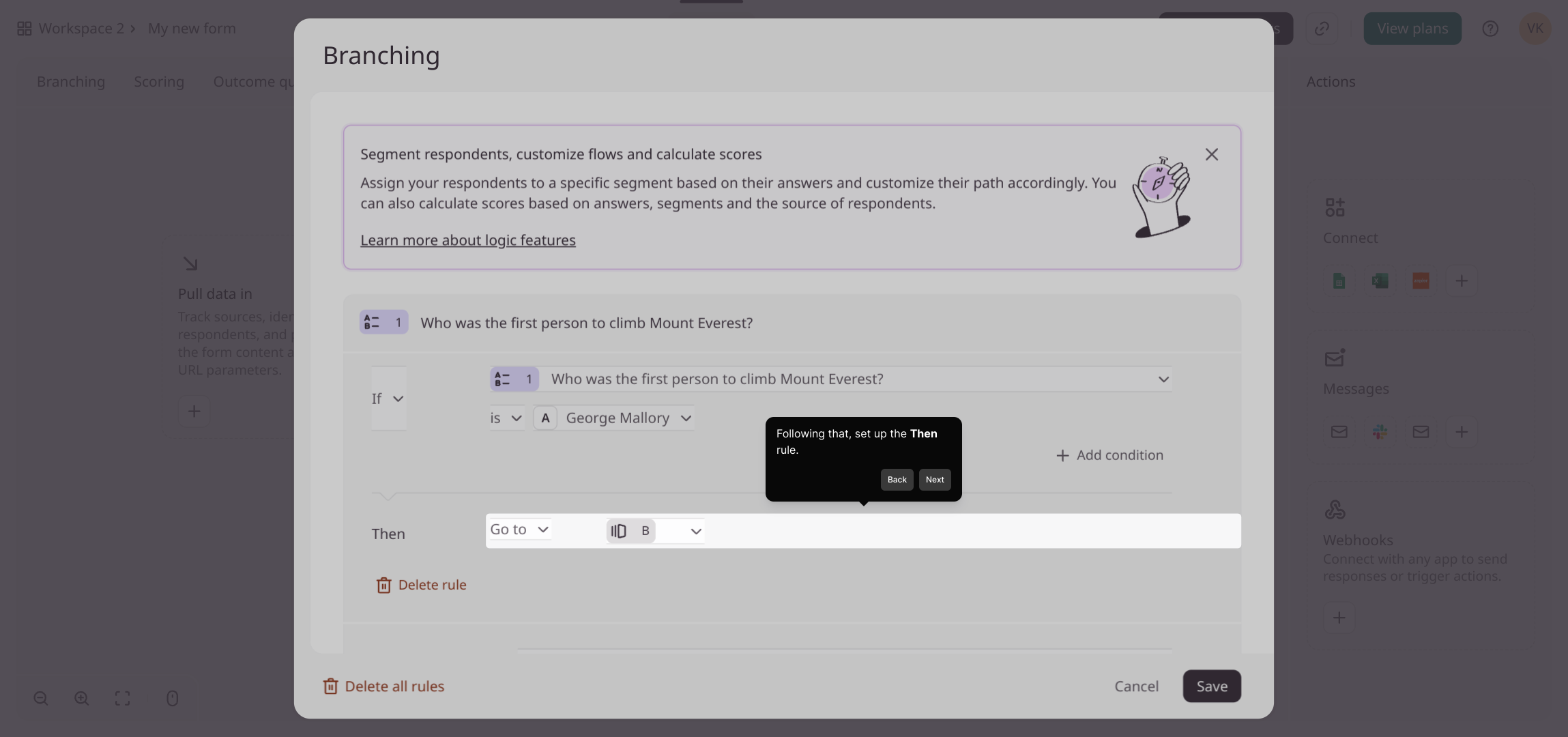
5. Following that, set up the Then rule.

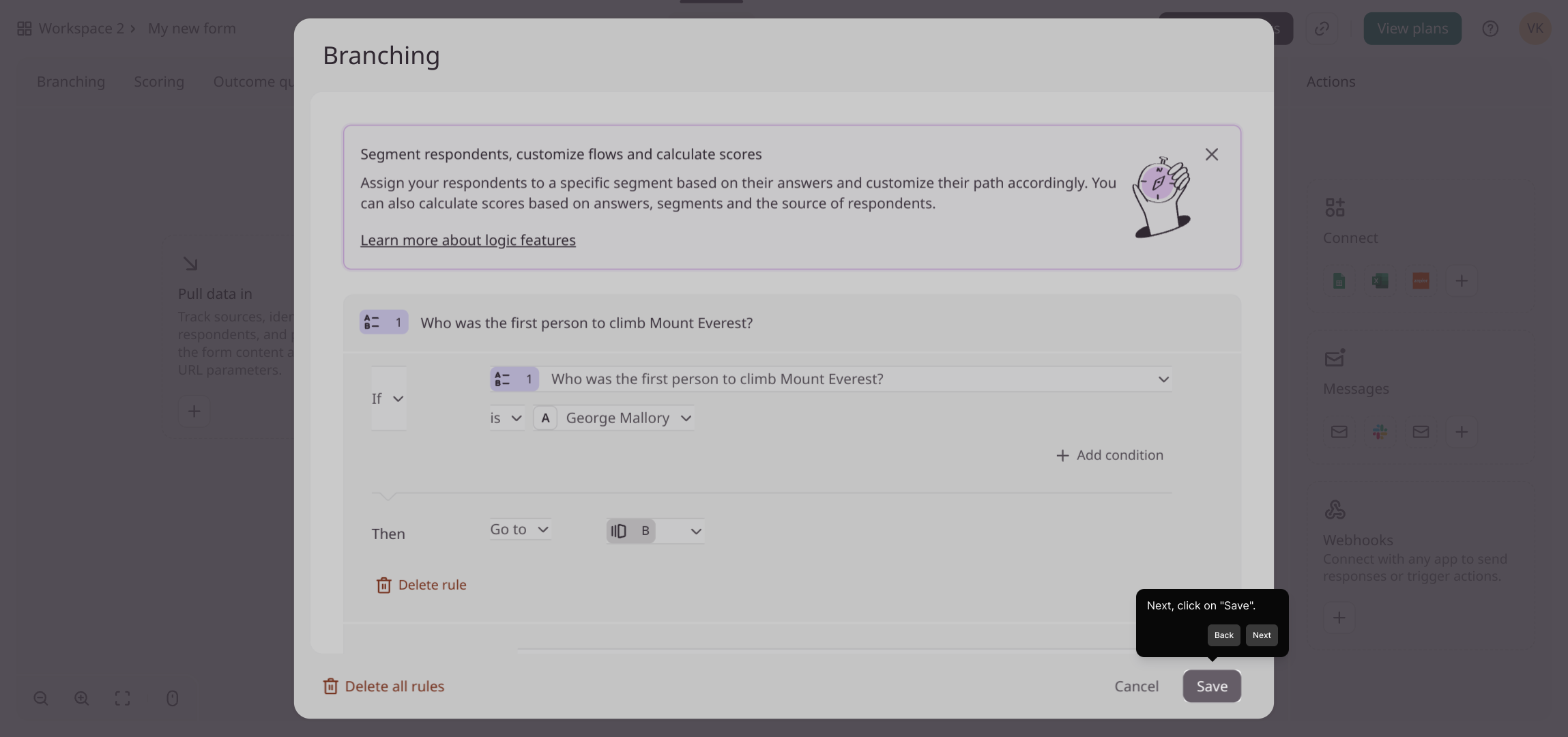
6. Next, click on "Save".

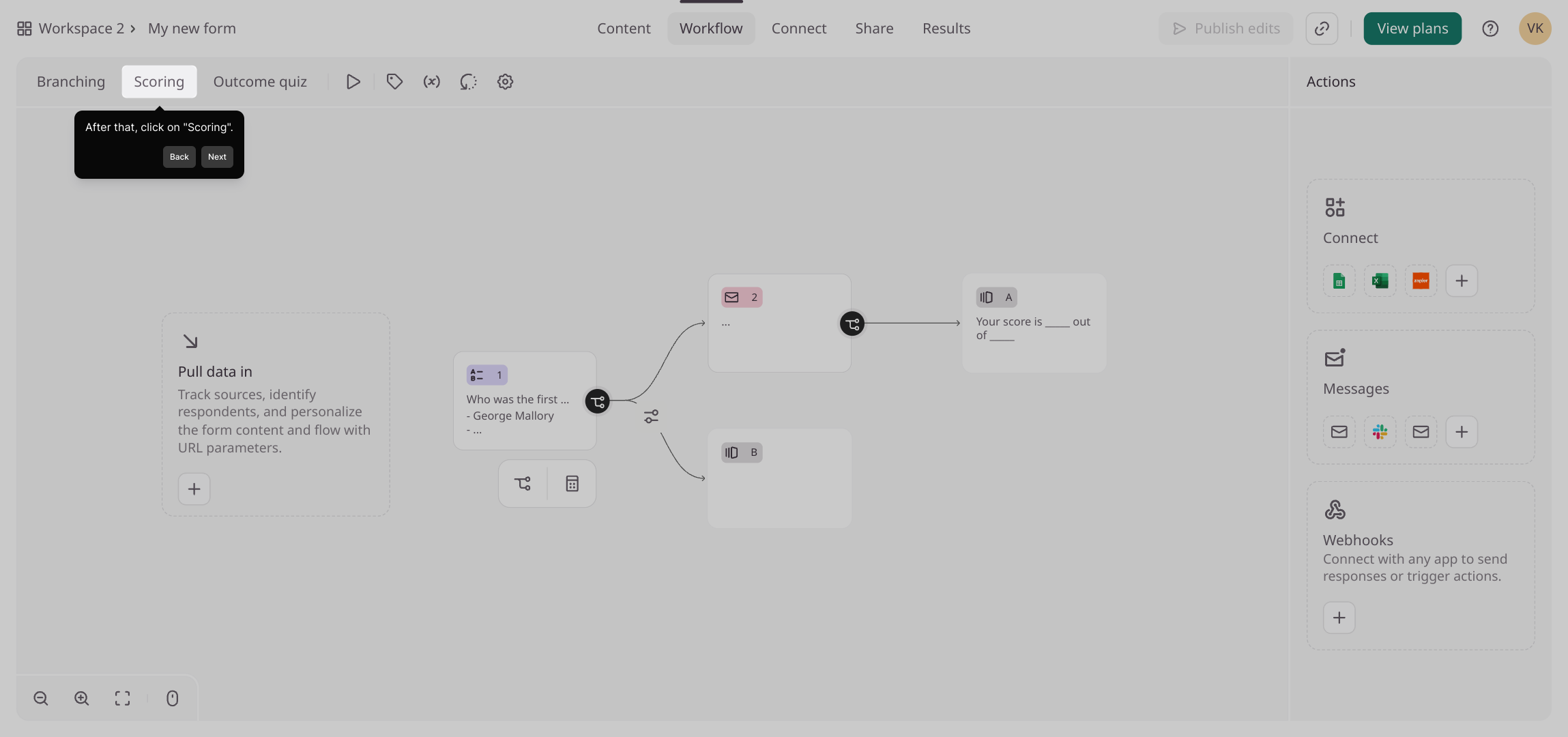
7. After that, click on "Scoring".

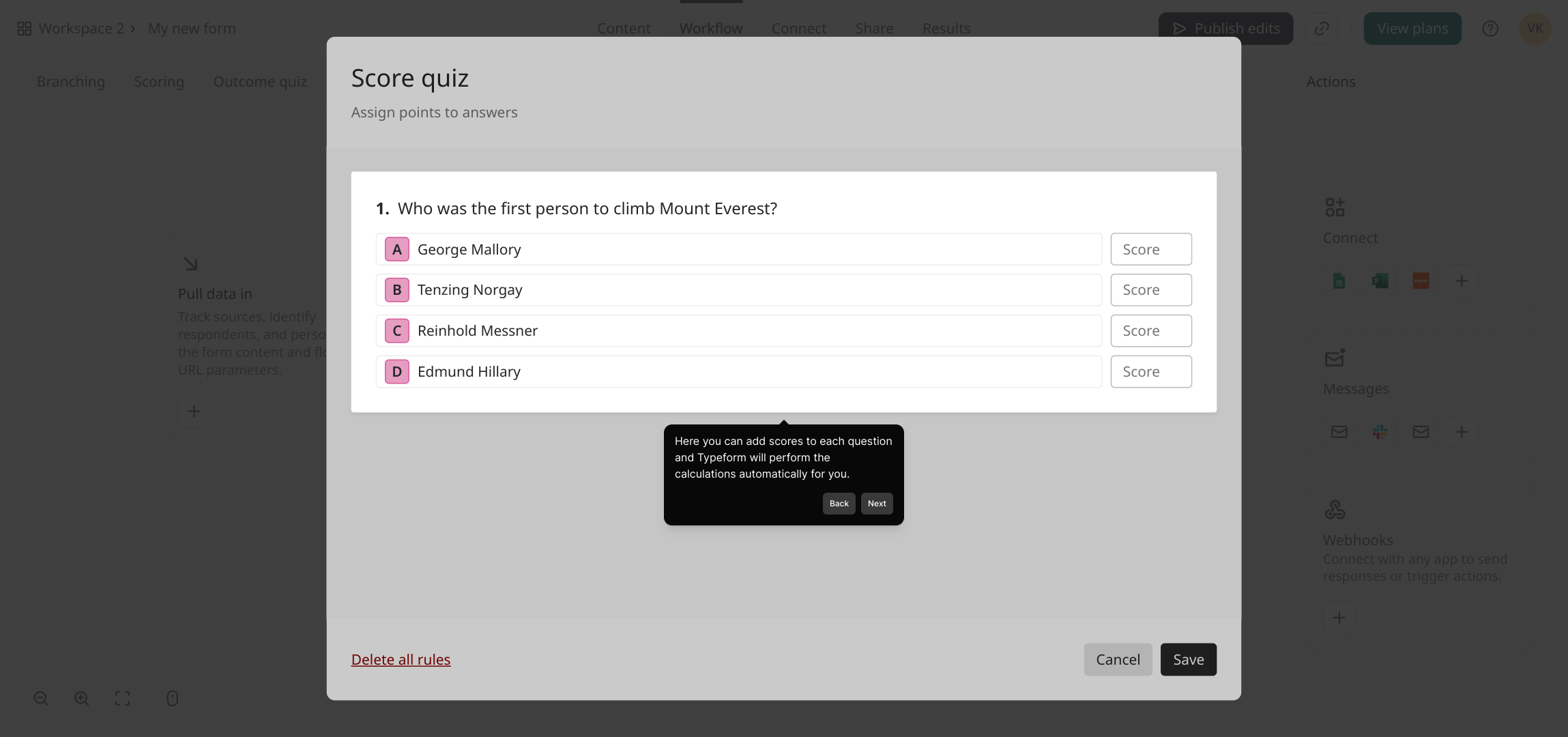
8. Here you can add scores to each question and Typeform will perform the calculations automatically for you.

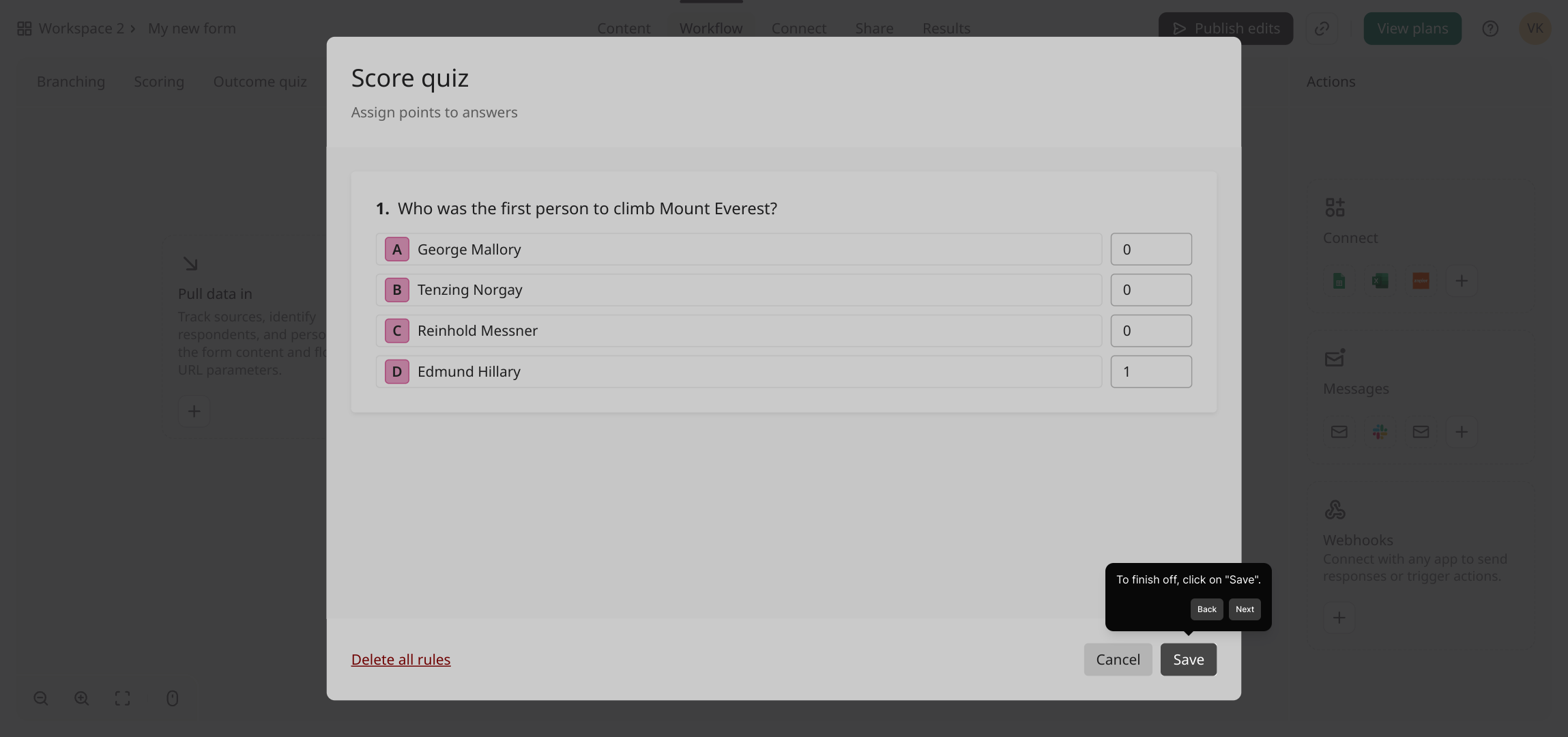
9. To finish off, click on "Save".

10. Create a Supademo in seconds

This interactive demo/guided walkthrough on How to Use Branching and Calculations in Typeform was created using Supademo.


How to Use Branching and Calculations in Typeform : Step-by-Step Guide

Begin by navigating to the form where you'd like to introduce branching logic and calculations. This is your workspace to create dynamic, interactive experiences for users.
1

Next, locate and select the "Workflow" option in the menu. This section manages how your form behaves based on user inputs and other settings.
2

Within the Workflow area, click on "Branching" to start creating conditional paths. Branching allows your form to adapt questions dynamically depending on previous answers.
3

Now, set up the conditional "If" statement. This rule defines the condition or criteria under which your form will change its flow.
4

Following the condition, specify the "Then" action. This tells your form what happens next when the condition is met, enabling personalized paths for respondents.
5

When your branching rules are set to your satisfaction, click "Save" to preserve these changes. This ensures your form behaves according to the logic you’ve created.
6

After saving your branches, head over to the "Scoring" section. Here, you can start assigning values to answers to calculate scores automatically.
7

In the Scoring area, add numerical scores to each question’s responses. This setup enables Typeform to automatically compute results based on what users submit.
8

Once you’ve assigned all your scores, finalize your setup by clicking the "Save" button again. This locks in your scoring configuration and readies the form for use.
9

With everything configured, your form is now ready to deliver personalized experiences and automatic scoring. Enjoy creating powerful forms easily with Supademo.

10

Create your own interactive demos in < 5 mins with Supademo

You can create your own interactive product demo in minutes using Supademo. Drive growth, scale enablement, and supercharge product-led onboarding with Supademo. Sign up for free here with no credit card required.


FAQs

Commonly asked questions about this topic.

What is branching in Typeform?

Branching in Typeform allows you to create conditional paths in your form where the next question or action depends on previous answers. This helps tailor the user experience by showing relevant questions based on user input.

How do I set up an If-Then rule for branching?

To set up an If-Then rule, first select the condition under "If" to specify when the rule applies, then define the action under "Then" that determines what happens if the condition is true, such as routing to a different question or ending the form.

Can I use calculations in Typeform?

Yes, Typeform allows you to assign scores to answers and automatically perform calculations based on user responses. This is ideal for quizzes, assessments, or surveys where scoring is necessary.

Where do I add scoring for calculations?

Scoring is added in the “Scoring” section of the Typeform editor. Here, you assign numerical values to different answer options, enabling the platform to calculate totals or results automatically.

Does Typeform save my branching and scoring settings automatically?

No, after setting your branching and scoring rules, you need to click "Save" to ensure your changes are applied. Always confirm this to avoid losing your setup.

Can branching affect the final score?

Yes, since branching changes which questions a user sees, it can impact the overall score. Only the questions answered will be included in the final calculation, allowing for personalized scoring paths.

Is it possible to combine multiple branching rules?

Yes, you can combine multiple branching conditions to create complex workflows. This allows for highly customized forms that adapt based on several user responses or criteria.

What types of questions support scoring in Typeform?

Most question types like Multiple Choice, Dropdown, and Rating support scoring. You assign a numeric value to each answer option, which the system uses to calculate totals.

Can I preview my form with branching and calculations before publishing?

Yes, Typeform lets you preview your form, showing how the branching logic and scoring work in real time. Use this to test the user journey and ensure calculations are accurate before sharing.

How do branching and calculations improve user experience?

Branching personalizes the flow by asking relevant questions, while calculations offer instant feedback like scores or results. Together, they create dynamic, engaging forms that respond intelligently to user input.
Vimal Kumar
Vimal Kumar

Product Operations Associate

Vimal Kumar helps build and grow Supademo’s team and GTM efforts, with a focus on figuring out growth levers and improving product traction.


More from the blog

How to Remove 'Powered by Shopify'

How to Remove 'Powered by Shopify'

Learn how to easily remove the 'Powered by Shopify' text from your online store with step-by-step instructions and tips to customize your Shopify storefront.

Vimal Kumar
Vimal KumarJan 3, 2026
How to Add Products to Shopify

How to Add Products to Shopify

Learn step-by-step how to add products to your Shopify store effortlessly, including tips on product details, images, pricing, and inventory management to boost your online sales.

Vimal Kumar
Vimal KumarDec 17, 2025
How to Deactivate Your Shopify Store

How to Deactivate Your Shopify Store

Learn step-by-step how to deactivate your Shopify store easily, including important considerations and tips to pause or close your shop without losing data.

Vimal Kumar
Vimal KumarDec 17, 2025
How to Remove 'Powered by Shopify'

How to Remove 'Powered by Shopify'

Learn how to easily remove the 'Powered by Shopify' text from your online store with step-by-step instructions and tips to customize your Shopify storefront.

Vimal Kumar
Vimal KumarDec 17, 2025
How to Create a Shopify Account

How to Create a Shopify Account

Learn step-by-step how to create a Shopify account quickly and easily, set up your online store, and start selling your products in no time.

Vimal Kumar
Vimal KumarDec 17, 2025
How to Create a Stripe Account

How to Create a Stripe Account

Learn how to create a Stripe account quickly and easily with our step-by-step guide, perfect for beginners looking to start accepting online payments.

Vimal Kumar
Vimal KumarDec 17, 2025


