How to Add 1Password to Google Chrome

Adding 1Password to Google Chrome gives you secure password management directly in your browser, allowing you to autofill credentials and generate strong passwords without leaving your current tab. This integration streamlines your login workflow while keeping your sensitive information encrypted and protected.
Quick summary
In this tutorial, you'll learn how to install and set up the 1Password extension in Google Chrome. By following these steps, you'll enable seamless password autofill and secure credential management across all your web browsing.
Why this matters
Integrating 1Password with Chrome eliminates the need to manually enter passwords or switch between applications to access your vault. This workflow reduces login friction, minimizes password reuse, and ensures you maintain strong security practices across all your online accounts.
Step-by-step guide
- 1
Open the Chrome Web Store
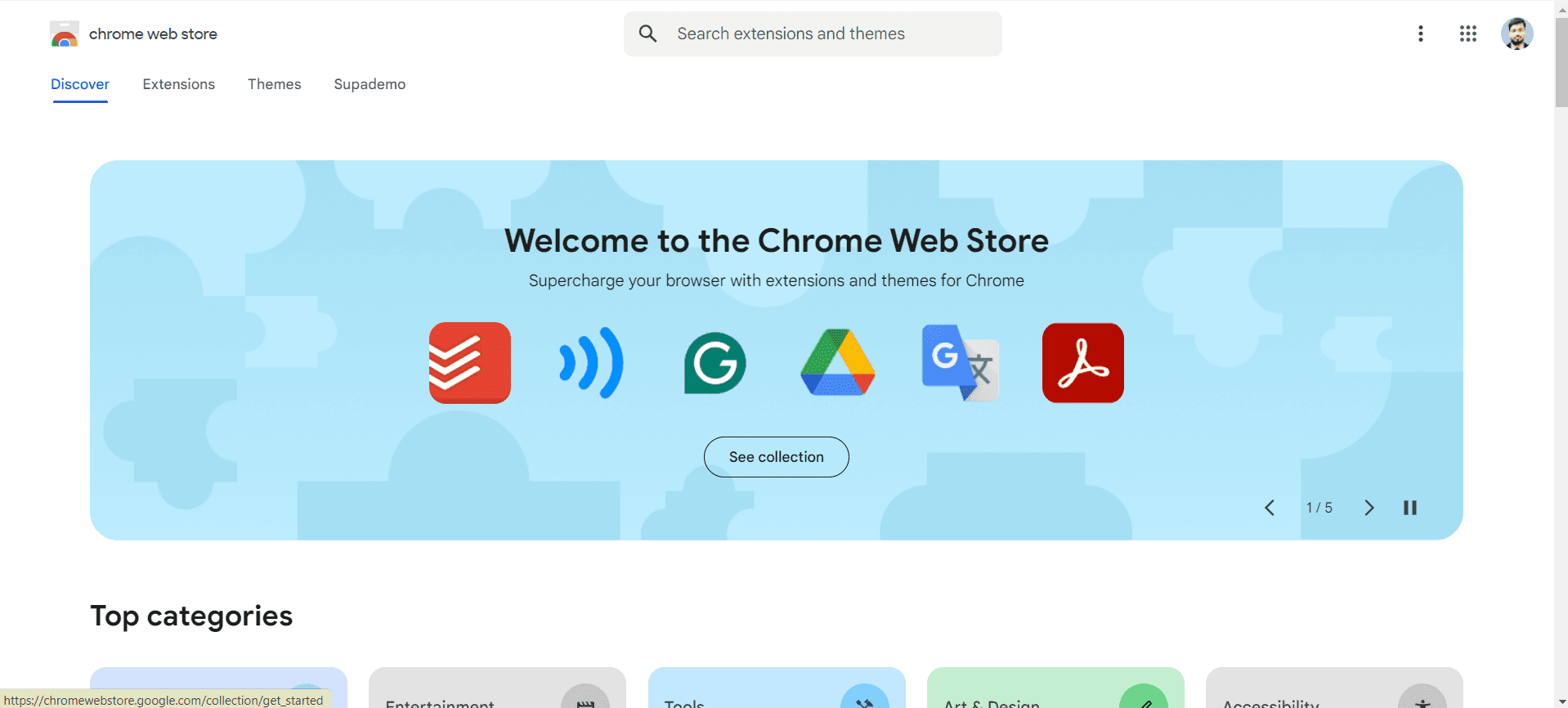
Launch Google Chrome and navigate to the Chrome Web Store by searching for it or visiting the extensions section. You'll see the store's home page with featured extensions and a search bar at the top.
- 2
Search for 1Password extension
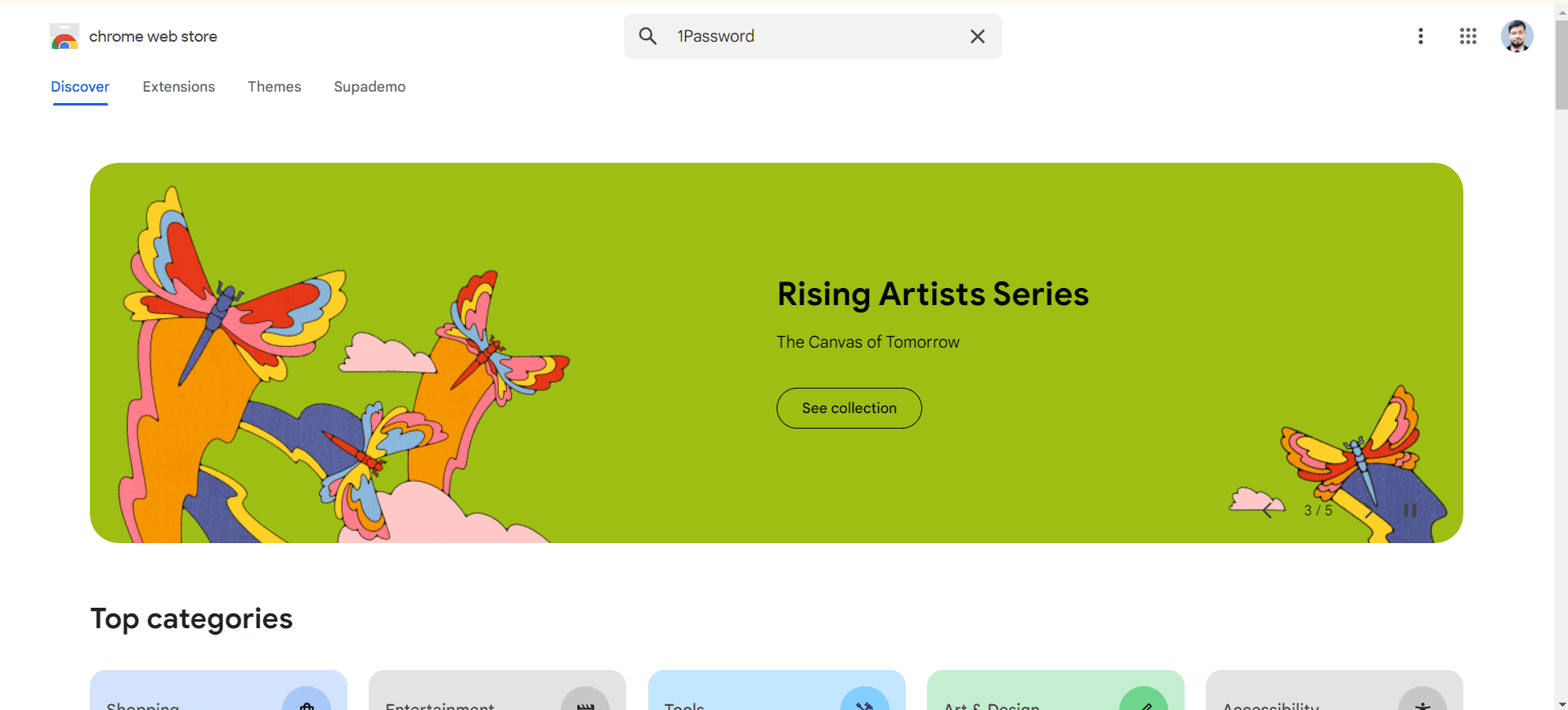
Type '1Password' into the search bar at the top of the Chrome Web Store. The official 1Password extension by AgileBits Inc. will appear at the top of the search results.
- 3
Click Add to Chrome button
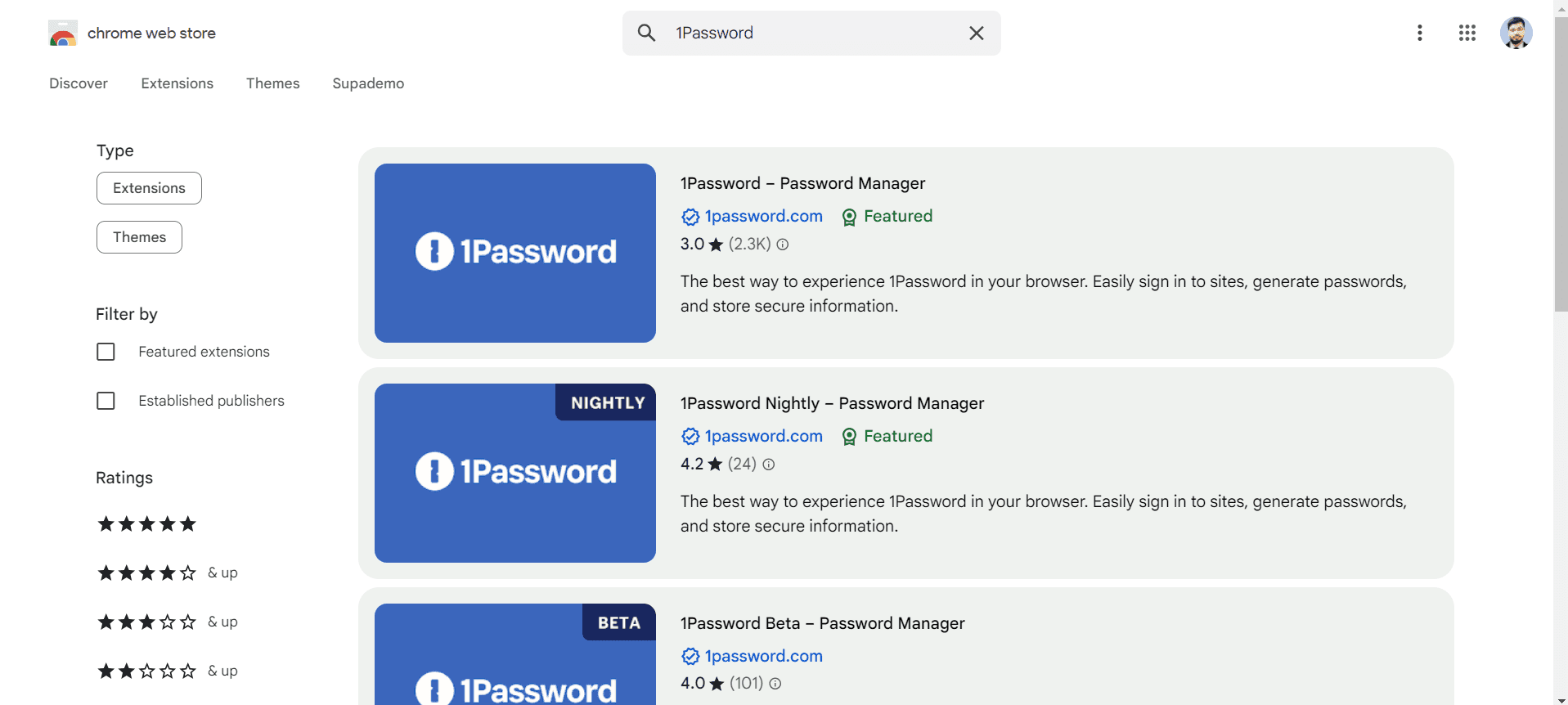
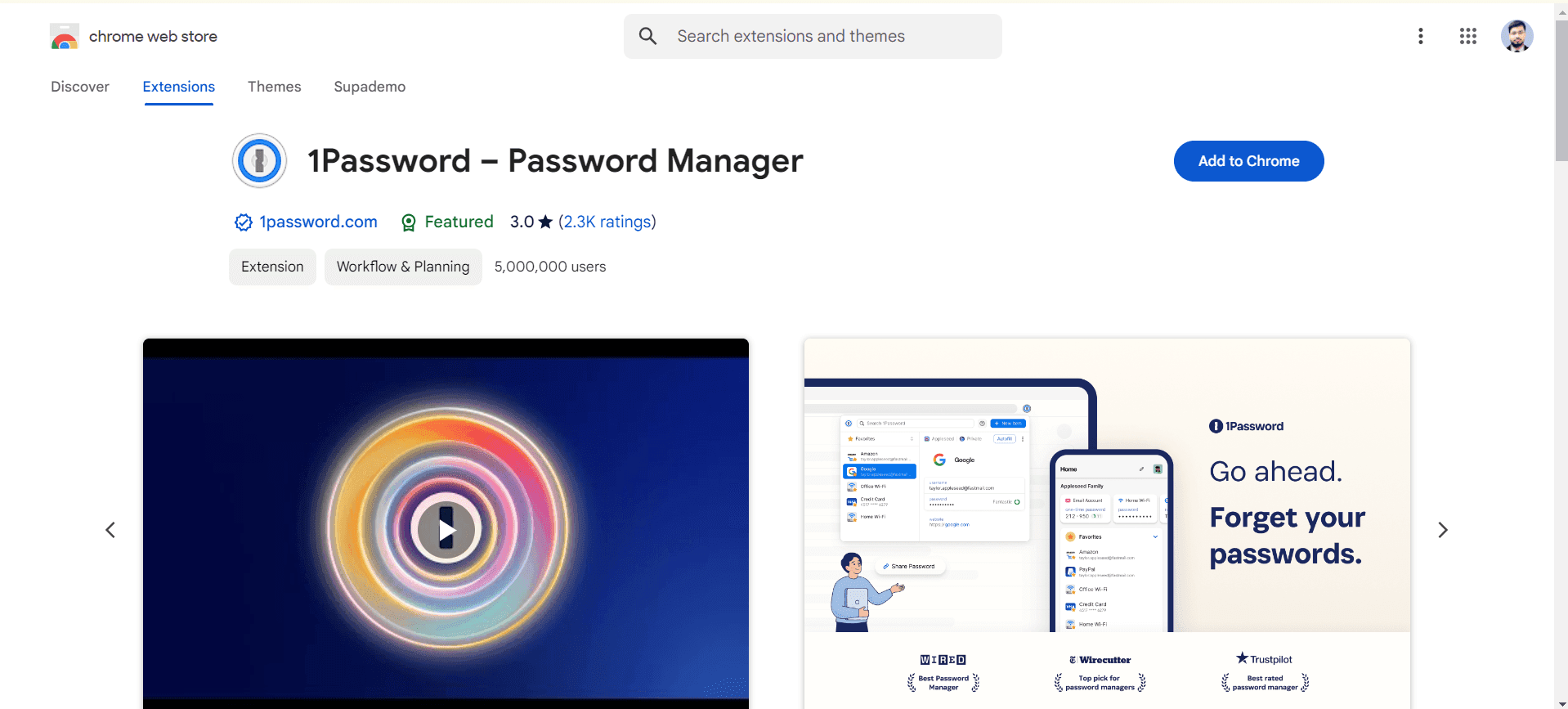
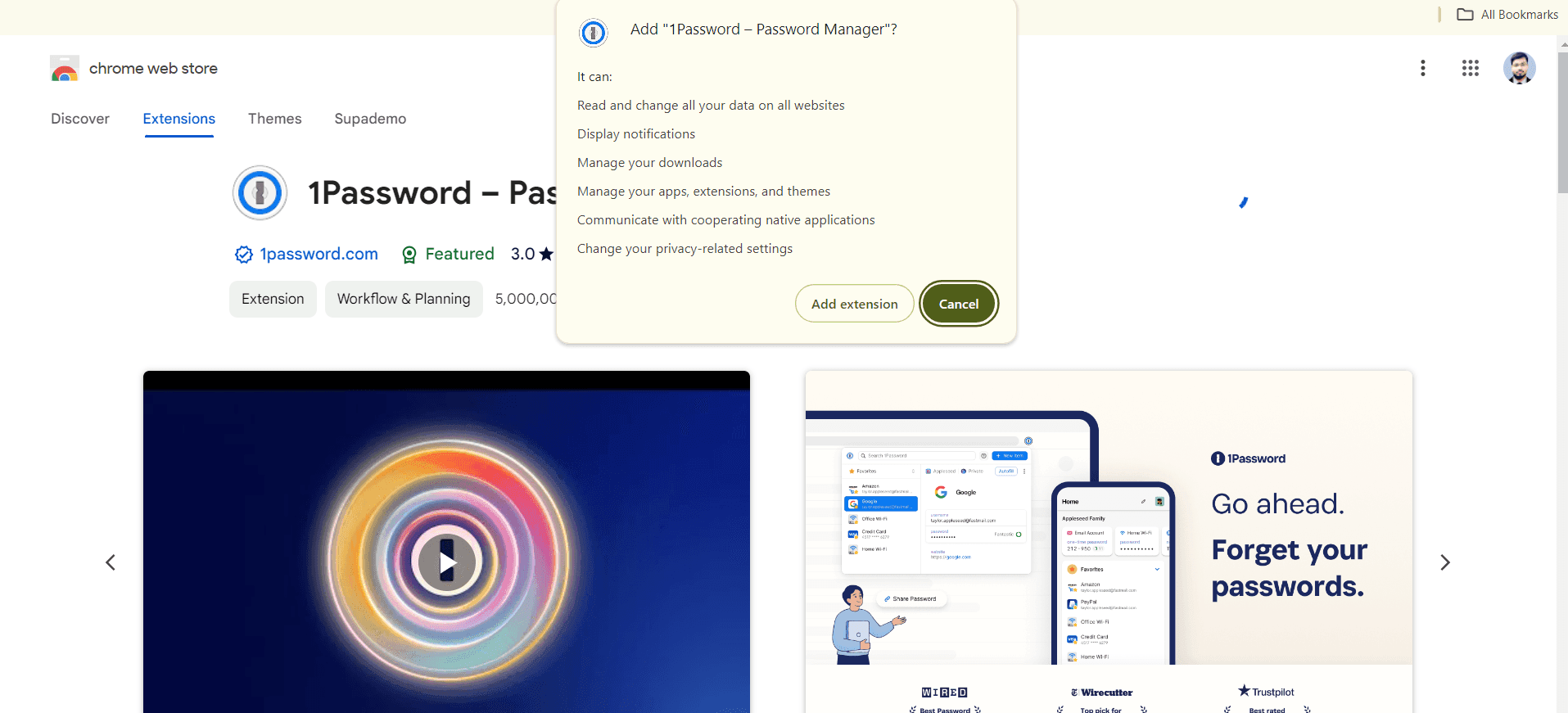
Select the 1Password extension from the results and click the 'Add to Chrome' button on the extension's detail page. A confirmation dialog will appear asking for permission to add the extension.
- 4
Confirm the installation
Click 'Add extension' in the confirmation dialog to complete the installation process. Chrome will download and install the extension automatically.
- 5
Sign in to your 1Password account
Click the 1Password icon in your Chrome toolbar and sign in with your 1Password account credentials. Once authenticated, the extension will be ready to use for autofilling passwords and managing your vault.
Frequently asked questions
Common questions about how to add 1password to google chrome.
Is the 1Password Chrome extension free to use?
The 1Password extension itself is free to download and install. However, you'll need an active 1Password subscription to access your vault and use the extension's features. 1Password offers both individual and family plans with a free trial period.
Can I use 1Password with multiple Chrome profiles?
Yes, you can install the 1Password extension on multiple Chrome profiles. Each profile will have its own instance of the extension, but you can sign into the same 1Password account across all profiles for unified vault access.
What should I do if the 1Password extension doesn't appear in my toolbar?
If the extension is installed but not visible, click the Extensions icon (puzzle piece) in your Chrome toolbar and look for 1Password. You can pin the extension to your toolbar by clicking the pin icon next to it. This will make it easily accessible for future use.
Does 1Password on Chrome work offline?
1Password requires an internet connection to verify your account and sync your vault across devices. However, once your vault is cached locally, you can access previously loaded passwords in offline mode with certain limitations.
Is my data secure with 1Password on Chrome?
Yes, 1Password uses end-to-end encryption to protect your data. Your passwords and sensitive information are encrypted before leaving your device and can only be decrypted with your master password. Google Chrome cannot access your encrypted vault data.