How to Change Your Google Chrome Background

Personalizing your Google Chrome browser is a simple way to make your browsing experience feel more tailored to your preferences. Changing your Chrome background allows you to replace the default new tab page with a custom image, theme, or solid color that reflects your style.
Quick summary
In this tutorial, you'll learn how to customize your Google Chrome background by uploading images and applying them to your new tab page. By the end, you'll have a personalized Chrome experience that greets you every time you open a new tab.
Why this matters
A customized Chrome background can improve your daily browsing experience by creating a more pleasant and personalized environment. Whether you prefer a motivational image, a favorite photograph, or a calming design, personalizing your background helps make your browser feel uniquely yours.
Step-by-step guide
- 1
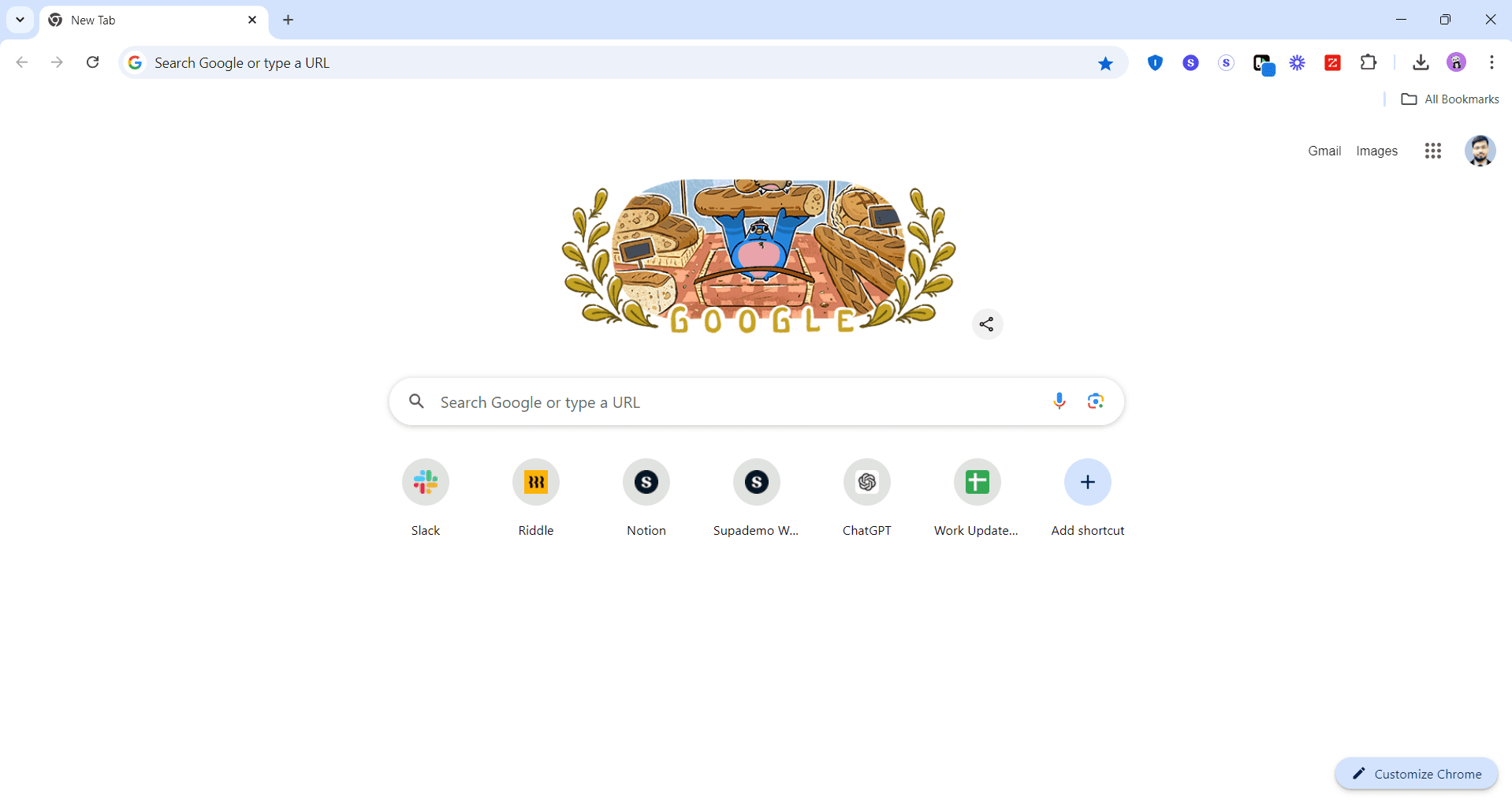
Open Chrome settings
Click the three-dot menu icon in the top-right corner of Google Chrome and select Settings. This opens the main settings page where you can customize various browser features.
- 2
Navigate to appearance settings
In the left sidebar, click Appearance to access all customization options for your Chrome interface. This section controls how your browser looks, including the new tab page design.
- 3
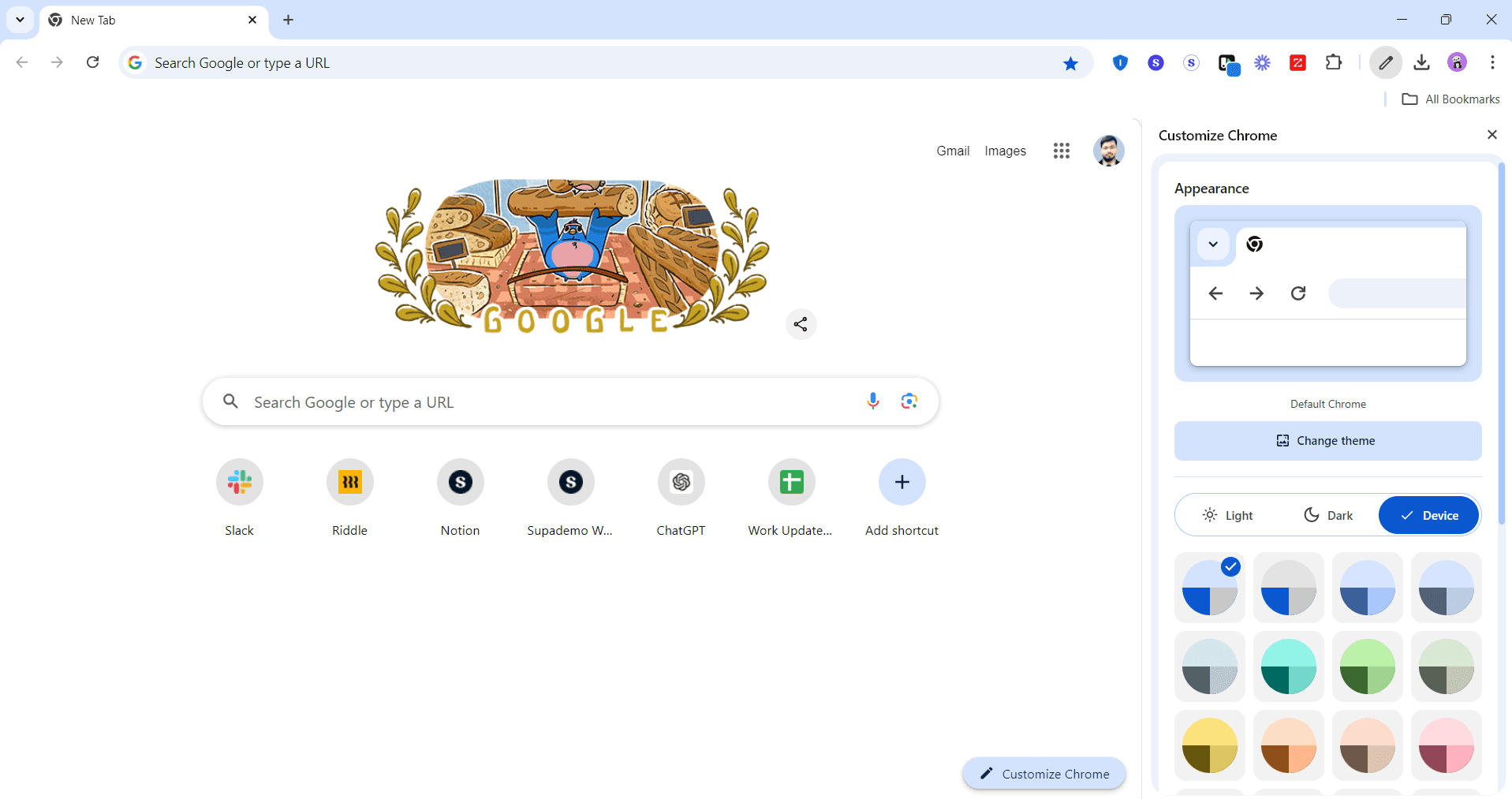
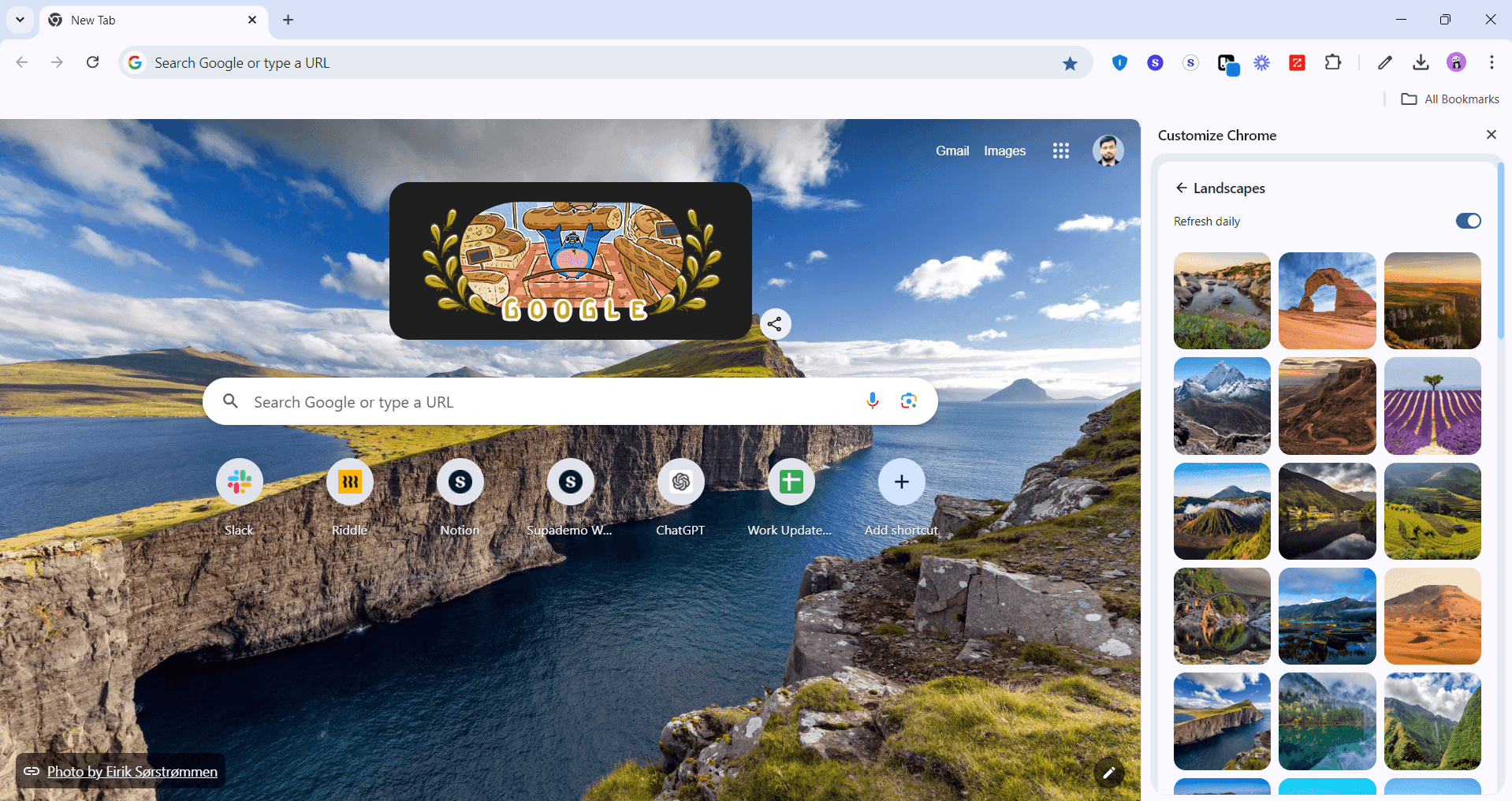
Select background image option
Under the Appearance section, look for the background or new tab page customization option. Click on the relevant button or link to begin uploading or selecting a background.
- 4
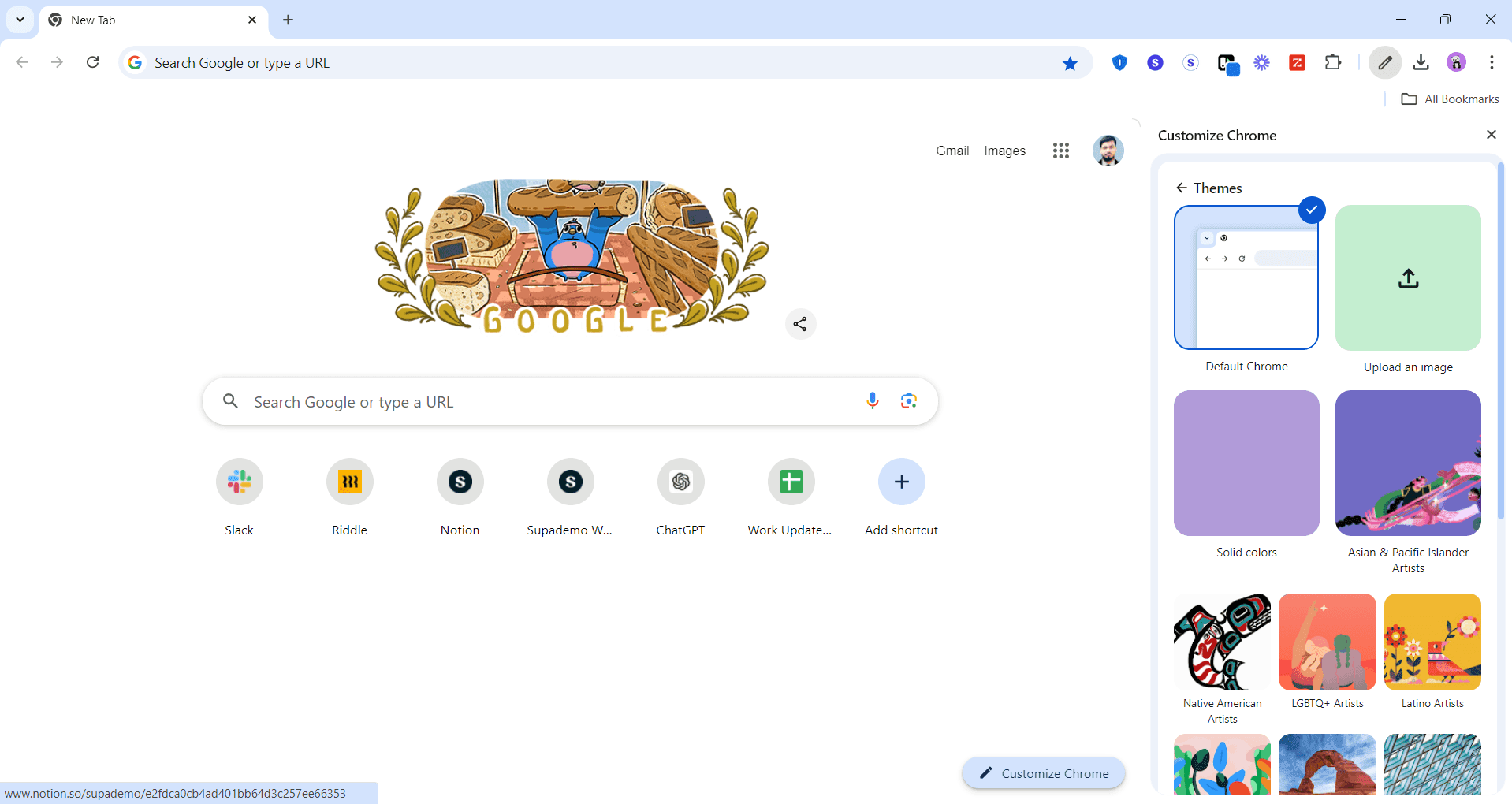
Upload your custom image
Click the upload button and select an image file from your computer. Chrome will process the image and prepare it for display on your new tab page.
- 5
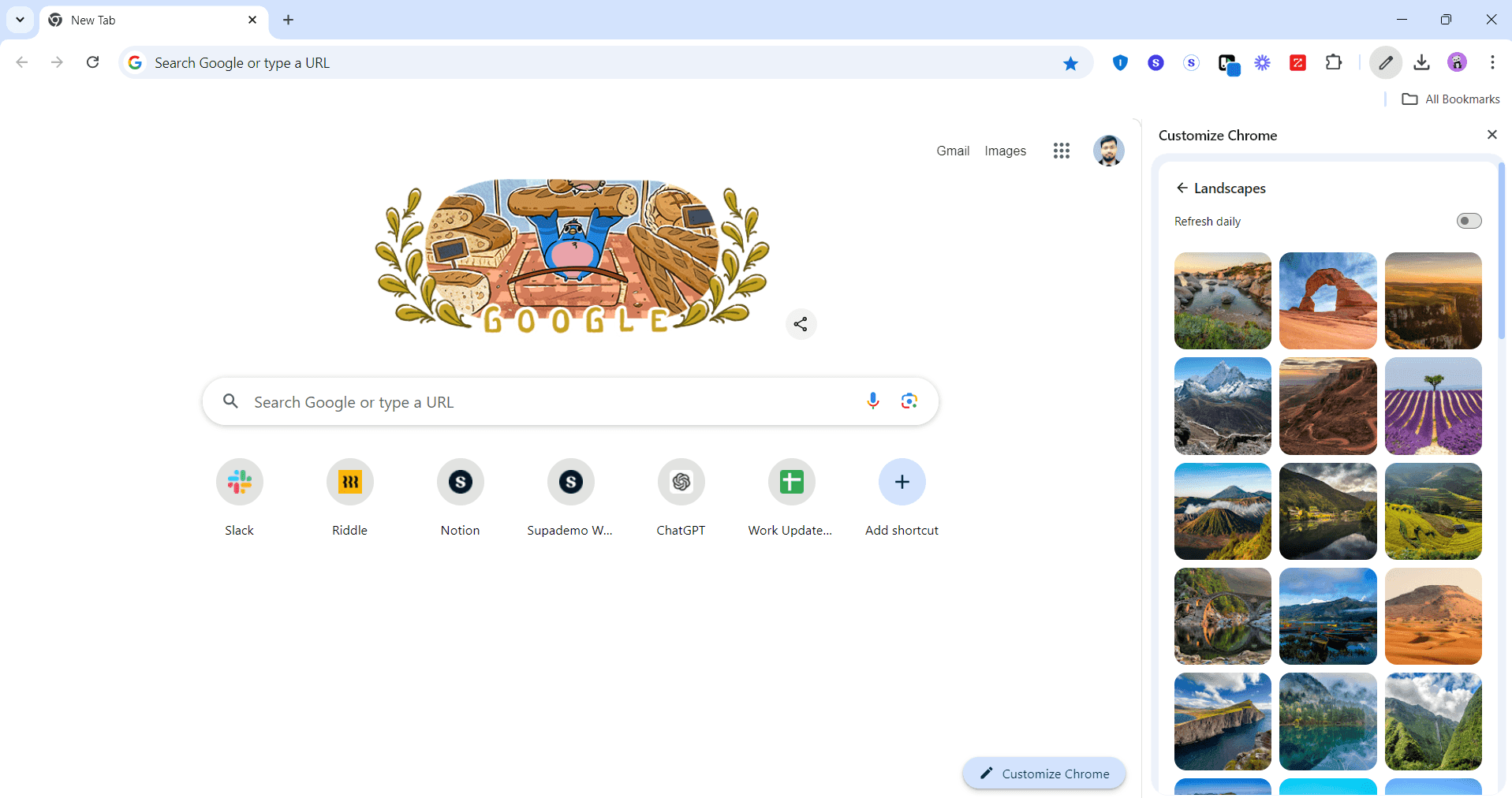
Preview the background
View how your uploaded image appears on the new tab page in the preview window. Ensure the image displays correctly and is positioned as you prefer.
- 6
Apply and save changes
Confirm your selection by clicking the apply or save button to finalize your background change. Open a new tab to verify that your custom background is now active.
Frequently asked questions
Common questions about how to change your google chrome background.
Google Chrome supports common image formats including JPG, PNG, GIF, and WebP. For best results, use high-resolution images (at least 1920x1080 pixels) to ensure clarity on your screen. Avoid very large files, as they may slow down your browser performance.
Chrome's built-in background feature allows you to set a single static image. However, you can use Chrome themes from the Chrome Web Store that include rotating backgrounds or use Chrome extensions designed for dynamic background changes.
Your Chrome background settings sync across all devices where you're signed into your Google account. If you're signed in to Chrome, your custom background will appear on your computer, tablet, and mobile devices.
Return to Chrome Settings > Appearance and select a different background image or choose to restore the default background. You can change your background at any time without affecting your other browser settings.
A custom background has minimal impact on Chrome's performance. However, very large or high-resolution images may use slightly more memory. If you notice any slowness, try using a smaller or lower-resolution image instead.