How to Change Your Google Account in Chrome

Switching Google accounts in Chrome allows you to manage multiple email addresses and their associated data within a single browser. Whether you're separating work and personal browsing or managing accounts for different users, Chrome makes it straightforward to add and switch between accounts.
Quick summary
In this tutorial, you'll learn how to add a new Google account to Chrome and switch between your existing accounts. You'll discover where account settings are located and how to manage multiple profiles efficiently within the browser.
Why this matters
Managing multiple Google accounts in Chrome streamlines your workflow by keeping separate browsing histories, bookmarks, and extensions for each account. This separation is particularly valuable for professionals who need to maintain distinct work and personal identities, or households where multiple users share a device.
Step-by-step guide
- 1
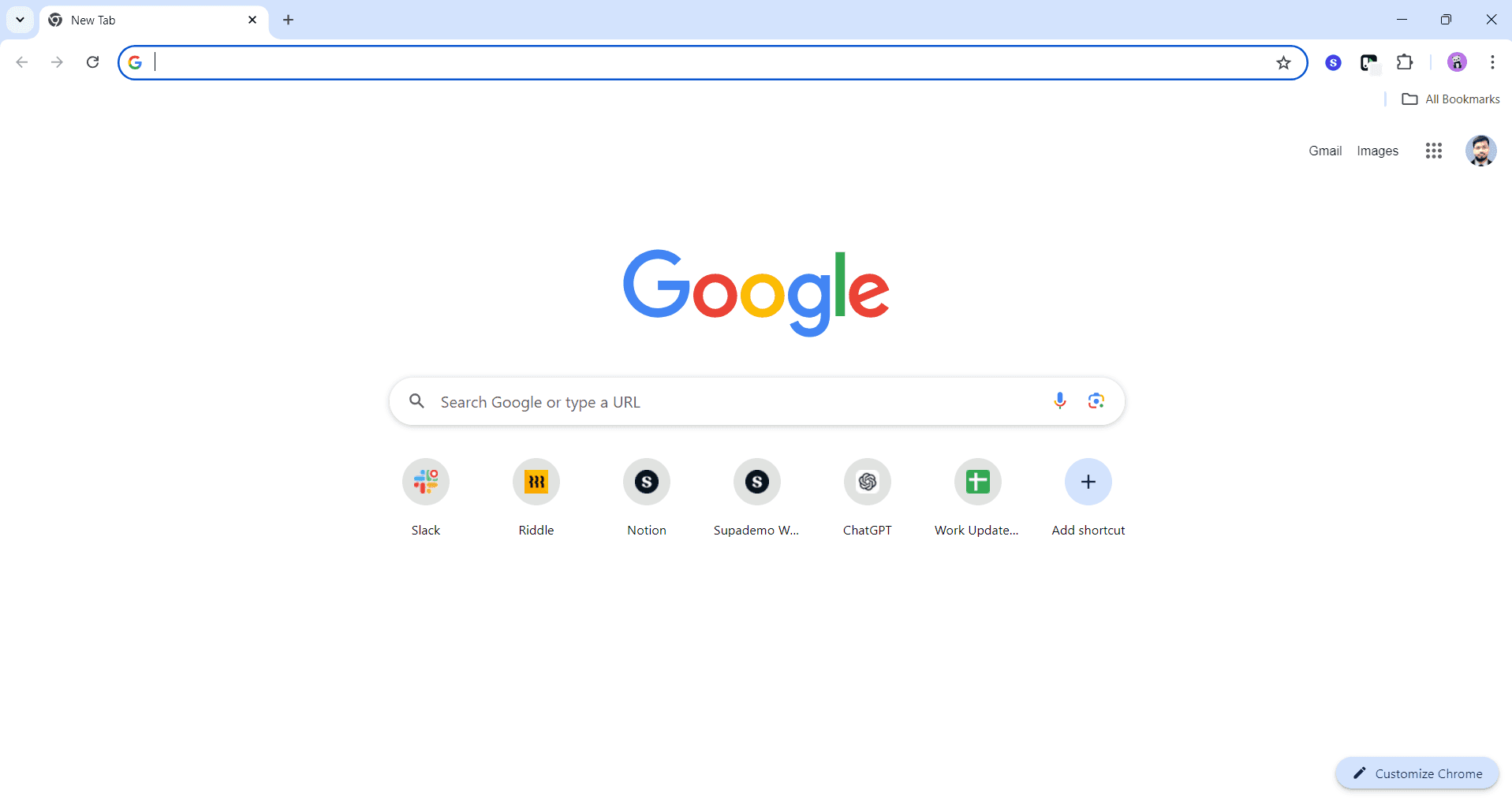
Open Chrome settings menu
Click the three-dot menu icon in the top-right corner of your Chrome window. Select 'Settings' from the dropdown menu to access Chrome's configuration options.
- 2
Navigate to accounts section
In the Settings sidebar, click on 'You and Google' or 'Accounts' depending on your Chrome version. This section displays your currently signed-in account and account management options.
- 3
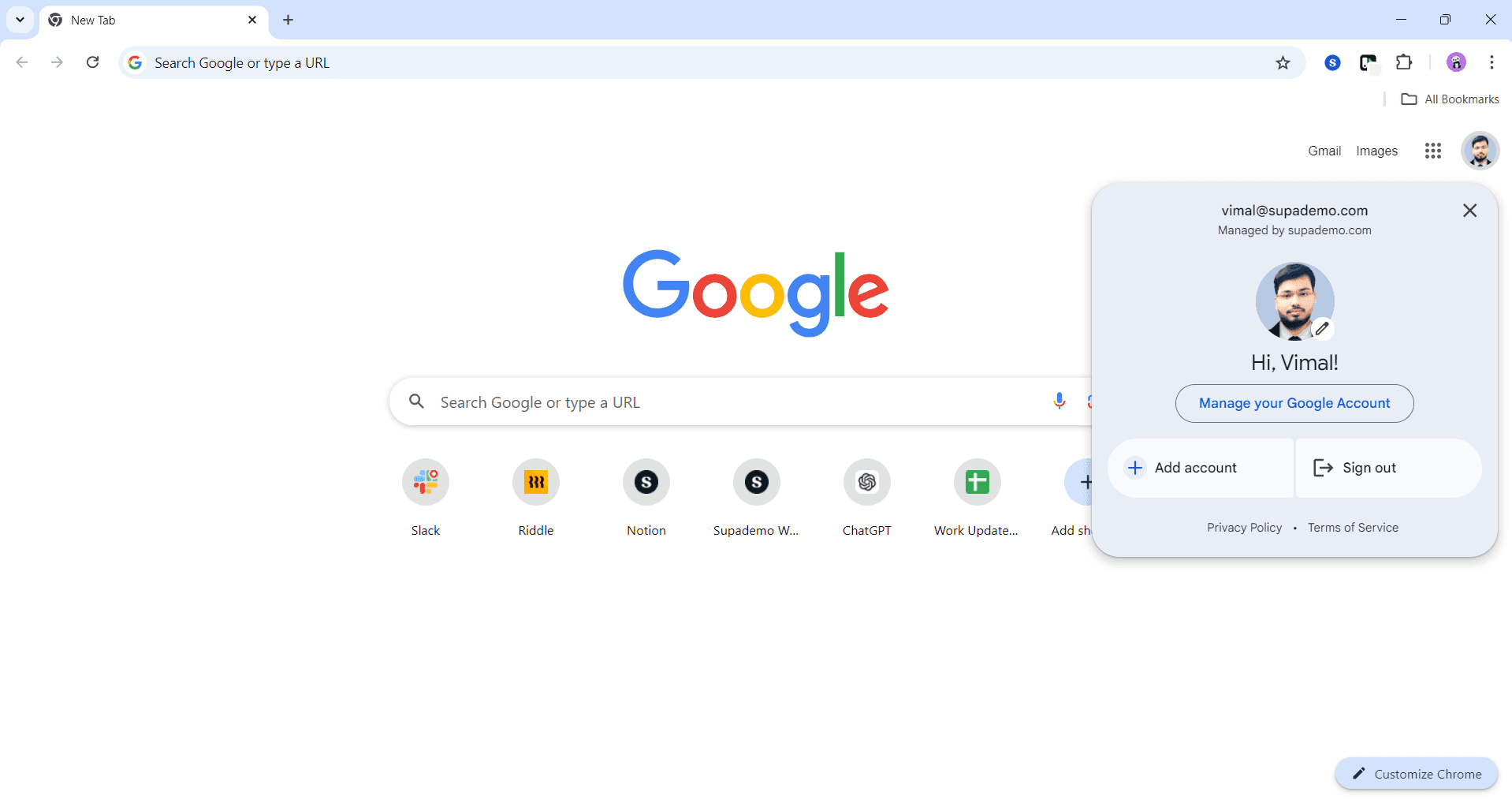
Select add account option
Look for the 'Add another account' or similar button in the accounts section. Click this button to initiate the process of adding a new Google account to your Chrome profile.
- 4
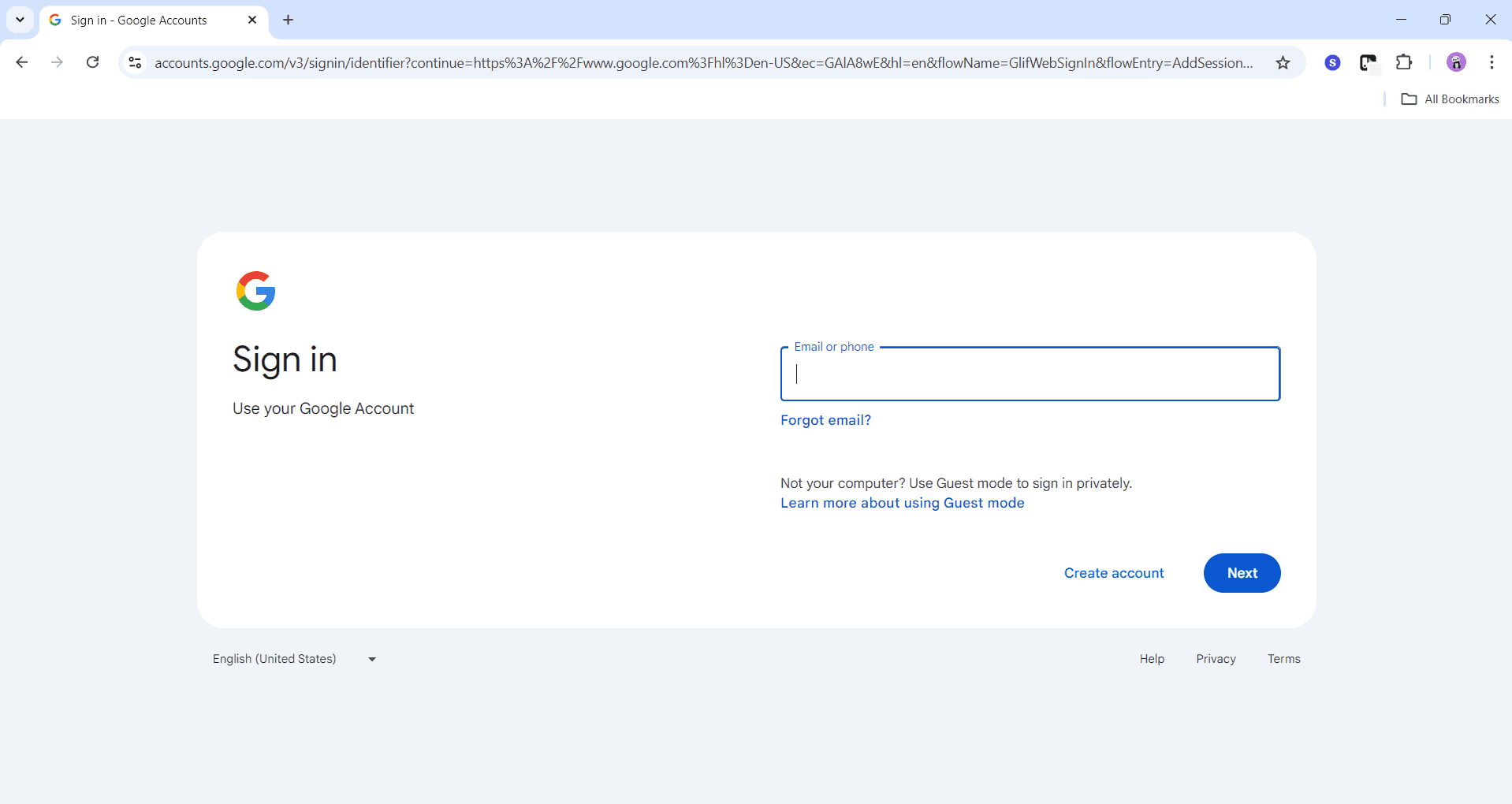
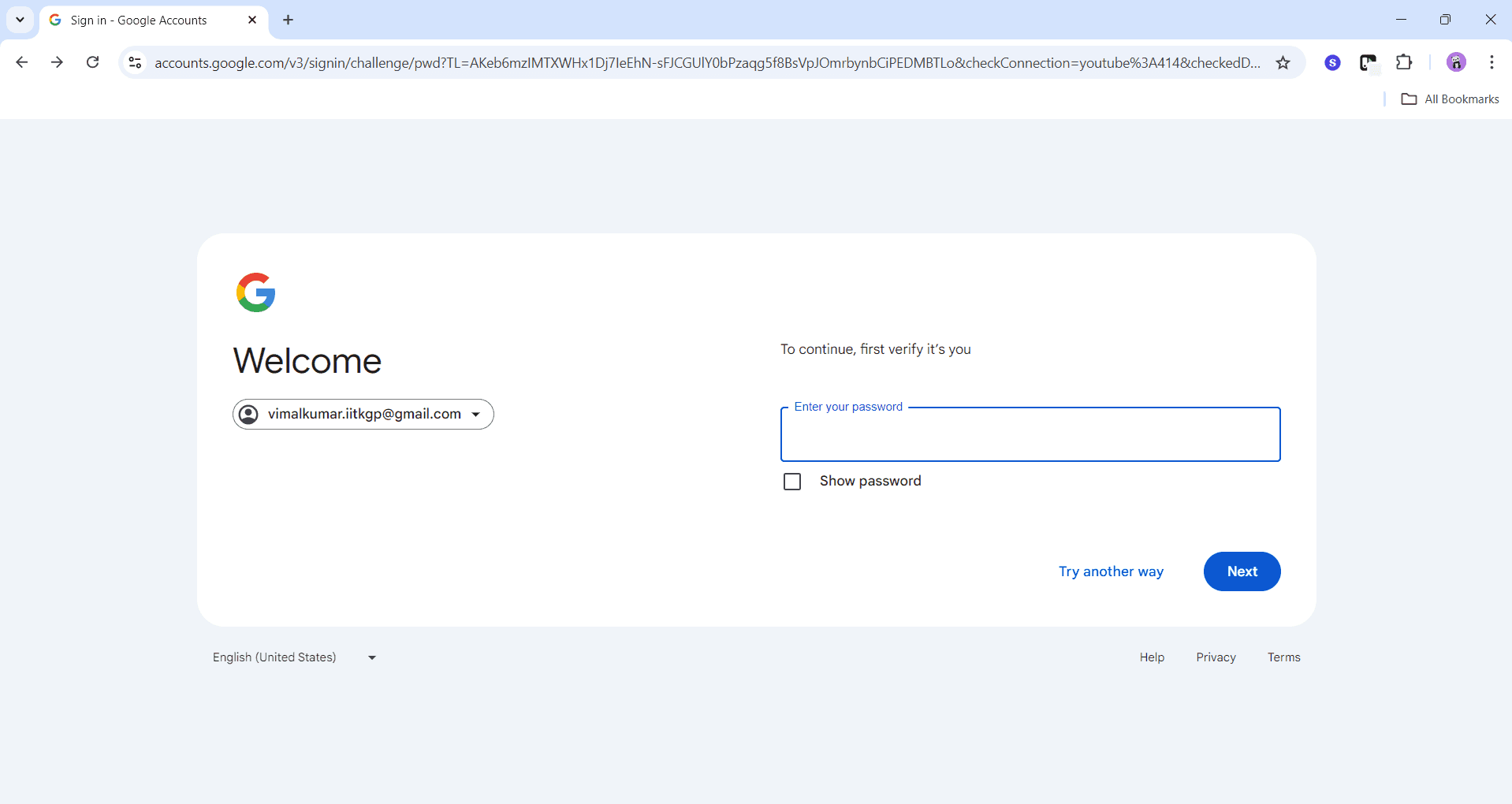
Enter new account credentials
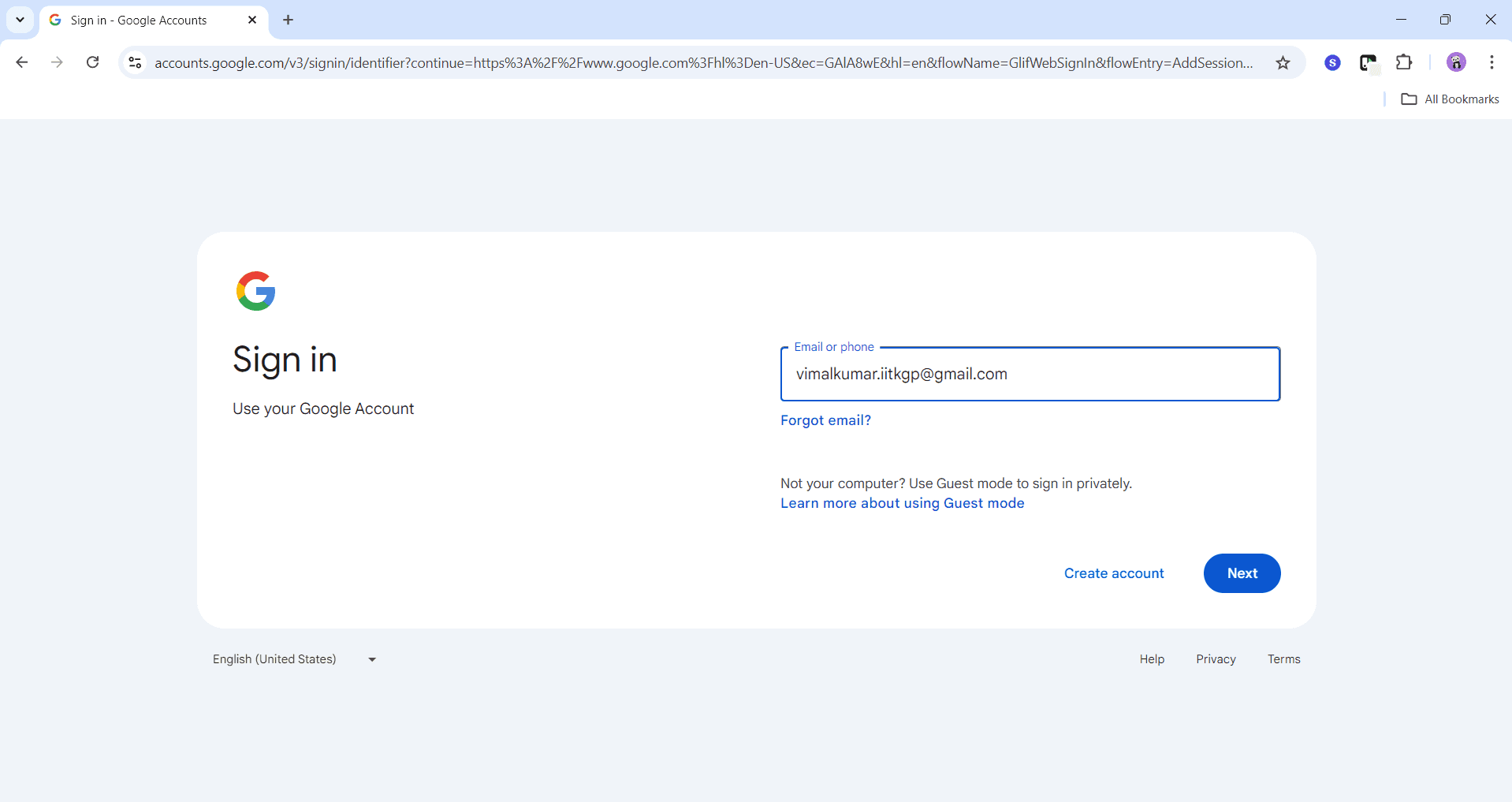
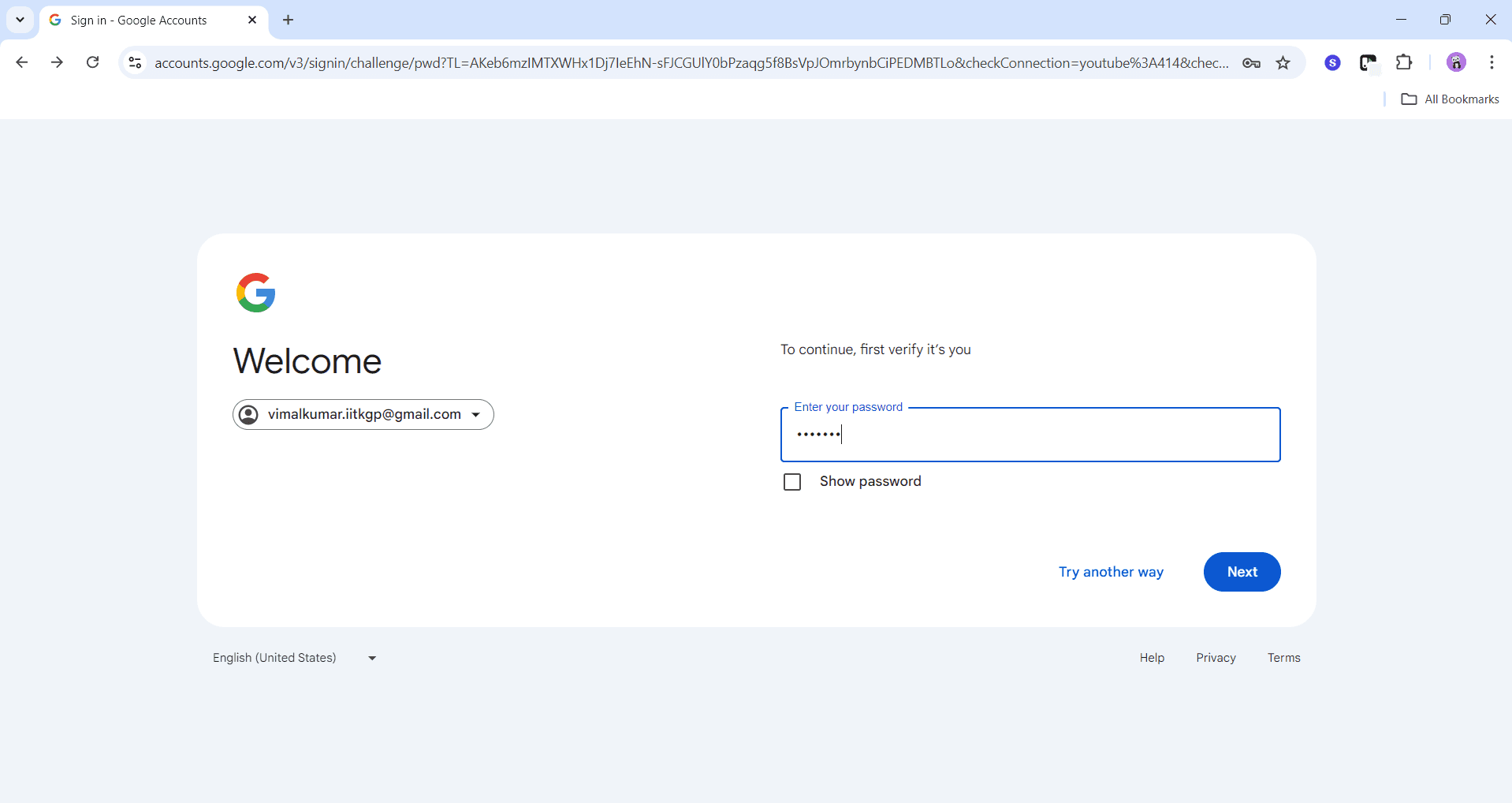
A sign-in window will appear prompting you to enter your Google account email address and password. Type in the credentials for the Google account you want to add to Chrome.
- 5
Complete the sign-in process
Follow any additional verification steps if prompted, such as two-factor authentication or security checks. Once verified, Chrome will sync your new account's data including bookmarks, extensions, and settings.
- 6
Review account sync settings
After signing in, you'll see options for what data to sync with this account. Choose whether to sync passwords, bookmarks, history, and other Chrome data for this specific account.
- 7
Confirm account addition
Click the confirmation button to complete adding your account. Your new account will now appear in Chrome's account switcher.
- 8
Access the account switcher
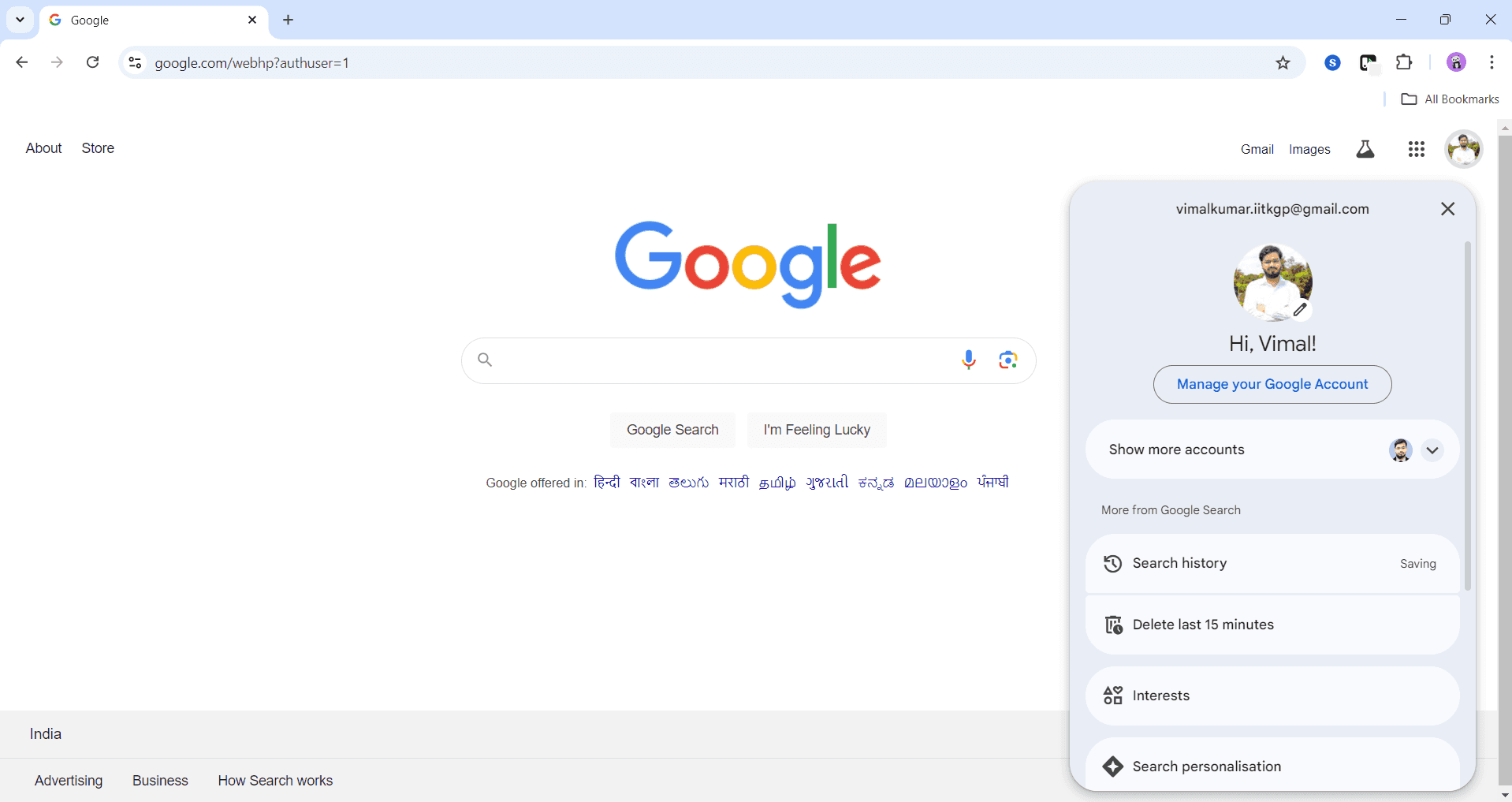
Click your profile picture or avatar in the top-right corner of Chrome to open the account switcher menu. This displays all accounts currently added to your Chrome browser.
- 9
Switch between accounts
Select any account from the switcher menu to immediately change your active account. Chrome will reload with all data, extensions, and settings associated with the selected account.
Frequently asked questions
Common questions about how to change your google account in chrome.
Each Chrome account maintains its own separate set of bookmarks, extensions, and browsing history. When you switch to a different account, you'll see only the data associated with that specific account. Your previous account's data remains unchanged and becomes visible again when you switch back.
Yes, you can sign in to the same Google account on multiple devices running Chrome. Your synced data will be available across all devices where you're signed in. However, any account-specific settings or extensions are tied to individual Chrome installations.
Open Chrome's account switcher by clicking your profile picture, then select the account you want to remove. Click the three dots or menu icon next to that account and select 'Remove this account'. This removes the account from Chrome but doesn't delete your actual Google account.
Switching accounts doesn't delete or modify any data from either account. Each account in Chrome functions as a separate profile with its own browsing history, passwords, and preferences. Your data is simply swapped out with the other account's data when you switch.
Chrome allows you to have multiple accounts added to the browser, but only one can be your primary active account at any given time. You can quickly switch between them using the account switcher menu without needing to sign out and back in each time.