How to Update Google Chrome

Keeping Google Chrome updated ensures you have the latest security patches, performance improvements, and new features. This guide walks you through the straightforward process of updating Chrome to its newest version.
Quick summary
In this tutorial, you'll learn how to check your current Chrome version and install the latest update. We'll cover accessing Chrome's settings, verifying update availability, and confirming the installation is complete.
Why this matters
Regular Chrome updates are critical for protecting your privacy and security against emerging threats. Updated versions also deliver faster performance and access to new browser capabilities that improve your browsing experience.
Step-by-step guide
- 1
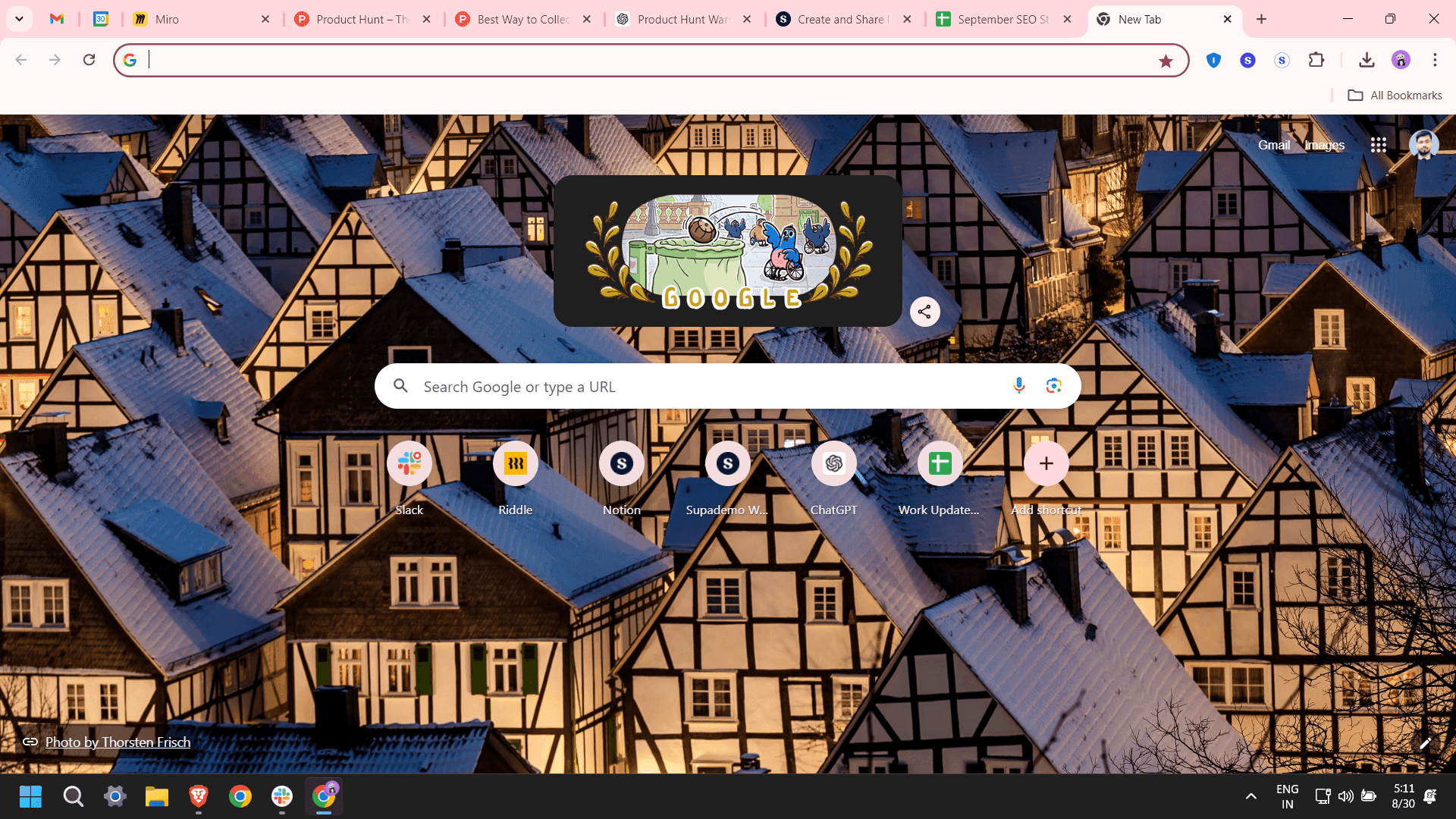
Open Google Chrome
Launch Google Chrome on your computer by clicking the Chrome icon on your desktop or taskbar. The browser will open to your home page or last visited tab.
- 2
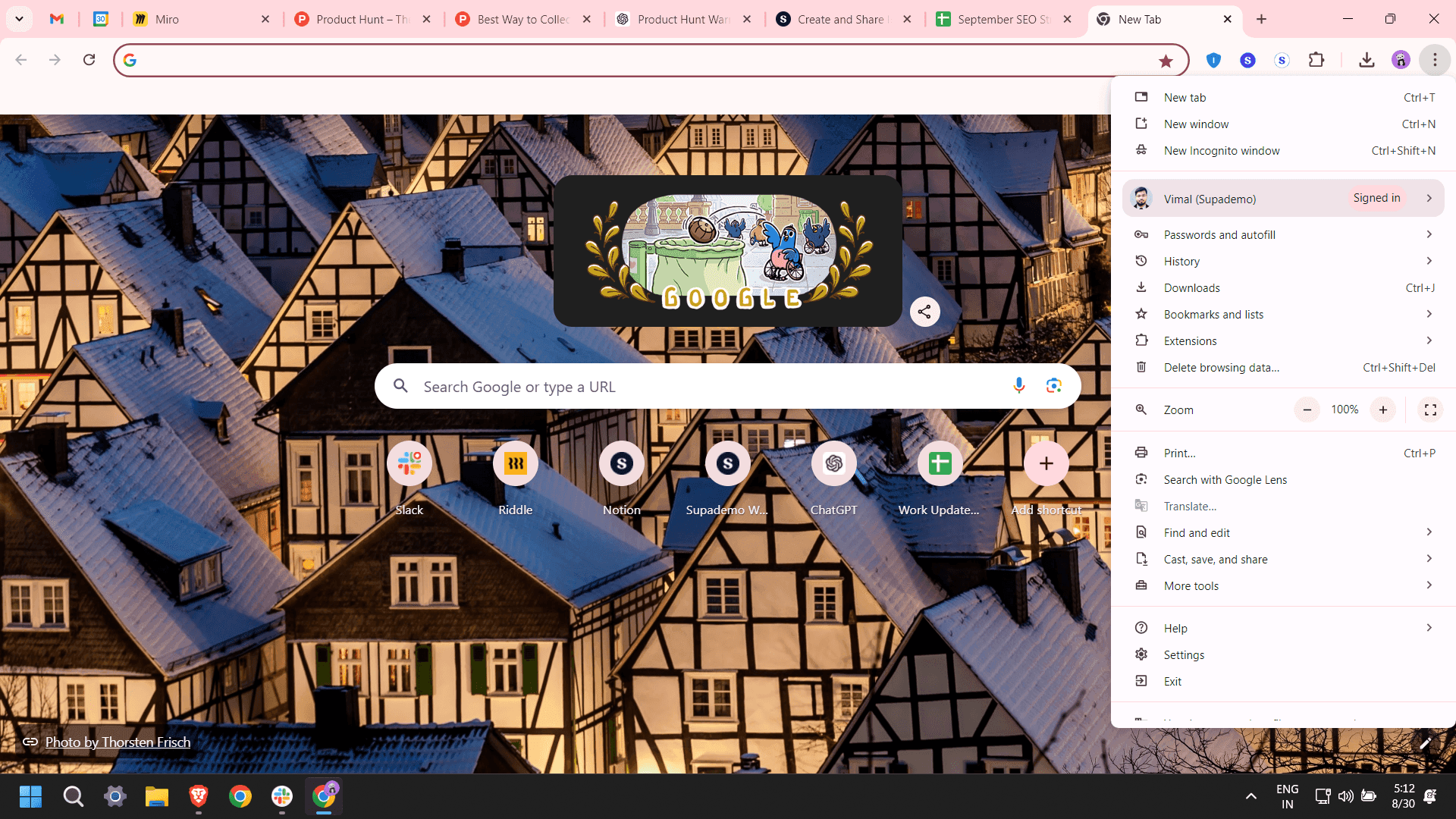
Access the menu
Click the three-dot menu icon in the top-right corner of your Chrome window. A dropdown menu with various options will appear.
- 3
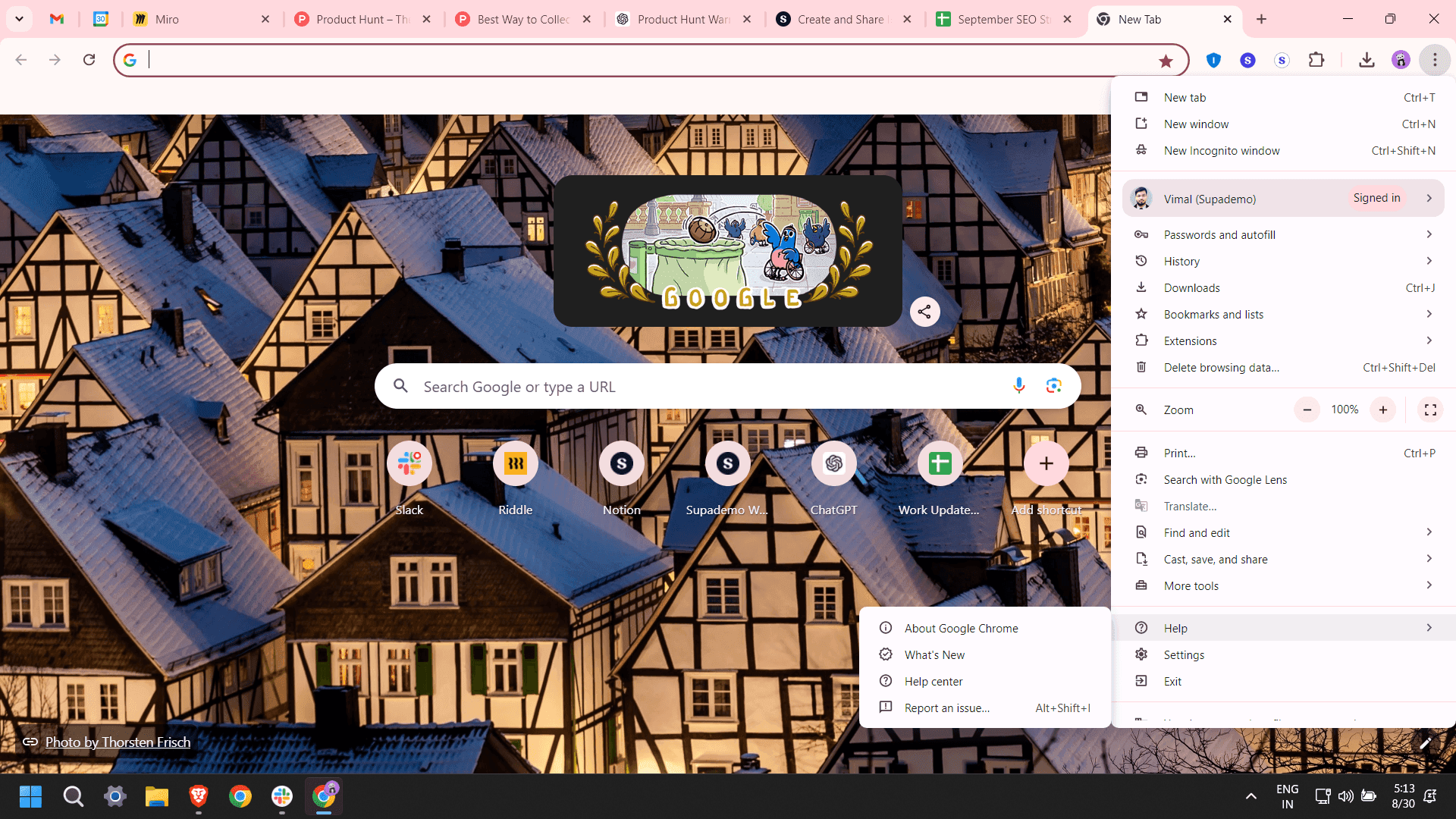
Navigate to settings
Select 'Settings' from the dropdown menu. The Settings page will load in a new tab.
- 4
Go to About Chrome
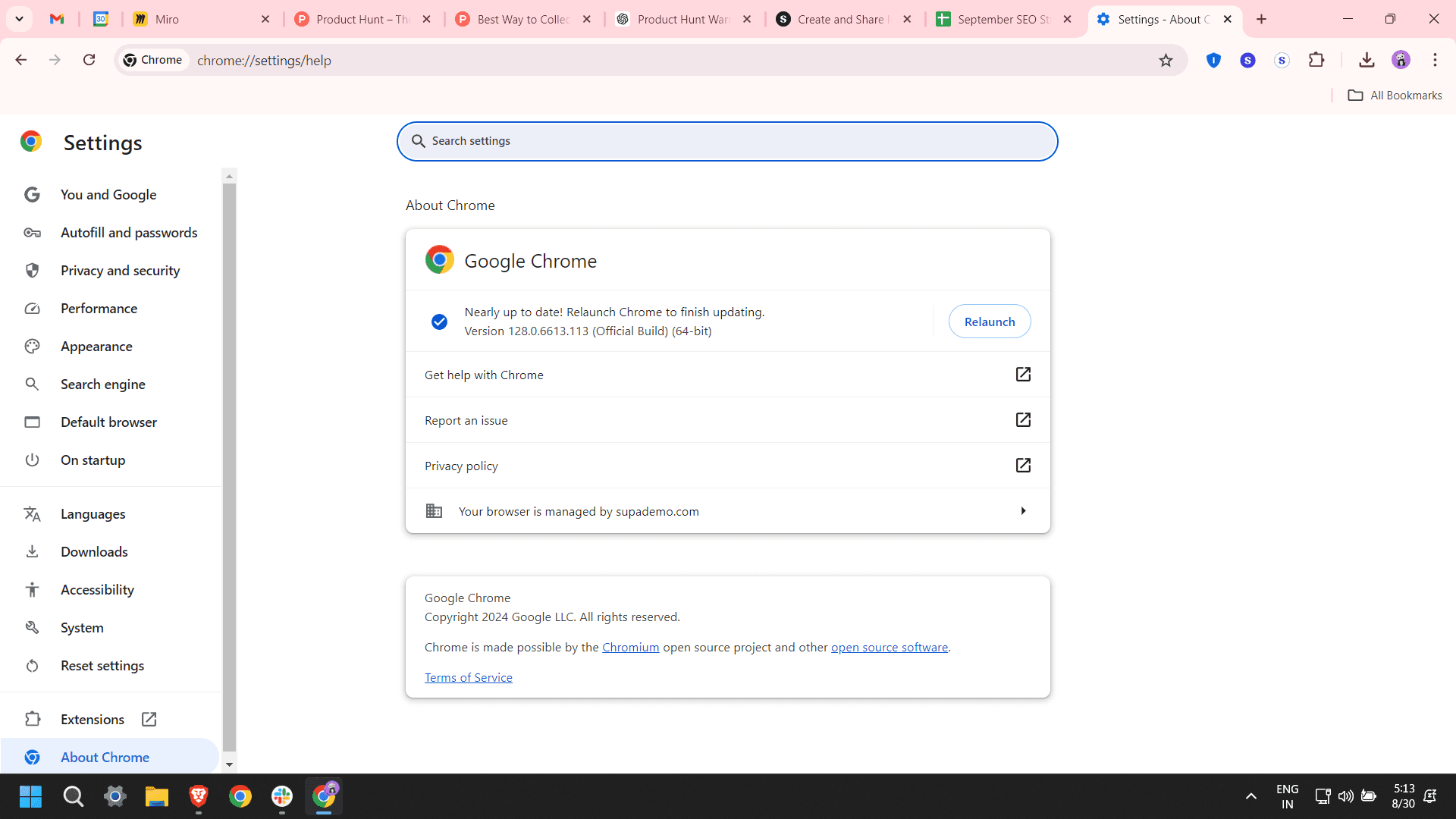
Click on 'About Chrome' in the left sidebar. Chrome will automatically check for updates and display your current version.
- 5
Install the update
If an update is available, Chrome will show an 'Update' or 'Restart' button. Click this button to download and install the latest version.
- 6
Confirm installation
Chrome will restart automatically to complete the update process. Your browser will reopen with the new version installed and ready to use.
Frequently asked questions
Common questions about how to update google chrome.
Google Chrome releases new versions approximately every 4 weeks. Security updates and patches may be released more frequently when critical vulnerabilities are discovered. Chrome automatically checks for updates in the background when you're running the browser.
Chrome downloads updates automatically in the background, but it requires a browser restart to install them. You'll see a notification prompting you to restart when an update is ready. Restarting Chrome completes the installation process.
No, updating Chrome will not affect your bookmarks, browsing history, passwords, or any other saved data. All your personal information and settings remain intact after the update completes.
This means you're already running the latest version of Chrome available for your system. Chrome automatically checks for updates regularly, so you'll be notified as soon as a new version is available.
Yes, the update process is nearly identical across Windows, Mac, and Linux. Simply open Chrome's Settings, navigate to About Chrome, and install any available updates using the same steps.