How to add a drop shadow to a design in Canva

Drop shadows add depth and visual interest to your Canva designs by creating a subtle 3D effect behind elements. This technique is essential for making your designs stand out and improving overall visual hierarchy. Learn how to apply drop shadows quickly and effectively using Canva's built-in tools.
Quick summary
In this tutorial, you'll discover how to navigate Canva's design features and apply professional drop shadow effects to your images and elements. You'll learn to access the editing tools, upload or select images, and apply shadow effects that enhance your design's visual appeal.
Why this matters
Drop shadows are a fundamental design technique used by professionals to create contrast and dimension in layouts. Whether you're designing social media graphics, presentations, or marketing materials, mastering drop shadow effects elevates the polish and professionalism of your work. This skill helps your designs communicate more effectively and capture viewer attention.
Step-by-step guide
- 1
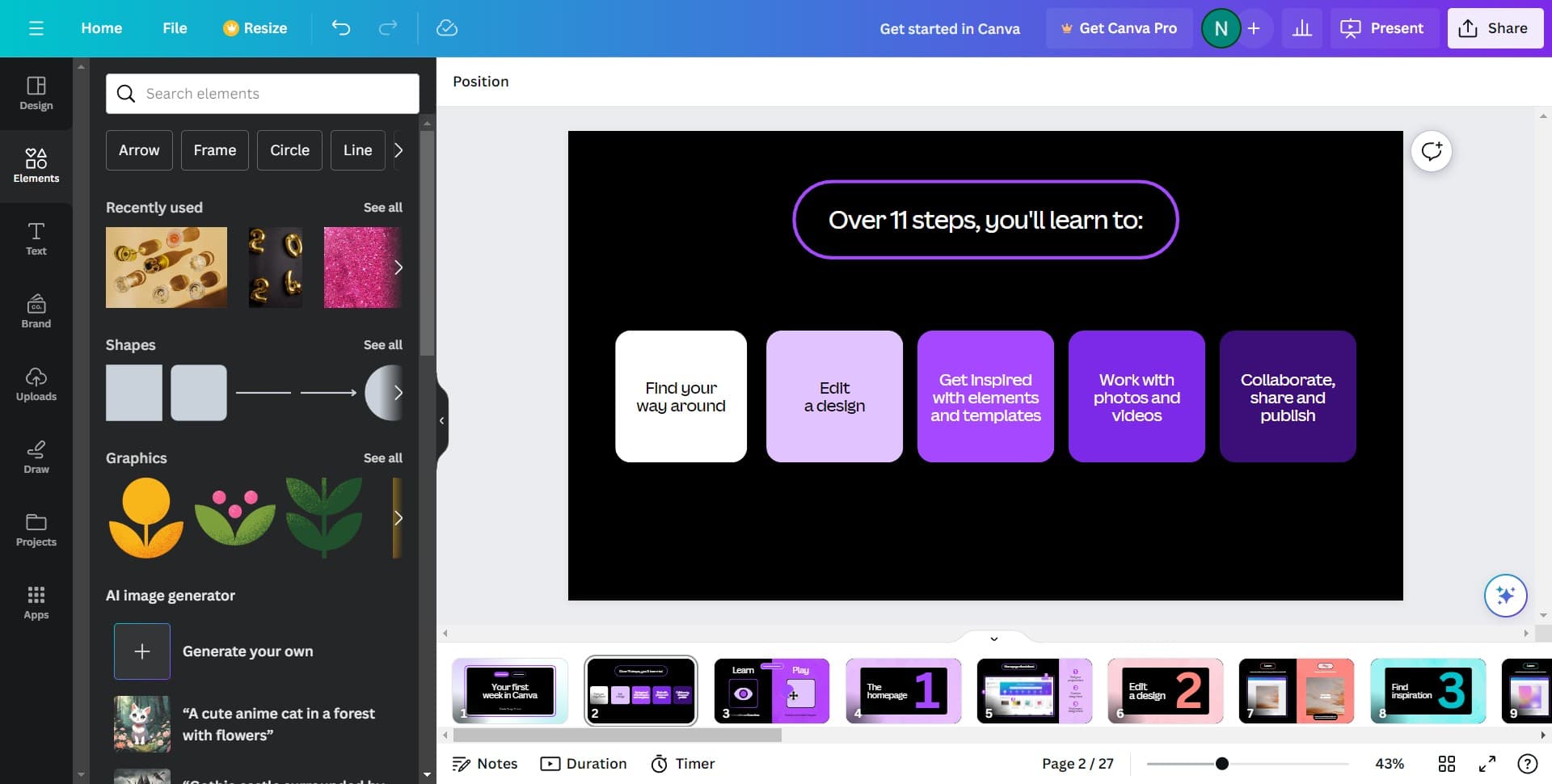
Click on Elements
Start by locating and clicking the Elements panel in Canva's left sidebar. This opens access to Canva's extensive library of design elements and effects.
- 2
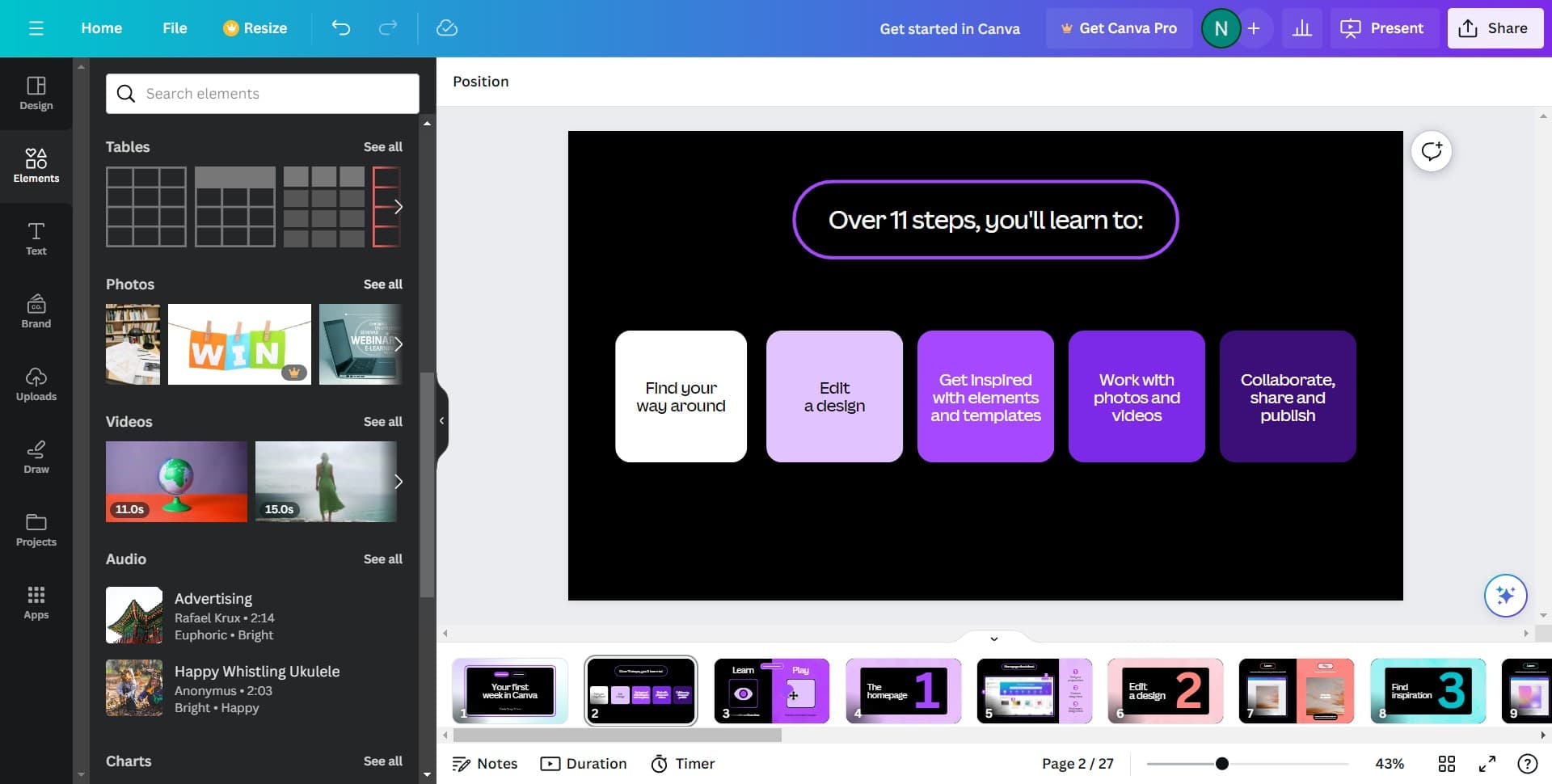
Click on See all
Select the See all option to view the complete collection of available elements and effects. This expands your options beyond the default elements shown in the panel.
- 3
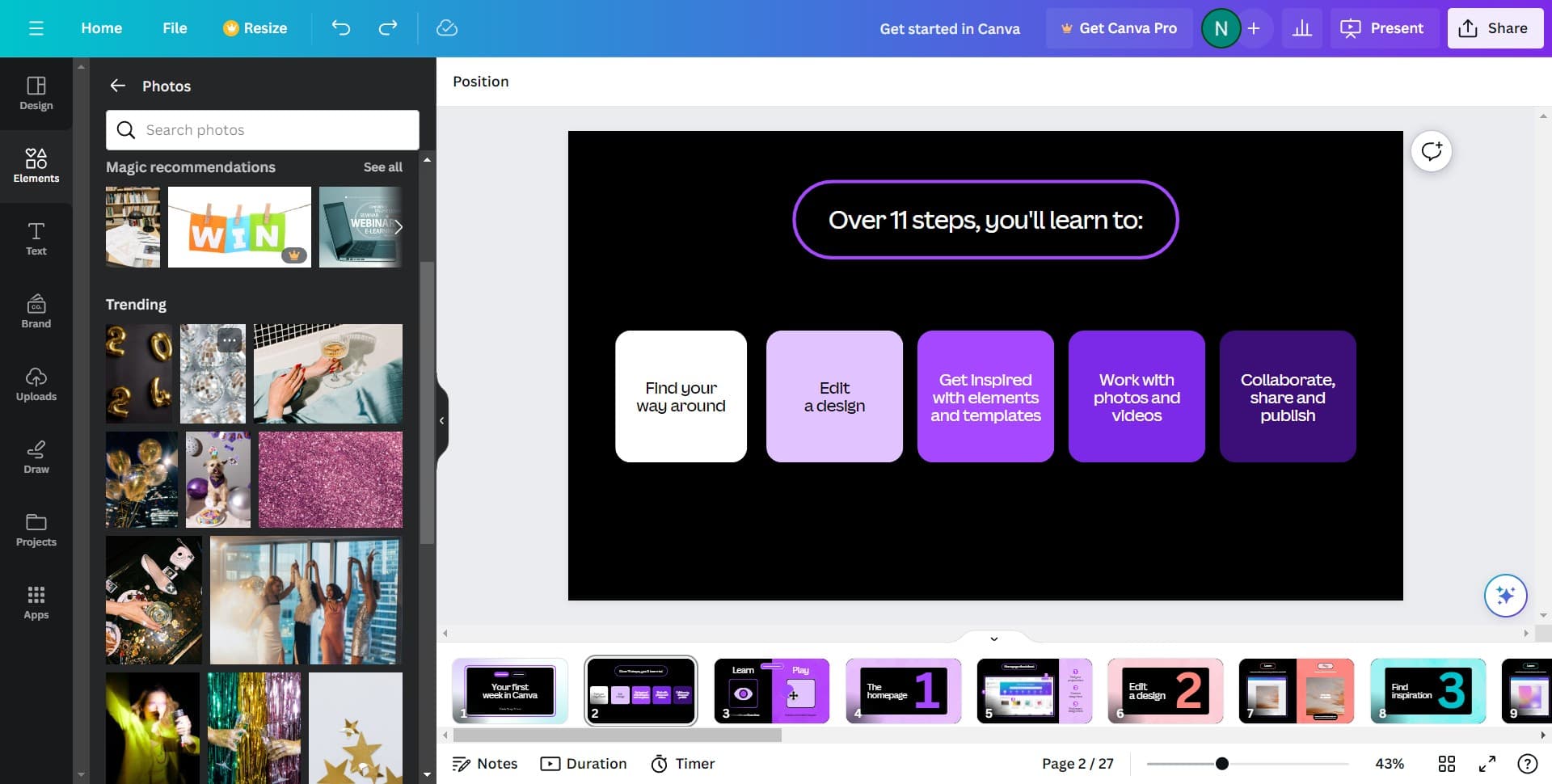
Upload your image
Click the Upload button to add your own image to the canvas or select from your existing uploads. You can drag and drop or browse your computer for image files.
- 4
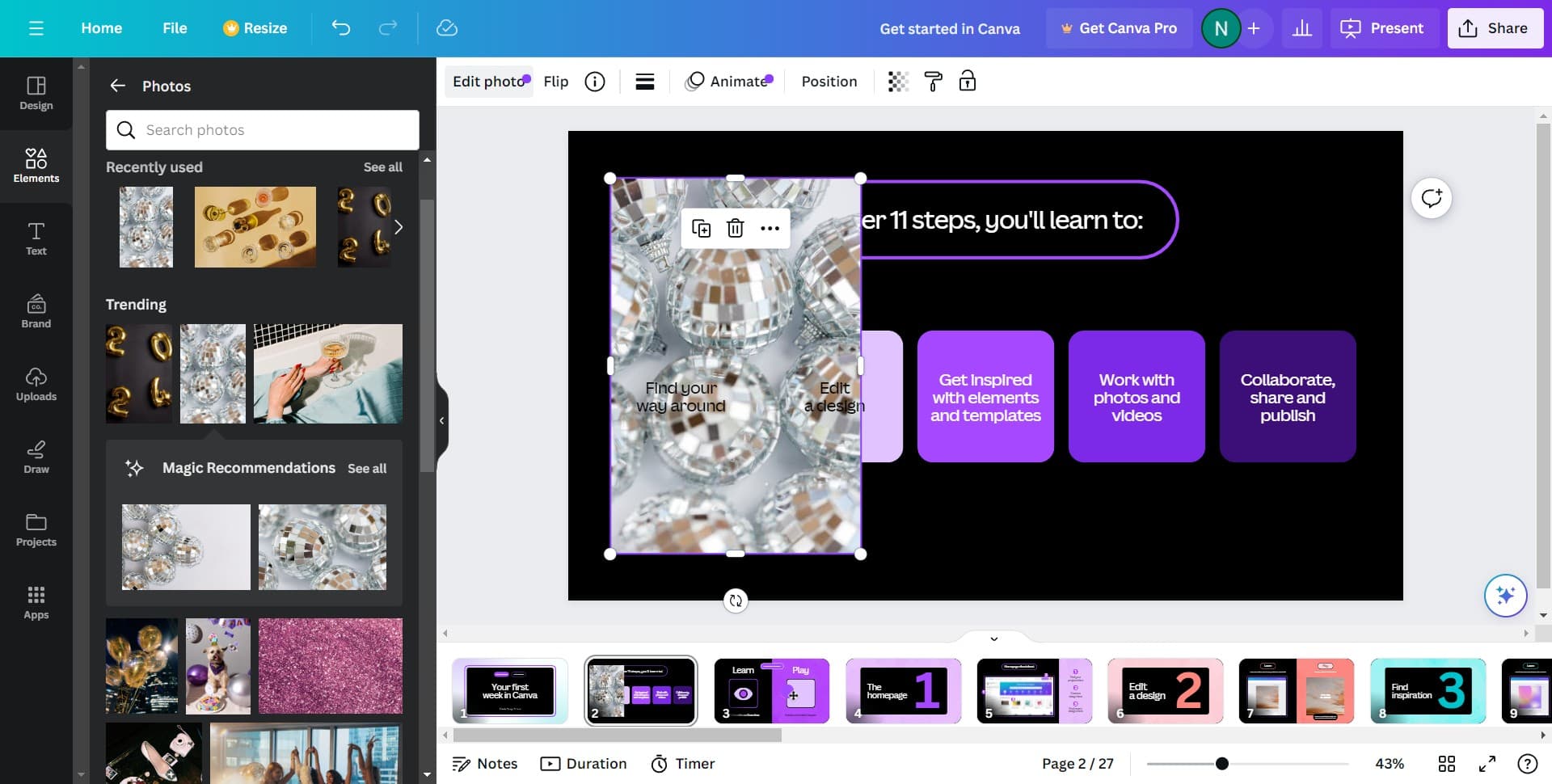
Click on Edit photo
Select the Edit photo option to access Canva's photo editing tools and effects. This opens the editing panel where you can apply adjustments and effects like drop shadow.
- 5
Select Image from the menu
Click on the Image option in the editing menu to access image-specific effects and filters. This step ensures you're working with the correct editing category.
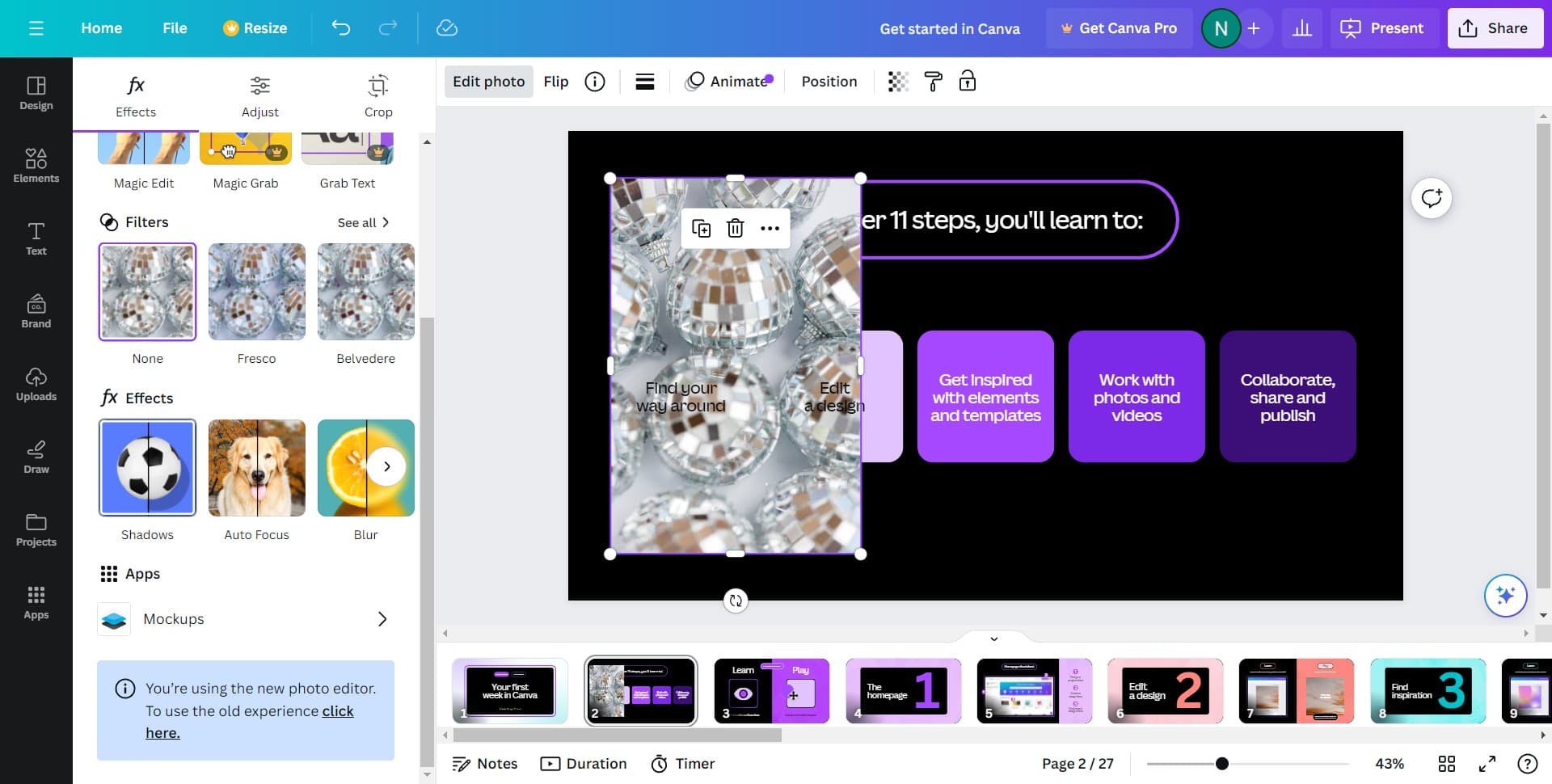
- 6
Select Image again
Click on Image once more to confirm your selection and load the image editing options. This may refine the available effects shown in the next panel.
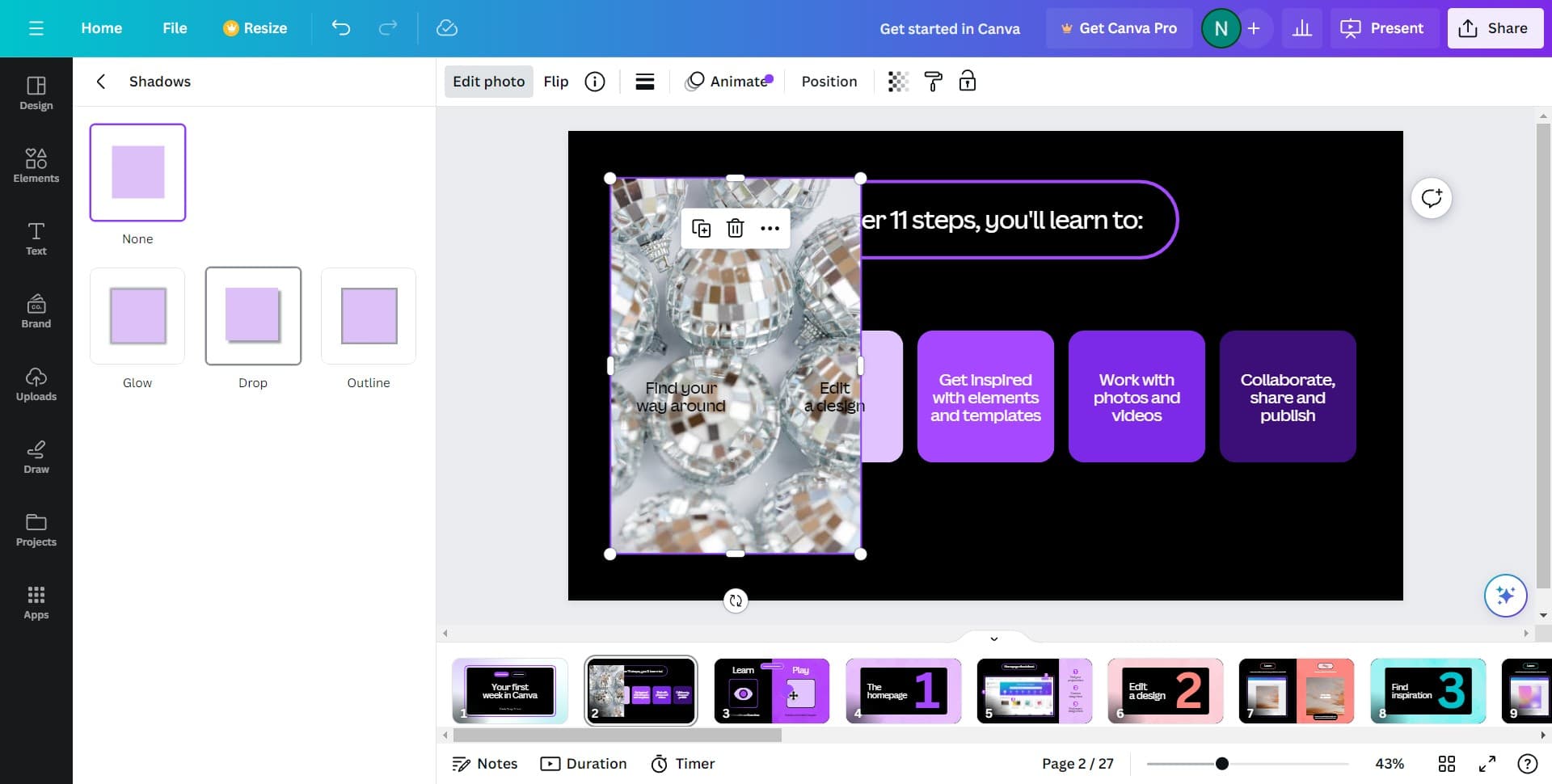
- 7
Apply the drop shadow effect
Click the designated drop shadow option to apply the effect to your selected image. You can then adjust the shadow's intensity, direction, and blur to match your design preferences.
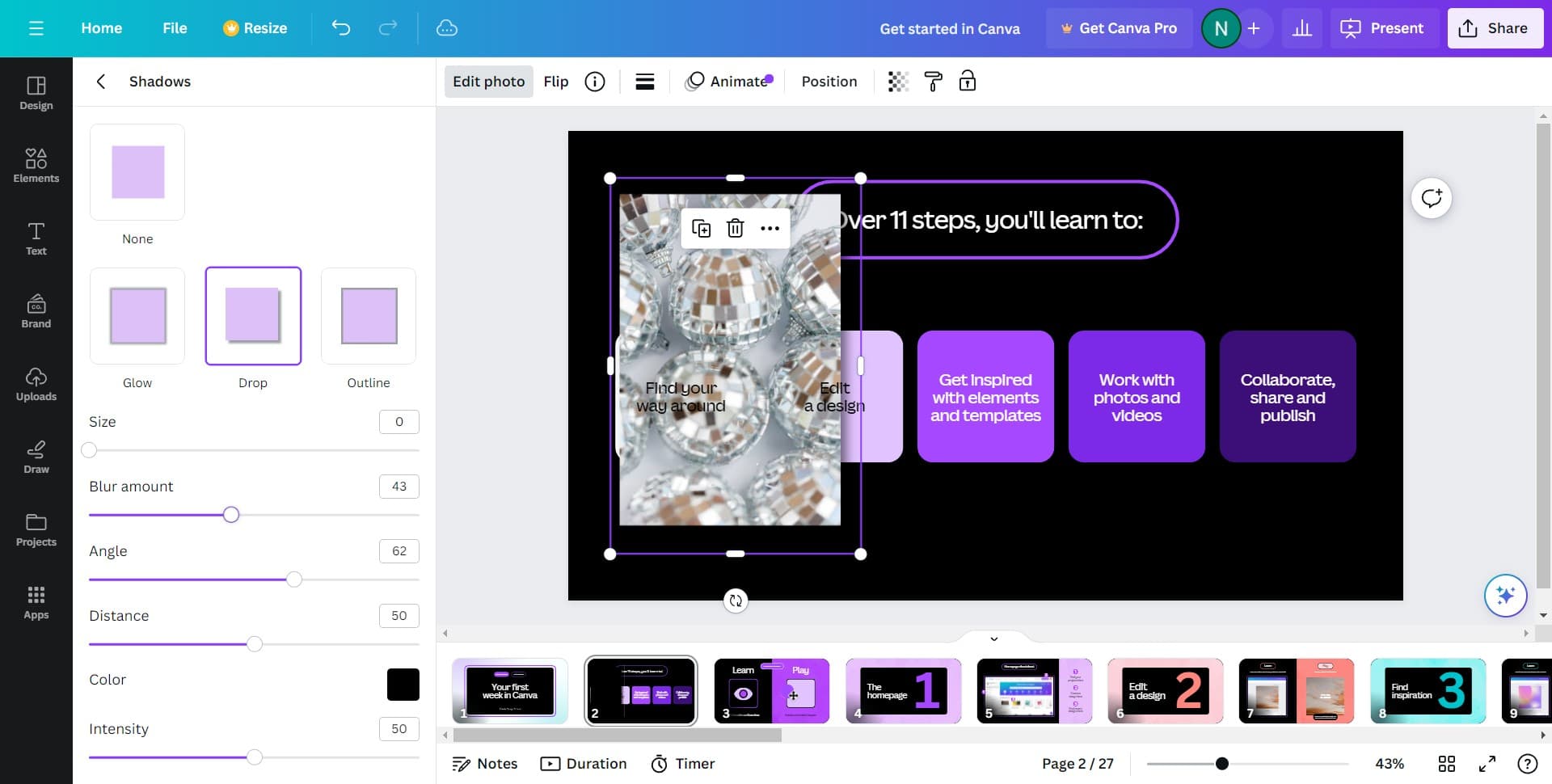
Frequently asked questions
Common questions about how to add a drop shadow to a design in canva.
Can I adjust the intensity of the drop shadow?
Yes, Canva allows you to customize drop shadow settings including opacity, blur, and distance. After applying the drop shadow effect, look for adjustment sliders to fine-tune the shadow's appearance to match your design needs.
Can I apply drop shadows to text and shapes as well?
Drop shadows can be applied to various elements in Canva, including text, shapes, and images. The exact method may vary slightly depending on the element type, but the general process of accessing the effects panel remains similar.
Will the drop shadow effect work on transparent backgrounds?
Drop shadows work best on elements placed over a background or another design element. On fully transparent backgrounds, the shadow may not be visible. Consider placing your element on a colored background or within a design composition to see the full effect.
Can I undo a drop shadow if I change my mind?
Yes, you can undo any effect by using the undo button or keyboard shortcut Ctrl+Z on Windows or Cmd+Z on Mac. This allows you to experiment with different shadow settings risk-free.
Are there preset drop shadow styles to choose from?
Canva offers various preset effects and customization options for drop shadows. You can select from predefined shadow styles or manually adjust the settings to create a custom shadow that matches your design aesthetic.