How to add a label in Jira

Labels in Jira help you organize, categorize, and quickly identify issues across your projects. Adding labels is a fundamental task that improves team collaboration and makes filtering and searching for related work much easier. This tutorial walks you through the process of adding a label to a Jira issue.
Quick summary
In this tutorial, you'll learn how to navigate to a specific issue in your Jira project and add labels to organize your work. You'll discover how to access the label field and apply relevant tags that help your team stay organized and aligned on priorities.
Why this matters
Labels are essential for managing large volumes of issues and enabling teams to quickly locate related work without relying solely on projects or issue types. By consistently labeling issues, you create a searchable taxonomy that supports better reporting, filtering, and cross-team visibility. Proper labeling habits lead to more efficient workflows and clearer communication about issue status and context.
Step-by-step guide
- 1
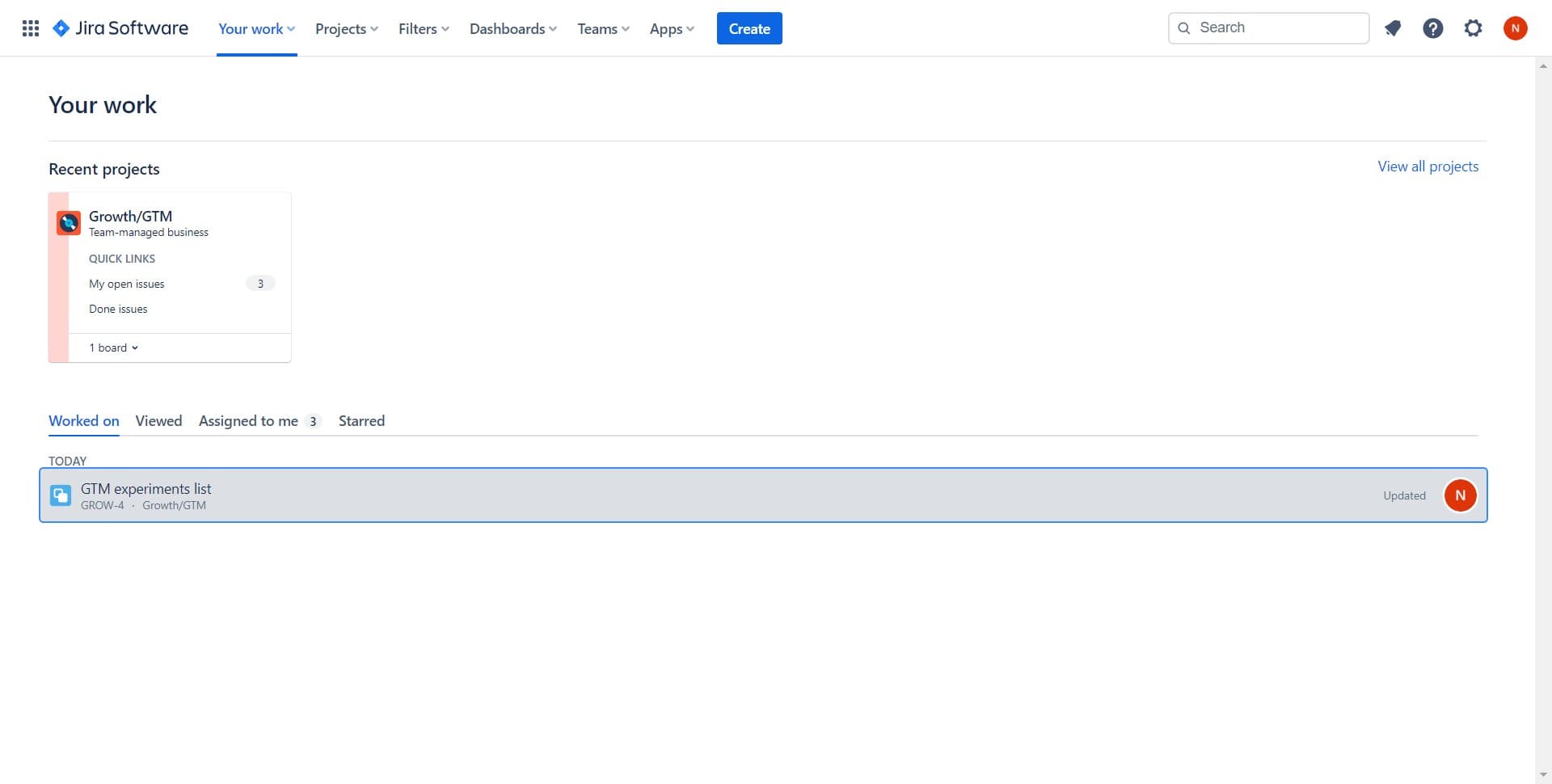
Click on GTM experiments list
Navigate to your Jira project by clicking on the GTM experiments list in the sidebar or project navigation. This will open the project view where you can see all issues related to your GTM initiatives.
- 2
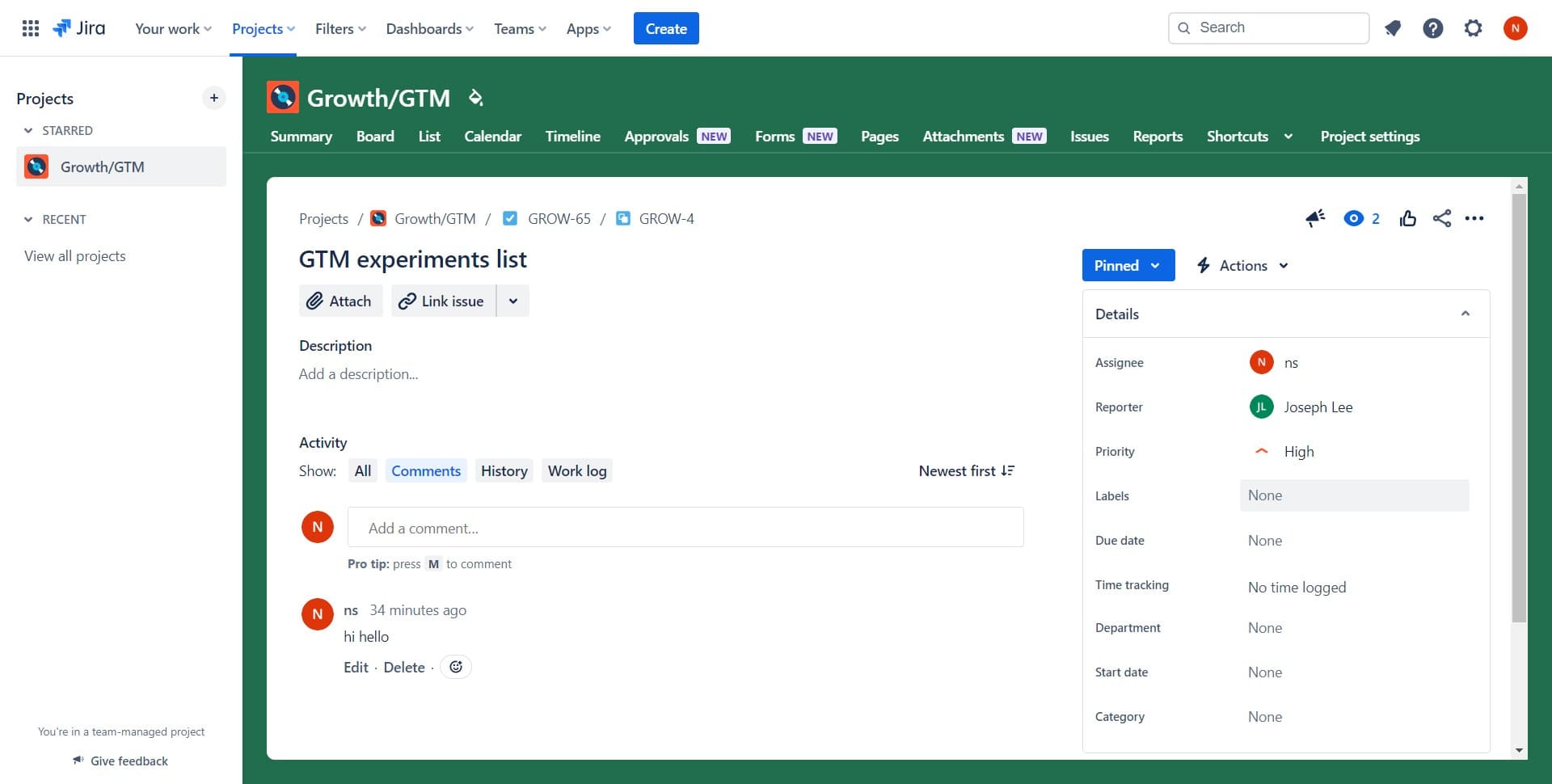
Click on None
Click on the 'None' field or option to begin adding information to the current issue. This typically appears when a field hasn't been assigned a value yet and is ready for input.
- 3
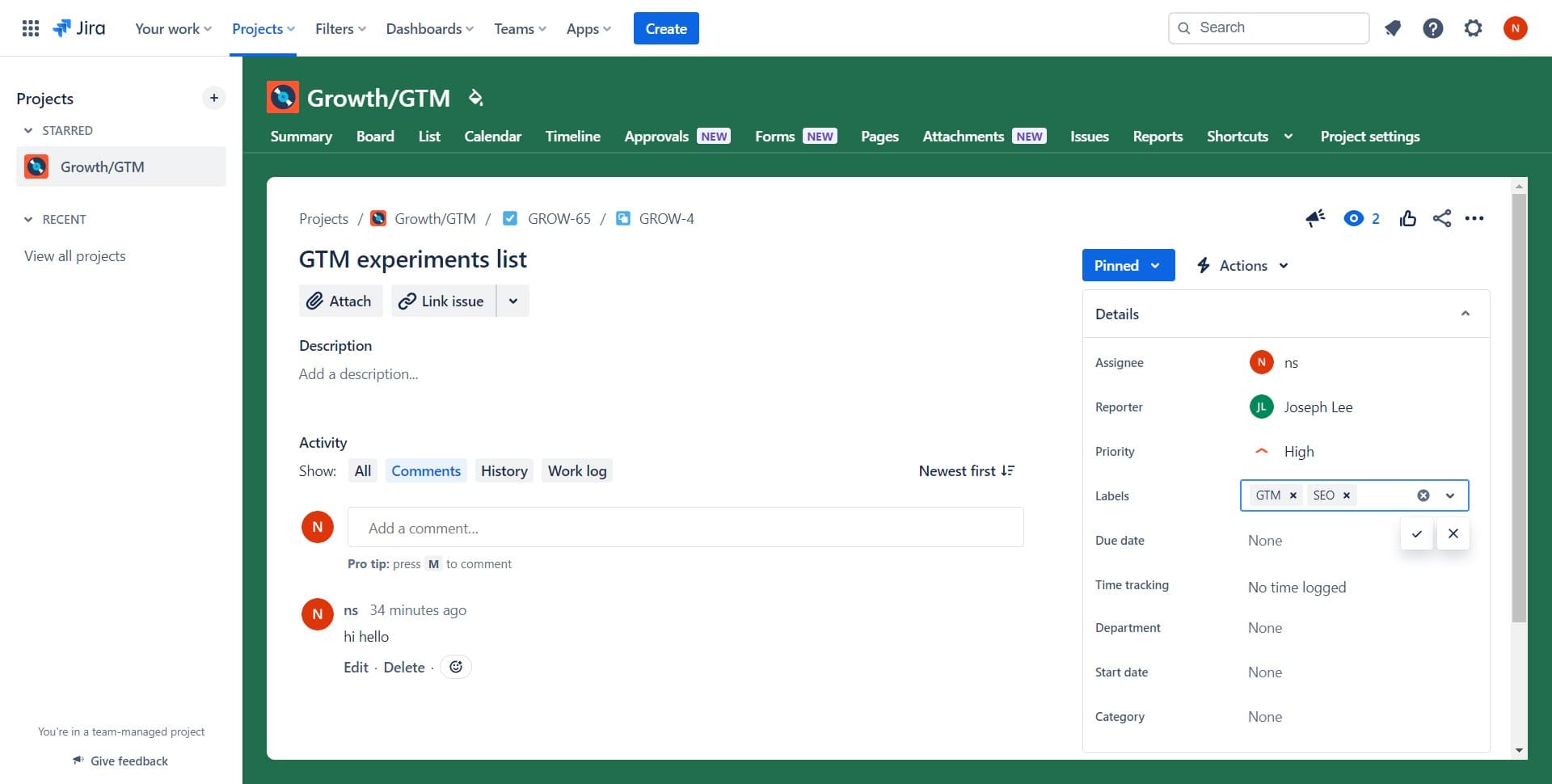
Click on pinned flag item
Select the pinned flag item from the list to identify the specific issue you want to add a label to. Pinned items are prioritized and help you focus on the most important work.
- 4
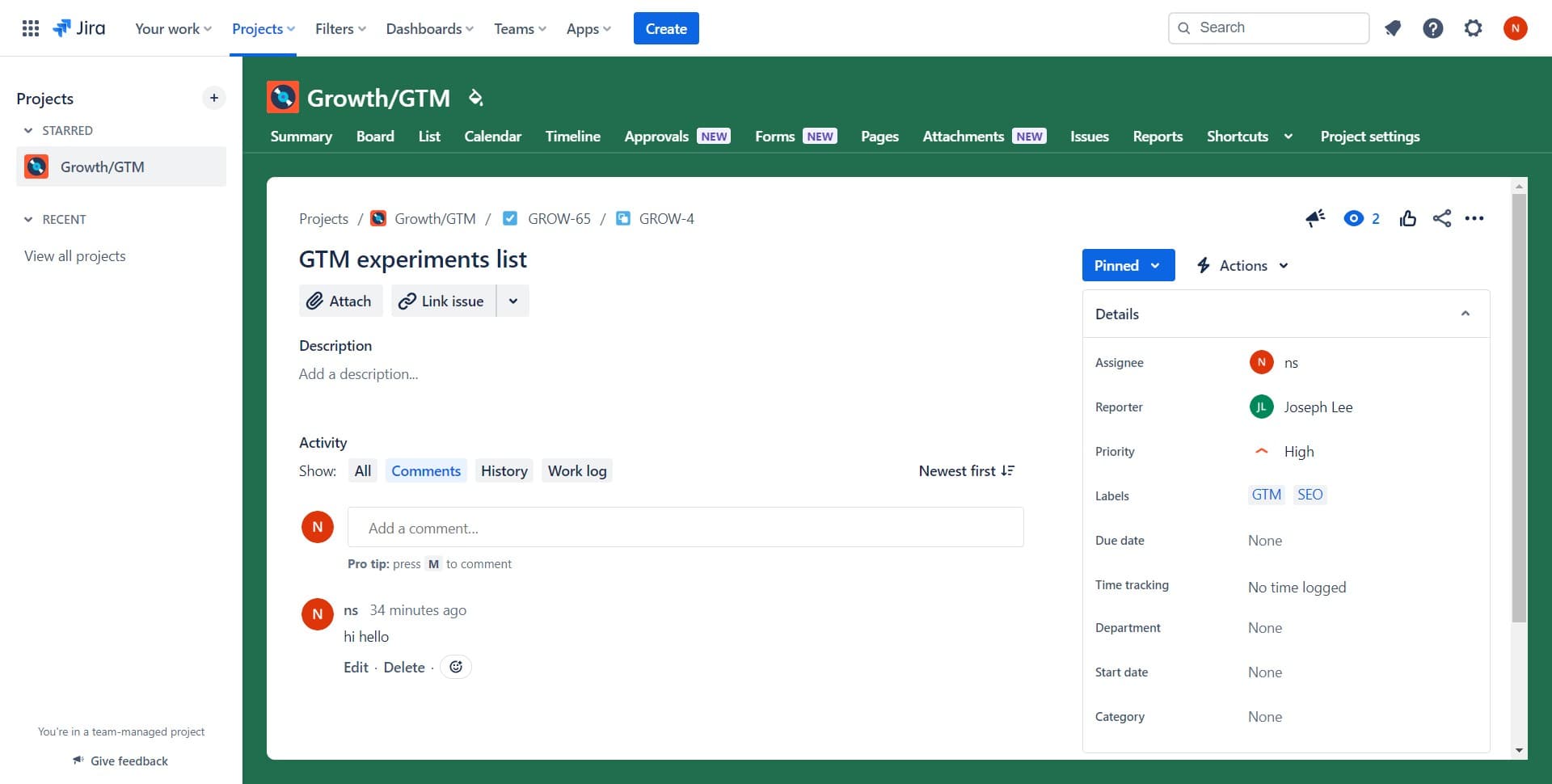
Click on Projects Growth
Click on the Projects Growth option to access the relevant project section where you can add and manage labels. This will direct you to the appropriate context for applying labels to your issues.
Frequently asked questions
Common questions about how to add a label in jira.
Yes, you can add as many labels as needed to a single issue. Simply enter each label separated by a space or comma in the label field. Multiple labels help you categorize issues across different dimensions such as priority, team, or feature area.
Labels are flexible, user-defined tags that can be applied across projects and issue types, while components and fix versions are more structured and project-specific. Labels are ideal for cross-cutting concerns or ad-hoc categorization, whereas components represent permanent parts of your product.
Yes, all team members with access to the issue can see the labels you've added. Labels are also fully searchable in Jira, allowing teammates to filter issues by label to find related work quickly.
Click on the label field and locate the label you want to modify. You can either click the X next to the label to remove it, or edit the label name directly. Changes are saved automatically in most Jira configurations.
It's helpful to establish naming conventions and a shared label taxonomy with your team before adding labels widely. Keep label names short, lowercase, and hyphenated for consistency. Document your label standards so new team members understand the system and can apply labels consistently.