How to add a wiki on GitHub

GitHub wikis provide a built-in space to document your project, share knowledge, and collaborate with your team. This guide walks you through the process of creating your first wiki page on a GitHub repository, enabling you to establish a centralized knowledge base for your project.
Quick summary
In this tutorial, you'll learn how to navigate to your repository's wiki section and create your first documentation page. You'll discover how to write and save wiki content, establishing the foundation for comprehensive project documentation.
Why this matters
Project wikis are essential for reducing onboarding time, clarifying project goals, and maintaining consistent documentation alongside your code. By setting up a wiki early, you create a single source of truth that team members and contributors can reference, reducing confusion and support requests.
Step-by-step guide
- 1
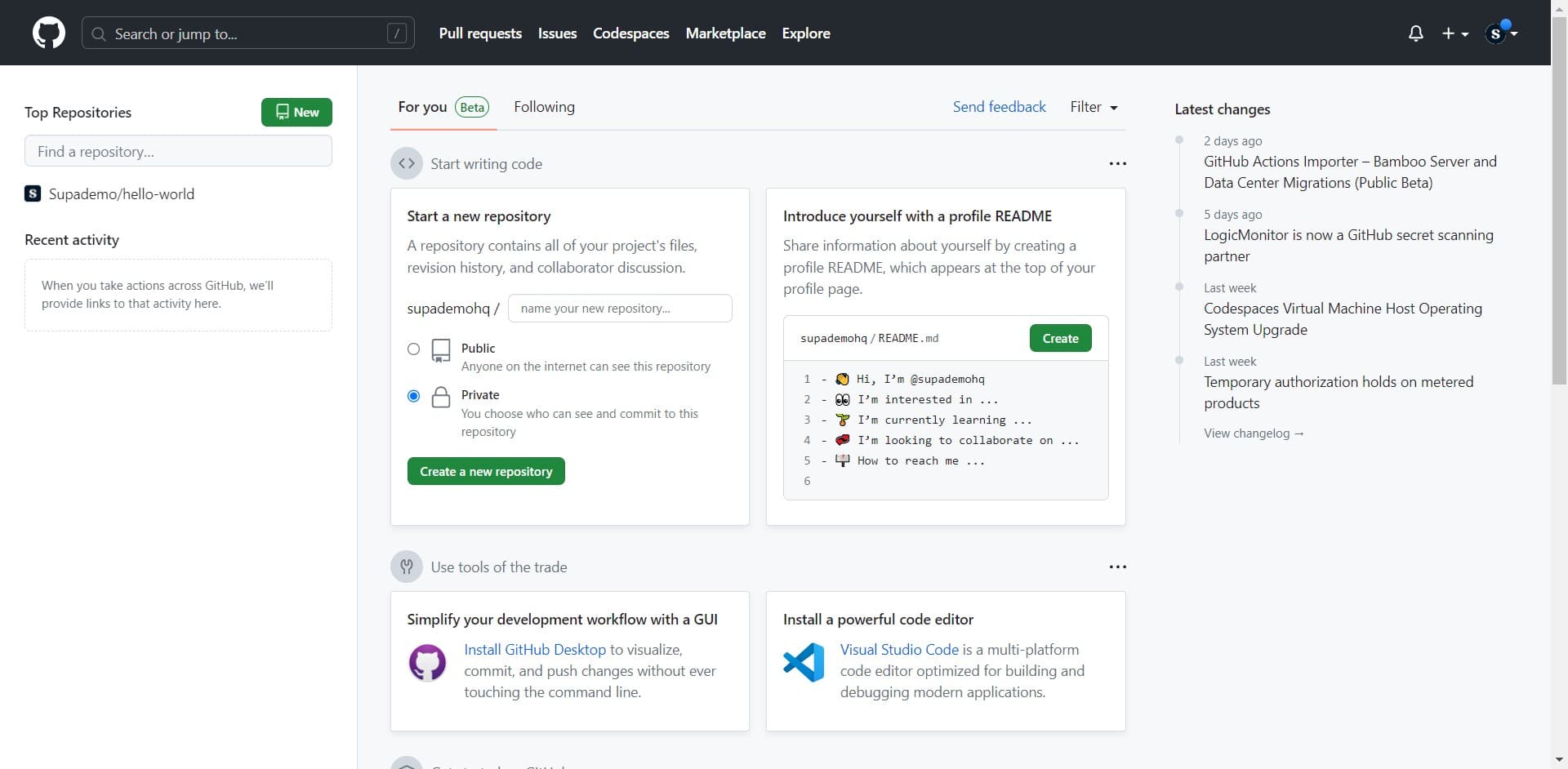
Access your GitHub feed
Start by clicking on the "For you Beta" section to view your personalized GitHub feed. This displays your repositories and recent activity.
- 2
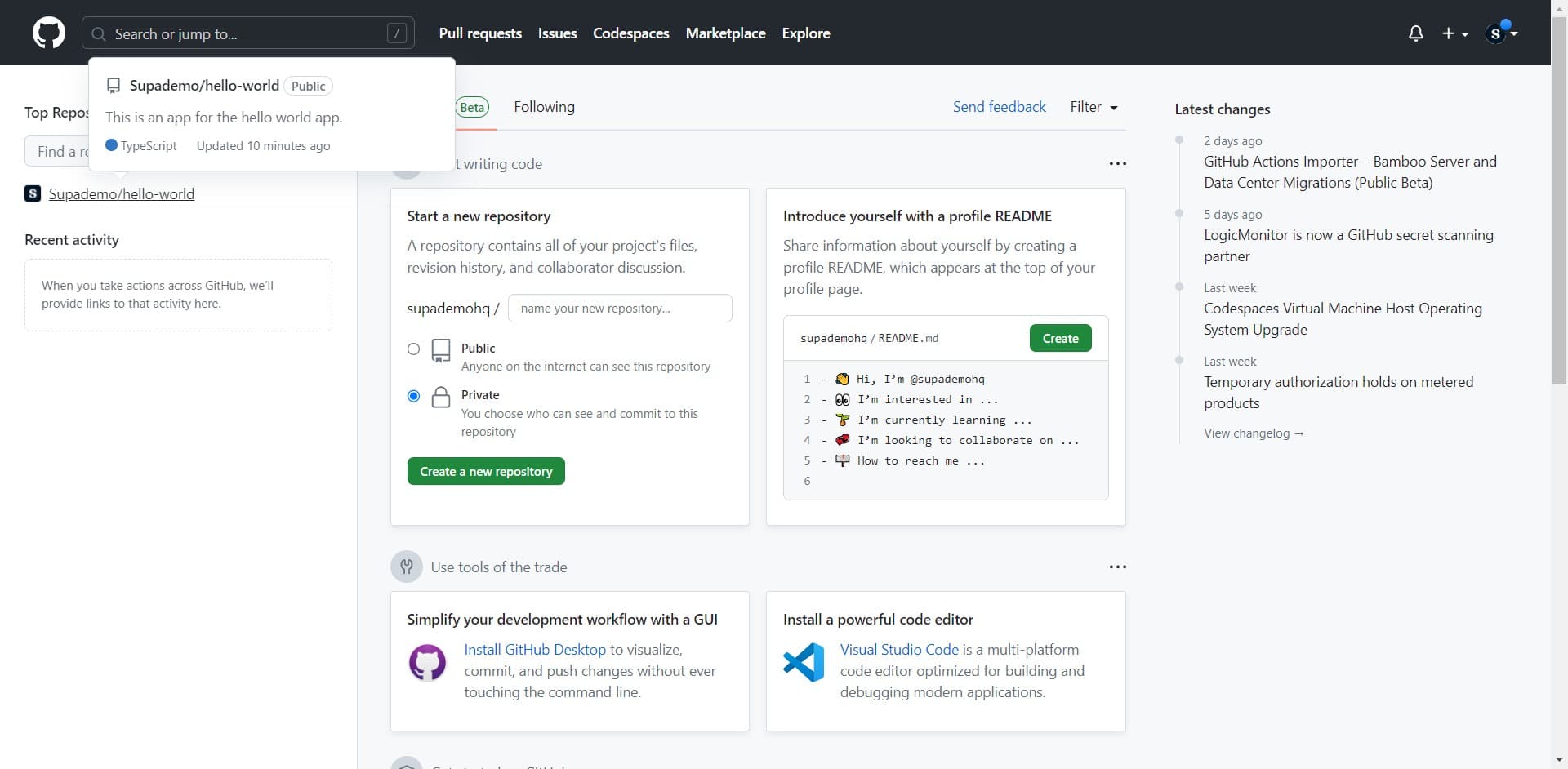
Select your repository
Click on the repository you want to add a wiki to—in this case, "Supademo/hello-world". This opens your repository dashboard.
- 3
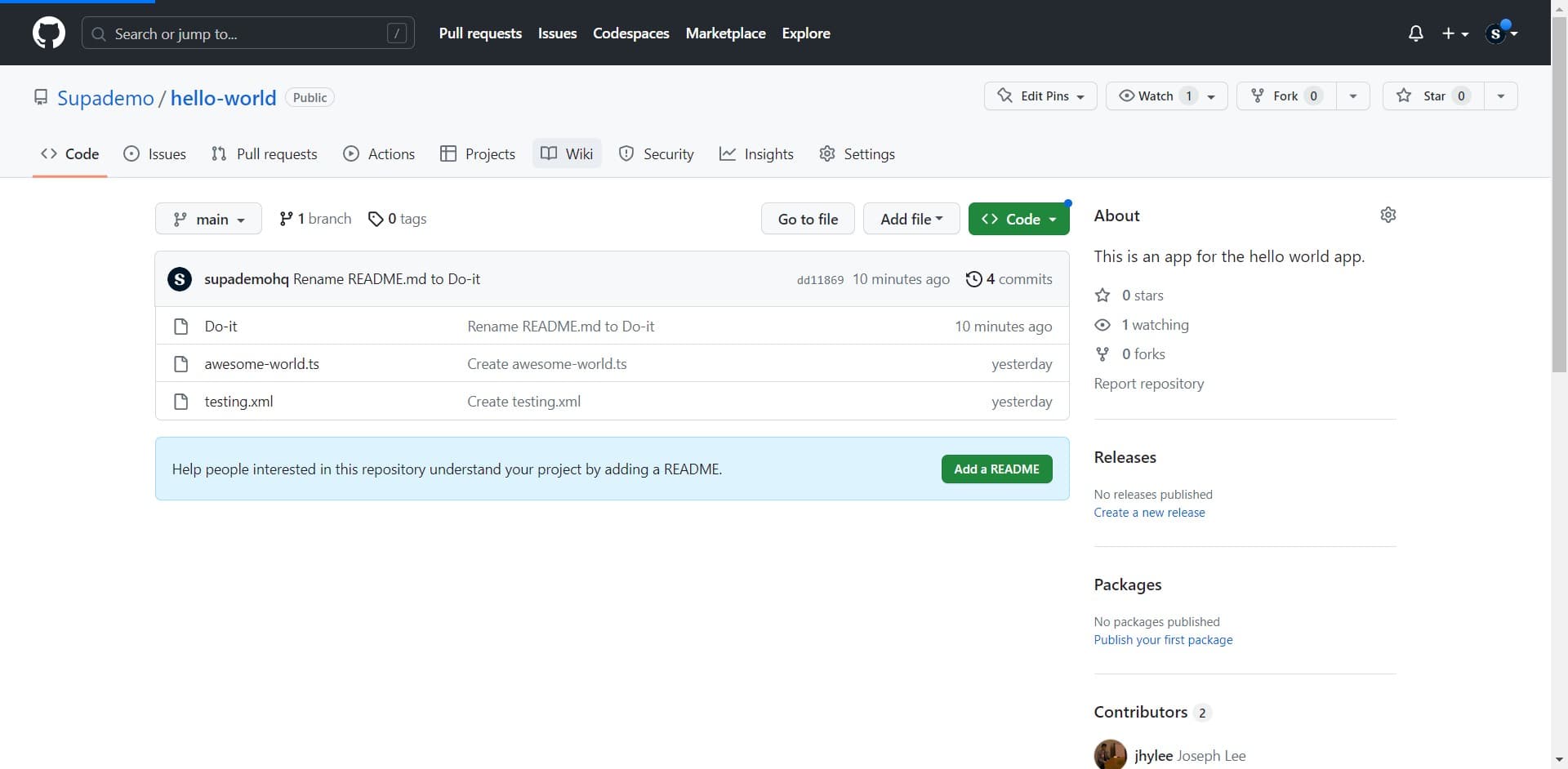
Navigate to the Wiki tab
Click on the "Wiki" tab in your repository menu. This takes you to the wiki section where all documentation pages are stored.
- 4
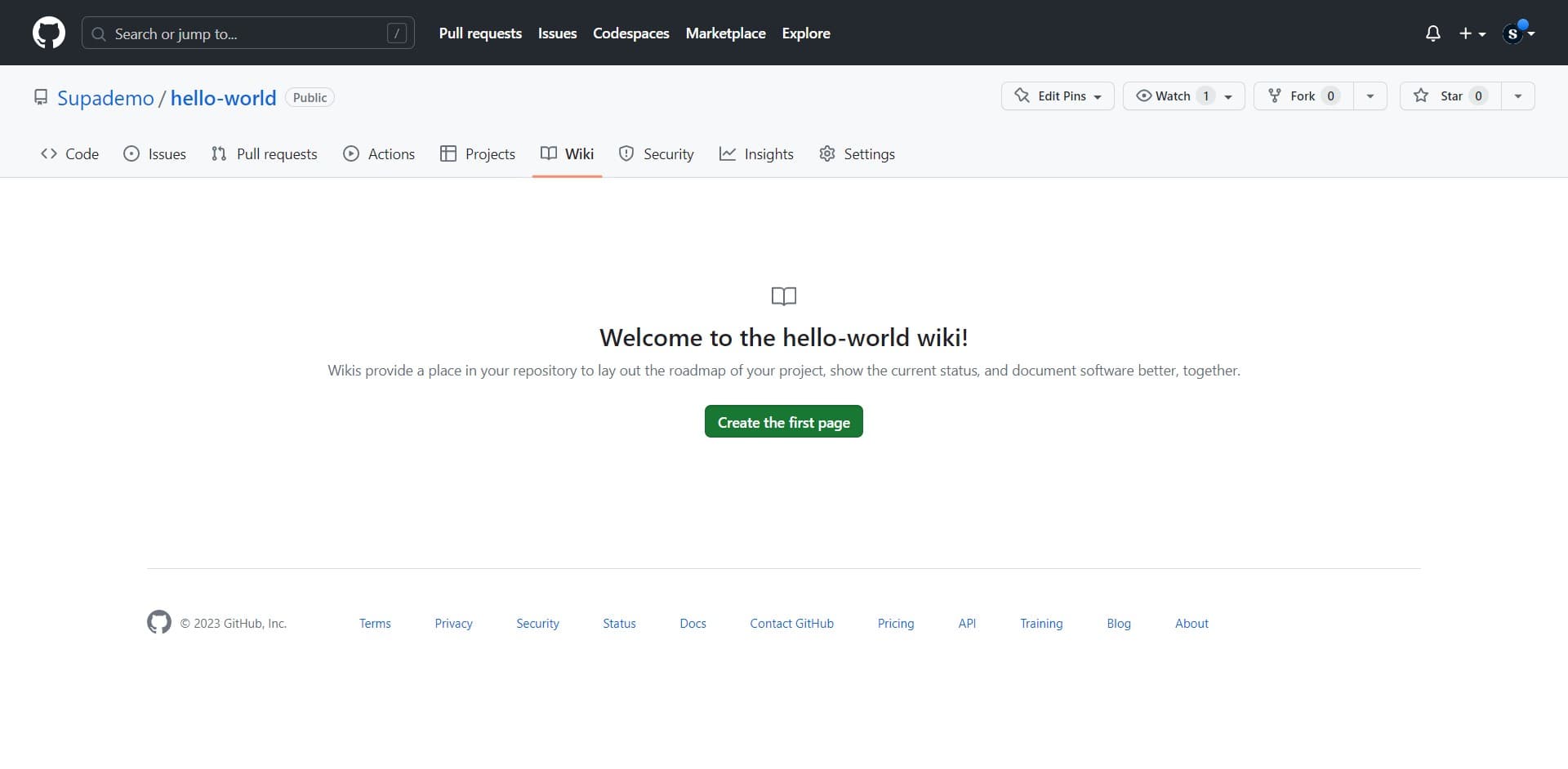
Create the first wiki page
Click on "Create the first page" to begin writing your initial wiki documentation. GitHub will provide an editor for your content.
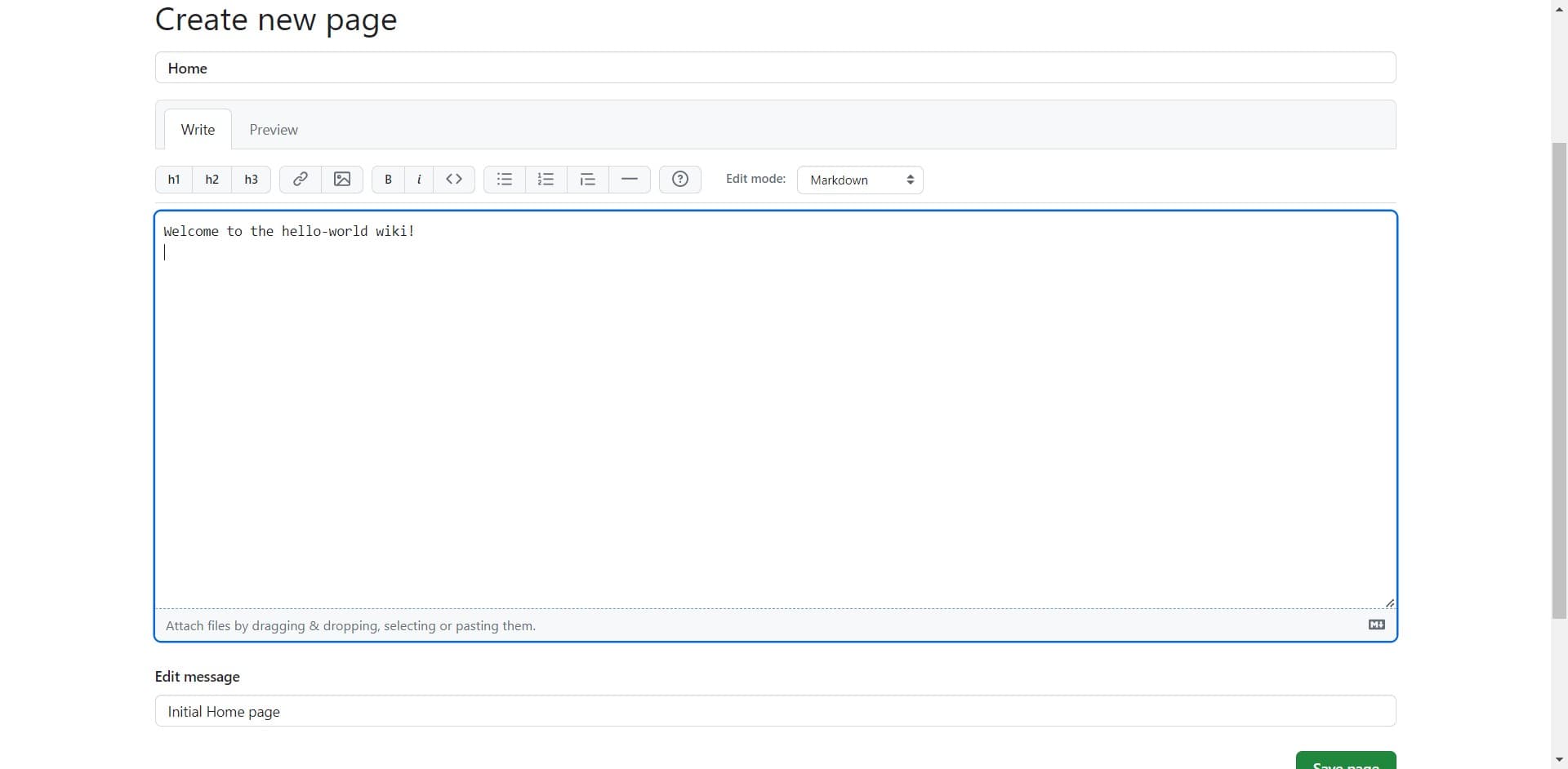
- 5
Enter your wiki content
Type or paste your documentation content into the editor. Use markdown formatting to structure your content with headers, lists, and links.
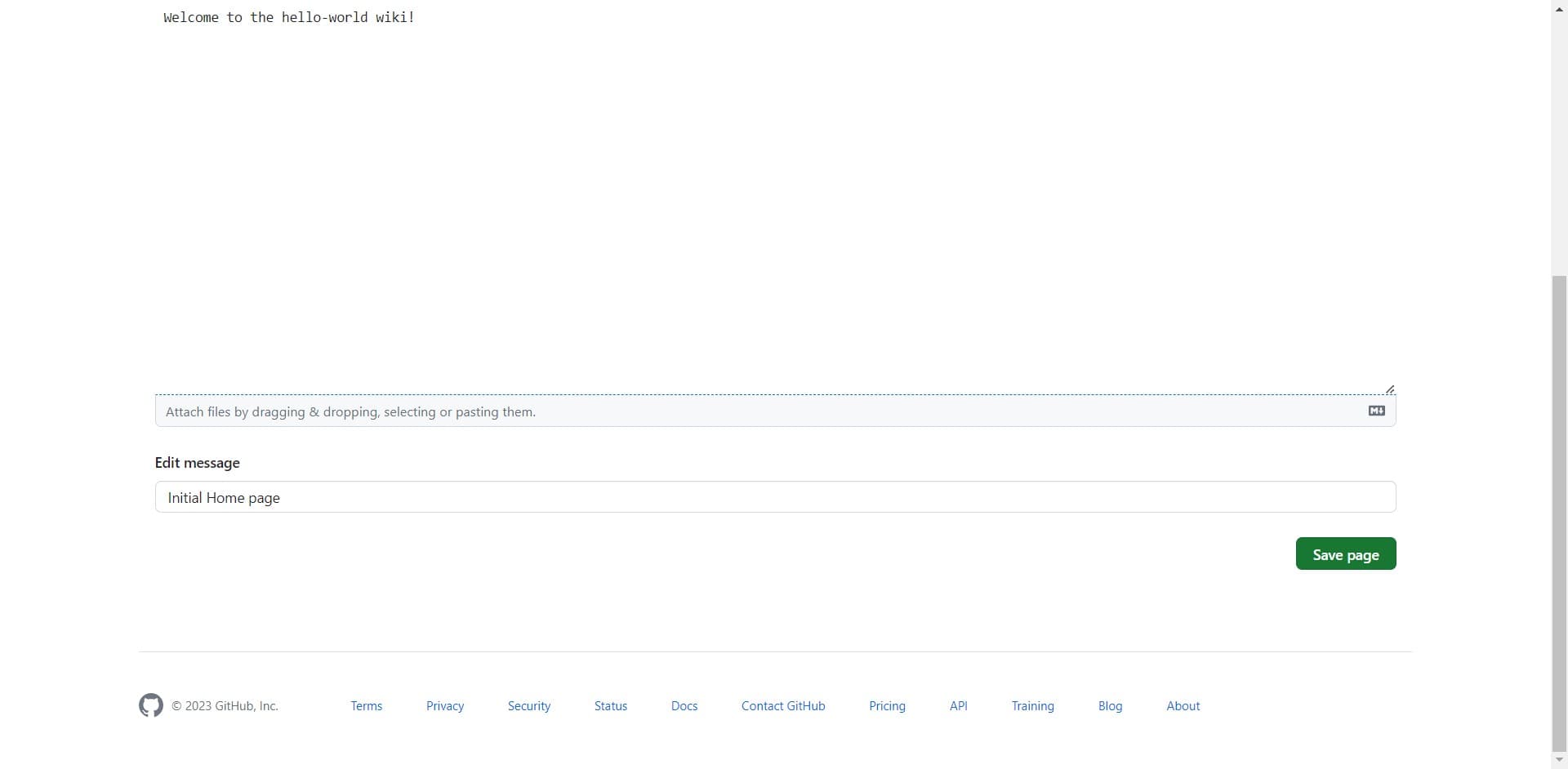
- 6
Save your wiki page
Click on "Save page" to publish your wiki content. GitHub will confirm the page has been created and added to your repository's wiki.
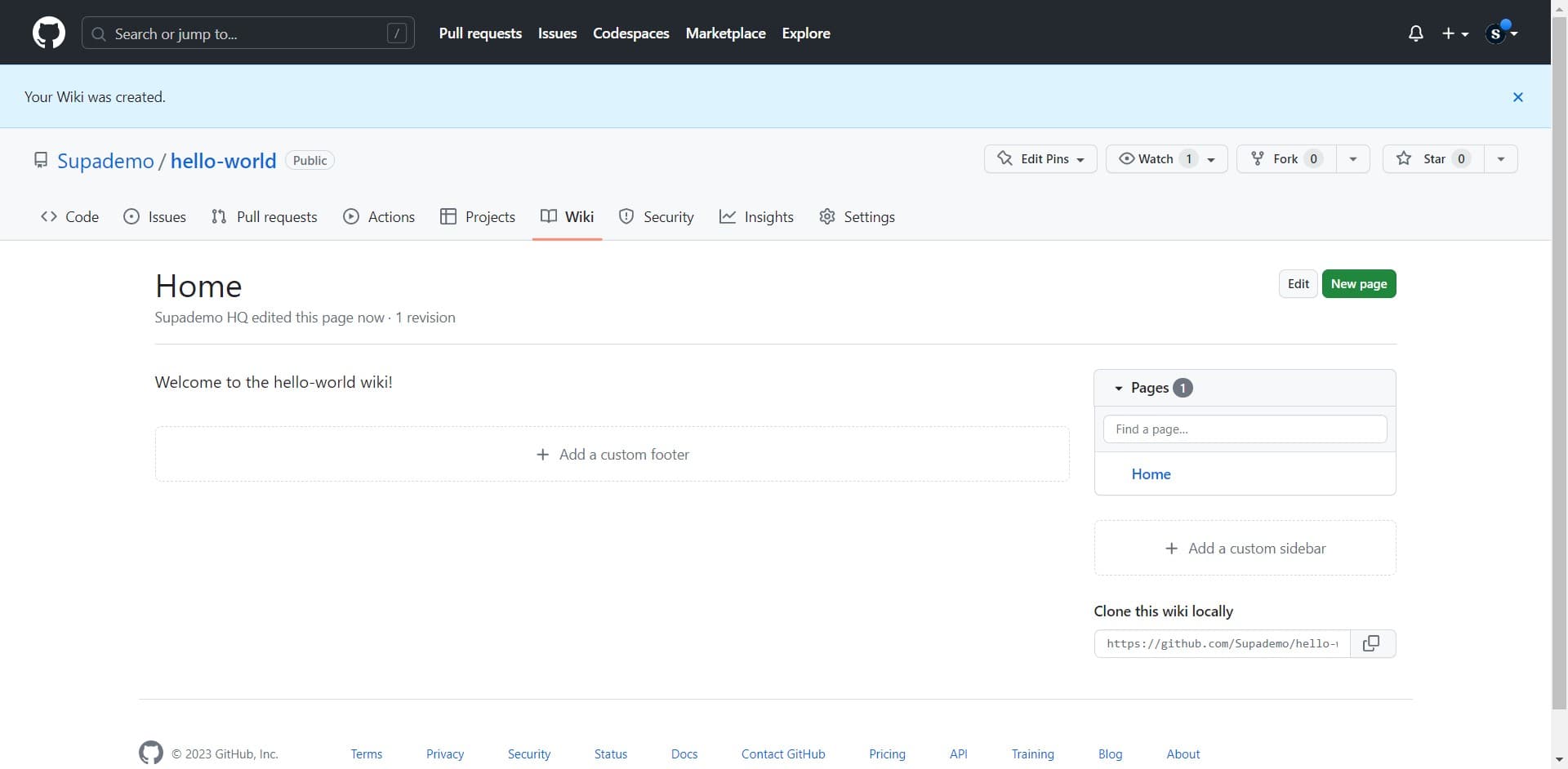
- 7
View your published wiki
Click on "Welcome to the hello-world wiki!" to view your newly created wiki page. This confirms your content is live and accessible to collaborators.
Frequently asked questions
Common questions about how to add a wiki on github.
Can I edit a wiki page after publishing it?
Yes, you can edit any wiki page at any time by clicking the edit button on the page. GitHub tracks all changes and maintains a history of edits, allowing you to revert to previous versions if needed.
What markdown formatting does GitHub wiki support?
GitHub wiki supports standard markdown syntax including headers, bold, italic, lists, code blocks, and links. You can also embed images and create tables to structure your documentation effectively.
Who can access and edit my repository's wiki?
By default, anyone with access to your repository can view and edit the wiki. You can restrict wiki editing to collaborators only through your repository settings if you need more control.
Can I organize wiki pages into categories or folders?
GitHub wiki doesn't support traditional folder structures, but you can create a sidebar navigation menu and use naming conventions (like "Getting Started" or "API Reference") to organize pages logically.
Is there a way to backup my wiki content?
Yes, you can clone your wiki repository locally using Git since GitHub wikis are stored as Git repositories. This allows you to maintain local backups and version control of all your documentation.