How to Add Calendly to Outlook

Vimal Kumar
Vimal Kumar·
How to Add Calendly to Outlook

What is Calendly?


Calendly is a scheduling tool designed to simplify the process of meeting planning. It allows users to showcase their availability and let others book appointments without having to navigate the intricacies of email exchanges. Explore more about the product here.
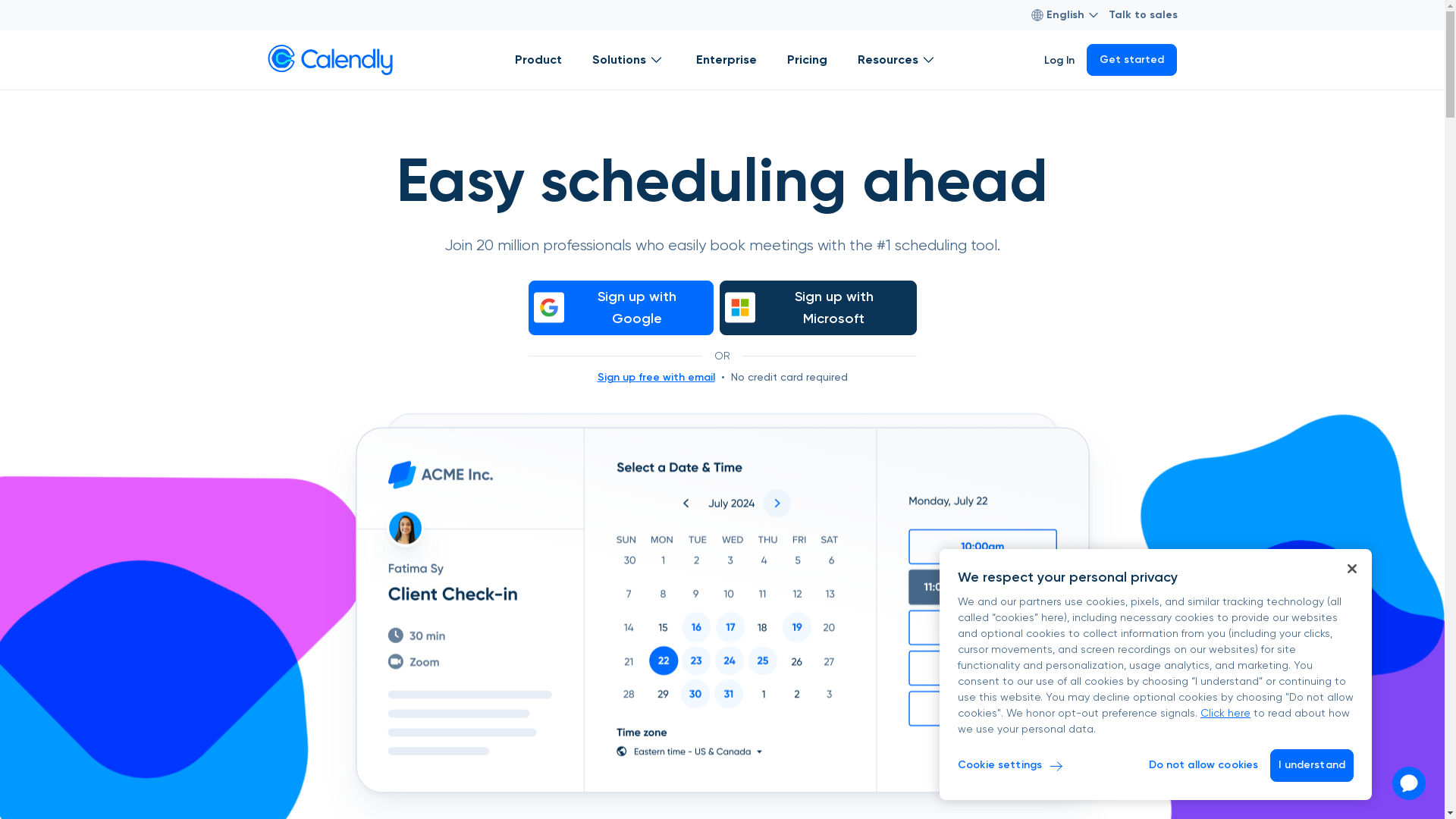
Calendly Screenshot

Who is Calendly best suited for?


Calendly is ideal for various professionals such as Product Marketers, sales representatives, and customer success teams. Product marketers, for example, benefit from using Calendly to schedule product demos and collaborate with cross-functional teams efficiently. By automating appointment scheduling, these professionals can save time and focus on strategic tasks.

How to Add Calendly to Outlook

Interactive demo powered by Supademo

Common FAQs on How to Add Calendly to Outlook

Commonly asked questions about this topic.

How do I integrate Calendly with Outlook?

To integrate Calendly with Outlook, you need to connect your Calendly account with Outlook through your Calendly account settings where you can find the integration option.

Will the integration work if I use Outlook on multiple devices?

Yes, once integrated, your Calendly events will sync across all the devices where you access your Outlook calendar.

Can I customize the availability shown to others on Calendly?

Yes, you can customize your availability settings on Calendly to control when people can schedule events with you, and it will consider your Outlook calendar's availability.

What should I do if I encounter issues with syncing?

If syncing issues occur, check your internet connection, ensure your Calendly and Outlook accounts are correctly connected, and verify your permissions and settings in both applications.

Is it possible to disconnect Calendly from Outlook if needed?

Yes, you can disconnect Calendly from Outlook at any time through the integrations section in your Calendly account settings.

Enjoyed this interactive product demo of Calendly?

Create your own interactive product demo in minutes. Drive growth, scale enablement and supercharge product led-onboarding with Supademo. Sign up for free here with no credit card required.

Vimal Kumar

Vimal Kumar

Product Operations Associate

Vimal Kumar helps build and grow Supademo’s team and GTM efforts, with a focus on figuring out growth levers and improving product traction.

More from the blog

How to Add Products to Shopify

How to Add Products to Shopify

Learn step-by-step how to add products to your Shopify store effortlessly, including tips on product details, images, pricing, and inventory management to boost your online sales.

Vimal Kumar
Vimal KumarDec 17, 2025
How to Deactivate Your Shopify Store

How to Deactivate Your Shopify Store

Learn step-by-step how to deactivate your Shopify store easily, including important considerations and tips to pause or close your shop without losing data.

Vimal Kumar
Vimal KumarDec 17, 2025
How to Remove 'Powered by Shopify'

How to Remove 'Powered by Shopify'

Learn how to easily remove the 'Powered by Shopify' text from your online store with step-by-step instructions and tips to customize your Shopify storefront.

Vimal Kumar
Vimal KumarDec 17, 2025
How to Create a Shopify Account

How to Create a Shopify Account

Learn step-by-step how to create a Shopify account quickly and easily, set up your online store, and start selling your products in no time.

Vimal Kumar
Vimal KumarDec 17, 2025
How to Create a Stripe Account

How to Create a Stripe Account

Learn how to create a Stripe account quickly and easily with our step-by-step guide, perfect for beginners looking to start accepting online payments.

Vimal Kumar
Vimal KumarDec 17, 2025
How to Contact Stripe Support

How to Contact Stripe Support

Learn the easiest ways to contact Stripe support for quick assistance with your payment processing, account issues, and technical questions.

Vimal Kumar
Vimal KumarDec 16, 2025