How to Add Canned Responses in Freshdesk

Vimal Kumar
Vimal Kumar·
How to Add Canned Responses in Freshdesk
Interactive demo powered by Supademo

1. To begin, click on the Admin tab.

2. Following that, click on Agent Productivity.

3. Then, click on "Canned Responses".

4. Now, click on "Create new".

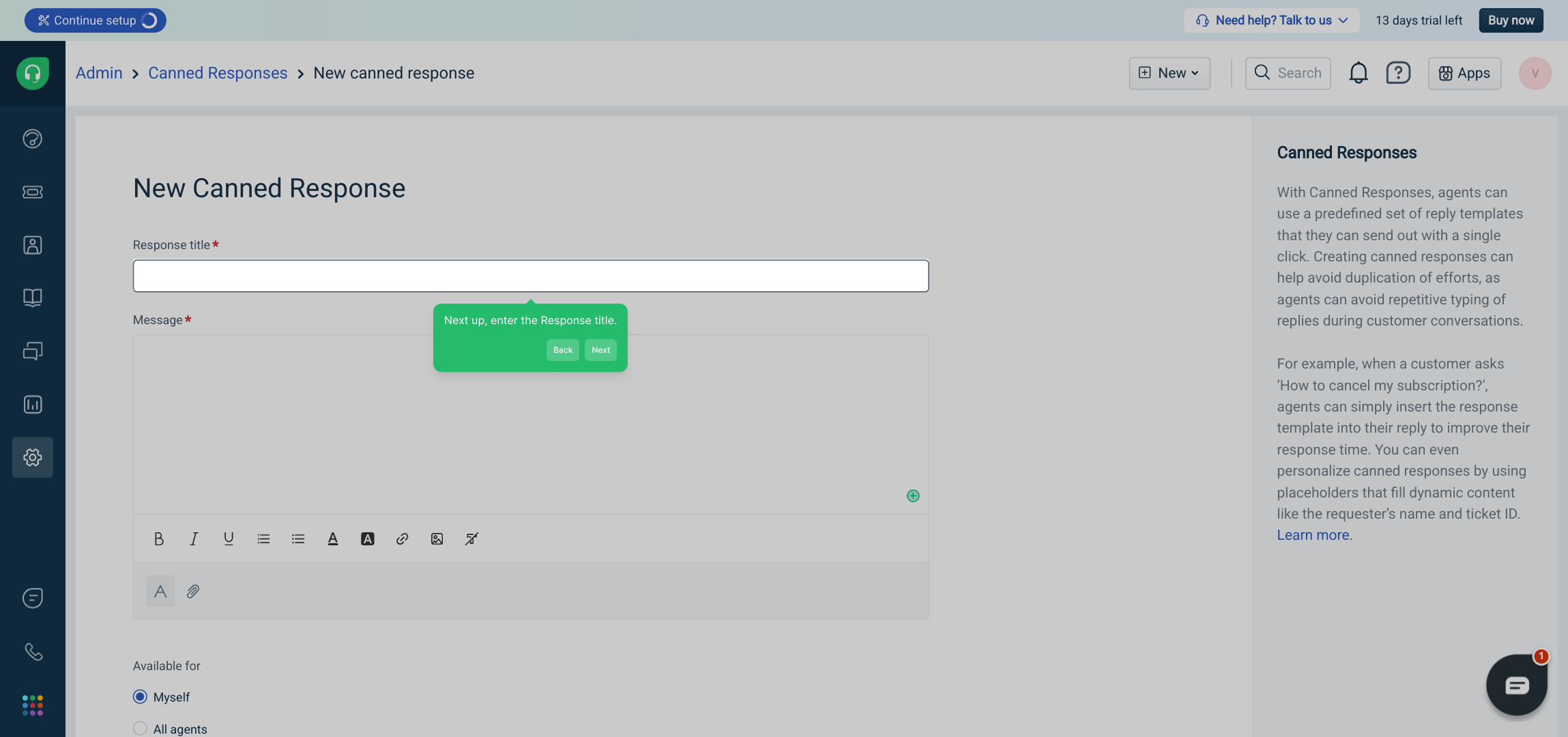
5. Next up, enter the Response title.

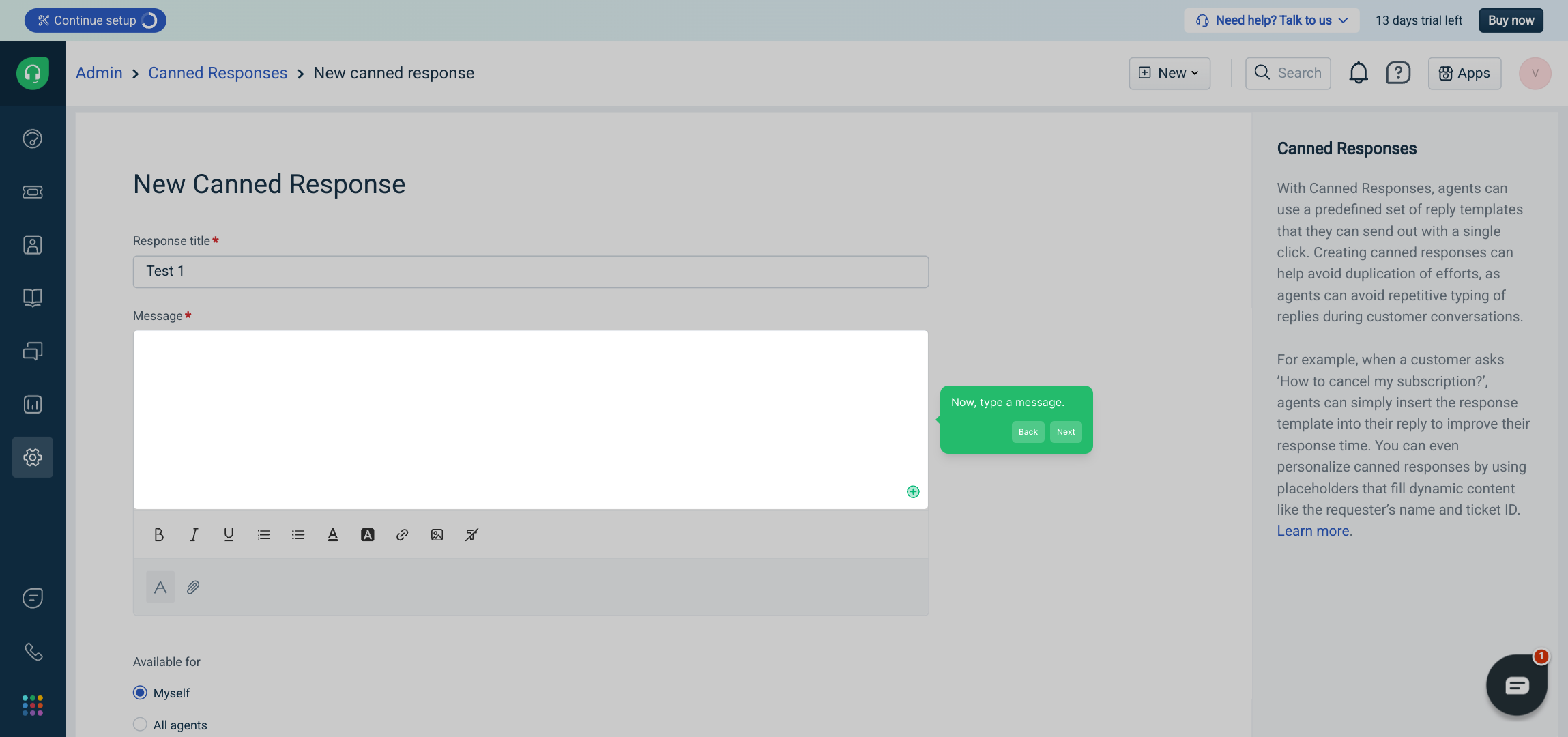
6. Now, type a message.

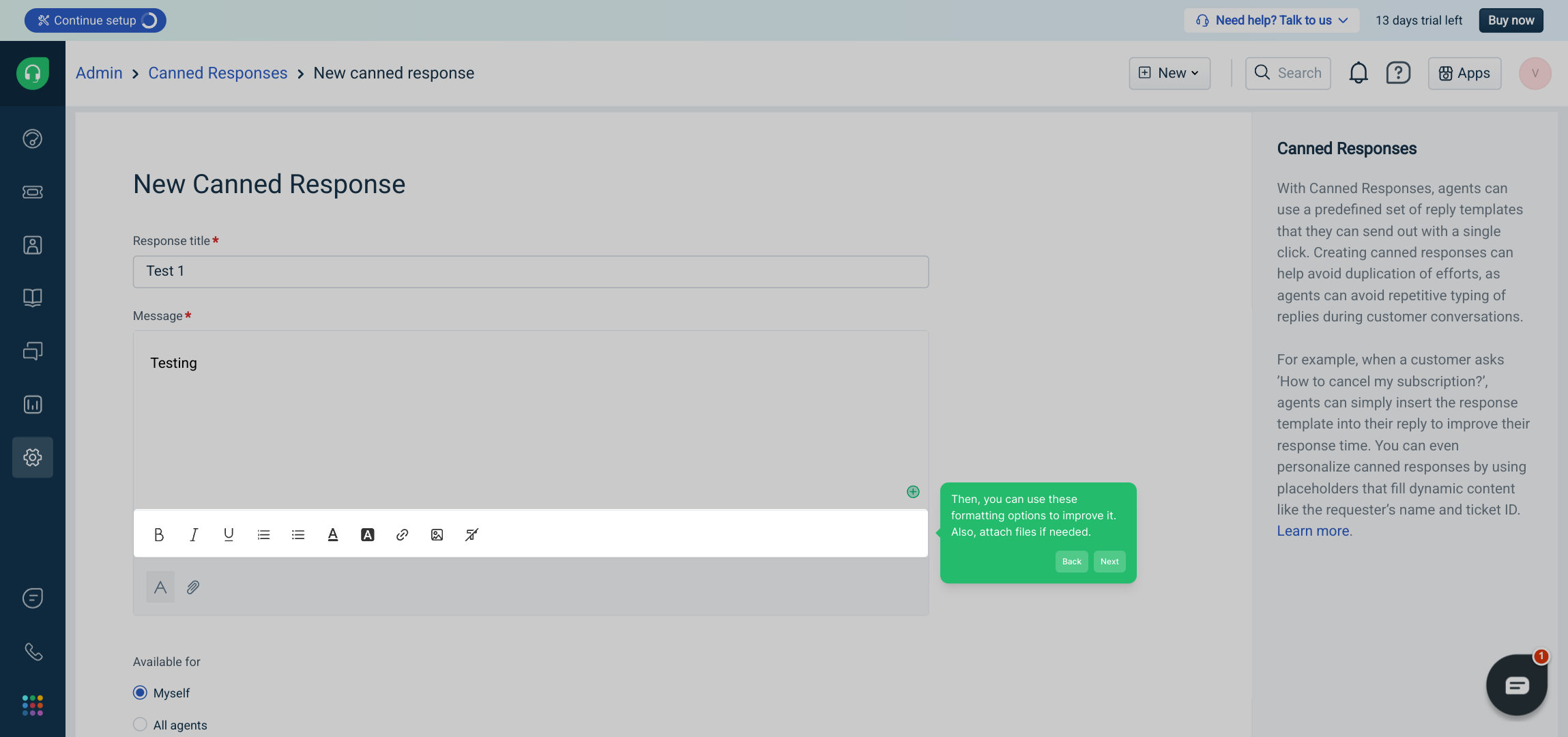
7. Then, you can use these formatting options to improve it. Also, attach files if needed.

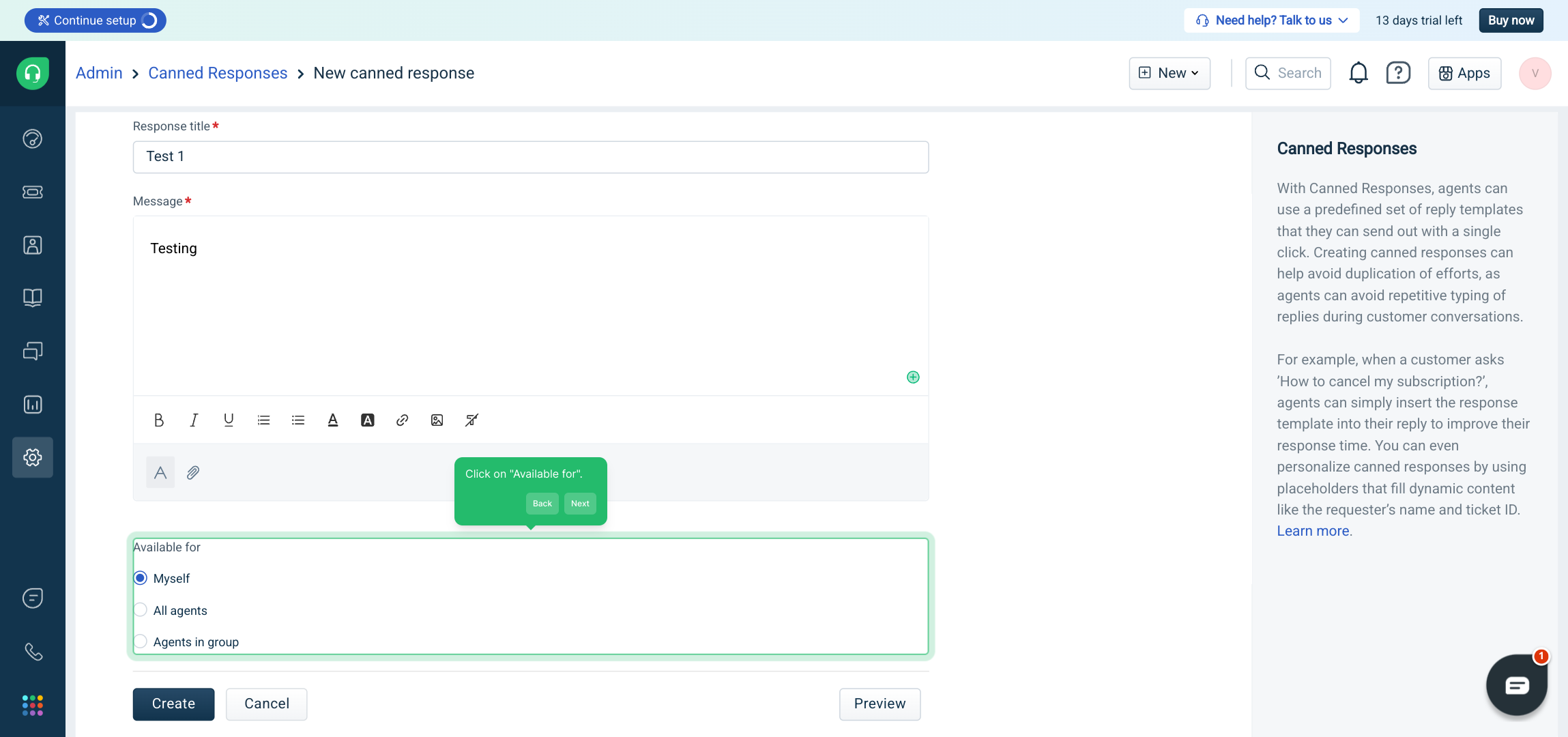
8. Click on "Available for".

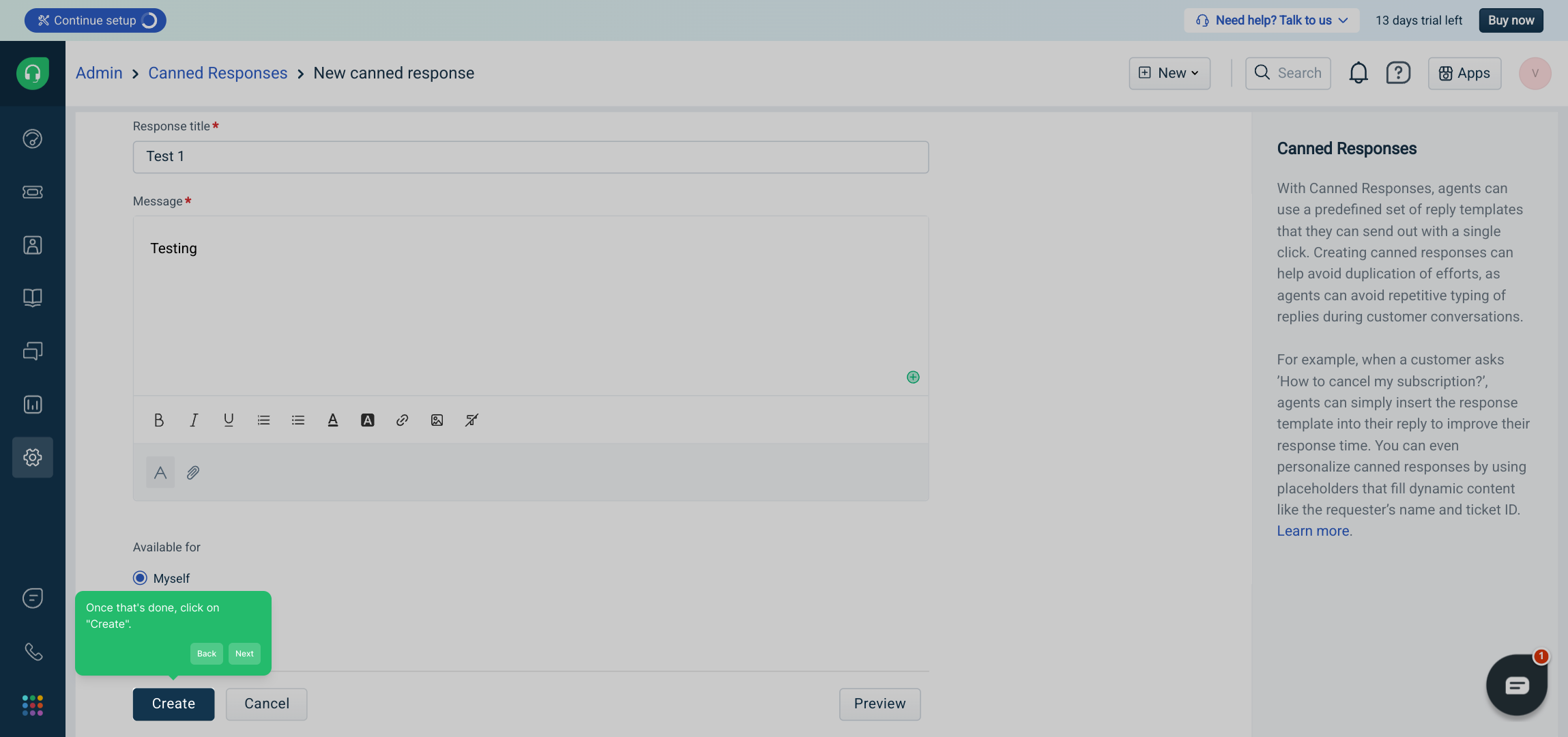
9. Once that's done, click on "Create".

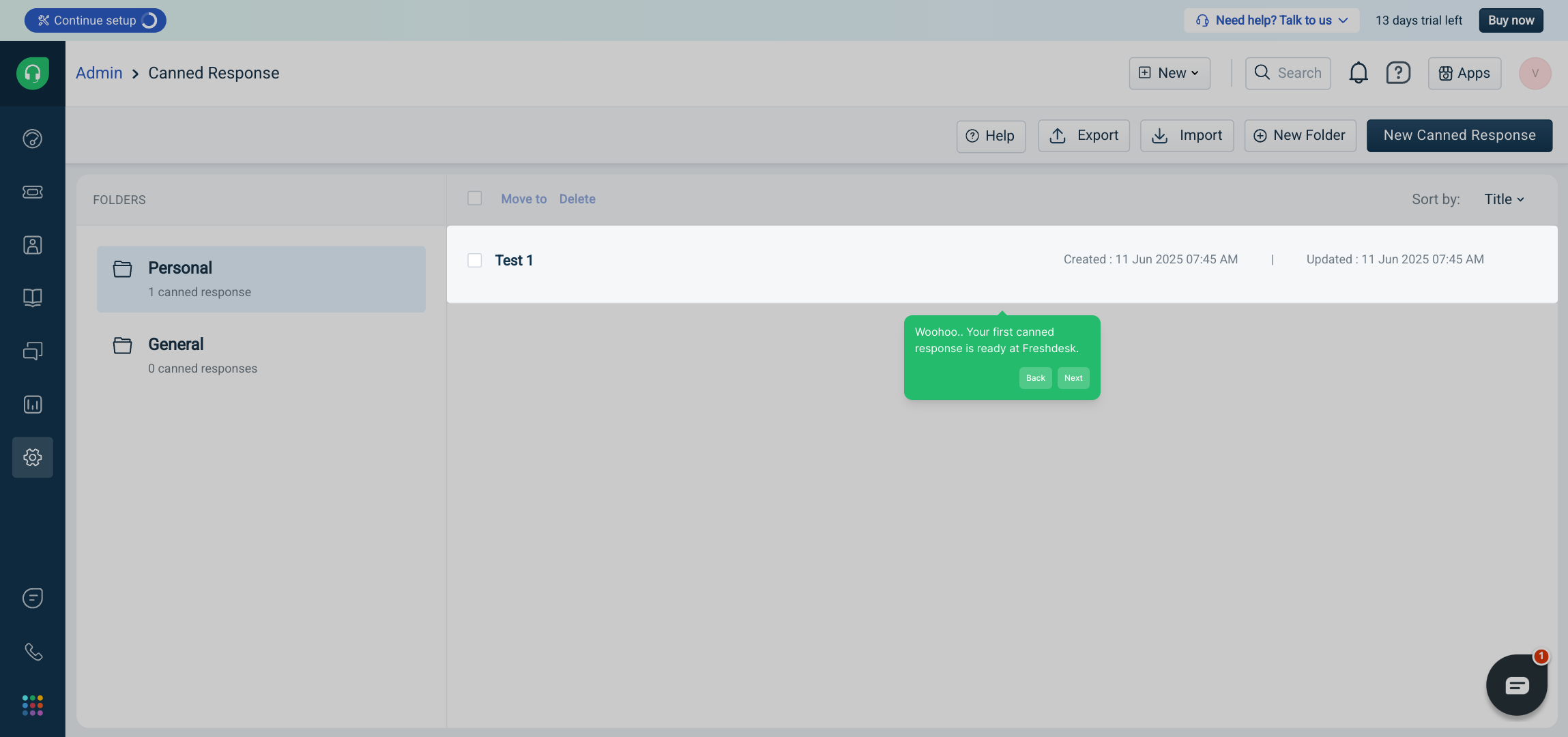
10. Woohoo.. Your first canned response is ready at Freshdesk.

11. Create a Supademo in seconds

This interactive demo/guided walkthrough on How to Add Canned Responses in Freshdesk was created using Supademo.


How to Add Canned Responses in Freshdesk: Step-by-Step Guide

Start by navigating to the Admin section located in the main menu. This is where you'll find settings and tools to configure your Freshdesk account.
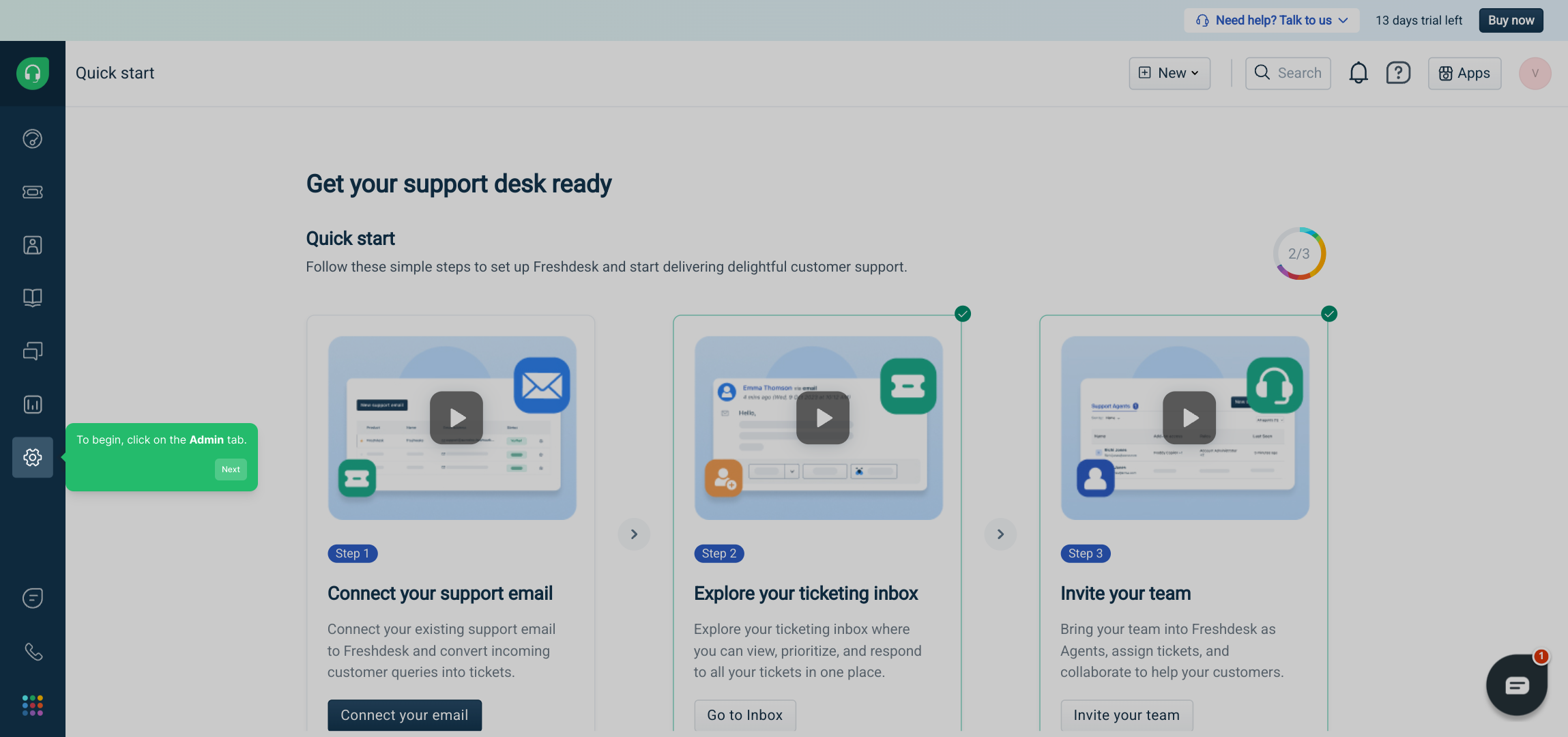
1

From the Admin panel, look for the option labeled Agent Productivity. This area helps you manage and optimize your team's performance.
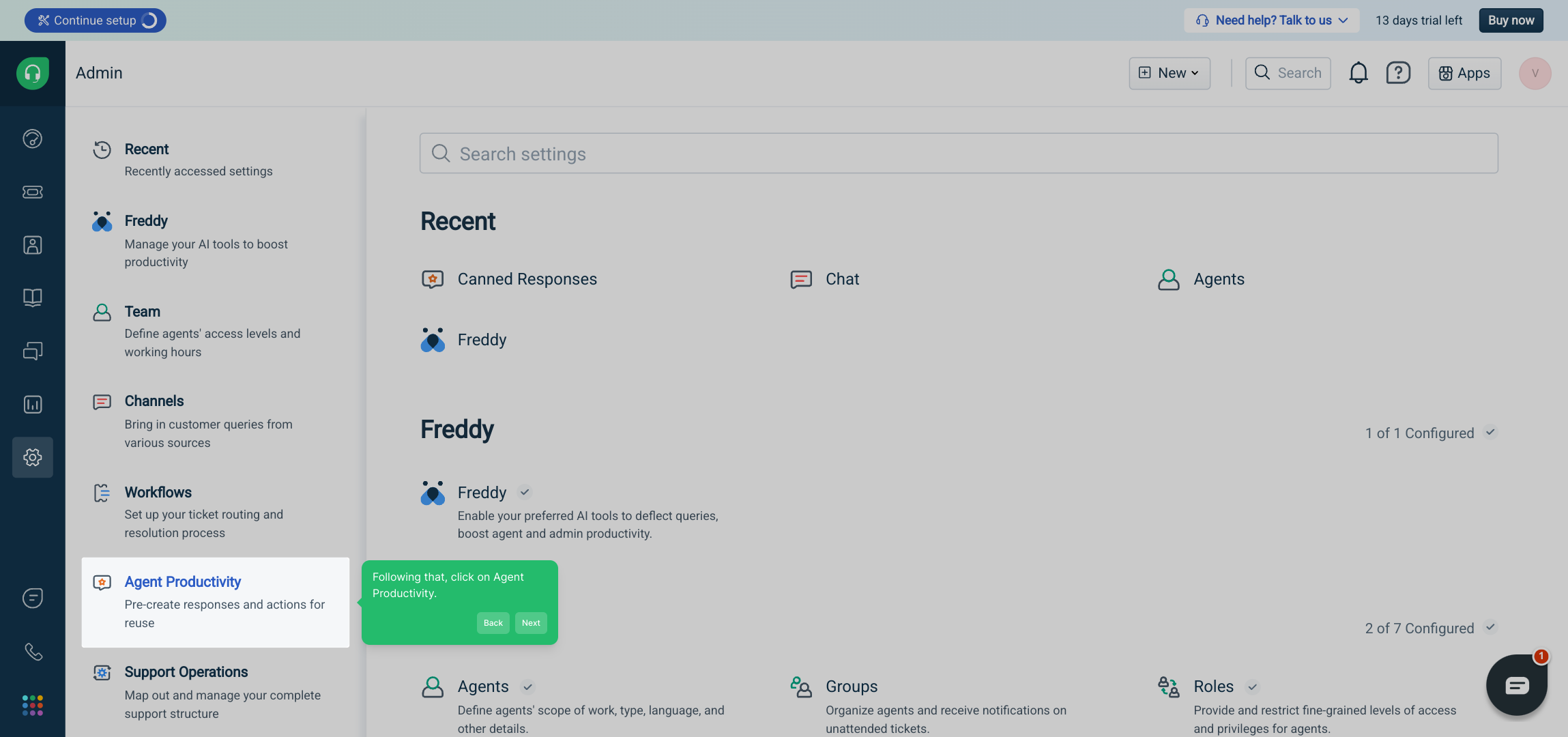
2

Within the Agent Productivity section, select the "Canned Responses" tab. This is where you manage pre-written replies to save time on common inquiries.
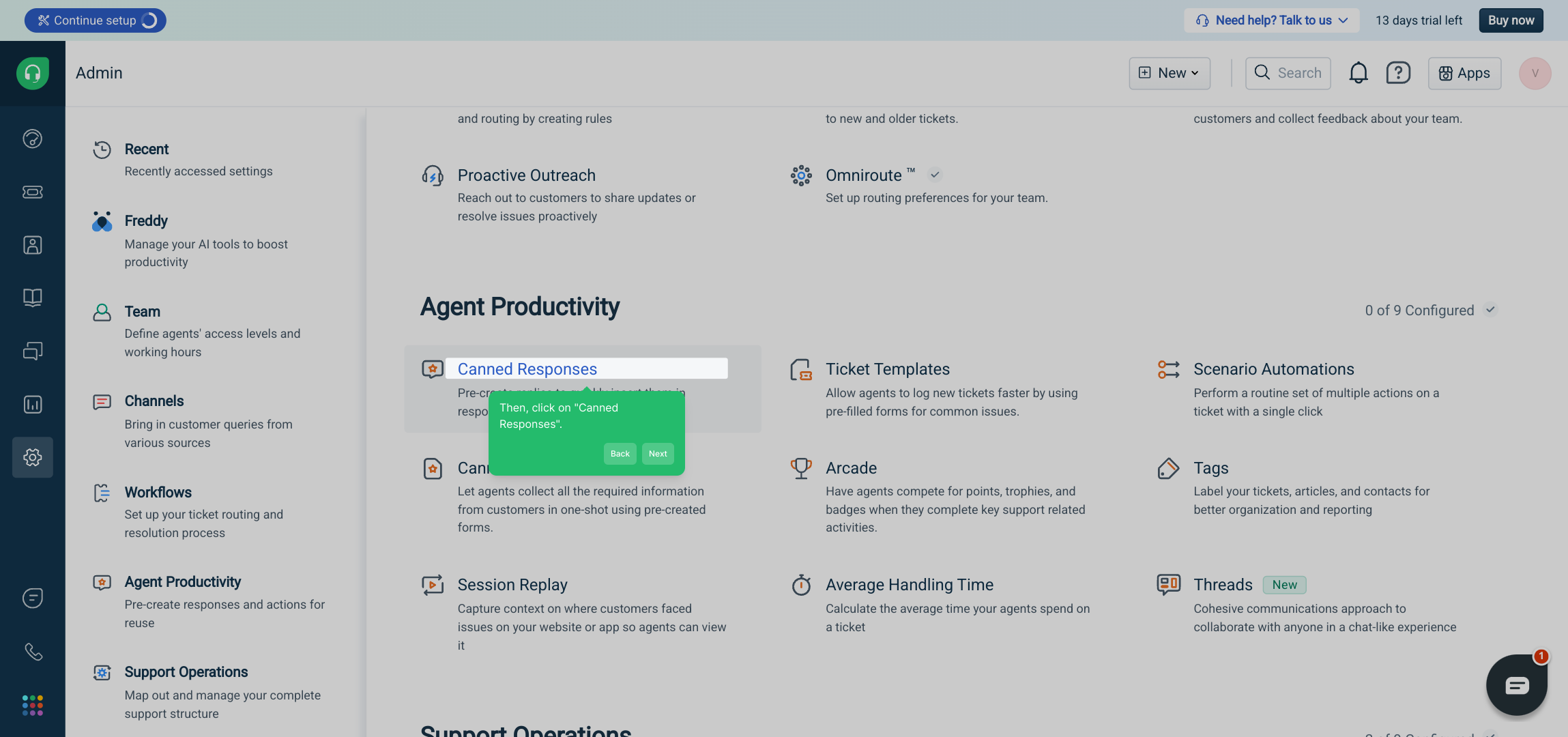
3

Next, click on the "Create new" button to start crafting a fresh canned response tailored to your support needs.
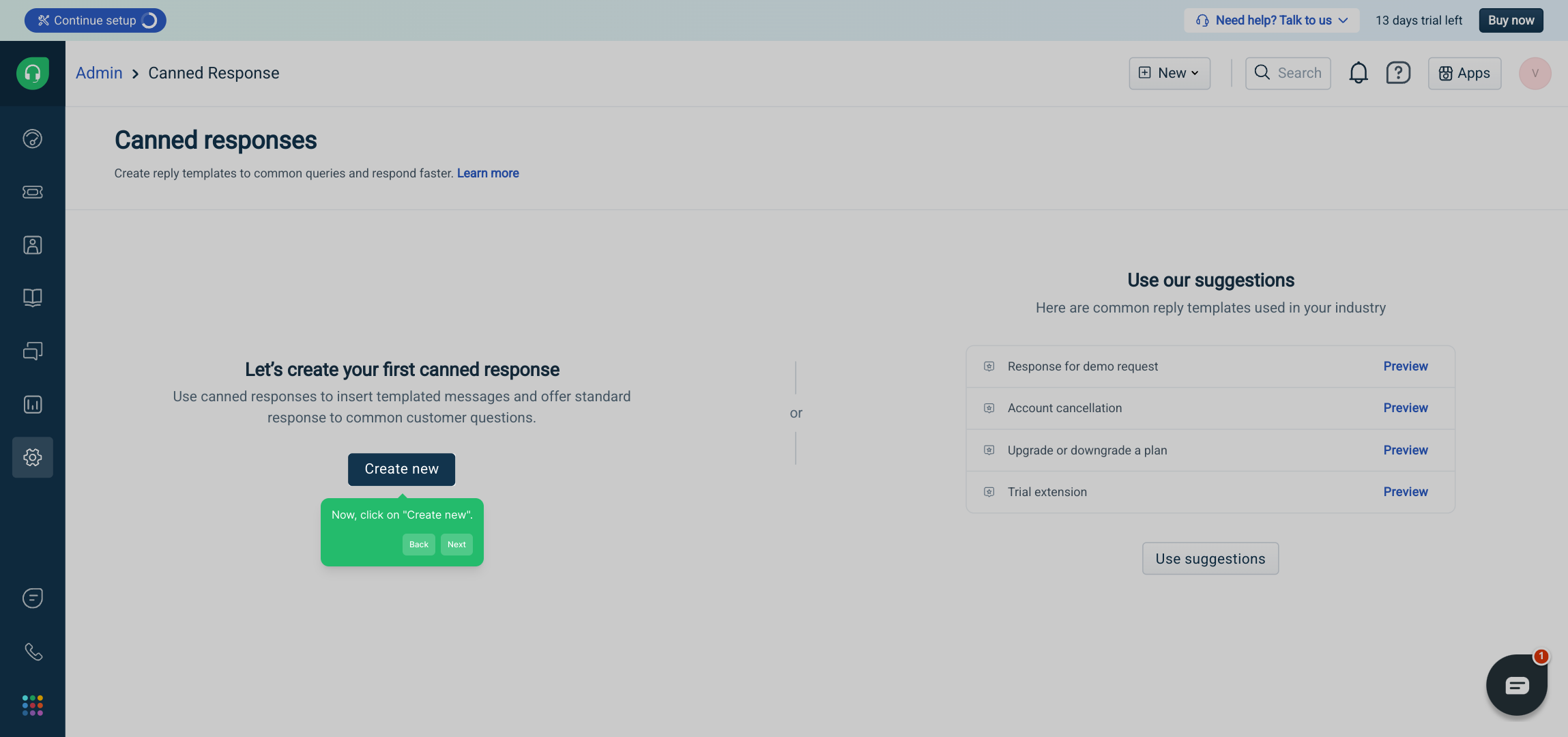
4

Provide a clear and descriptive title for your response. This will help you and your team quickly identify it later.
5

Now, compose the message you want to use for this canned response. Make it concise yet informative to assist your customers effectively.
6

Enhance your message by using the available formatting tools for better readability. You can also attach any relevant files that support your response.
7

Click on the "Available for" option to specify which teams or agents can access this canned response, ensuring the right people have the right tools.
8

After reviewing all details, finalize your creation by clicking the "Create" button to save your new canned response.
9

Congratulations! Your first canned response is now set up in Freshdesk, ready to help streamline your customer support process.
10

With your canned responses in place, you can quickly create Supademo guides like this one to train your team and improve efficiency.
11

Create your own interactive demos in < 5 mins with Supademo

You can create your own interactive product demo in minutes using Supademo. Drive growth, scale enablement, and supercharge product-led onboarding with Supademo. Sign up for free here with no credit card required.


FAQs

Commonly asked questions about this topic.

What are canned responses in Freshdesk?

Canned responses are pre-written replies that support agents can use to quickly respond to common customer queries. They save time and ensure consistent communication across the support team.

How do I access the canned responses feature in Freshdesk?

To access canned responses, go to the Admin tab, then navigate to Agent Productivity, and select "Canned Responses" from the available options.

Can I customize canned responses in Freshdesk?

Yes, you can fully customize canned responses by editing the message content, applying formatting, and attaching relevant files before saving them for use by your agents.

Who can create canned responses in Freshdesk?

Typically, administrators and agents with appropriate permissions can create and manage canned responses within Freshdesk to ensure consistency in customer interactions.

How do I enable canned responses for specific teams or agents?

When creating or editing a canned response, use the "Available for" option to specify which teams or agents should have access, ensuring relevant personnel see the right templates.

Can I attach files to canned responses in Freshdesk?

Yes, Freshdesk allows you to attach files to your canned responses, which can be useful for sharing documents, images, or other resources when responding to customers.

Is there a way to format text in canned responses?

Absolutely. Freshdesk provides formatting tools like bold, italics, lists, and links to help make your canned responses clear and visually appealing to customers.

How do I edit or delete an existing canned response?

You can edit or delete canned responses by navigating to the "Canned Responses" section under Agent Productivity, selecting the response, and choosing the edit or delete option accordingly.

Can canned responses be used in both tickets and chats?

Canned responses in Freshdesk can be applied in tickets. For chats, Freshdesk has similar features but they may be managed separately depending on your Freshdesk setup.

Does Freshdesk allow sharing canned responses across multiple agents?

Yes, canned responses can be shared among multiple agents or teams by setting the appropriate availability during creation, ensuring everyone has access to the right pre-written replies.
Vimal Kumar

Vimal Kumar

Product Operations Associate

Vimal Kumar helps build and grow Supademo’s team and GTM efforts, with a focus on figuring out growth levers and improving product traction.

More from the blog

How to Remove 'Powered by Shopify'

How to Remove 'Powered by Shopify'

Learn how to easily remove the 'Powered by Shopify' text from your online store with step-by-step instructions and tips to customize your Shopify storefront.

Vimal Kumar
Vimal KumarJan 3, 2026
How to Add Products to Shopify

How to Add Products to Shopify

Learn step-by-step how to add products to your Shopify store effortlessly, including tips on product details, images, pricing, and inventory management to boost your online sales.

Vimal Kumar
Vimal KumarDec 17, 2025
How to Deactivate Your Shopify Store

How to Deactivate Your Shopify Store

Learn step-by-step how to deactivate your Shopify store easily, including important considerations and tips to pause or close your shop without losing data.

Vimal Kumar
Vimal KumarDec 17, 2025
How to Remove 'Powered by Shopify'

How to Remove 'Powered by Shopify'

Learn how to easily remove the 'Powered by Shopify' text from your online store with step-by-step instructions and tips to customize your Shopify storefront.

Vimal Kumar
Vimal KumarDec 17, 2025
How to Create a Shopify Account

How to Create a Shopify Account

Learn step-by-step how to create a Shopify account quickly and easily, set up your online store, and start selling your products in no time.

Vimal Kumar
Vimal KumarDec 17, 2025
How to Create a Stripe Account

How to Create a Stripe Account

Learn how to create a Stripe account quickly and easily with our step-by-step guide, perfect for beginners looking to start accepting online payments.

Vimal Kumar
Vimal KumarDec 17, 2025