How to add holidays blackouts in Calendly

Setting up holiday blackouts in Calendly ensures your availability calendar automatically blocks time during holidays, preventing clients from booking appointments when you're unavailable. This feature is essential for maintaining work-life balance and avoiding scheduling conflicts during major holidays. Learn how to configure holiday blackouts for your region in just a few clicks.
Quick summary
In this tutorial, you'll learn how to add holiday blackouts to your Calendly calendar by selecting your country's official holidays. You'll navigate to the Availability settings, access the Holidays feature, and apply the appropriate holiday calendar for your location. By the end, your calendar will automatically block out all recognized holidays for your region.
Why this matters
Holiday blackouts prevent miscommunication and wasted time responding to booking requests during days you're not working. This automation removes the need to manually block holidays each year, ensuring consistency and professionalism in your scheduling. It's particularly valuable for businesses serving clients across different regions with varying holiday calendars.
Step-by-step guide
- 1
Open the Availability settings
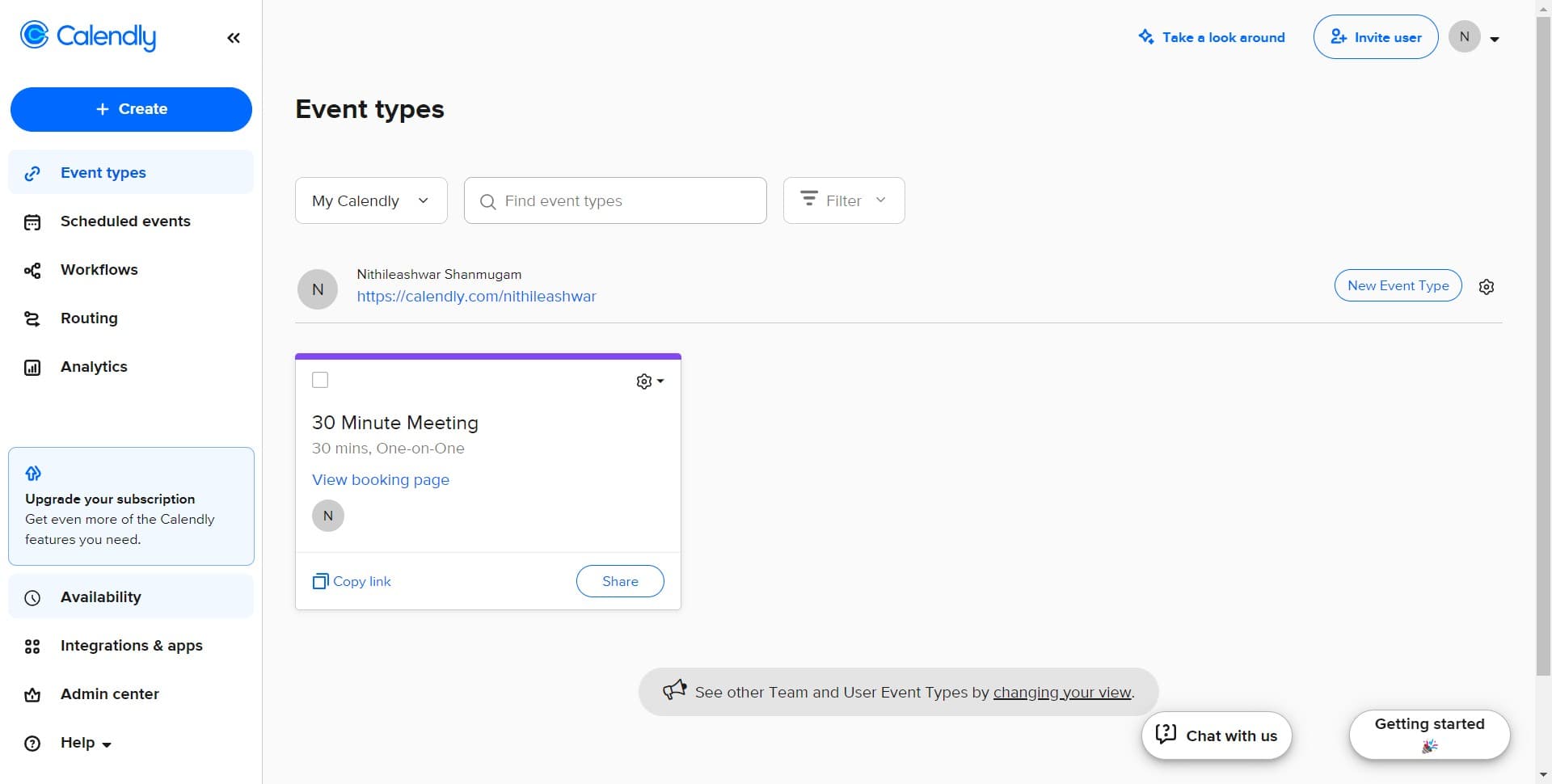
Log into your Calendly account and locate the main navigation menu. Click on 'Availability' to access your scheduling preferences and configuration options.
- 2
Access the Holidays feature
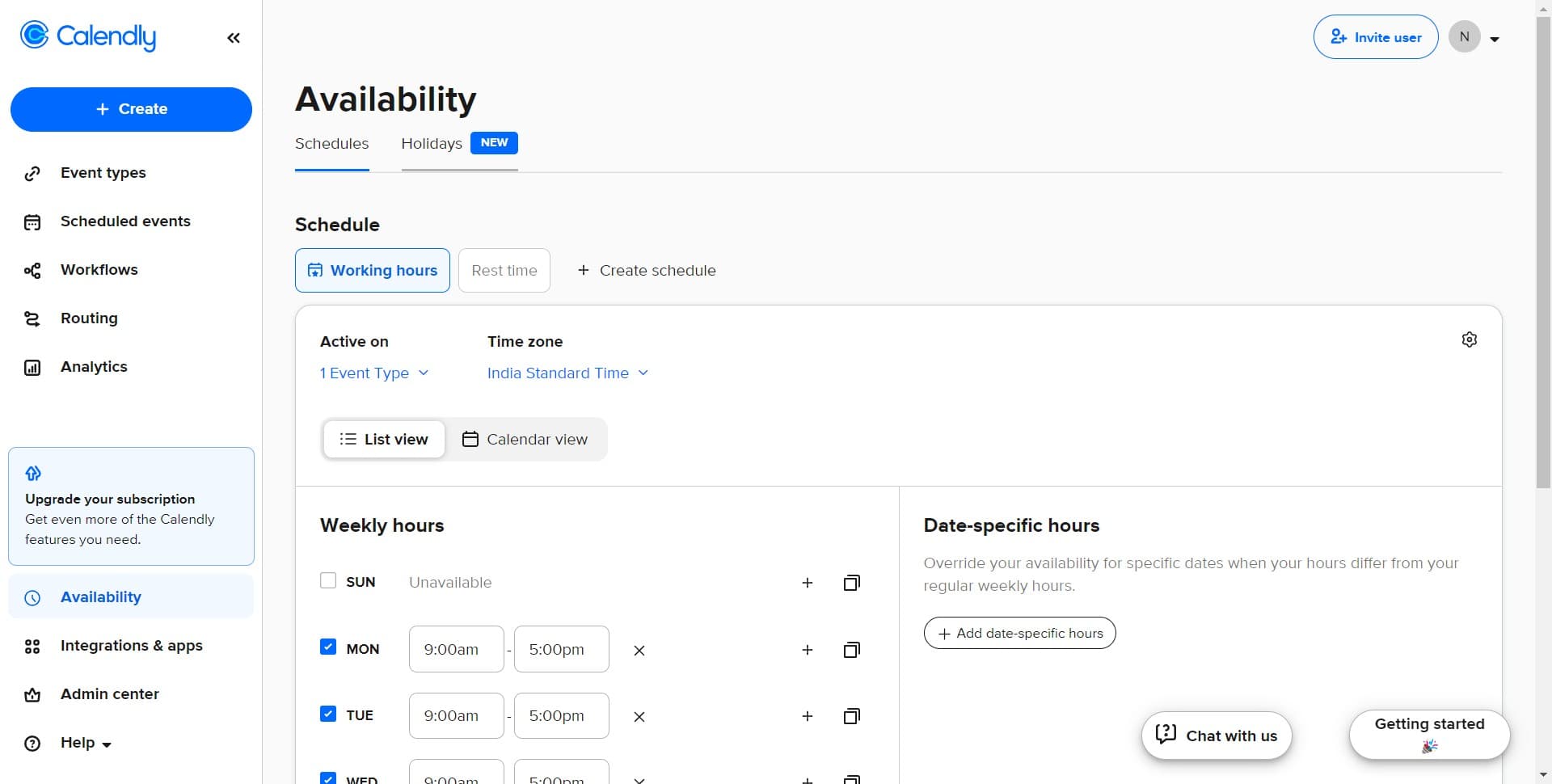
Within the Availability section, you'll see a 'Holidays' option marked as NEW. Click on this option to open the holiday blackout configuration panel.
- 3
Click on Change to modify settings
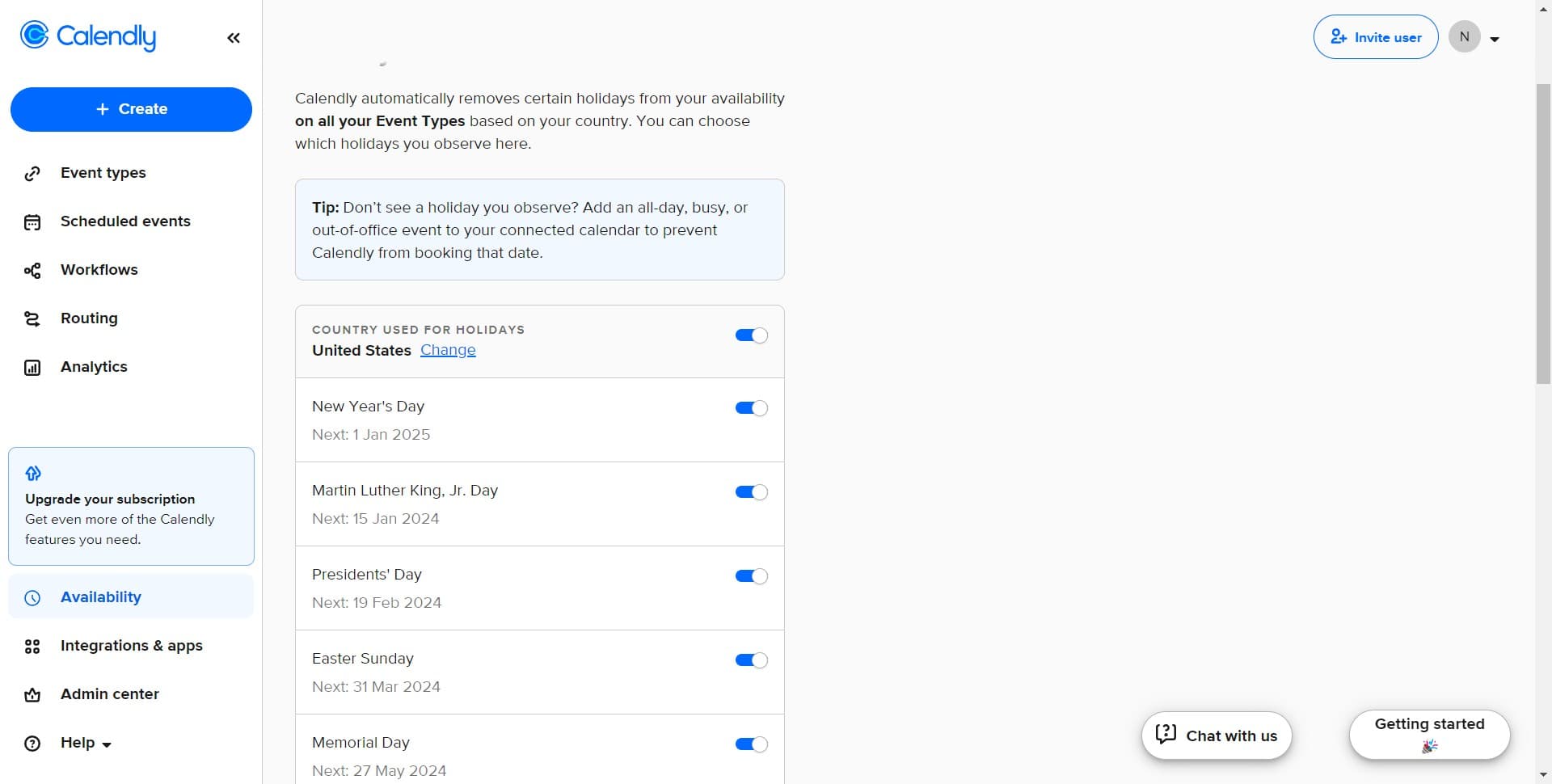
Look for the 'Change' button in the Holidays interface. This button allows you to select or modify which country's holiday calendar you want to apply.
- 4
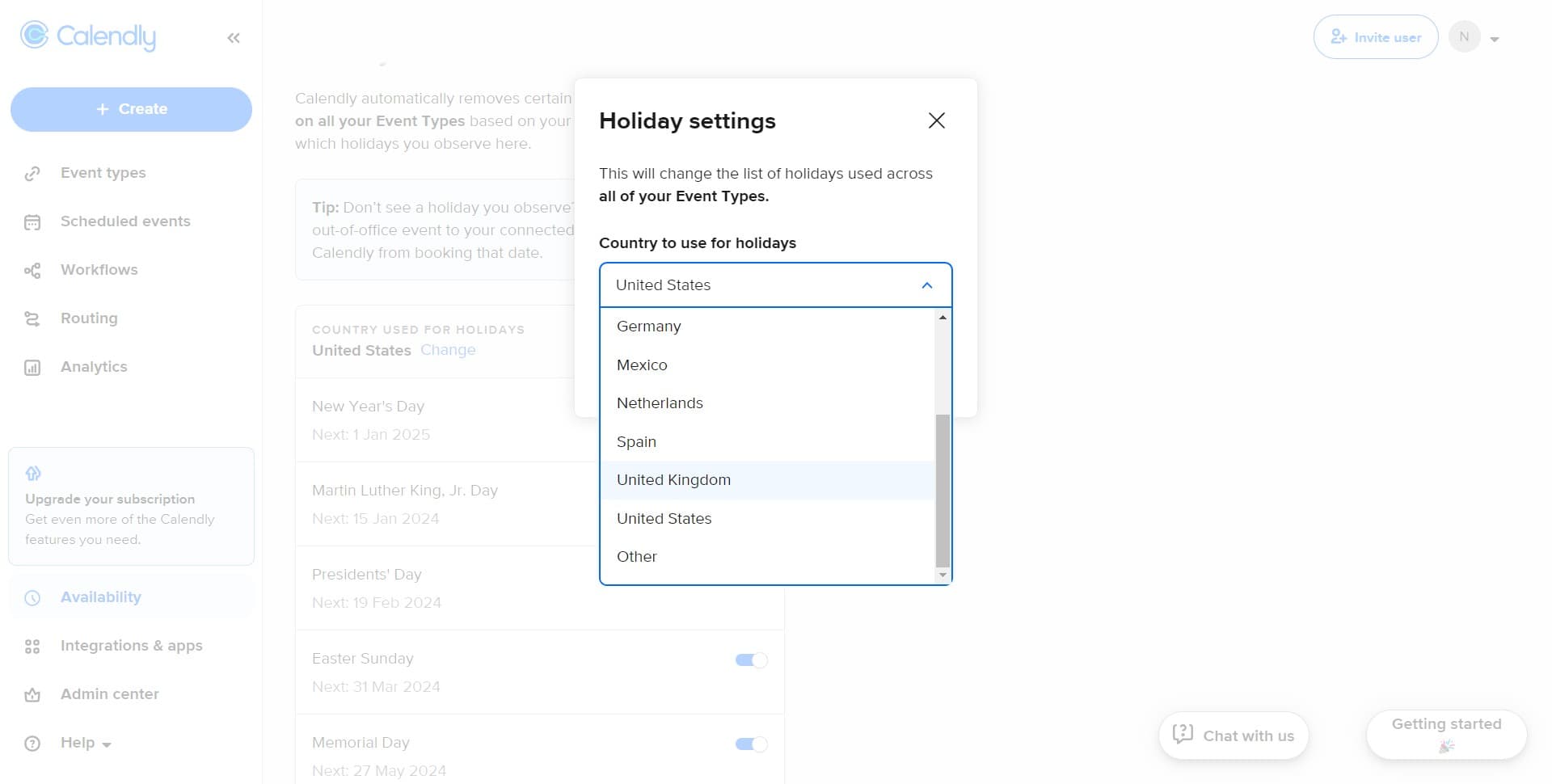
Select United States holidays
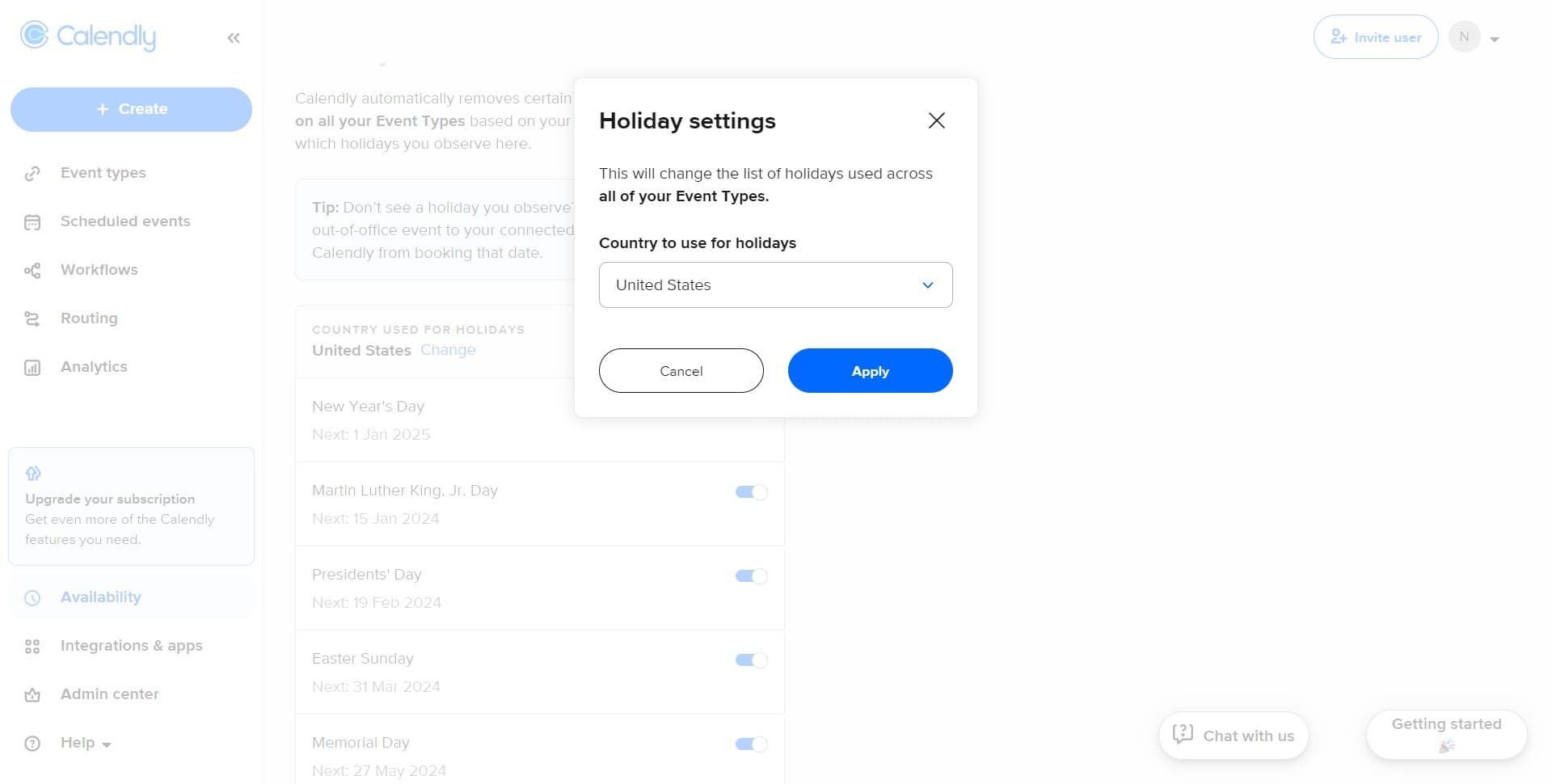
A dropdown or selection menu will appear showing available countries. Click on 'United States' to view and prepare US federal holidays for your calendar.
- 5
Switch to United Kingdom holidays
If you need to add holidays for multiple regions, click on 'United Kingdom' to include UK bank holidays. You can select multiple countries if your schedule serves clients in different regions.
- 6
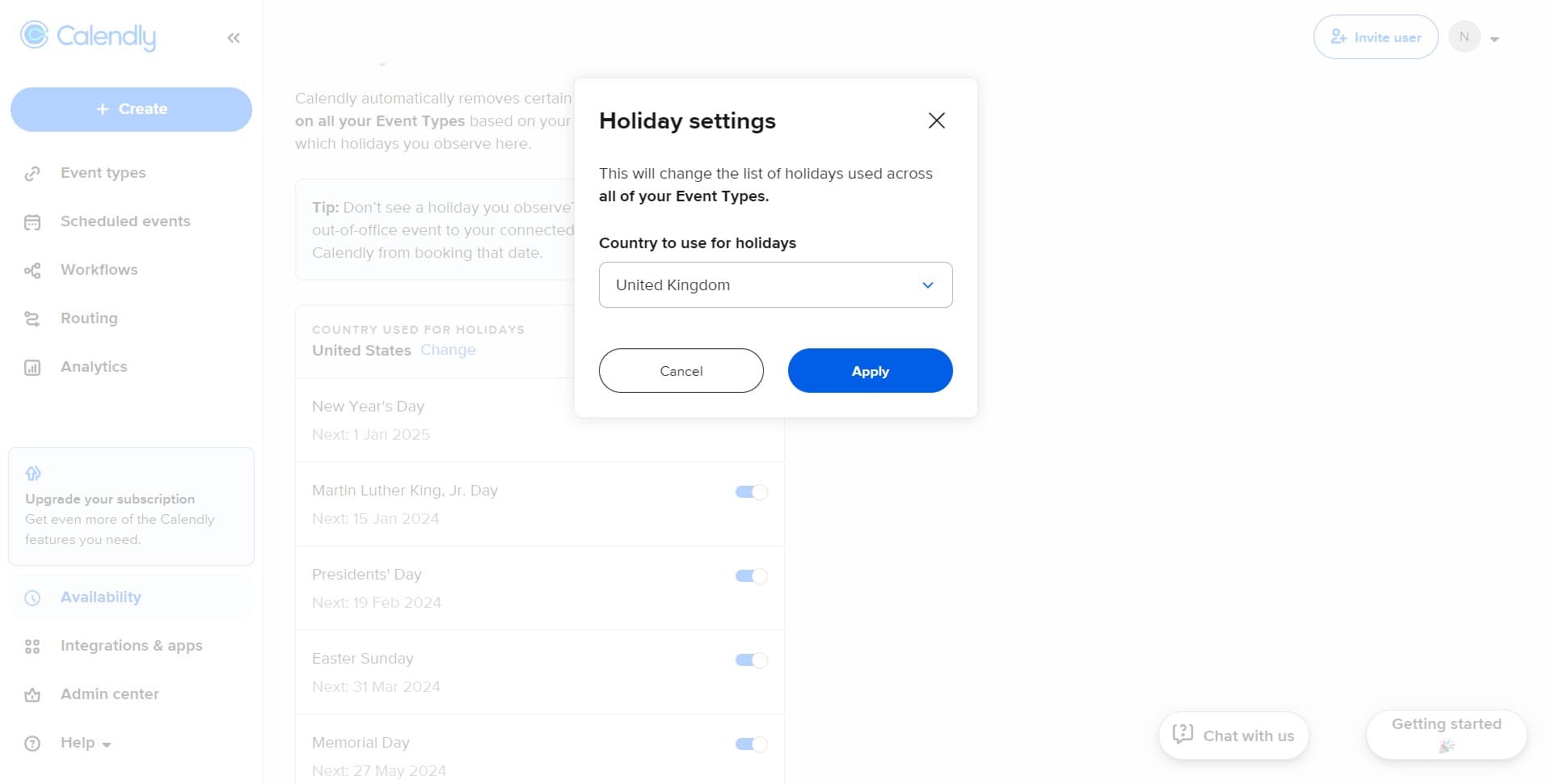
Apply the holiday calendar
After selecting your desired country or countries, click the 'Apply' button to save your holiday blackout settings. Calendly will now automatically block all official holidays for the selected region.
- 7
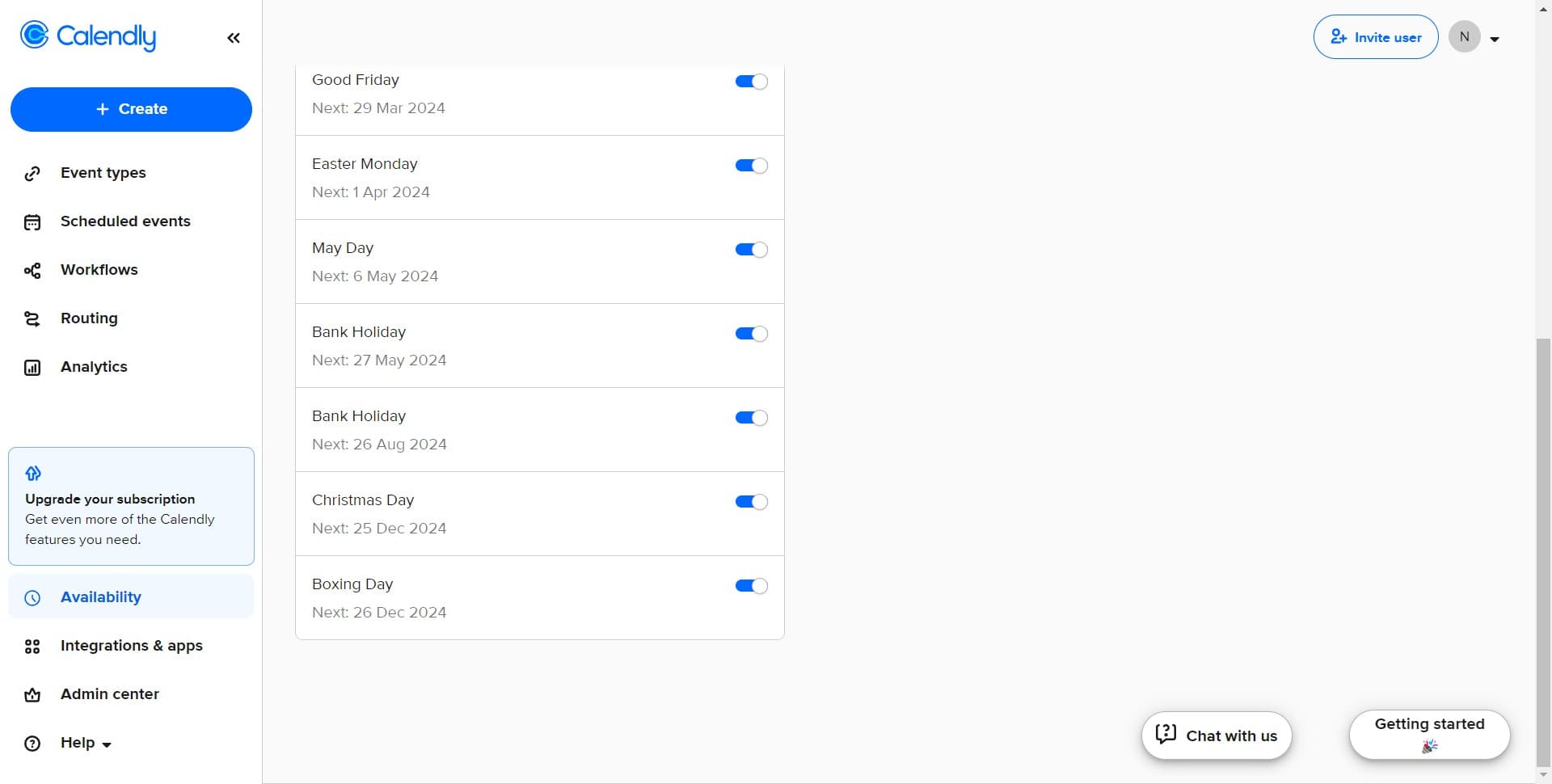
Confirm the changes are saved
Verify that your holiday blackouts have been applied by checking your calendar. The selected holidays should now appear as blocked time, preventing any new bookings during those dates.
Frequently asked questions
Common questions about how to add holidays blackouts in calendly.
Can I apply holiday blackouts for multiple countries at once?
Yes, Calendly allows you to select multiple countries for holiday blackouts. Simply follow the steps to choose each country you serve before clicking Apply, and all selected holidays will be blocked on your calendar.
Will holiday blackouts affect my existing appointments?
No, holiday blackouts only prevent new bookings from being made during those dates. Your existing confirmed appointments will remain unchanged, allowing you to manage them separately if needed.
What happens if I need to work on a holiday that's been blocked out?
You can manually adjust your calendar for specific holidays. Calendly allows you to override blackouts on a case-by-case basis if you decide to make yourself available during a particular holiday.
Are holiday blackouts automatically updated each year?
Yes, once you apply holiday blackouts for a country, Calendly automatically includes those holidays for future years. You won't need to manually reconfigure them annually unless you want to change your selected countries.
Can I customize which specific holidays are blocked?
Holiday blackout selection in Calendly works on a country-wide basis, applying all official holidays for that region. For customized blocking of specific dates, you can manually block individual dates outside of the holiday blackout feature.