How to schedule a one-off meeting in Calendly

Scheduling a one-off meeting in Calendly allows you to set up a single, specific meeting without creating a recurring event. This feature is ideal for interviews, consultations, or any standalone appointment where you need to define exact times and connection details upfront.
Quick summary
In this tutorial, you'll learn how to create a one-off meeting in Calendly by setting specific times, choosing your meeting platform, and generating a shareable link. You'll walk through each stage from initial creation to publishing your meeting for others to access.
Why this matters
One-off meetings are essential for managing ad-hoc appointments that don't follow a regular schedule. By setting them up properly in Calendly with integrated video conferencing and a direct link, you eliminate back-and-forth scheduling emails and ensure all attendees have the information they need immediately.
Step-by-step guide
- 1
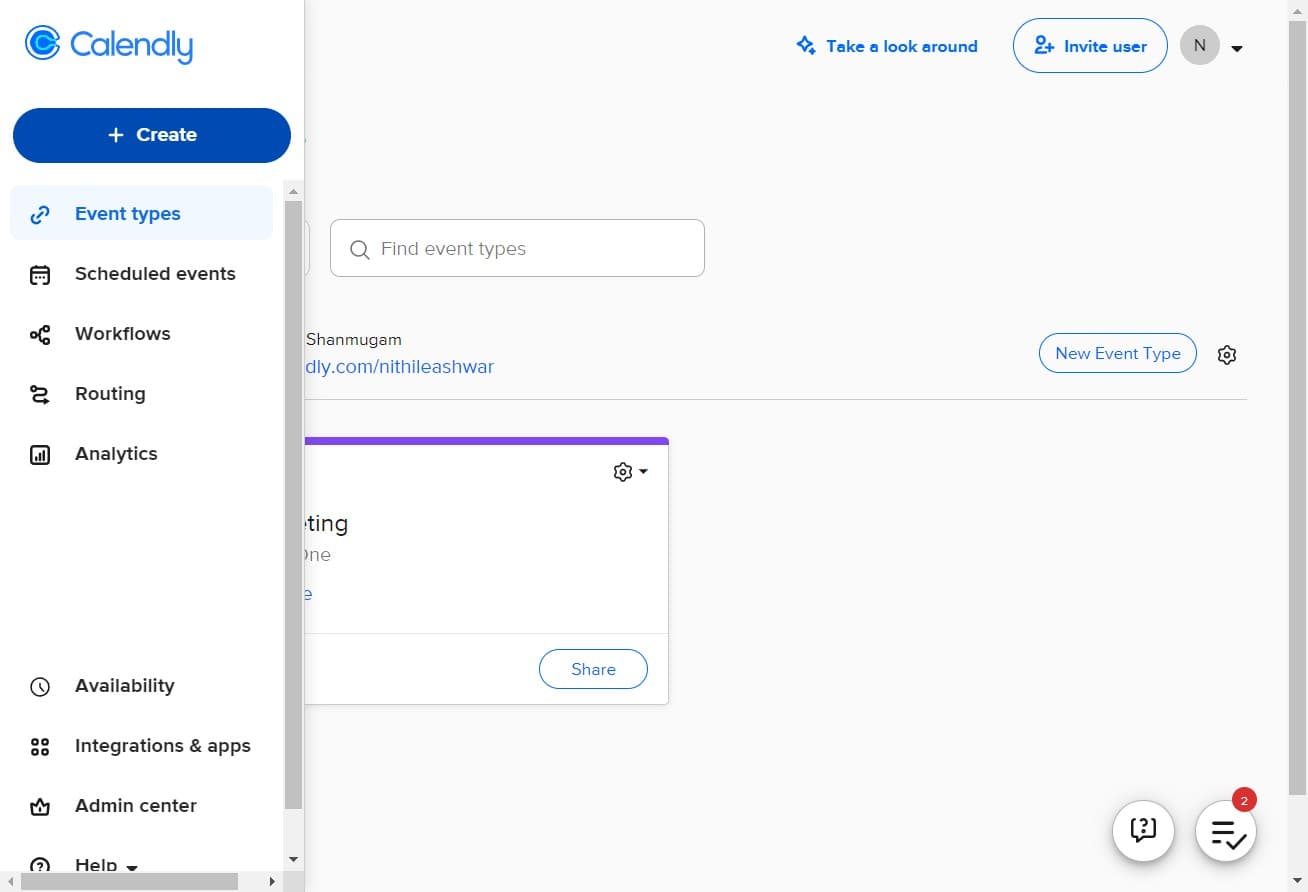
Click on Create
Start by locating and clicking the Create button in your Calendly dashboard. This opens the menu for creating new event types.
- 2
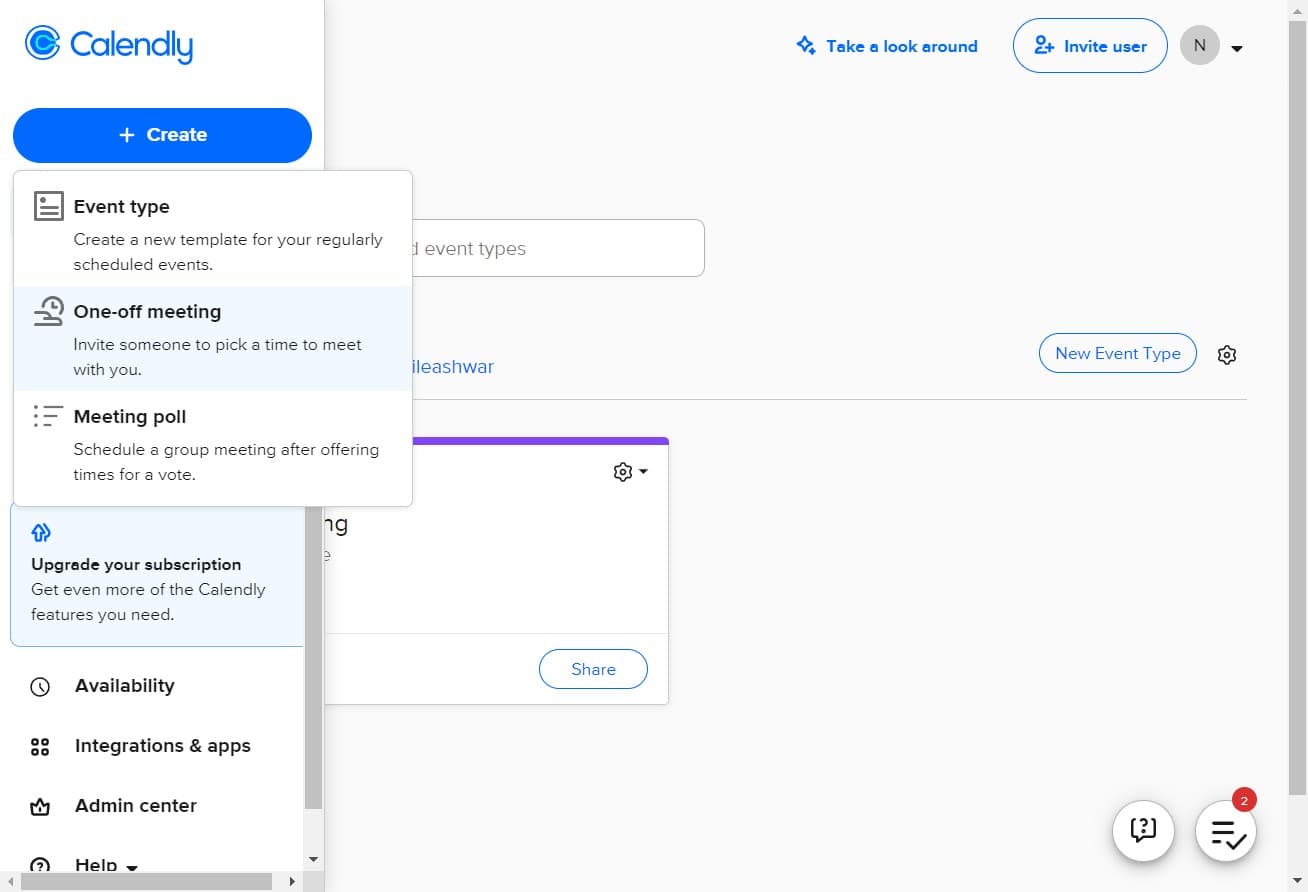
Select One-off meeting
From the dropdown menu, click on One-off meeting to start setting up a standalone event. This distinguishes your meeting from recurring or availability-based events.
- 3
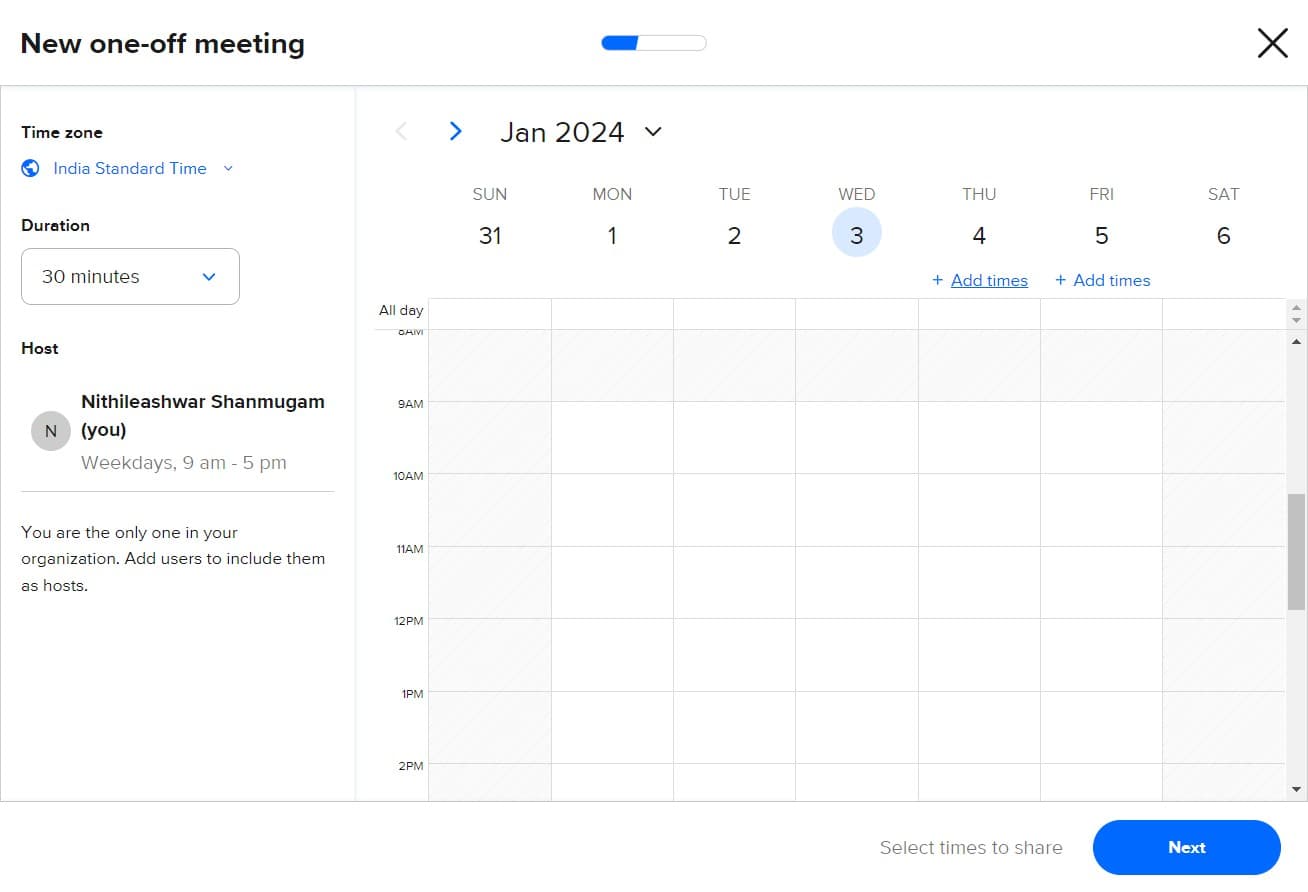
Click on Add times
Select the Add times option to specify when this meeting can take place. You'll define the exact date and time slots available for this one-off event.
- 4
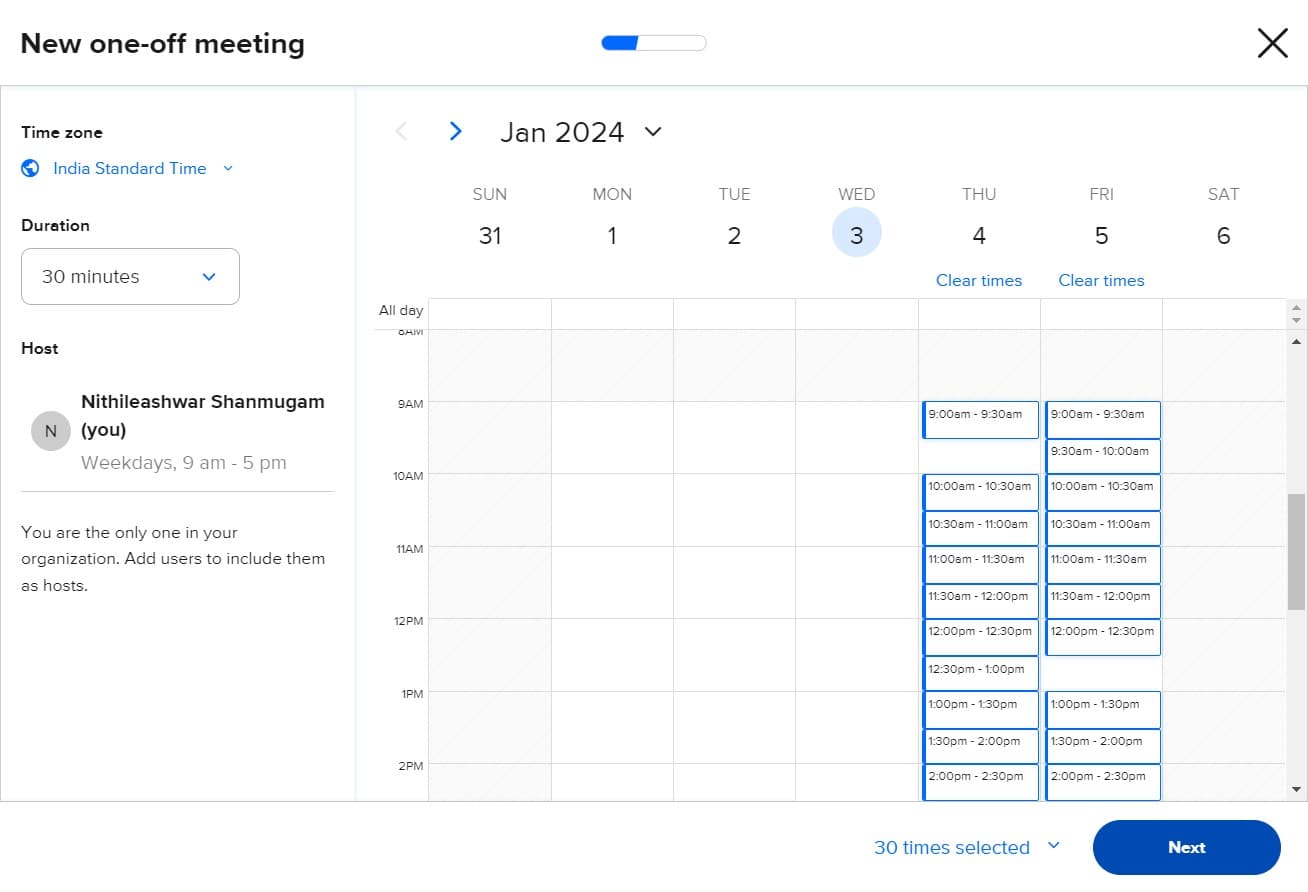
Proceed to Next
Click Next to move forward in the setup process. This confirms your time selections and advances you to the meeting details configuration.
- 5
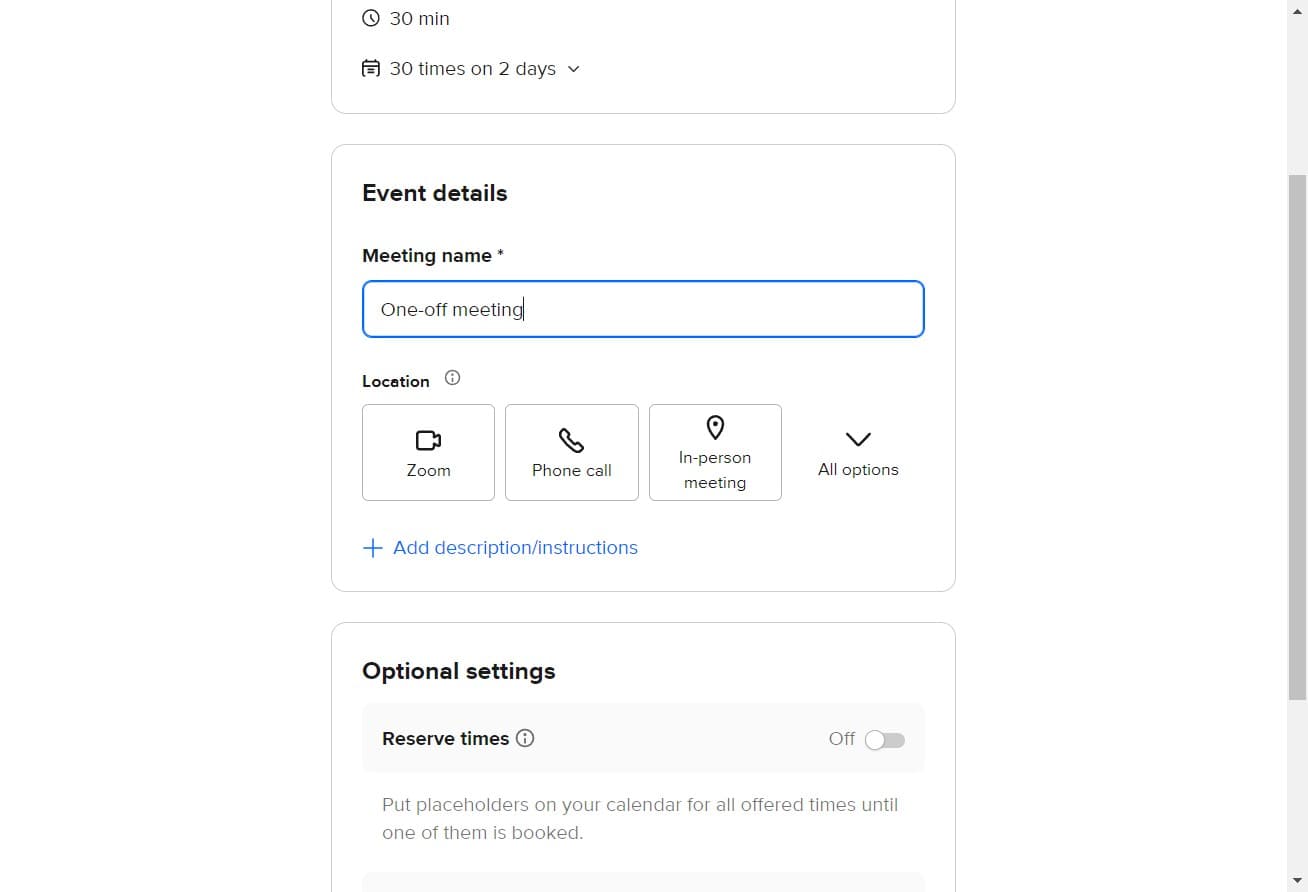
Configure meeting settings
Review and adjust the meeting details on this screen, including duration, title, and other essential information. Make any necessary modifications before proceeding.
- 6
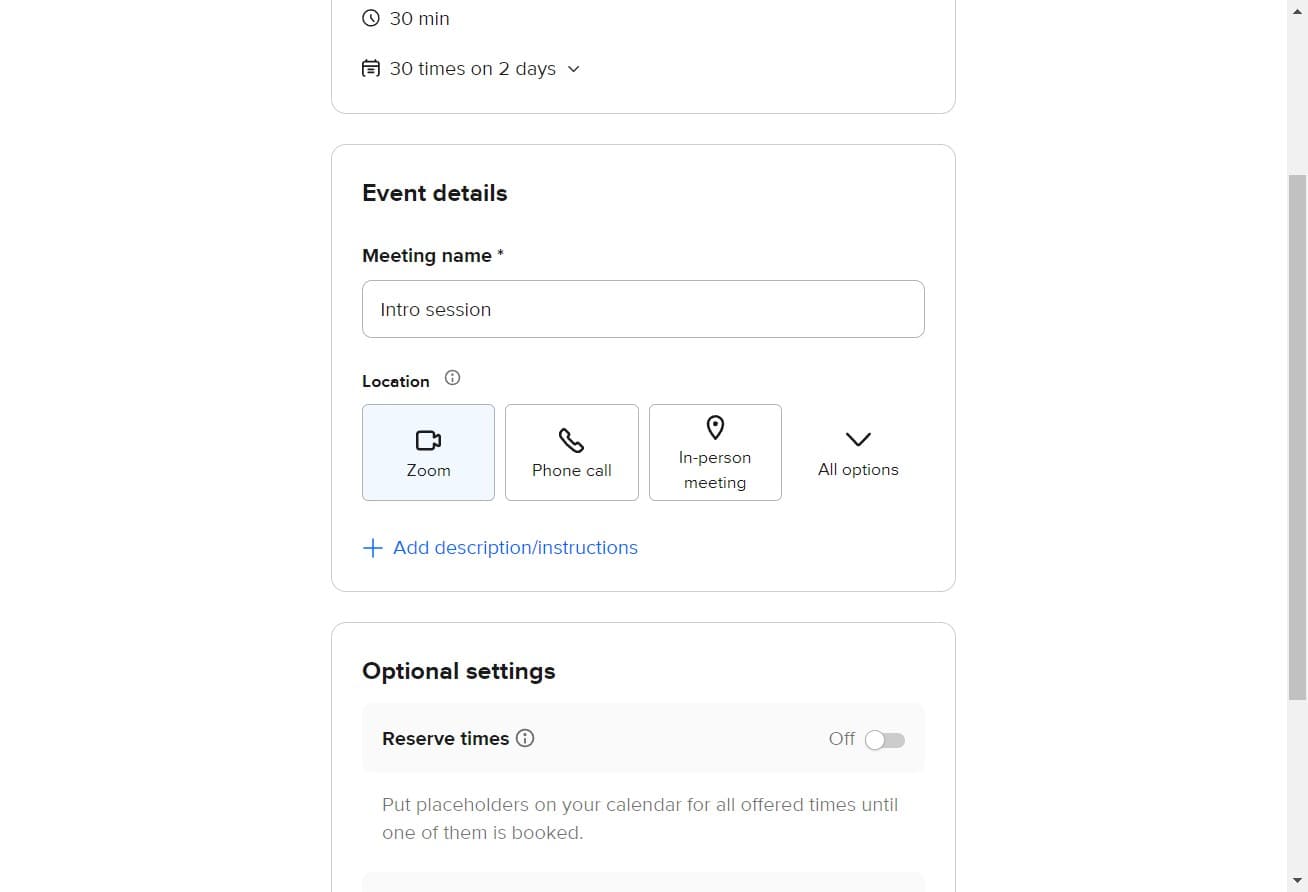
Select Zoom as platform
Click on Zoom to integrate video conferencing into your meeting. This automatically generates a Zoom link that will be included in your meeting invitation.
- 7
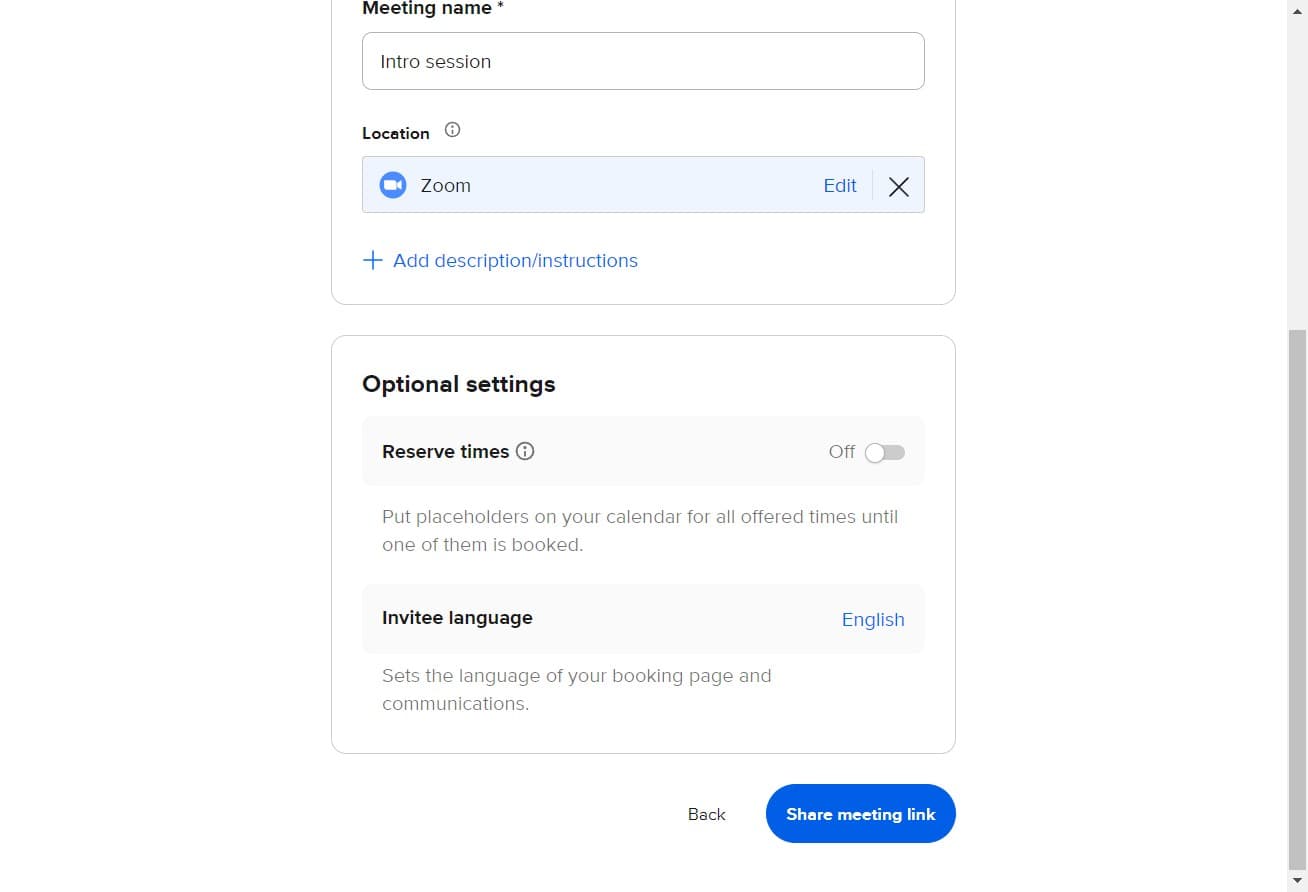
Click Share meeting link
Select the Share meeting link option to generate a unique URL for your one-off meeting. This link can be sent to invitees for scheduling.
- 8
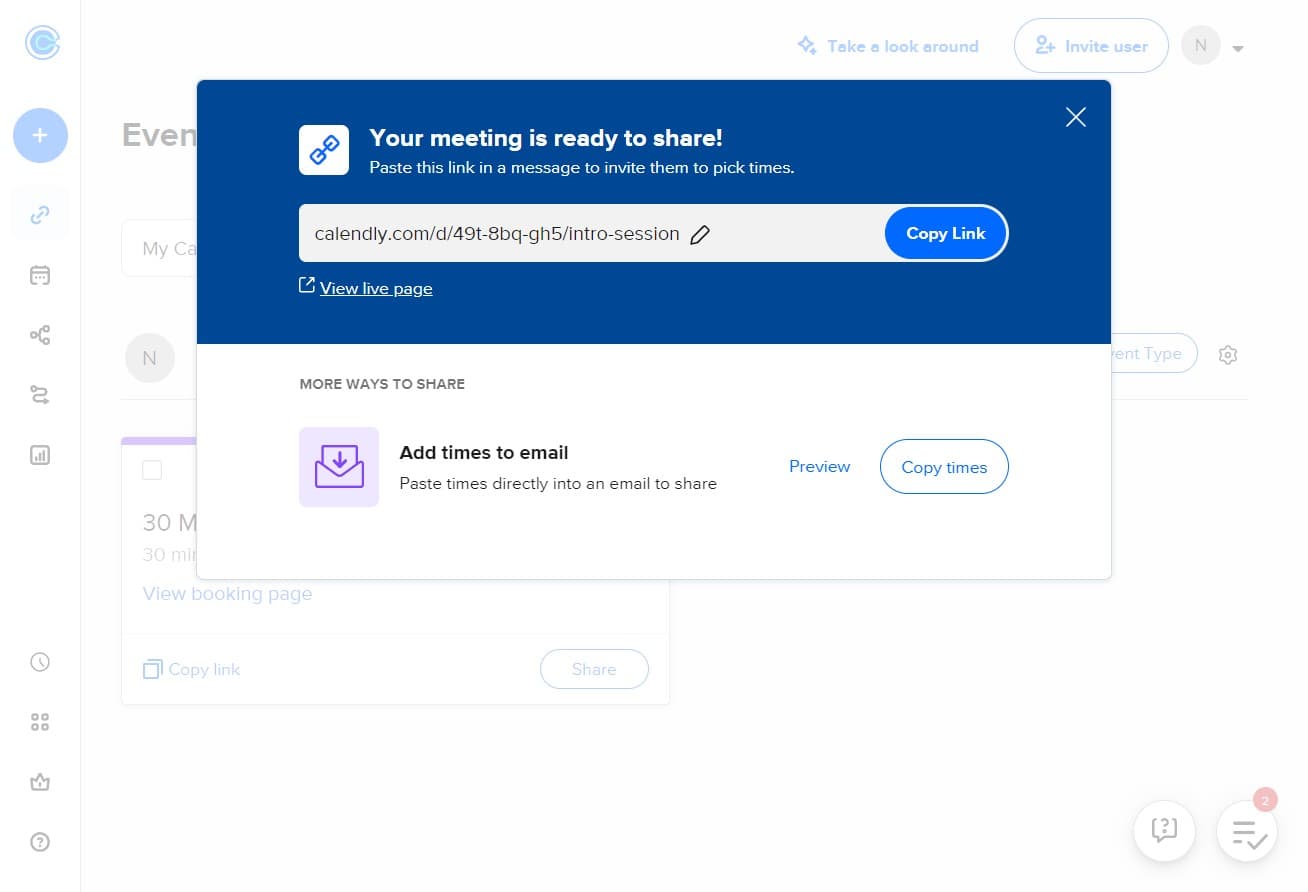
View live page
Click View live page to see how your meeting appears to potential attendees. This allows you to preview the booking page before sharing it.
- 9
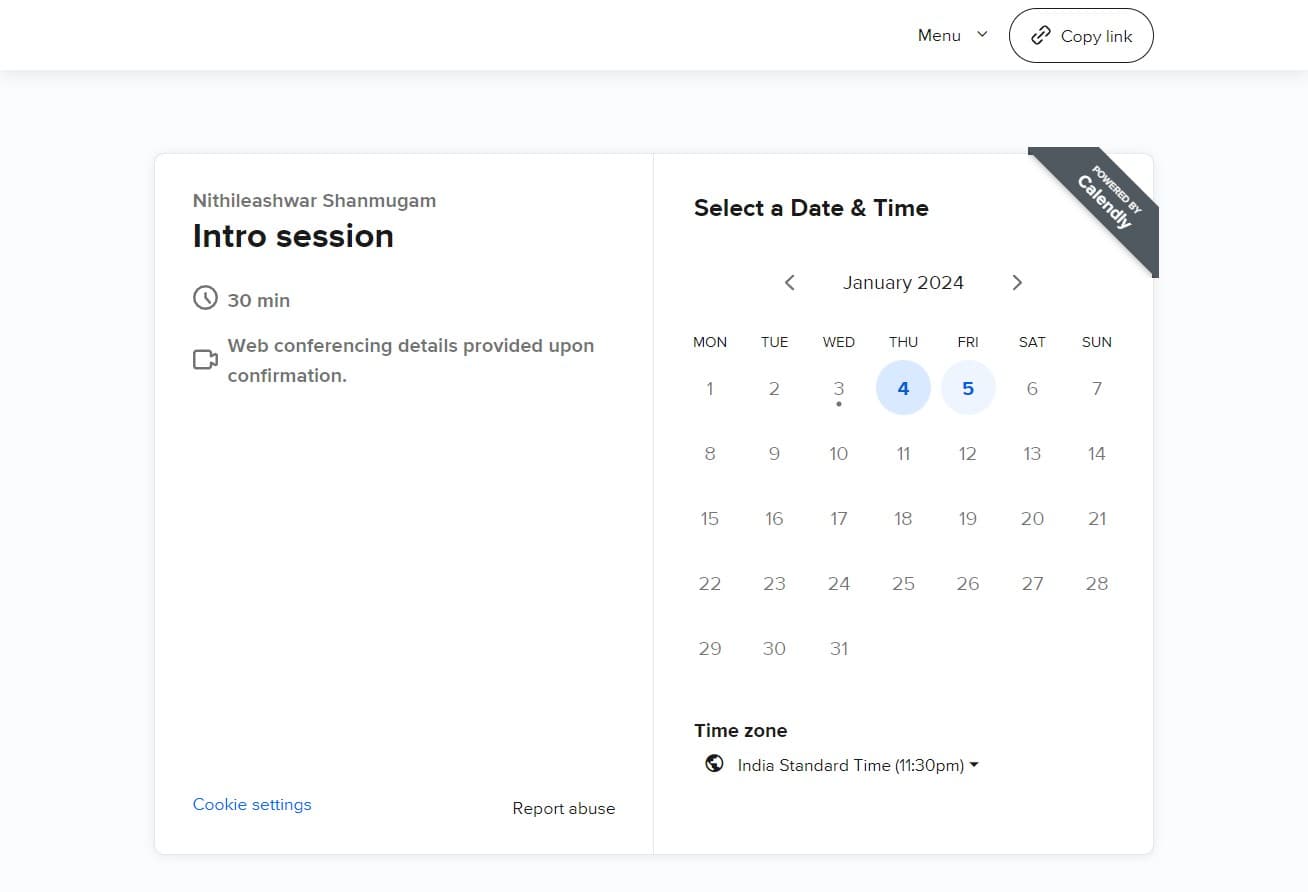
Select the date
Click on the date number (in this case, 4) to choose the specific day for your meeting. The calendar will highlight your selected date.
- 10
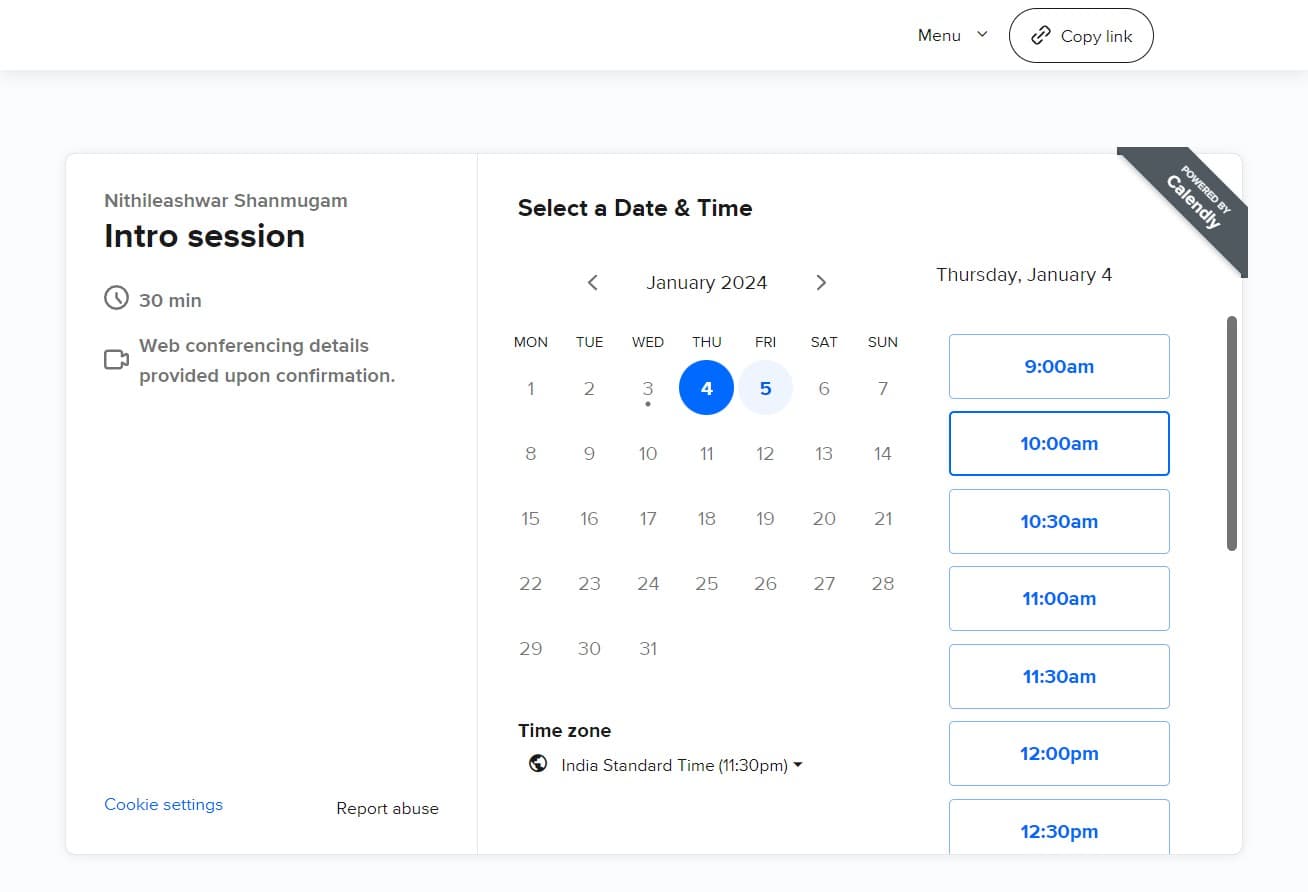
Choose meeting time
Click on 10:00am to set your preferred meeting start time. Select from the available time slots displayed in the calendar.
- 11
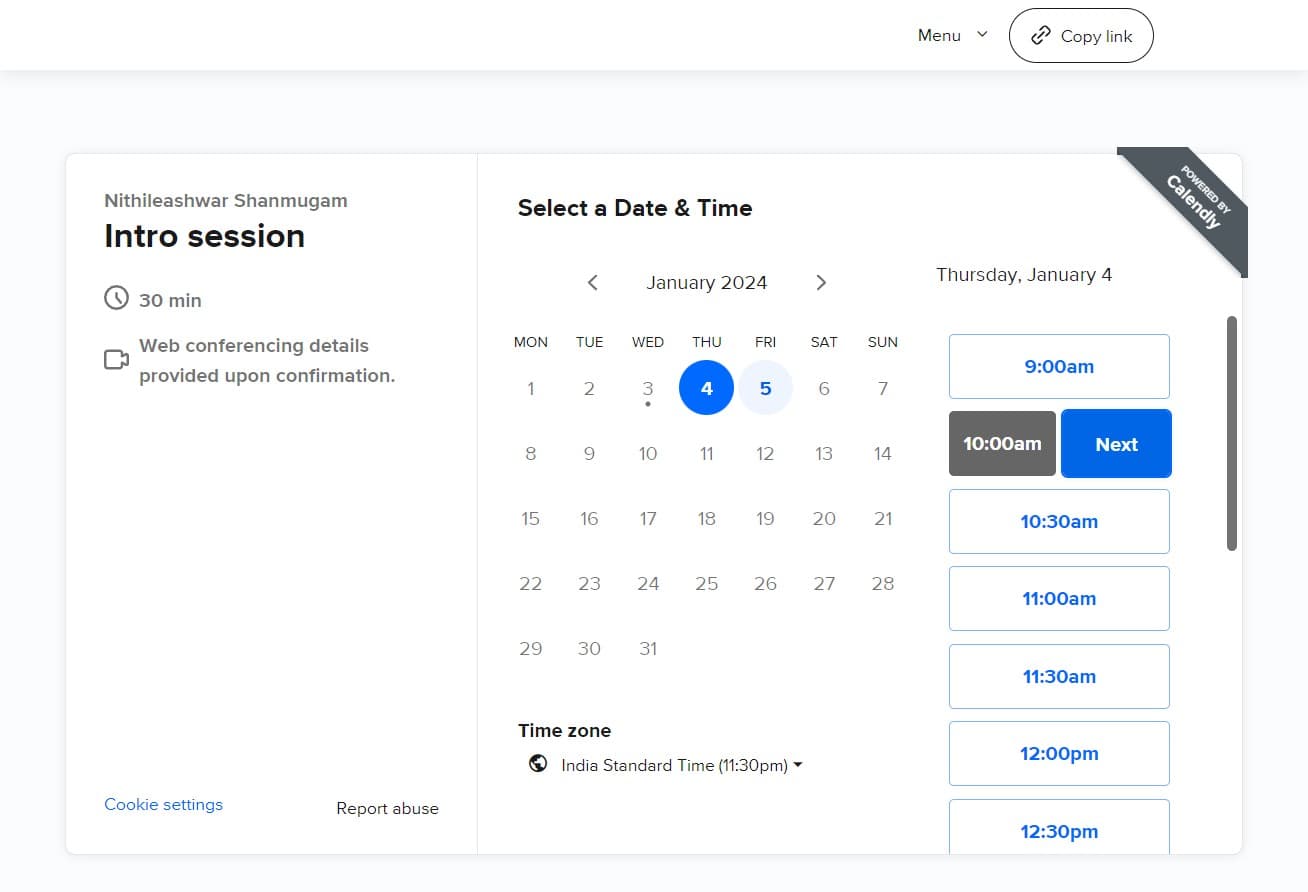
Proceed to confirmation
Click Next to review your selected date and time before finalizing. This step confirms all your meeting parameters are correct.
- 12
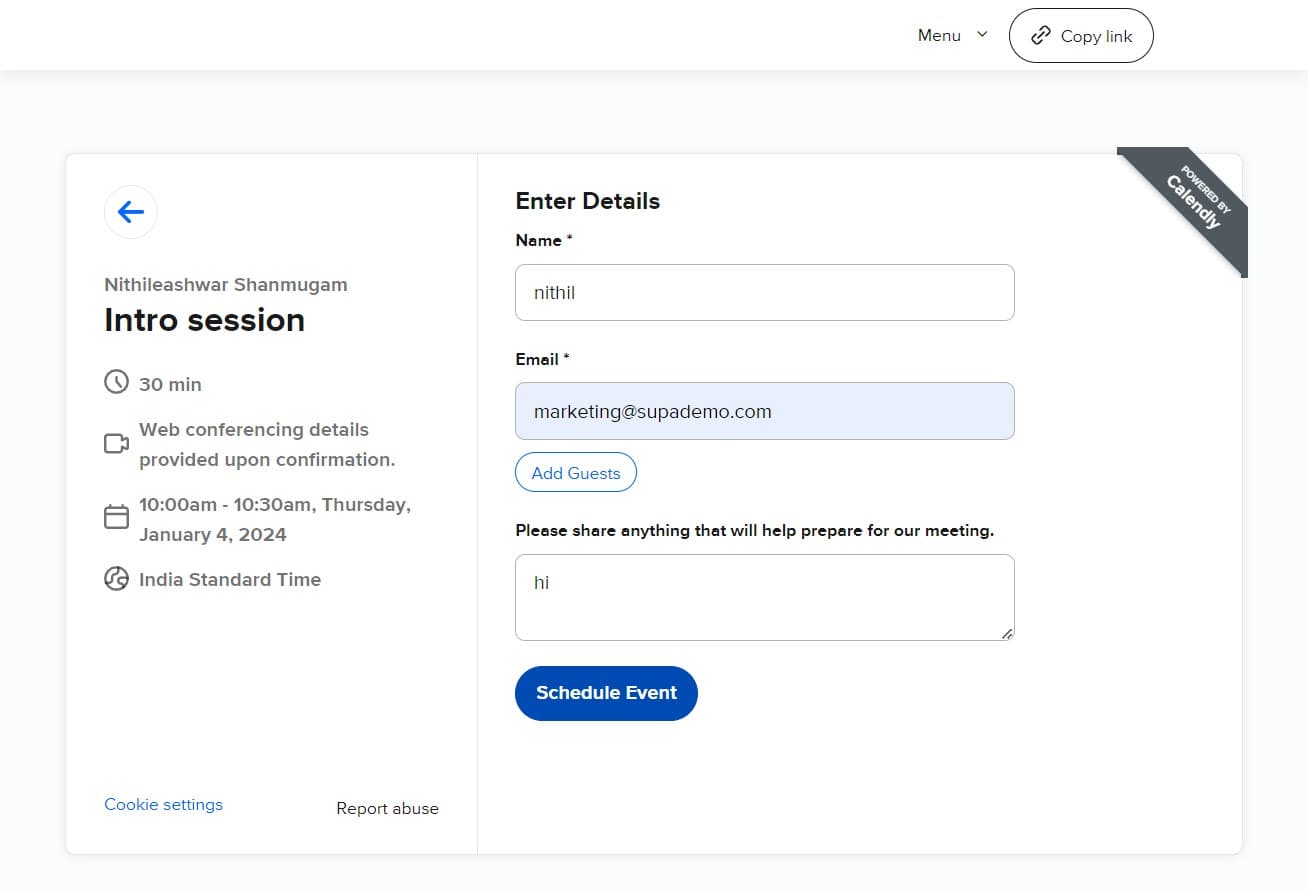
Schedule the event
Click Schedule Event to complete the creation process and publish your one-off meeting. Your meeting is now live and ready to be shared with attendees.
Frequently asked questions
Common questions about how to schedule a one-off meeting in calendly.
Yes, you can edit a one-off meeting after it's been created by accessing it from your Calendly dashboard. Simply click on the event and modify the time, duration, or other details as needed. Keep in mind that if attendees have already booked, changes may affect their calendars depending on your notification settings.
A one-off meeting is a single event scheduled for a specific date and time, while recurring events repeat on a set schedule. One-off meetings are ideal for unique appointments like job interviews or consultations, whereas recurring events work better for regular check-ins or standing meetings.
Yes, Calendly supports multiple video conferencing platforms including Google Meet, Microsoft Teams, and others. During the setup process, you can select your preferred platform instead of Zoom before generating your meeting link.
Once you share the meeting link with invitees, they can click it to view your available time slot and confirm their attendance. The confirmation generates a calendar invitation with all meeting details, including the Zoom link if video conferencing is enabled.
By default, one-off meetings can only be booked once. However, you can configure Calendly to allow multiple guests to book the same time slot if needed. This setting can be adjusted in your event details under participant permissions.