How to integrate Zoom into your Calendly link

Integrating Zoom into your Calendly scheduling link allows your clients to join video meetings directly from their booking confirmation. This seamless connection eliminates manual meeting setup and ensures everyone has the correct video conference details. Learn how to enable this integration in just a few clicks.
Quick summary
In this tutorial, you'll connect your Zoom account to Calendly and configure a 30-minute meeting event type to automatically include Zoom video conferencing. You'll authorize the integration, navigate to your event settings, and enable Zoom for your selected meeting duration. By the end, your Calendly bookings will automatically generate Zoom meeting links for participants.
Why this matters
Connecting Zoom to Calendly streamlines your scheduling workflow and improves the client experience by eliminating extra steps. When meeting links are automatically generated and sent to attendees, you reduce no-shows and miscommunications about how to join. This integration is essential for remote teams, consultants, and service providers who conduct video meetings regularly.
Step-by-step guide
- 1
Access Integrations & apps
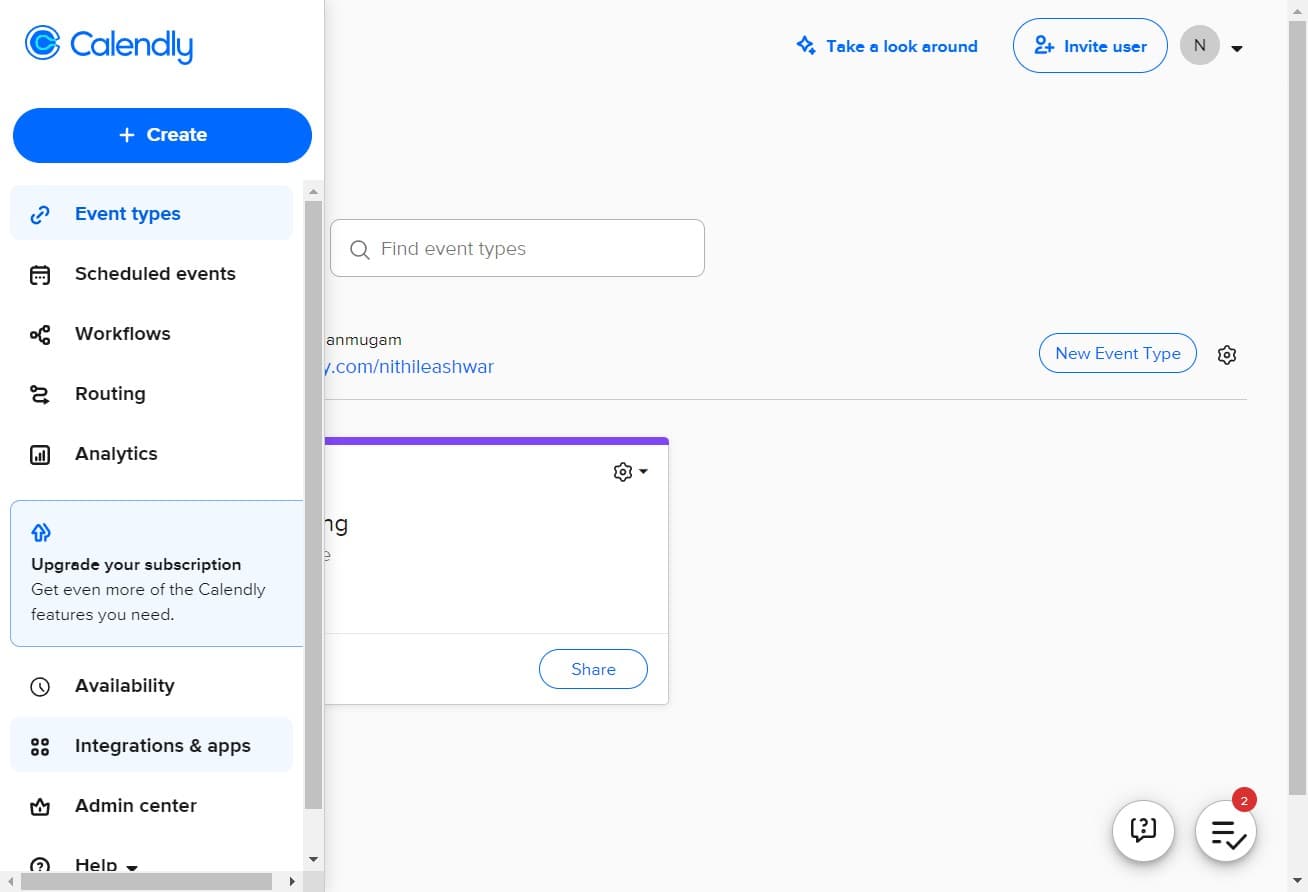
Log into your Calendly account and locate the main navigation menu. Click on "Integrations & apps" to view all available third-party connections and integrations for your account.
- 2
Find Zoom integration option
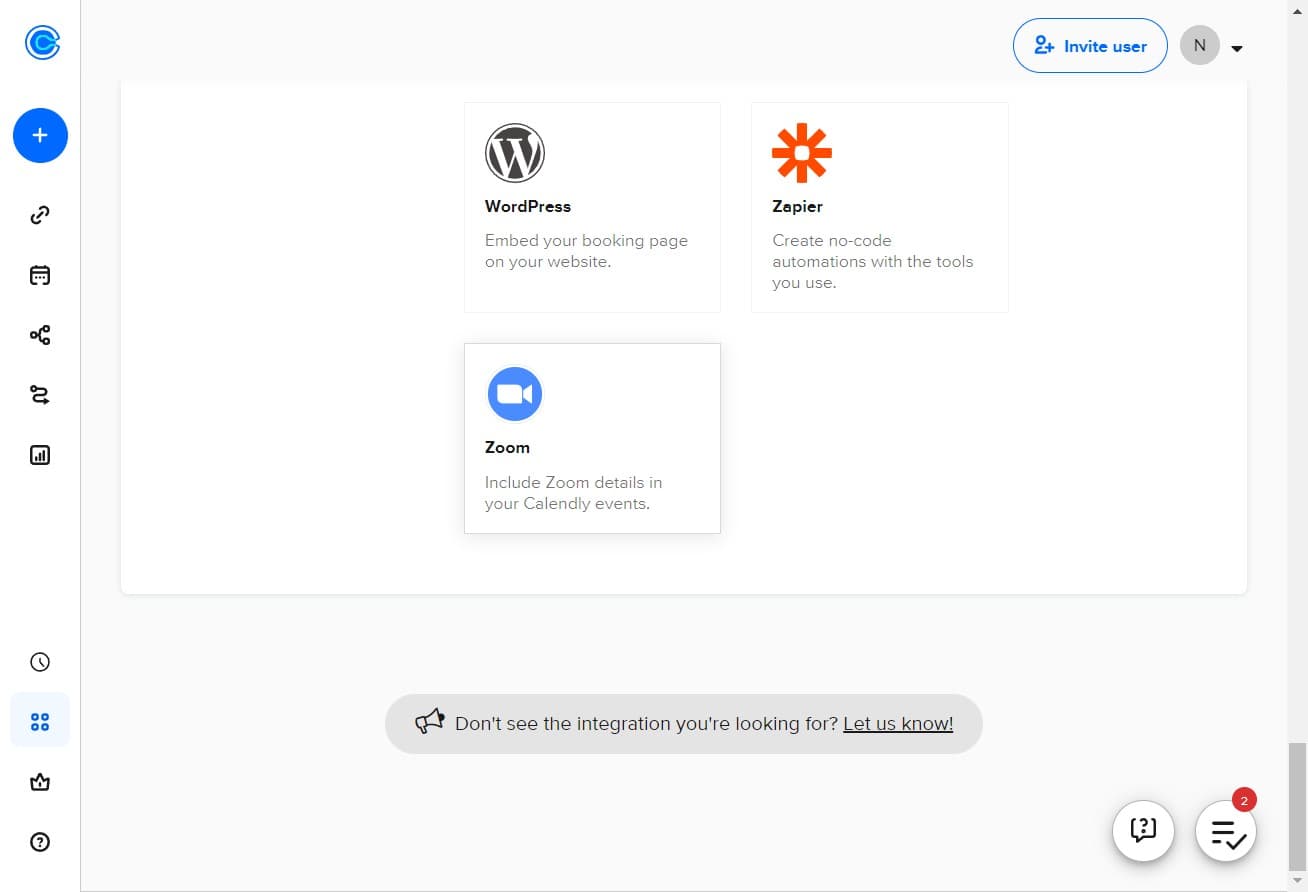
Browse the integrations marketplace to locate the Zoom integration. This section displays all available apps you can connect to Calendly.
- 3
Click Connect Zoom
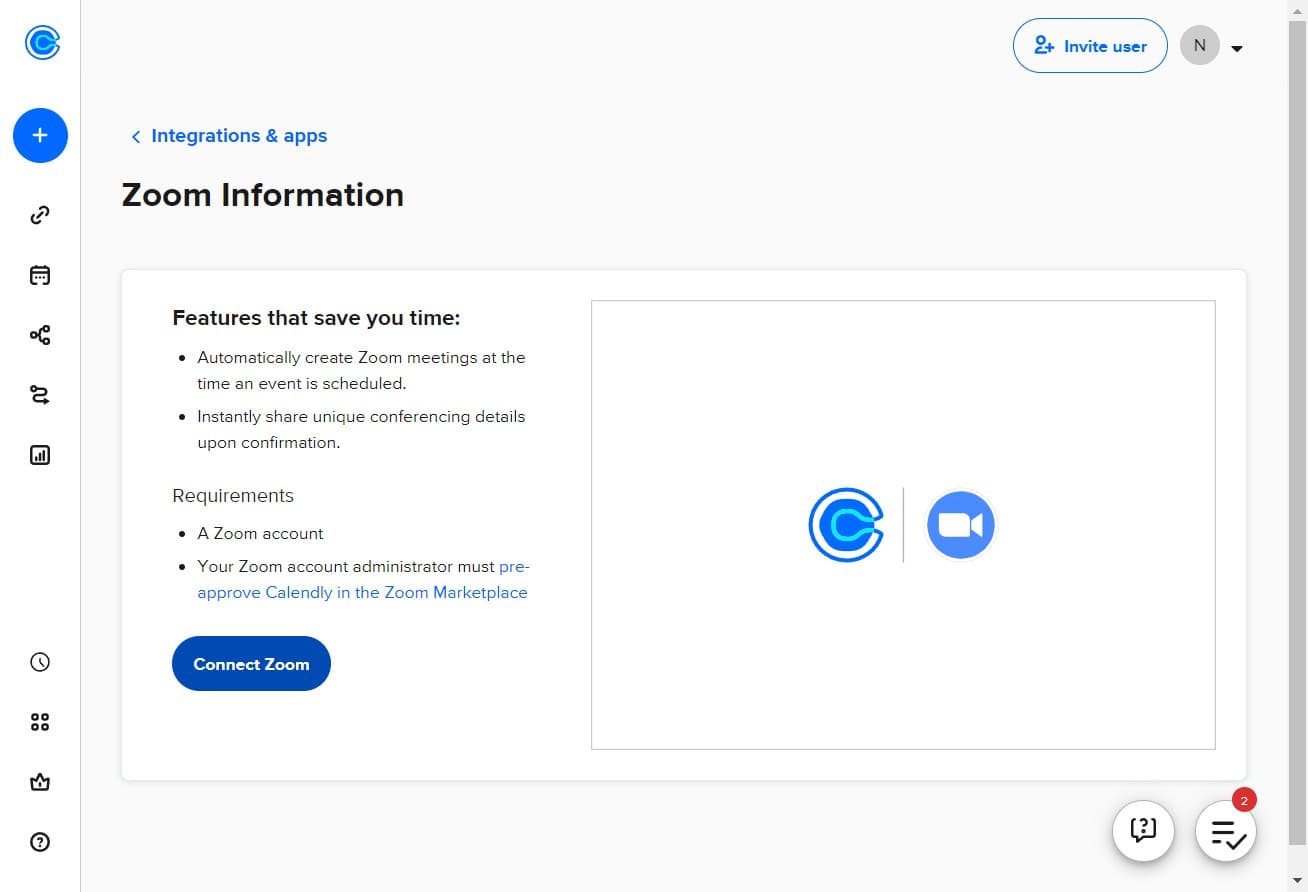
Select the "Connect Zoom" button to initiate the integration process. This will begin the authorization workflow between Calendly and your Zoom account.
- 4
Sign in to your Zoom account
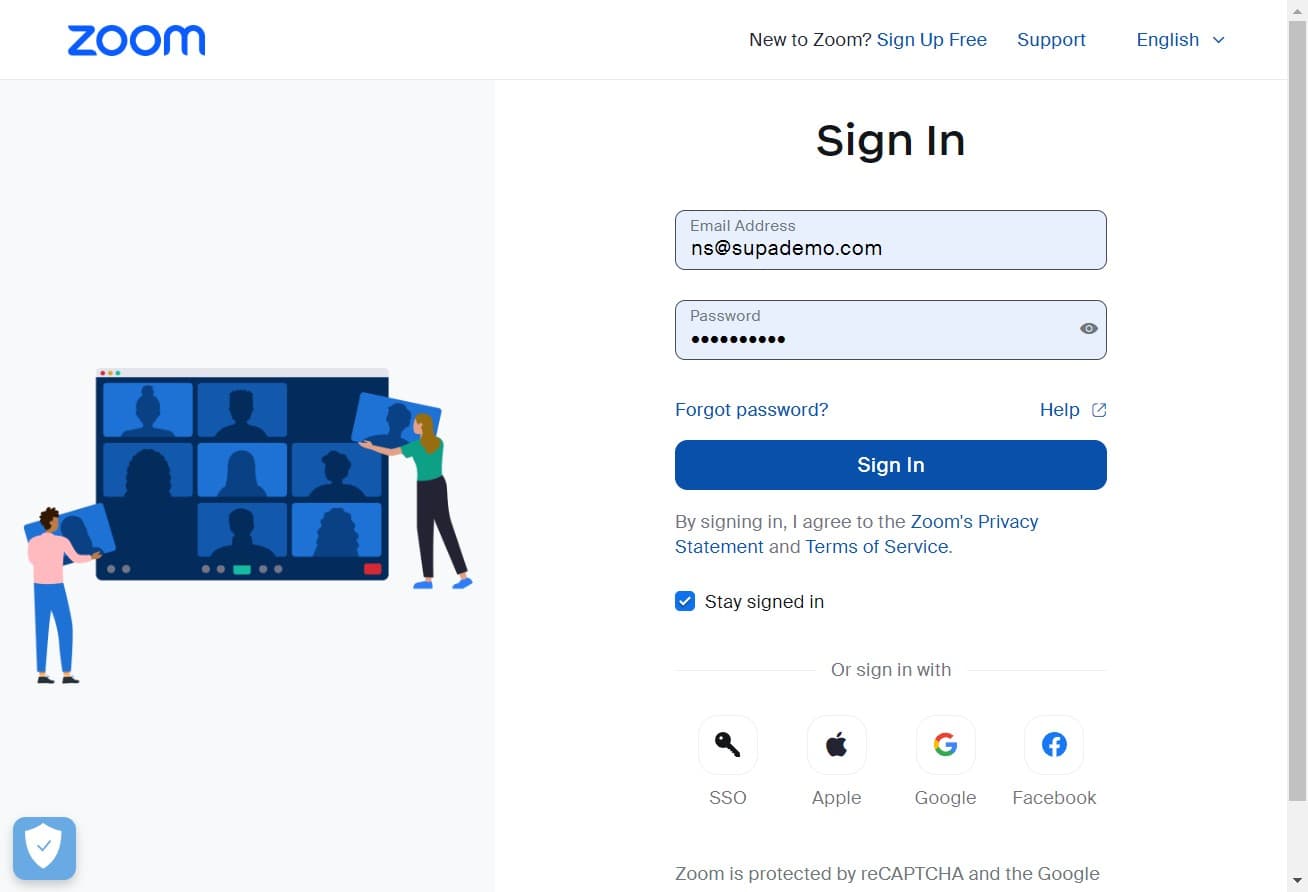
Click on "Sign In" and enter your Zoom credentials to authenticate. You'll be redirected to Zoom's login page where you provide your email and password.
- 5
Authorize the connection
Review the permissions Calendly is requesting from your Zoom account. This step ensures Calendly can create and manage meeting links on your behalf.
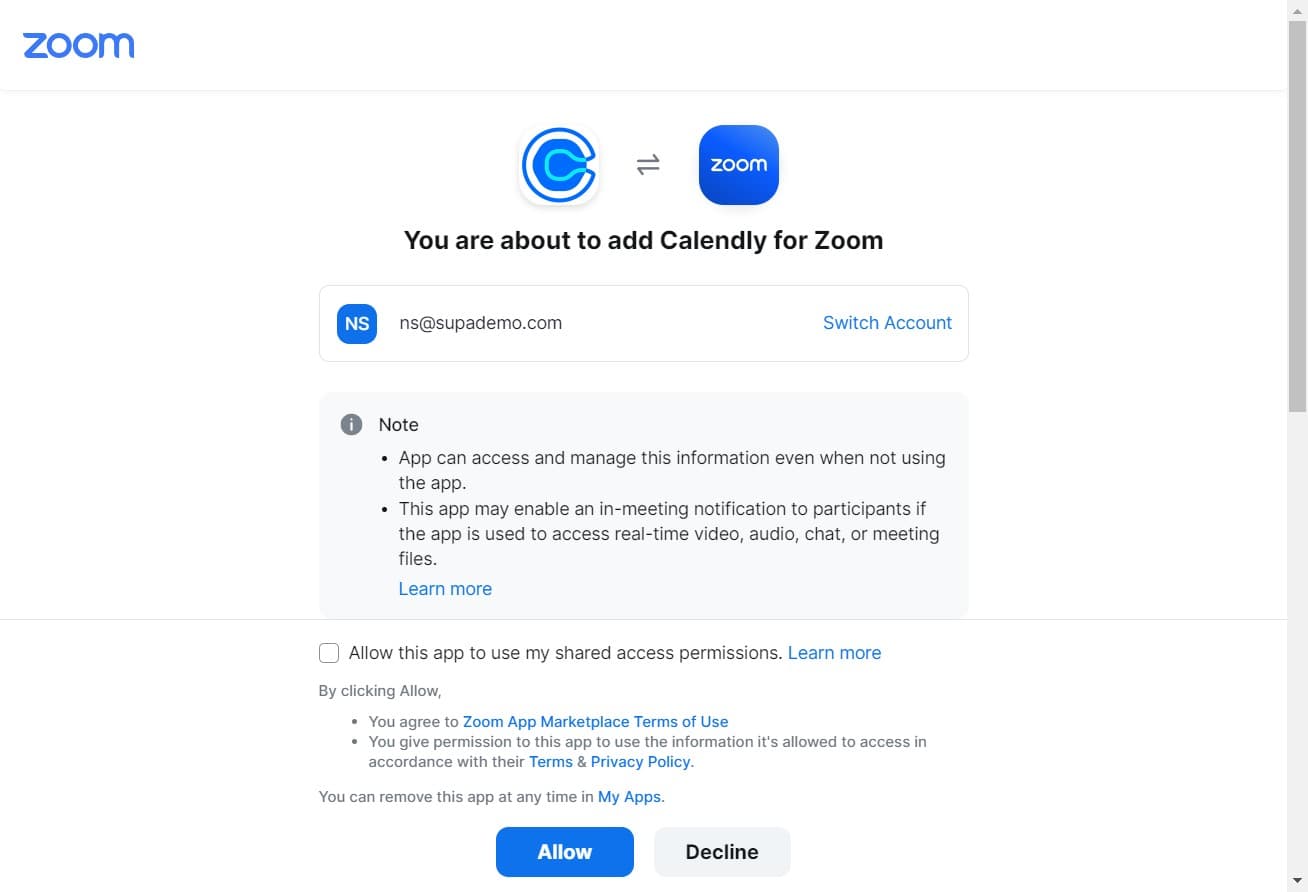
- 6
Grant Calendly access
Click "Allow" to grant Calendly permission to access your Zoom account and create meeting links. This completes the authorization process.
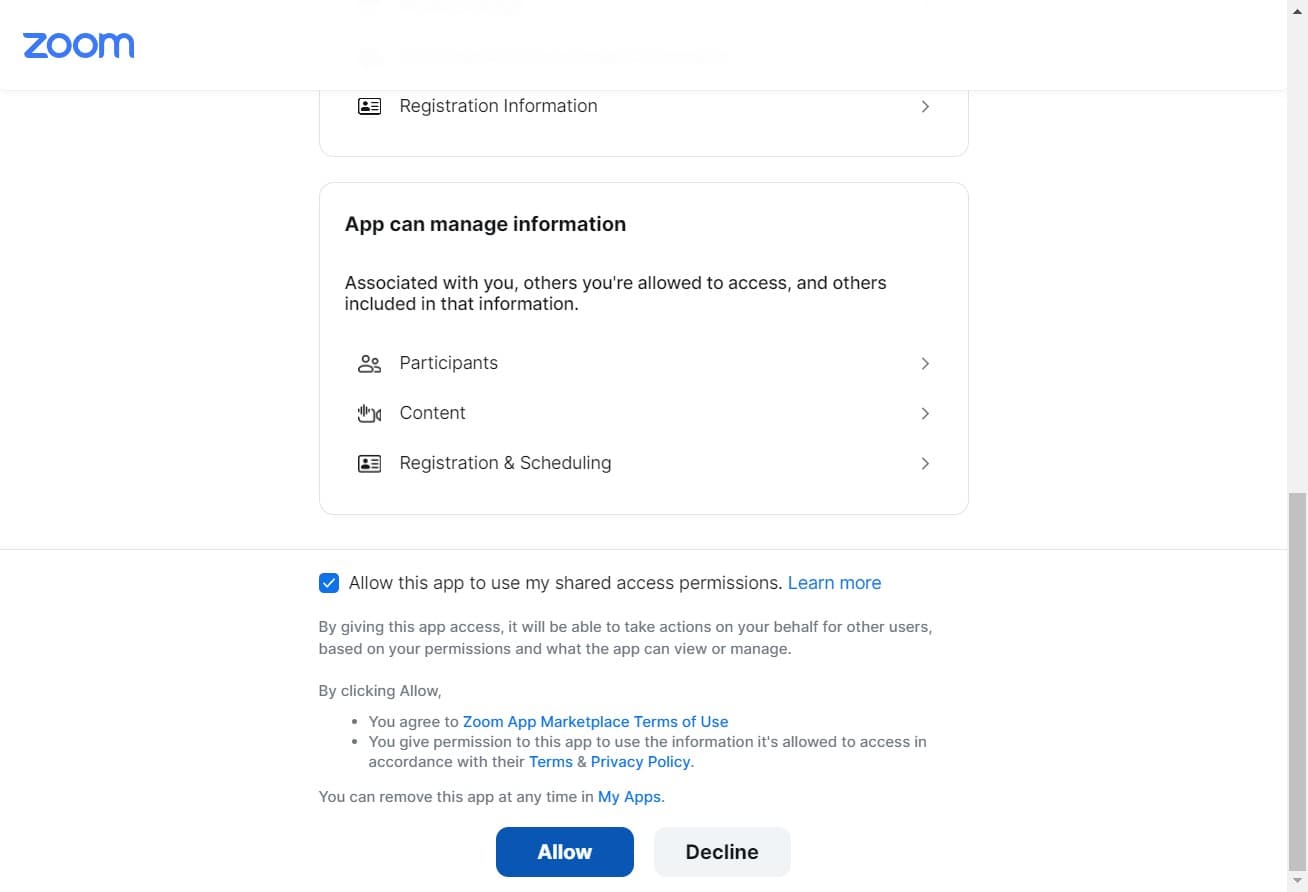
- 7
Navigate to event types
Click on "Go to event types" to proceed to your Calendly event configuration. This takes you to the list of meeting types you've created.
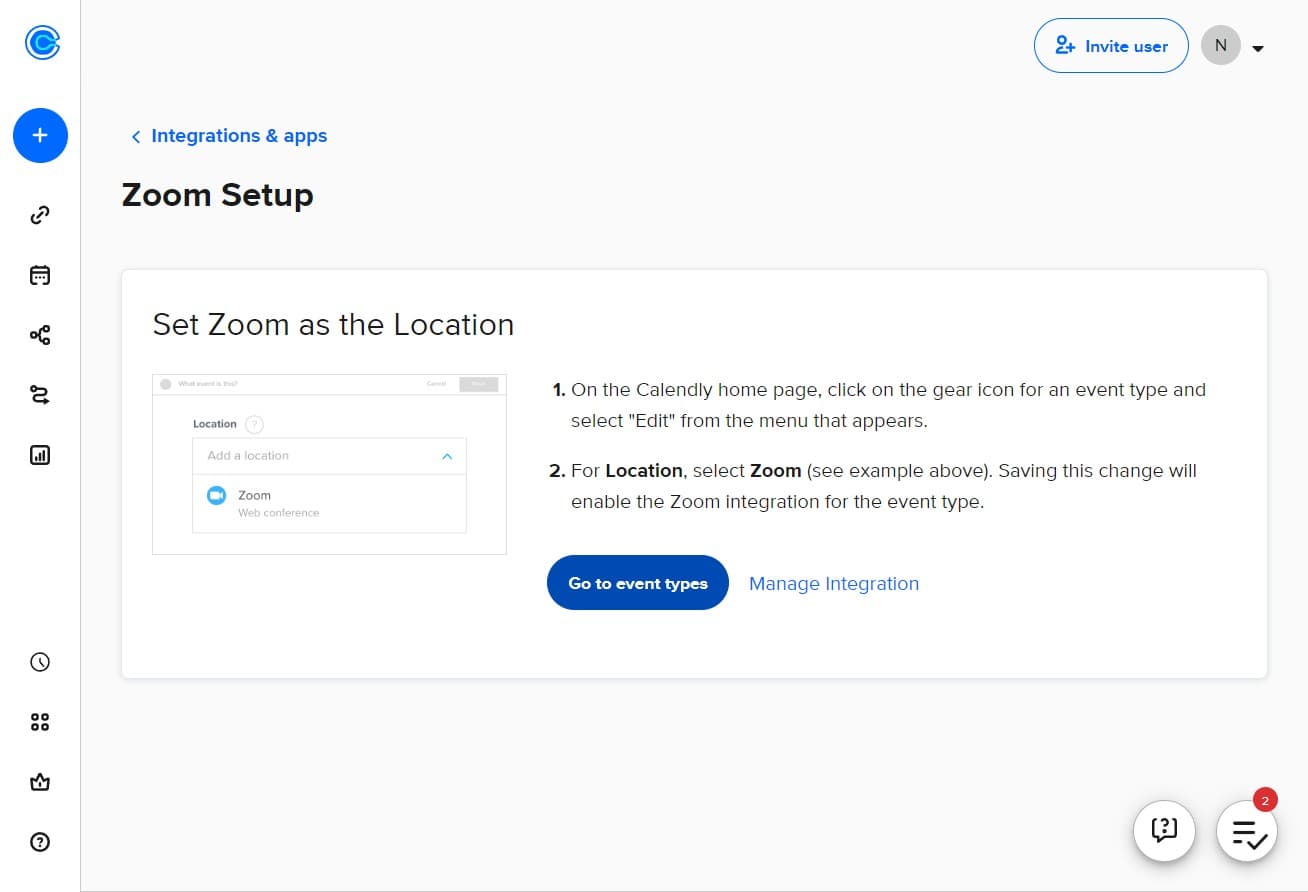
- 8
Select the 30-minute meeting
Click on "30 Minute Meeting settings" to open the configuration page for this specific event type. This is the meeting duration you want to enable Zoom for.
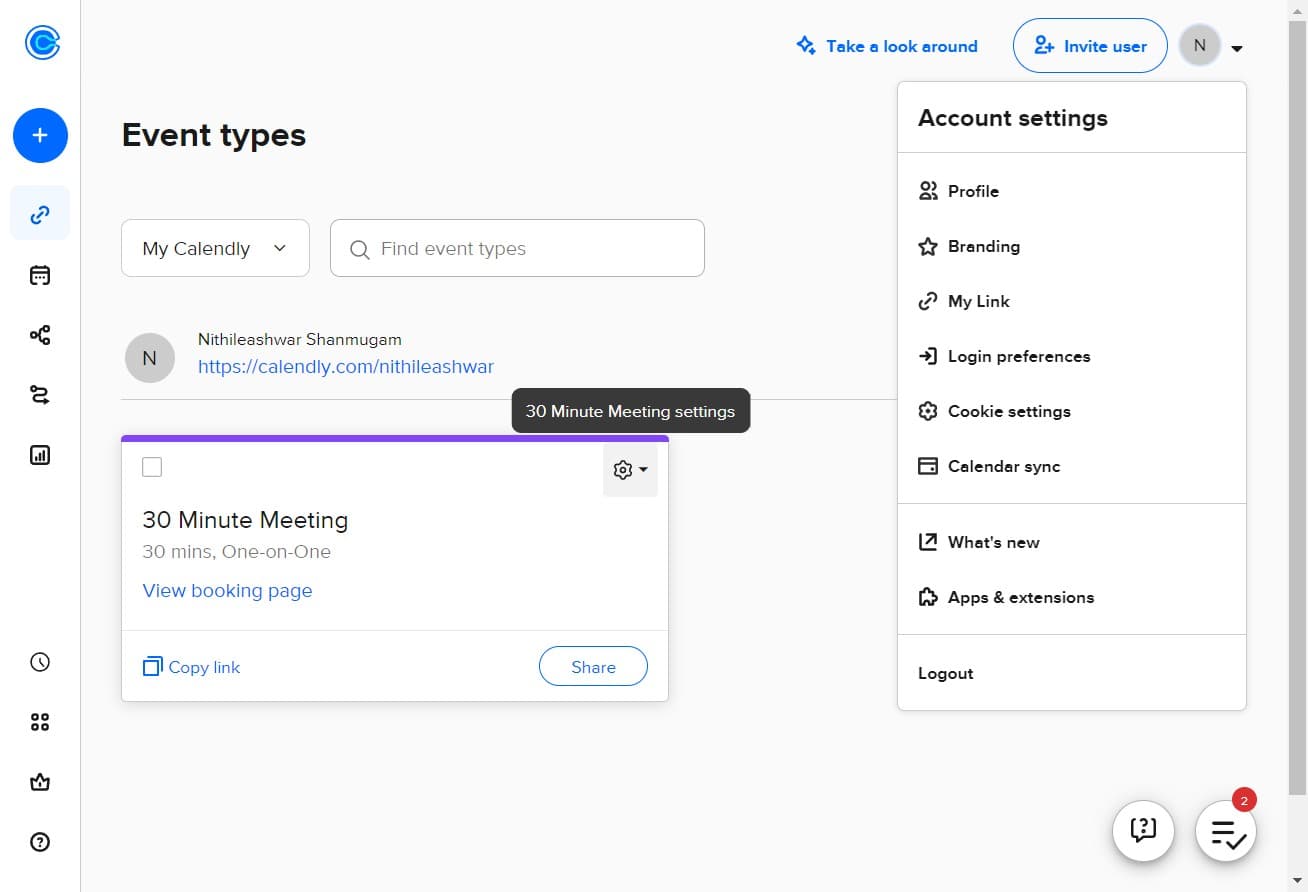
- 9
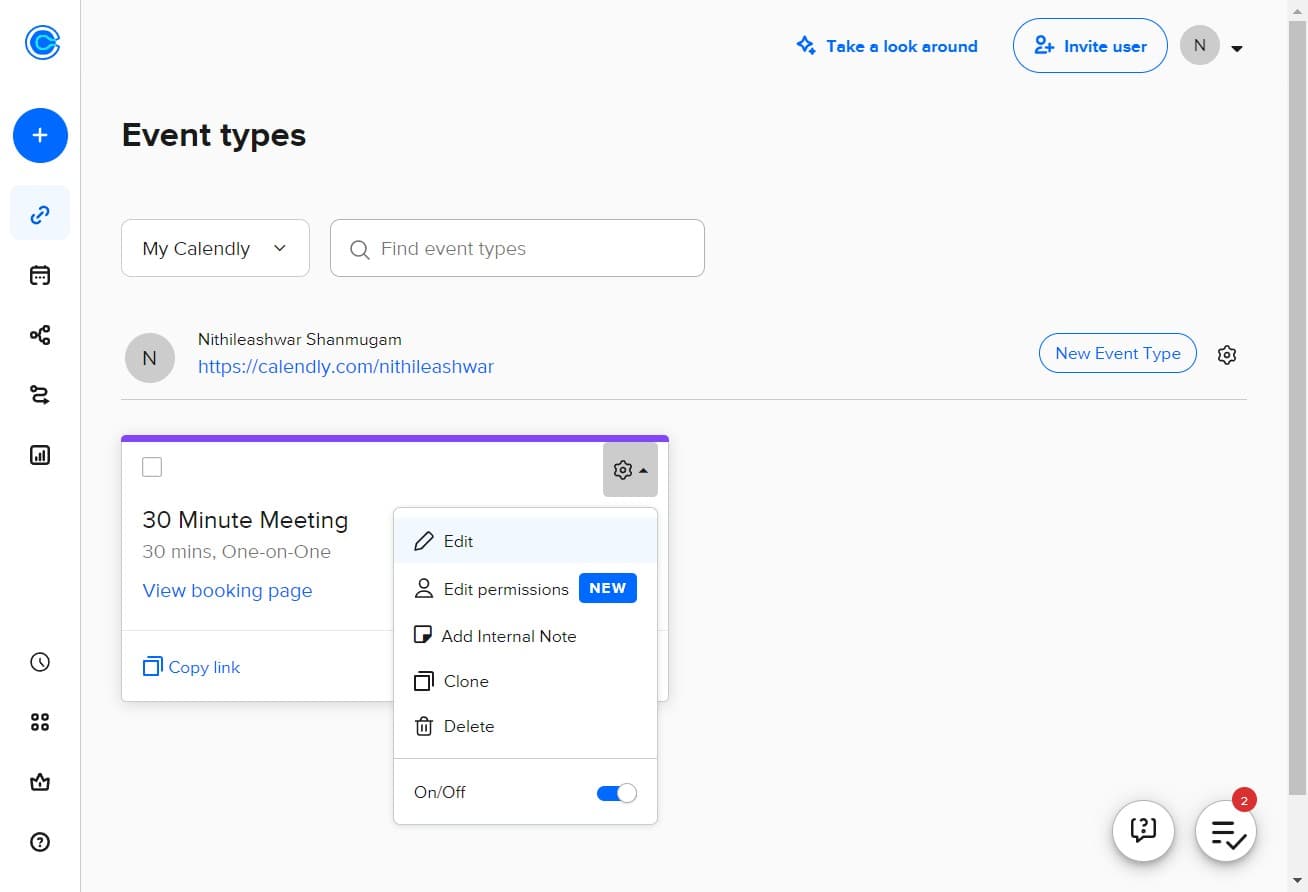
Edit event settings
Click on "Edit" to open the event editing interface. This allows you to modify all settings associated with your 30-minute meeting type.
- 10
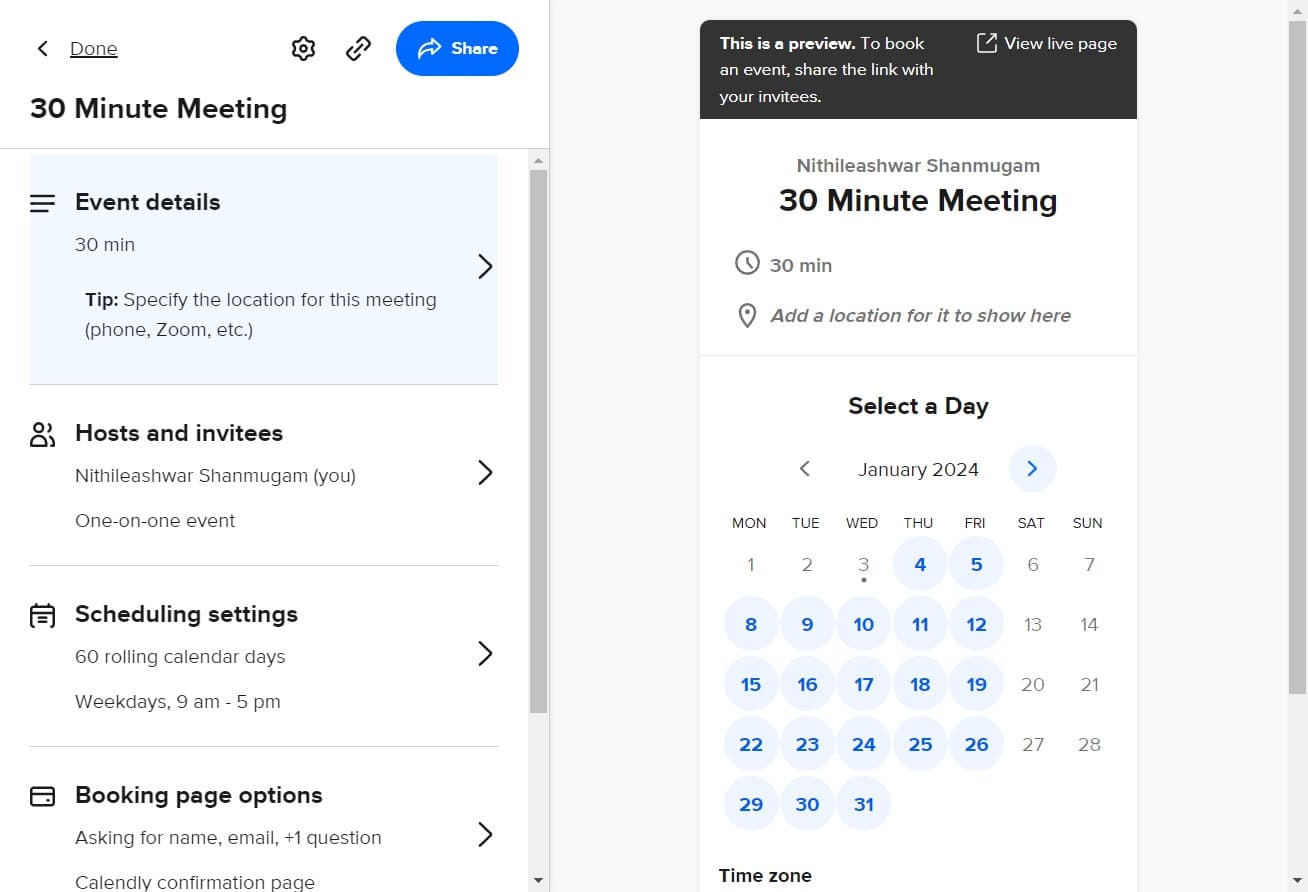
Enable Zoom for the event
Upload or enable the Zoom integration settings for this event type. This action configures the meeting to automatically include a Zoom video conference link.
- 11
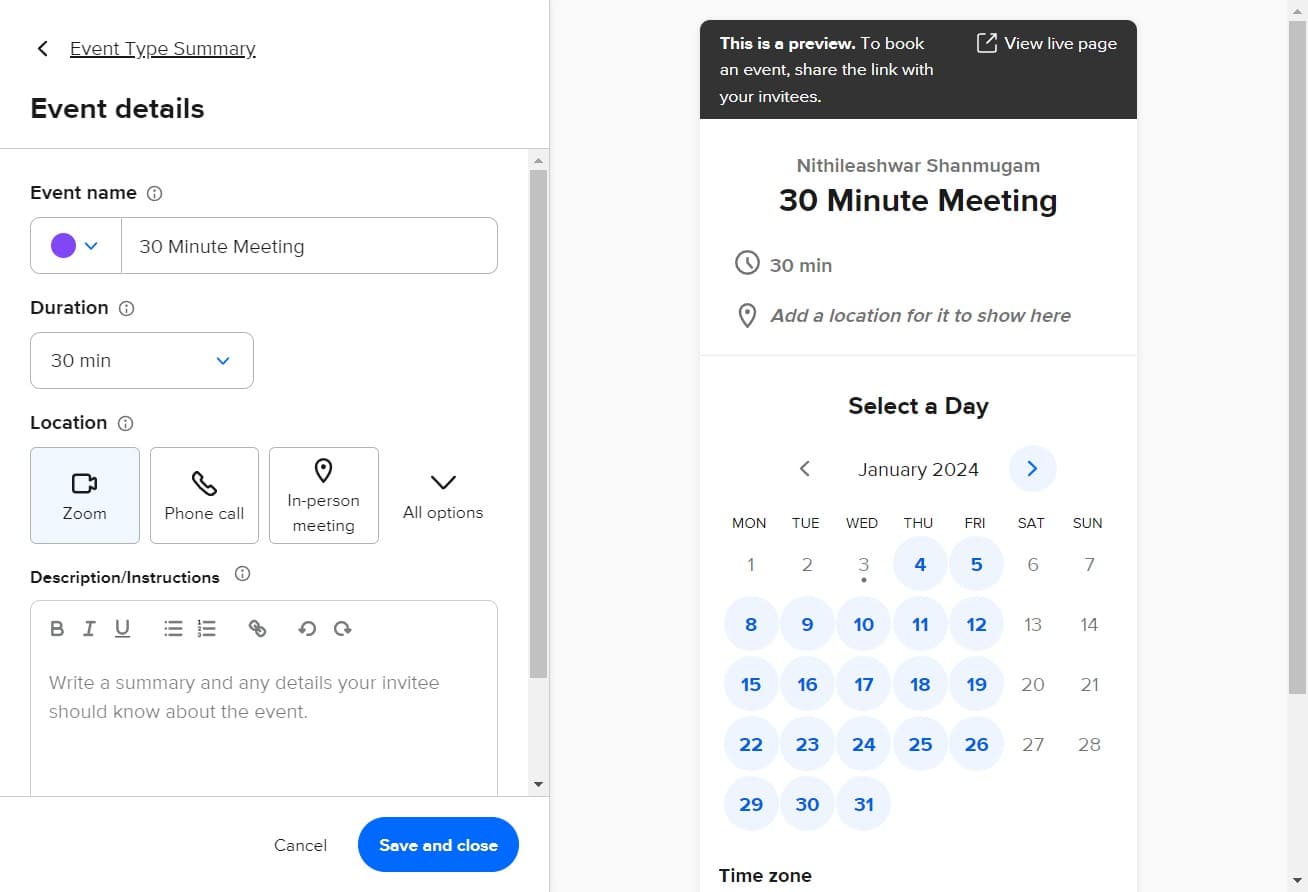
Save Zoom configuration
Complete the upload or save process to finalize Zoom integration for your 30-minute meeting type. Your changes are now active and will apply to all future bookings.
Frequently asked questions
Common questions about how to integrate zoom into your calendly link.
While you can use Zoom's free plan with Calendly, some features may be limited. For unlimited meeting duration and advanced features, a paid Zoom subscription is recommended. Check Zoom's current plan details to determine which tier best fits your needs.
No, the Zoom integration only applies to new bookings made after you enable it. Existing bookings will not be retroactively updated with Zoom meeting links. You may need to manually add Zoom links to previous meetings or ask clients to reschedule.
Yes, you can enable Zoom integration for any or all of your event types. Simply repeat the process for each meeting type you want to include video conferencing. Each event type can be configured independently.
When a client cancels a booking, the associated Zoom meeting link is typically canceled as well. This behavior depends on your Zoom and Calendly settings. Review your notification preferences to ensure you're aware of cancellations.
Yes, once integrated, clients receive a Calendly confirmation email that includes the Zoom meeting link. They can click the link directly from the email to join the video meeting at the scheduled time. This provides a seamless experience without requiring them to navigate elsewhere.