How to Add Calendly to Outlook

Connecting Calendly to Outlook ensures your availability is always in sync across both platforms, preventing scheduling conflicts and double-bookings. This guide walks you through the integration process step by step, so your Outlook calendar reflects your Calendly bookings in real time.
Quick summary
In this tutorial, you'll learn how to integrate Calendly with Outlook by accessing your Event types, navigating to Integrations & apps, selecting Calendars, and adding your Outlook calendar account. By the end, your Calendly and Outlook calendars will be fully synchronized.
Why this matters
Integrating Calendly with Outlook eliminates manual calendar updates and reduces the risk of accidentally booking time you've already committed elsewhere. This seamless connection saves you time and ensures clients see your true availability when scheduling meetings through Calendly.
Step-by-step guide
- 1
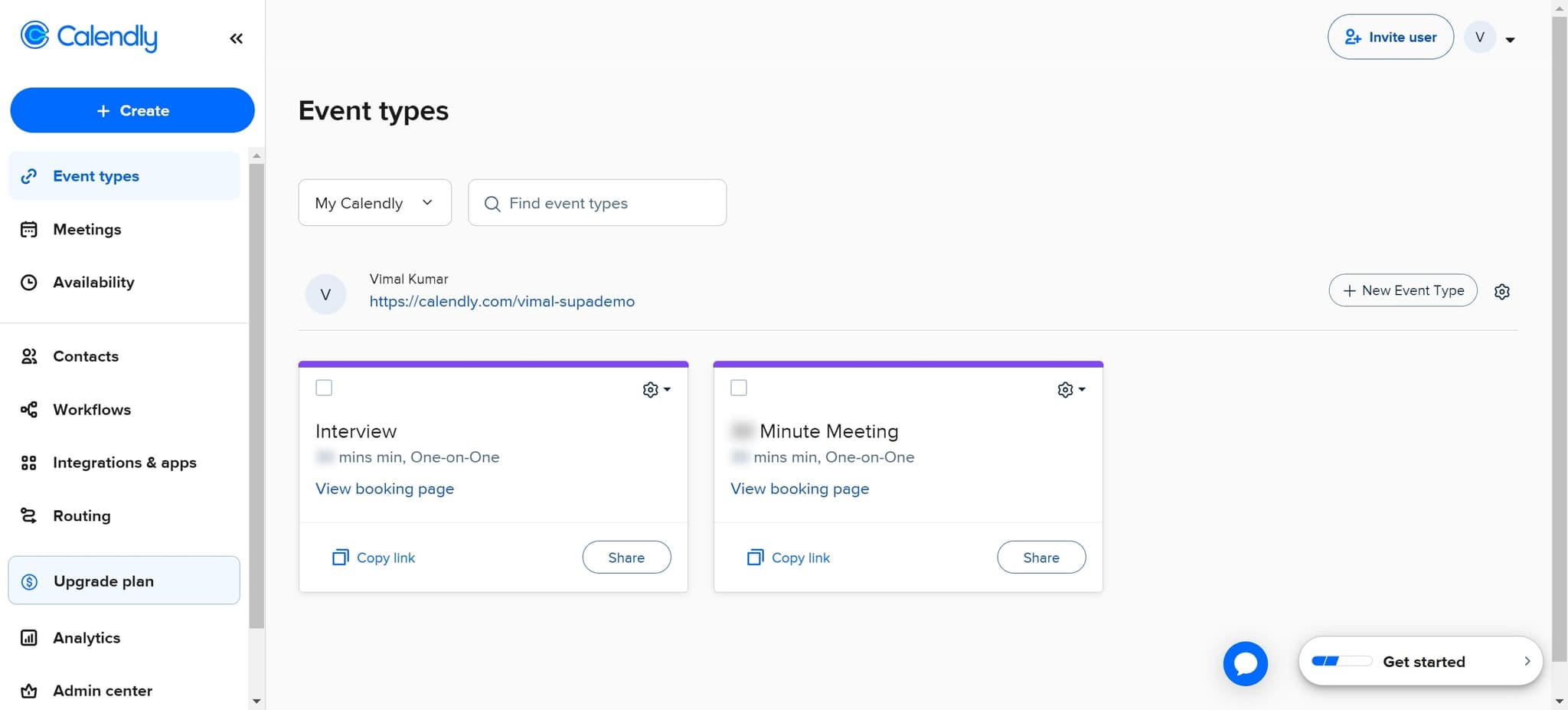
Click on Event types
Start by accessing your Calendly account and locate the "Event types" option in the main navigation. This section contains all your scheduling templates and booking settings.
- 2
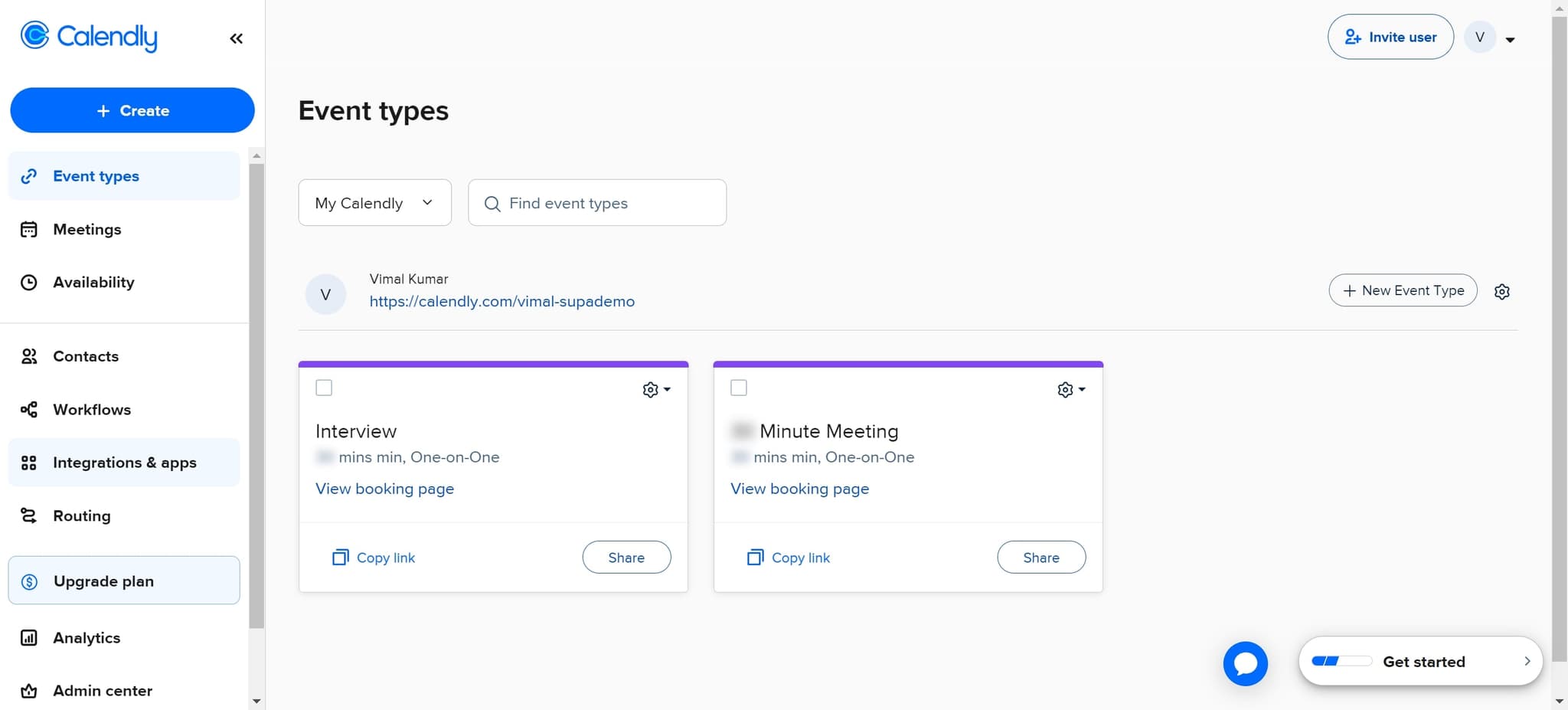
Navigate to Integrations & apps
Within the Event types menu, find and click on "Integrations & apps" to access the full list of available integrations. This is where you can connect external tools and services to your Calendly account.
- 3
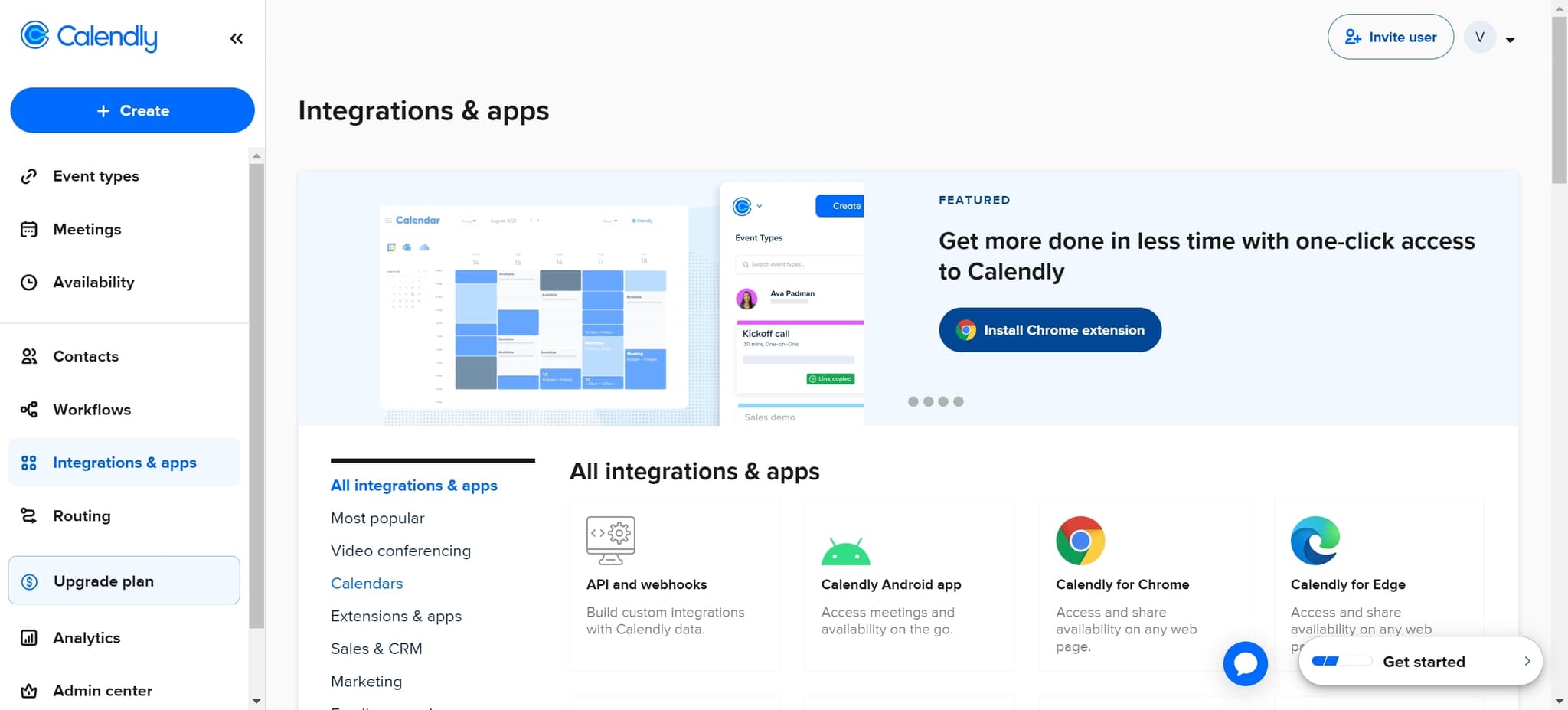
Select Calendars from the menu
From the integrations list, click on "Calendars" to view all available calendar integrations. This section allows you to connect your various calendar accounts to Calendly.
- 4
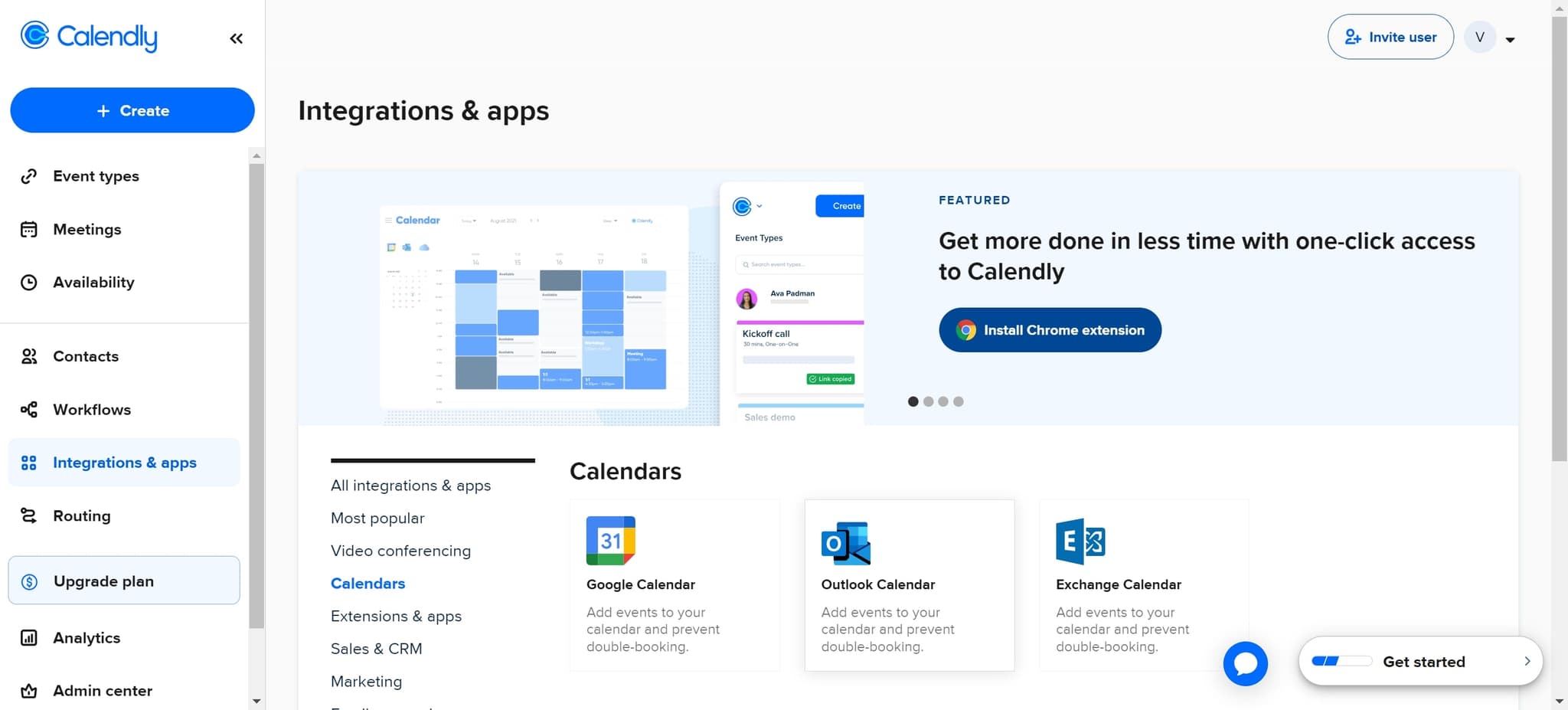
Click to add calendar account
Look for and click on the option "Add events to your calendar and prevent double-booking." This feature ensures Calendly bookings automatically sync to your connected calendar.
- 5
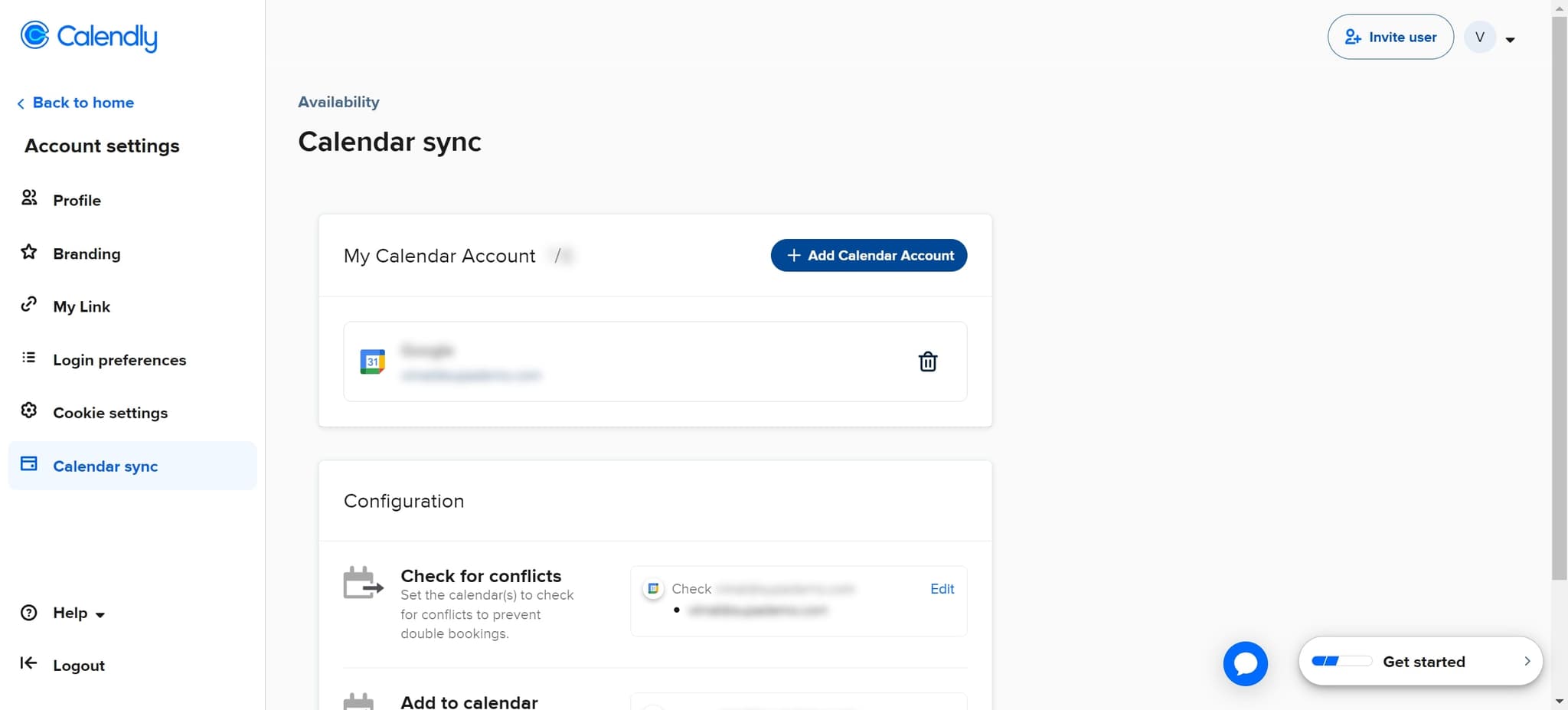
Click Add Calendar Account
Click the "Add Calendar Account" button to begin the connection process. You will be prompted to select or authenticate your Outlook account.
- 6
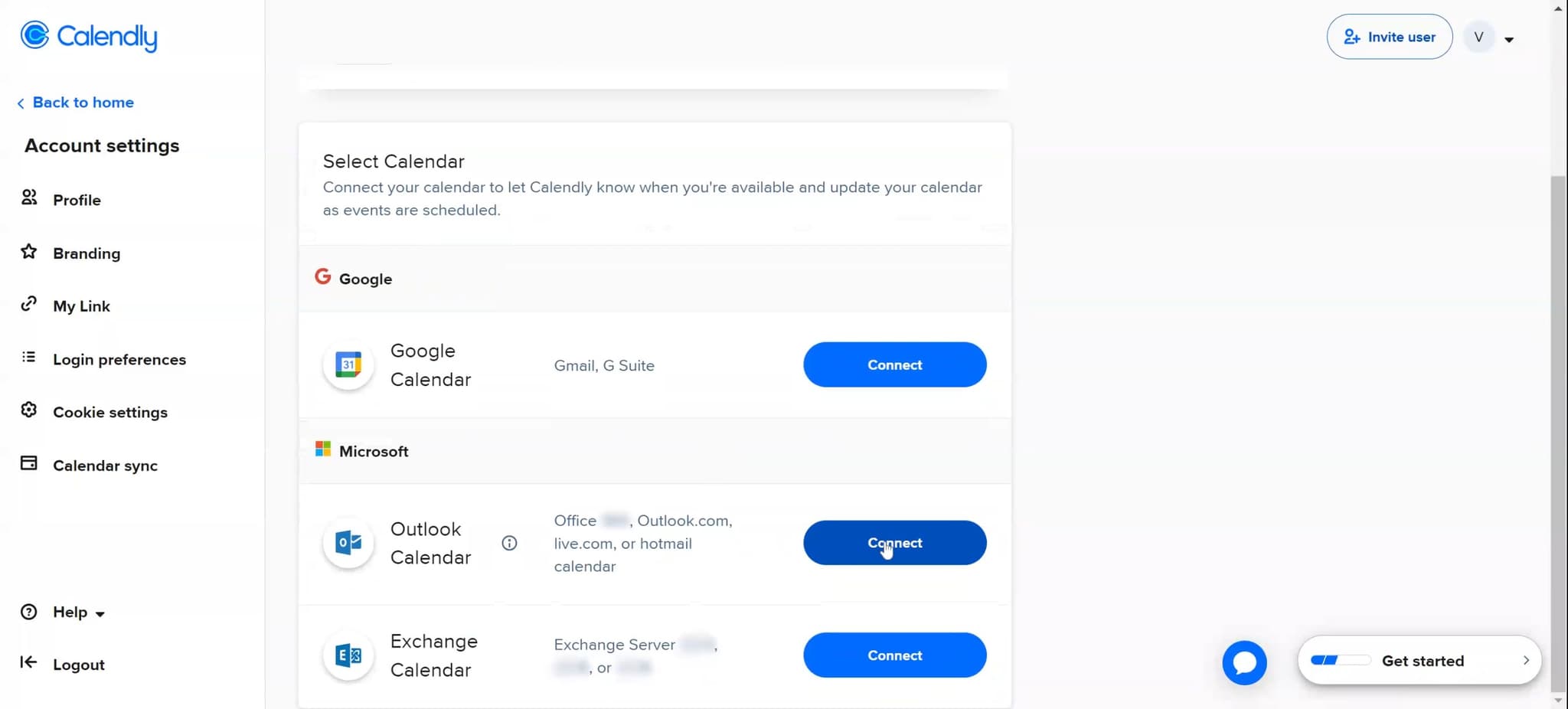
Complete the upload process
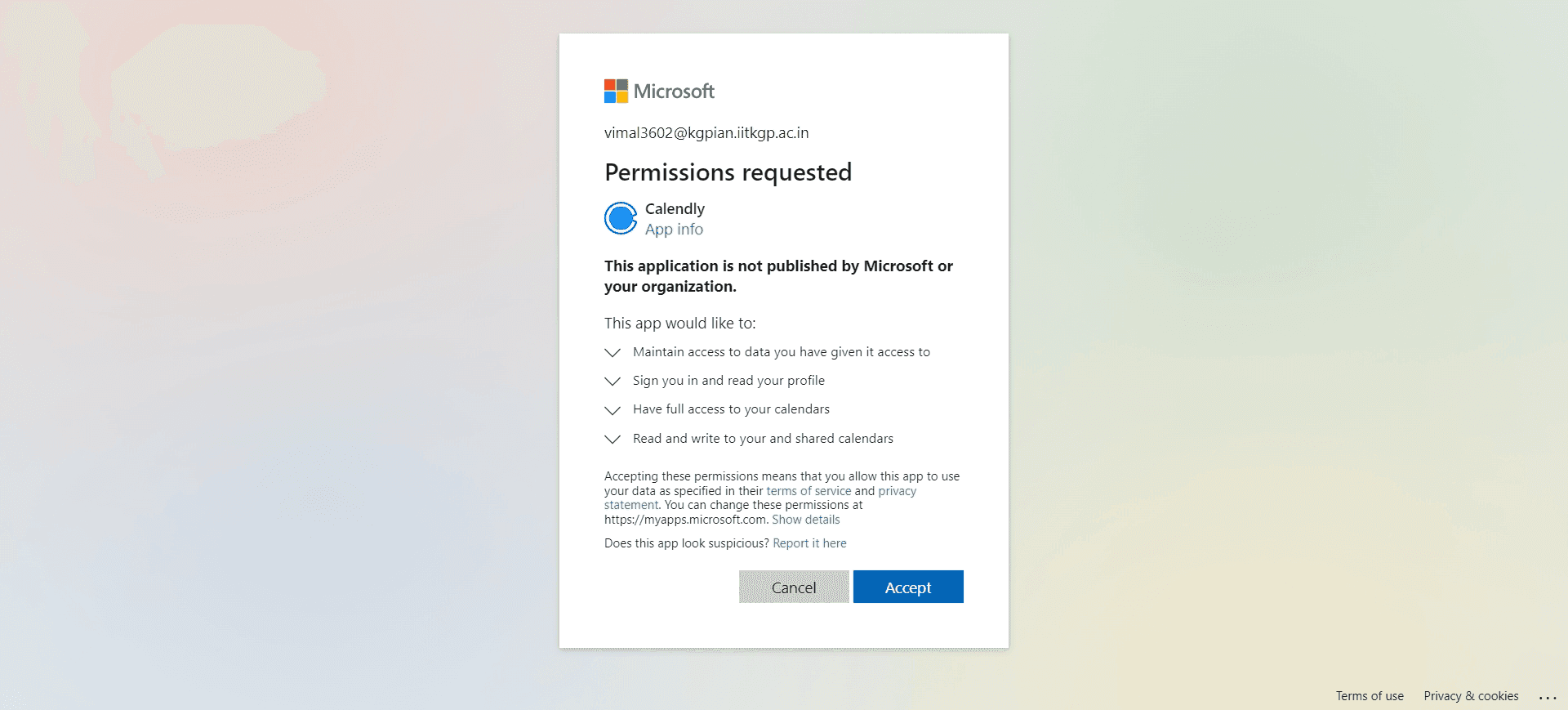
Follow the authentication prompts to grant Calendly permission to access your Outlook calendar. Your browser may redirect you to Microsoft to verify your identity.
- 7
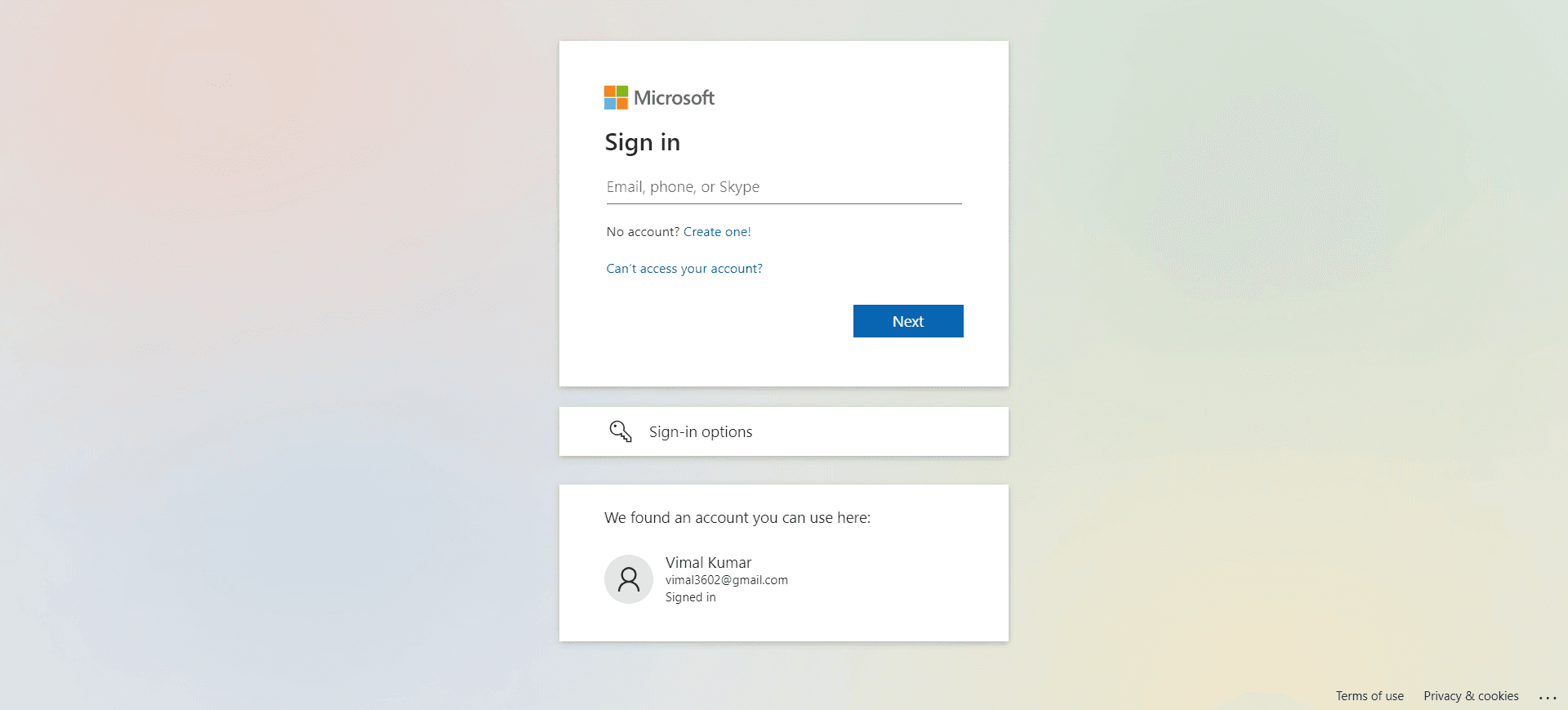
Confirm the integration connection
After authentication, verify that your Outlook account appears in the connected calendars list. The integration is now active and your calendars will begin syncing.
- 8
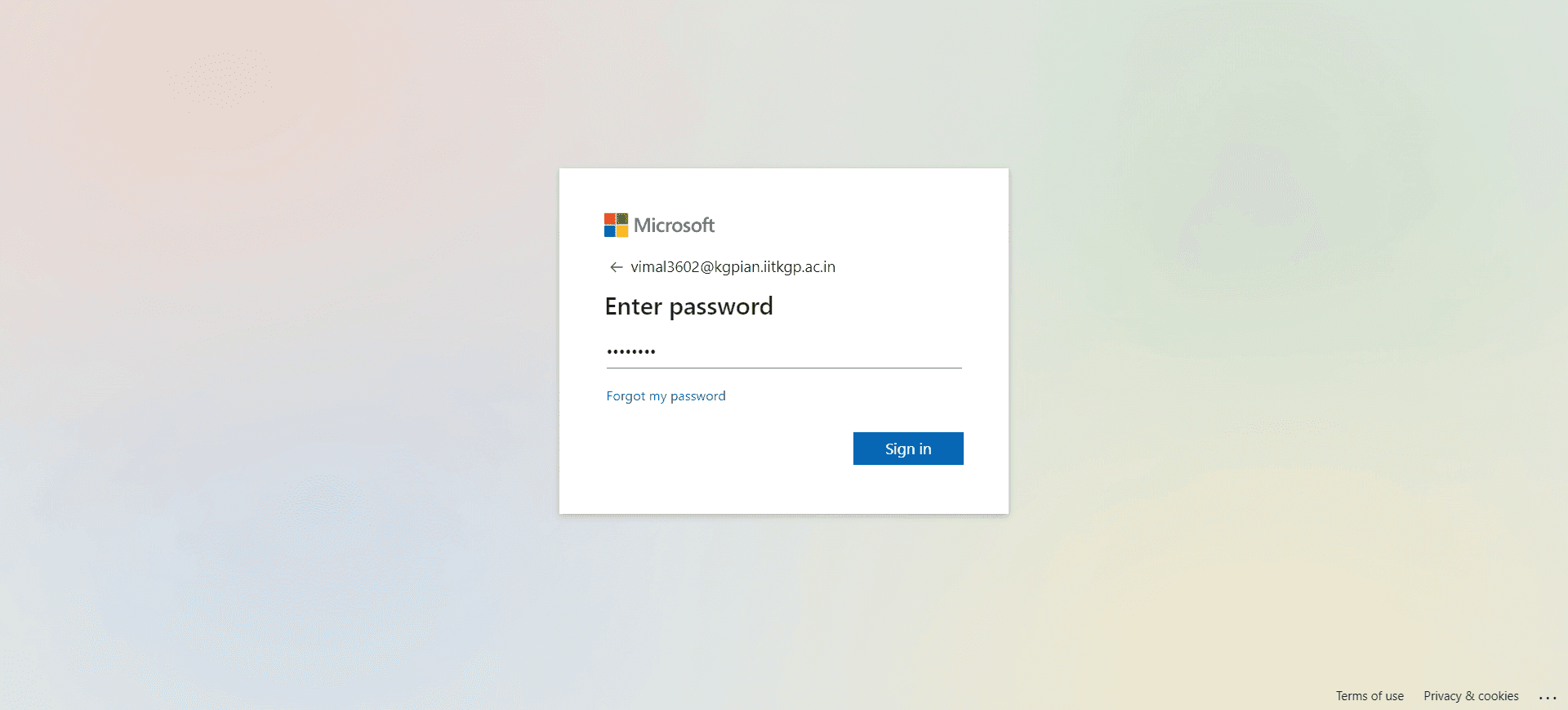
Configure calendar sync settings
Review any additional settings for how Calendly should interact with your Outlook calendar, such as which calendar to sync with and what event details to include.
- 9
Finalize and save settings
Complete the setup process by uploading or confirming all settings. Your Calendly and Outlook calendars are now integrated and will stay synchronized.
- 10
Test the integration
Create a test event in Calendly to confirm it appears in your Outlook calendar within a few minutes. This verifies the integration is working correctly.
Frequently asked questions
Common questions about how to add calendly to outlook.
Yes, once you connect your Outlook calendar to Calendly, your existing events will be imported and displayed, helping Calendly prevent double-bookings. Any new events you add to either calendar will sync automatically.
Calendly allows you to connect multiple calendar accounts depending on your plan. You can manage which specific calendars sync with Calendly through the Integrations & apps section.
Calendar changes typically sync within a few minutes of being made in either Calendly or Outlook. If you notice a delay, try refreshing your browser or manually checking your calendar settings.
Disconnecting your Outlook calendar will stop new Calendly events from syncing to Outlook, but it won't delete existing events from either calendar. You can reconnect at any time through the same integration settings.
No, calendar integrations in Calendly are set up at the account level, not per event type. Once you connect your Outlook calendar, it applies to all your event types and bookings.