How to Add Music to Canva

Vimal Kumar
Vimal Kumar·
How to Add Music to Canva
Interactive demo powered by Supademo

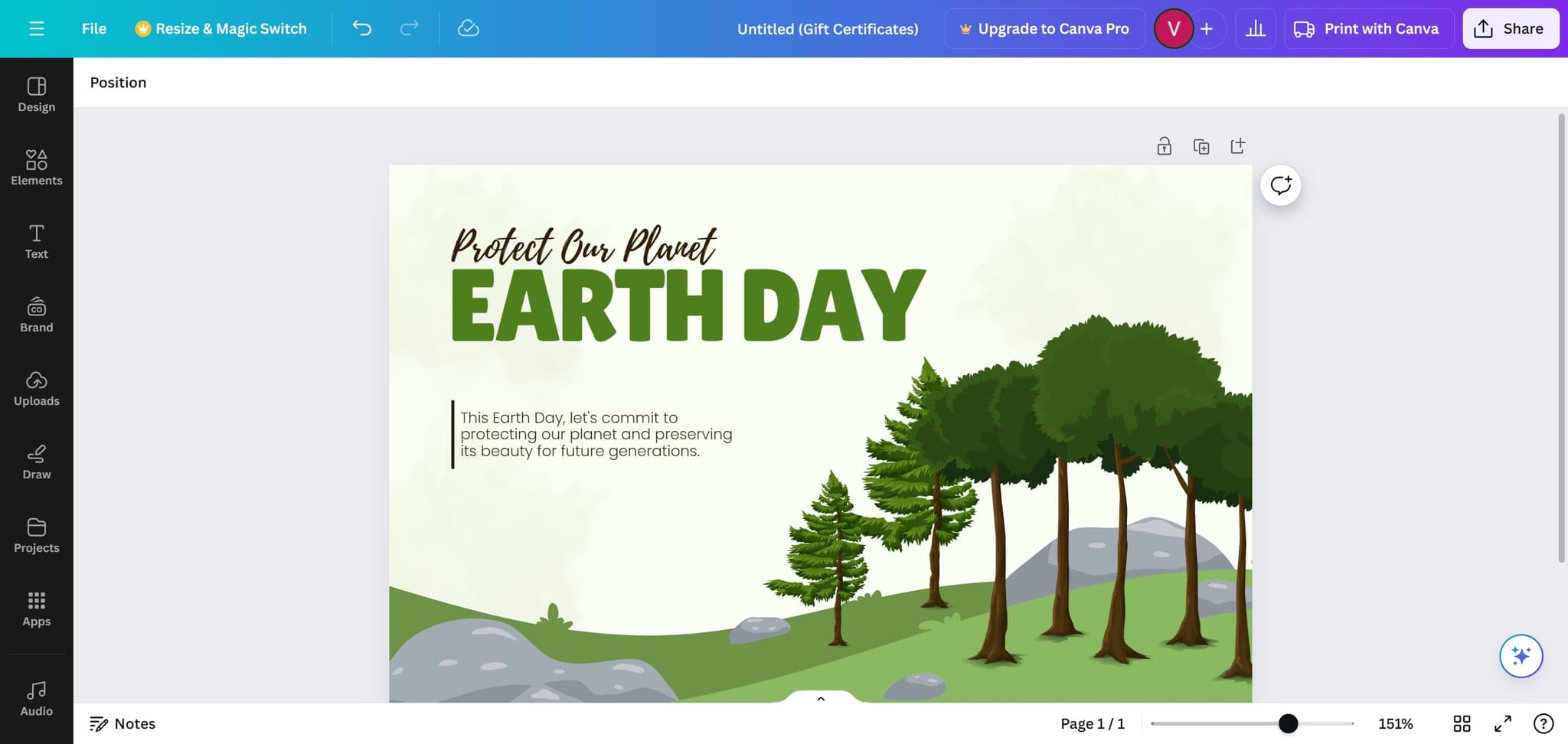
1. First, open the Canva project where you want to add music.

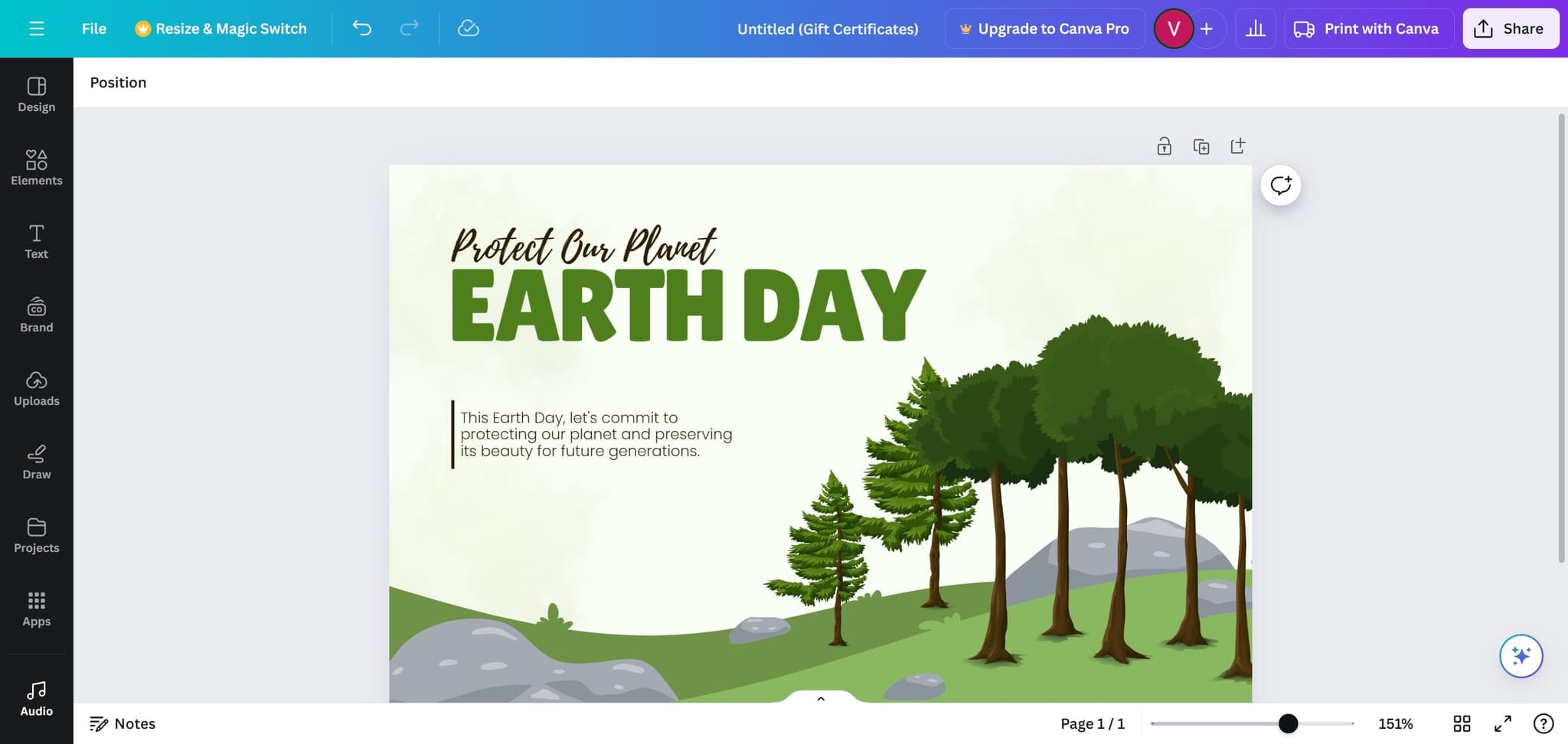
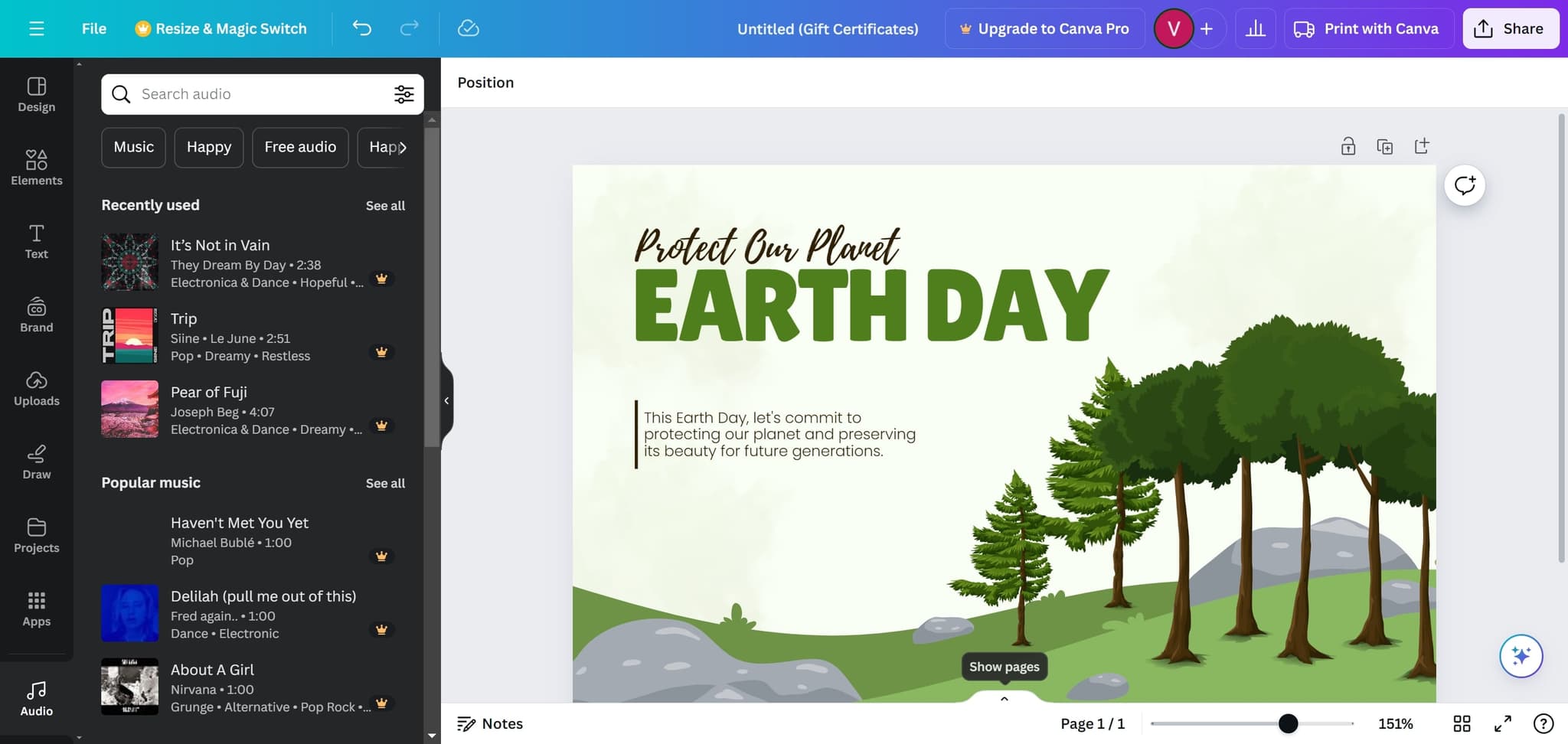
2. Click on "Audio".

3. Video Step

(

Play Now

)

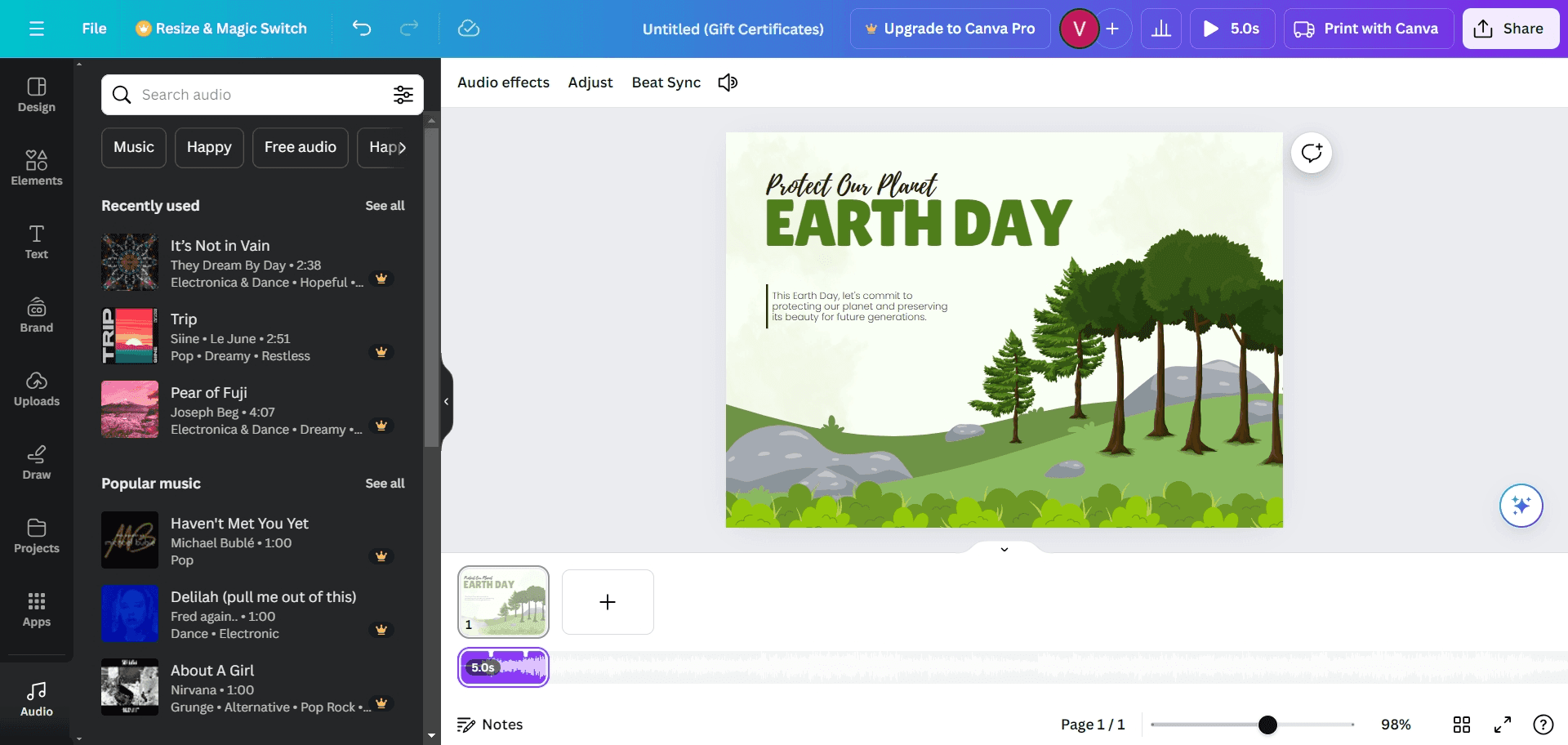
4. To view the song, click the "Show pages" arrow button.

5. That's it!
You can now view and edit the music added to your Canva project.

6. Create a Supademo in seconds

This interactive demo/guided walkthrough on How to Add Music to Canva was created using Supademo.


How to Add Music to Canva : Step-by-Step Guide

Begin by opening the Canva project where you'd like to add a musical touch. This is the canvas where your audio will complement your visuals, so make sure you’re working on the correct design.

1

Once your project is open, look to the left-hand toolbar and select the "Audio" option. This is where Canva lets you explore and add soundtracks or sound effects to your design.

2

Here’s a quick video walkthrough showing how to browse and incorporate audio into your Canva project. Watching this will help you get comfortable with finding the right sounds for your design. (

Play Now
)

3

To get a better look at the audio tracks available, click on the arrow labeled "Show pages." This expands your view, making it easier to see all the options and choose the perfect audio for your project.

4

You’re all set! Now you can listen to and adjust the music that’s been added to your Canva project. Feel free to make any edits so the audio fits just right with your design.

5

If you want to create your own Supademo fast, this step-by-step approach will get you there effortlessly. Enjoy bringing your projects to life with audio in no time!

6

Create your own interactive demos in < 5 mins with Supademo

You can create your own interactive product demo in minutes using Supademo. Drive growth, scale enablement, and supercharge product-led onboarding with Supademo. Sign up for free here with no credit card required.


FAQs

Commonly asked questions about this topic.

How do I add music to a Canva project?

Open your Canva project, select the “Audio” tab from the left-hand toolbar, browse available tracks, and click to add music. You can preview and edit the audio timeline directly within your design.

Can I upload my own music files to Canva?

Yes, Canva allows you to upload your own audio files by selecting the “Uploads” tab. Upload supported file types like MP3 and WAV to use custom music or sound effects in your designs.

What audio formats does Canva support?

Canva supports MP3, WAV, and M4A audio formats. Using these formats ensures your uploads work seamlessly within the project without compatibility issues.

Is adding music free in Canva?

Canva offers both free and premium audio tracks. Free plan users have access to limited audio content, while Canva Pro subscribers gain access to a larger library of premium tracks and sound effects.

How can I edit the music length in Canva?

After adding audio to your project, click on the audio track timeline. You can trim, extend, or split the music to fit the timing of your design using Canva’s built-in audio editor.

Can I add different music to different pages in Canva?

Yes, you can add unique audio tracks to individual pages or sections in your Canva design, allowing diverse soundscapes for multi-page projects or presentations.

Why can’t I find the "Audio" option in Canva?

The "Audio" tab might not be visible if you’re using an older Canva version or certain templates. Ensure your Canva app is up to date or switch to a video or presentation template to enable audio features.

Does music added in Canva play automatically in presentations?

Yes, music generally starts playing automatically when you present or export your Canva video or slideshow. You can adjust timing or mute audio per slide if needed inside the editor.

Can I sync music with animations or transitions?

While Canva lets you add music alongside animations, syncing exact timing requires manual adjustment. Planning your audio and animations carefully lets you create smooth audiovisual experiences.

How do I remove or replace music in my Canva project?

Click on the audio track in your project timeline, then select delete or replace to remove or swap the music. You can easily experiment with different tracks to find the perfect fit.

Vimal Kumar

Vimal Kumar

Product Operations Associate

Vimal Kumar helps build and grow Supademo’s team and GTM efforts, with a focus on figuring out growth levers and improving product traction.

More from the blog

How to Add Products to Shopify

How to Add Products to Shopify

Learn step-by-step how to add products to your Shopify store effortlessly, including tips on product details, images, pricing, and inventory management to boost your online sales.

Vimal Kumar
Vimal KumarDec 17, 2025
How to Deactivate Your Shopify Store

How to Deactivate Your Shopify Store

Learn step-by-step how to deactivate your Shopify store easily, including important considerations and tips to pause or close your shop without losing data.

Vimal Kumar
Vimal KumarDec 17, 2025
How to Remove 'Powered by Shopify'

How to Remove 'Powered by Shopify'

Learn how to easily remove the 'Powered by Shopify' text from your online store with step-by-step instructions and tips to customize your Shopify storefront.

Vimal Kumar
Vimal KumarDec 17, 2025
How to Create a Shopify Account

How to Create a Shopify Account

Learn step-by-step how to create a Shopify account quickly and easily, set up your online store, and start selling your products in no time.

Vimal Kumar
Vimal KumarDec 17, 2025
How to Create a Stripe Account

How to Create a Stripe Account

Learn how to create a Stripe account quickly and easily with our step-by-step guide, perfect for beginners looking to start accepting online payments.

Vimal Kumar
Vimal KumarDec 17, 2025
How to Contact Stripe Support

How to Contact Stripe Support

Learn the easiest ways to contact Stripe support for quick assistance with your payment processing, account issues, and technical questions.

Vimal Kumar
Vimal KumarDec 16, 2025