How to Superscript in Canva

Superscript formatting raises text above the normal line, which is commonly used for footnotes, exponents, and trademark symbols. Canva supports superscript through its advanced text formatting options. This tutorial walks you through the steps to apply it.
Quick summary
In this tutorial, we'll explore how to apply superscript formatting in Canva. You'll select the text you want to format, navigate through the advanced text settings, and click the Superscript button to raise the text above the baseline.
Why this matters
Superscript is essential for proper formatting of mathematical expressions, chemical formulas, ordinal numbers, and trademark or registered symbols. Getting it right ensures your designs look professional and communicate clearly.
Step-by-step guide
- 1
Log in to your Canva dashboard
Open Canva and sign in. Navigate to your dashboard where you can see all your recent designs and templates.

- 2
Open your design project
Click on the design that contains the text you want to format. The design will open in the Canva editor with the full editing toolbar available.
- 3
Select the text to superscript
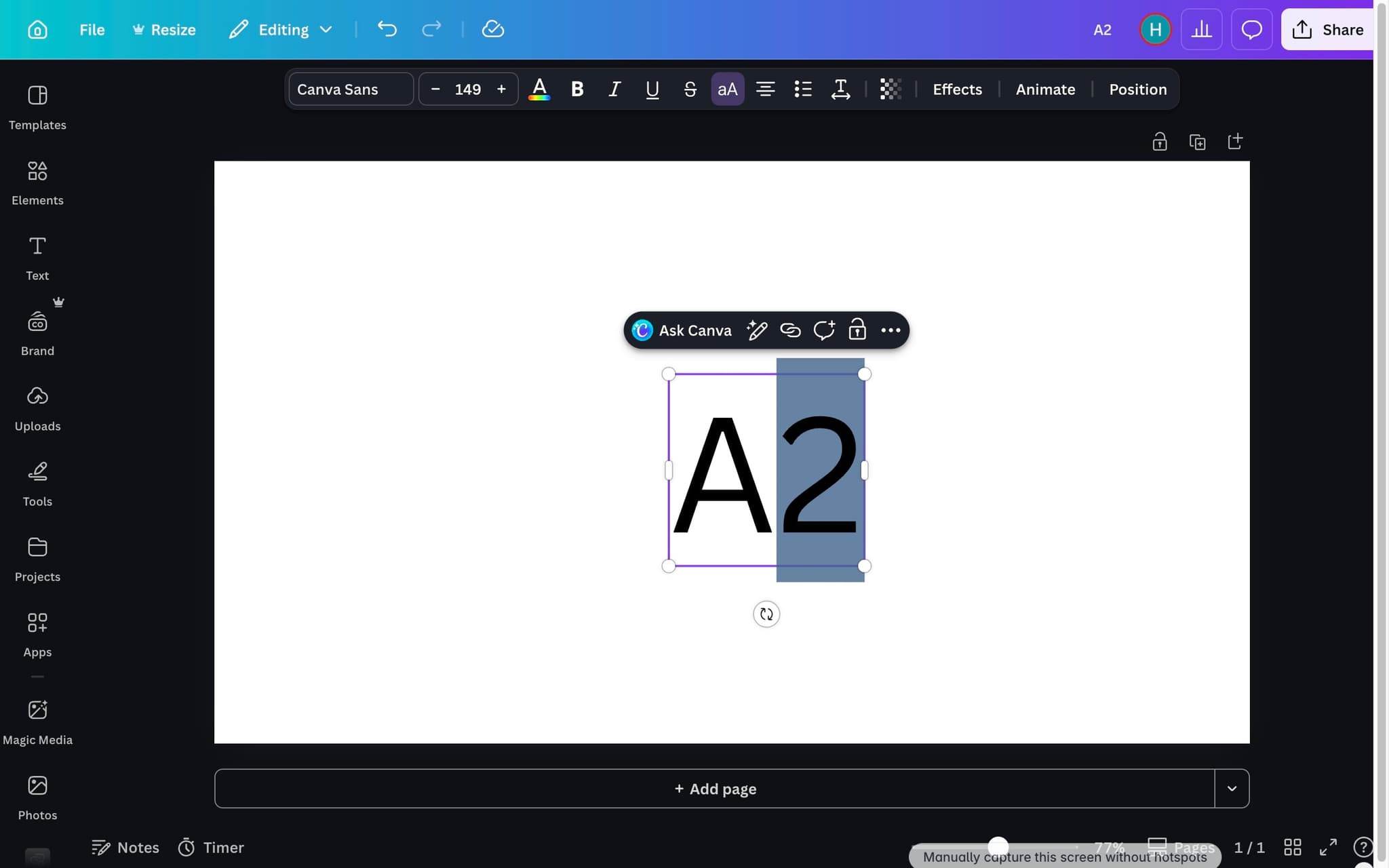
Click and drag to highlight the specific characters you want to turn into superscript. Be precise with your selection since only the highlighted text will be affected by the formatting change.
- 4
Click Advanced settings
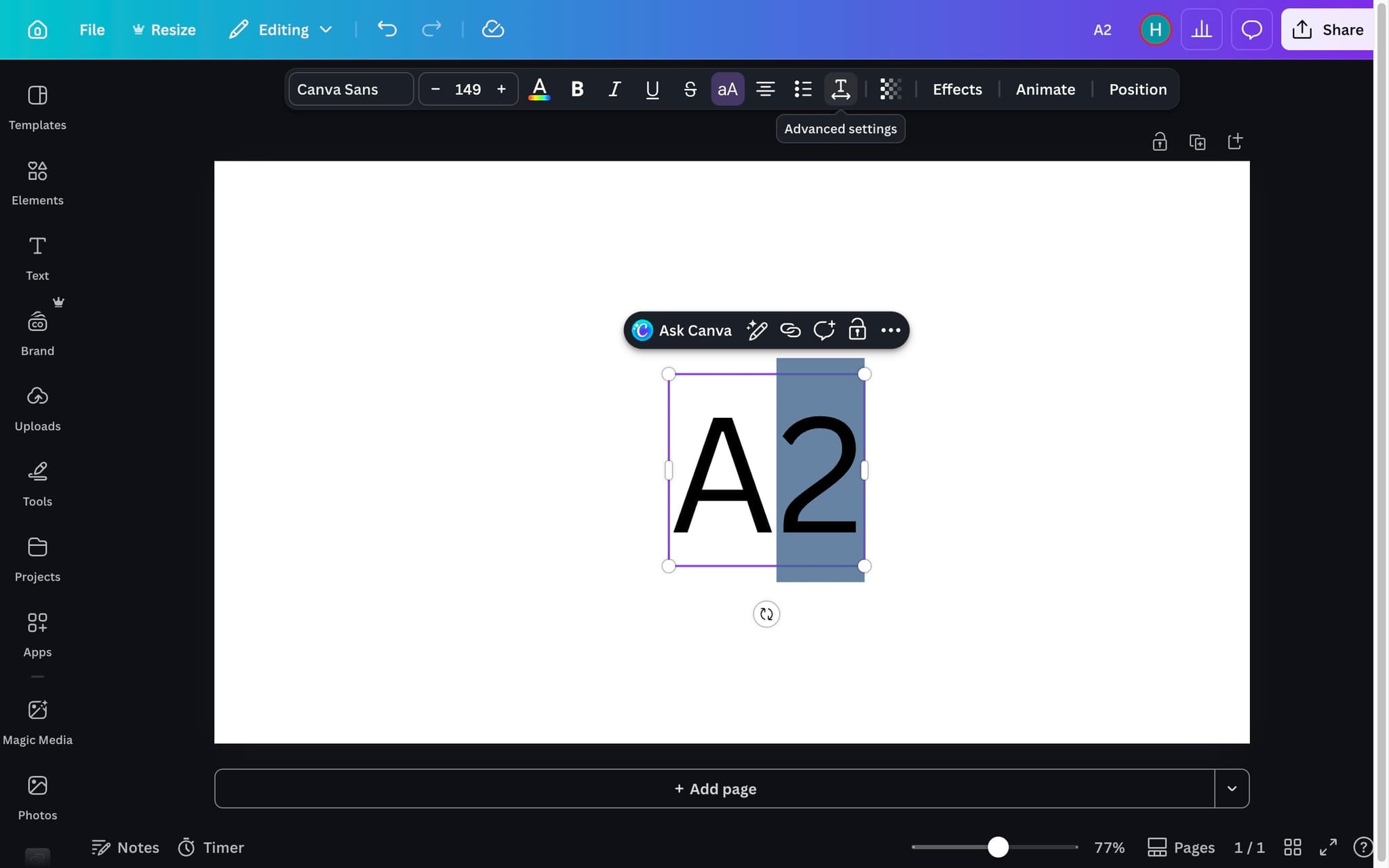
With the text selected, look at the formatting toolbar and click on Advanced settings. This expands additional text formatting options that aren't visible in the default toolbar.
- 5
Click More settings
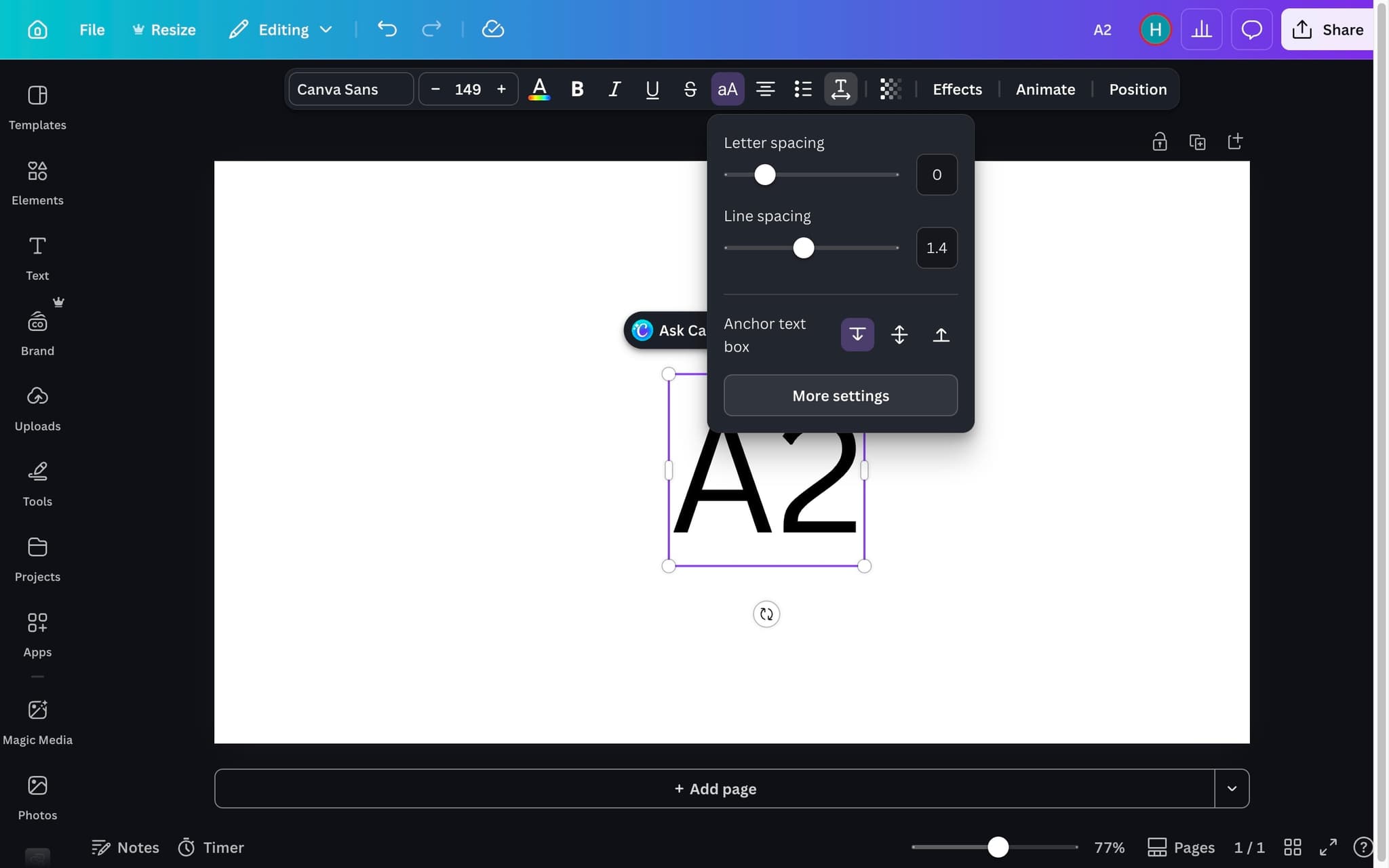
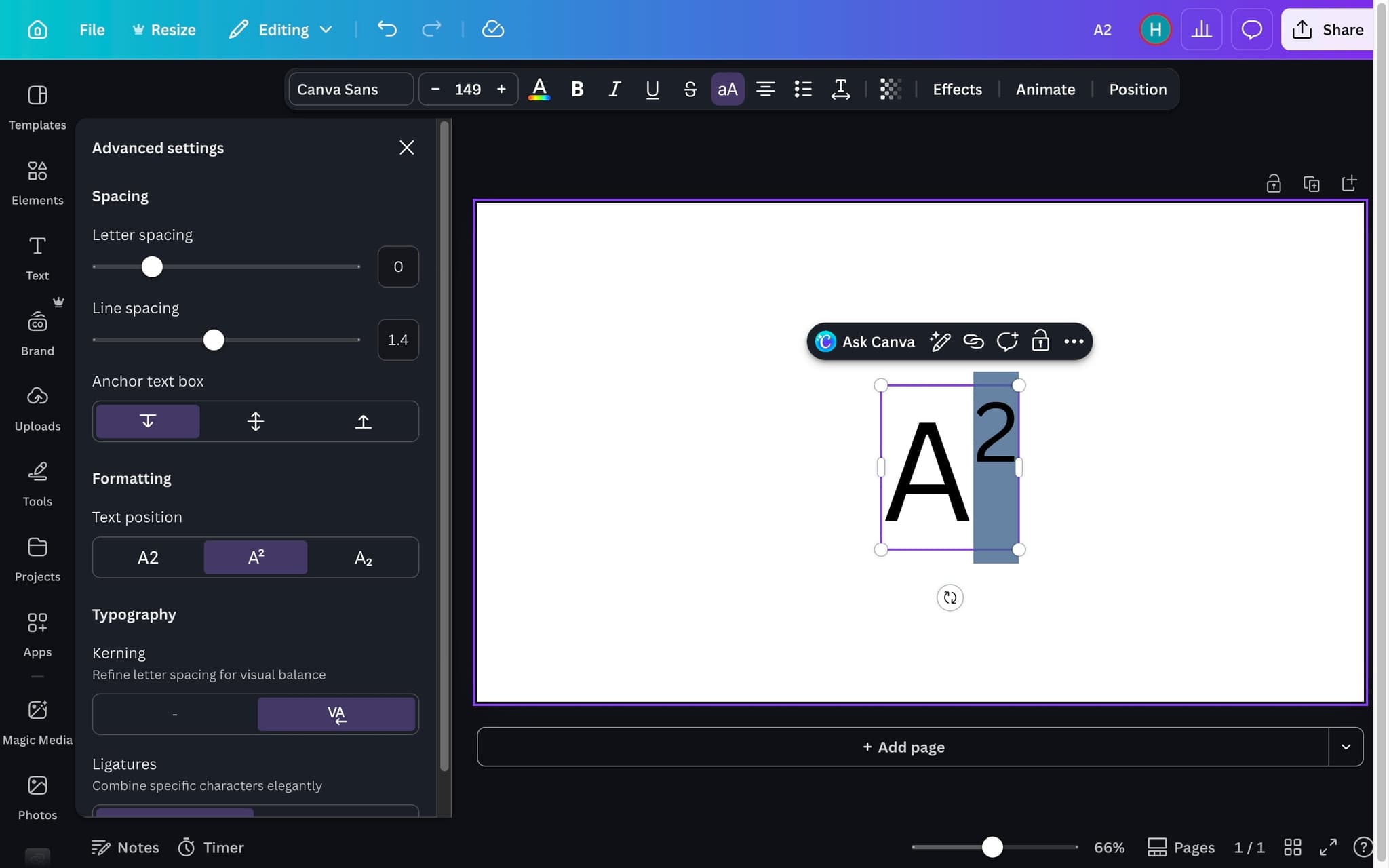
Inside Advanced settings, click 'More settings' to reveal the full set of text formatting controls. The superscript and subscript options are tucked under this expanded menu.
- 6
Click the Superscript button
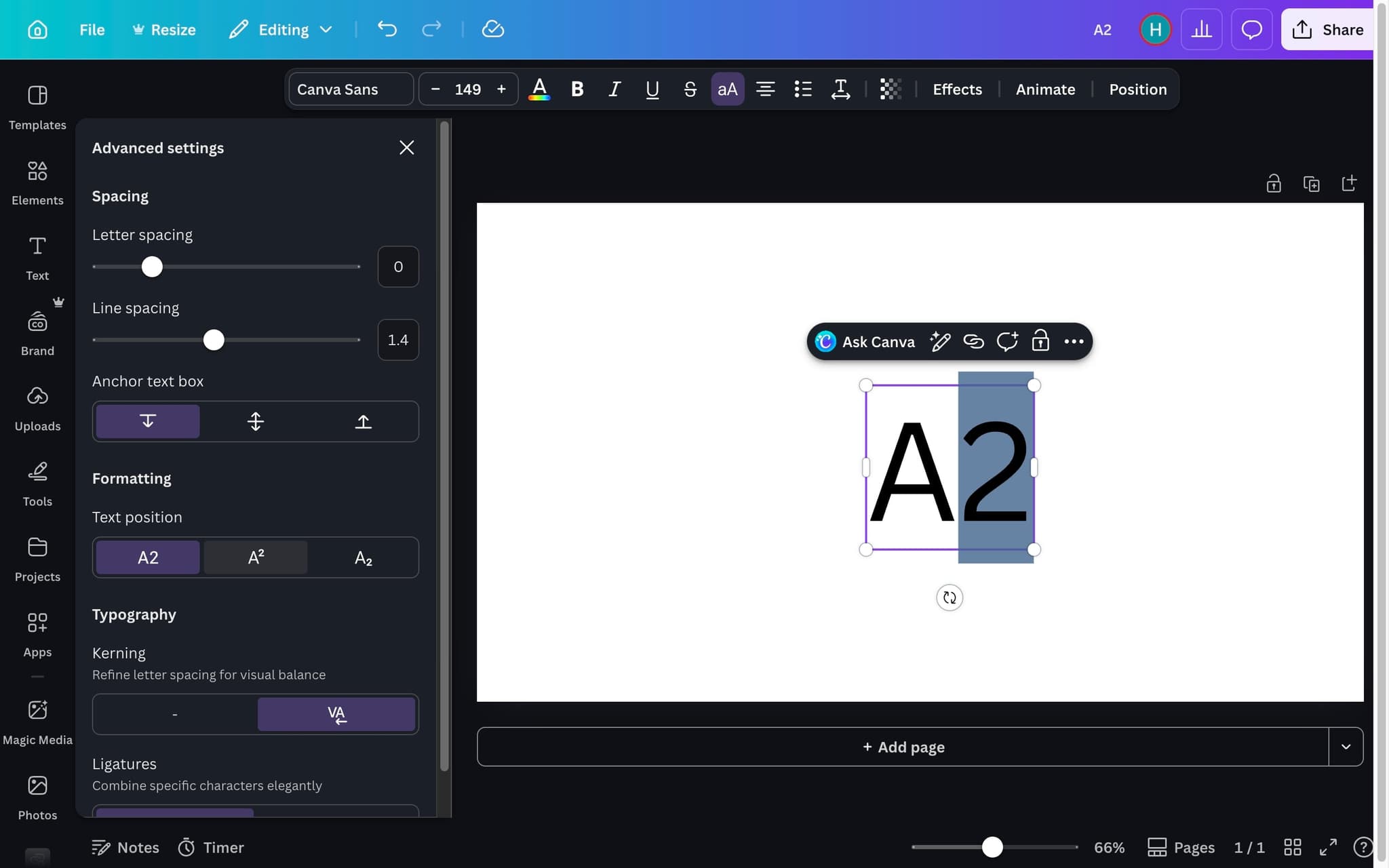
Click the Superscript button (usually shown as x with a raised 2). This applies superscript formatting to your selected text, raising it above the baseline and reducing its size.
- 7
Verify the superscript is applied
Check your text to confirm the formatting looks correct. The selected characters should now appear raised and smaller relative to the surrounding text. You can click the Superscript button again to remove the formatting if needed.
Frequently asked questions
Common questions about how to superscript in canva.
No. Canva does not expose a dedicated superscript button in its text toolbar. The usual workaround is to reduce the font size of the target character and raise it using letter spacing and vertical positioning, or to paste a pre formed Unicode superscript character. Both approaches produce acceptable results for most design use cases.
The fastest method is to copy the Unicode character for squared or cubed from a character map and paste it directly into your Canva text box. Canva renders the Unicode glyph inline without any font tricks, as long as the font you are using supports the character. Most modern sans serif fonts include the common superscript digits.
Manual superscripts depend on the underlying font metrics, and some display fonts have inconsistent baselines. Switching to a more geometric sans serif such as Montserrat or Inter usually fixes alignment problems instantly. Fine tuning with the letter spacing slider handles any remaining drift.
Canva is not a math editor and has no dedicated equation support. Simple superscripts for exponents or footnote markers work fine using Unicode characters pasted directly into a text box. For anything more complex, build the equation in LaTeX or a dedicated math tool and import the rendered image into Canva.
Writing text formatting instructions in a brand doc rarely captures small details like letter spacing or baseline shifts that new design hires need to get right. A step by step guide generator records the exact Canva clicks and values as you work, so new hires can replicate every brand rule without guesswork. As Vimal Kumar, Product Operations Associate at Supademo, puts it: "Recording a Canva brand workflow once and embedding it in the design wiki can cut repeat onboarding questions by 80% on the same topic."
PDFs freeze the moment they are exported and go stale as the underlying software updates. Interactive user guides update in place, track viewer progress, and drive meaningfully higher completion than static documents, which is why most modern software teams have moved away from PDF manuals entirely.