How to Show Ruler in Canva

Rulers in Canva help you align elements precisely across your design. They appear along the top and left edges of the editor and let you drag out guides for pixel-perfect positioning. This tutorial shows you how to turn them on in a few clicks.
Quick summary
In this tutorial, we'll explore how to show rulers in Canva. You'll open a design, navigate to File > Settings, and toggle on 'Show rulers and guides' to display measurement tools along the top and left edges of your canvas.
Why this matters
Precise alignment matters, especially when you're working on designs that need consistent spacing or when elements need to line up across multiple pages. Rulers and guides give you the visual reference points to get everything positioned exactly where you want it.
Step-by-step guide
- 1
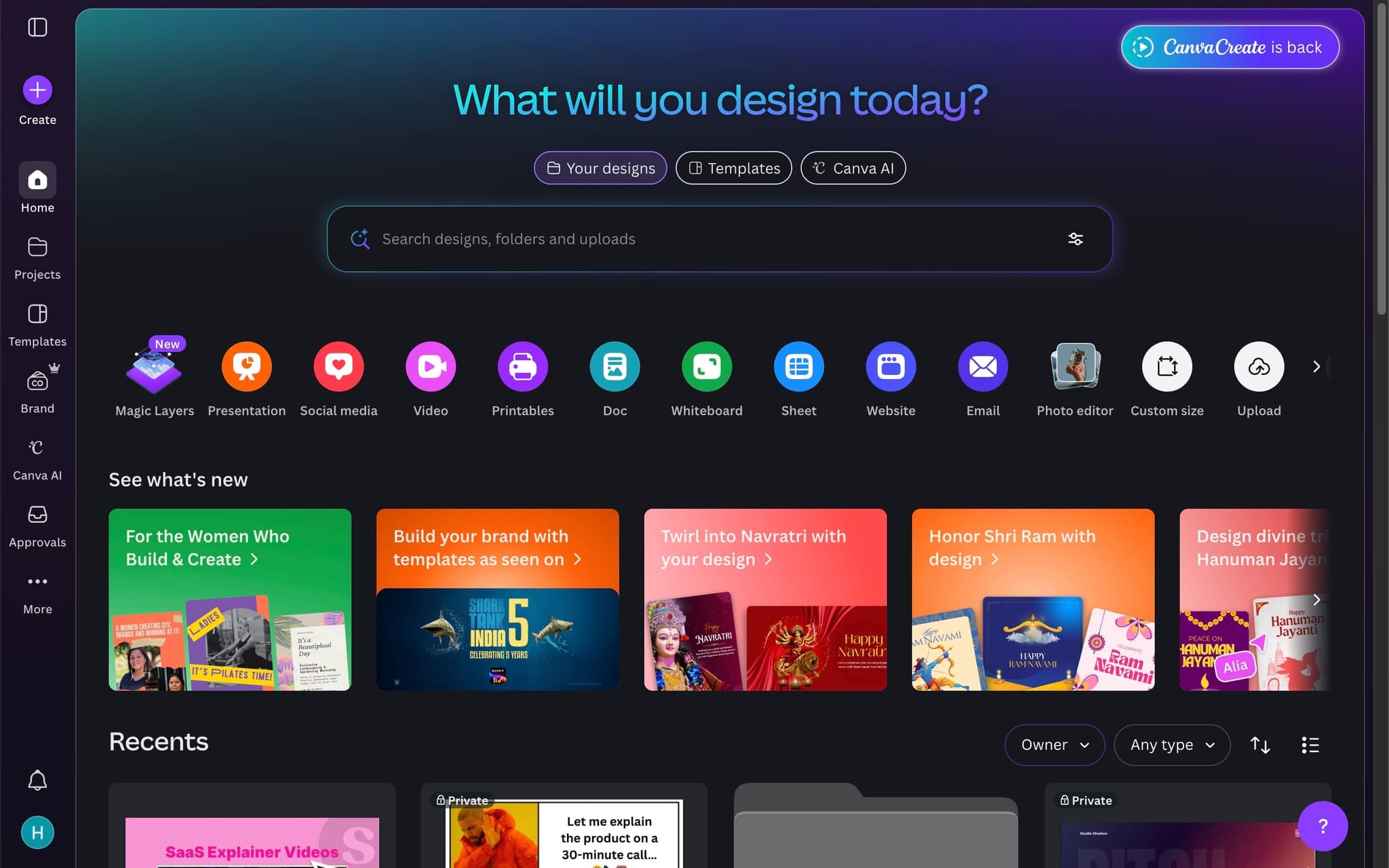
Log in to your Canva dashboard
Open Canva and sign in to your account. Your recent designs and projects will be visible on the main dashboard, ready to open.
- 2
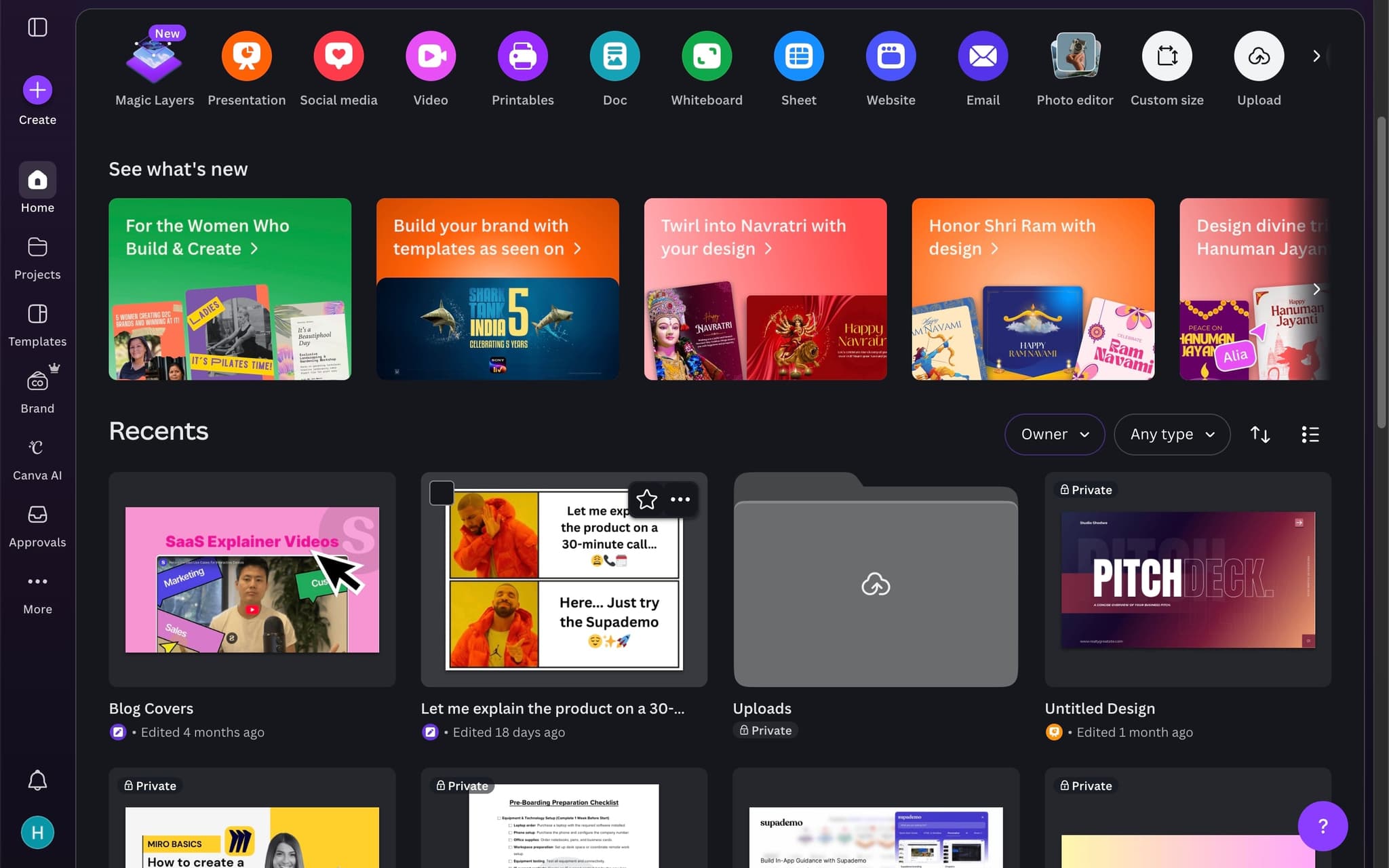
Open the design you want to add rulers to
Click on the design where you need ruler guides. The design will open in the Canva editor where you can access display settings and other tools.
- 3
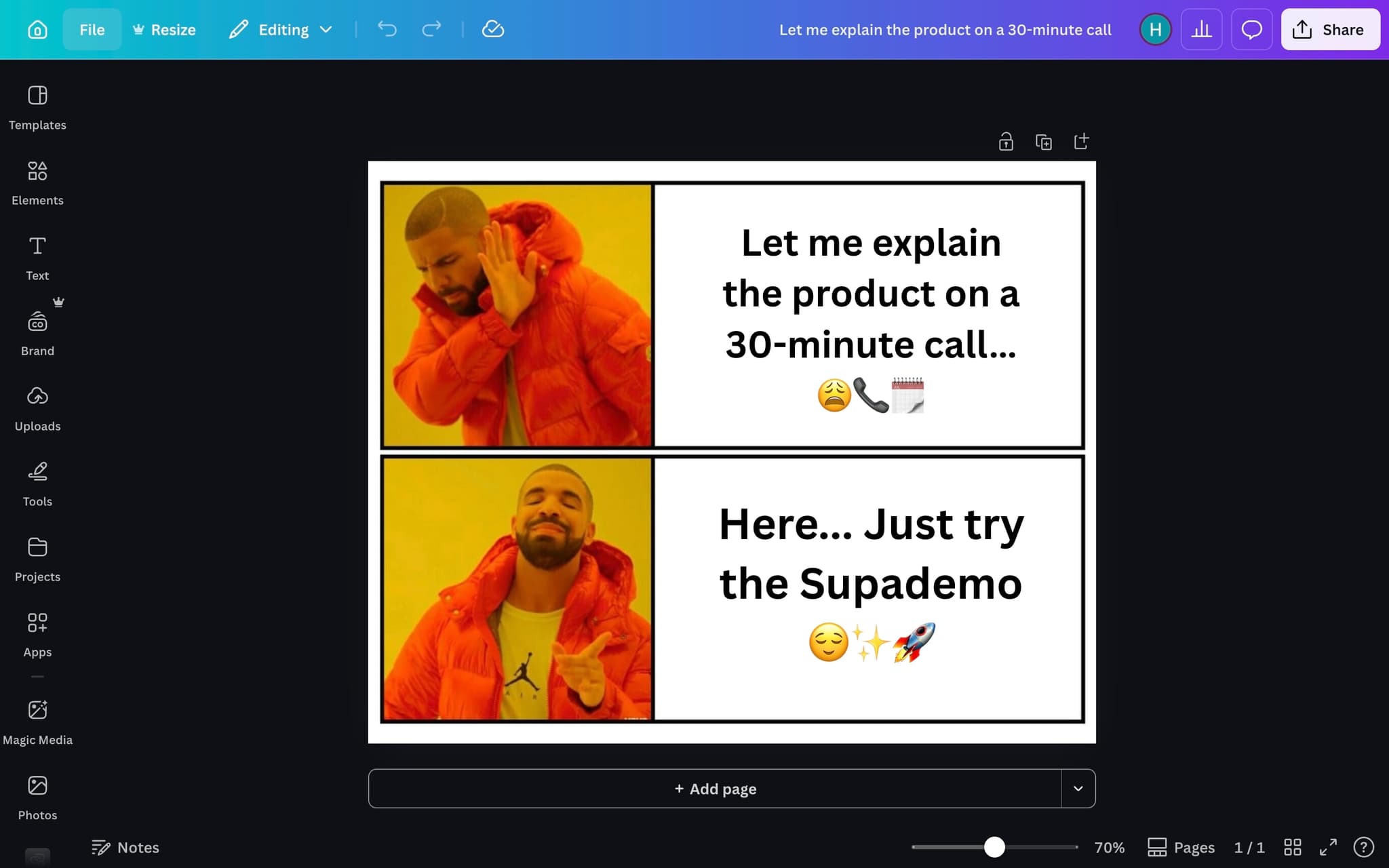
Click the File menu
In the top-left corner of the editor, click File to open the main menu. This is where you'll find settings for your canvas, including display preferences and export options.
- 4
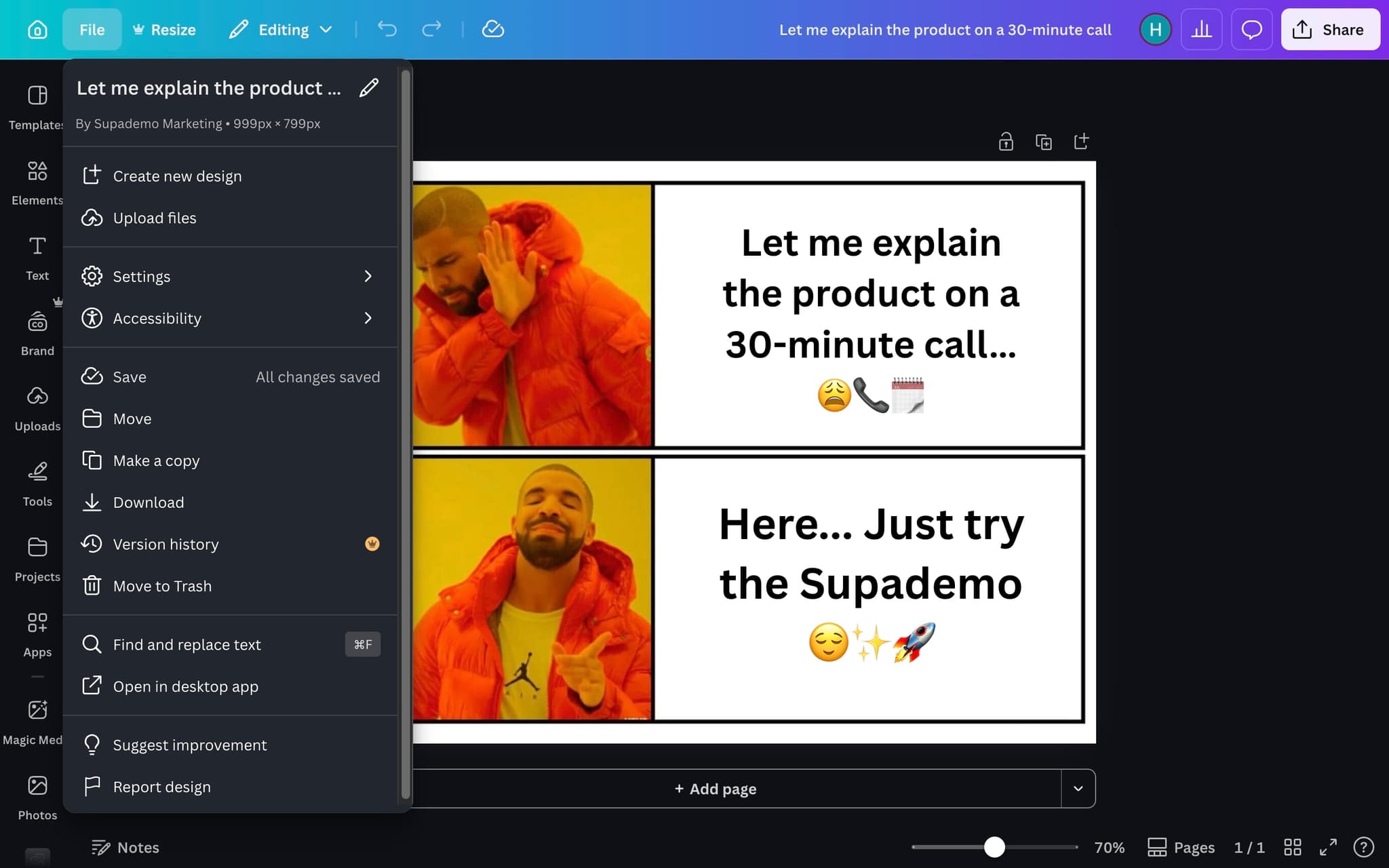
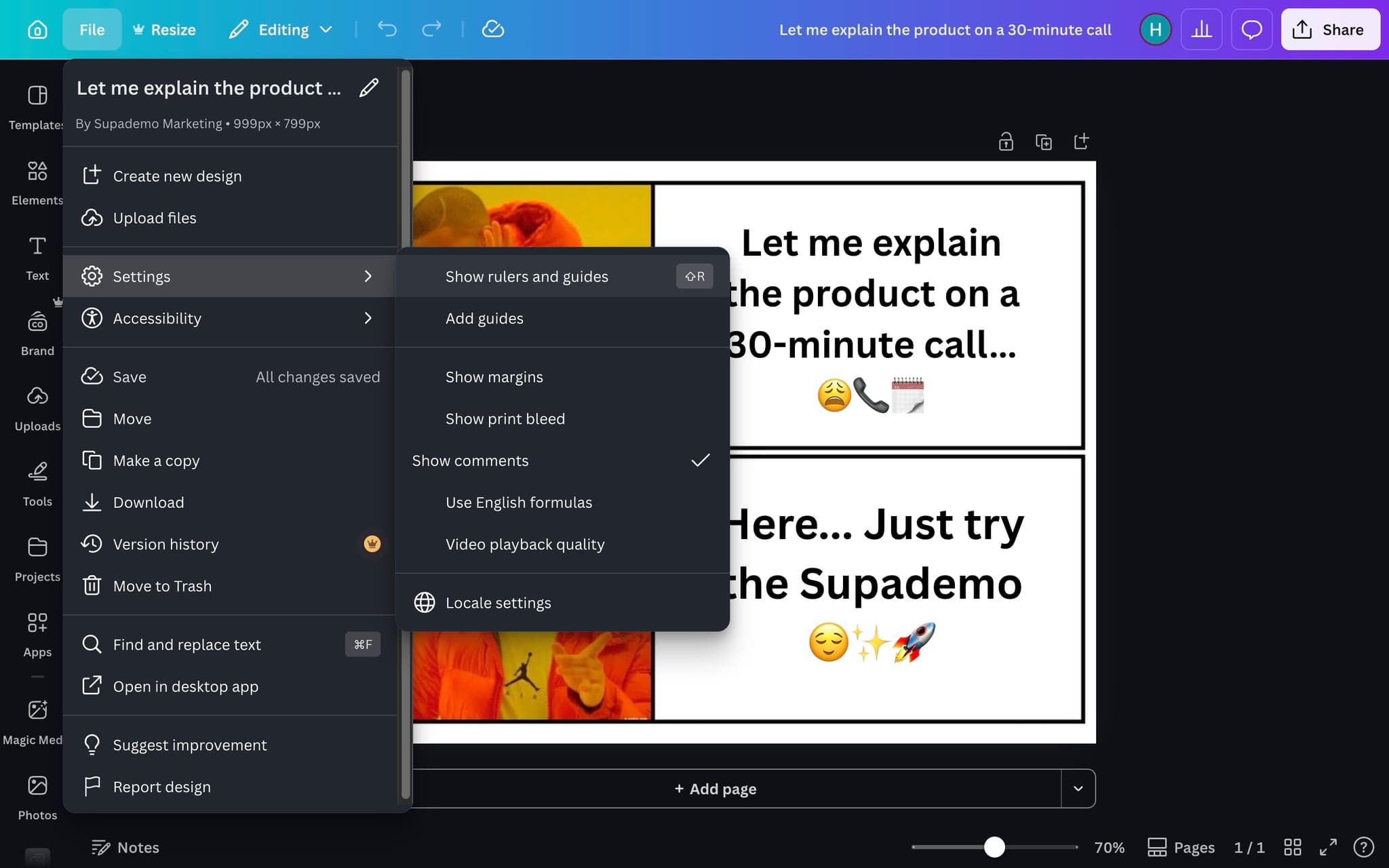
Click Settings
Select Settings from the dropdown menu. This section contains display-related options like rulers, guides, margins, and print bleed settings for your design.
- 5
Enable Show rulers and guides
Click the 'Show rulers and guides' toggle to turn on the ruler display. You can also use the keyboard shortcut Shift + R as a faster alternative for toggling rulers on and off at any time.
- 6
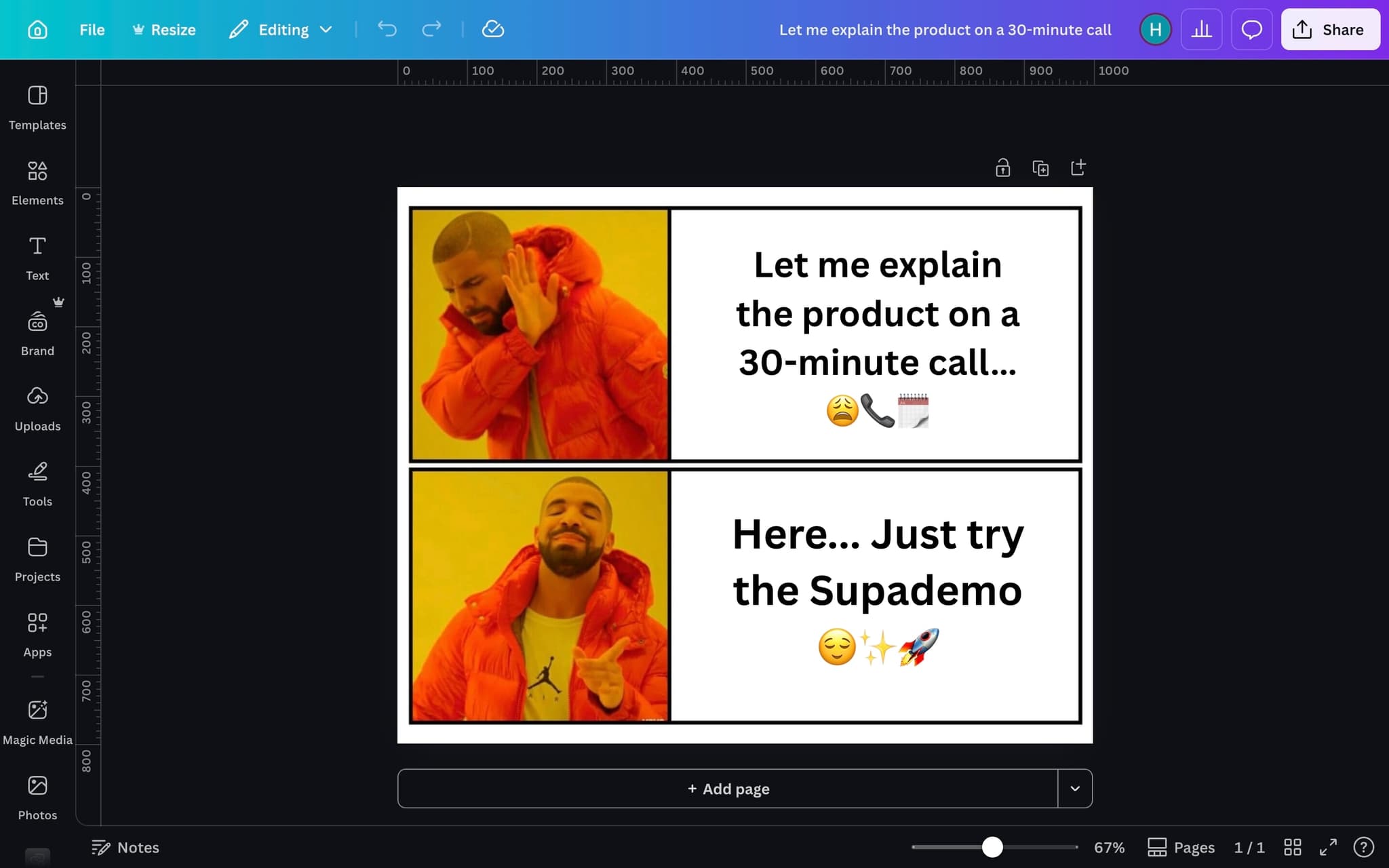
Rulers are now visible
The rulers now appear along the top and left side of your canvas. You can drag from either ruler to create guide lines that help you align elements precisely across your design.
Frequently asked questions
Common questions about how to show ruler in canva.
Rulers are only available on the desktop browser version of Canva, and they are hidden by default. If the option is missing, make sure you are using Canva on a computer rather than the mobile or tablet app. You can toggle rulers on from the File menu under View settings.
Rulers help you measure, align, and position elements precisely by letting you drag guidelines out from the edges of the canvas. They are especially useful for print work where exact margins, bleeds, and safe areas matter. Guidelines dragged from the ruler snap to objects and to other guides for pixel accurate layouts.
Canva lets you switch between pixels, inches, millimetres, and centimetres from the File menu under document settings. Changing the unit updates both the ruler and the document dimension display at the same time. Unit changes apply to the current design only, not to your entire account.
Yes. Guidelines placed using the ruler are saved with the design file and remain visible to anyone who opens it or duplicates it as a template. This makes it possible to ship a branded template with safe zones, column grids, and margins already defined. Viewers can hide the guides without deleting them. Brand consistency at this level pays off across the board: per Supademo's State of Interactive Demos 2026 report, 96.8% of top performing demos use custom branding, which is a useful benchmark for any team shipping branded design assets.
You can capture your Canva screen as a clickable tour with tutorial maker software, complete with tooltips on each toolbar button, so non-designer colleagues click through the exact steps at their own pace instead of pausing a recorded video. As Fredo Tan, Head of Growth at Supademo, puts it: "Most design teams underestimate how much of their Canva content can be replaced with a single recording. The payoff shows up in week one."
A browser based screen recorder captures each click and generates hotspots automatically, so you do not have to stop and draw arrows on screenshots. The output is shareable as a link or embeddable iframe, which makes it easy to drop into a help center, a blog post, or a product marketing page.