How to Make Wavy Text in Canva

Wavy and curved text adds a playful, dynamic feel to your Canva designs. This tutorial shows you how to apply text curve effects for logos, badges, and creative layouts.
Quick summary
In this tutorial, we'll explore how to make wavy or curved text in Canva. You'll select a text element, open the Effects panel, apply the Curve effect, and adjust the intensity slider to control how much your text bends.
Why this matters
Curved text is essential for creating badges, circular logos, seal designs, and visually interesting headings that break away from standard horizontal layouts.
Step-by-step guide
- 1
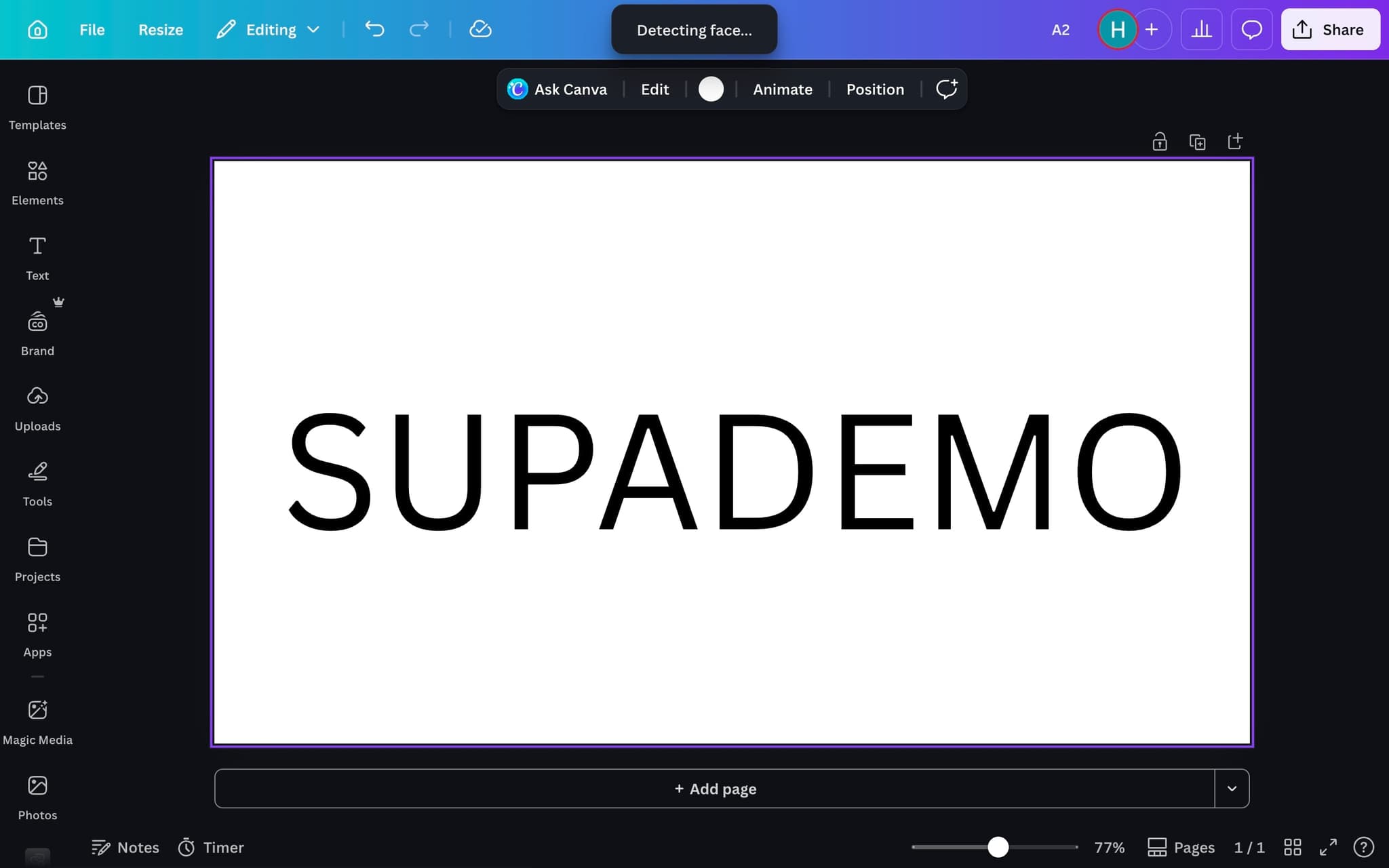
Add your text
Create a text element with the content you want to curve.
- 2
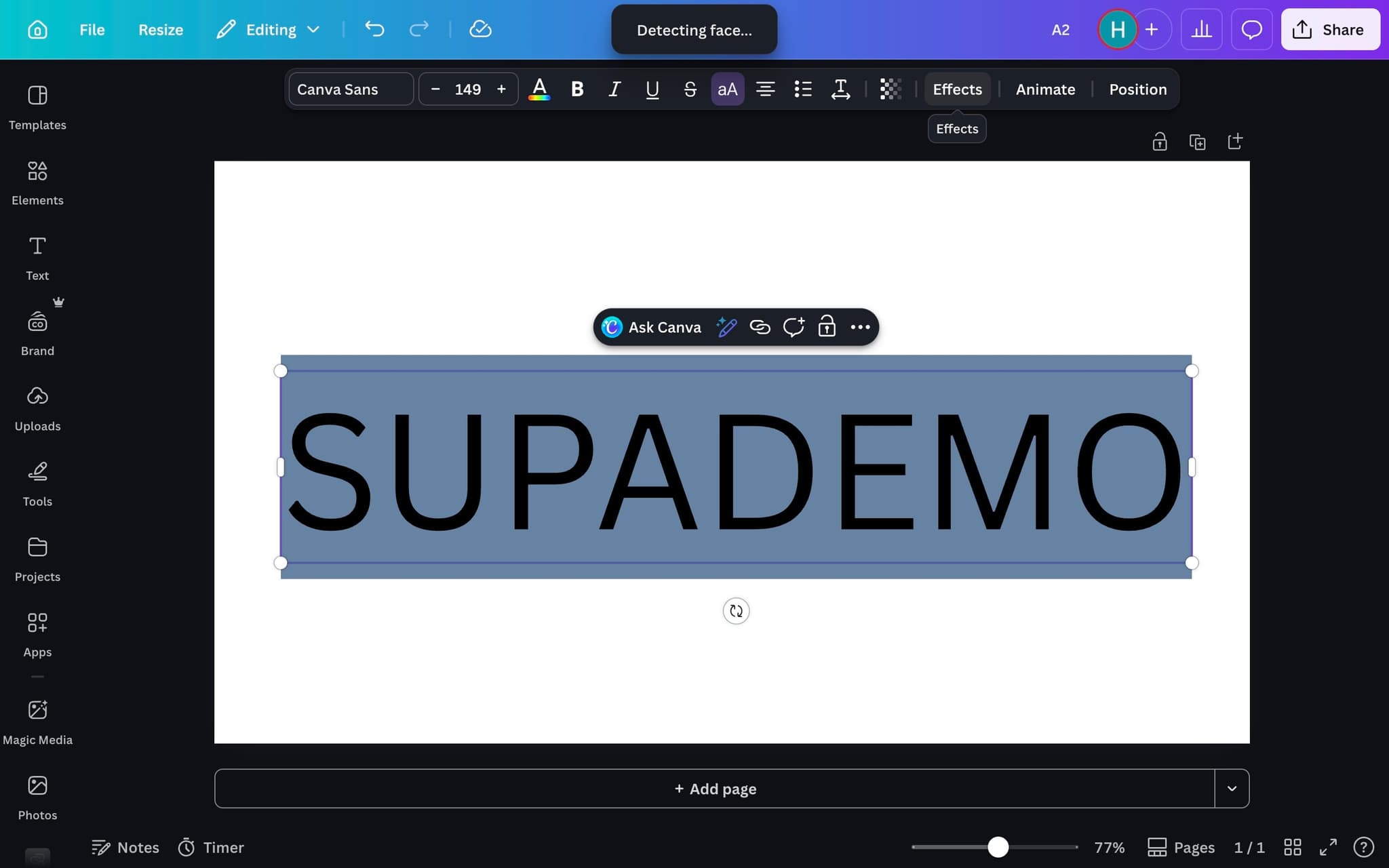
Select the text element
Click on the text element to select it and reveal the formatting toolbar.
- 3
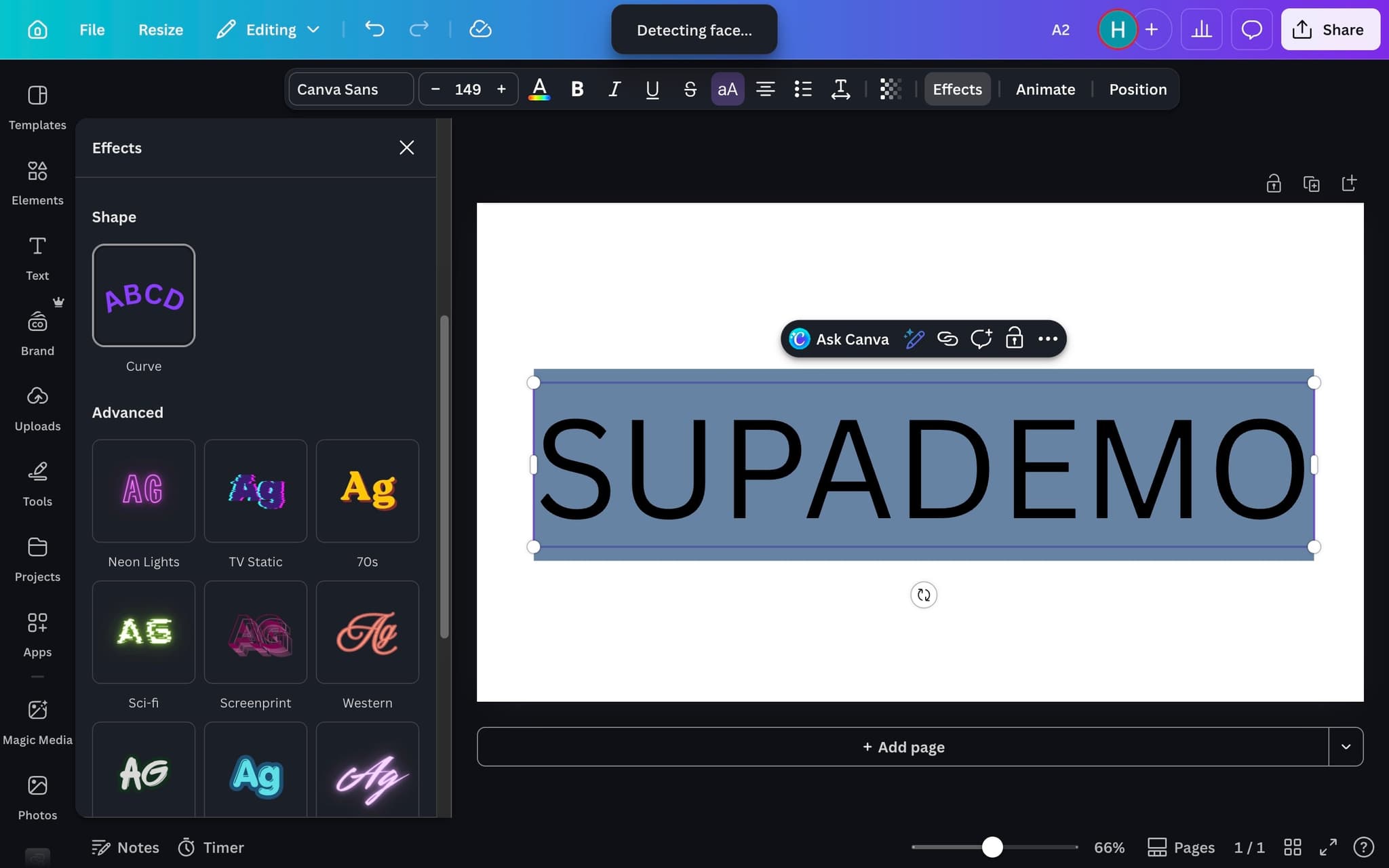
Open the Effects panel
Click 'Effects' in the toolbar to open the text effects options.
- 4
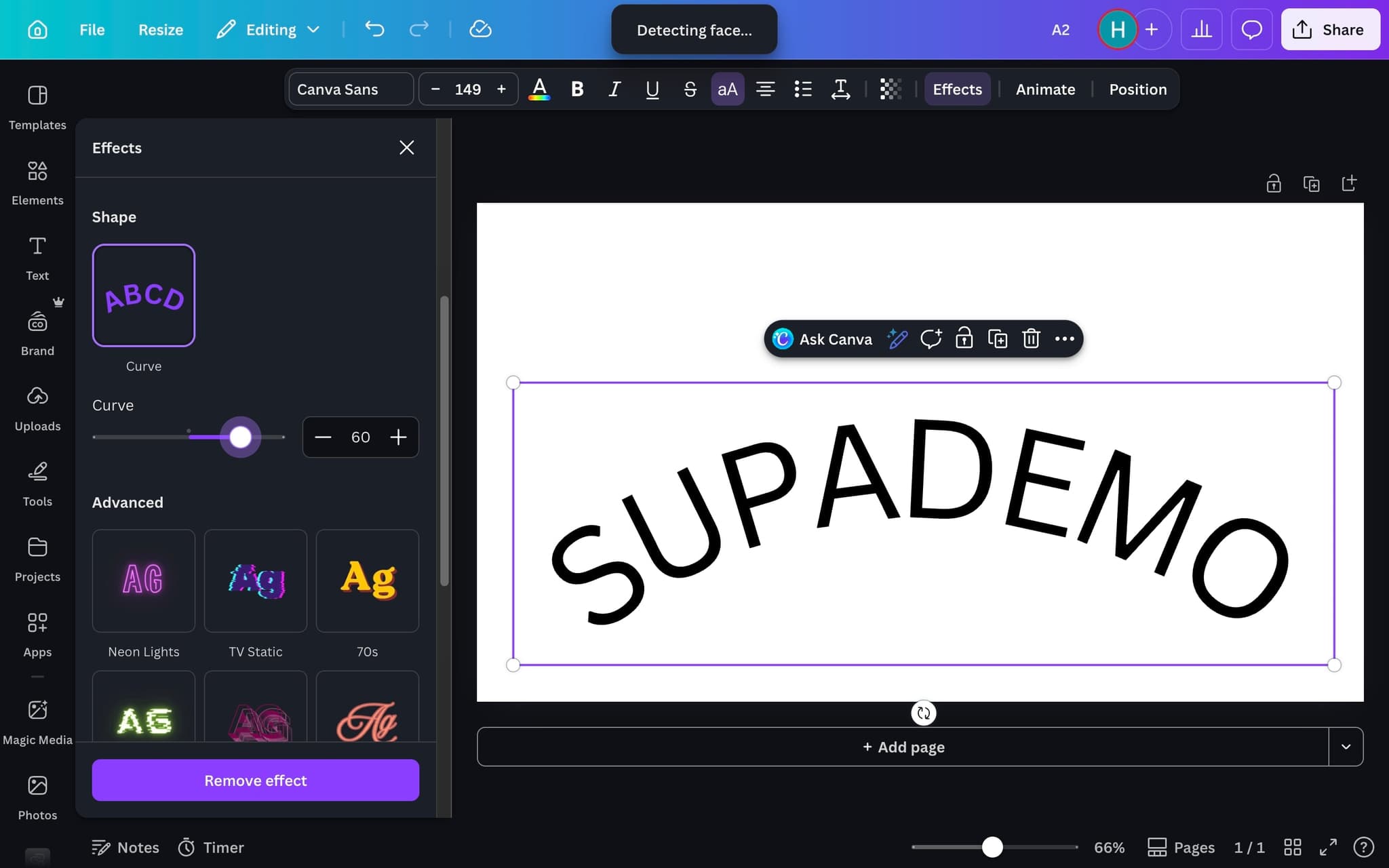
Choose a curve style
Select the curve effect and adjust the slider to control the intensity and direction of the curve.
- 5
Fine-tune your design
Reposition and resize the curved text as needed to fit your overall design composition.
Frequently asked questions
Common questions about how to make wavy text in canva.
Select your text box, open the Effects panel in the top toolbar, and choose the Curve option under Shape. A slider then lets you adjust the curve intensity from flat to a full circle in either direction. The effect is non destructive, so you can edit the underlying text at any time without rebuilding the shape.
Curved text follows a single continuous arc, while wavy text oscillates along a sine shaped path with multiple peaks and troughs. Canva offers Curve as a native effect, but true wavy text requires stacking multiple curved text layers or importing an SVG built in another tool. The two effects are often confused, but they look and behave differently.
Pixelation usually happens when the source text is sized too small on the canvas and then scaled up at export. Start with a larger font size and export as PDF Print or PNG at the highest resolution preset to keep the edges crisp. Vector formats like PDF and SVG avoid the issue entirely.
Yes. Canva Animations work on curved and wavy layers, including Wave, Typewriter, and Pan. Apply the animation from the Animate menu once you are happy with the static shape, and preview the result in the editor before exporting. Wavy layers built from multiple text boxes will animate as a group if they are selected together.
Recording each click as a guided tour beats writing numbered instructions, because viewers get to see every Effects panel setting in context. An interactive walkthrough builder captures your Canva workflow from the browser and turns it into a tooltip driven mini-tutorial you can drop into Slack or a brand doc. As Fredo Tan, Head of Growth at Supademo, puts it: "The design teams winning right now are treating product education like a growth channel, not a support cost."
Video forces passive viewing, while interactive walkthroughs let learners try each step themselves at their own pace. This comparison of video walkthroughs versus interactive formats shows interactive wins on completion and recall across both consumer and B2B audiences.