How to Add Music to PowerPoint

Adding music to your PowerPoint presentation can enhance engagement and create a more immersive experience for your audience. Whether you're creating a professional slideshow or a creative presentation, embedding audio files directly into PowerPoint is straightforward and doesn't require external tools.
Quick summary
In this tutorial, you'll learn how to insert audio files into your PowerPoint slides using the built-in audio insertion feature. You'll navigate to the audio options, select your desired file, and upload it to your presentation in just a few clicks.
Why this matters
Incorporating background music or sound effects into your PowerPoint slides can significantly improve audience retention and create emotional connections with your content. This skill is essential for professionals delivering pitches, educators creating engaging lessons, and content creators building multimedia presentations.
Step-by-step guide
- 1
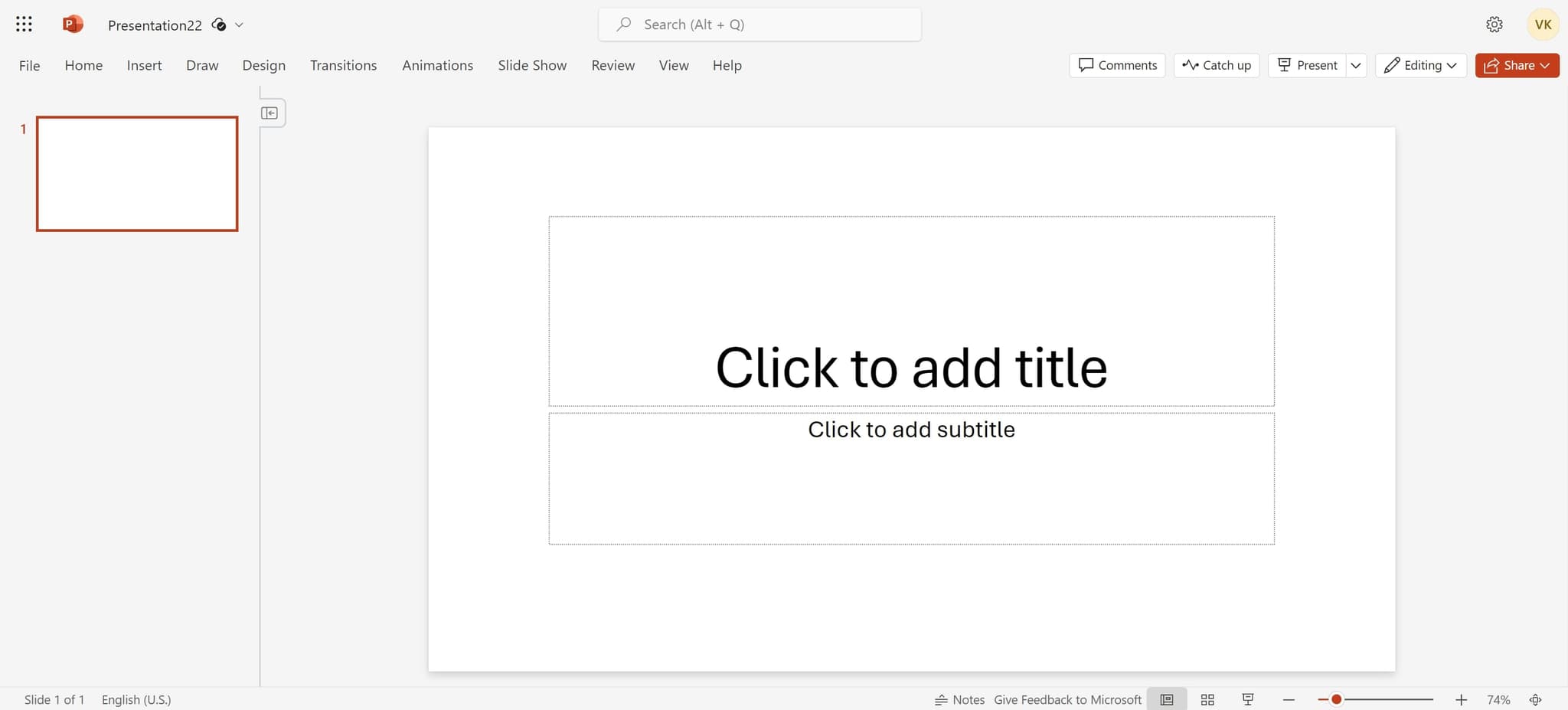
Access the Insert menu
Begin by clicking on the Insert menu in PowerPoint's ribbon toolbar. This opens the menu containing all content insertion options including media files.
- 2
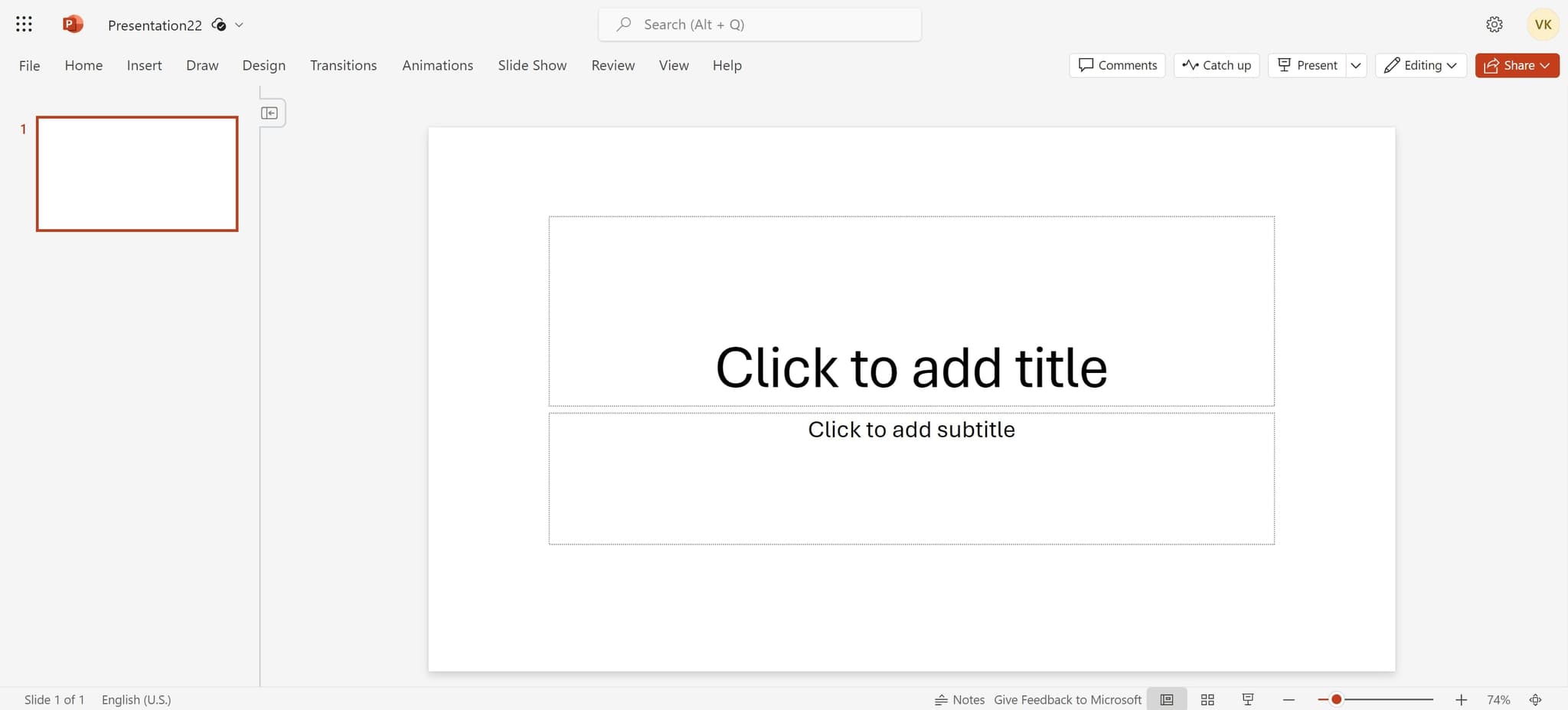
Navigate to media options
Look for and click on the media or audio insertion option in the Insert menu. This will reveal additional options for adding different types of media to your slide.
- 3
Choose upload option
Select the upload option from the available choices. This allows you to browse your computer for audio files stored locally.
- 4
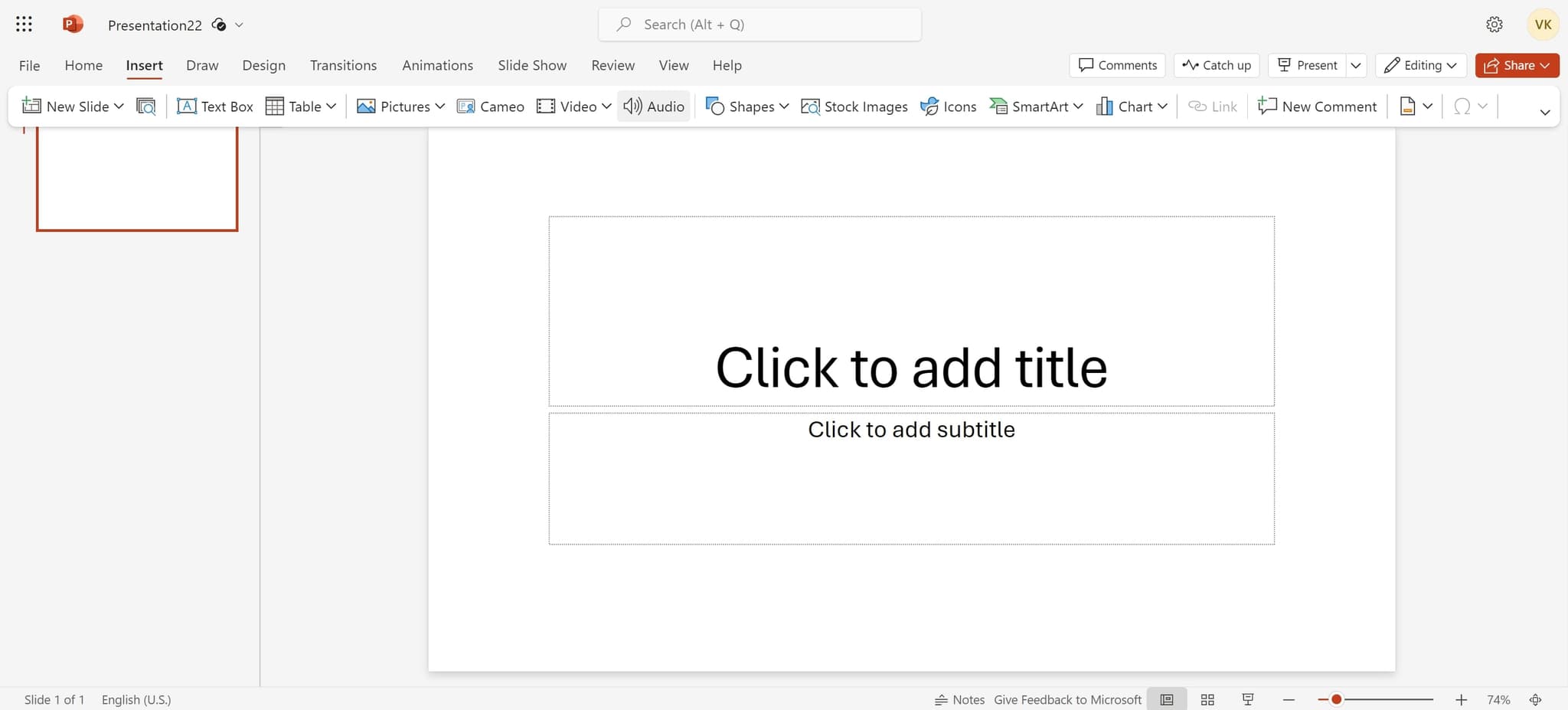
Click on Audio
Select the Audio option specifically to filter for audio file types. This ensures you're browsing for music and sound files rather than other media types.
- 5
Select File option
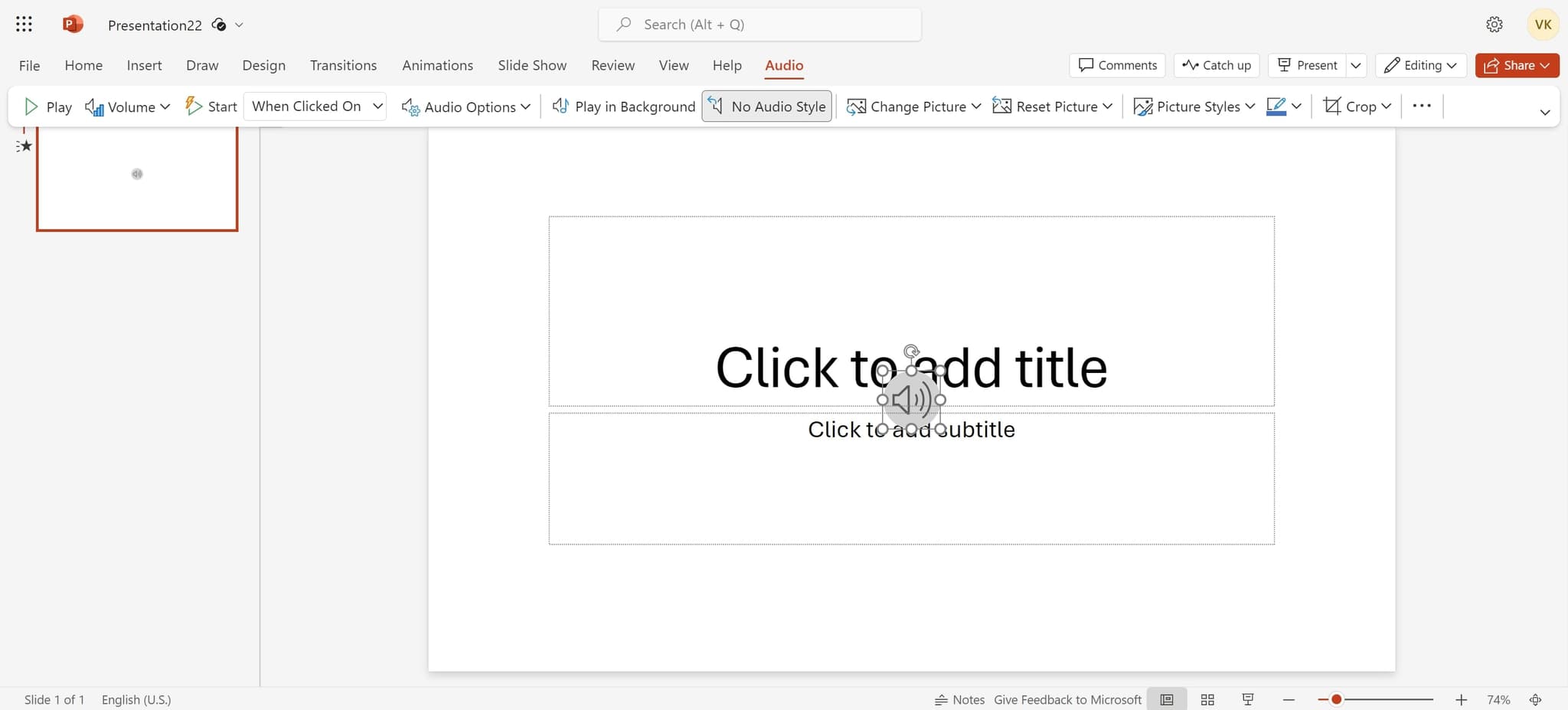
Click on the File option to browse your computer's file system. A file dialog will open showing your local folders and available audio files.
- 6
Upload your audio file
Navigate to the location of your desired audio file and click to select it. Once selected, confirm the upload to insert the audio into your PowerPoint slide.
Frequently asked questions
Common questions about how to add music to powerpoint.
What audio file formats does PowerPoint support?
PowerPoint supports common audio formats including MP3, WAV, M4A, and AAC files. Most music files downloaded from legitimate sources or created with standard audio software will work without conversion. Always verify your file format before uploading to ensure compatibility.
Can I control when the music plays during my presentation?
Yes, PowerPoint allows you to set audio playback options including when the music starts (on click, automatically, or with the slide), whether it loops continuously, and volume levels. Right-click on the audio icon on your slide to access these playback settings.
Will the audio file increase my PowerPoint file size significantly?
Audio files do add to your presentation's file size, with impact depending on the file length and quality. A typical 3-5 minute song might add 3-10 MB to your file. If file size is a concern, consider compressing audio or linking to external files instead of embedding them.
Can I add multiple audio tracks to a single slide?
Yes, you can insert multiple audio files on one slide. However, they will typically play together if set to auto-play, which can create overlapping sound. Use click-to-play options to control which audio plays and when for better audience experience.
What should I do if my audio file doesn't appear after uploading?
If your audio file doesn't appear, verify that the file format is supported by PowerPoint and that the file isn't corrupted. Try uploading a different audio file to confirm the process works. If problems persist, check that your PowerPoint version is up to date, as older versions may have limited audio support.