How to Add Page Numbers in PowerPoint

Page numbers are essential for professional presentations, especially when sharing multi-slide decks with colleagues or clients. Adding page numbers in PowerPoint is a straightforward process that helps viewers navigate your presentation and reference specific slides during discussions.
Quick summary
In this tutorial, you'll learn how to add page numbers to your PowerPoint presentation using the Footer feature. By the end, every slide in your deck will display sequential numbering that automatically updates as you add or remove slides.
Why this matters
Page numbers improve the professionalism of your presentation and make it easier for audiences to follow along during live presentations or when reviewing slides afterward. This is particularly important for longer presentations or formal business contexts where slide references are discussed.
Step-by-step guide
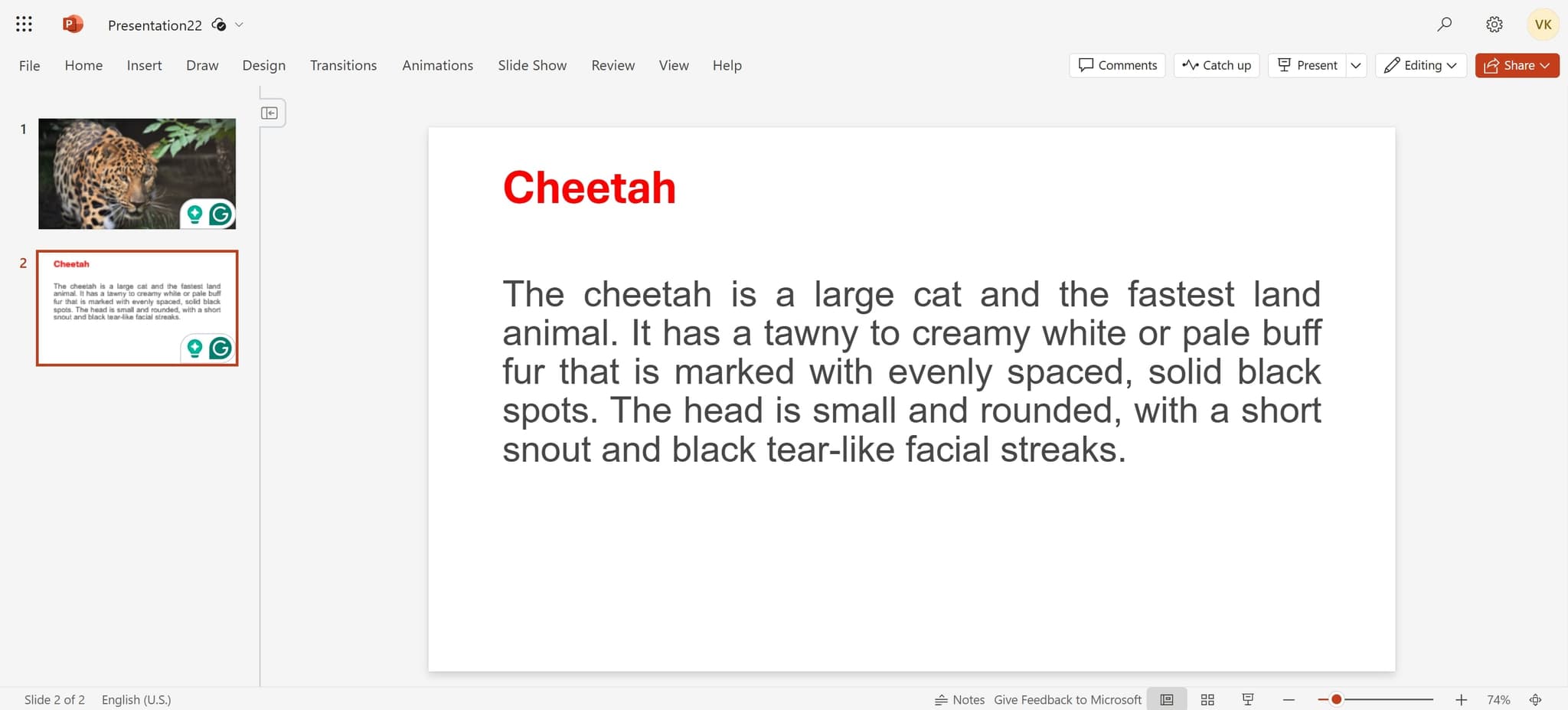
- 1
Access the Insert menu
Start by clicking on the Insert tab in the PowerPoint ribbon at the top of your screen. This opens the menu where you'll find options for adding elements like headers, footers, and page numbers.
- 2
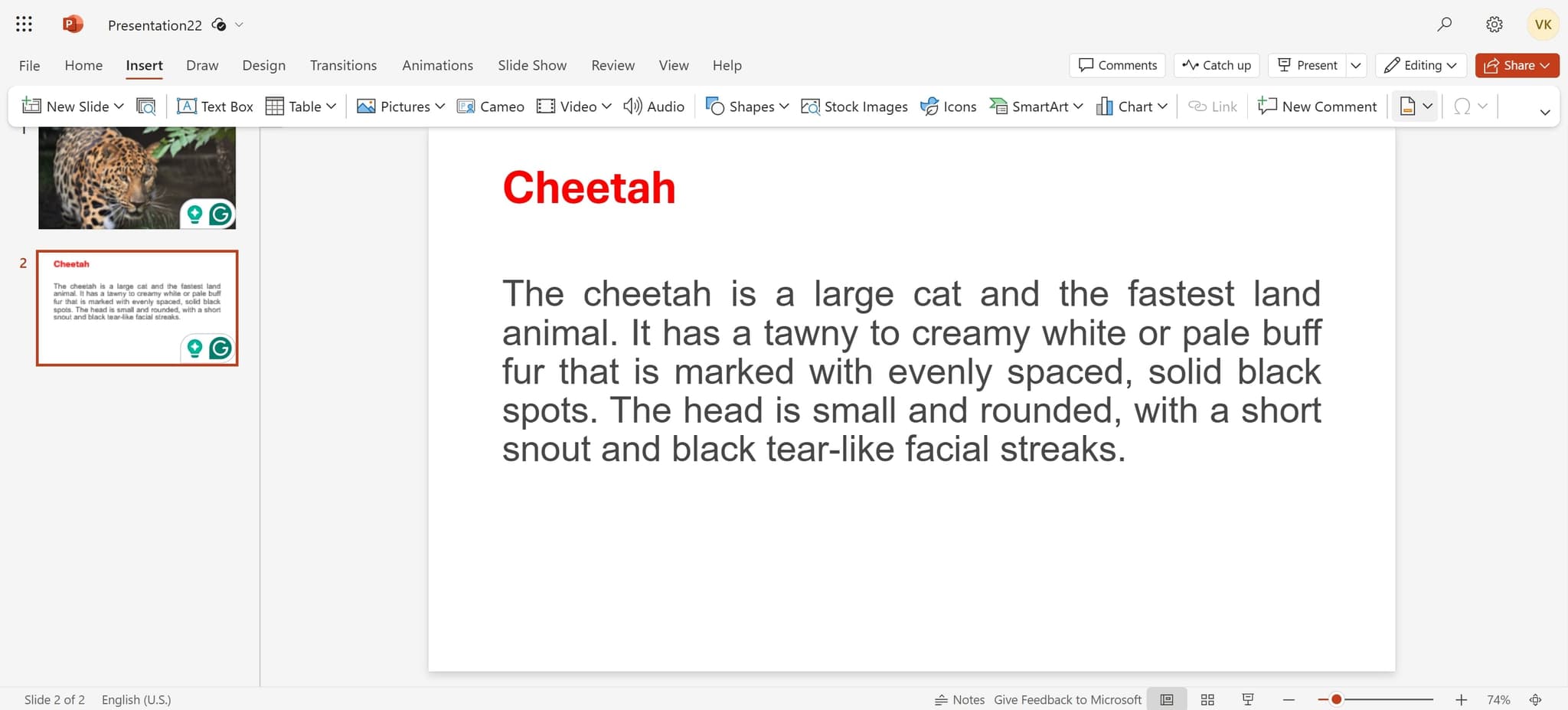
Locate the Header & Footer option
Look for and click on the Header & Footer button within the Insert menu. This action opens a dialog box where you can configure page numbering and other footer settings for your slides.
- 3
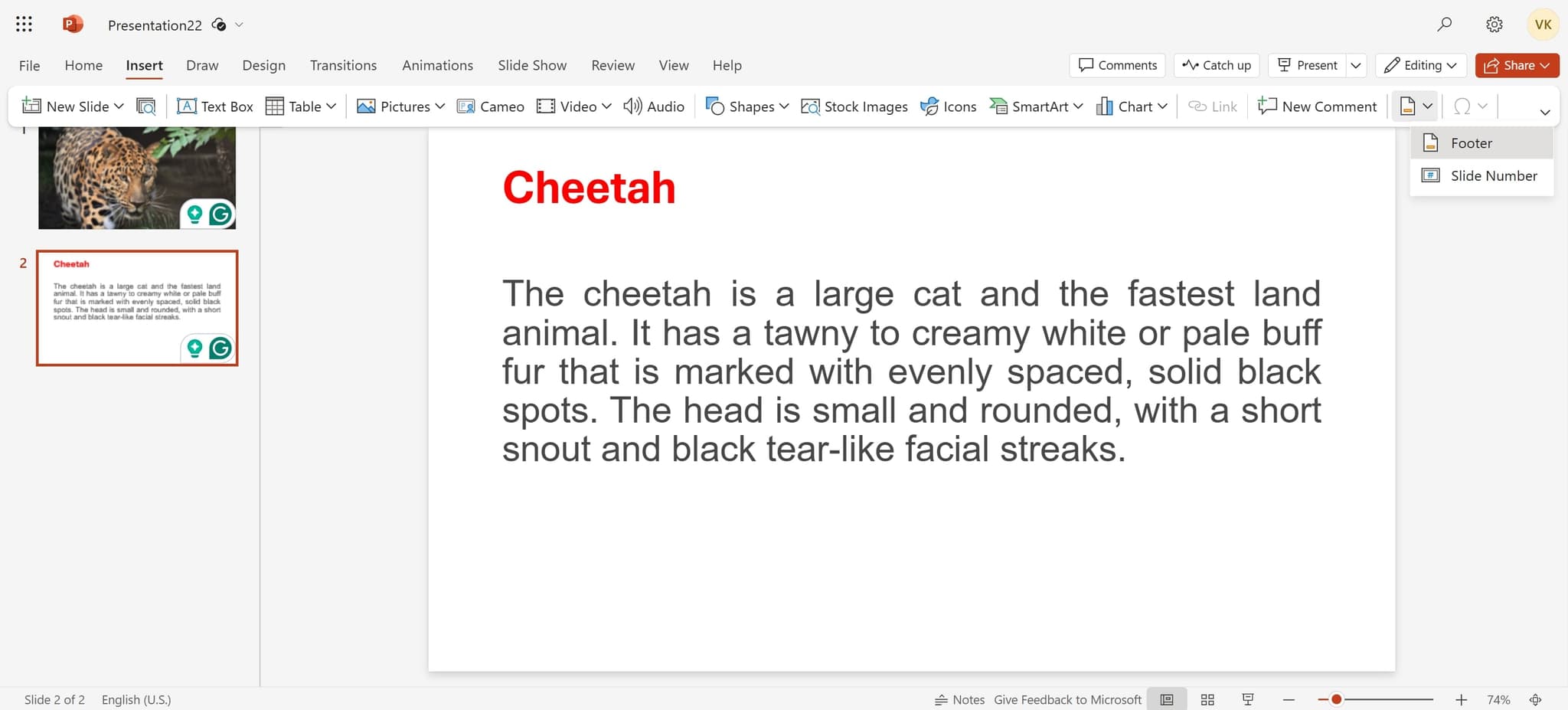
Select the Footer option
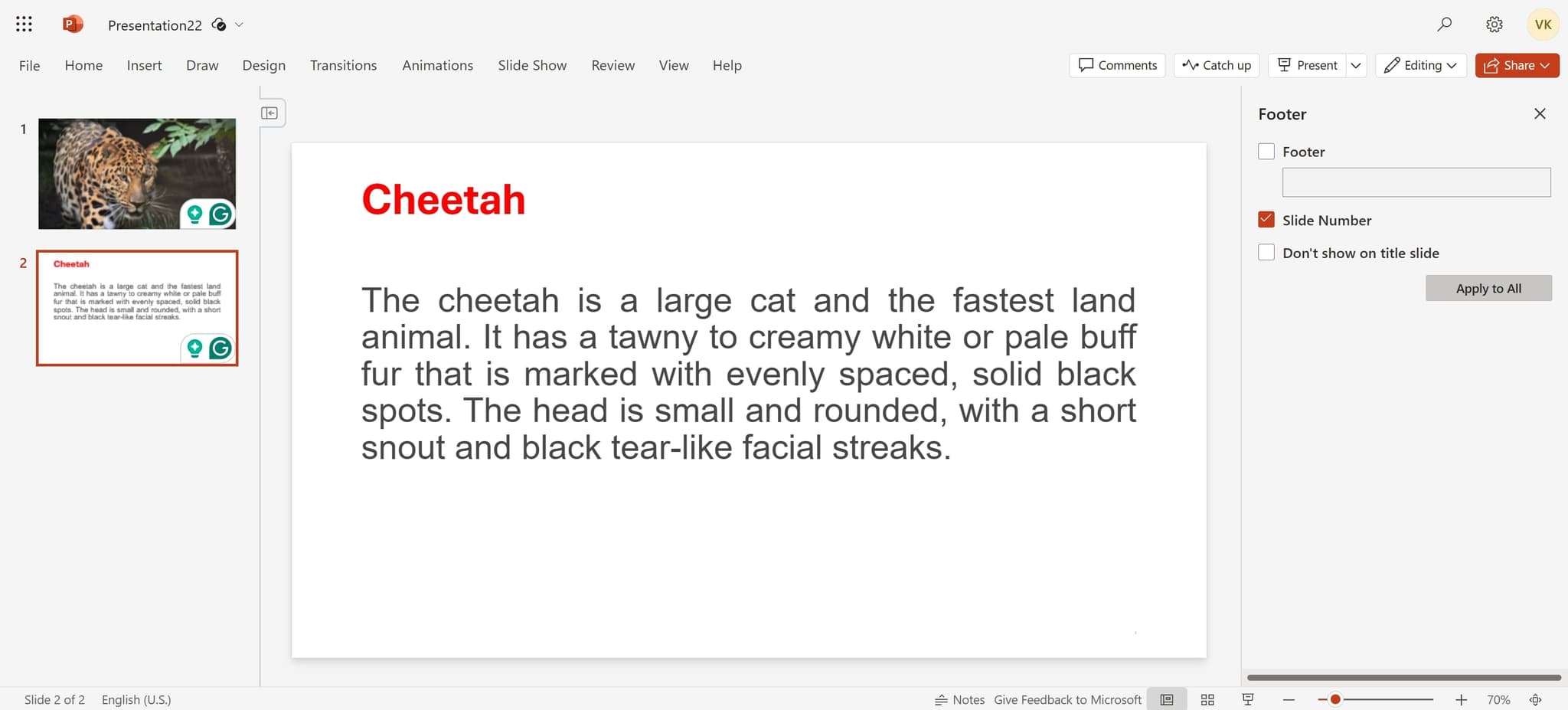
In the Header and Footer dialog box, click on the Footer checkbox to enable it. You'll see an input field appear where you can enter text or choose to enable automatic page numbering.
- 4
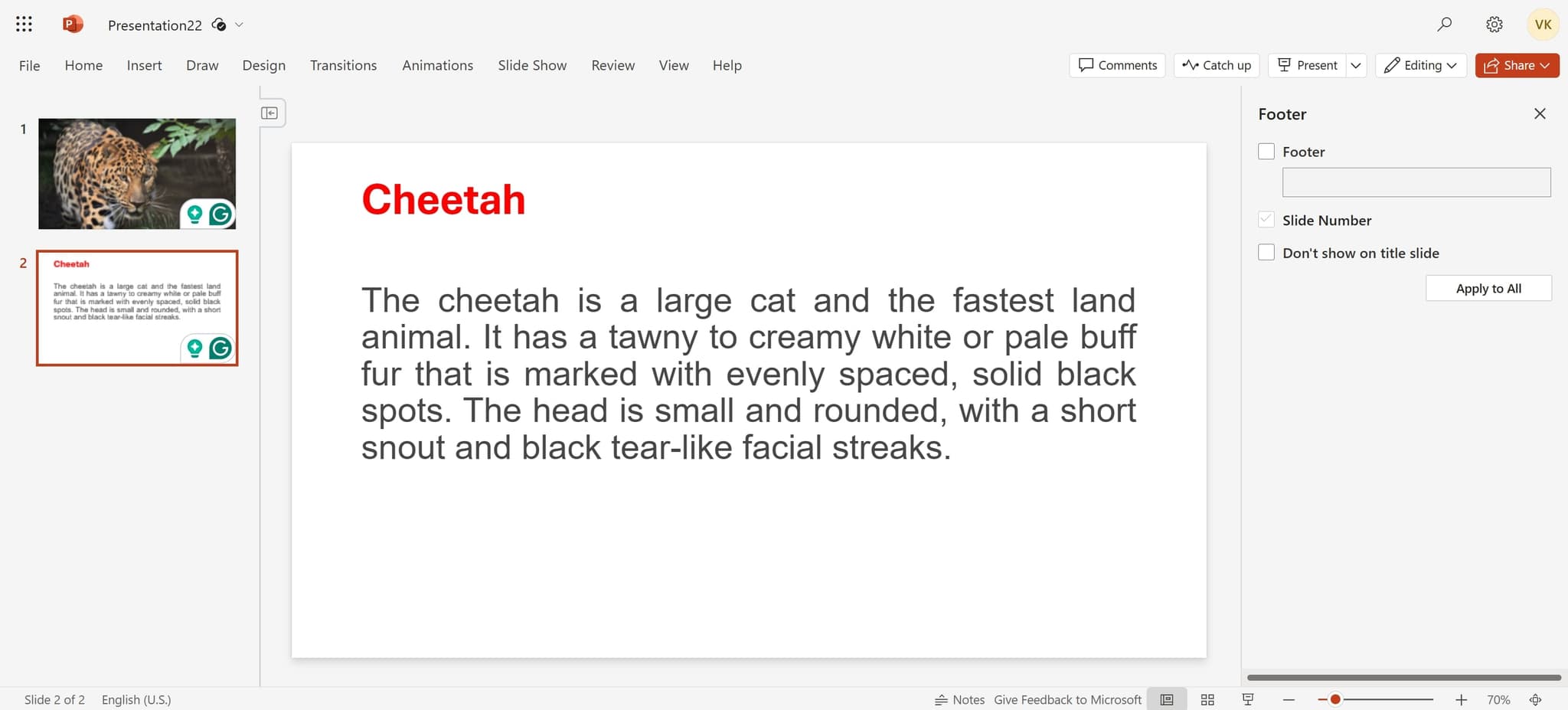
Enable page numbering
Click on the element or checkbox that enables page numbers in your presentation. This setting will automatically insert sequential numbers on each slide starting from your first slide.
- 5
Apply numbering to all slides
Click the 'Apply to All' button to apply the page numbers across your entire presentation. All slides will now display the page number in the footer area, with the numbering automatically adjusting if you add or delete slides.
Frequently asked questions
Common questions about how to add page numbers in powerpoint.
Can I customize where page numbers appear on my slides?
Yes, the position of page numbers depends on your slide design template. Most PowerPoint themes place page numbers in the bottom right or center of the slide. If you need to change the position, you may need to edit the slide master to adjust the footer placeholder location.
How do I remove page numbers from specific slides?
To exclude page numbers from certain slides like title slides, open the Header and Footer dialog again and check the 'Don't show on the first slide' option. For more granular control, you'll need to edit the slide master and manually remove the footer placeholder from individual slides.
Can I start page numbering from a number other than 1?
In most PowerPoint versions, you can adjust the starting number by going to the Design tab, selecting 'Format Background,' and finding the page numbering options. Alternatively, some versions allow you to set this in the Header and Footer dialog under advanced settings.
What's the difference between page numbers and footers?
Page numbers are sequential numbers automatically generated by PowerPoint, while footers are custom text you add to every slide. You can use both simultaneously, allowing you to display a footer message and page numbers on the same slide.
Will page numbers appear in slide sorter view and slideshow mode?
Page numbers will appear in slideshow mode and most other views, but their visibility in slide sorter view depends on your display settings. They will always be present in printed versions of your presentation, making them useful for reference materials.