How to Add Sections to a Google Form

Google Forms allows you to organize surveys, quizzes, and questionnaires into logical sections to improve structure and user experience. Sections help break up lengthy forms into manageable chunks, making them easier for respondents to complete.
Quick summary
In this tutorial, you'll learn how to add sections to a Google Form to organize your questions into separate pages or groups. You'll discover how to create new sections, customize section titles, and arrange your form layout for maximum clarity and engagement.
Why this matters
Organizing forms into sections reduces cognitive load on respondents and improves completion rates. Well-structured forms with clear section breaks also make data collection more intuitive and help you group related questions logically, making analysis easier afterward.
Step-by-step guide
- 1
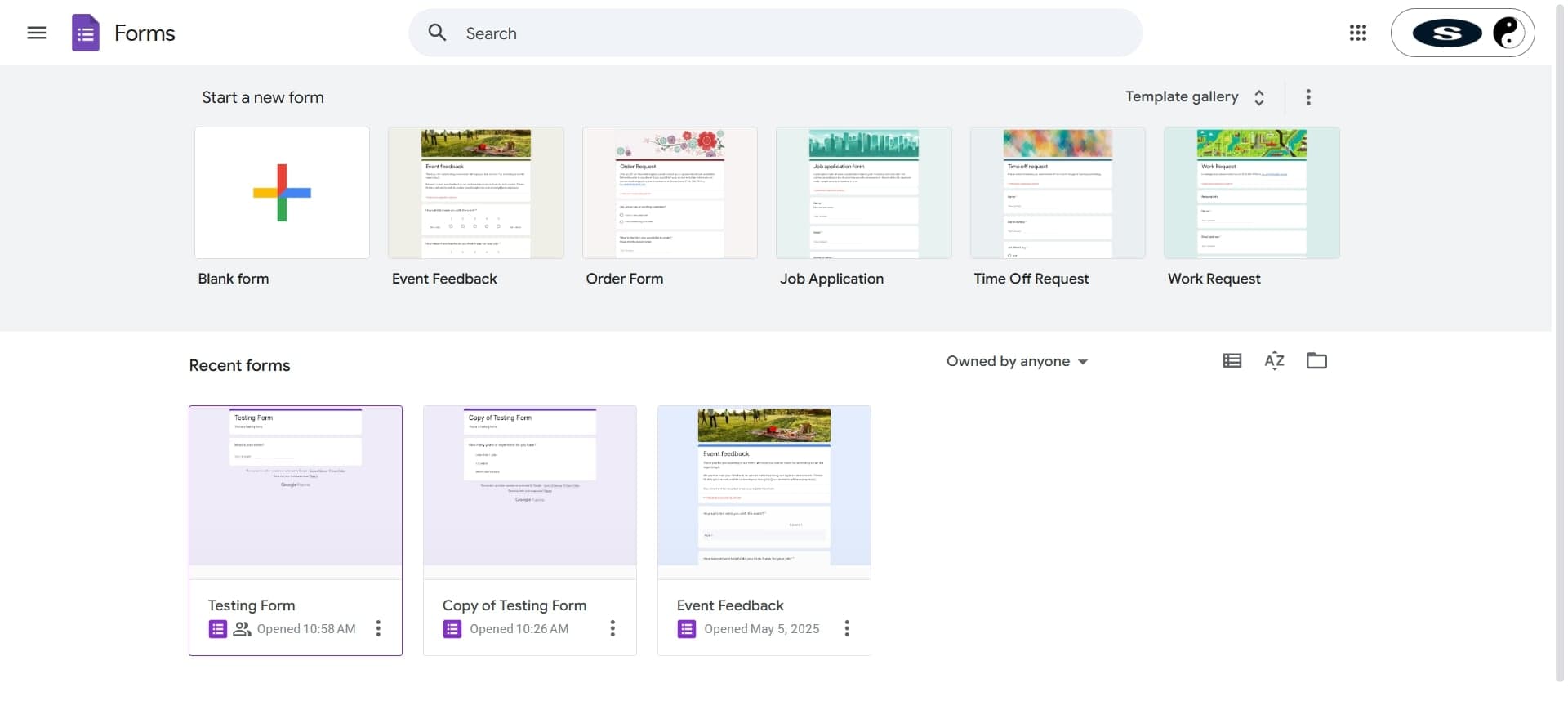
Open your Google Form
Navigate to Google Forms and select the form you want to edit. If you're creating a new form, click the plus icon and choose Blank to start fresh.
- 2
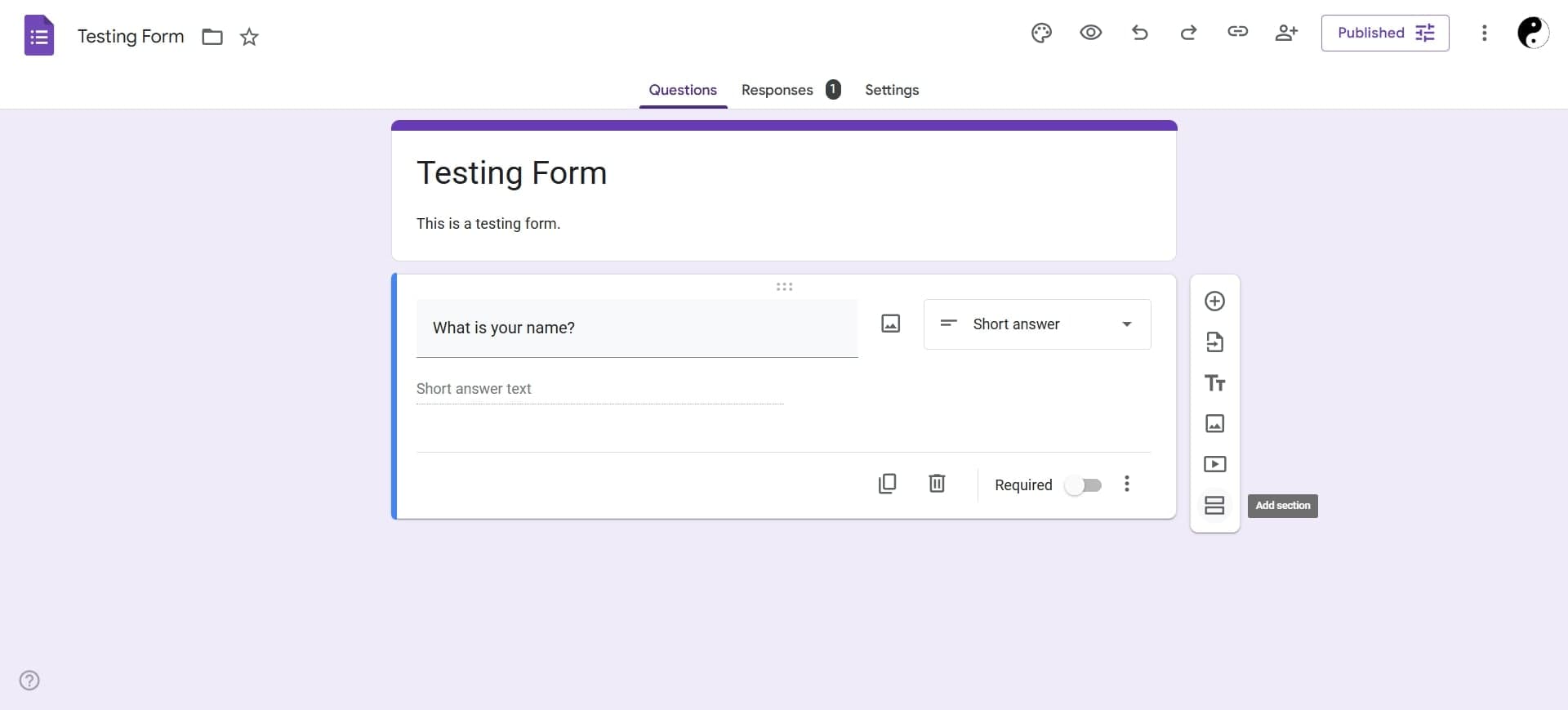
Click the section button
In the toolbar on the left side of the editor, locate and click the section icon (it looks like a line separator). This adds a new section break to your form.
- 3
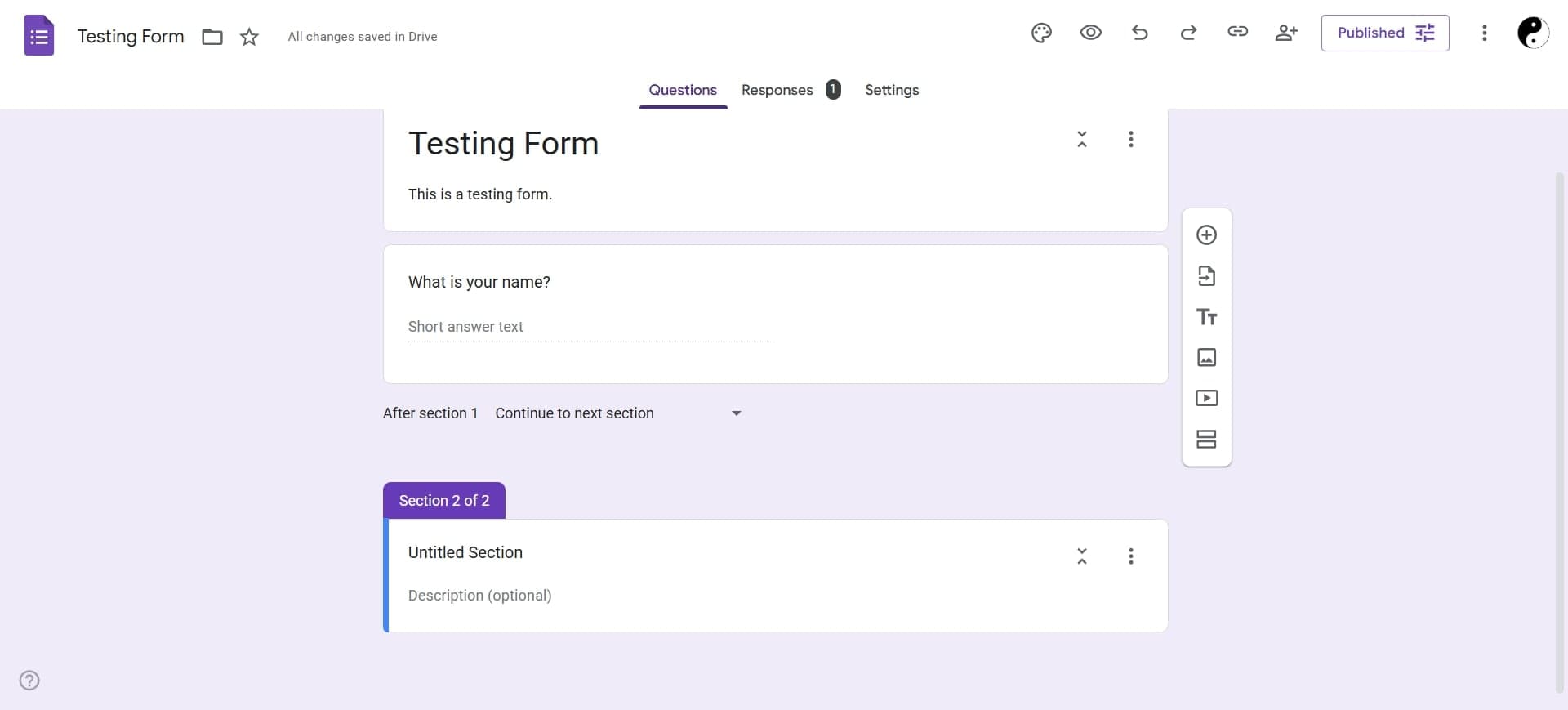
Name your section
Type a descriptive title for the section in the Section heading field. You can optionally add a description to provide additional context to respondents about what questions the section contains.
- 4
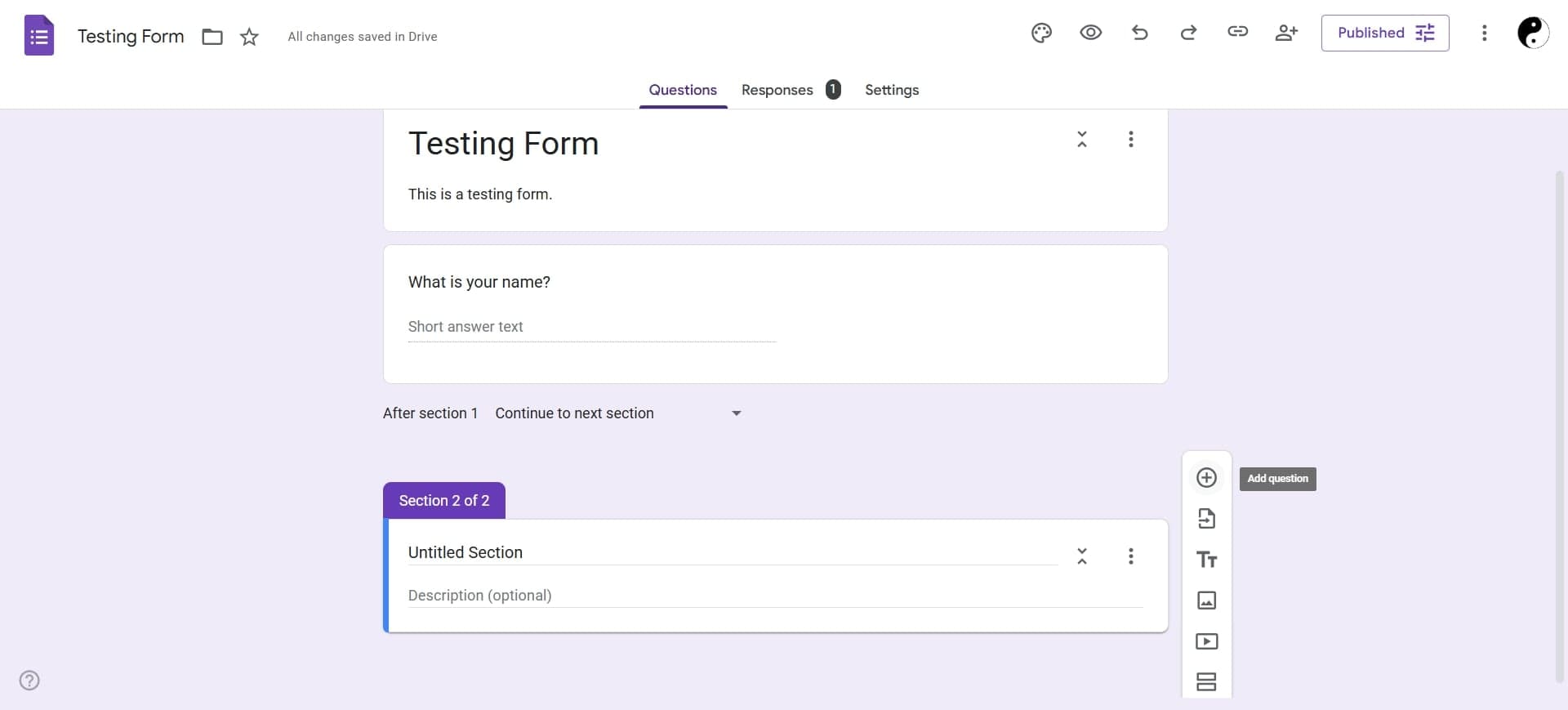
Arrange questions within sections
Drag and drop questions to move them between sections. Use the same drag handles you'd use to reorder questions, ensuring each question appears under the correct section heading.
Frequently asked questions
Common questions about how to add sections to a google form.
Can I have sections on separate pages in Google Forms?
Yes. In the form settings (gear icon), navigate to Presentation and enable the Page breaks option. This displays each section on its own page, with a Next button to progress through the form.
Can I delete a section without deleting the questions in it?
Yes. Click the delete icon (trash bin) on the section itself, and the section header will be removed while all questions within it remain intact.
Is there a limit to how many sections I can add?
Google Forms doesn't impose a strict limit on the number of sections you can add. The practical limit depends on your form's size and purpose, but you can organize forms with dozens of sections if needed.
Can I add section descriptions?
Yes. When you create or edit a section, there's a description field below the section title where you can provide additional instructions or context to help respondents understand the questions that follow.
Will respondents see section titles?
Yes. Section titles and descriptions are visible to respondents as they fill out the form. Make sure your section titles are clear and helpful to guide users through the form.