How to change the orientation of your Google doc

Changing the page orientation in Google Docs allows you to switch between portrait and landscape layouts to better suit your document's content and design needs. Whether you're creating a wide table, landscape diagram, or simply prefer a horizontal layout, Google Docs makes this adjustment straightforward.
Quick summary
In this tutorial, you'll learn how to change your Google Doc's page orientation from portrait to landscape (or vice versa) in just a few clicks. We'll walk you through accessing the Format menu and selecting your preferred orientation setting.
Why this matters
Changing page orientation is essential when working with wide content like spreadsheets, charts, or large diagrams that don't fit well in portrait mode. Many professional documents, presentations, and reports require landscape orientation for optimal readability and visual impact. Mastering this skill ensures your document layout matches your content requirements.
Step-by-step guide
- 1
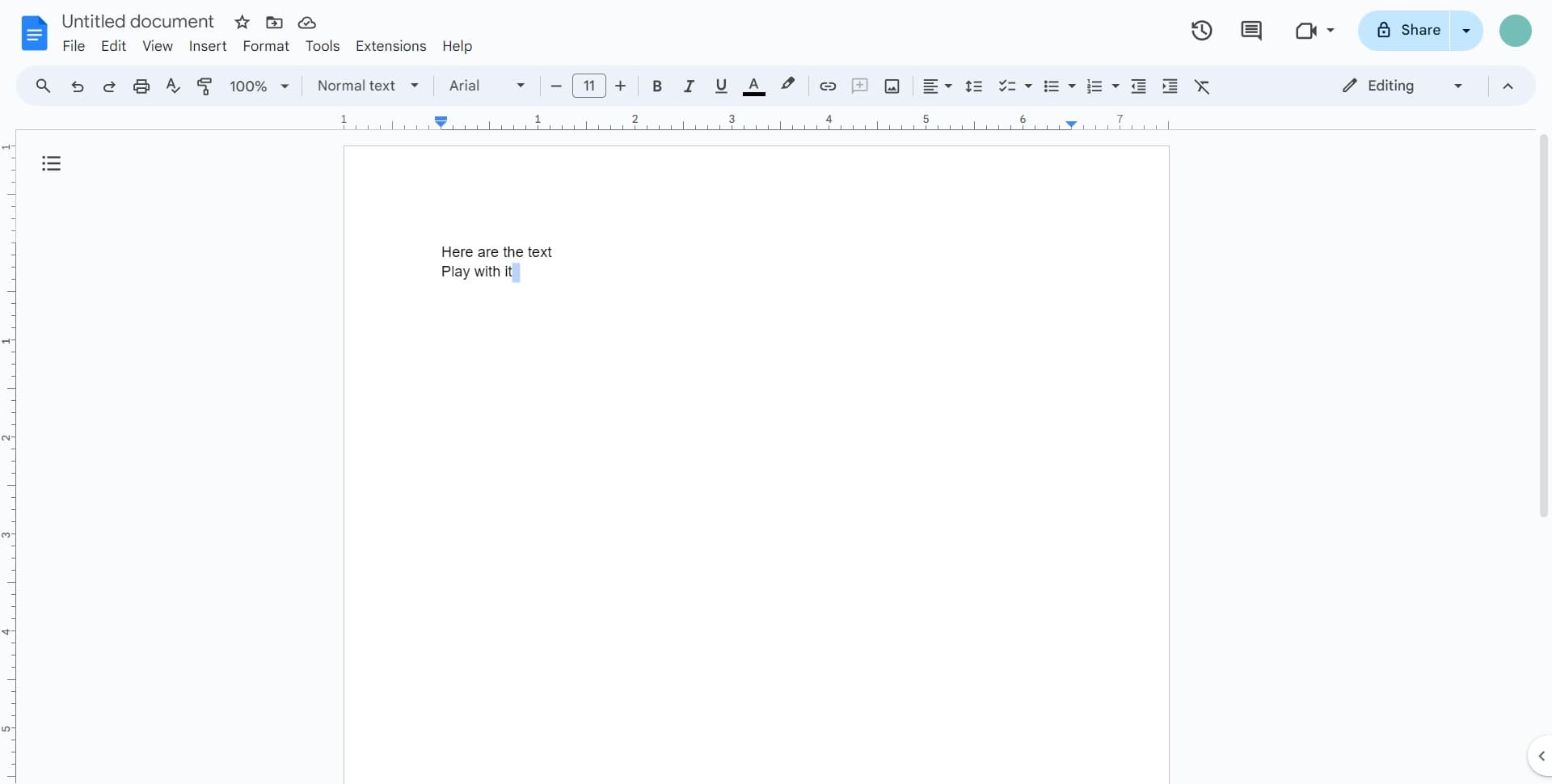
Open the Format menu
Click on the Format option in the top menu bar. This opens the formatting options for your document.
- 2
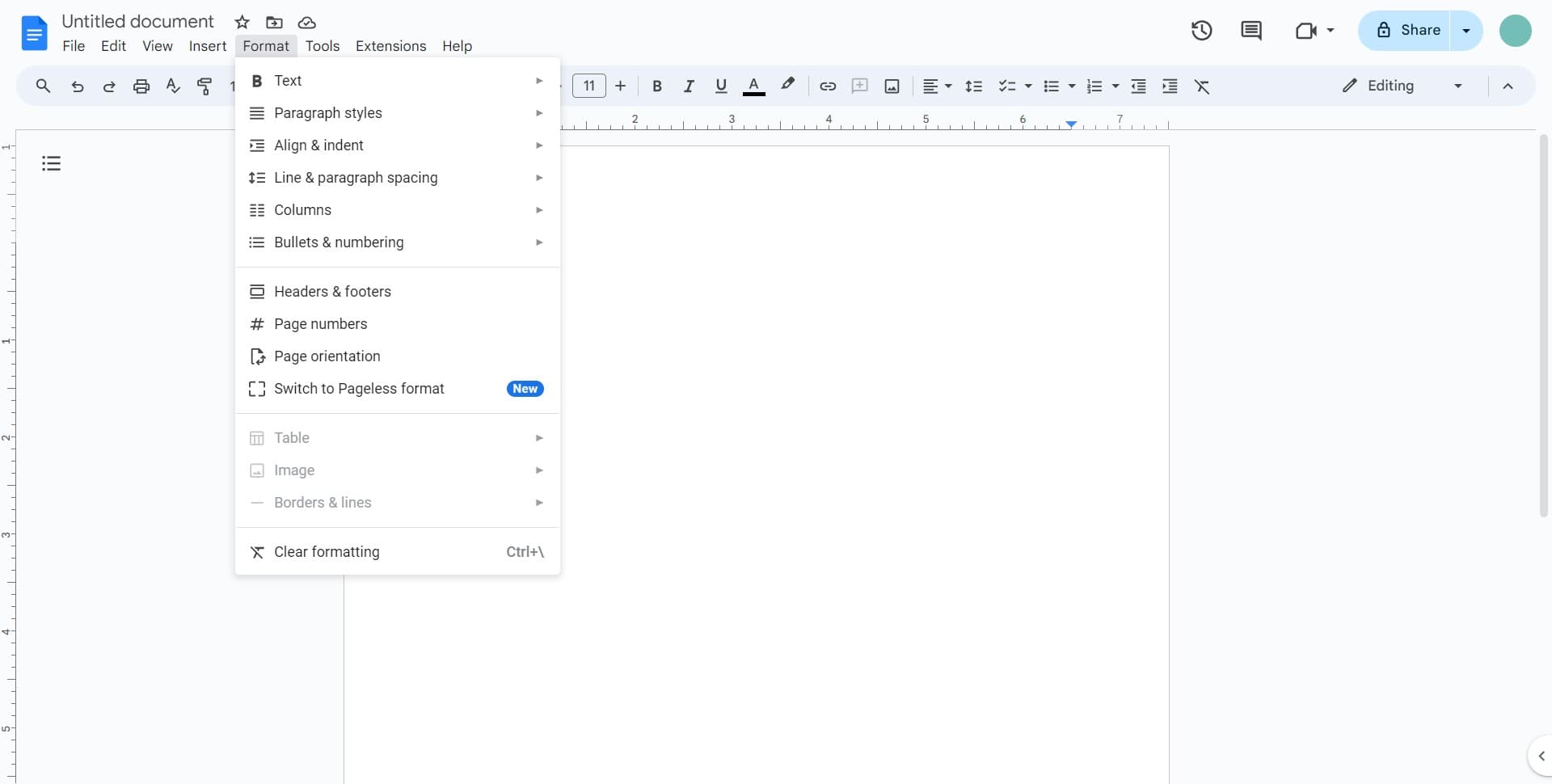
Select Format from the menu
Click on 'Format' in the dropdown menu that appears. This gives you access to all document-level formatting settings.
- 3
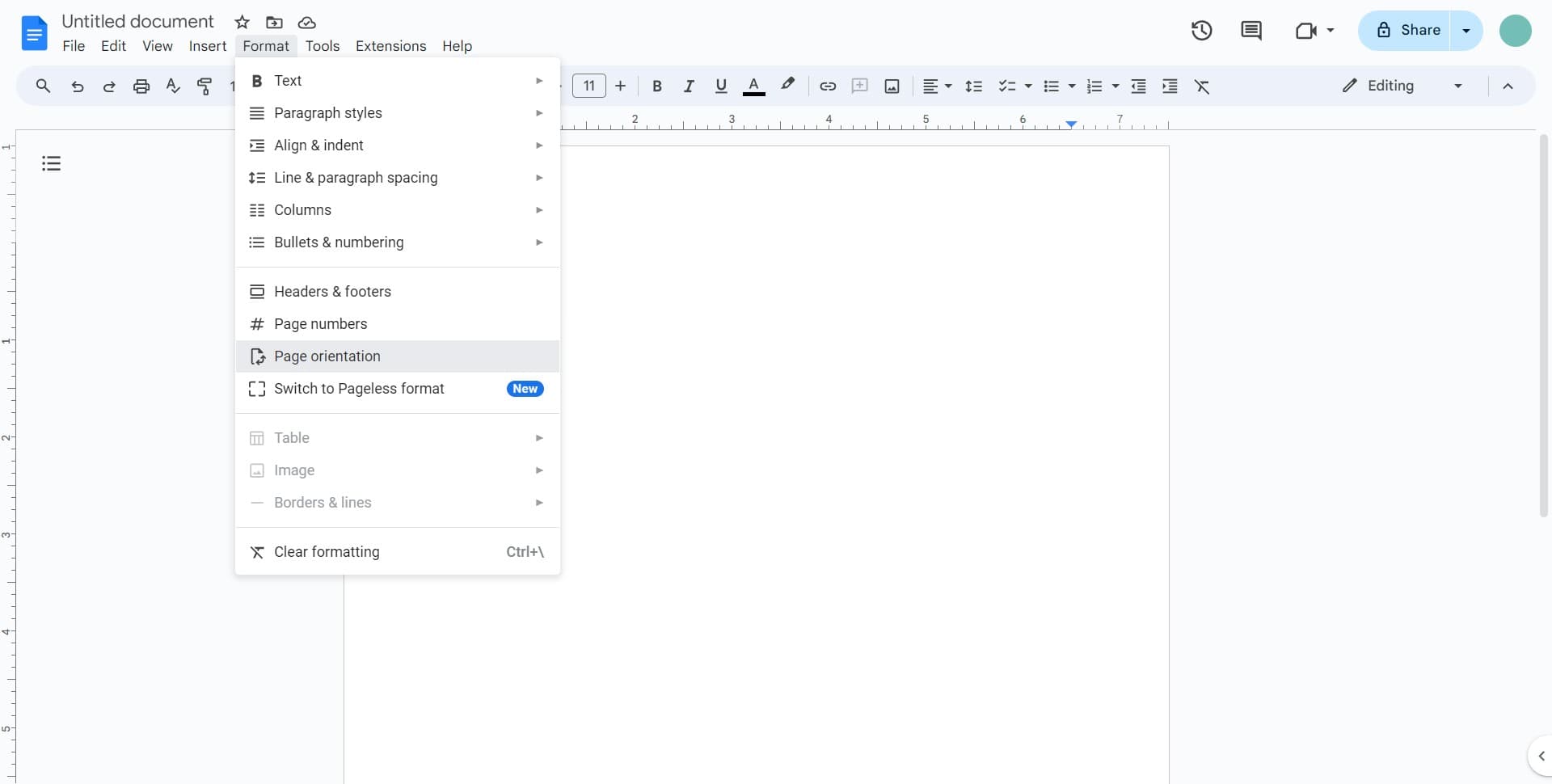
Click on Page orientation
Select 'Page orientation' from the Format submenu. You'll now see options for portrait and landscape layouts.
- 4
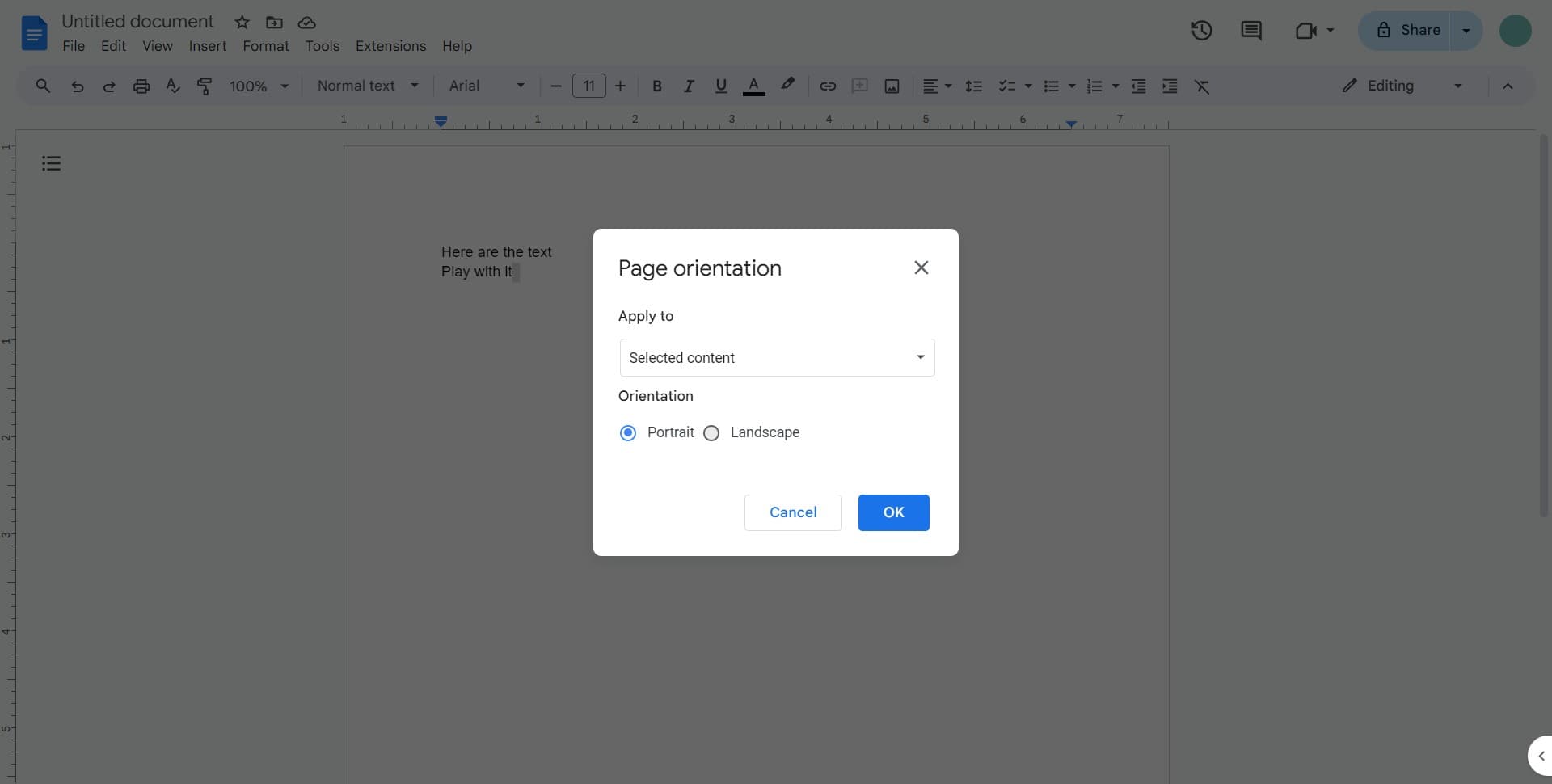
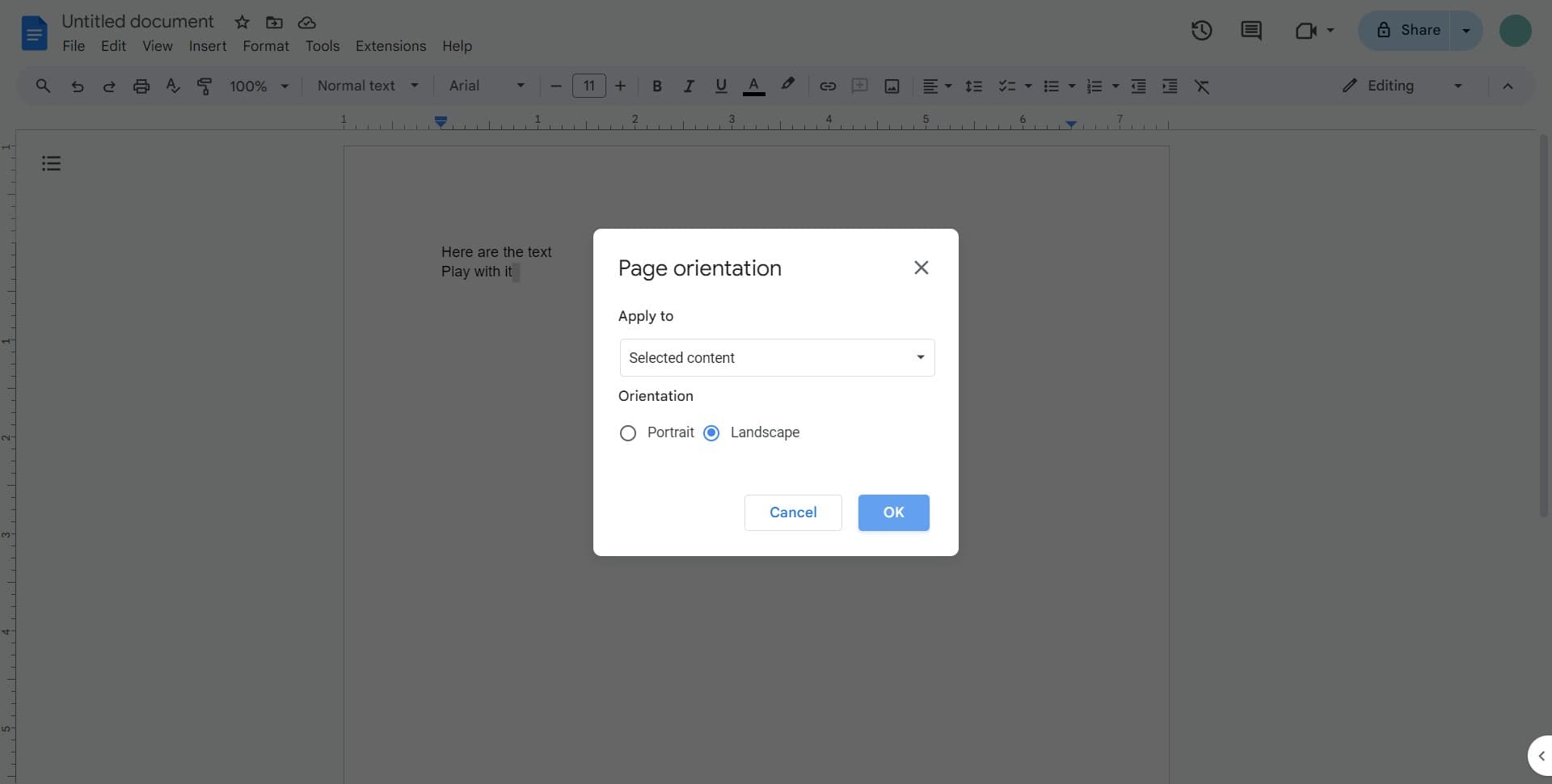
Choose your preferred orientation
Click on the orientation option you want—either portrait (vertical) or landscape (horizontal). Your selection will be highlighted.
- 5
Confirm your changes
Click 'OK' to apply the new orientation to your document. Your page layout will immediately update to reflect the change.
Frequently asked questions
Common questions about how to change the orientation of your google doc.
Can I have different orientations on different pages in the same Google Doc?
Google Docs doesn't natively support mixed orientations within a single document. However, you can work around this by creating separate sections or using page breaks. Alternatively, consider splitting your content into multiple documents if different pages need different orientations.
Will changing orientation affect my document's content or formatting?
Changing orientation adjusts the page layout but shouldn't alter your text or basic formatting. However, some elements like images or tables may reflow to fit the new page width, so you may need to adjust spacing or sizing after the change.
How do I change orientation back to portrait?
Simply follow the same steps: go to Format > Page orientation and select 'Portrait' instead of 'Landscape'. Click OK to apply the change.
Does changing page orientation affect printing?
Yes, your document will print in the orientation you've set. This is helpful when you need landscape orientation for wide tables or charts that print better on landscape paper.
What's the difference between page orientation and page margins?
Page orientation refers to whether your page is vertical (portrait) or horizontal (landscape), while margins control the spacing around your content's edges. You can adjust both independently through the Format menu to customize your document layout fully.