How to change the theme in Jira

Customizing your Jira interface to match your preferences can significantly improve your user experience. This guide walks you through changing the theme in Jira, allowing you to switch between light, dark, and browser-matched modes to reduce eye strain and enhance readability.
Quick summary
In this tutorial, you'll learn how to access Jira's theme settings and apply different visual themes to your workspace. You'll navigate through the preferences menu and select from available theme options including dark mode and browser-matched settings.
Why this matters
Choosing the right theme in Jira can reduce eye fatigue during long work sessions and improve focus on your tasks. Dark mode is particularly useful in low-light environments, while matching your browser settings ensures a consistent experience across all your tools.
Step-by-step guide
- 1
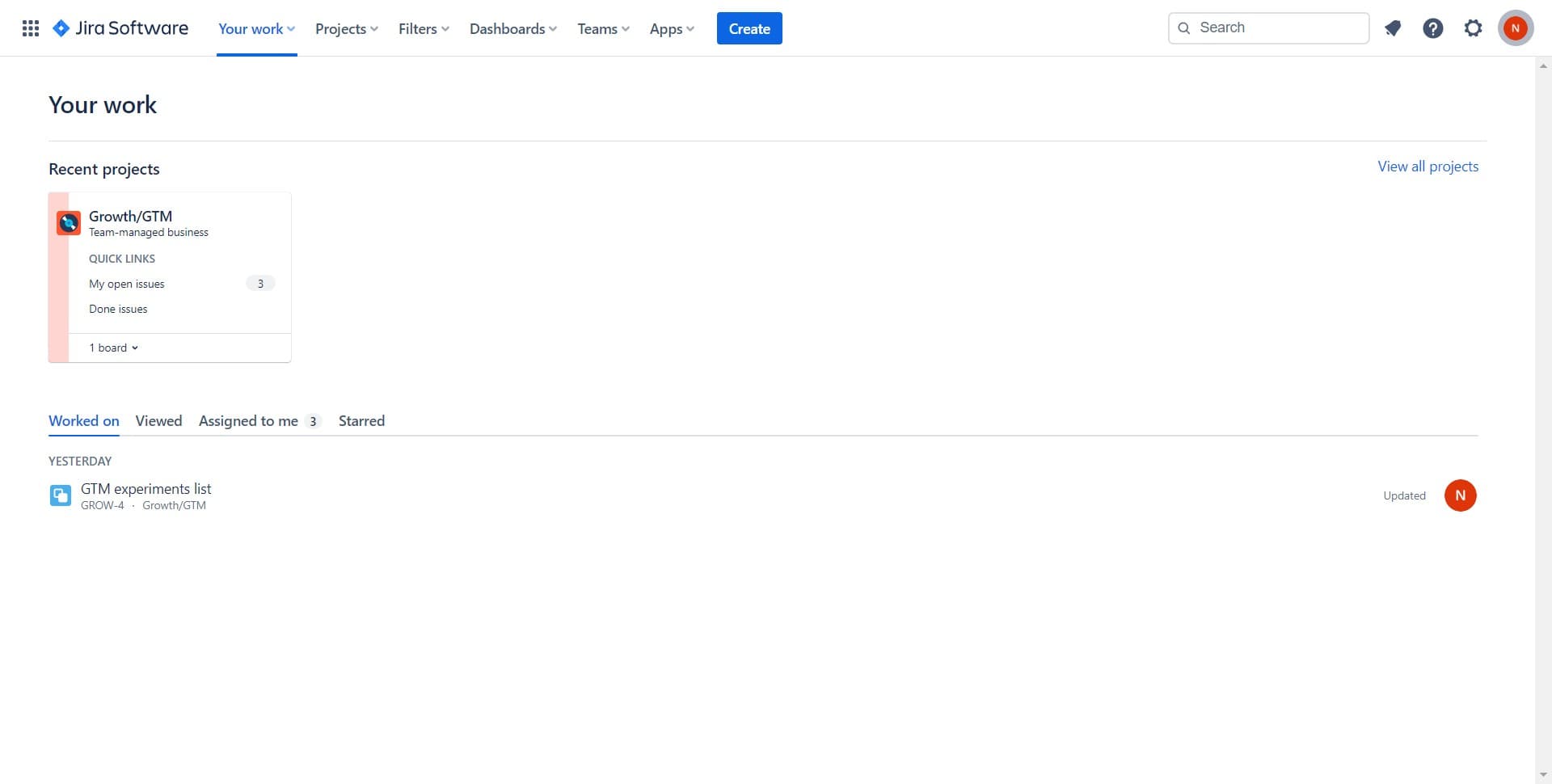
Click on the Image icon
Locate and click on your profile image or avatar, typically found in the top right corner of the Jira interface. This action opens your user menu with quick access to settings and preferences.
- 2
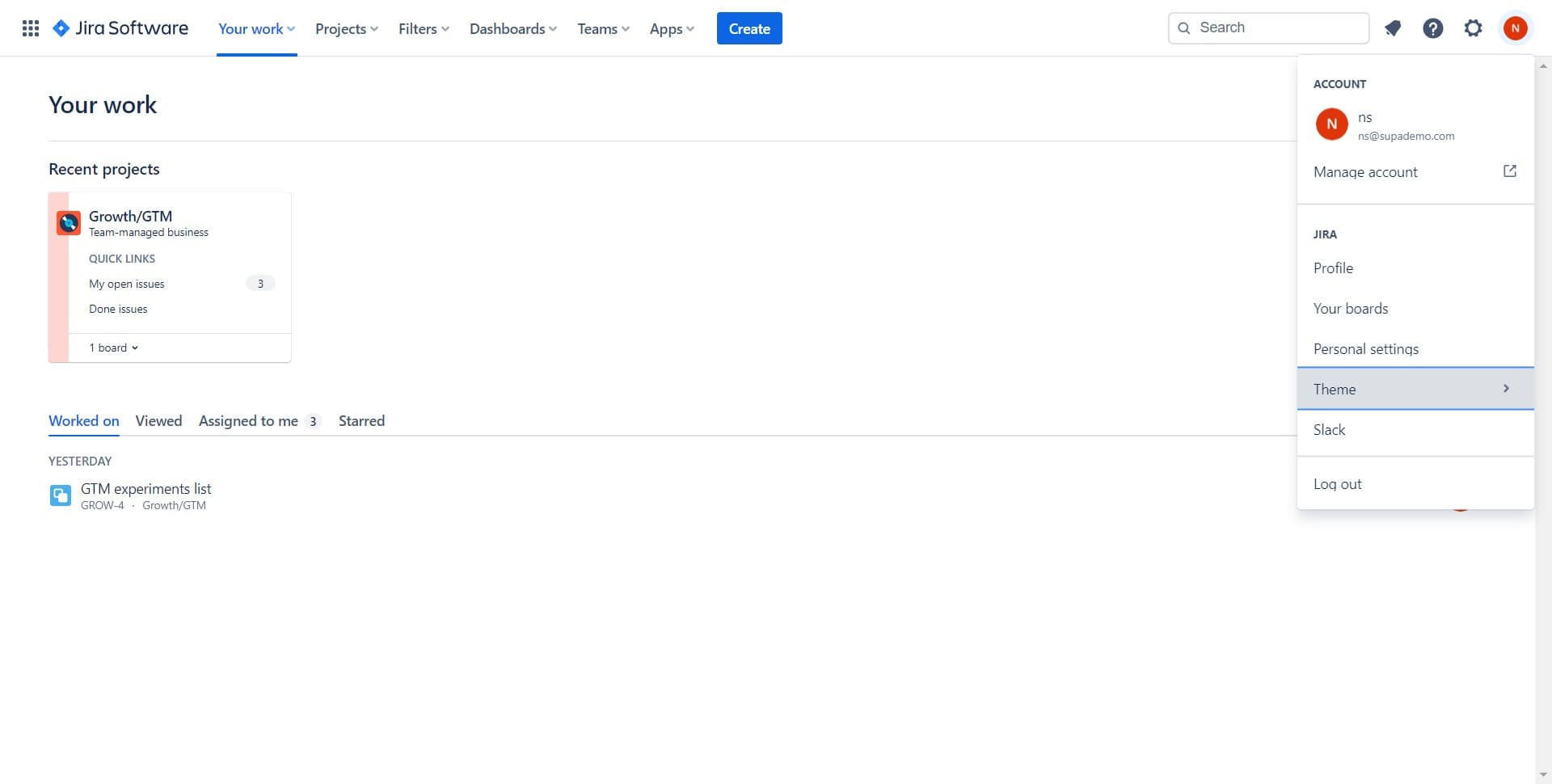
Click on Theme
From the dropdown menu, select the 'Theme' option to access Jira's appearance settings. You'll see the available theme choices displayed on this screen.
- 3
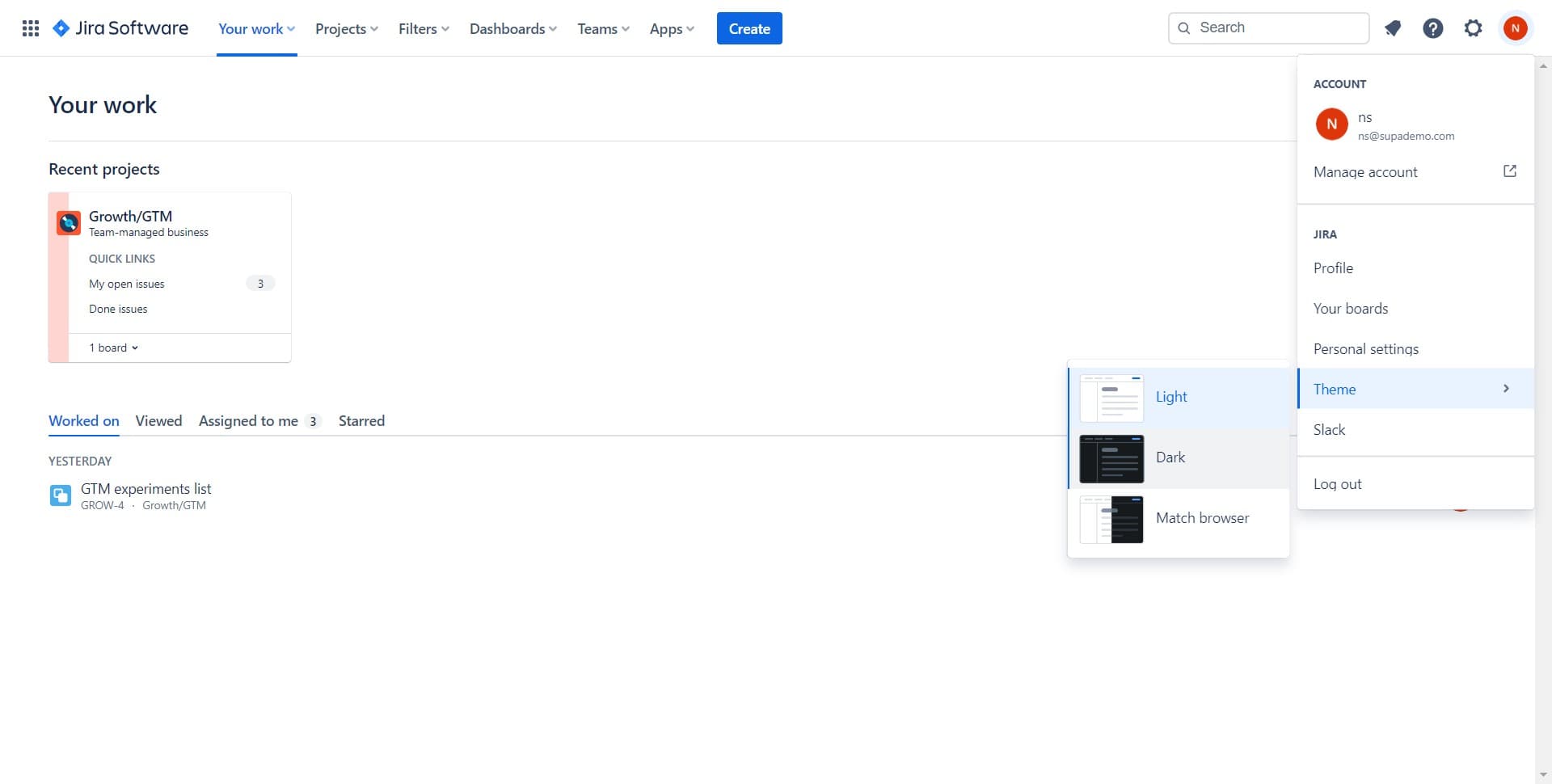
Click on Dark
Select 'Dark' to apply the dark theme to your Jira workspace immediately. This mode uses a dark background with light text, which is easier on the eyes in low-light conditions.
- 4
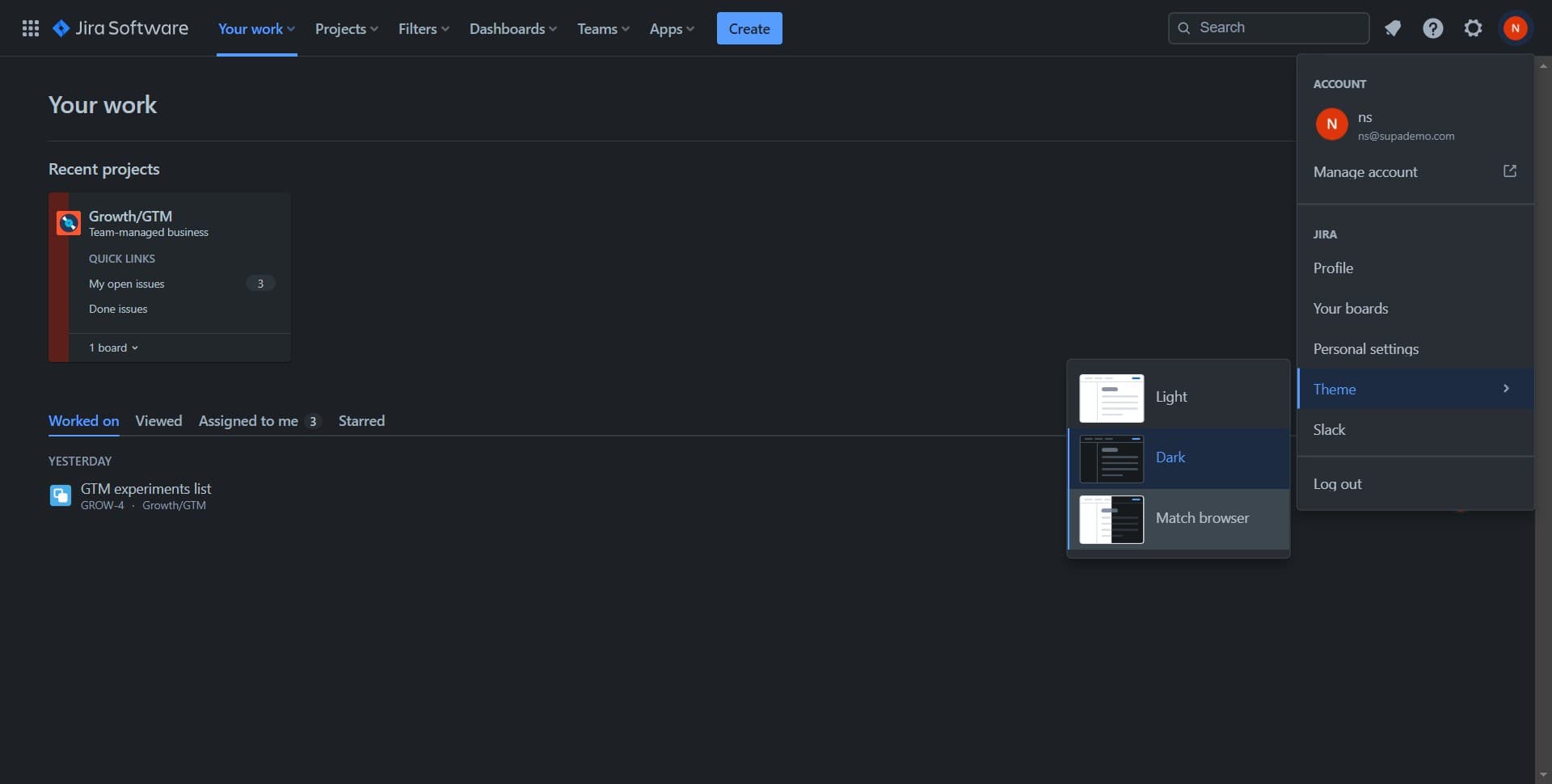
Click on Match browser
Alternatively, select 'Match browser' to have Jira automatically adopt the theme preference set in your operating system or web browser. This ensures your Jira interface stays consistent with your system-wide appearance settings.
Frequently asked questions
Common questions about how to change the theme in jira.
Can I switch themes multiple times?
Yes, you can change your theme as often as you like by returning to the theme settings. Jira saves your preference immediately, so your chosen theme will persist when you log back in.
What's the difference between Dark and Match browser?
Dark mode applies Jira's built-in dark theme regardless of your system settings. Match browser syncs Jira's appearance with your operating system's light or dark mode preference, so changes to your system settings automatically update Jira.
Does changing the theme affect other users' views?
No, theme preferences are personal to your account. Each user can select their own preferred theme without affecting how other team members see Jira.
Will the theme change apply to mobile devices?
Theme preferences typically sync across devices if you're logged into the same Jira account. However, mobile devices may also respect your device's system-wide theme settings if you use the Match browser option.
Is there a light theme option available?
Yes, Jira offers a light theme as the default option. You can return to the theme settings and select the light theme if you prefer the standard appearance with a light background and dark text.