How to Create a Form in HubSpot

HubSpot forms are powerful tools for capturing visitor information and growing your contact database. This guide walks you through creating a form from scratch, from accessing the form builder to selecting your form type and configuring the initial setup.
Quick summary
In this tutorial, you'll learn how to navigate HubSpot's marketing tools, access the form creation interface, and set up a basic form for your website. You'll explore form type options and prepare your form for customization and deployment.
Why this matters
Forms are essential for lead generation and customer engagement in HubSpot. By mastering form creation, you can quickly capture visitor data, qualify leads, and integrate them into your marketing workflows without relying on developers.
Step-by-step guide
- 1
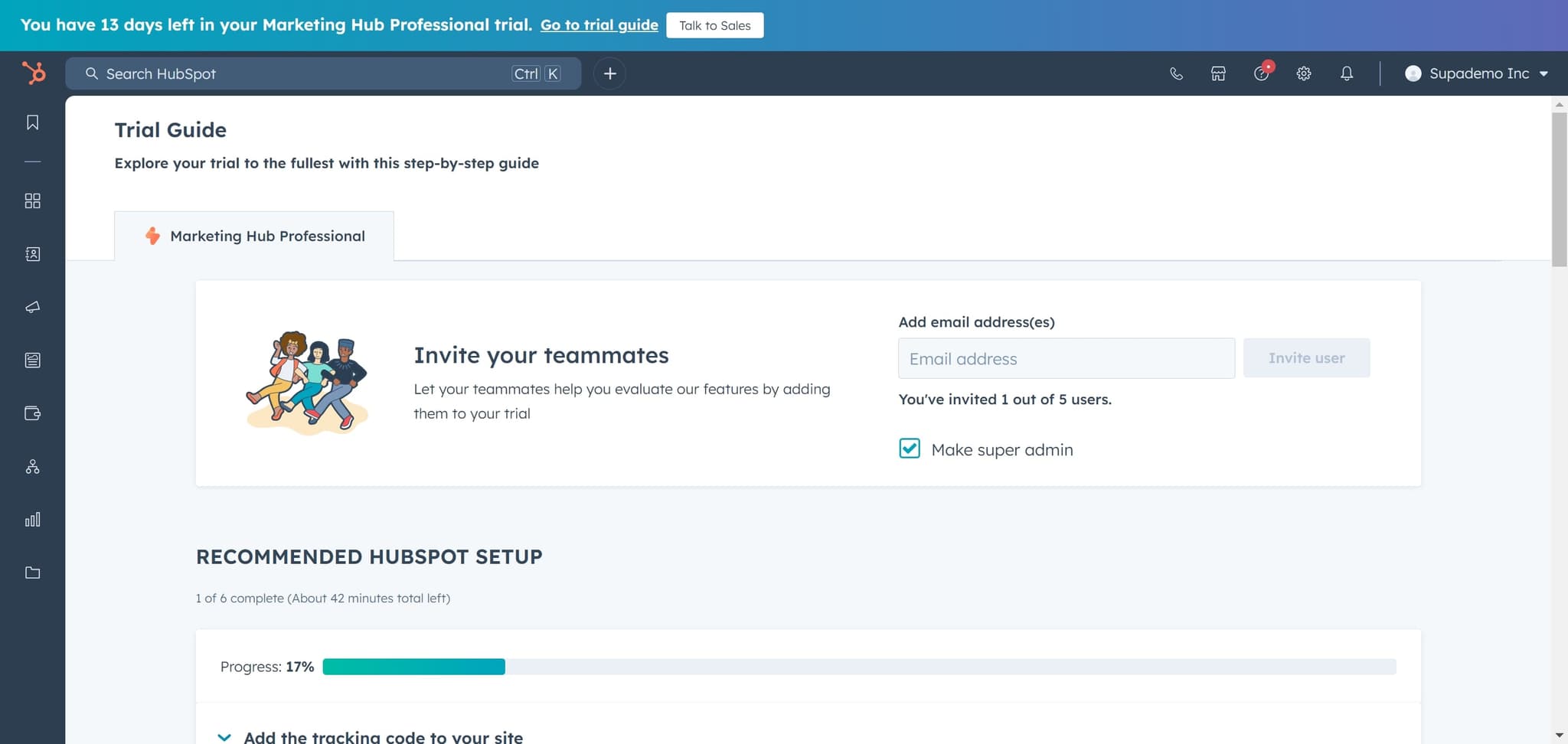
Access the Trial Guide
Start by clicking on 'Trial Guide' to enter HubSpot's guided experience. This opens the main navigation for accessing different product areas.
- 2
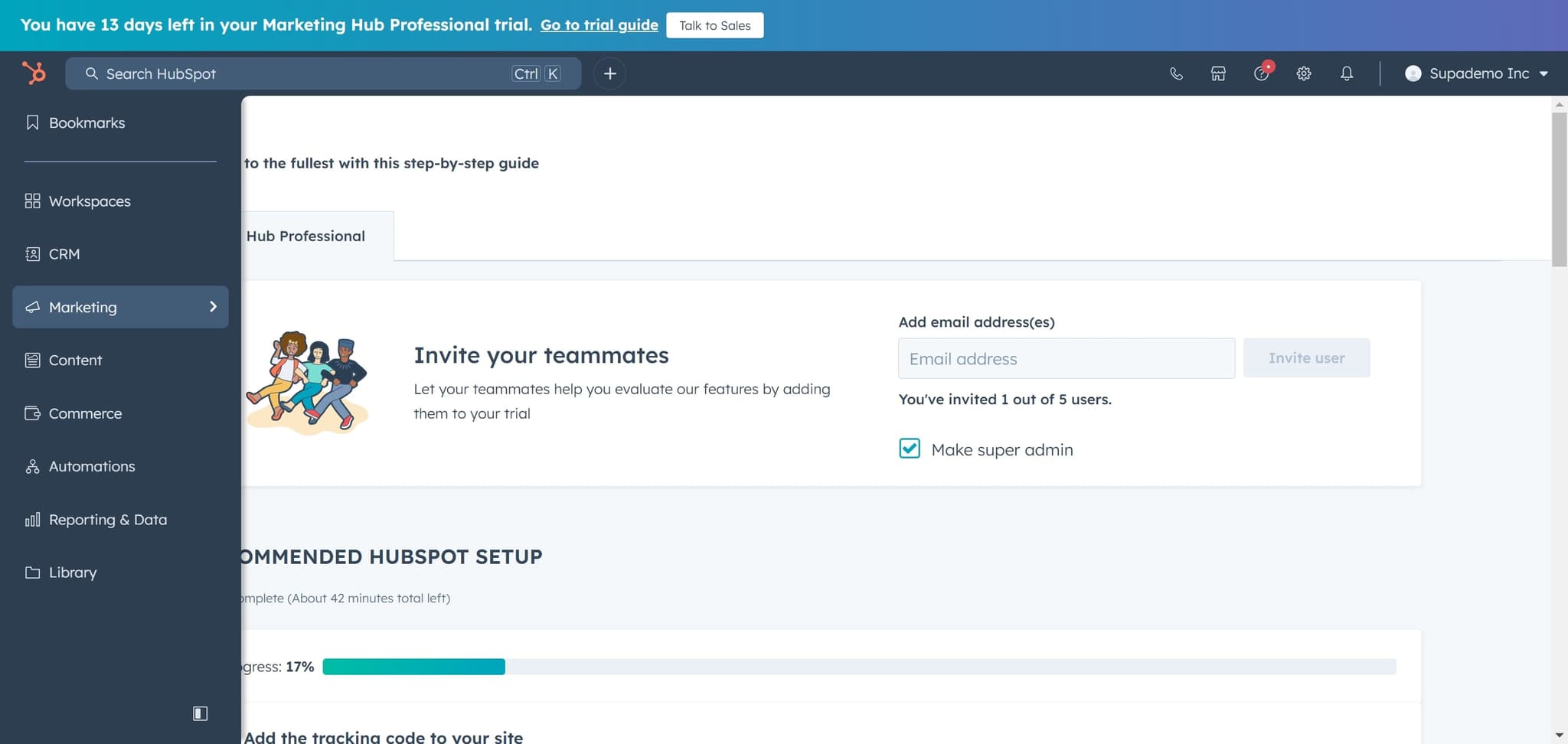
Navigate to Marketing
Click on 'Marketing' to access marketing-specific tools and features. This section contains all form-related functionality and lead capture tools.
- 3
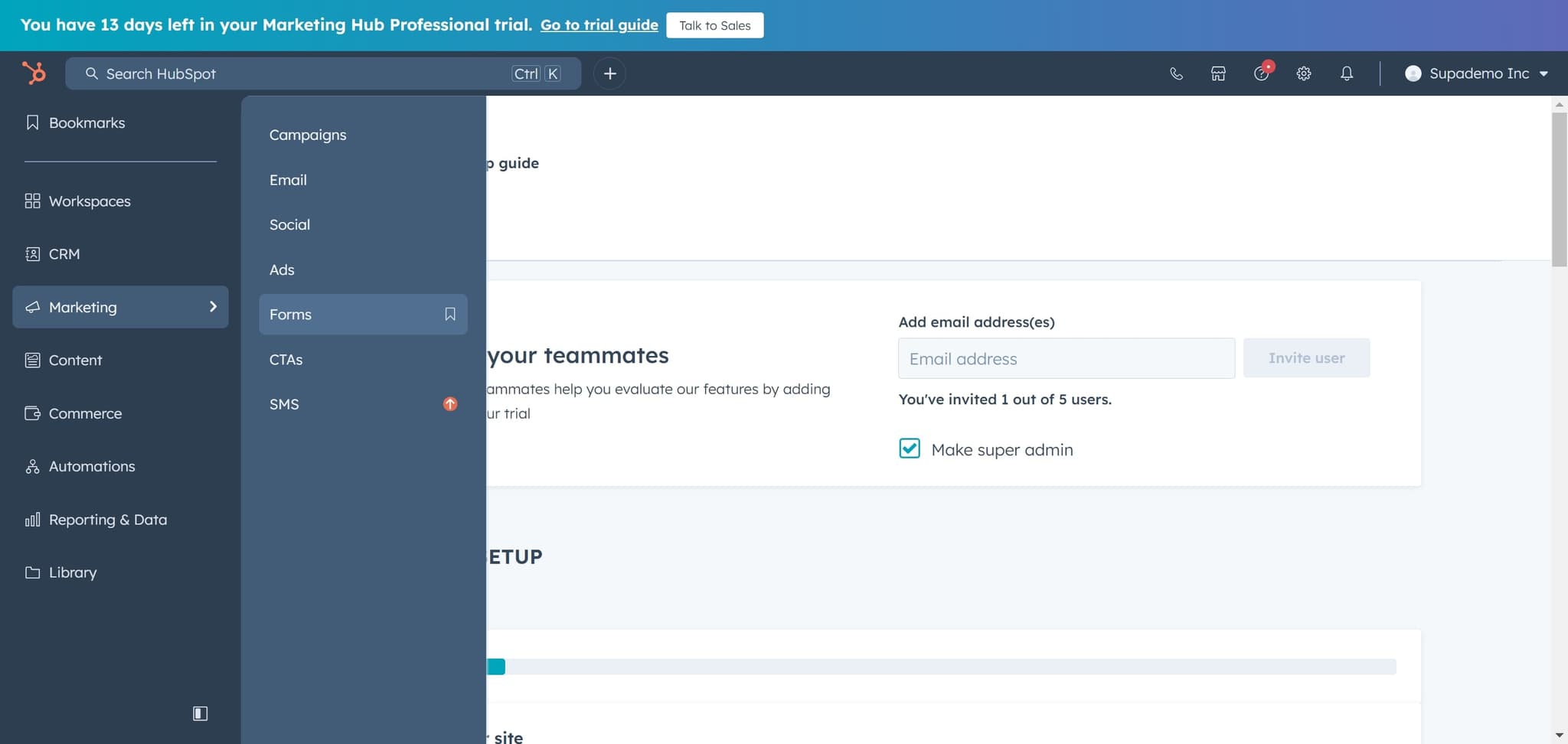
Open the Forms Section
Click on 'Forms' to view your existing forms and access form creation options. This is the hub where all form-related activities are managed.
- 4
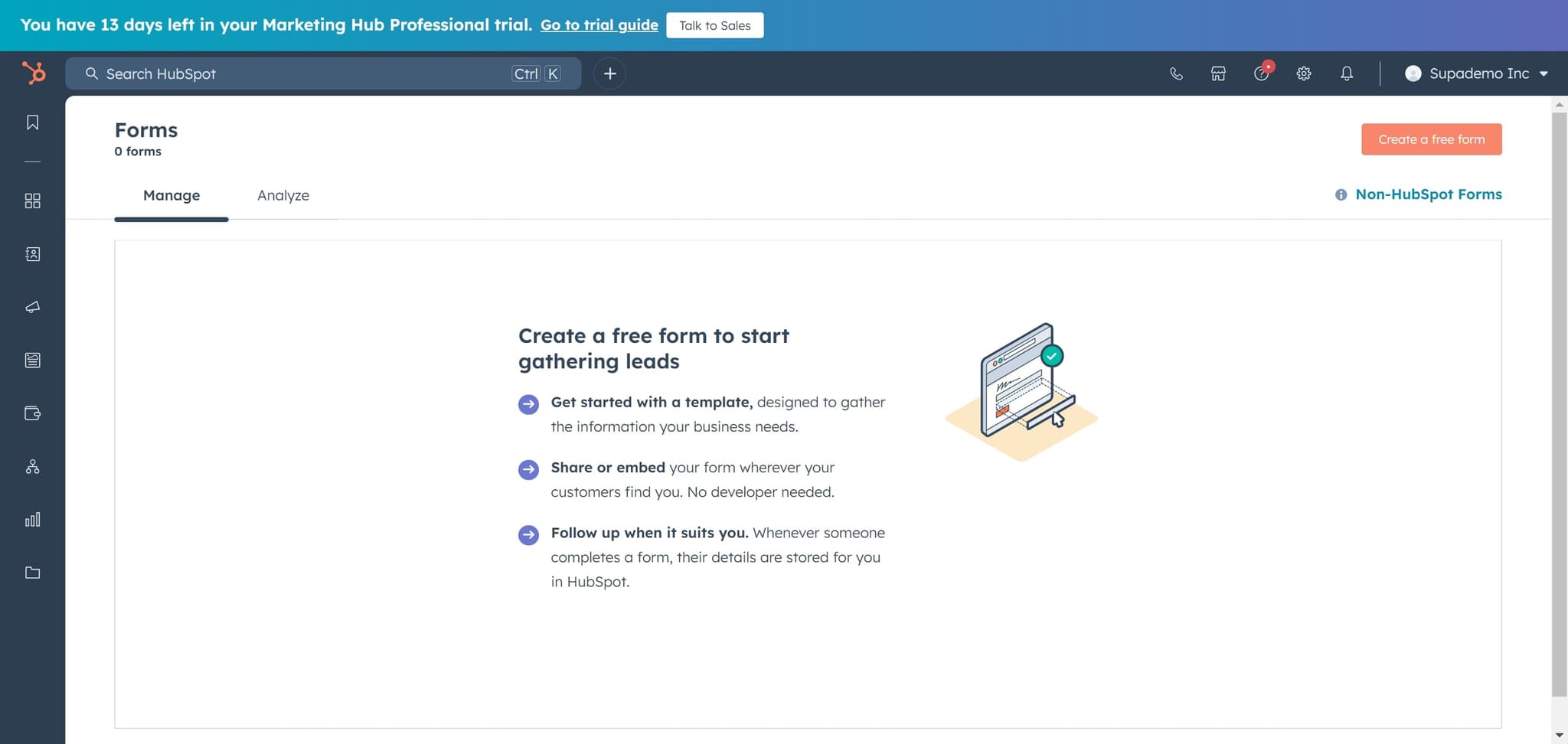
Initiate Form Creation
Click on 'Create a free form' to begin the form setup process. HubSpot will prompt you to choose how you'd like to proceed with creating your new form.
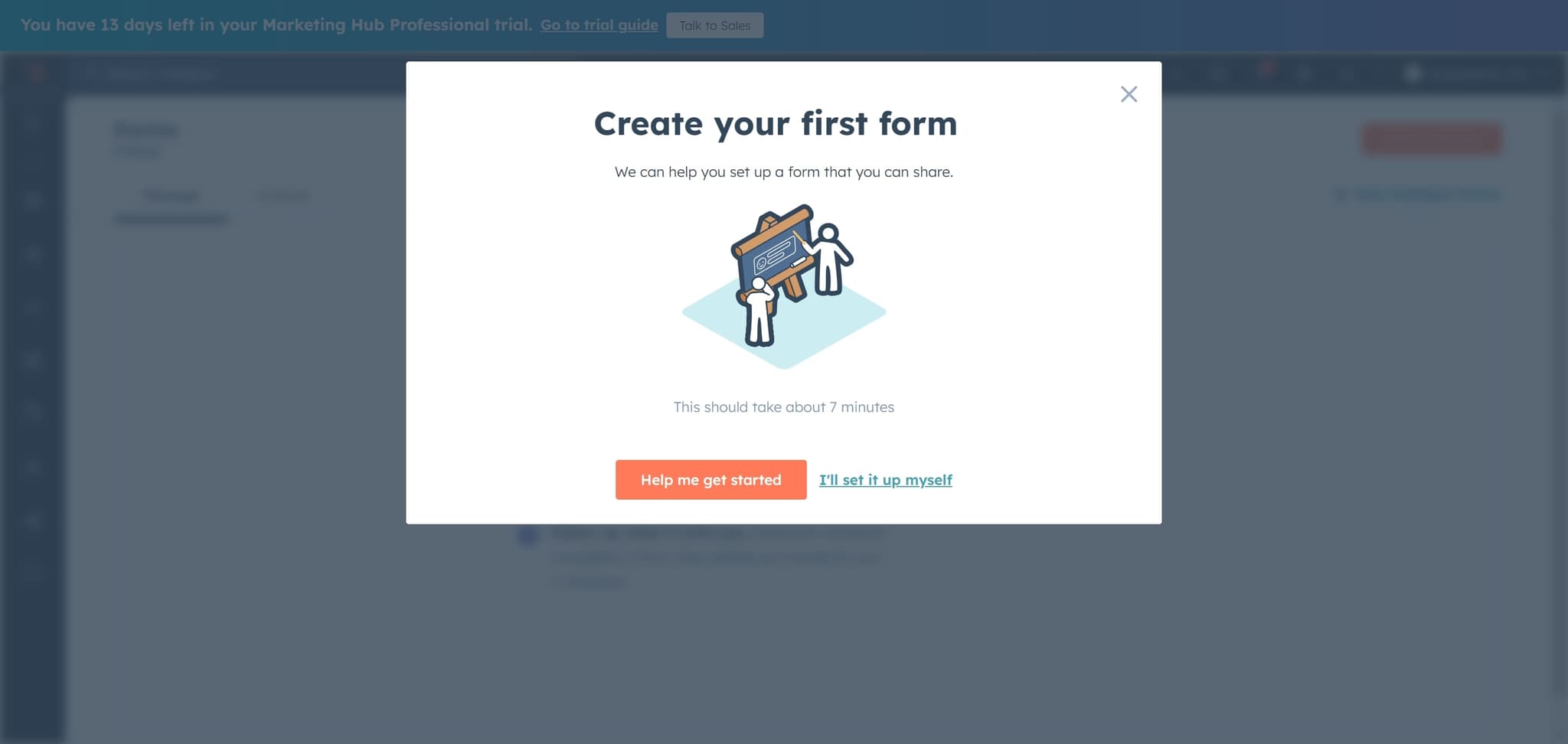
- 5
Select Manual Setup Option
Click on 'I'll set it up myself' to take full control of your form configuration. This option gives you complete flexibility in designing and customizing your form.
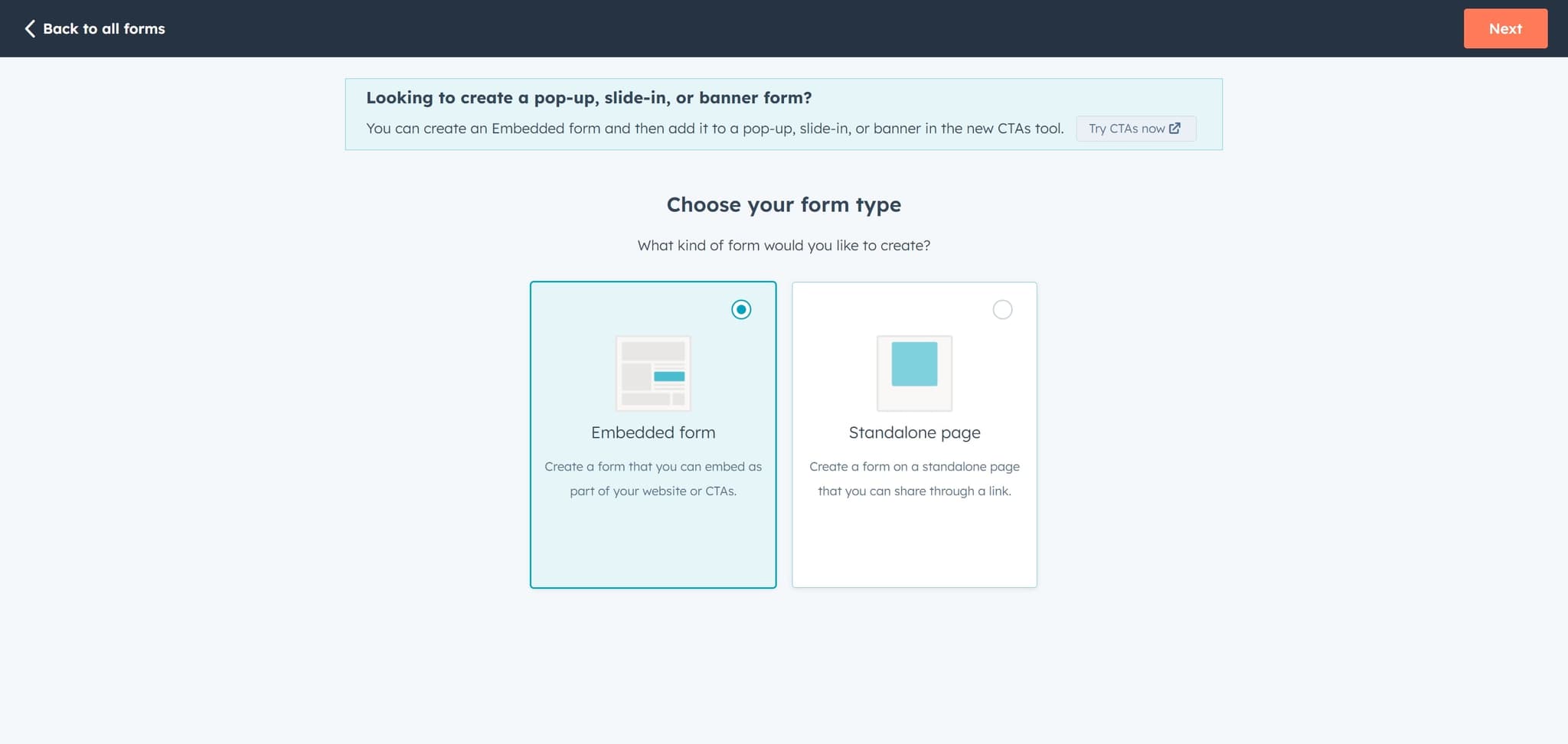
- 6
Explore Advanced Form Types
Click on 'Looking to create a pop-up, slide-in, or banner form?' to see alternative form formats beyond standard embedded forms. This reveals options for different form presentation styles.
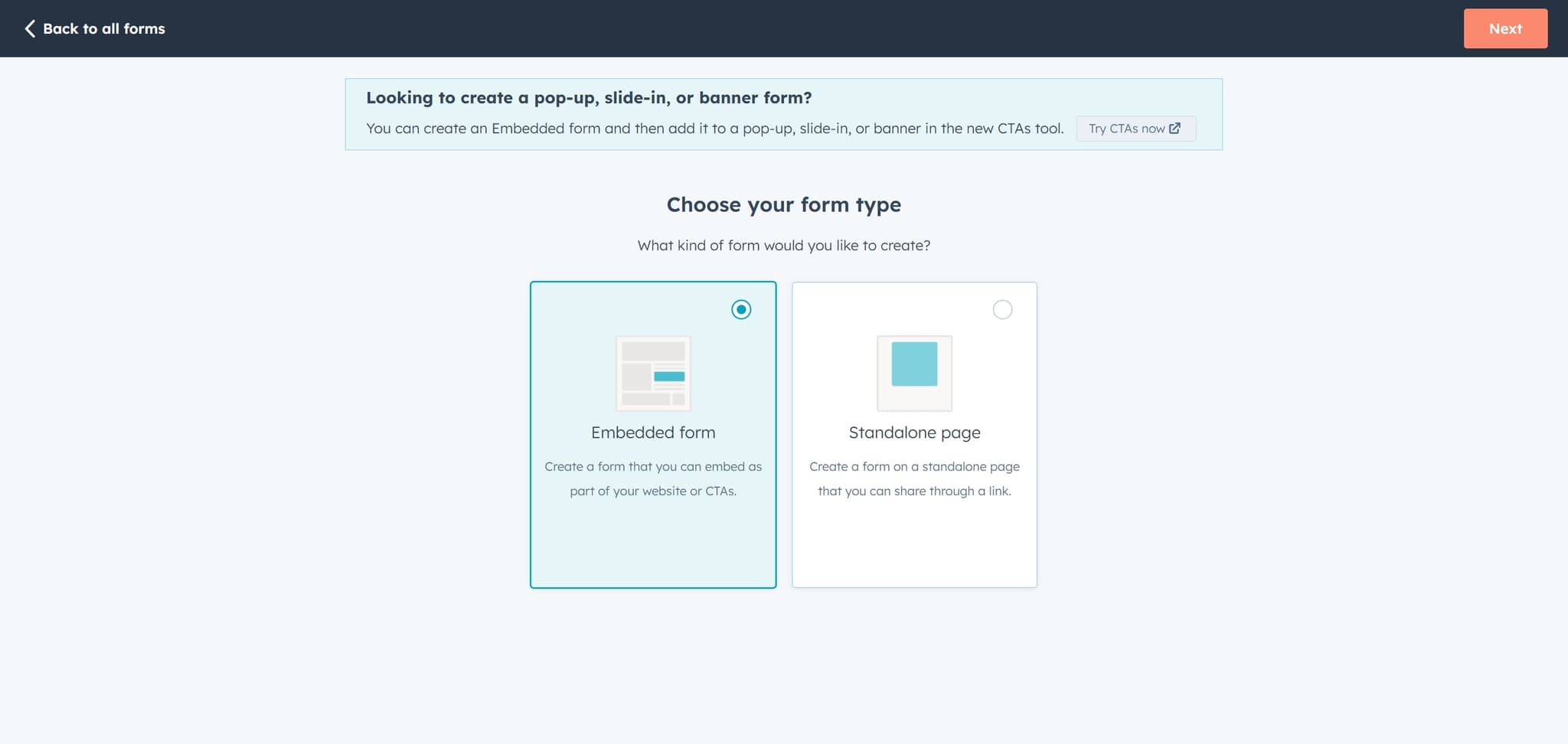
- 7
Proceed to Form Selection
Click on 'Next' to move forward in the form creation wizard. This advances you to the form type selection screen.
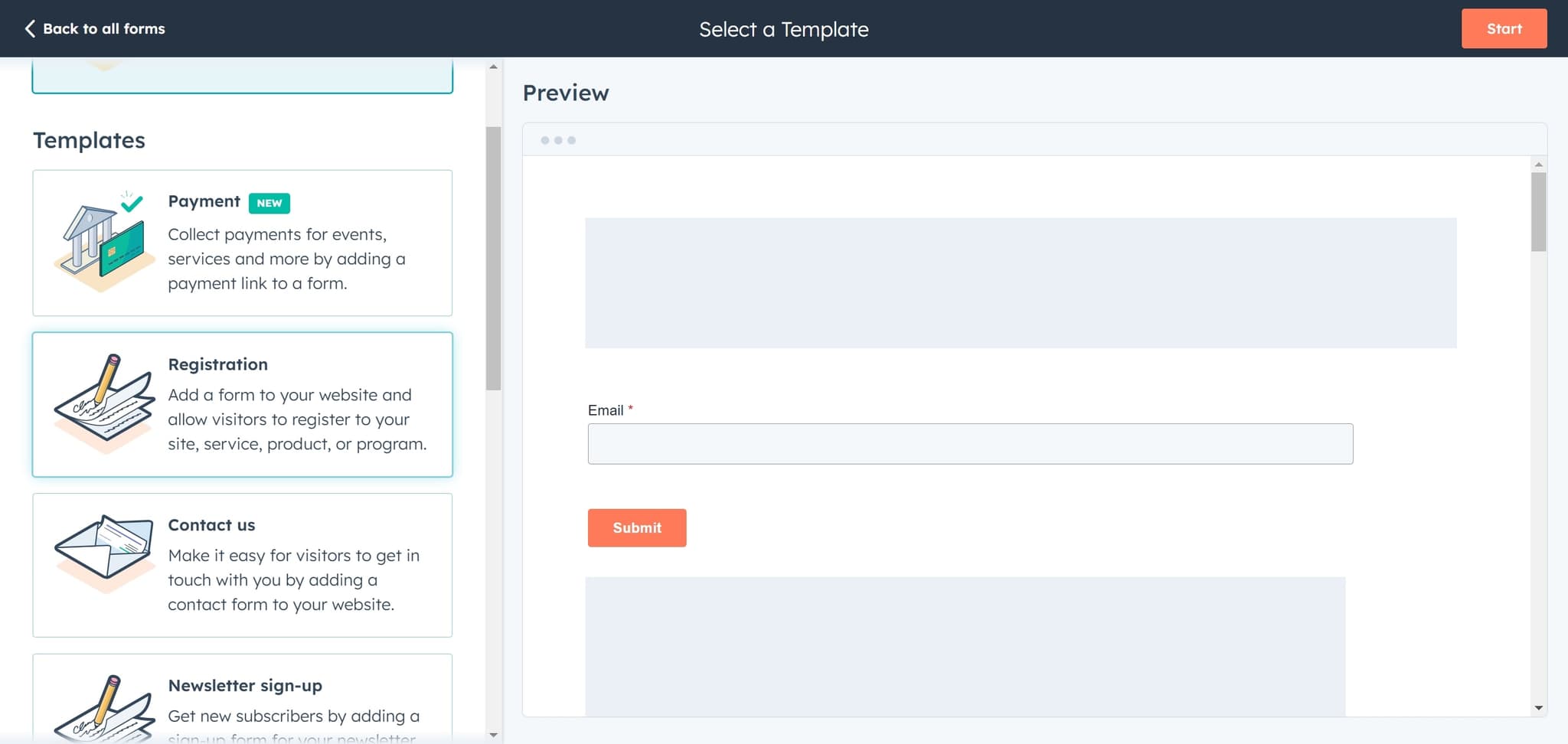
- 8
Choose Standard Website Form
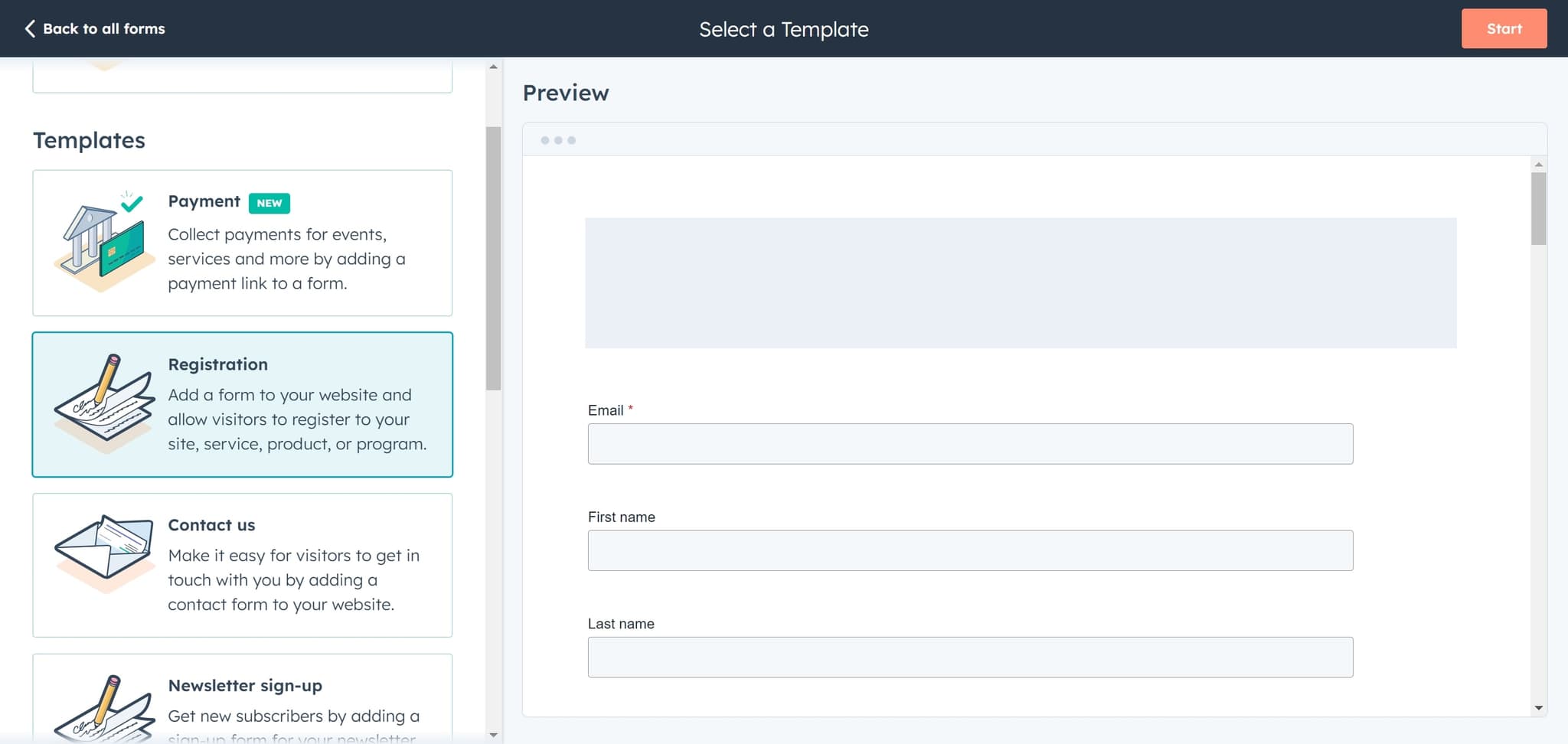
Click on 'Add a form to your website and allow visitors to register to...' to select the standard embedded form type. This option is ideal for capturing registration information on your website pages.
- 9
Begin Form Configuration
Click on 'Start' to enter the form builder interface. You're now ready to add fields, customize settings, and configure form behavior.
- 10
Access Form Actions
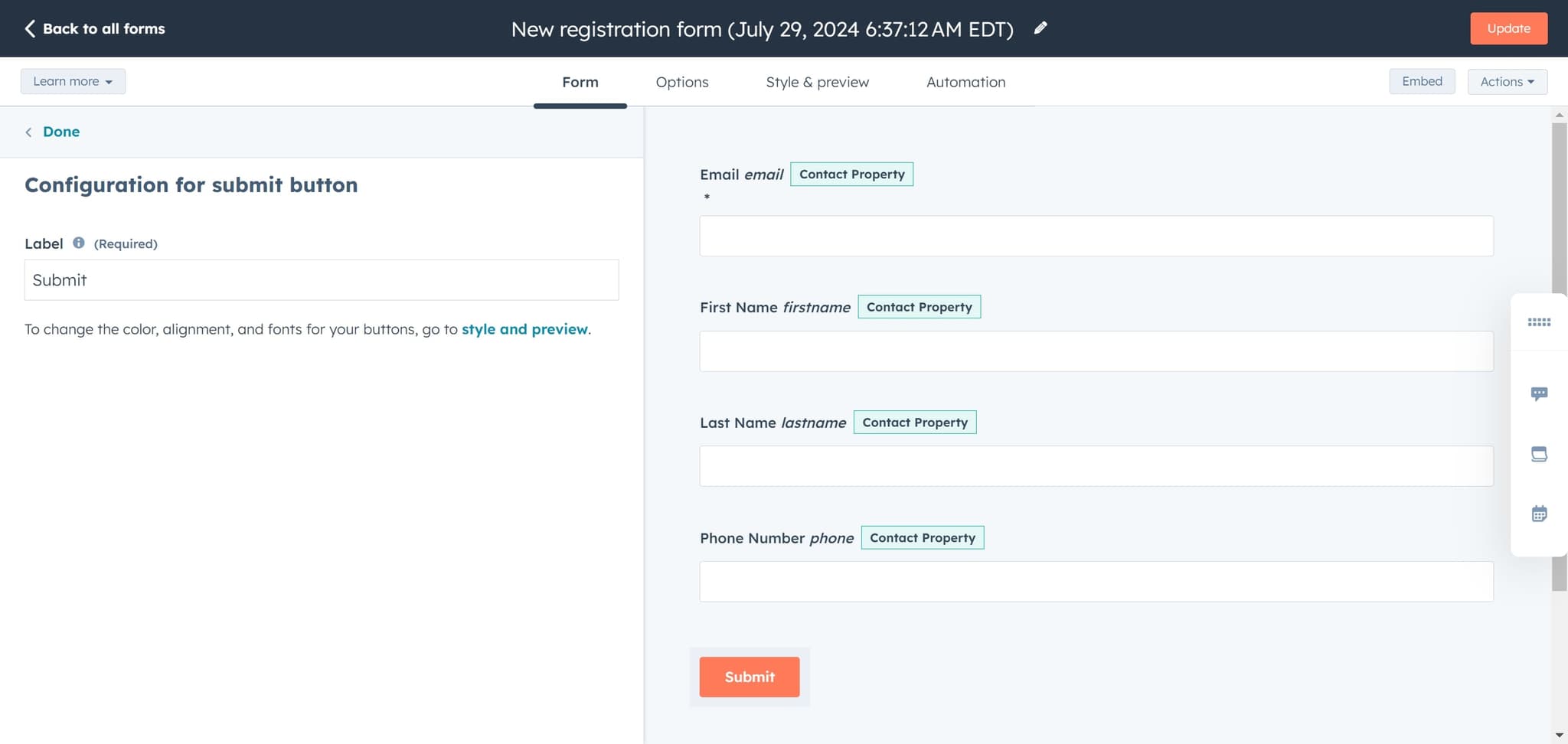
Click on 'Actions' to view form submission settings and automation options. This section allows you to define what happens when visitors submit the form.
- 11
Configure Form Settings
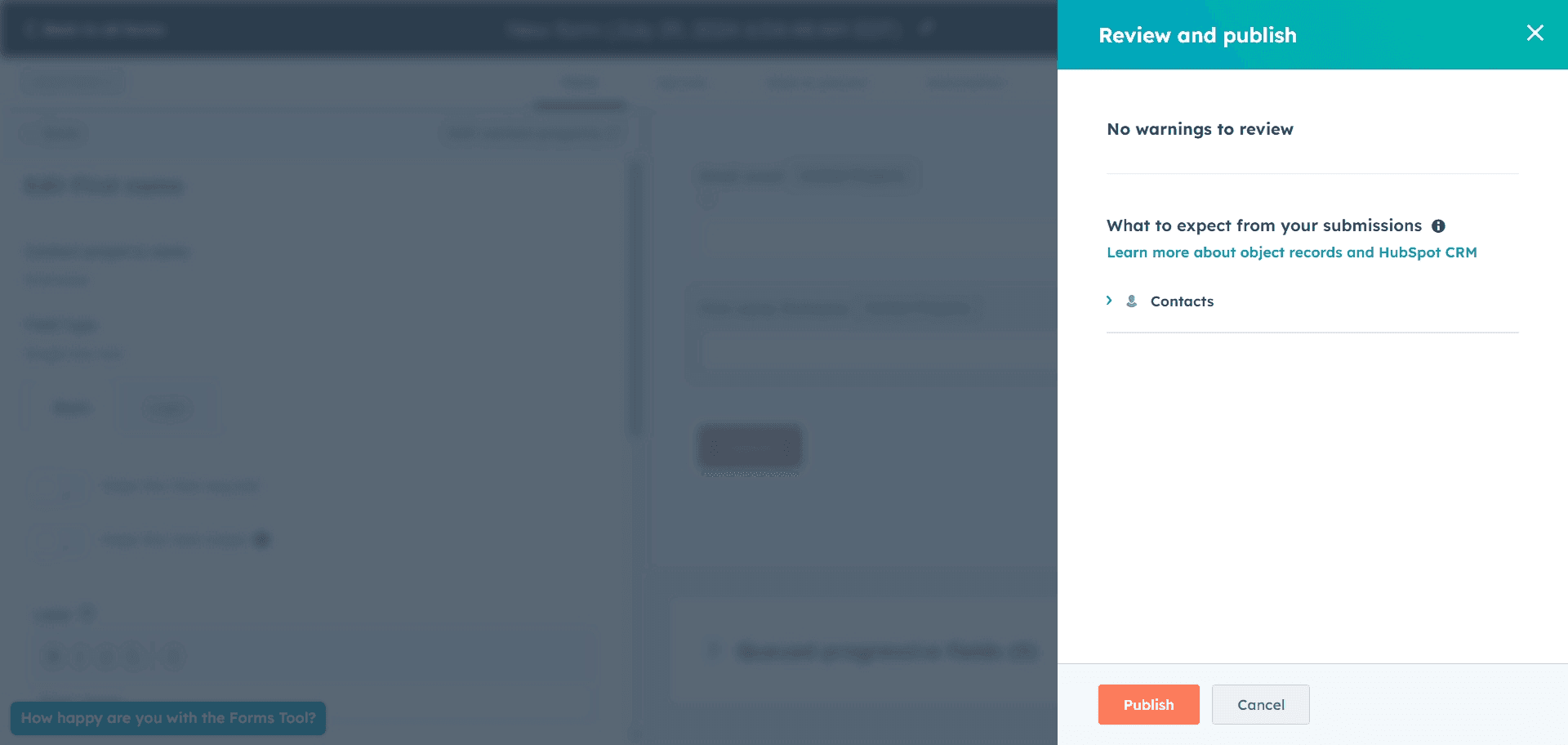
Review and configure your form's submission actions, notifications, and follow-up workflows. Ensure these settings align with your lead nurturing strategy.
- 12
Complete Setup
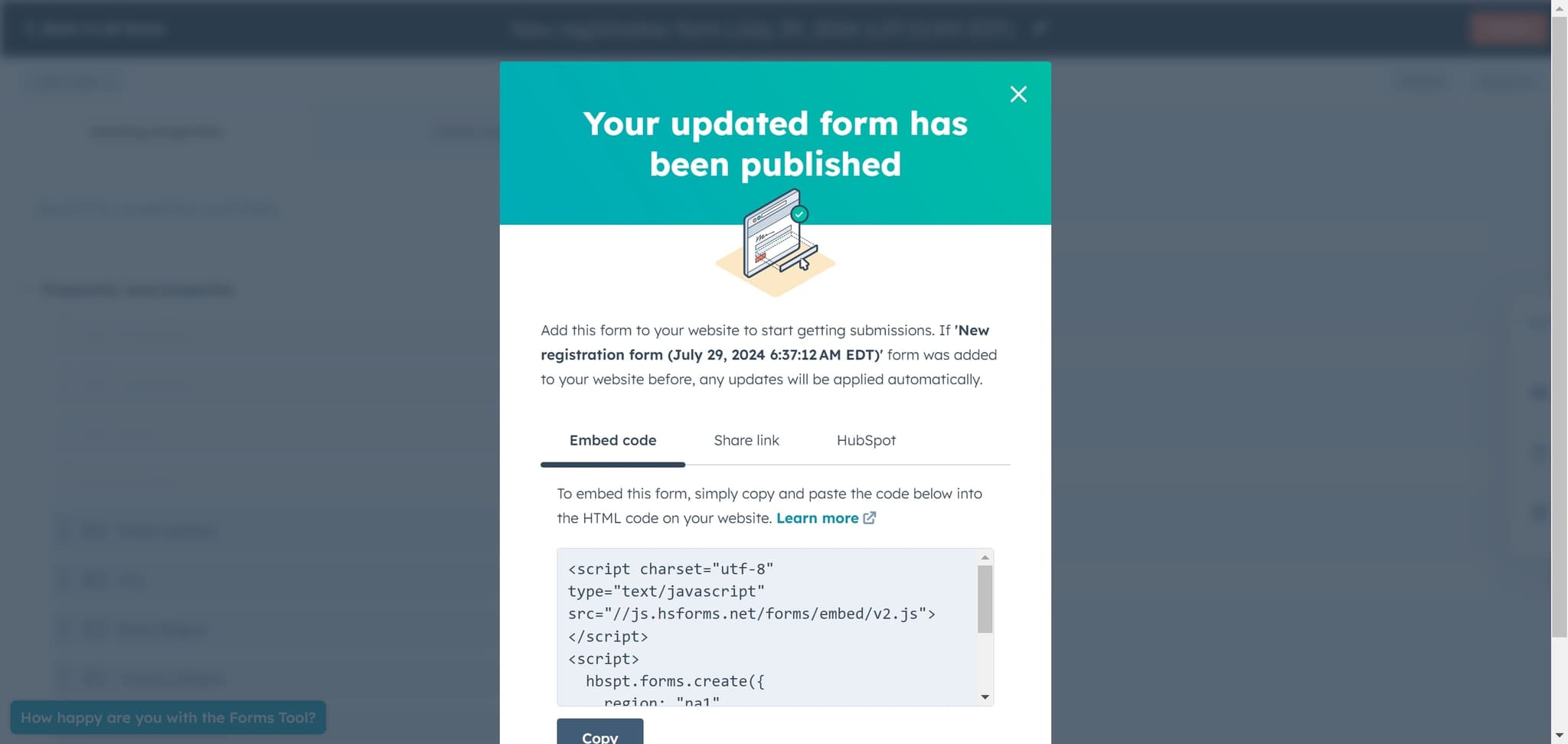
Click to finalize your form configuration and save your changes. Your form is now ready for testing and deployment to your website.
Frequently asked questions
Common questions about how to create a form in hubspot.
What types of forms can I create in HubSpot?
HubSpot allows you to create embedded forms, pop-up forms, slide-in forms, and banner forms. Each type serves different purposes—embedded forms work well on landing pages, while pop-ups are better for attention-grabbing offers. You can choose the format that best matches your marketing goals during the creation process.
Can I customize the fields in my form?
Yes, HubSpot's form builder allows you to add, remove, and customize fields based on the information you want to collect. You can use standard fields like email and name, or create custom fields specific to your business needs. The 'I'll set it up myself' option gives you full control over field configuration.
What happens after someone submits a form?
After submission, you can configure actions through the 'Actions' section, including sending confirmation emails, creating contacts, triggering workflows, or redirecting users to a thank-you page. These automations help nurture leads and keep your processes efficient without manual intervention.
Do I need coding knowledge to create forms in HubSpot?
No, HubSpot's form builder is designed for non-technical users. The visual interface allows you to create fully functional forms without writing any code. The platform handles all technical aspects like form hosting, data storage, and integration with your CRM.
Can I use my form on multiple pages?
Yes, once you create a form, you can embed it on any number of pages or websites. HubSpot generates embed code that you can place on your website pages, or you can use form-specific URLs. This flexibility allows you to reuse forms across multiple campaigns and pages.