How to create a segment on Brevo

Segmentation is a powerful feature in Brevo that allows you to organize and target specific groups of contacts based on their behavior and engagement levels. By creating segments, you can send more personalized and relevant campaigns that drive better engagement and conversion rates.
Quick summary
In this tutorial, you'll learn how to create a segment in Brevo by navigating to the Segments section, selecting a pre-built segment template, adding custom filters, and saving your segment for future use. You'll discover how to build targeted audience groups that align with your marketing goals.
Why this matters
Segmentation enables you to deliver the right message to the right audience at the right time, which significantly improves campaign performance and customer satisfaction. Rather than sending generic messages to your entire contact list, segments allow you to tailor content based on user behavior, preferences, and engagement history, leading to higher open rates and conversions.
Step-by-step guide
- 1
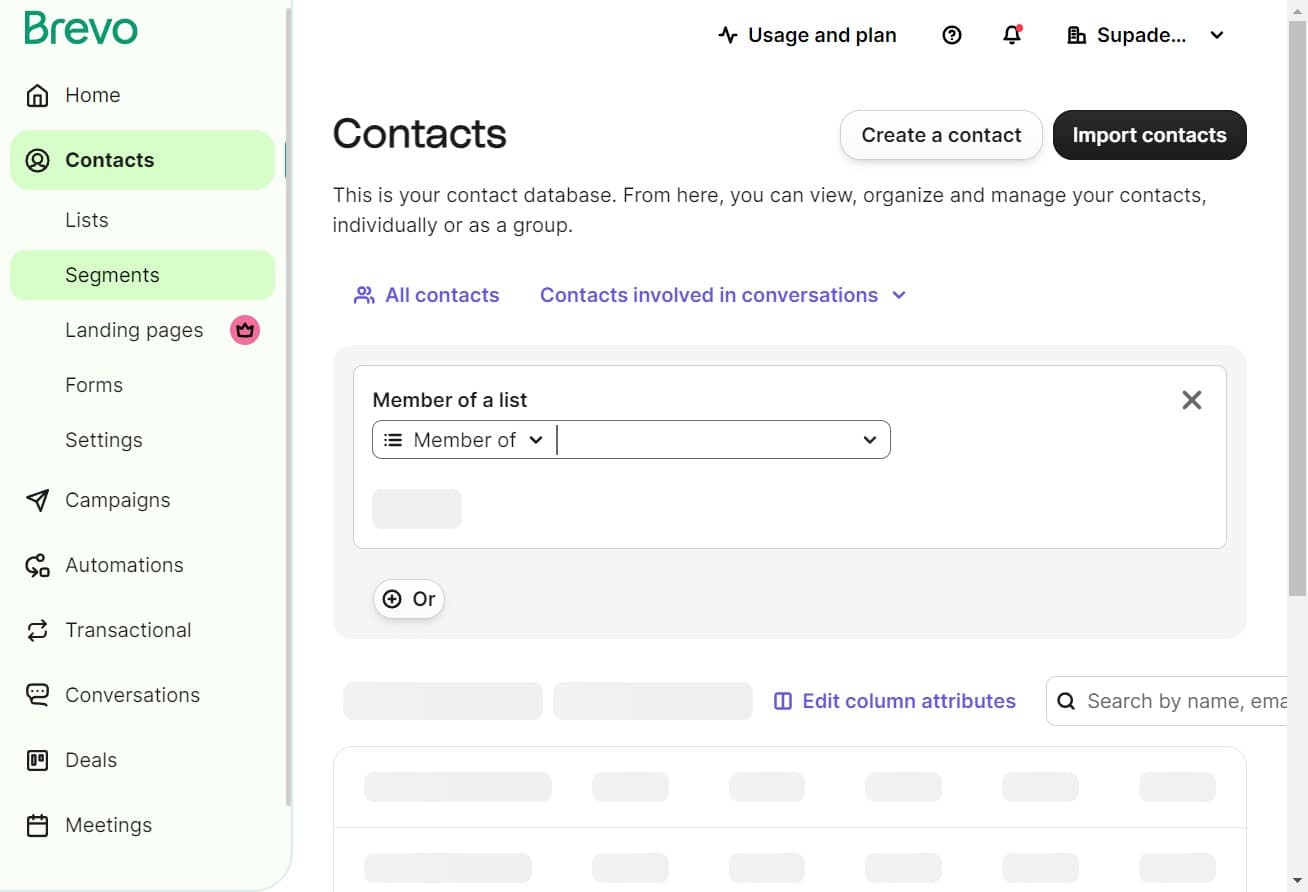
Access the Segments section
Click on "Segments" from the main navigation menu to view your existing segments and access the segment creation tools.
- 2
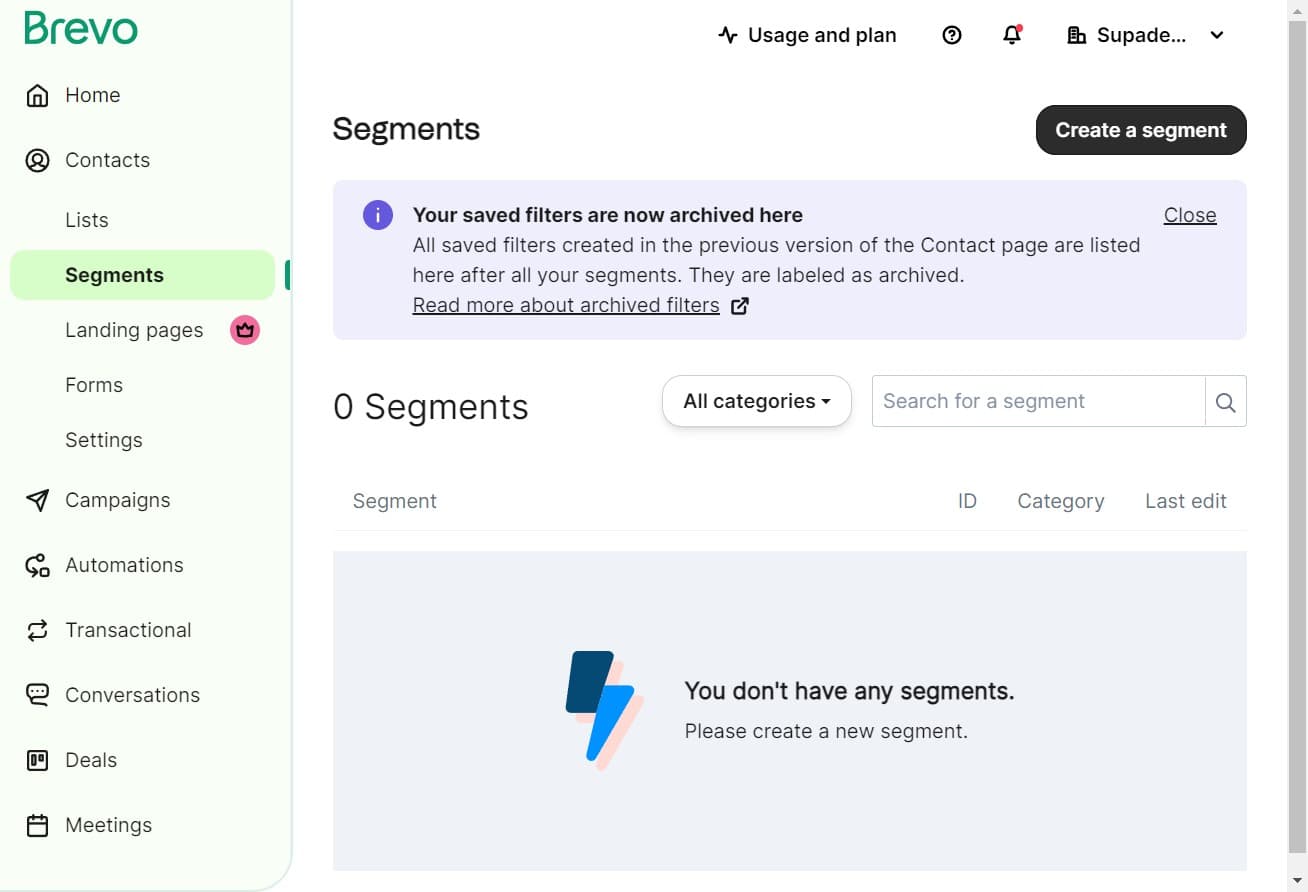
Start creating a new segment
Click on "Create a segment" to begin the segment creation workflow. This will open the segment builder interface where you can define your audience criteria.
- 3
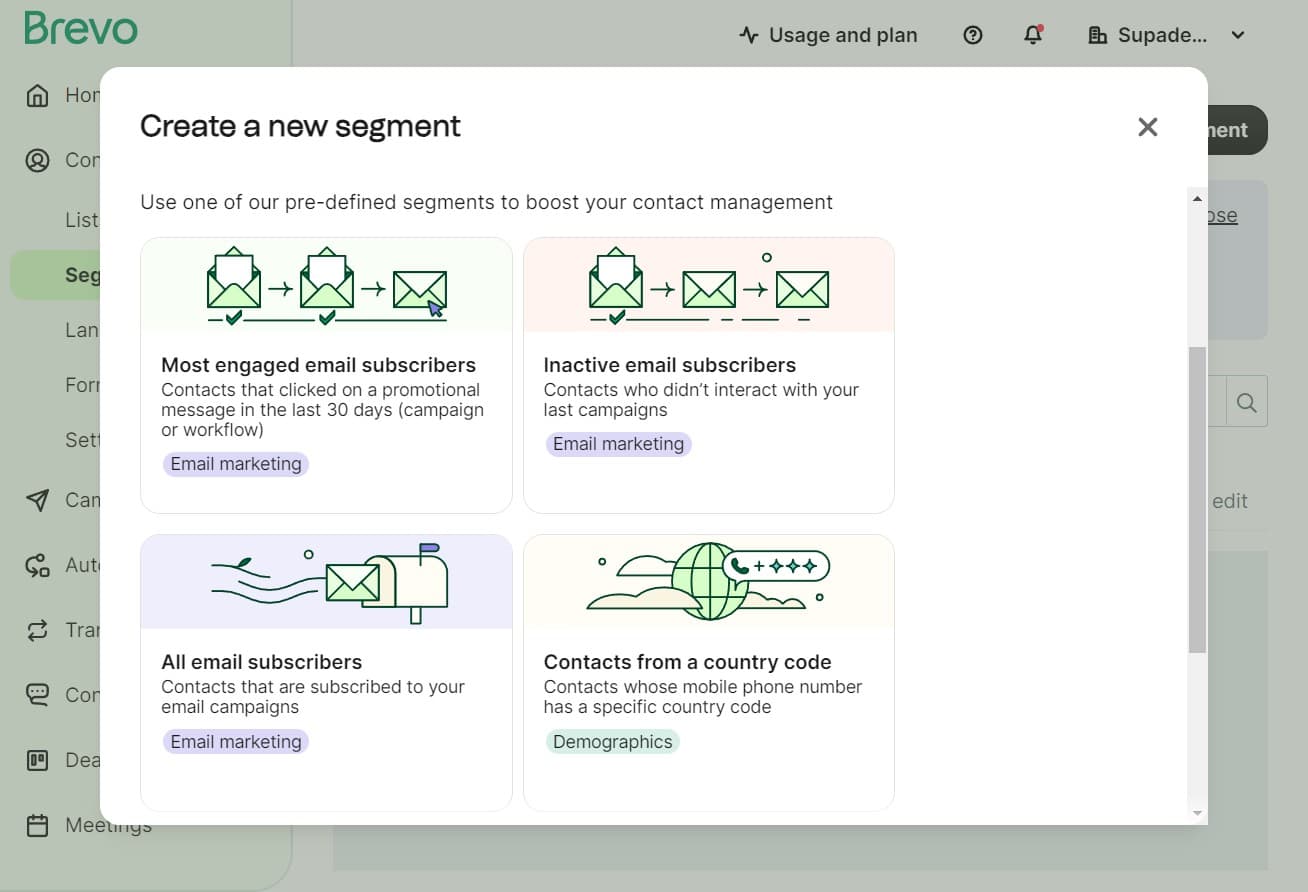
Select a segment template
Click on "Most engaged em..." to choose a pre-built segment template as your starting point. This template provides a foundation based on contacts with high engagement levels that you can customize further.
- 4
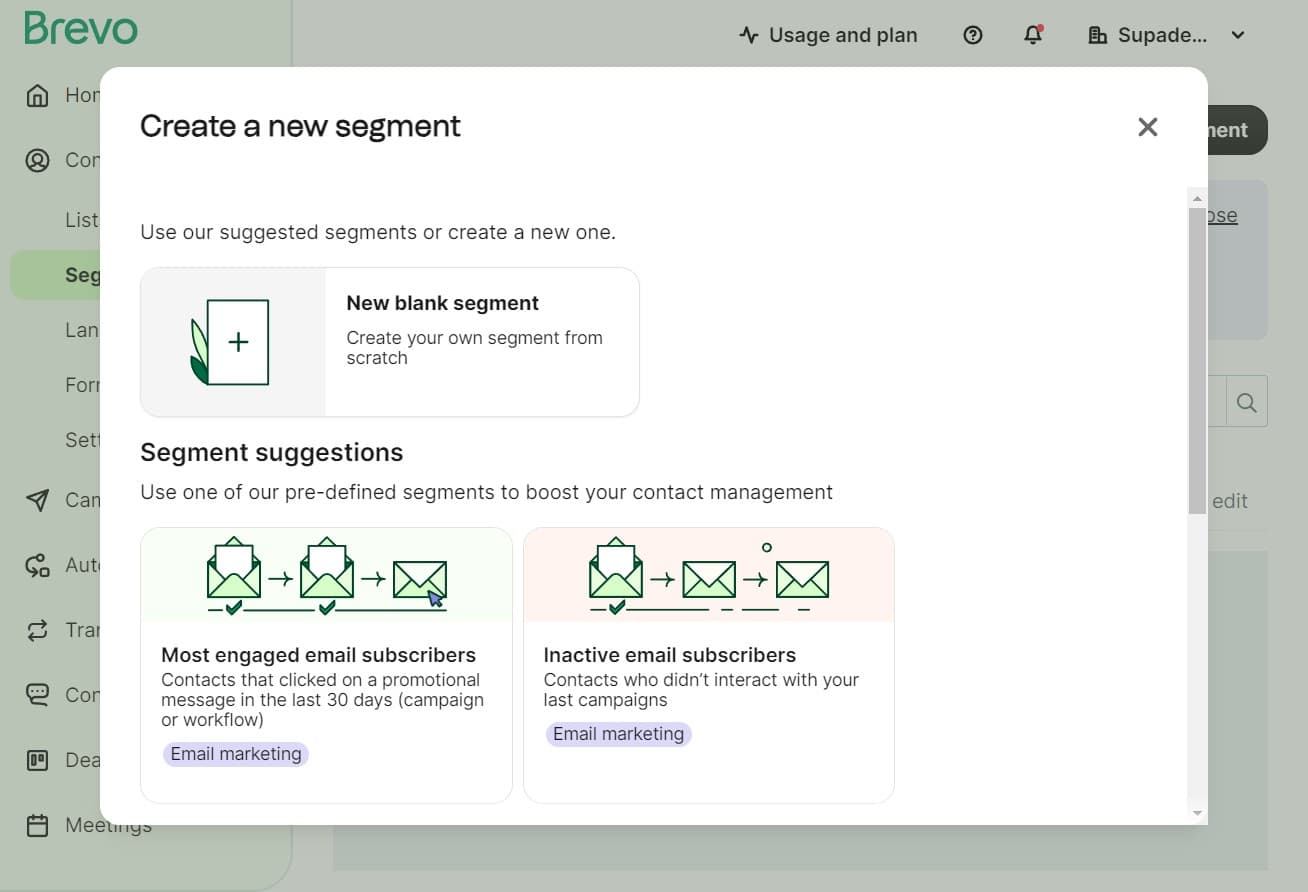
Confirm template selection
Click the confirmation button to apply the selected template to your new segment. This will load the template's default criteria into your segment builder.
- 5
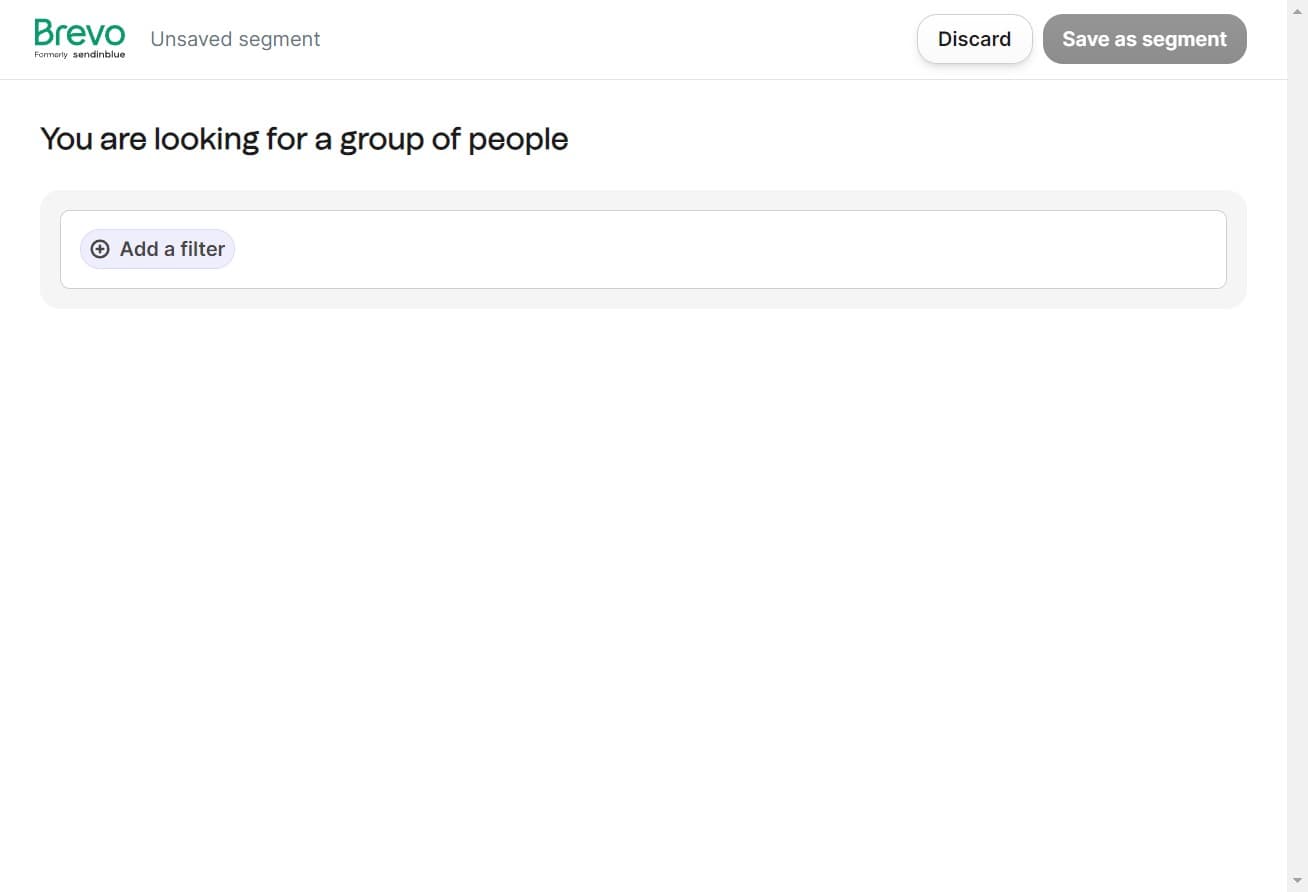
Add custom filter criteria
Click on "Add a filter" to define additional conditions that will refine your segment. You can layer multiple filters to create highly targeted audience groups based on your specific requirements.
- 6
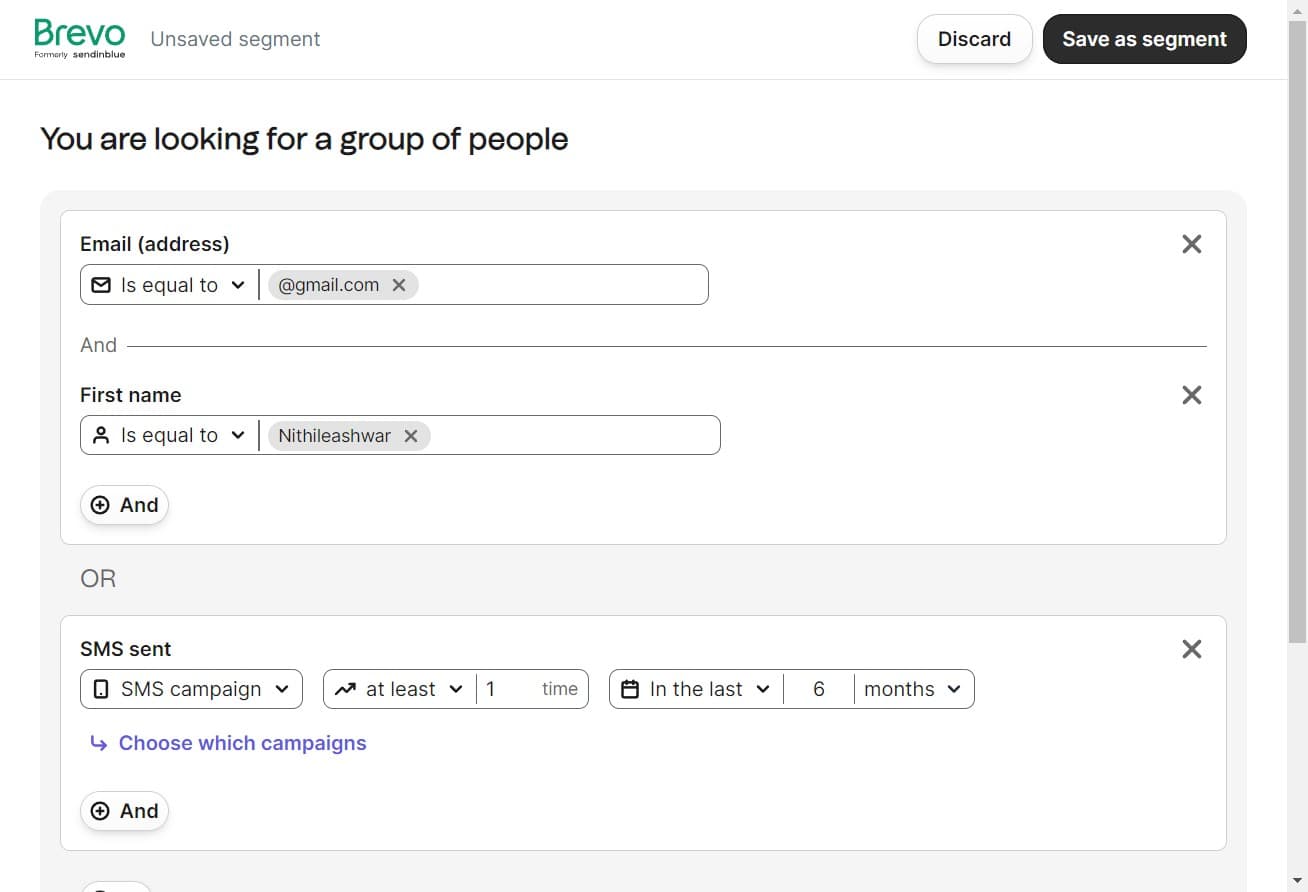
Save your segment
Click on "Save as segment" to finalize your segment configuration. This action prepares your segment for naming and storage in your Brevo account.
- 7
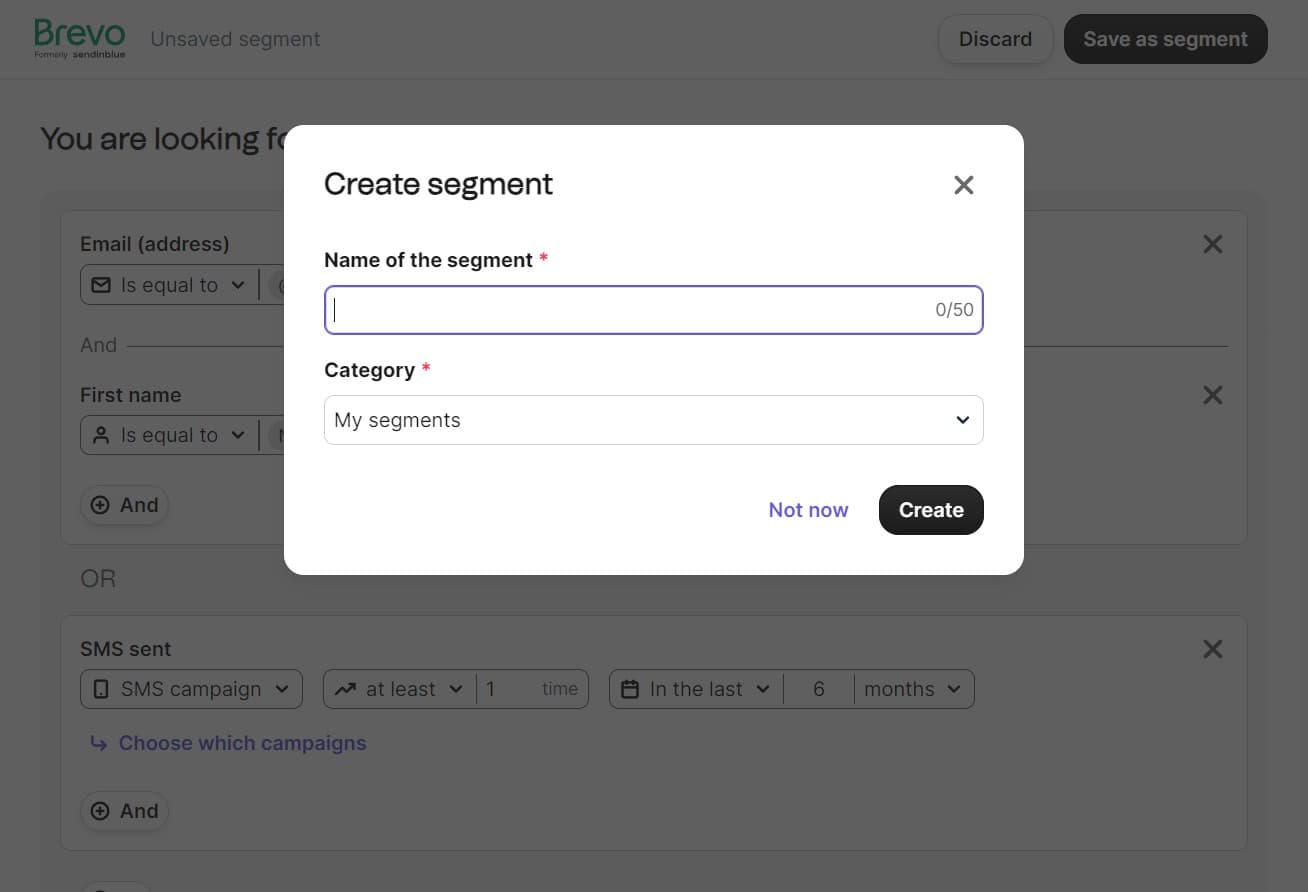
Enter segment details
Click in the designated field to enter a descriptive name for your segment. This name should clearly indicate the segment's purpose so you can easily identify it when building campaigns.
- 8
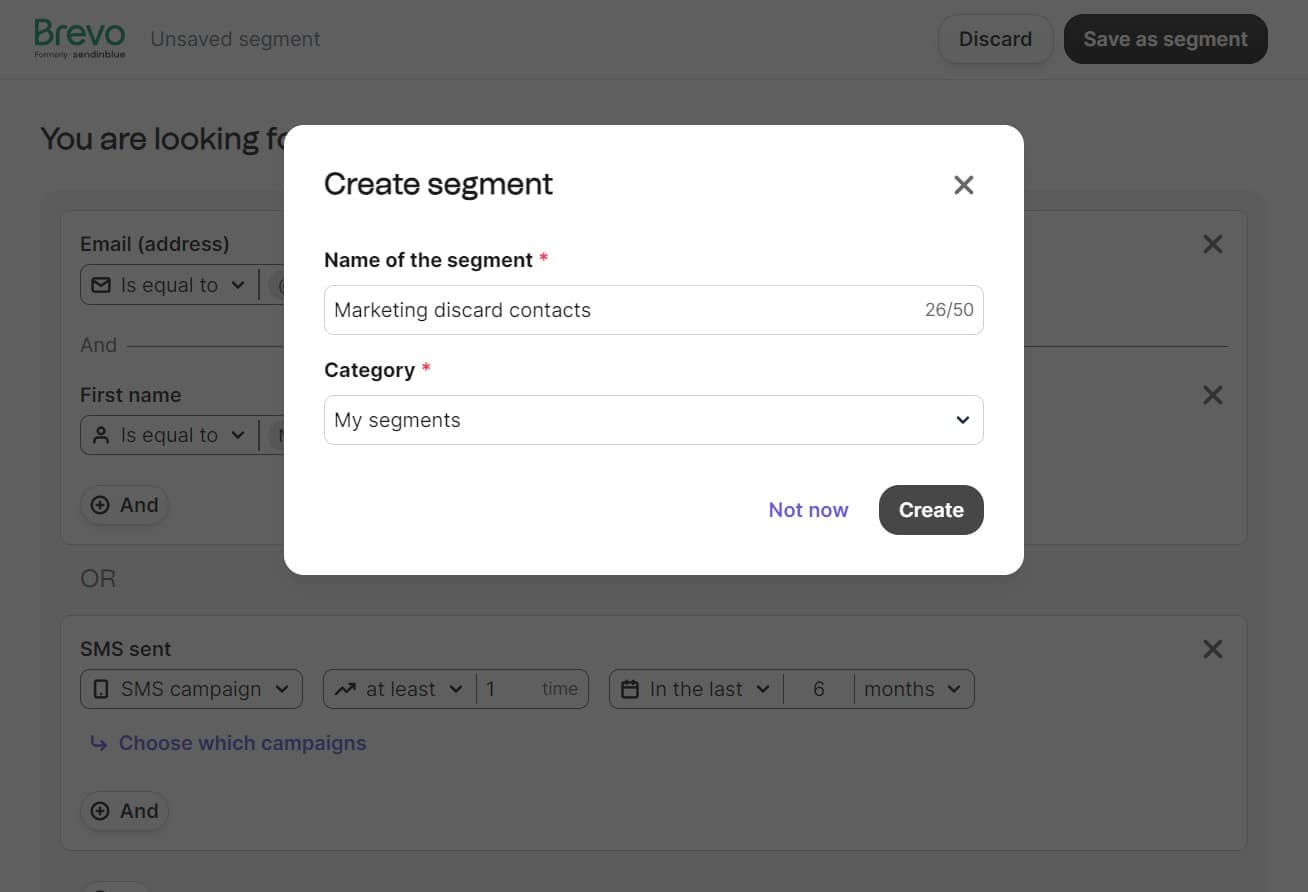
Complete segment creation
Click on "Create" to finalize and save your segment. Once created, your segment will be available in your segments library for use in future email campaigns and marketing initiatives.
Frequently asked questions
Common questions about how to create a segment on brevo.
What is a segment in Brevo and why do I need one?
A segment in Brevo is a subset of your contacts that share common characteristics or behaviors. Segments allow you to target specific groups with tailored messages, which improves email engagement rates, click-through rates, and overall campaign ROI by ensuring each recipient receives relevant content.
Can I edit a segment after I've created it?
Yes, you can edit segments after creation by accessing them from the Segments section and modifying the filters and criteria. Changes to a segment will apply to future campaigns using that segment, though existing campaign performance data remains unchanged.
What types of filters can I add to refine my segment?
Brevo offers various filter options including engagement metrics like opens and clicks, contact properties such as location or company size, and behavioral data like purchase history. You can combine multiple filters using AND/OR logic to create complex, highly targeted segments.
How many segments can I create in Brevo?
The number of segments you can create depends on your Brevo plan. Most plans allow for multiple segments without hard limits, enabling you to build a comprehensive segmentation strategy for different campaign objectives and audience groups.
Can I use segments across multiple campaigns?
Yes, segments are reusable across all your campaigns in Brevo. Once created, a segment becomes available in your segment library and can be applied to unlimited campaigns, making it easy to maintain consistent targeting across your marketing efforts.