How to Create a Sprint in Jira

Creating a sprint in Jira is essential for organizing work and planning iterative development cycles. This guide walks you through the process of setting up a new sprint so your team can begin tracking tasks and managing deadlines effectively.
Quick summary
In this tutorial, you'll learn how to create a sprint in Jira from start to finish. You'll discover how to configure sprint settings, add work items, and prepare your team for successful sprint execution.
Why this matters
Sprints are the foundation of agile project management, enabling teams to break down large projects into manageable timeboxes. By creating structured sprints, you gain better visibility into progress, improve team accountability, and deliver value incrementally.
Step-by-step guide
- 1
Access your Jira project board
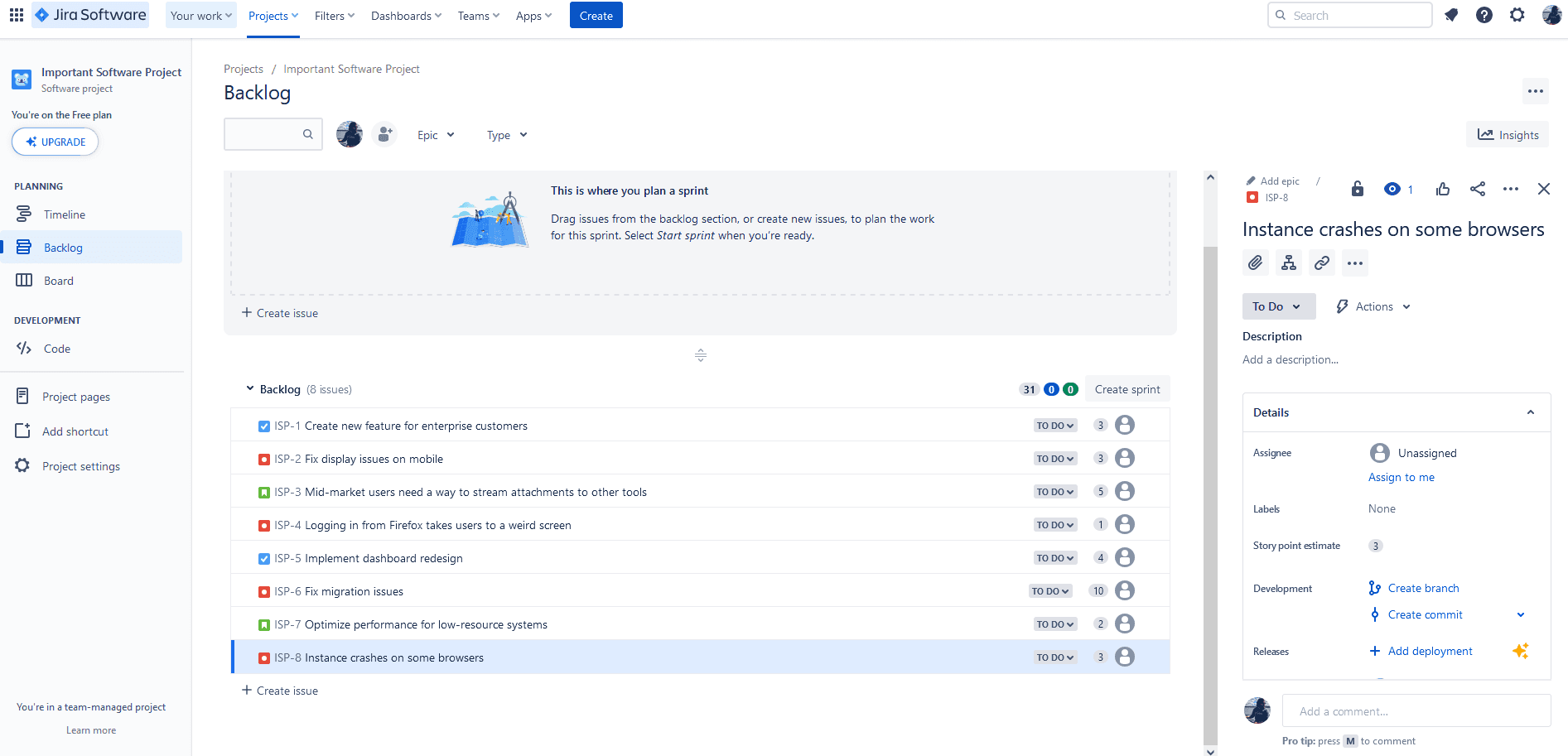
Navigate to your Jira project and open the backlog view where you manage your product backlog. This is where you'll set up and configure your new sprint.
- 2
Create a new sprint
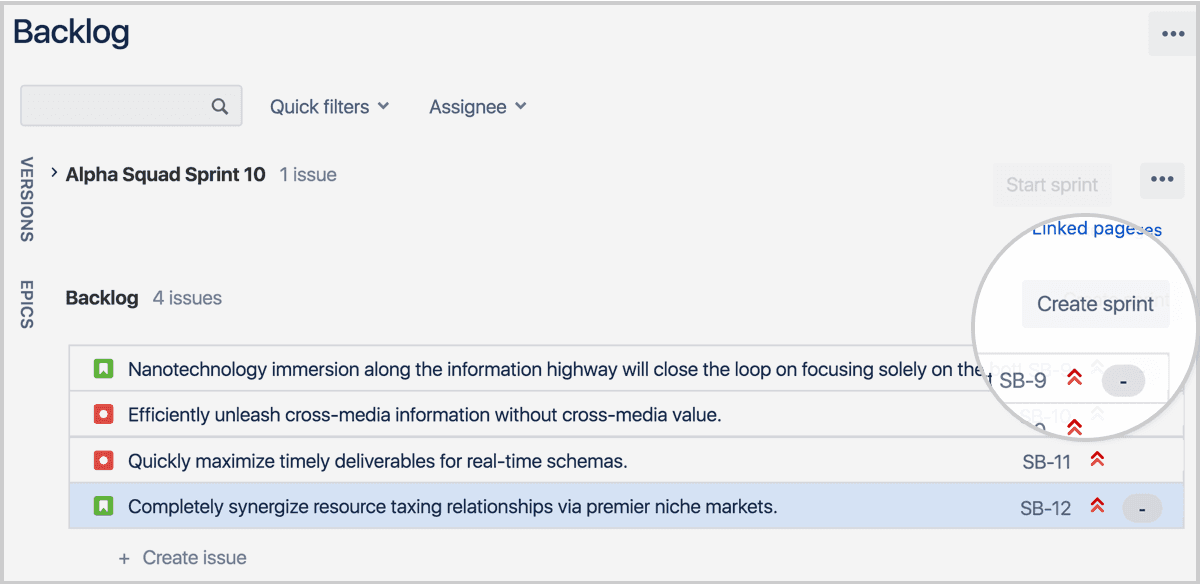
Click the 'Create sprint' button in the backlog interface. Jira will generate a new sprint container where you can add and organize your work items.
- 3
Configure sprint settings and launch
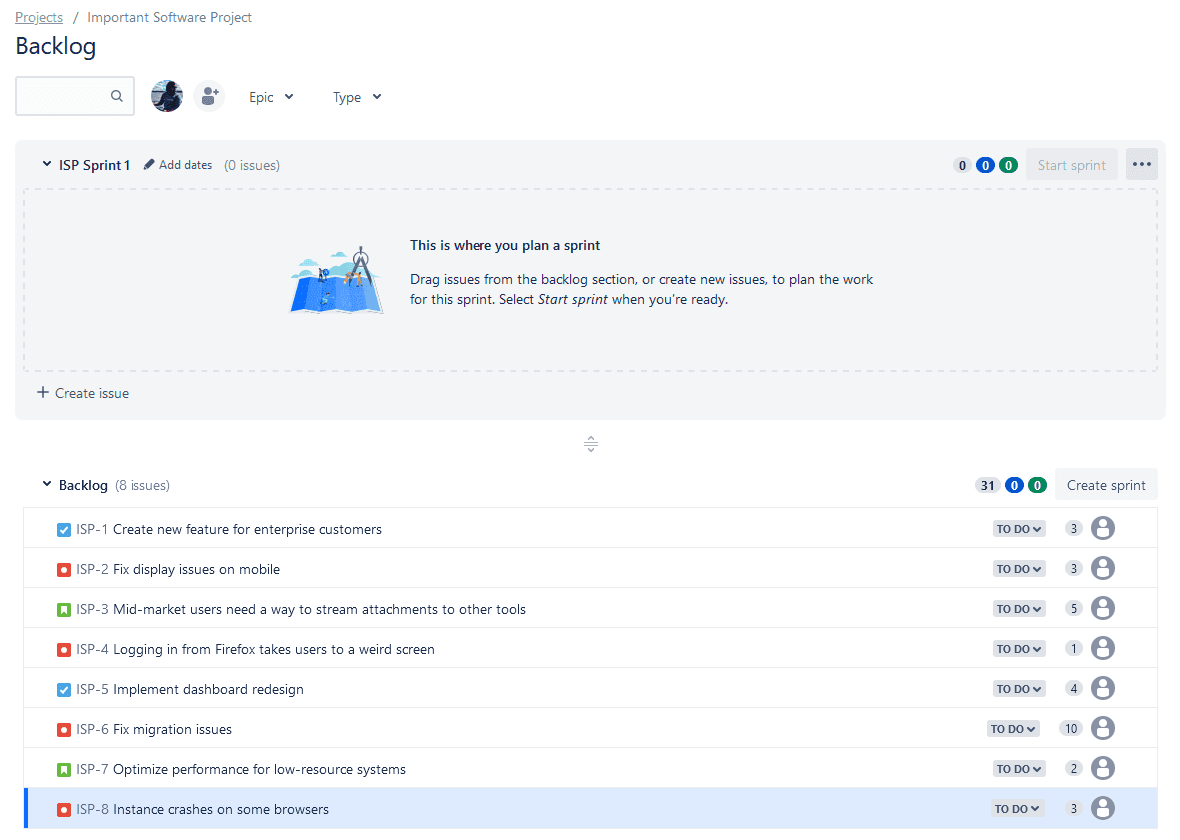
Set your sprint duration, start date, and end date in the sprint configuration panel. Once configured, click the 'Start sprint' button to activate the sprint and begin tracking work.
Frequently asked questions
Common questions about how to create a sprint in jira.
How long should a sprint be?
Most teams use one-week or two-week sprints, though durations can range from one to four weeks. The key is consistency—choose a length that allows your team to plan effectively and deliver incremental value without frequent context switching.
Can I change sprint dates after creating a sprint?
Yes, you can modify sprint dates before the sprint starts. Once a sprint is active, changing dates becomes more disruptive. It's best to plan carefully upfront, but Jira does allow adjustments if needed.
What's the difference between backlog and sprint in Jira?
The backlog contains all potential work items your team might tackle, while a sprint is a time-boxed subset of backlog items your team commits to completing. Items move from backlog into a sprint during sprint planning.
How many items should I add to a sprint?
Base sprint capacity on your team's velocity—the amount of work completed in previous sprints. Add items until you reach a realistic commitment level. It's better to underestimate and finish early than to overcommit and miss deadlines.
Can I have multiple active sprints at once?
Jira allows only one active sprint per board at a time. However, you can have multiple sprints in planning or completed status. This constraint encourages focus and prevents work fragmentation across too many timeboxes.