How to create an automation in Mailchimp

Mailchimp automations allow you to send targeted, timely messages to your contacts without manual intervention. This guide walks you through creating your first automation using Mailchimp's pre-built journey templates, enabling you to nurture leads and engage subscribers automatically.
Quick summary
In this tutorial, you'll learn how to navigate Mailchimp's automation builder, select a pre-built journey template, and configure a welcome sequence for new contacts. You'll also discover how to test your automation before it goes live to ensure messages are sent correctly.
Why this matters
Automations are essential for scaling your email marketing efforts without increasing manual workload. By setting up triggered journeys, you can deliver the right message at the right time, improving engagement rates and converting subscribers into customers more effectively.
Step-by-step guide
- 1
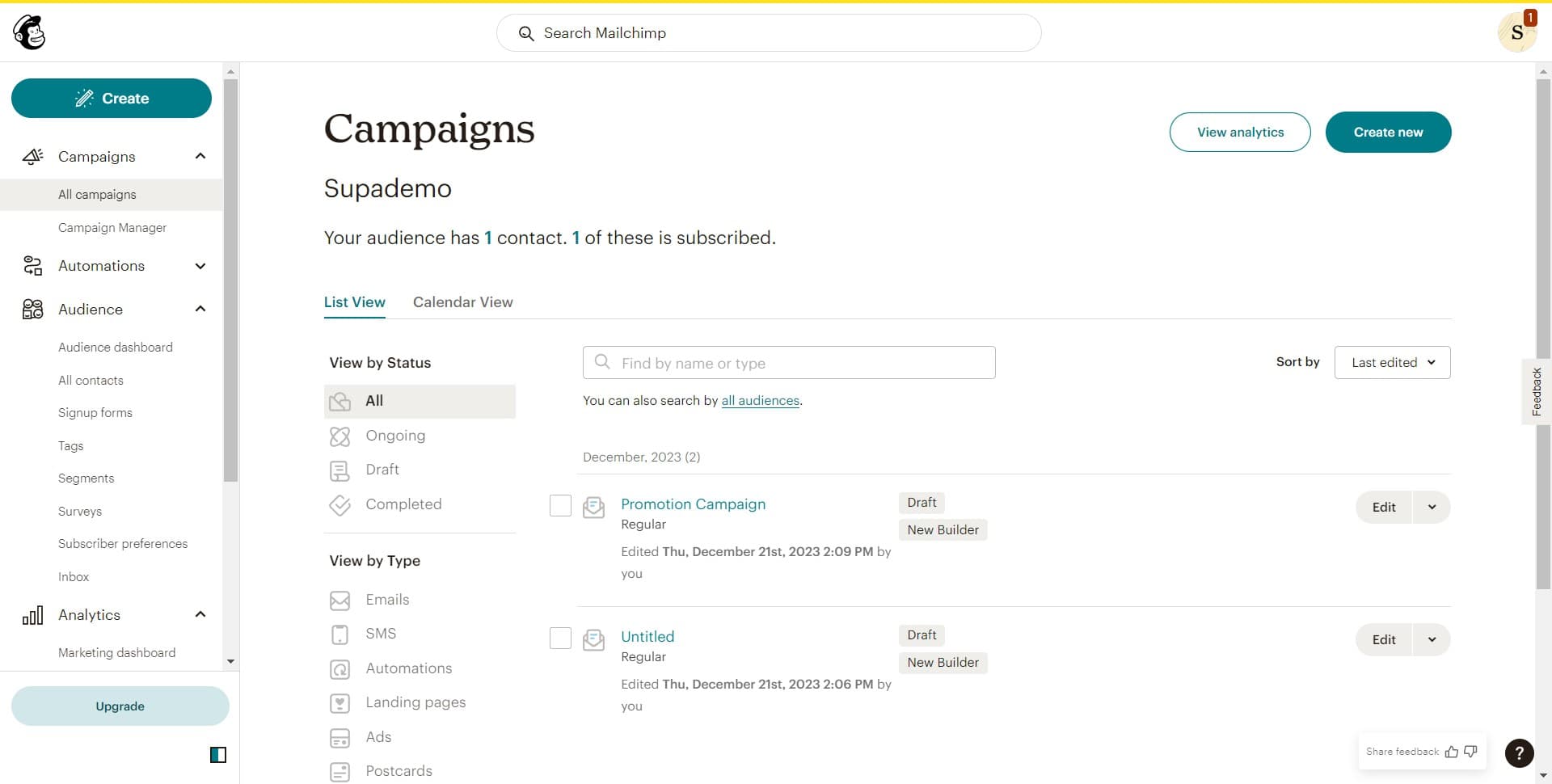
Click on Create
From your Mailchimp dashboard, locate and click the 'Create' button. This will open a menu with options for building new campaigns and automations.
- 2
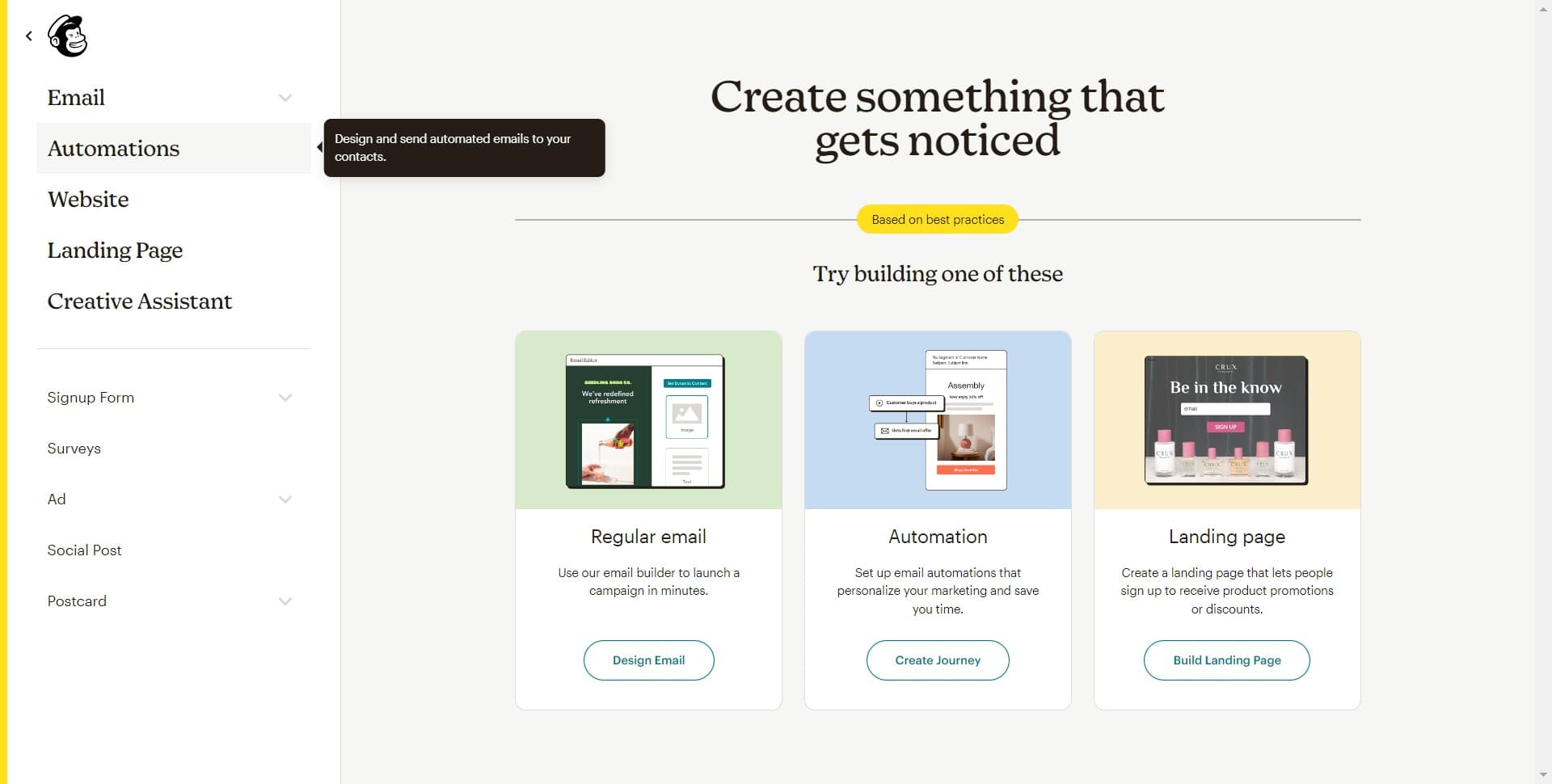
Click on Automations
Select 'Automations' from the dropdown menu. This takes you to the automation creation section where you can build customer journeys.
- 3
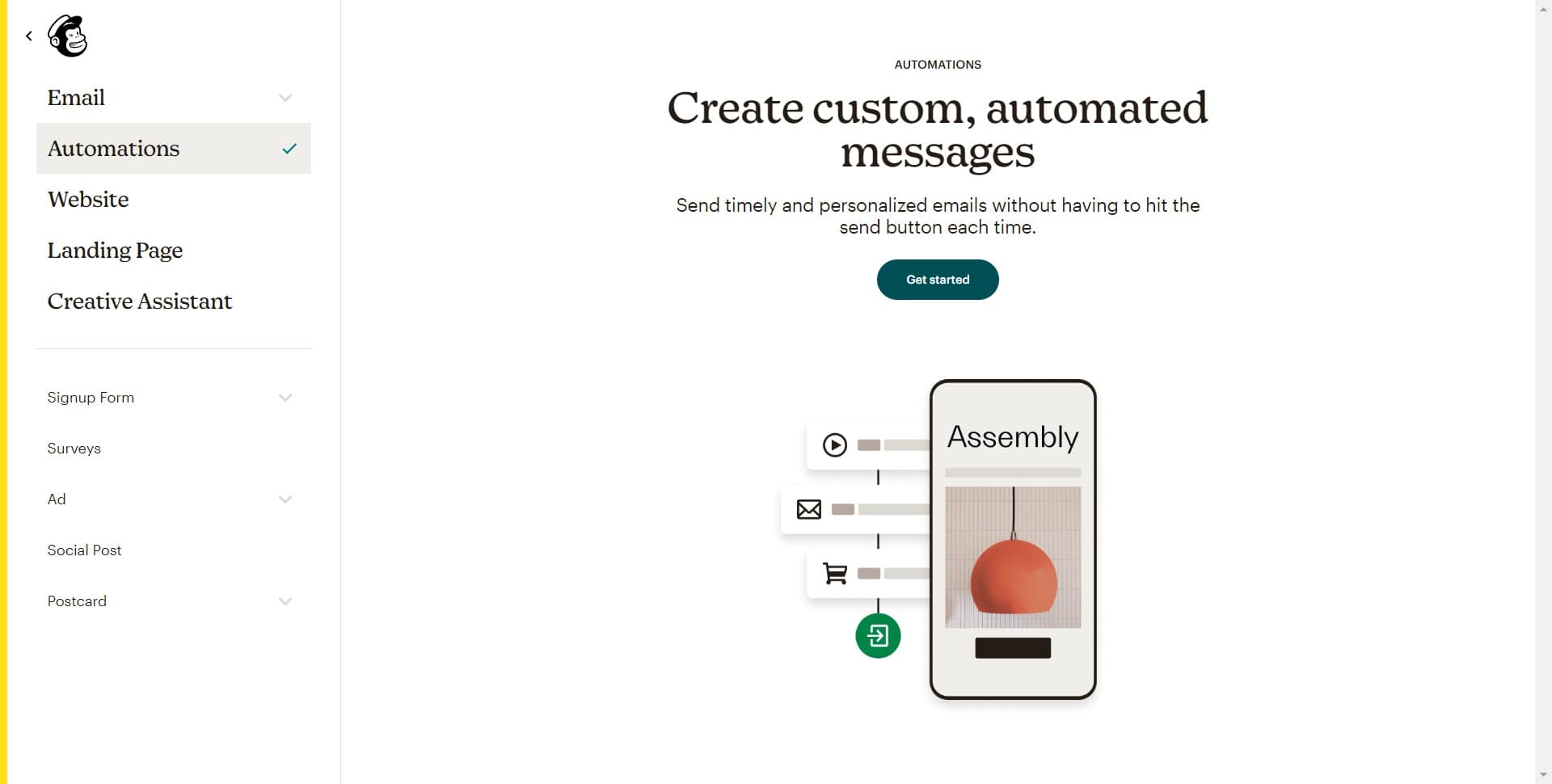
Click on Get started
Click the 'Get started' button to begin creating a new automation. You'll be presented with options to either start from scratch or use a pre-built template.
- 4
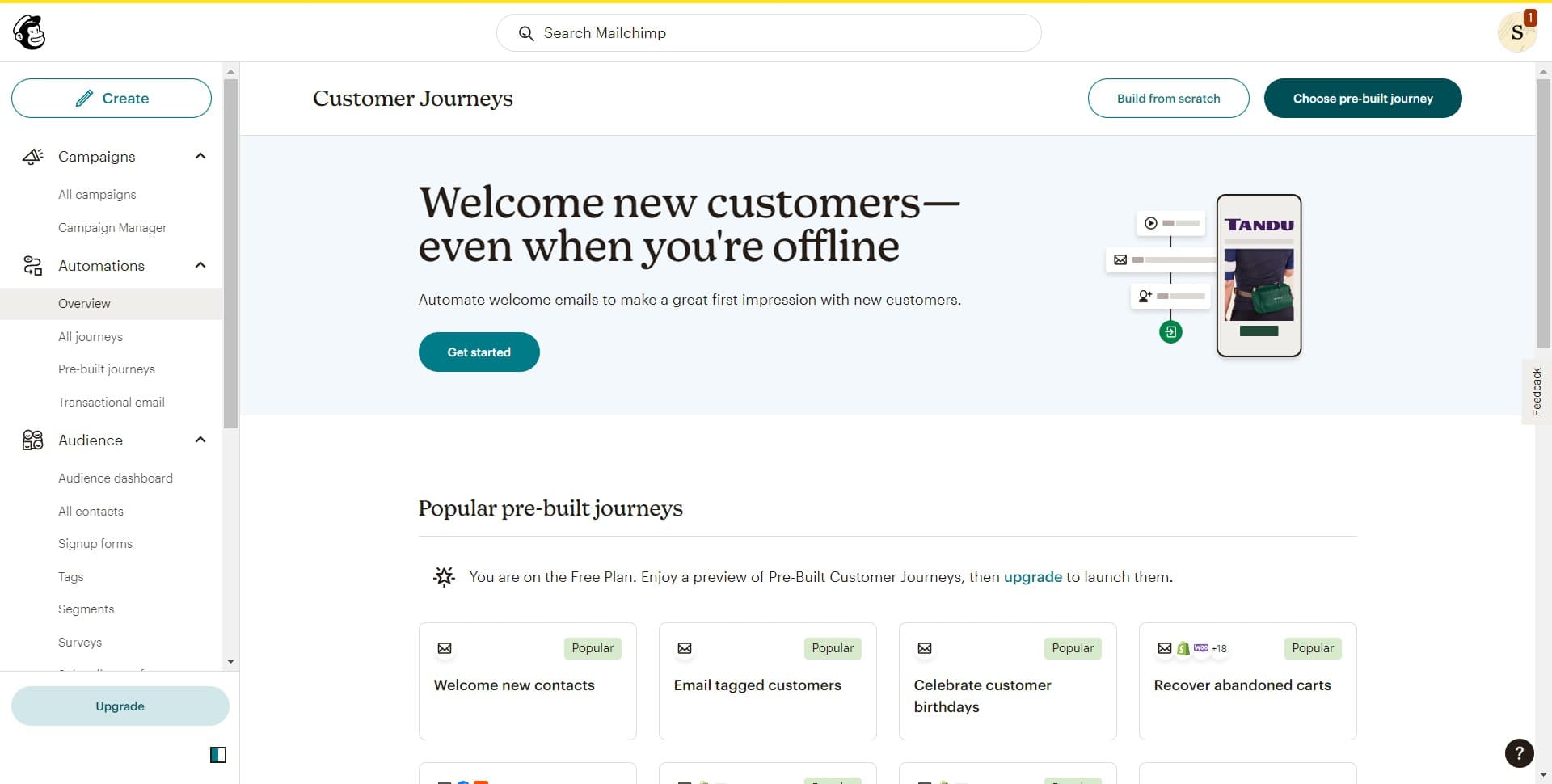
Click on Choose pre-built journey
Select 'Choose pre-built journey' to view Mailchimp's library of ready-made automation templates. These templates are designed for common marketing scenarios and save you time on setup.
- 5
Select Welcome contact journey
Click on the 'Welcome contact...' template to preview and select this automation. This journey is designed to greet new subscribers with a series of welcome emails.
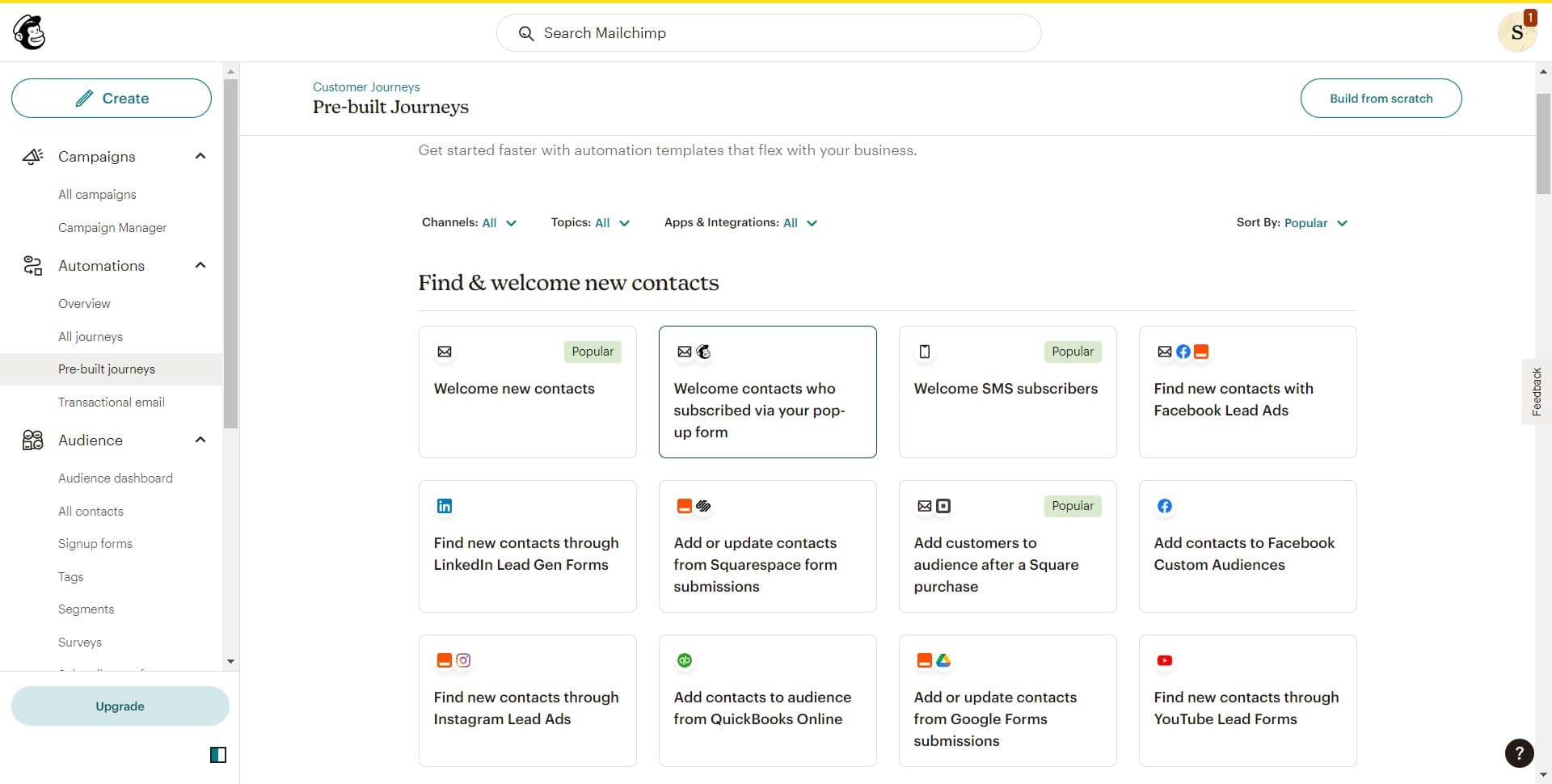
- 6
Choose Contact signs up trigger
Select the 'Contact signs u...' option to set the trigger for your automation. This ensures your welcome journey starts automatically when a new contact subscribes to your list.
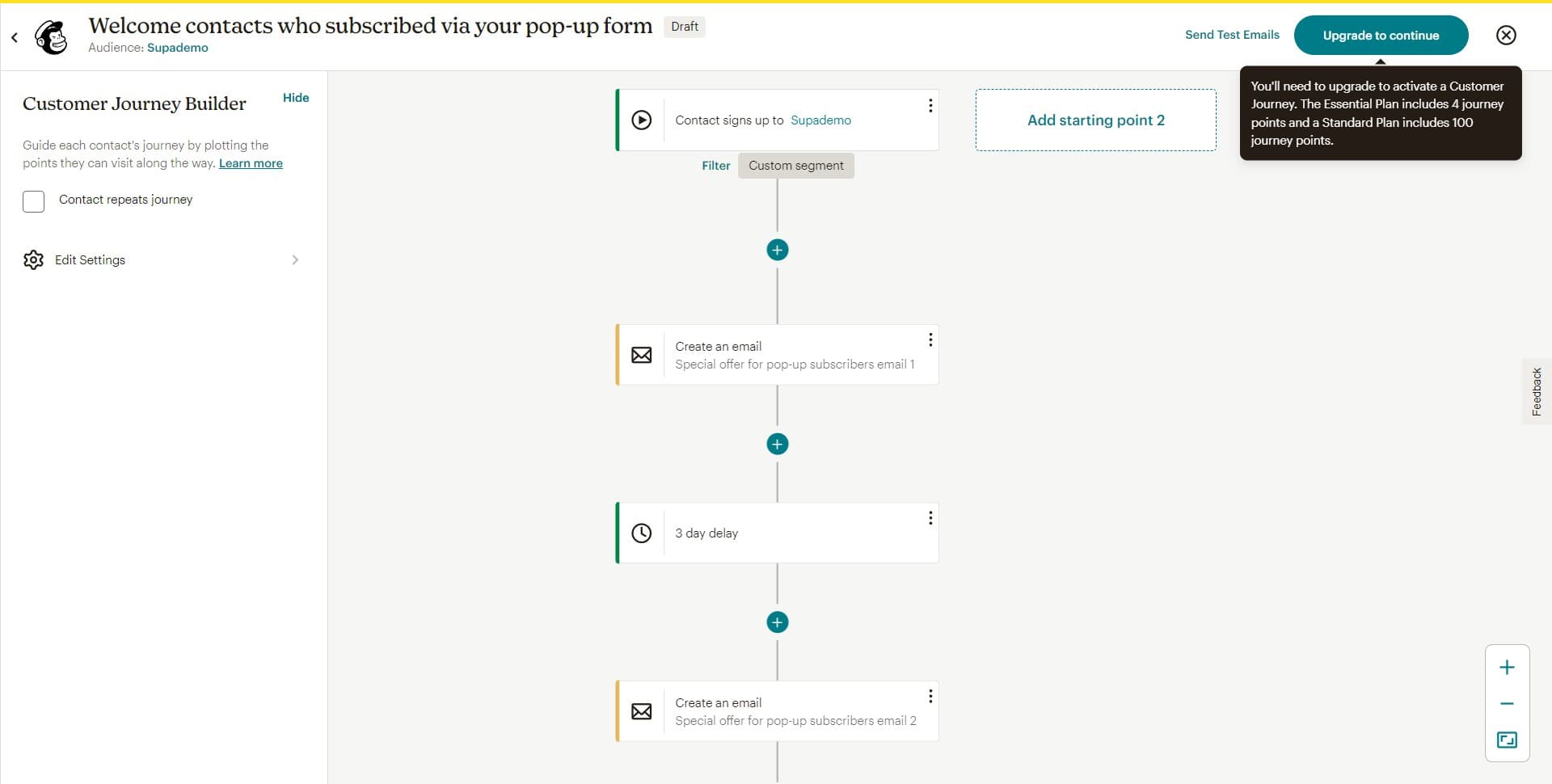
- 7
Click Use this journey
Click 'Use this journey' to confirm your selection and load the template into the automation builder. You can now customize the journey's emails, timing, and conditions as needed.
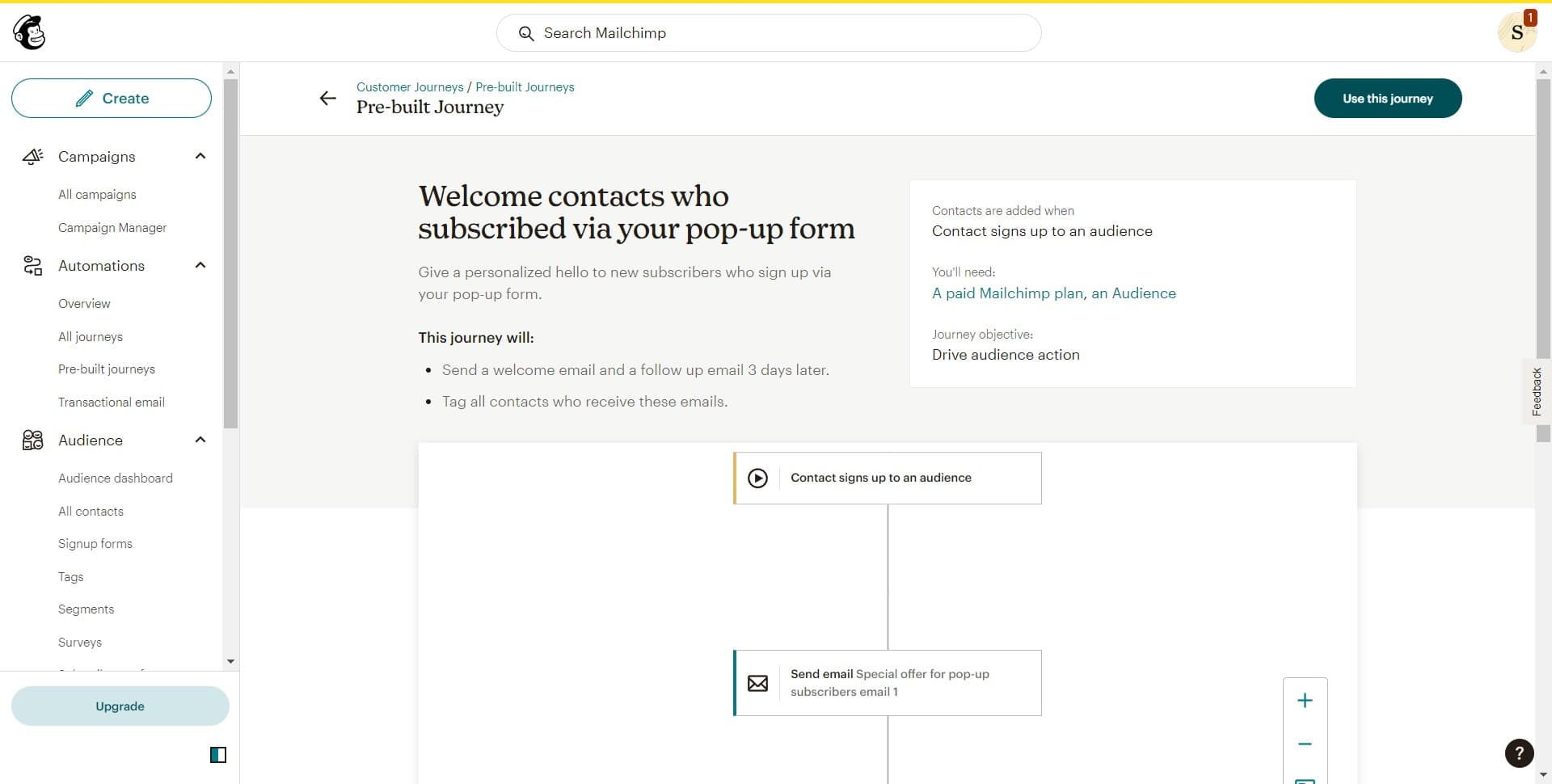
- 8
Click on Send Test Emails
Locate and click the 'Send Test Emails' button to verify that your automation works correctly. This allows you to review the emails your contacts will receive.
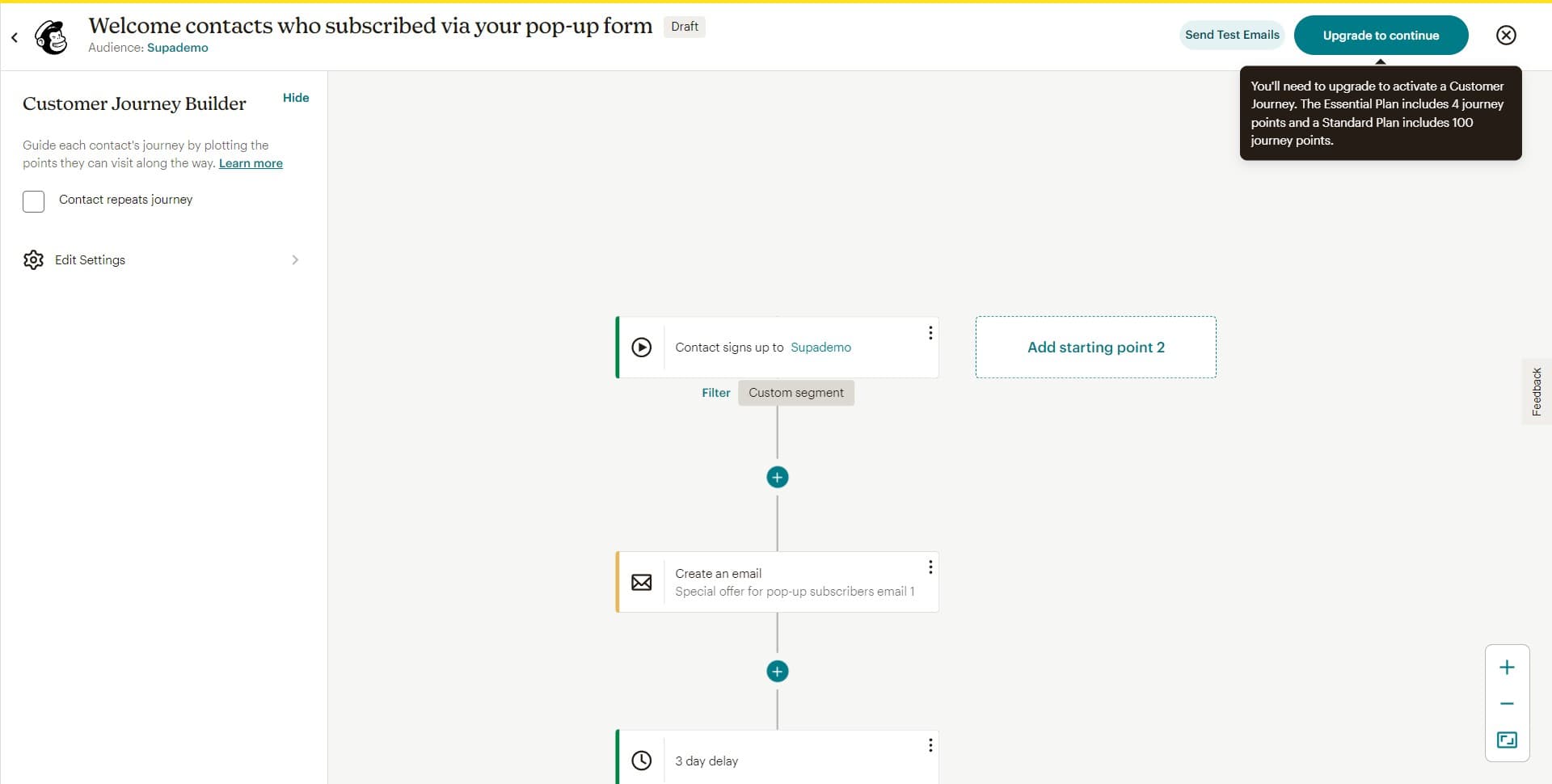
- 9
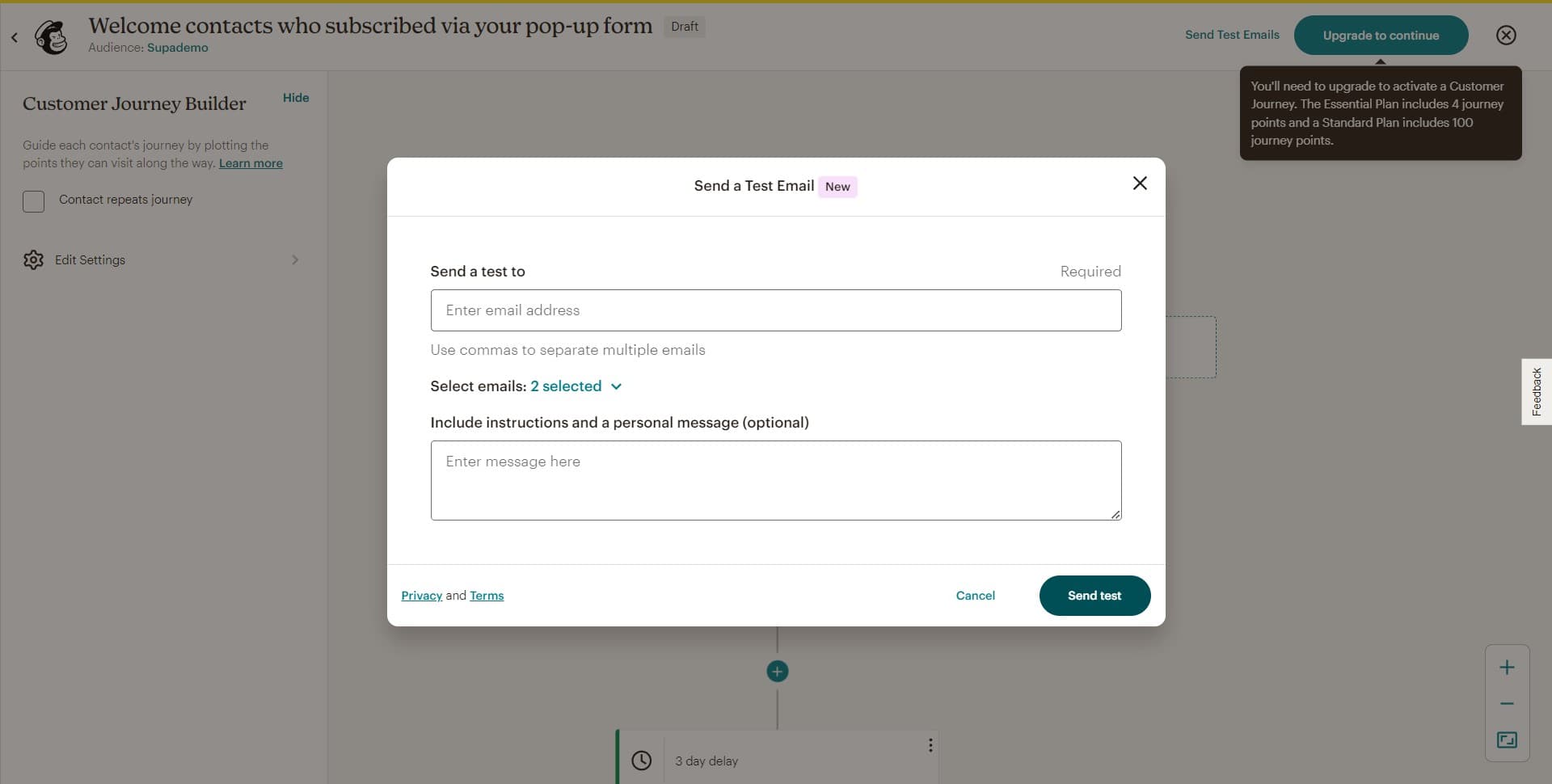
Click on Send test
Click 'Send test' to deliver a test email to your specified address. Review the email in your inbox to confirm formatting, links, and content are correct before activating the automation.
Frequently asked questions
Common questions about how to create an automation in mailchimp.
Can I customize the pre-built journey after selecting it?
Yes, once you select a pre-built journey, you can customize every aspect including email content, subject lines, timing between emails, and contact conditions. Mailchimp's automation builder allows full editing of template journeys to match your brand and messaging.
What happens when I send a test email?
Sending a test email delivers a sample of your automation's first email to an address you specify, allowing you to review the design, copy, and links before the automation goes live. This helps you catch any formatting issues or errors before contacts receive the message.
How do I activate the automation after testing?
After testing, look for a 'Start' or 'Activate' button in the automation builder. Once clicked, your automation will go live and begin sending emails to new contacts who match your trigger condition.
Can I create multiple automations at once?
Yes, you can create and manage multiple automations simultaneously in Mailchimp. Each automation runs independently, so you can have welcome journeys, abandoned cart sequences, and re-engagement campaigns all active at the same time.
What if I want to stop or pause an active automation?
You can pause or stop an automation at any time from the Automations dashboard by clicking on the specific automation and selecting the pause or stop option. Paused automations can be restarted later, while stopped automations will no longer send emails to new contacts.