How to Create Dynamic Response Templates in Gorgias

Dynamic response templates in Gorgias enable you to create intelligent, customizable replies that adapt to customer inquiries in real time. This feature saves your support team significant time by automating repetitive responses while maintaining personalization.
Quick summary
In this tutorial, you'll learn how to set up and configure dynamic response templates in Gorgias, including how to use variables, conditions, and merge fields to create responses that automatically adjust based on customer data and ticket context.
Why this matters
Dynamic response templates reduce response time, minimize manual typing errors, and ensure consistent messaging across your support team. By leveraging customer data and ticket information, your team can deliver faster, more relevant responses that improve customer satisfaction.
Step-by-step guide
- 1
Access the templates section
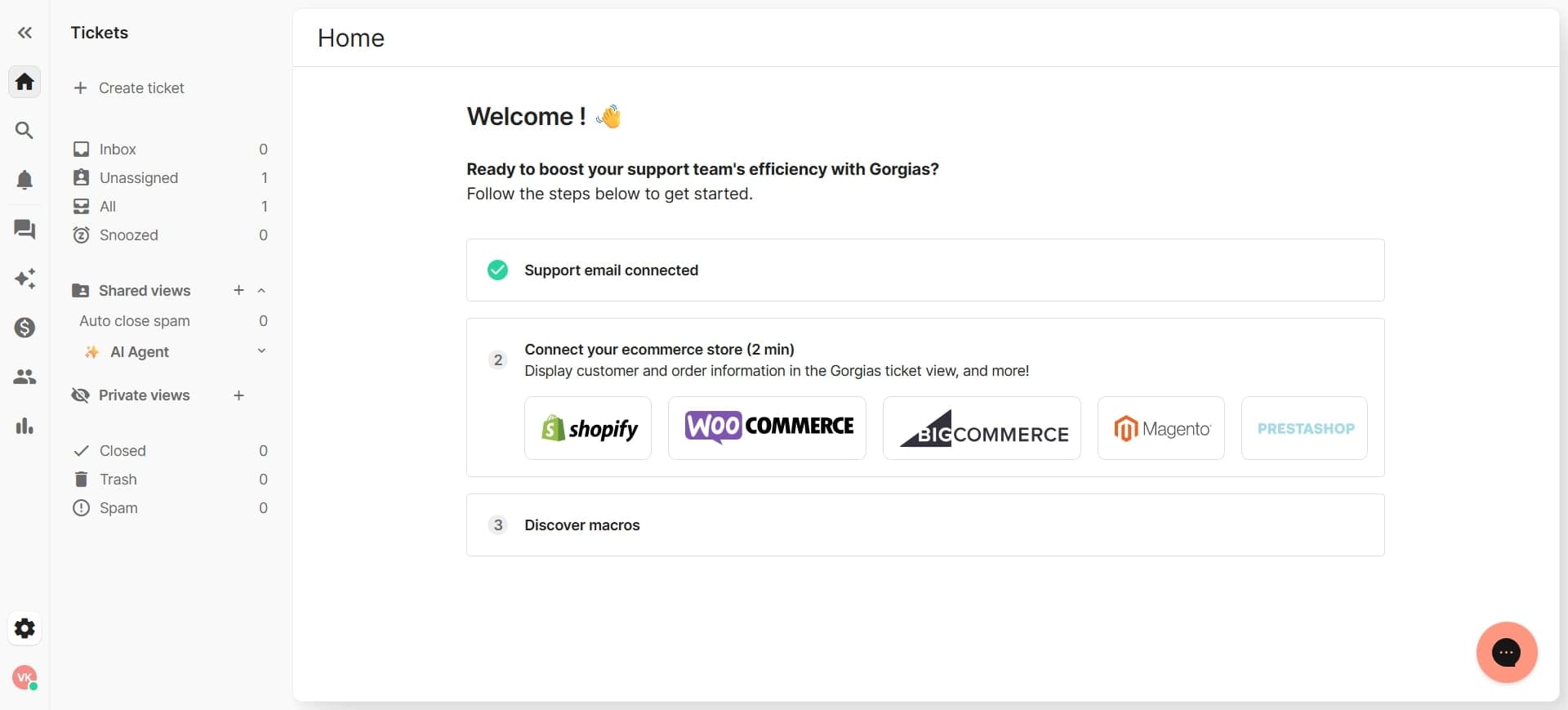
Navigate to your Gorgias dashboard and locate the Templates or Macros section in the main menu. This is typically found in the settings or admin area where you manage your support workflows.
- 2
Create a new template
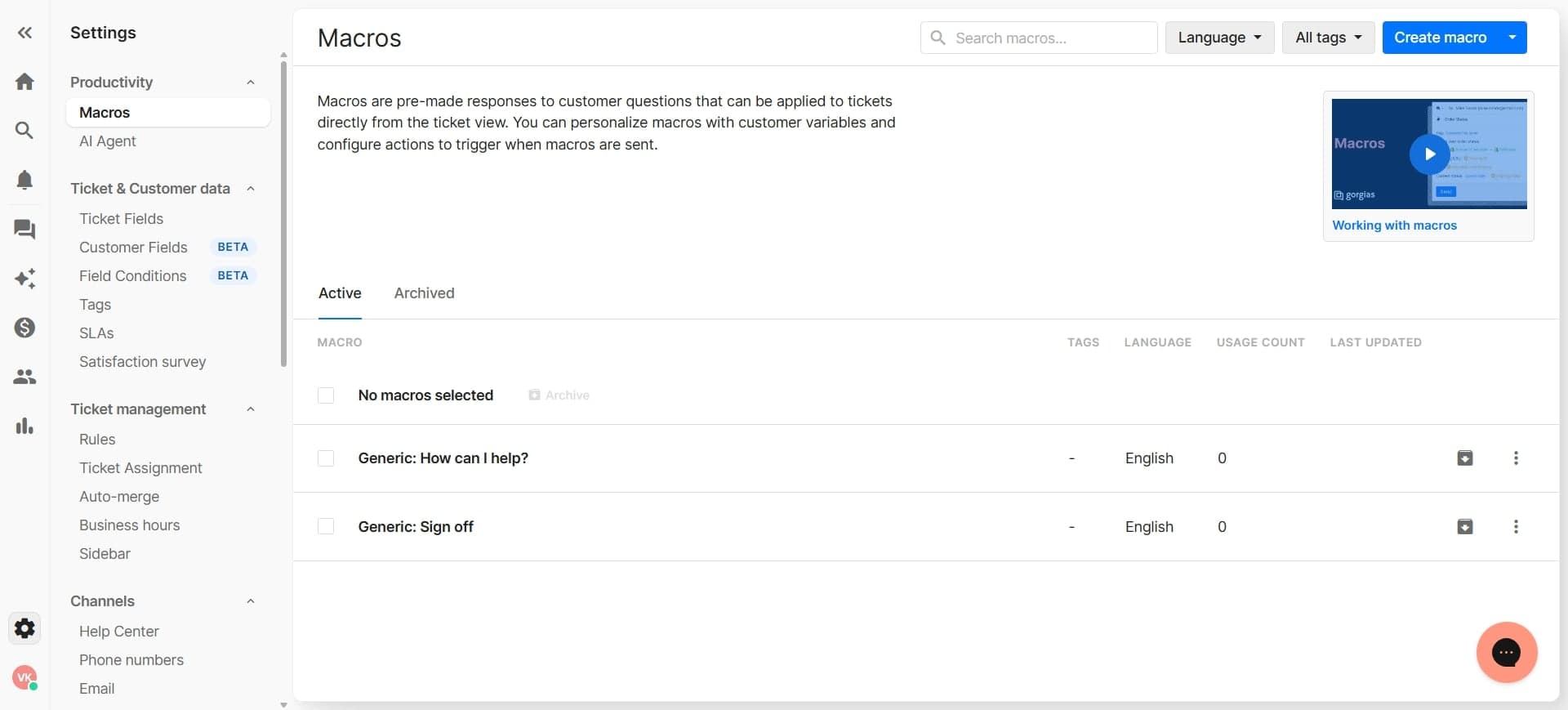
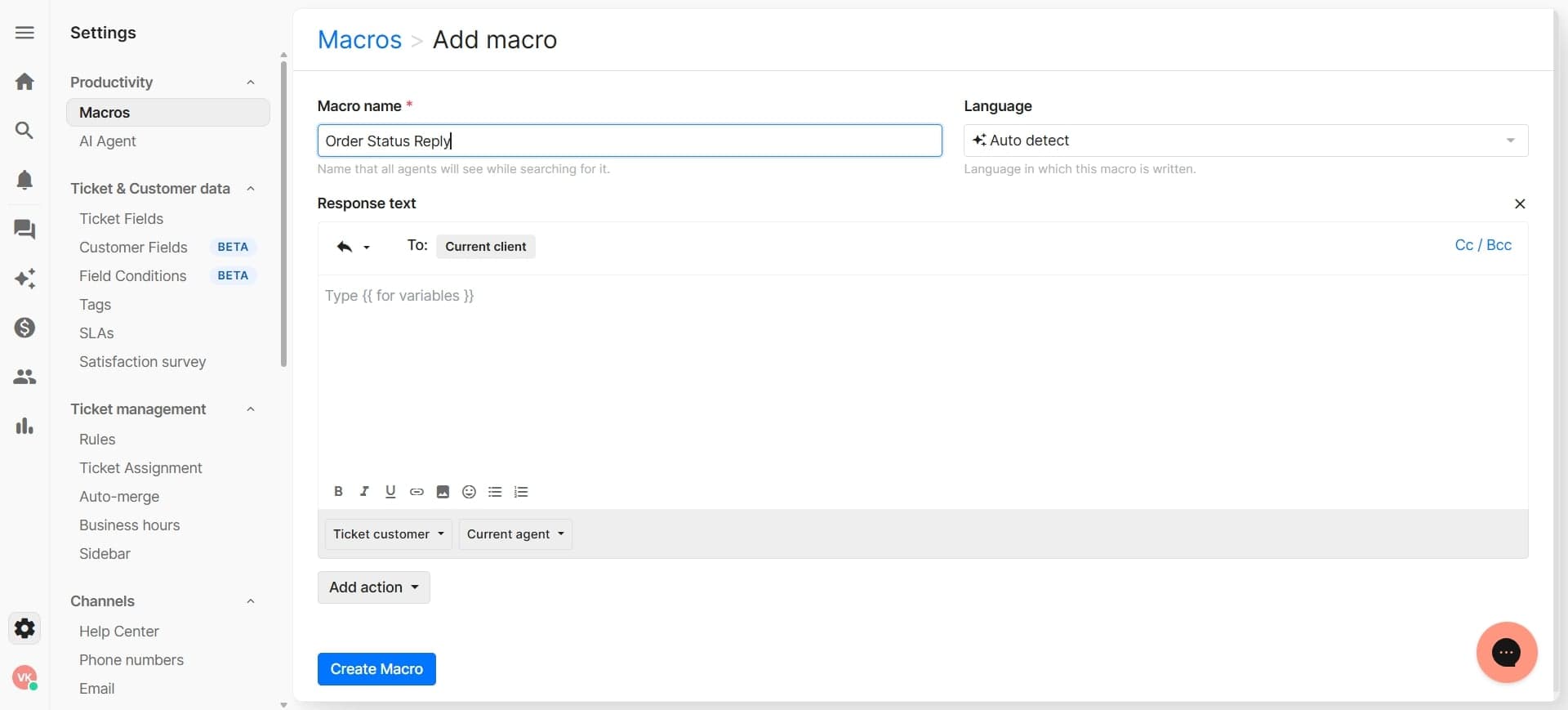
Click the button to create a new template and give it a clear, descriptive name that reflects its purpose, such as 'Order Status Inquiry' or 'Product Return Request'. This makes it easy for your team to find and apply the right template.
- 3
Set up template content
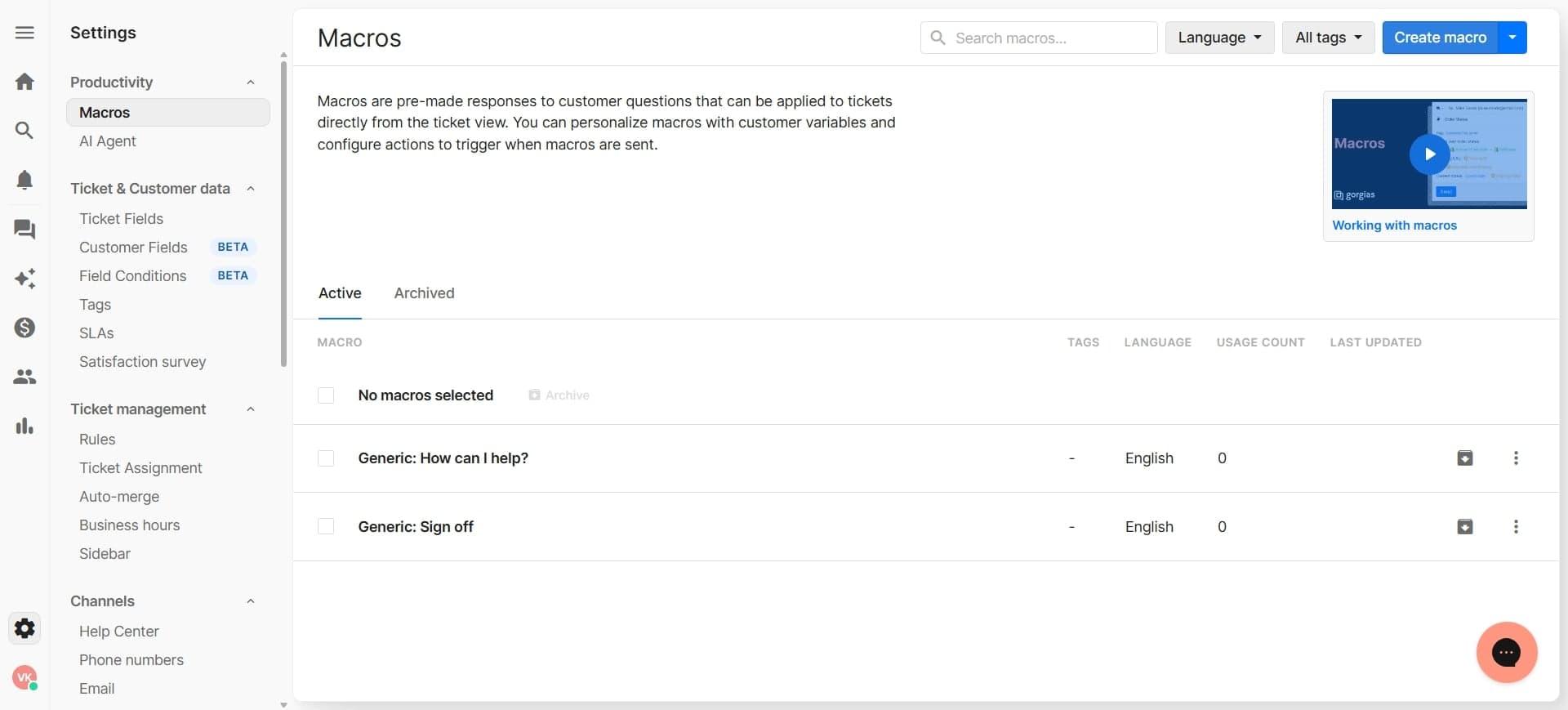
Enter the base text for your response in the template editor. This is the standard message that will appear for all instances where this template is used.
- 4
Insert dynamic variables
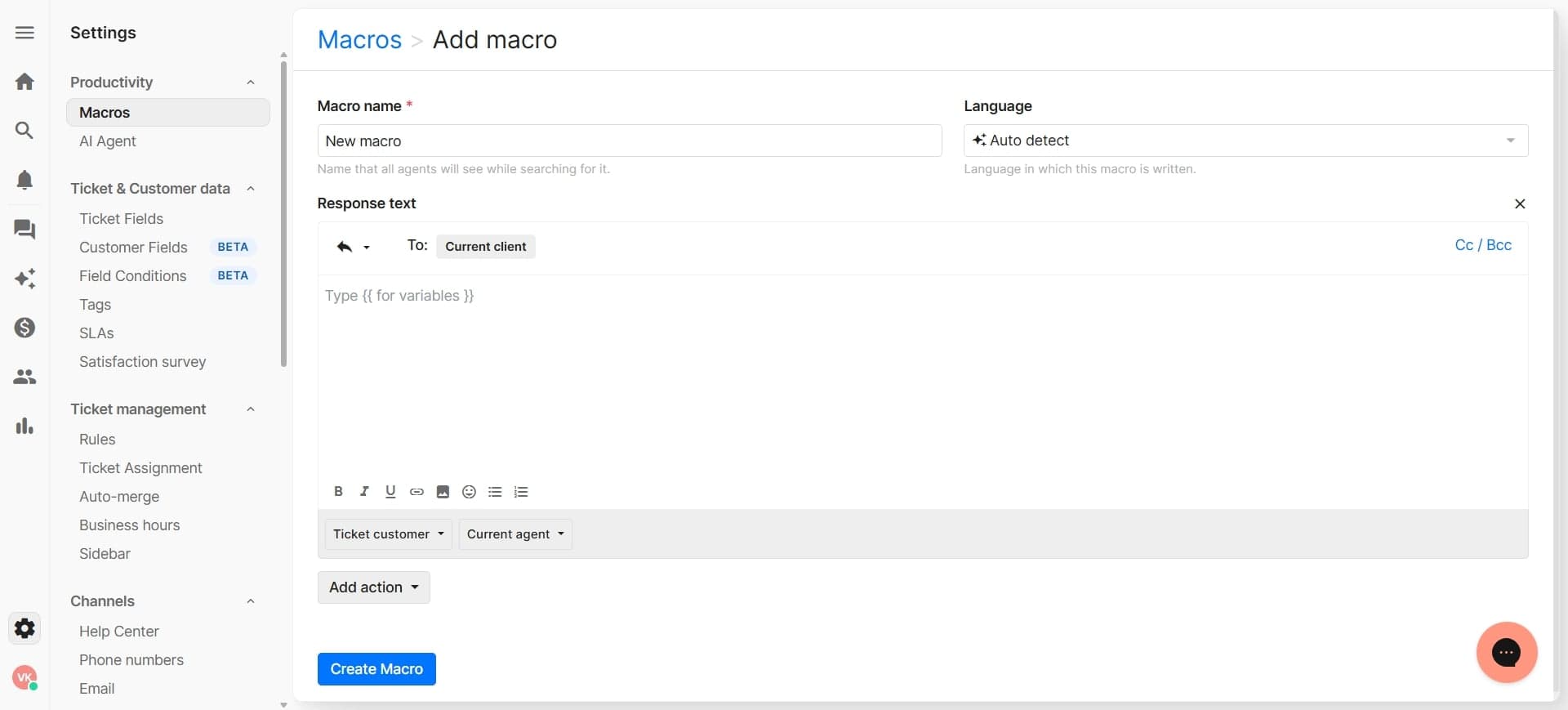
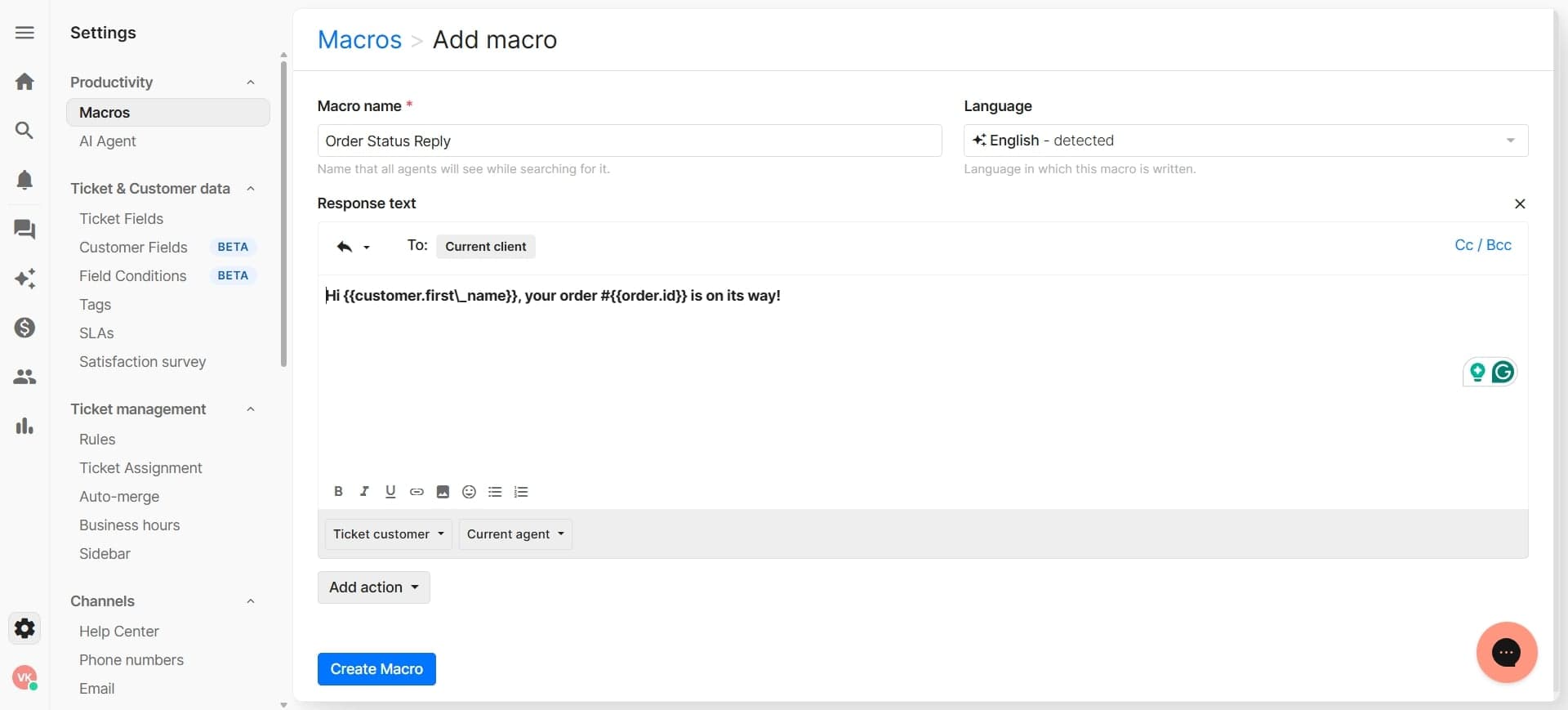
Add merge fields and variables into your template text to pull live customer data, such as customer name, order number, or product information. Most platforms use a specific syntax, like double curly braces or square brackets, to denote variables.
- 5
Add conditional logic
Set conditions that determine when specific text blocks appear in the response. For example, you can display different messaging if the customer has made multiple purchases or if the order is within a certain timeframe.
- 6
Preview the template
Use the preview feature to test how your template renders with sample data. This step ensures variables populate correctly and conditional logic triggers as expected.
- 7
Save and organize
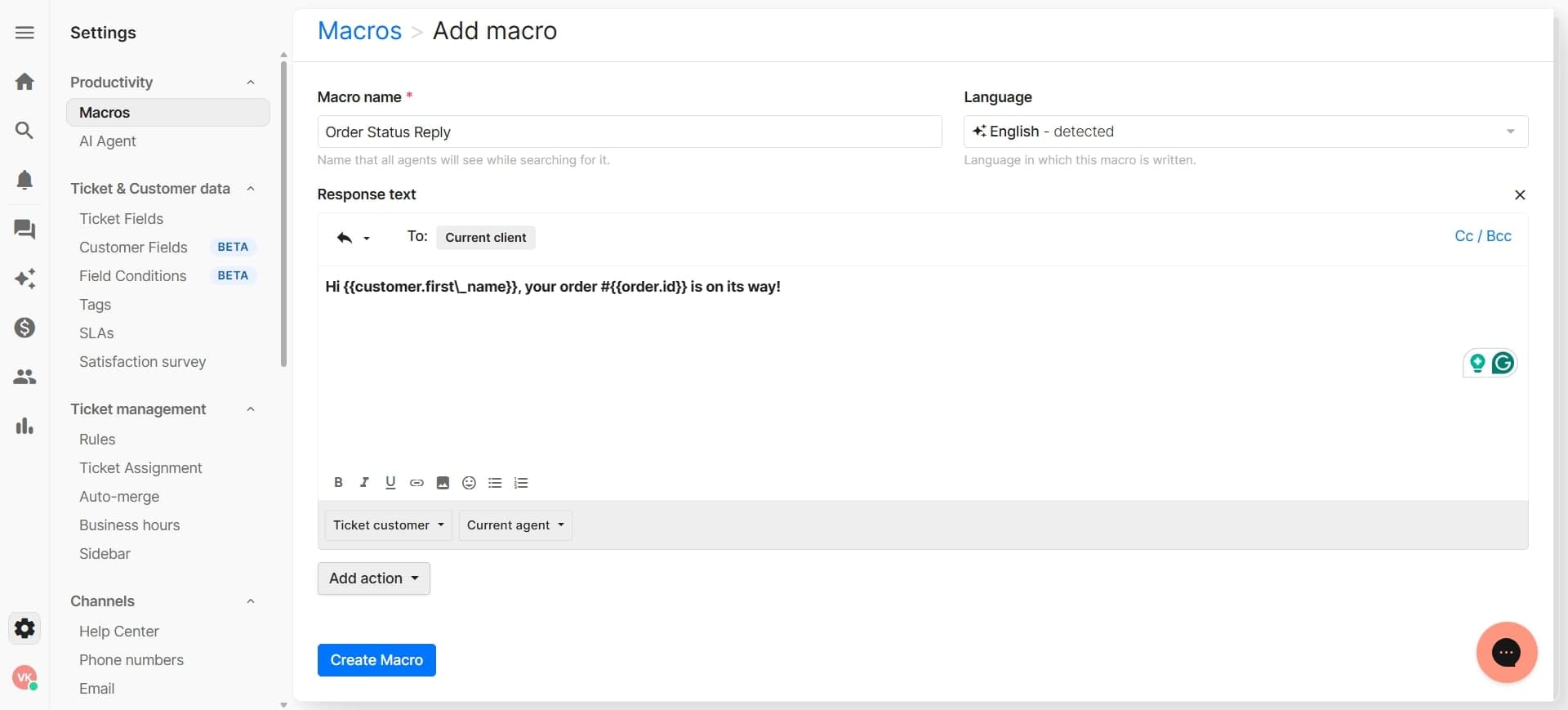
Save your template and optionally assign it to a category or folder for better organization. Well-organized templates make it faster for your team to locate them during customer conversations.
- 8
Train your team to use templates
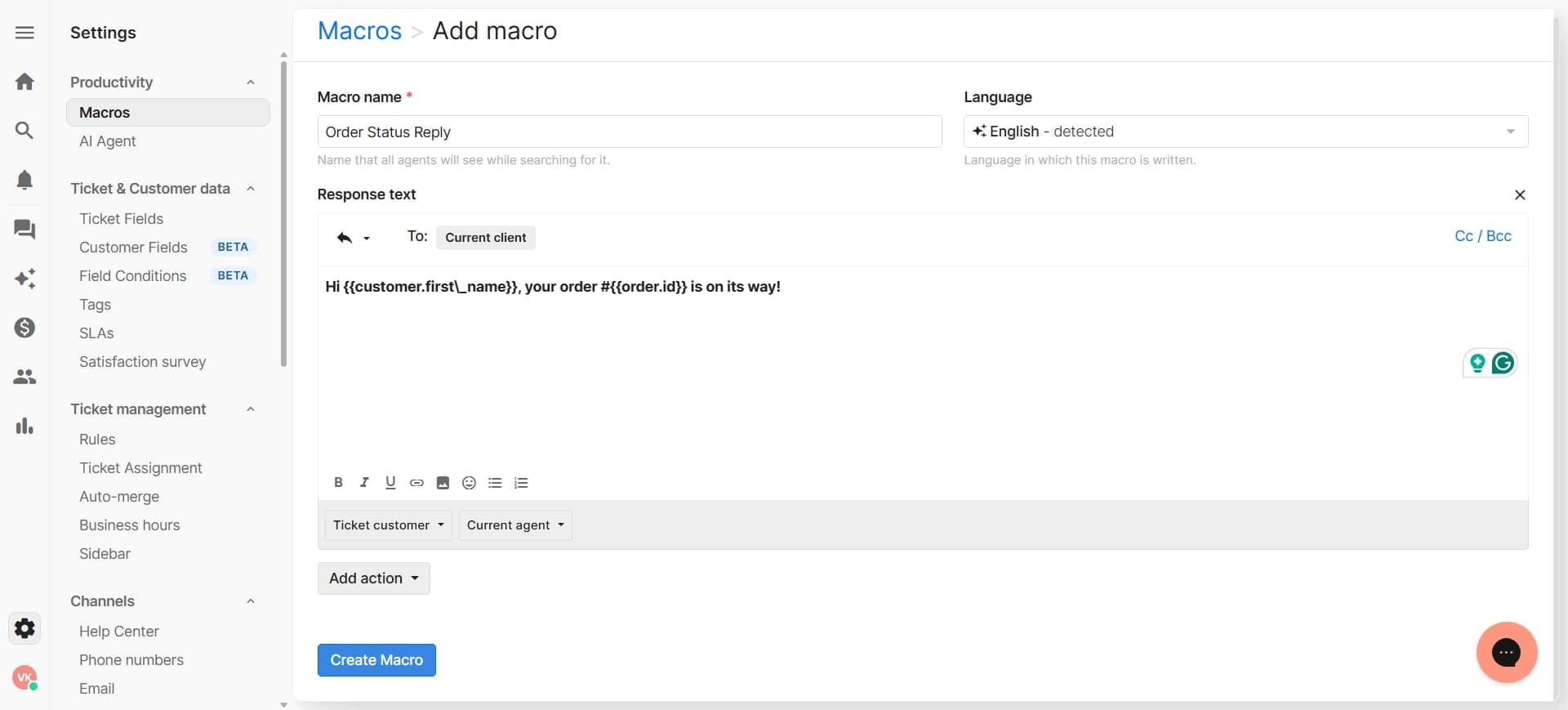
Share the template with your support team and document when and how to apply it. Ensure your team understands which template to use for different customer inquiries to maximize efficiency.
Frequently asked questions
Common questions about how to create dynamic response templates in gorgias.
What variables can I use in dynamic response templates?
Most platforms like Gorgias support common variables including customer name, email, phone number, order ID, product name, order status, and custom fields specific to your business. Check your platform's documentation for the complete list of available variables and their syntax to ensure proper formatting.
Can I test a template before sharing it with my team?
Yes, nearly all platforms include a preview or test function that lets you see how the template renders with sample data. This is crucial for verifying that all variables populate correctly and conditional logic works as intended before your team uses it in live conversations.
How do I update a template after it's been created?
You can edit existing templates by accessing the template management section, selecting the template you want to modify, and making your changes. Some platforms may update all future uses of the template, while others may only apply changes to new tickets going forward—check your settings.
What's the difference between templates and macros?
Templates and macros are often used interchangeably in support platforms. Both allow you to save pre-written responses with dynamic variables. The main difference is typically in scope: templates may be organization-wide, while macros might be personal or team-specific, though this varies by platform.
Can I use conditional logic to hide entire sections of a template?
Yes, most platforms allow you to wrap template sections in conditional statements so they only appear when certain criteria are met. This is useful for creating one flexible template that adapts to different scenarios rather than maintaining multiple similar templates.