How to add graphics on Canva

Adding graphics to your Canva designs elevates your visual content and makes it more engaging. Whether you're creating social media posts, presentations, or marketing materials, Canva's graphics library offers thousands of customizable elements to enhance your projects.
Quick summary
In this tutorial, you'll learn how to access Canva's graphics library and add professional graphics to your designs. By following these steps, you'll be able to explore all available graphics and seamlessly integrate them into your layout.
Why this matters
Graphics are essential for creating visually compelling designs that capture attention and communicate your message effectively. Using Canva's built-in graphics saves time and ensures your designs maintain a consistent, professional appearance without needing external design software or image sources.
Step-by-step guide
- 1
Open the graphics menu
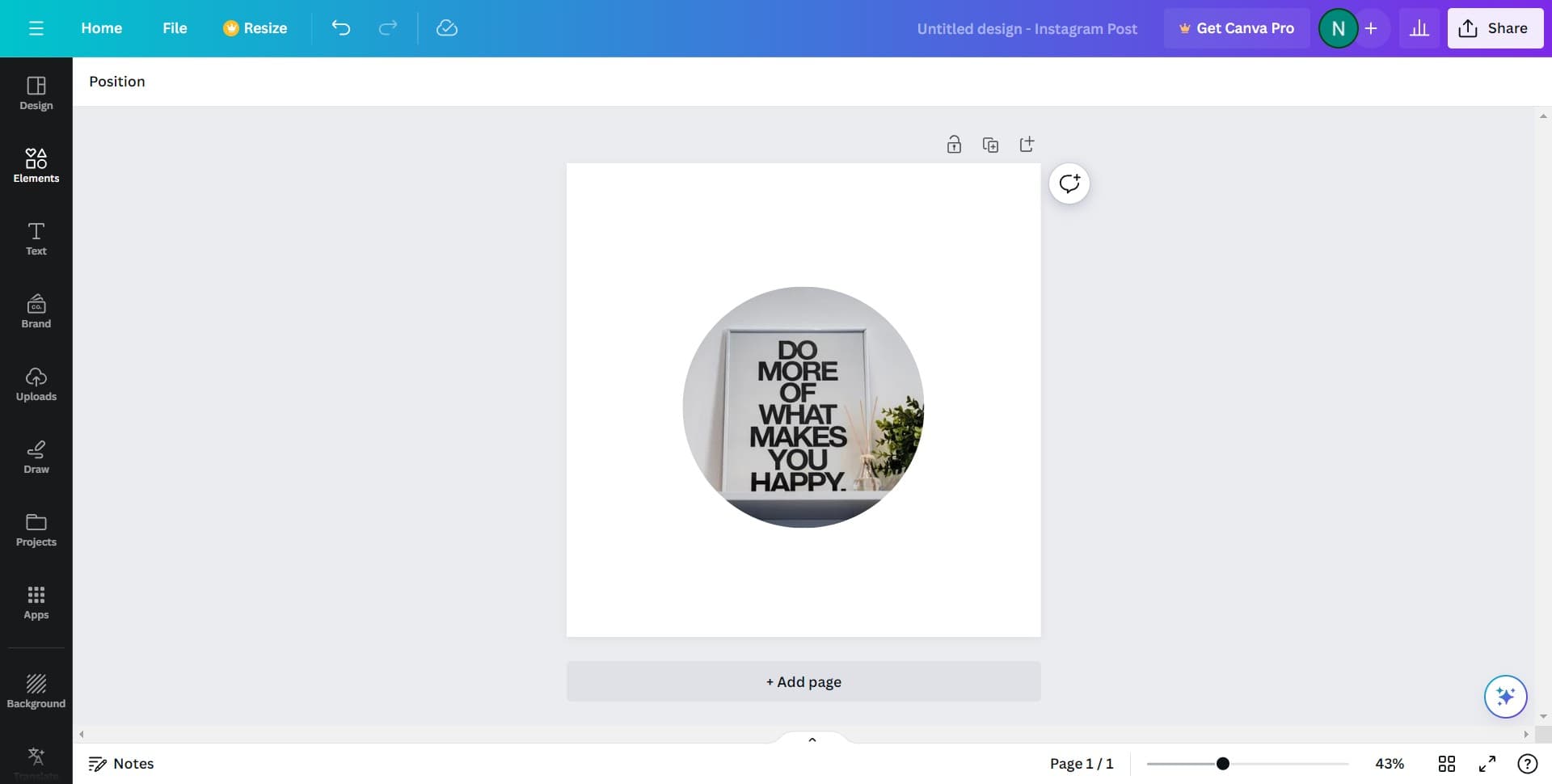
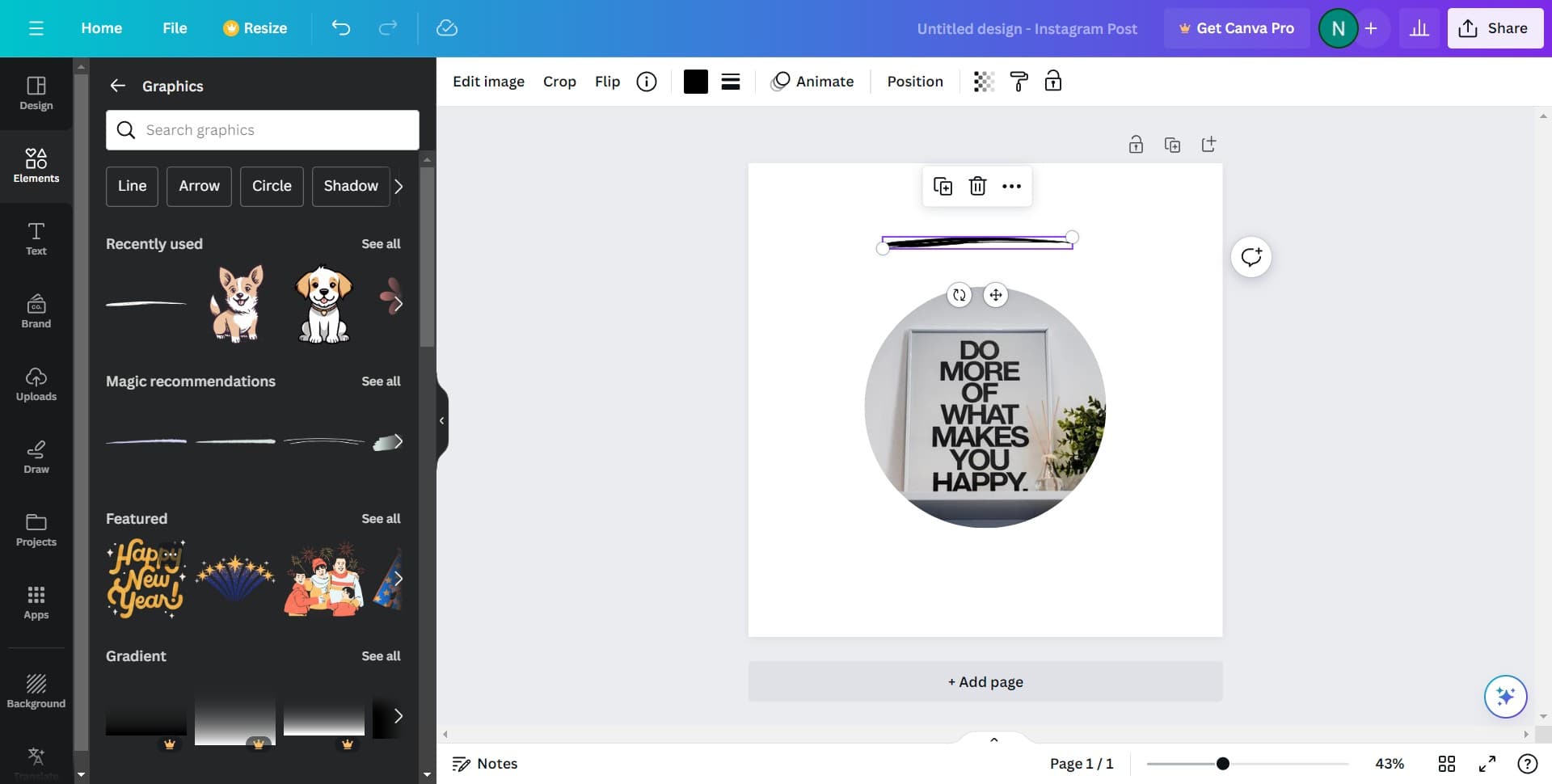
Click on the graphics option in Canva's left sidebar to access the graphics insertion tools. This opens the graphics panel where you can search for and browse available design elements.
- 2
View all available graphics
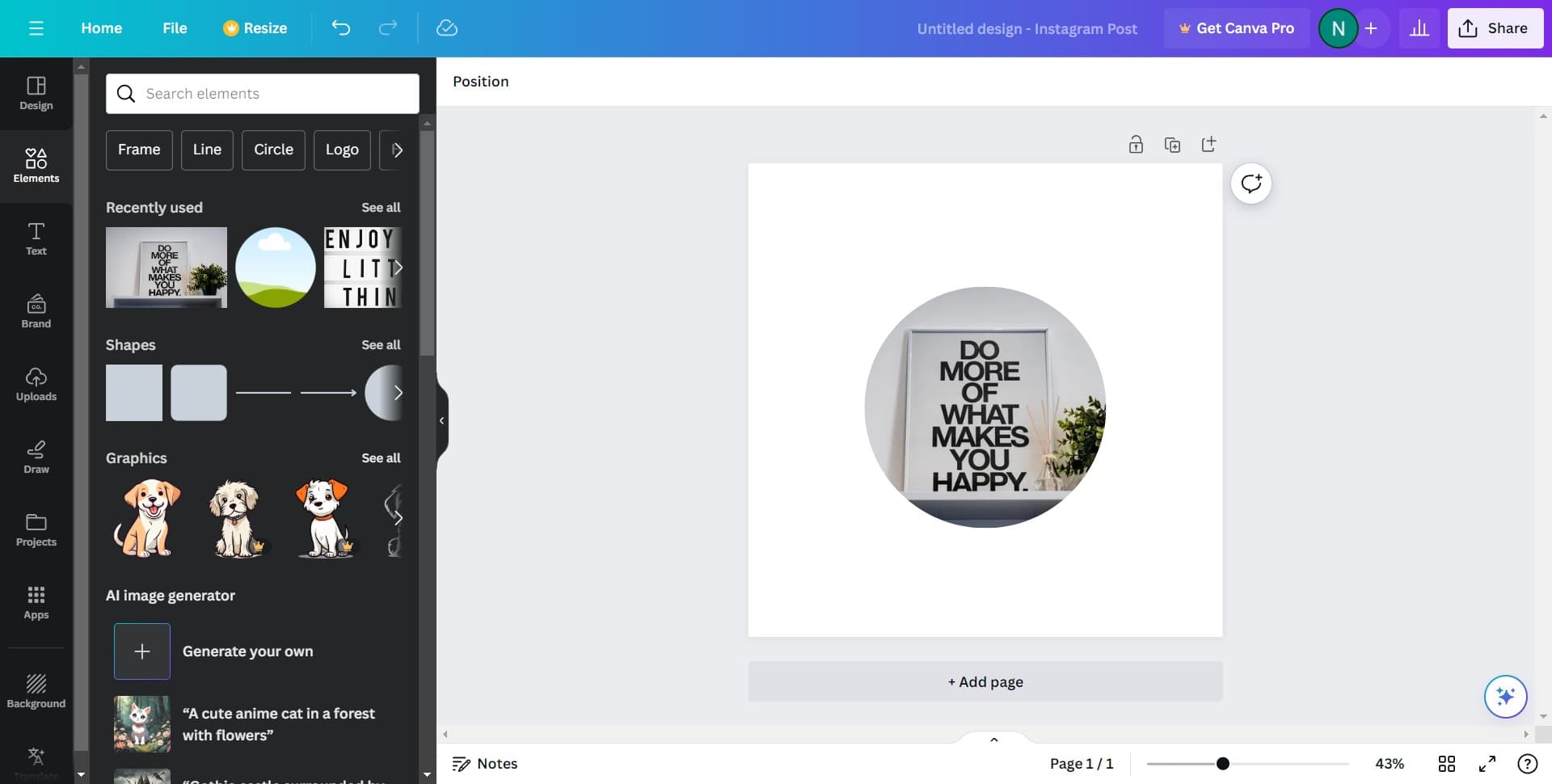
Click on "See all" to display the complete library of graphics available for your design. This expands the full collection, allowing you to browse through thousands of pre-designed elements organized by category.
- 3
Select your desired graphic
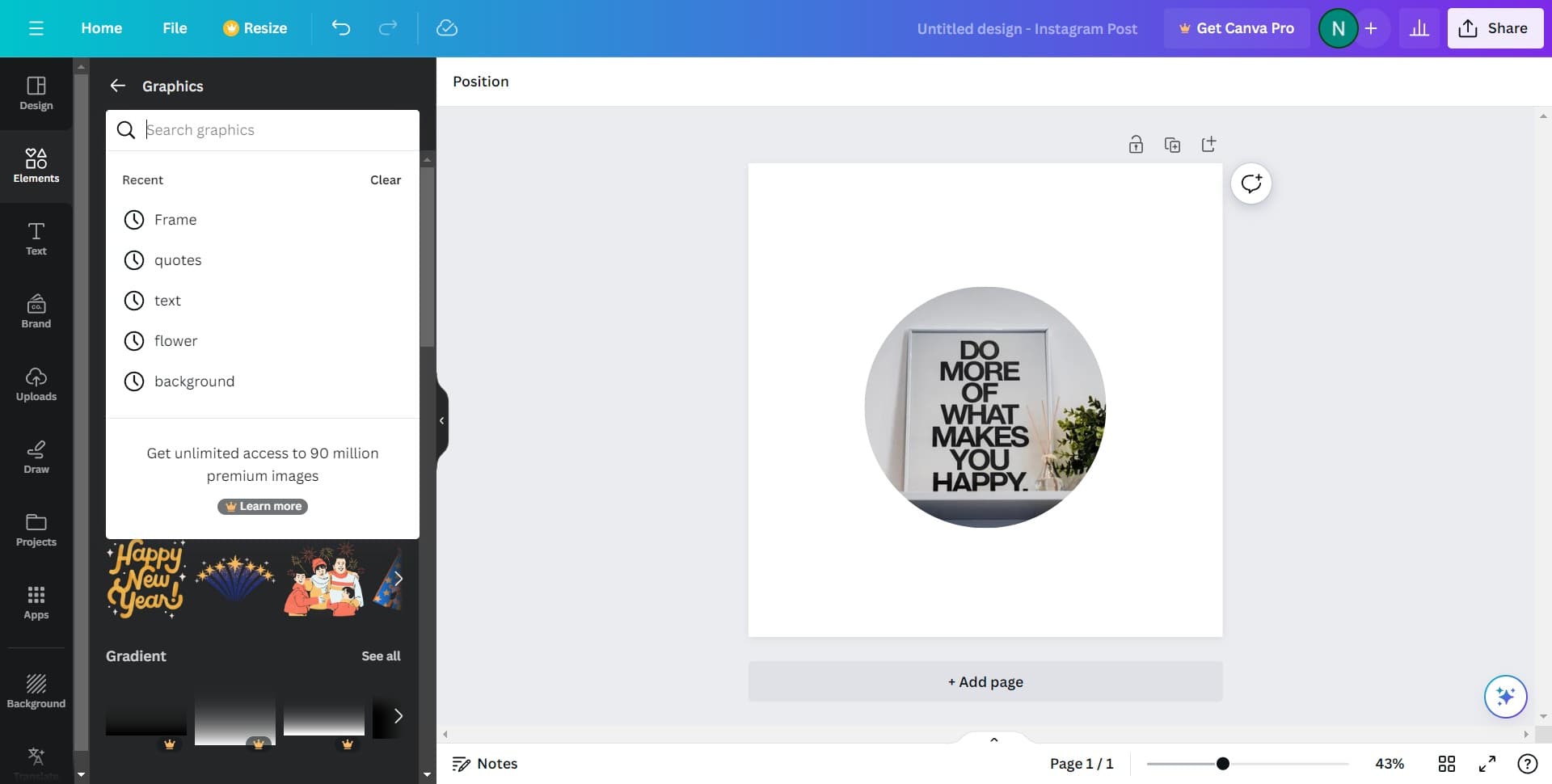
Click on the graphic that best fits your design needs. The selected graphic will be highlighted and ready to be added to your canvas.
- 4
Add the graphic to canvas
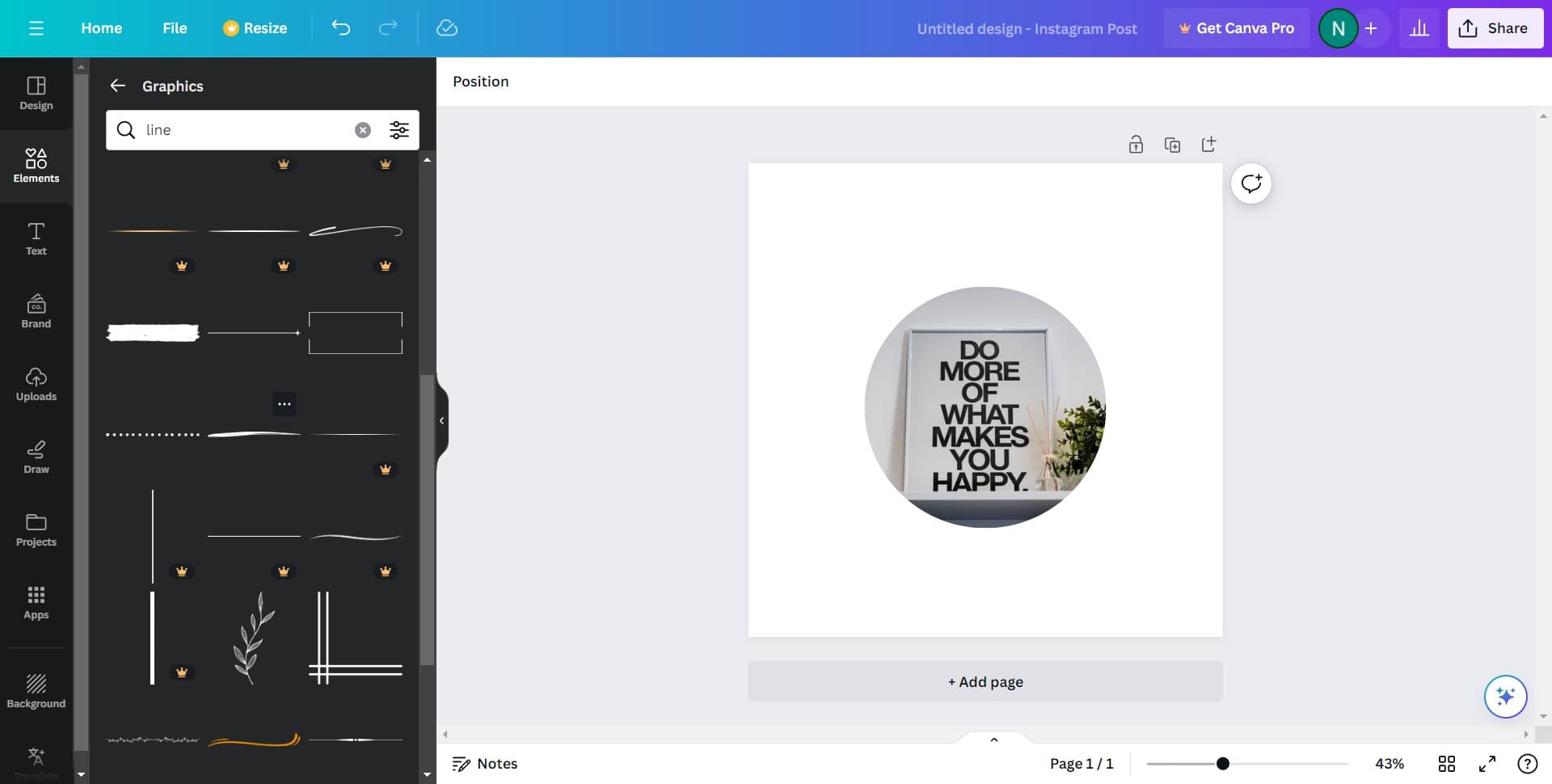
Click to confirm the selection and insert the graphic into your design. The graphic will appear on your canvas where you can resize, rotate, and reposition it as needed.
- 5
Finalize graphic placement
Click to complete the graphic insertion and adjust its final position in your layout. You can now edit colors, apply filters, or add additional graphics to enhance your design further.
Frequently asked questions
Common questions about how to add graphics on canva.
Can I resize and rotate graphics after adding them?
Yes, Canva allows you to easily resize, rotate, and reposition any graphic after it's been added to your canvas. Simply click on the graphic to select it, then use the corner handles to resize or the rotation icon to adjust its angle.
Are all graphics free to use in Canva?
Canva offers both free and premium graphics. Free graphics are available in the standard library, while some premium graphics require a Canva Pro subscription or a one-time payment. The library clearly indicates which graphics are premium.
How do I search for specific graphics?
You can use the search bar in the graphics panel to find specific graphics by keyword. Simply type what you're looking for, such as 'arrows,' 'badges,' or 'frames,' and Canva will display matching results from the entire graphics library.
Can I change the colors of graphics?
Most Canva graphics can be customized by changing their colors. Select the graphic on your canvas and use the color adjustment tools in the toolbar to modify the fill color, outline, or other color elements to match your design.
What file formats support these graphics when I download my design?
Graphics you add in Canva will be included in your final design when you download as PNG, PDF, or video formats. The graphics remain part of your design file and maintain their quality across all standard export formats that Canva supports.