
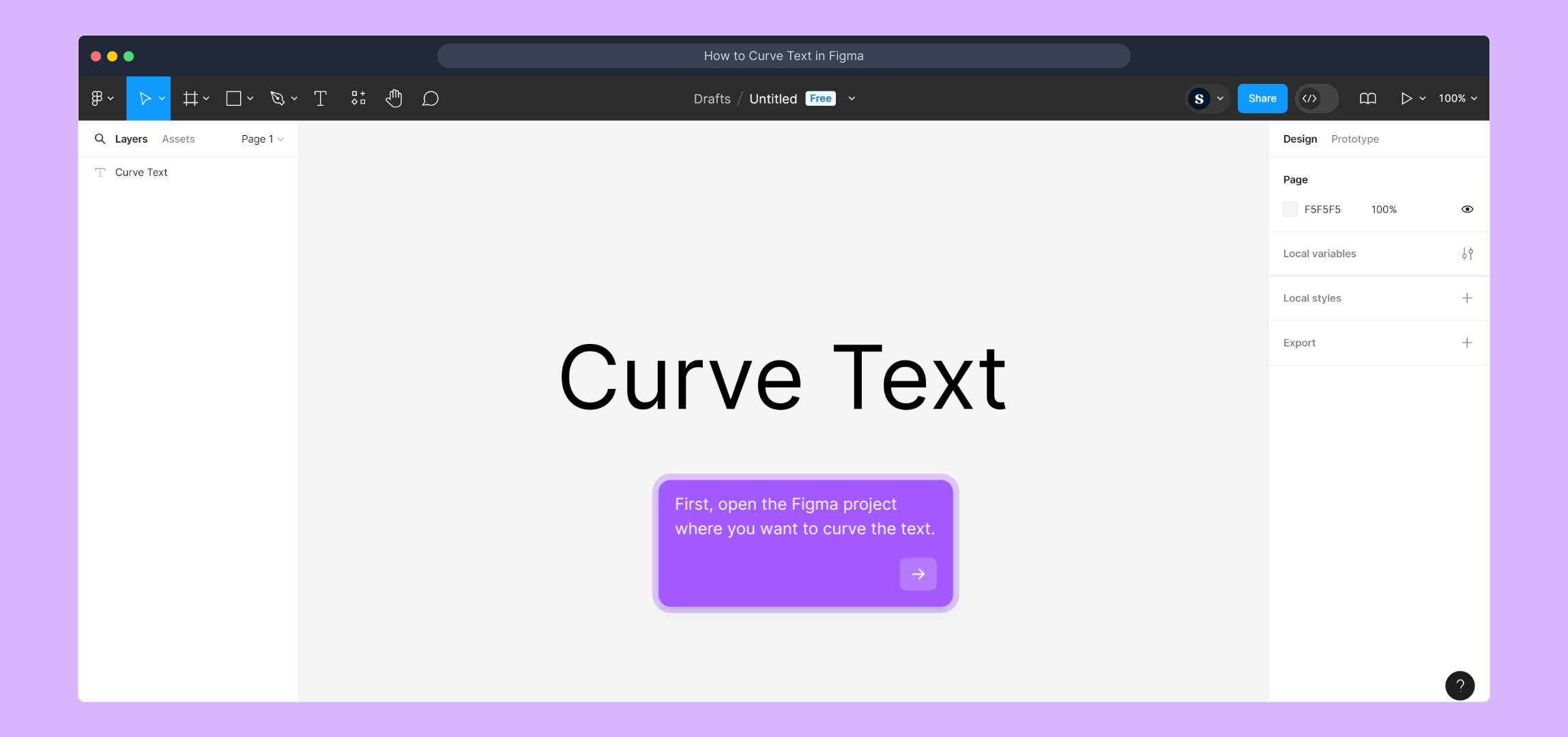
1. First, open the Figma project where you want to curve the text.
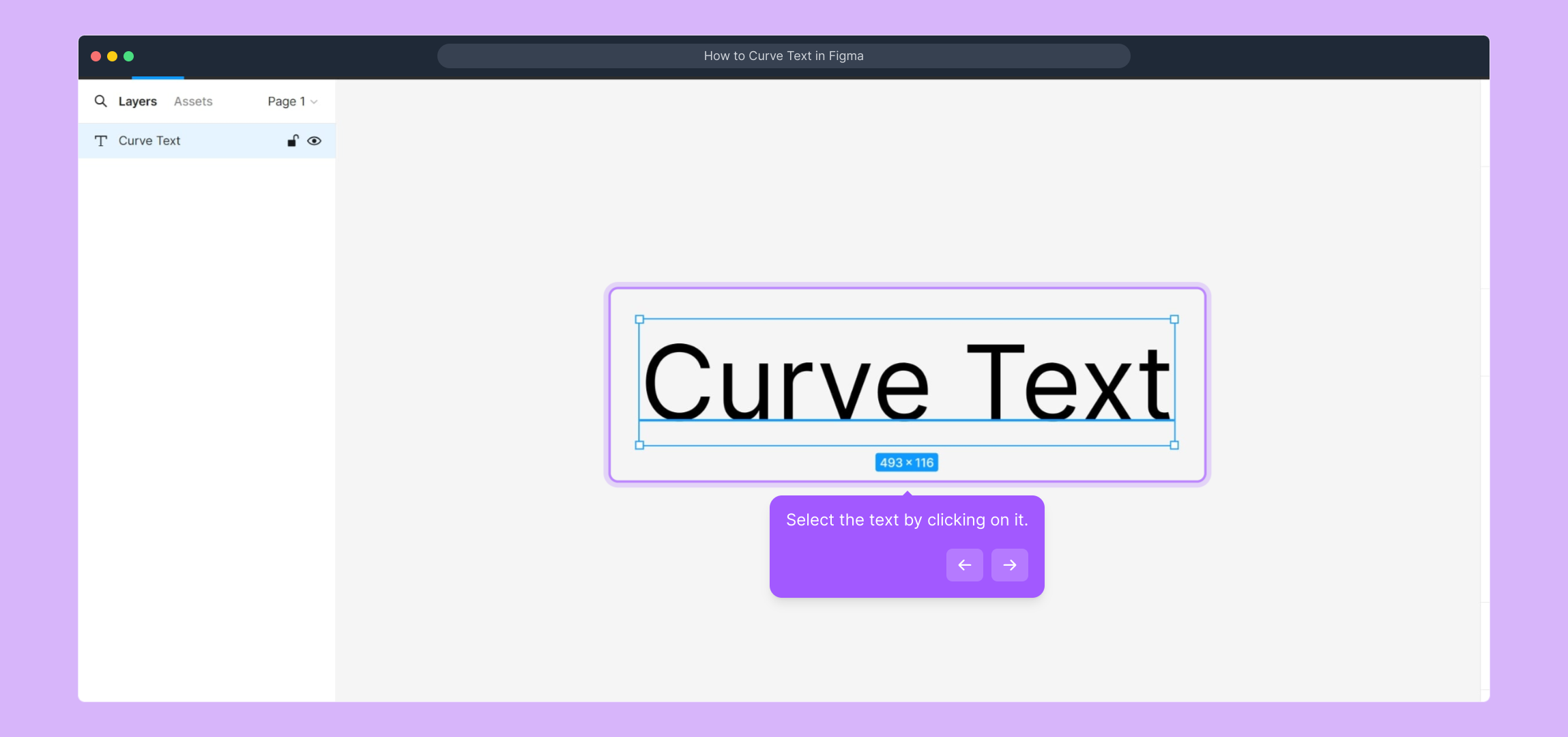
2. Select the text by clicking on it.
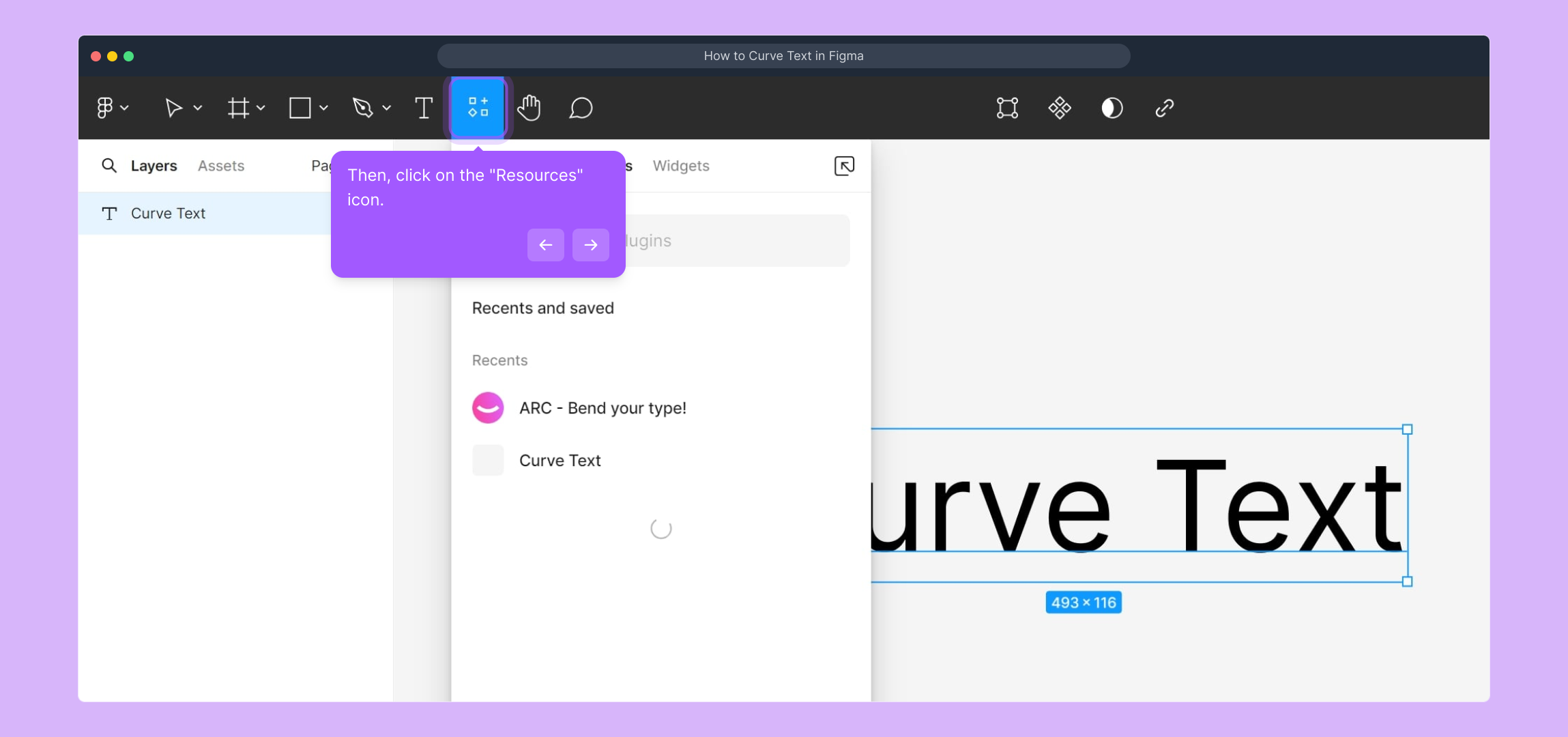
3. Then, click on the "Resources" icon.
4. Video Step (
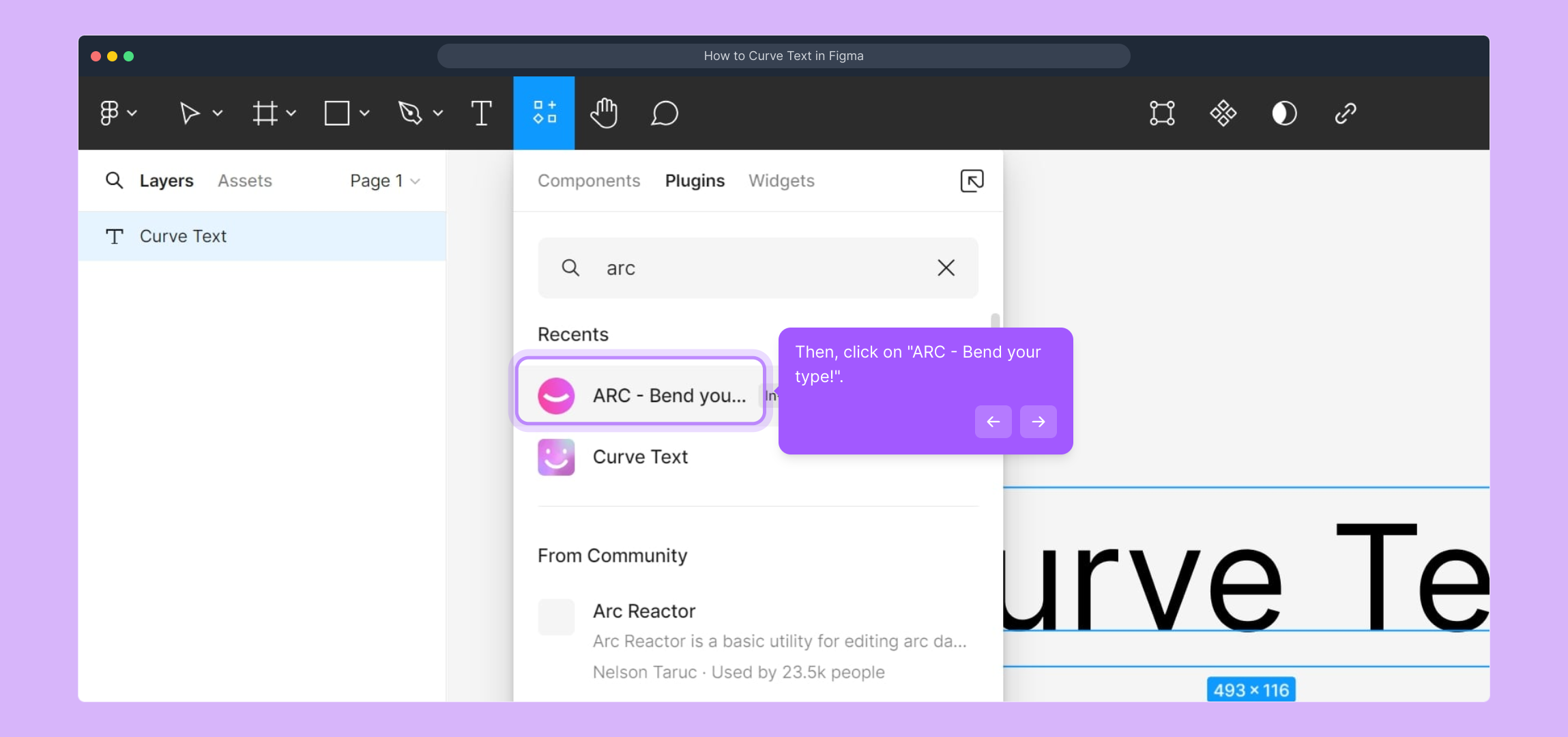
5. Then, click on "ARC - Bend your type!".
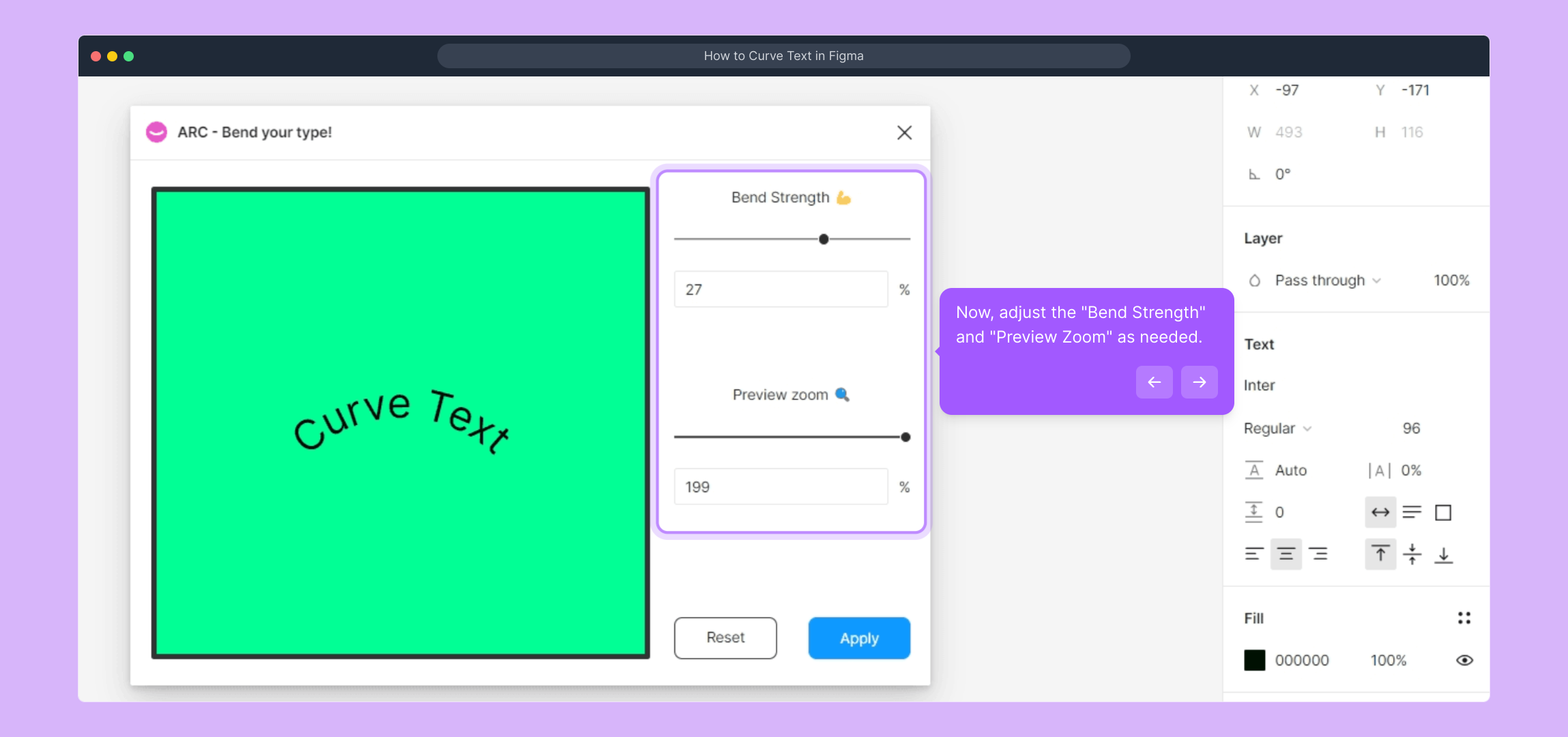
6. Now, adjust the "Bend Strength" and "Preview Zoom" as needed.
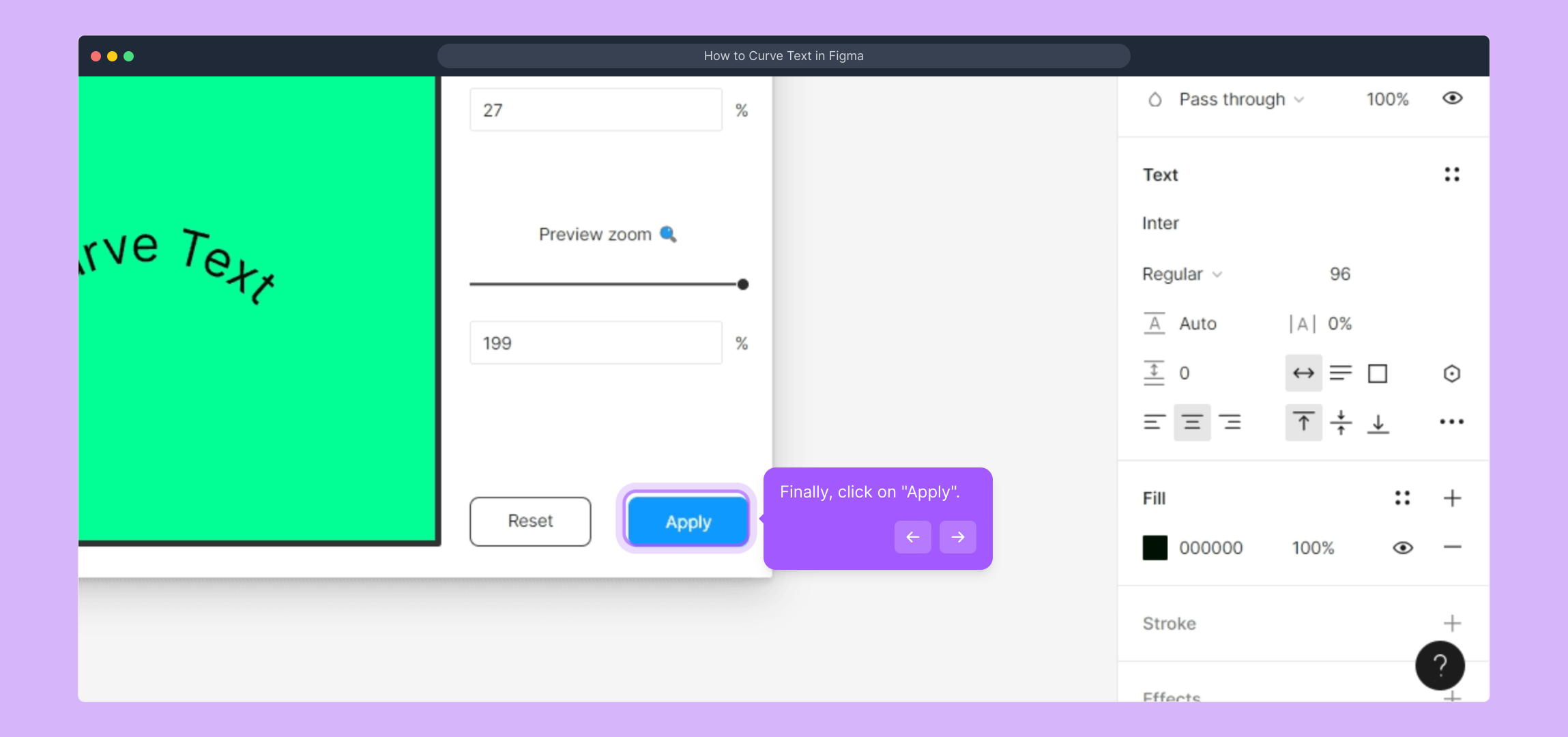
7. Finally, click on "Apply".
8. Congratulations!
You have successfully curved a text on Figma.
9. Create a Supademo in seconds
This interactive demo/guided walkthrough on How to Curve Text in Figma was created using
How to Curve Text in Figma : Step-by-Step Guide
Start by opening the Figma project where you want to apply the curved text effect. This will be your workspace to make all the adjustments directly on your design canvas.
Next, locate and click on the specific text element that you wish to curve. Selecting it ensures that any changes you make will be applied to this text.
Once your text is selected, look for the "Resources" icon in Figma's toolbar and click on it. This opens up the plugins and asset options you’ll need to curve your text.
For a visual walkthrough, check out the tutorial video linked here, which demonstrates the process in action. Watching it can help clarify the upcoming steps.
(
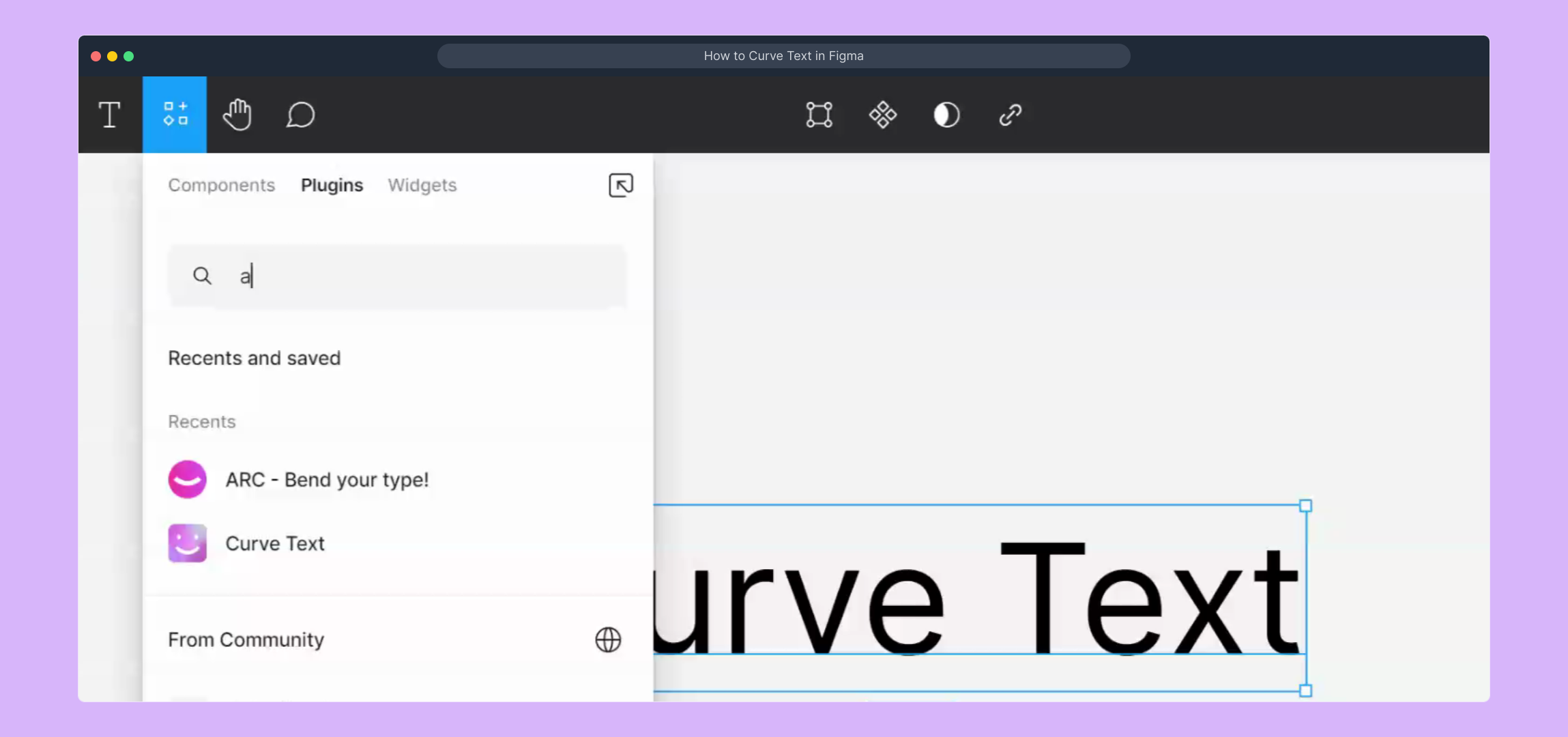
In the Resources panel, find and select the plugin named "ARC - Bend your type!". This tool is designed specifically to help you curve and adjust your text smoothly.
Now, you’ll see controls for "Bend Strength" and "Preview Zoom"—adjust these sliders to shape the curve of your text and zoom in or out for a better view of the effect.
After you’re happy with how the text curves, confirm your changes by clicking the "Apply" button. This finalizes the effect on your selected text.
Well done! Your text is now beautifully curved in your Figma project, adding a dynamic and creative touch to your design.

Ready to make quick, professional demos like this one? With Supademo, you can create engaging visuals in just seconds to showcase your workflows clearly.
Create your own interactive demos in < 5 mins with Supademo
You can create your own interactive product demo in minutes using Supademo. Drive growth, scale enablement, and supercharge product-led onboarding with Supademo. Sign up for free here with no credit card required.
FAQs
Commonly asked questions about this topic.
What is the easiest way to curve text in Figma?
Does Figma have a native text curving tool?
How do I install a plugin in Figma?
Can I edit curved text after applying the plugin?
What settings affect the curve of my text?
Is the ARC plugin free to use in Figma?
Can I curve text in any font using the ARC plugin?
How do I remove the curve effect if I don’t like it?
Can I curve multiple lines of text with the ARC plugin?
Are there alternative ways to curve text in Figma without plugins?

Product Operations Associate
Vimal Kumar helps build and grow Supademo’s team and GTM efforts, with a focus on figuring out growth levers and improving product traction.


