How to Delete a Board in Jira

Deleting a board in Jira removes it permanently from your workspace, helping you keep your project management environment clean and organized. This guide walks you through the process of locating and deleting a board you no longer need.
Quick summary
In this tutorial, you'll learn how to navigate to your boards, find the board you want to remove, and permanently delete it from Jira. By following these steps, you'll be able to manage your board inventory effectively and eliminate outdated or unused boards.
Why this matters
Over time, teams create multiple boards for different projects or experiments. Removing unused boards reduces clutter, makes it easier for team members to find active boards, and helps maintain a streamlined workspace. Keeping your Jira instance organized improves productivity and reduces confusion.
Step-by-step guide
- 1
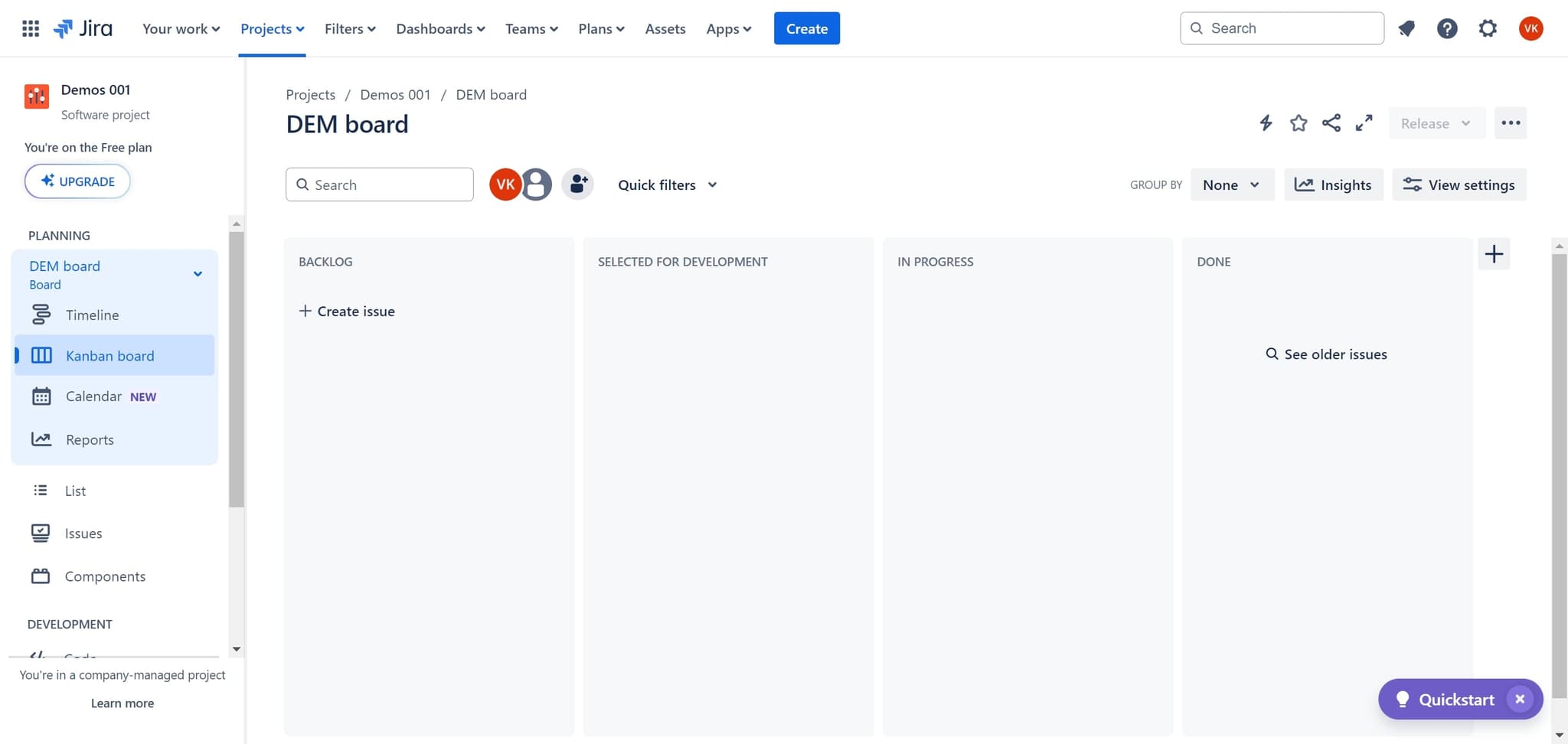
Search or apply filters in your workspace
Begin by using the search field to search for boards or apply filters to narrow down your view. This helps you quickly locate the specific board you want to delete.
- 2
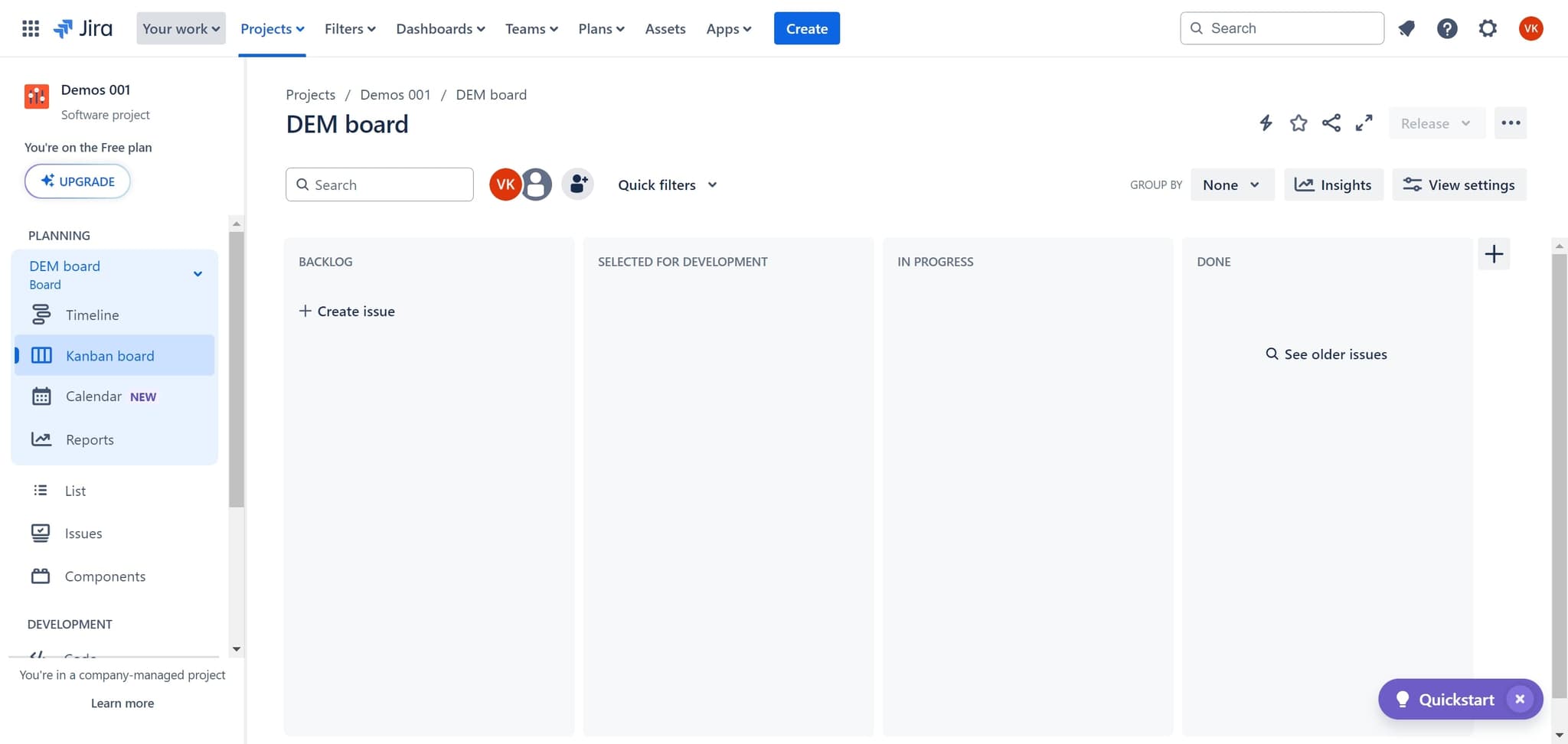
Navigate to Your Work
Click on the 'Your work' option to access your personal workspace. This section displays tasks and boards relevant to you.
- 3
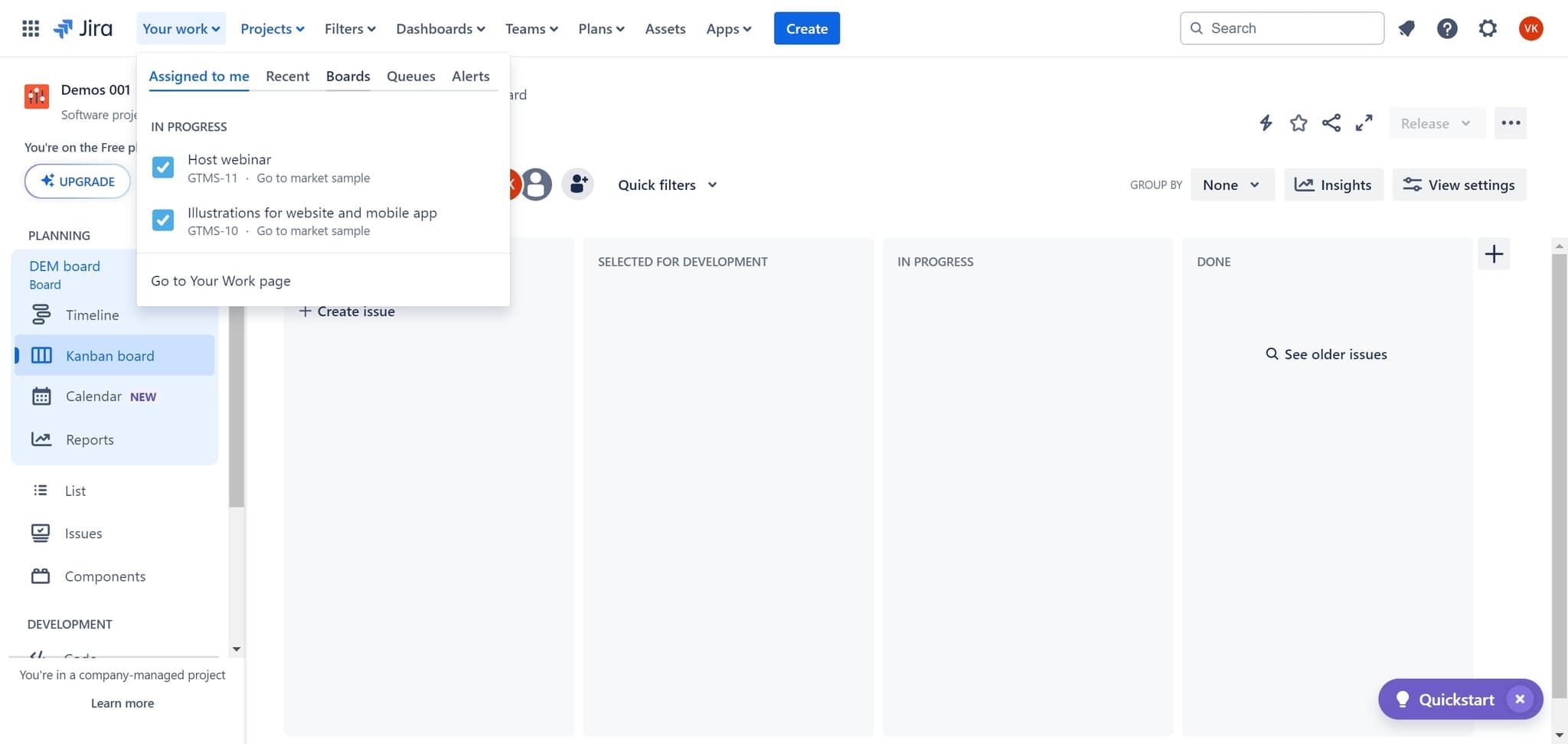
Select the Boards section
Click on 'Boards' to view the boards you have access to. This page shows all available boards in your Jira instance.
- 4
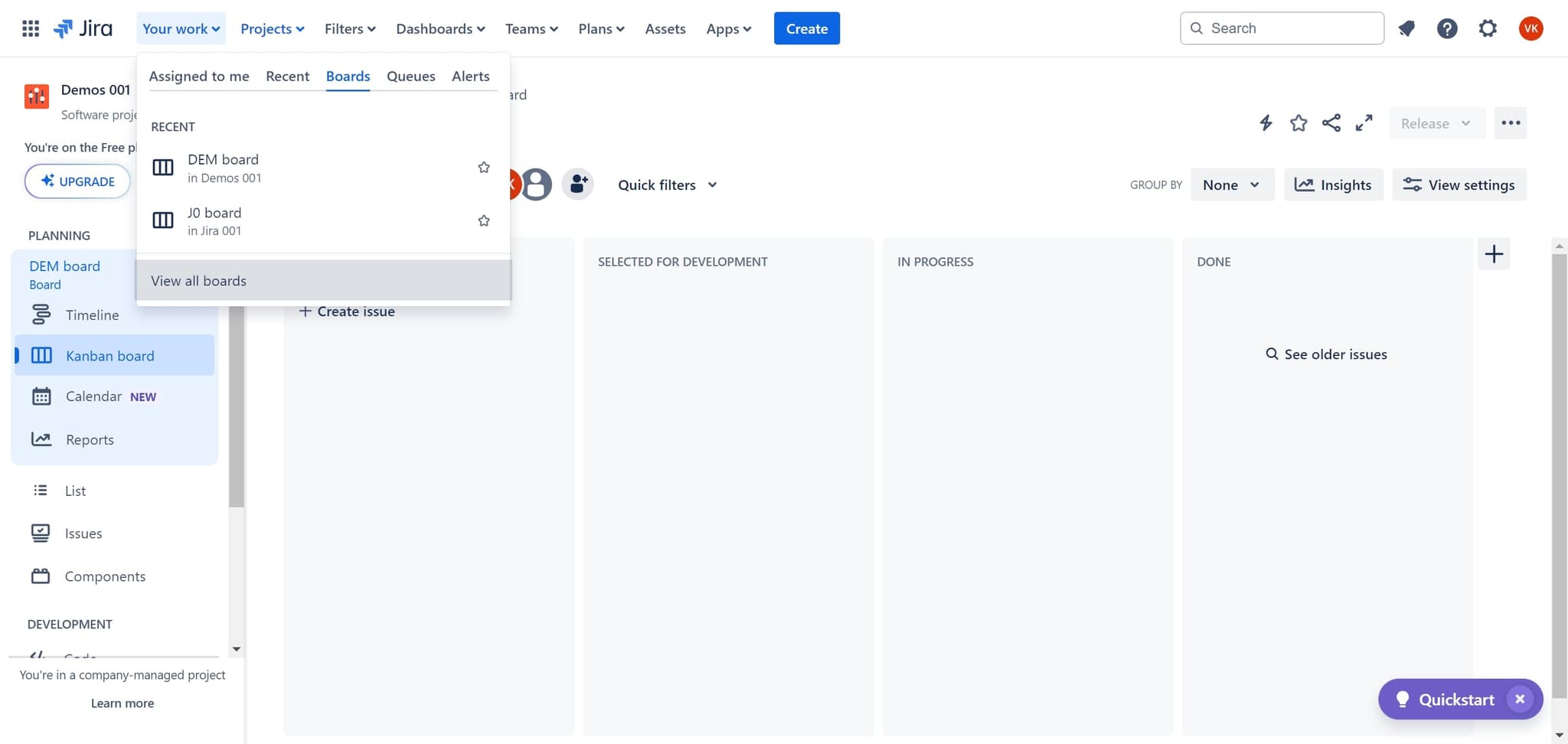
View all available boards
Click on 'View all boards' to display a complete list of every board in your Jira workspace. This ensures you can see all boards, not just your recently used ones.
- 5
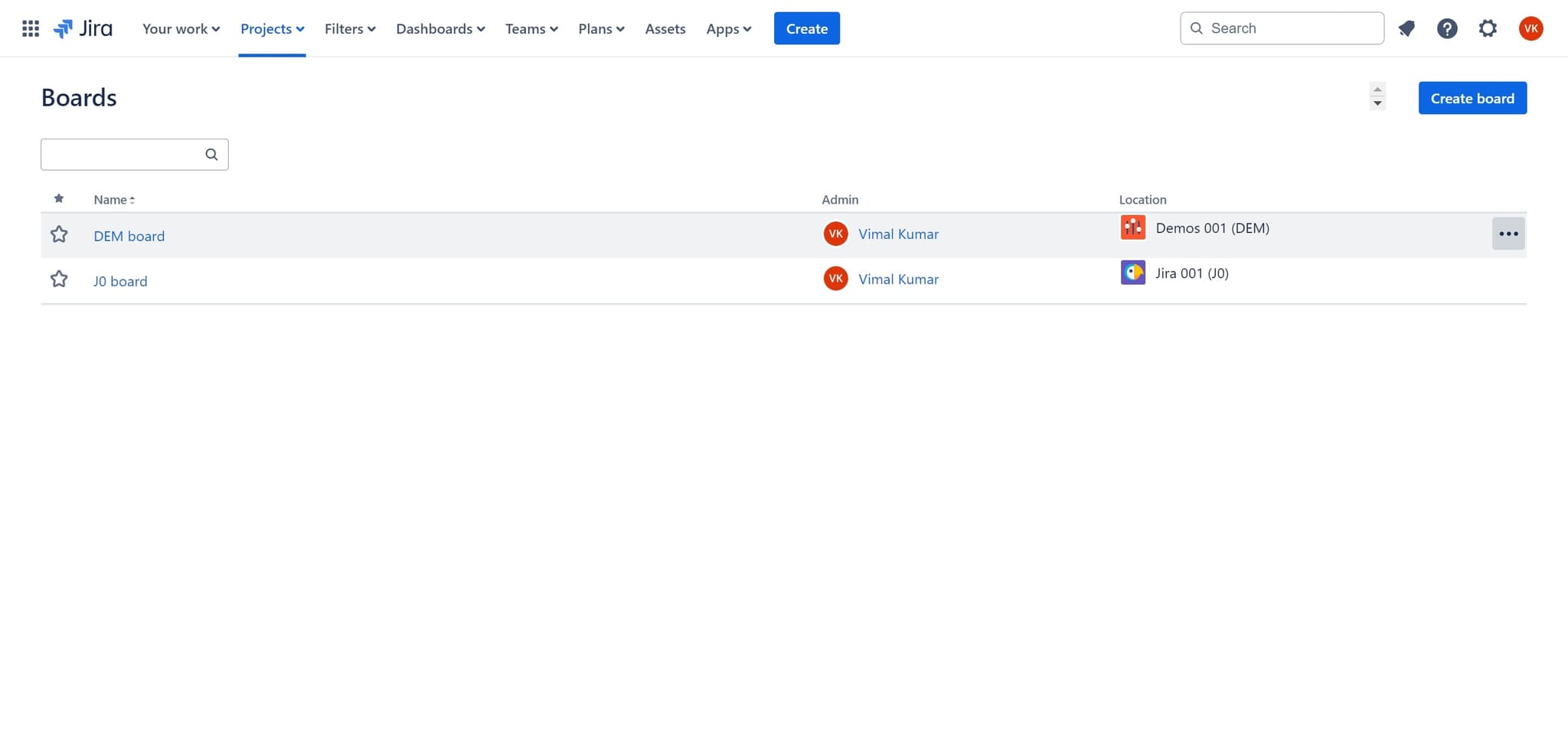
Select the board to delete
Click on the board you want to delete to highlight or select it. The board will be marked for the next action.
- 6
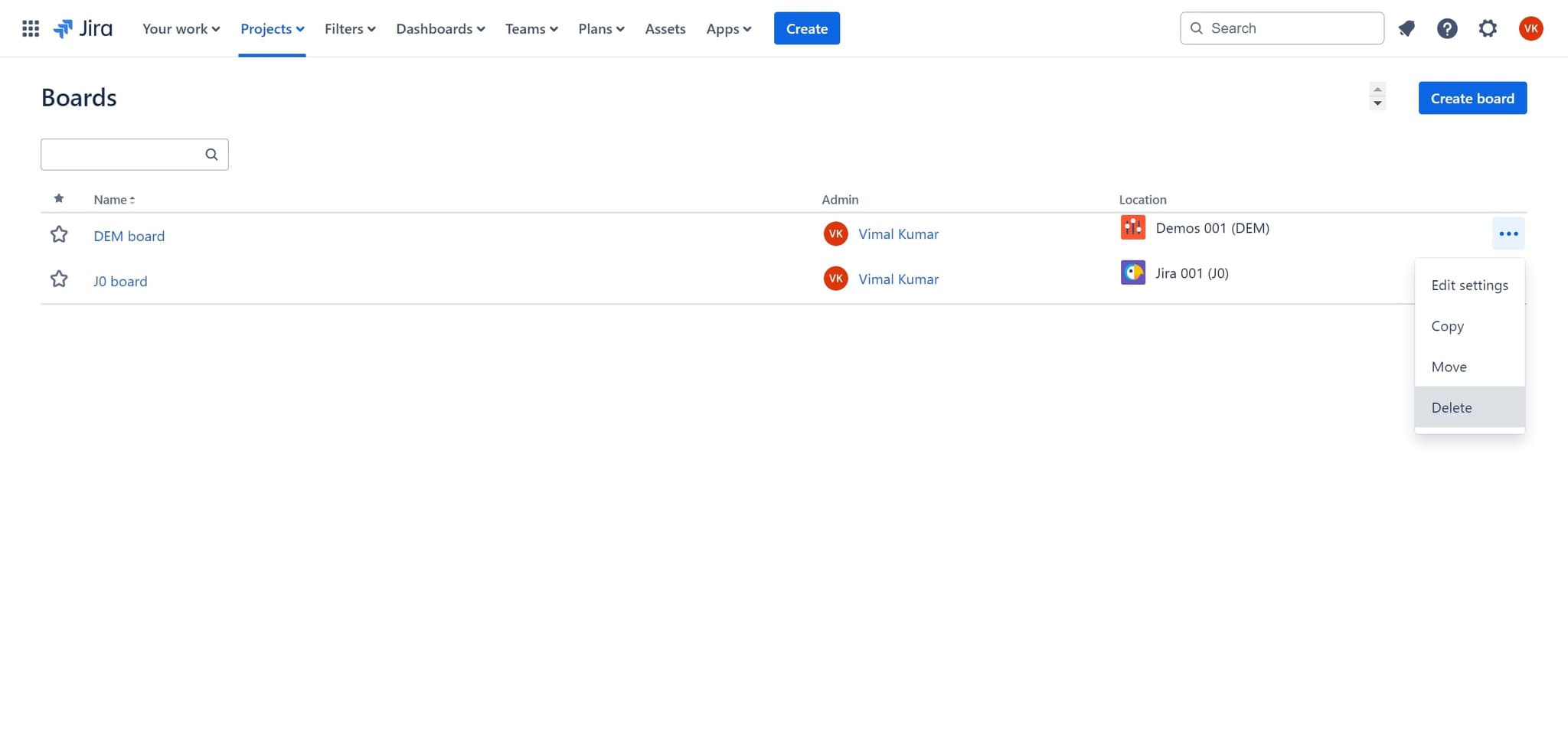
Click Delete from the menu
Click on the 'Delete' option that appears in the menu or actions panel. This initiates the deletion process for the selected board.
- 7
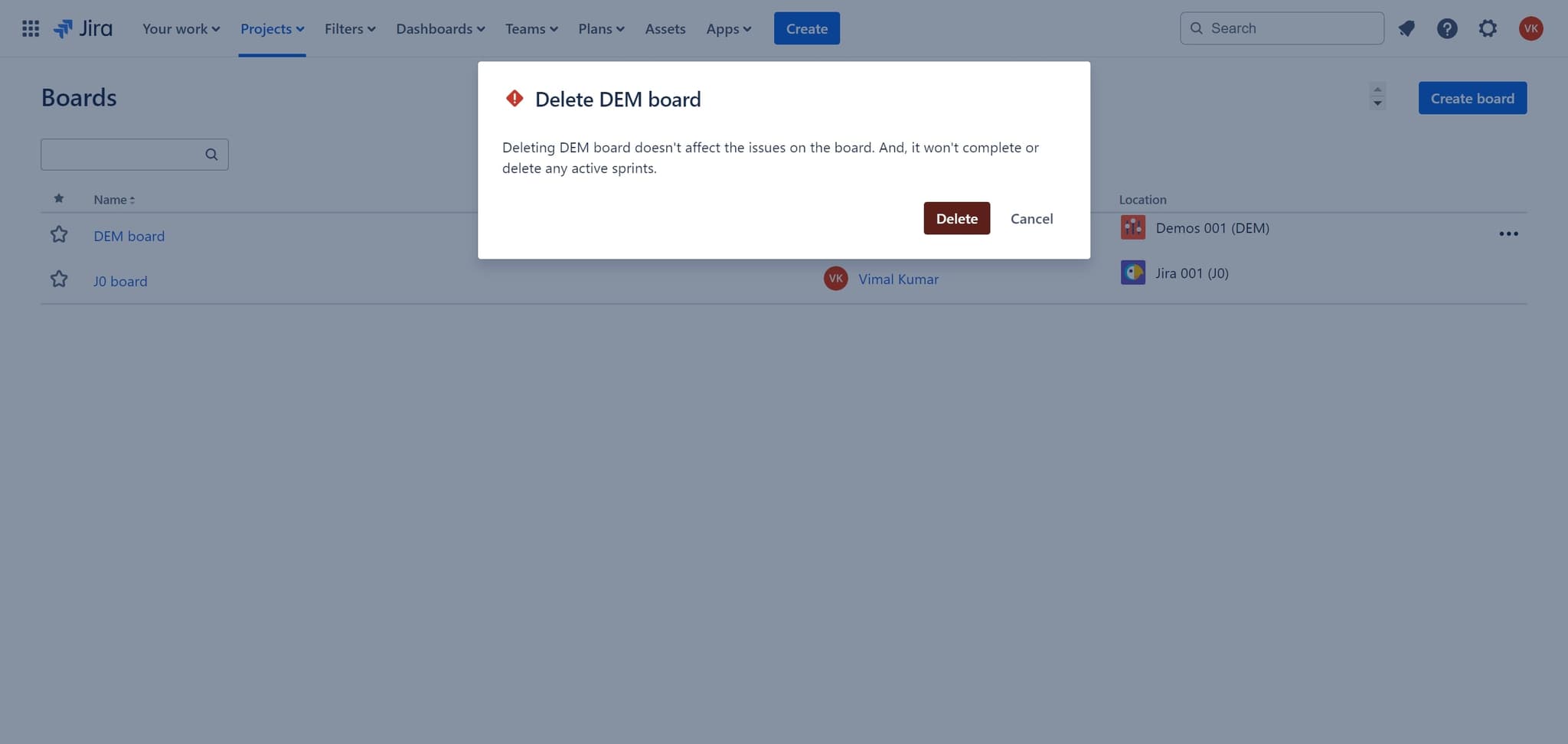
Confirm the deletion
Click 'Delete' again to confirm your action. Jira will ask for confirmation to prevent accidental deletion of boards.
- 8
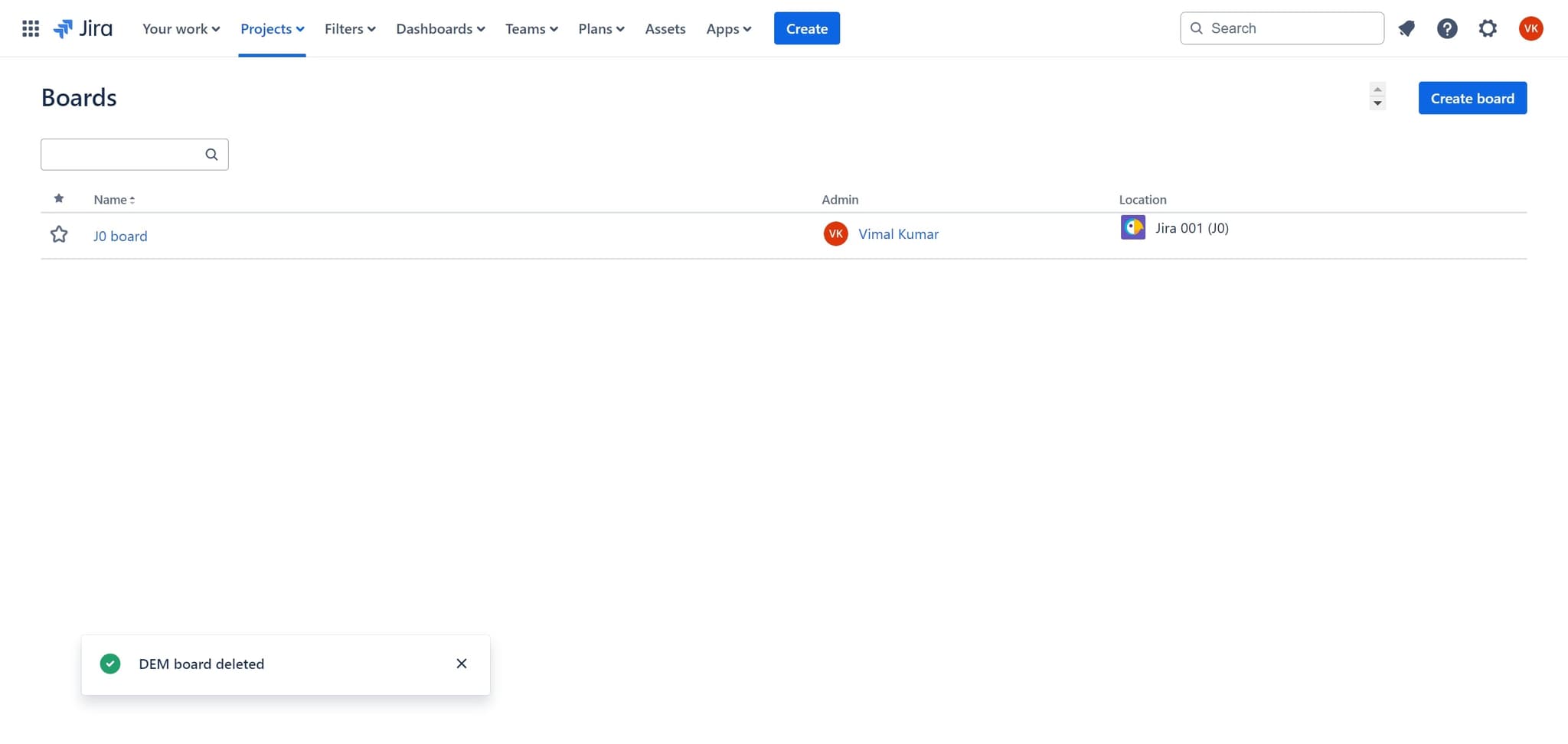
Return to the Boards view
Click on 'Boards' to navigate back to your boards list and verify that the board has been successfully deleted. The removed board should no longer appear in your board list.
Frequently asked questions
Common questions about how to delete a board in jira.
Can I recover a deleted board in Jira?
Once a board is deleted in Jira, it cannot be recovered. Make sure you no longer need the board before confirming deletion. If you need to preserve the board's data, consider exporting issues or taking a backup before deletion.
Will deleting a board affect the issues stored in it?
Deleting a board does not delete the issues themselves. The issues will remain in your Jira project, but they will no longer be displayed on the deleted board. The issues can still be accessed through project views or other boards.
Do I need admin permissions to delete a board?
Board deletion permissions depend on your Jira instance configuration and your user role. Typically, only project administrators or board owners can delete boards. Check with your Jira administrator if you lack the necessary permissions.
What types of boards can be deleted?
Both Scrum and Kanban boards can be deleted from Jira. The deletion process is the same regardless of board type. Ensure the board is not actively being used by your team before proceeding with deletion.
Why would I want to delete a board?
Teams delete boards when a project ends, when consolidating multiple boards, or when cleaning up unused boards from their workspace. Removing inactive boards helps keep your Jira instance organized and makes it easier for team members to find relevant boards.