
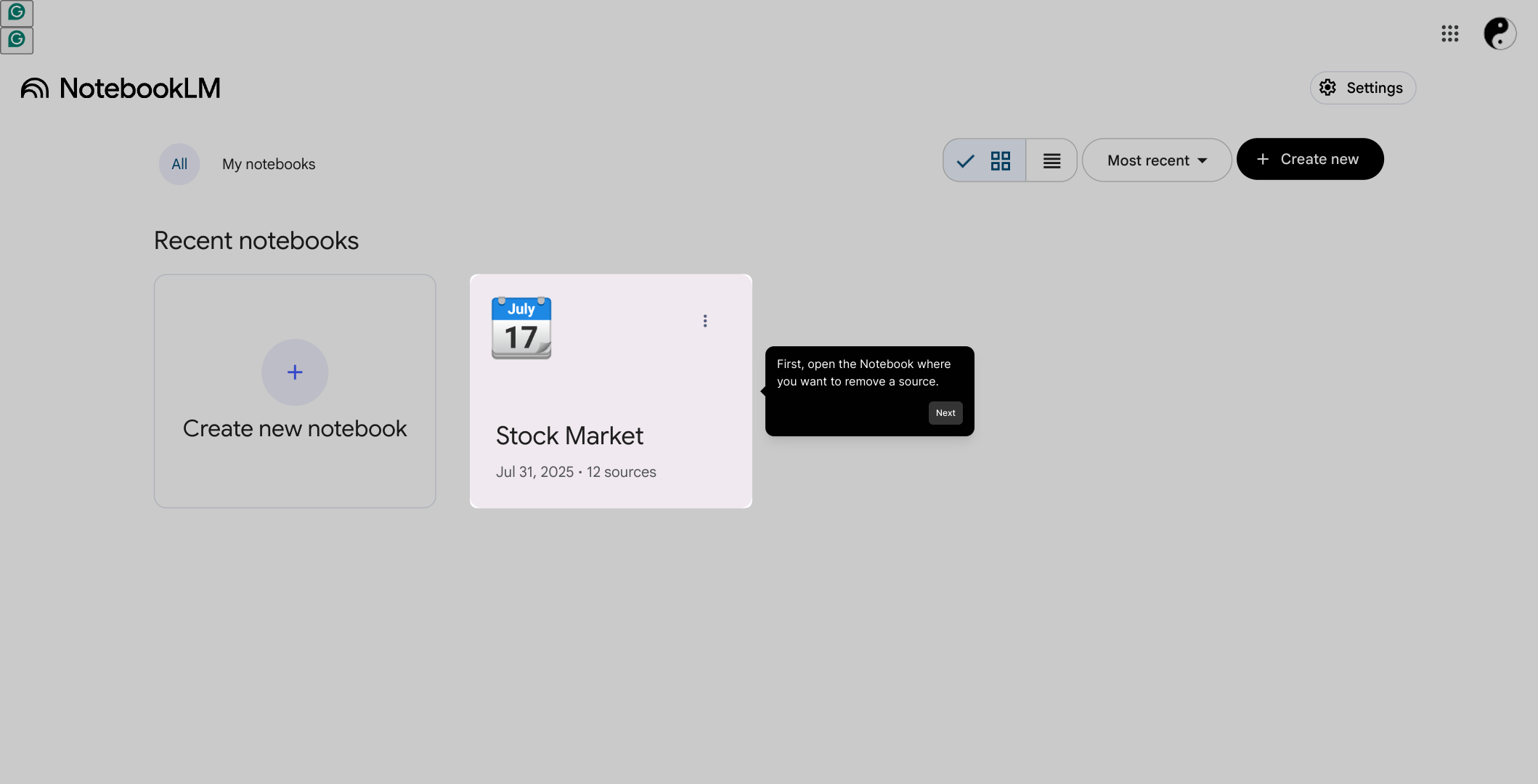
1. First, open the Notebook where you want to remove a source.
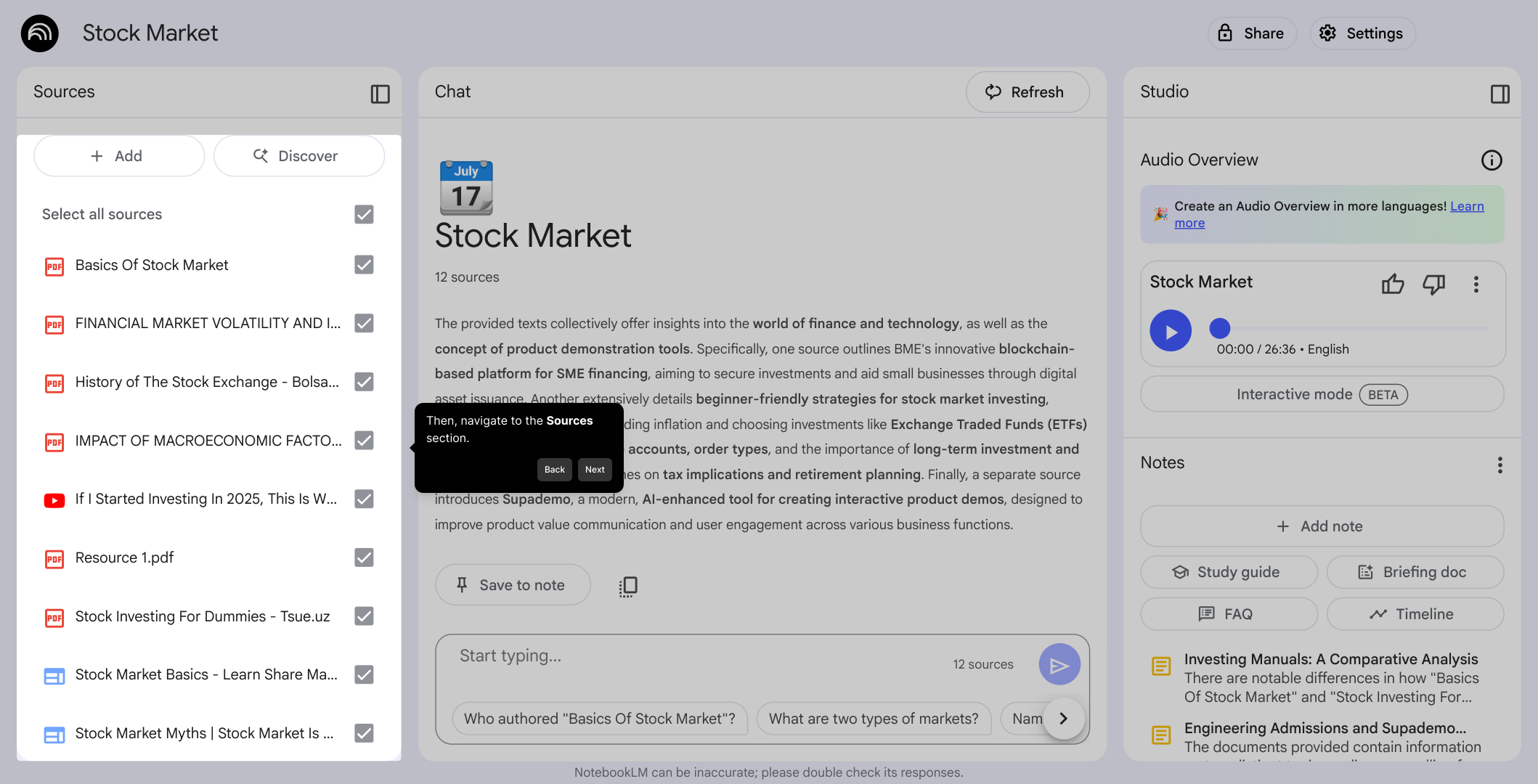
2. Then, navigate to the Sources section.
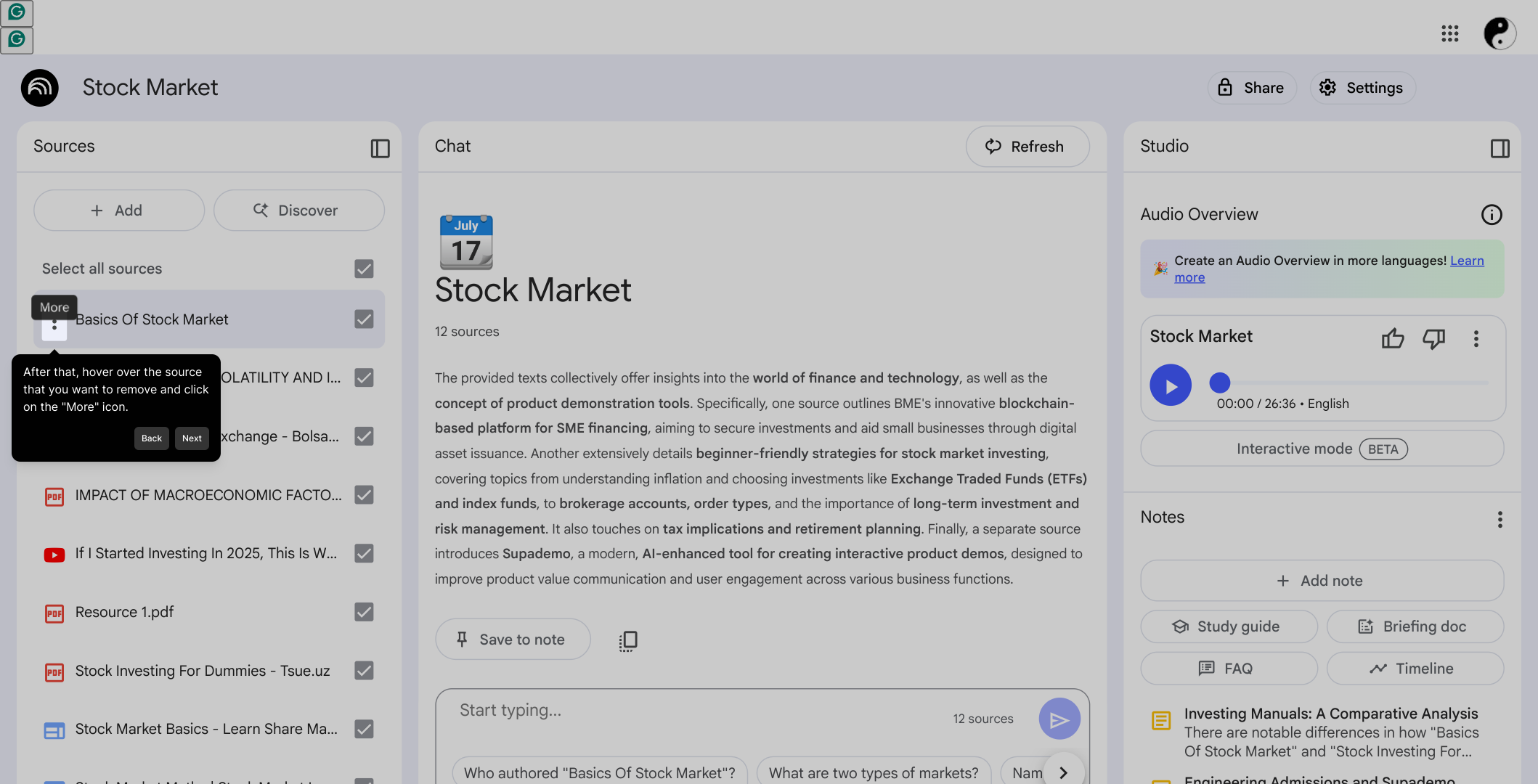
3. After that, hover over the source that you want to remove and click on the "More" icon.
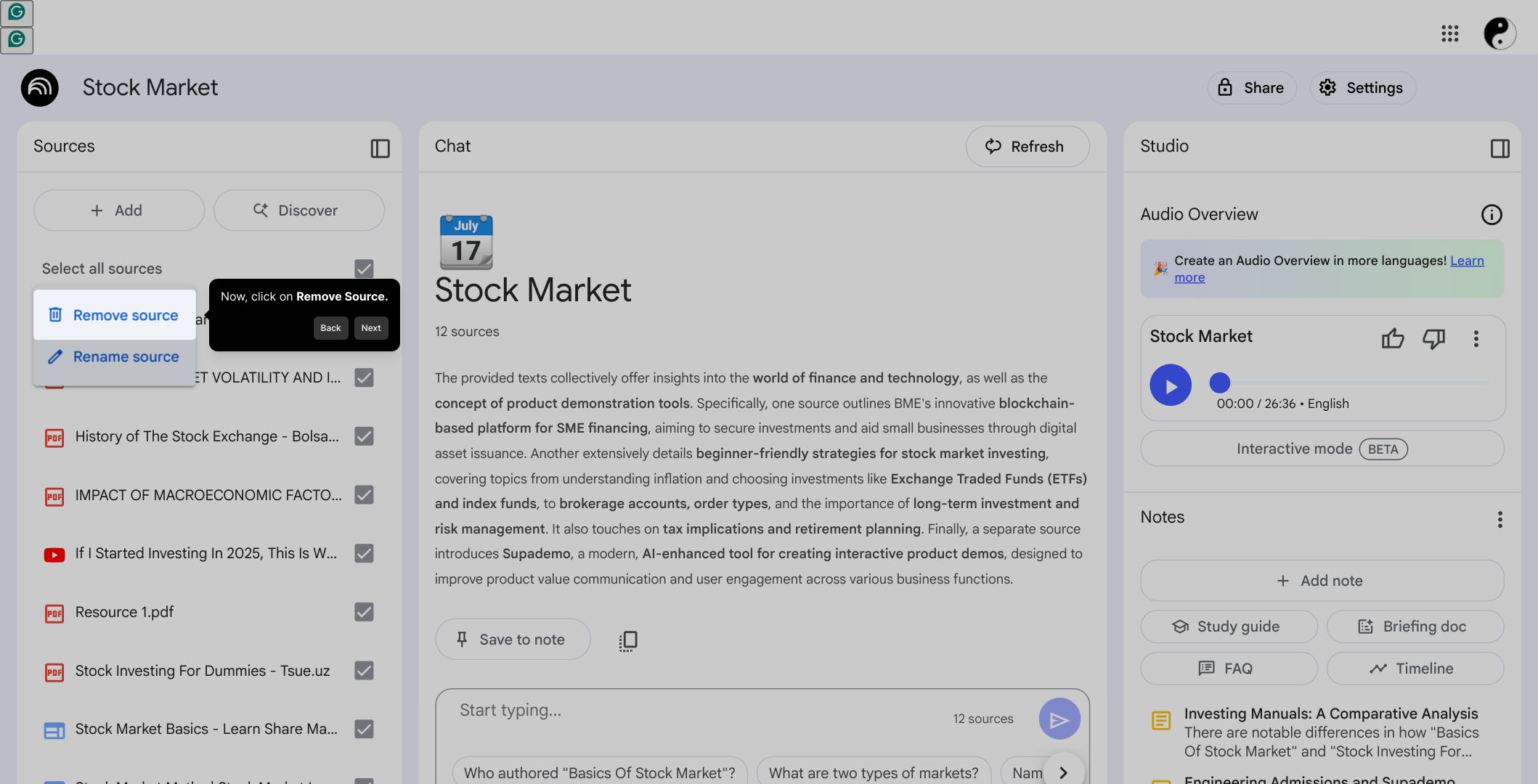
4. Now, click on Remove Source.
5. Finally, to confirm, click on Delete.
6. Create a Supademo in seconds
This interactive demo/guided walkthrough on How to Delete or Remove a Source in NotebookLM was created using Supademo.
How to Delete or Remove a Source in NotebookLM : Step-by-Step Guide
Begin by opening the Notebook that contains the source you wish to remove. This is where all your sources are managed, so starting here ensures you’re in the right place to make changes.
Once inside the Notebook, look for the Sources section in the menu or sidebar. This area lists all data sources connected to your Notebook and is your gateway for managing them.
Next, find the specific source you want to remove. Hover your mouse over it to reveal additional options, then click on the "More" icon to access the menu where removal options are located.
In the menu that appears, select Remove Source to initiate the deletion process. This step helps you start the removal while keeping control over what’s happening in your Notebook.
To finalize the removal, confirm your choice by clicking on Delete. This confirmation step is designed to prevent accidental deletions and ensures you are certain before the source is removed.
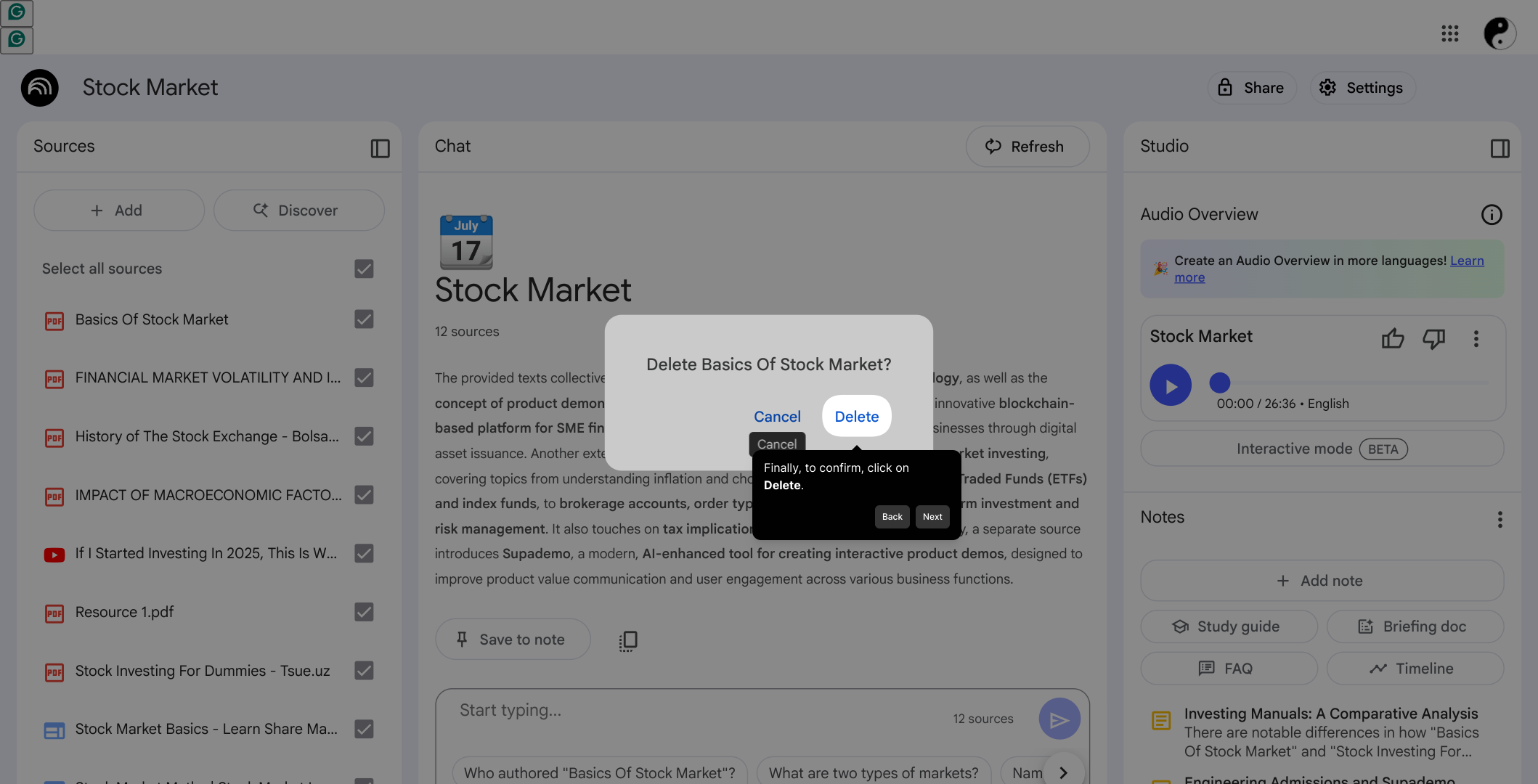
With the source removed, you’re ready to proceed or create a new Supademo quickly. This final screen lets you move forward with a clean setup, tailored exactly to your current needs.
Create your own interactive demos in < 5 mins with Supademo
You can create your own interactive product demo in minutes using Supademo. Drive growth, scale enablement, and supercharge product-led onboarding with Supademo. Sign up for free here with no credit card required.
FAQs
Commonly asked questions about this topic.
What is a source in NotebookLM?
Can I recover a source after deleting it in NotebookLM?
Why would I want to remove a source from my Notebook?
Is deleting a source in NotebookLM permanent?
How do I access the "More" icon to remove a source?
Will removing a source affect my notes in NotebookLM?
Can I remove multiple sources at once in NotebookLM?
Do I need special permissions to remove a source?
What happens if I click "Remove Source" by mistake?
Is it possible to delete a source from the mobile version of NotebookLM?

Product Operations Associate
Vimal Kumar helps build and grow Supademo’s team and GTM efforts, with a focus on figuring out growth levers and improving product traction.


