
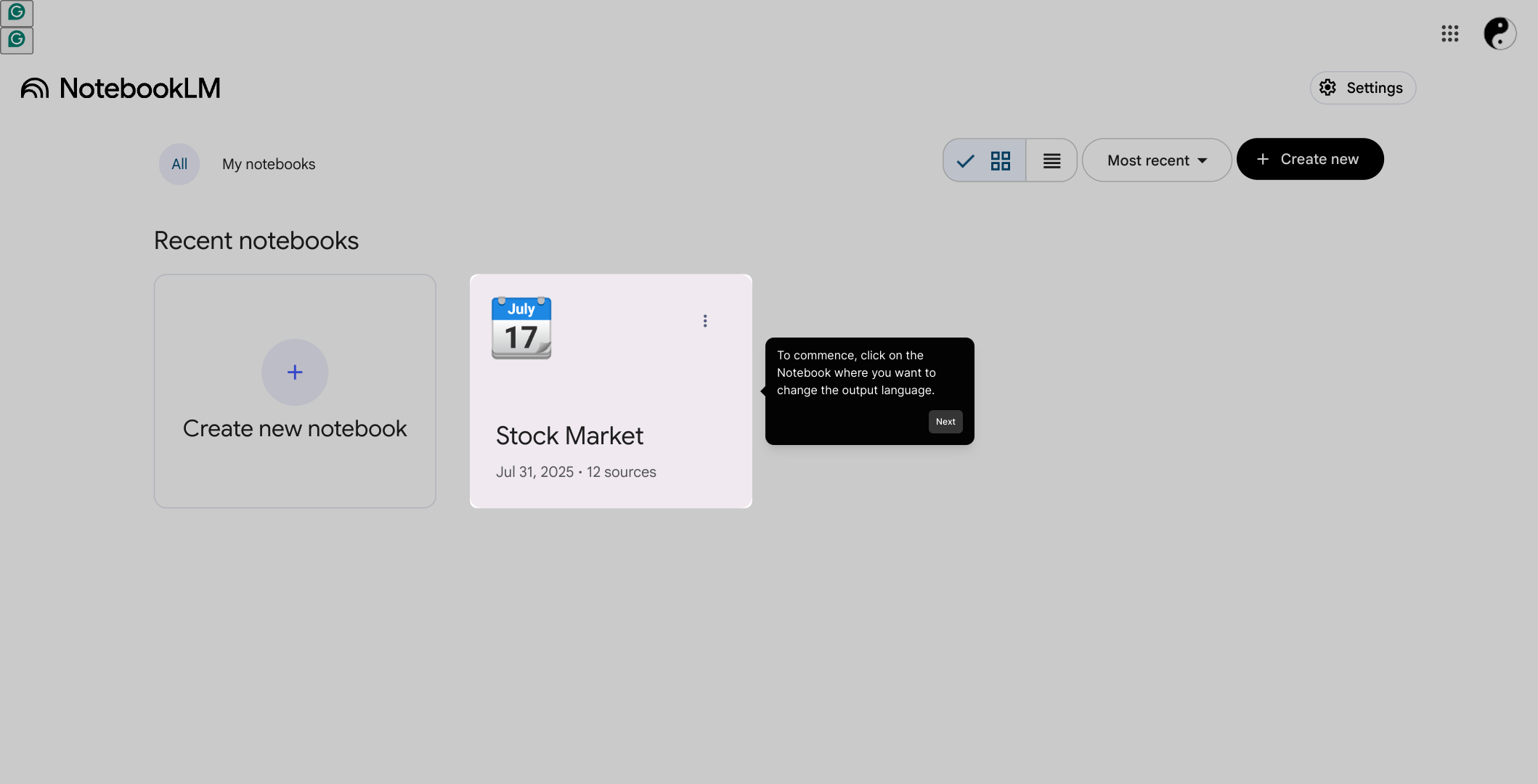
1. To commence, click on the Notebook where you want to change the output language.
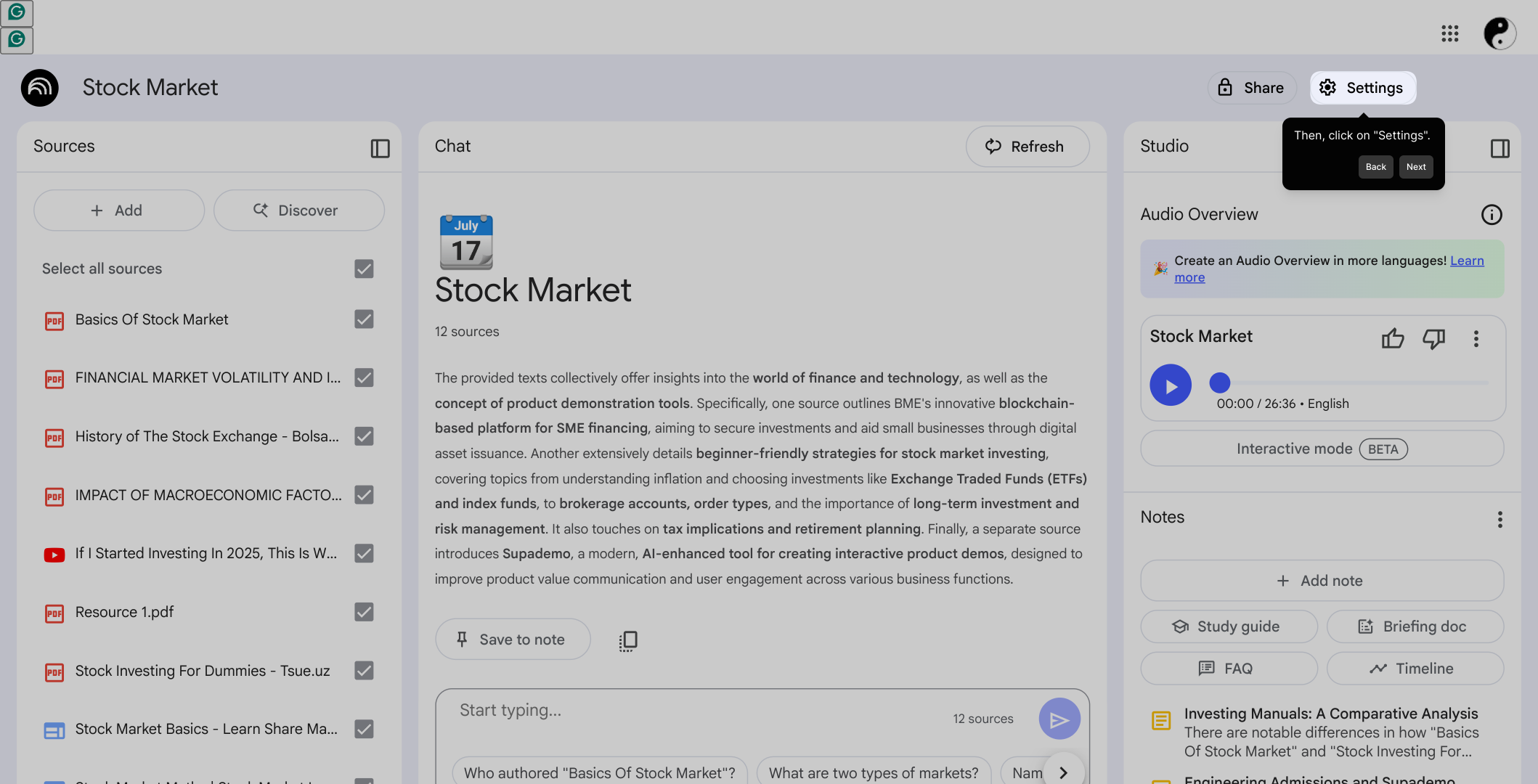
2. Then, click on "Settings".
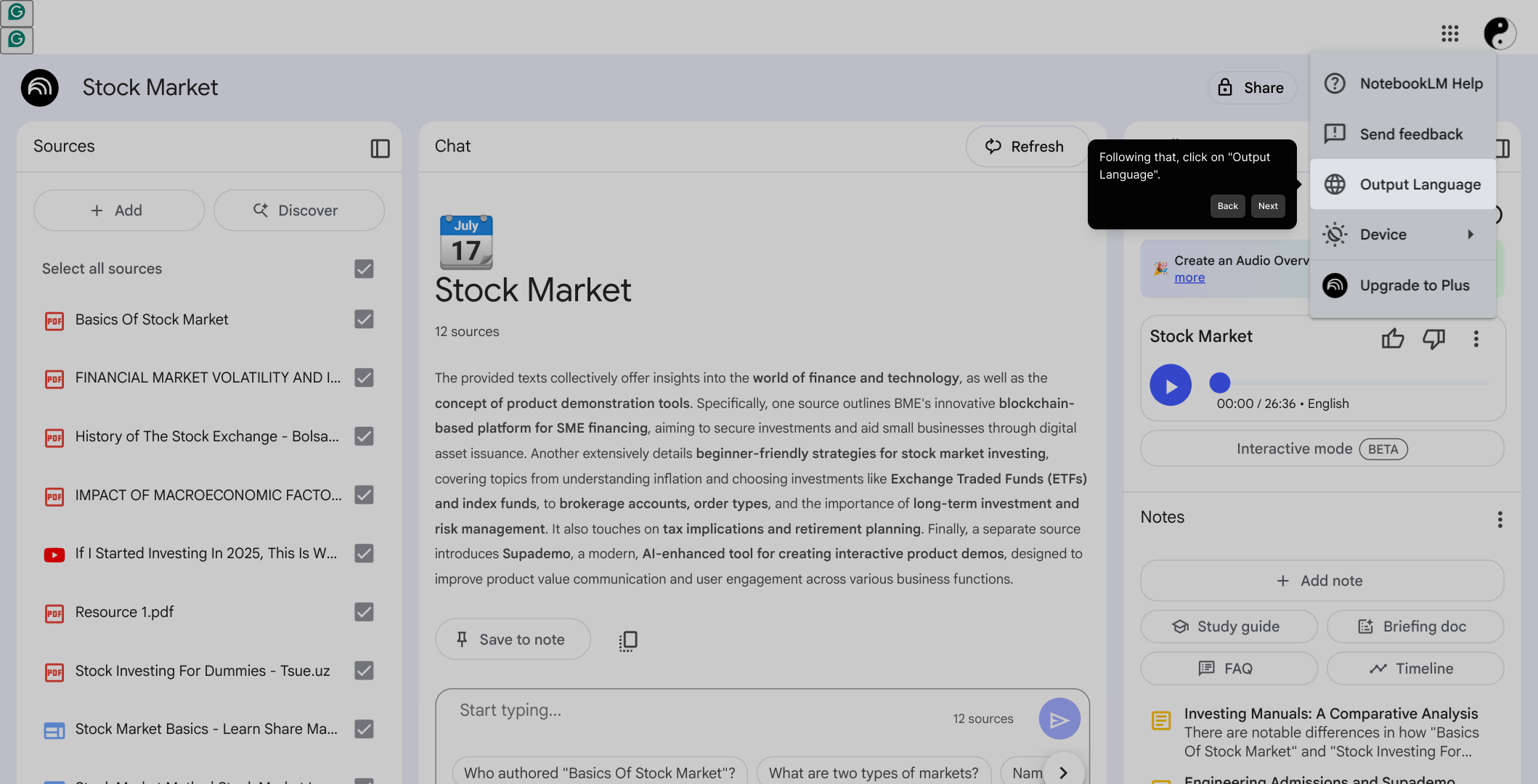
3. Following that, click on "Output Language".
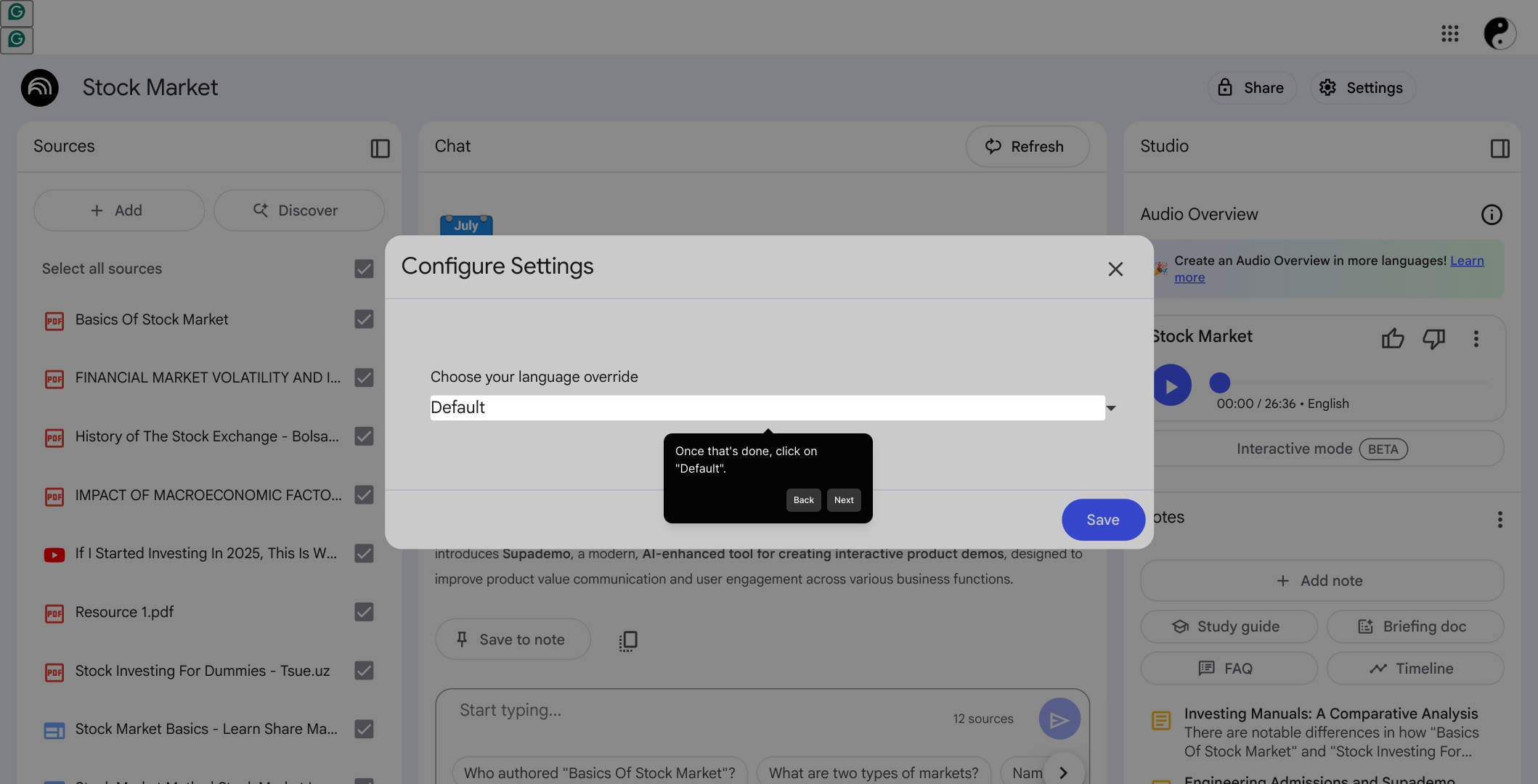
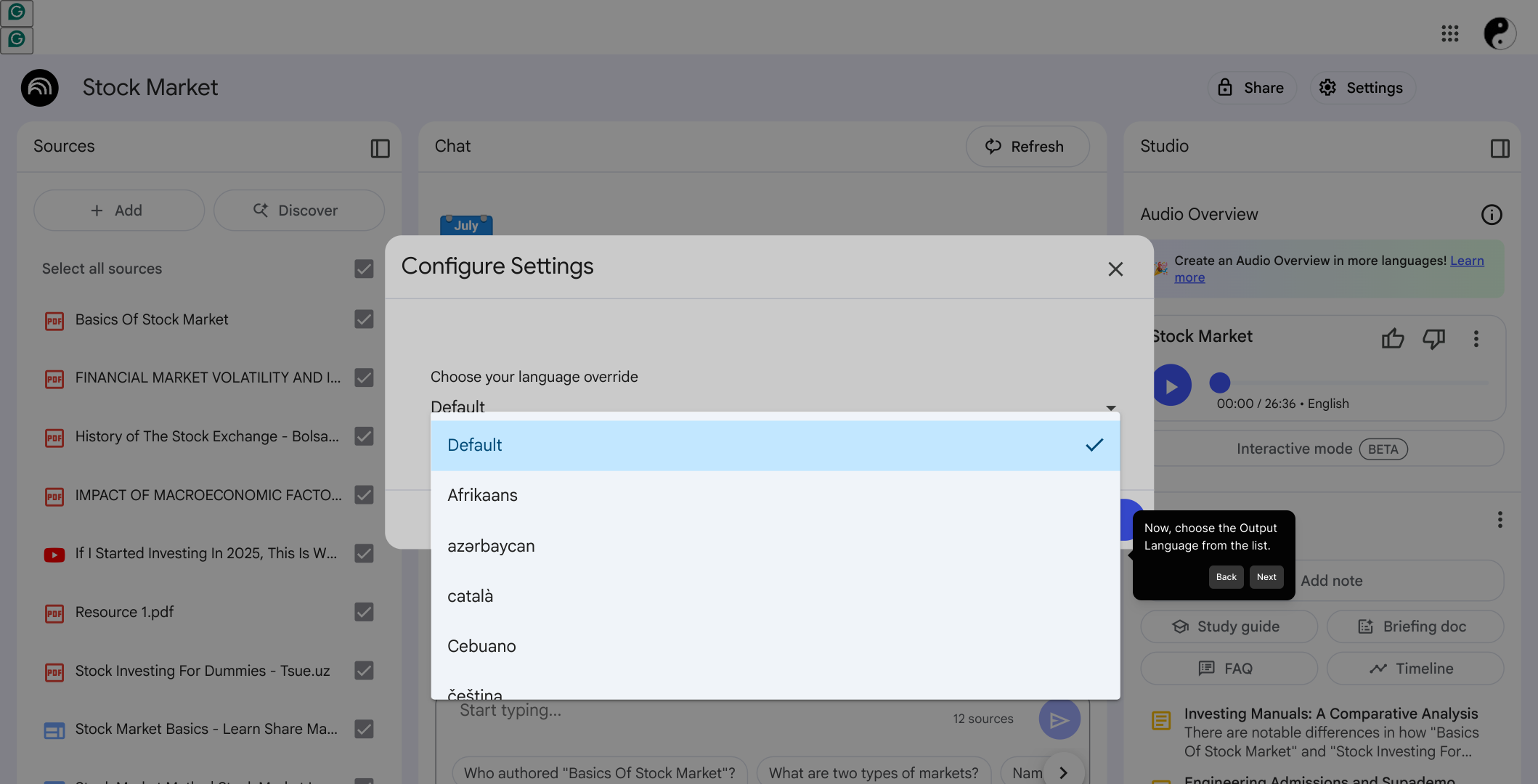
4. Once that's done, click on "Default".
5. Now, choose the Output Language from the list.
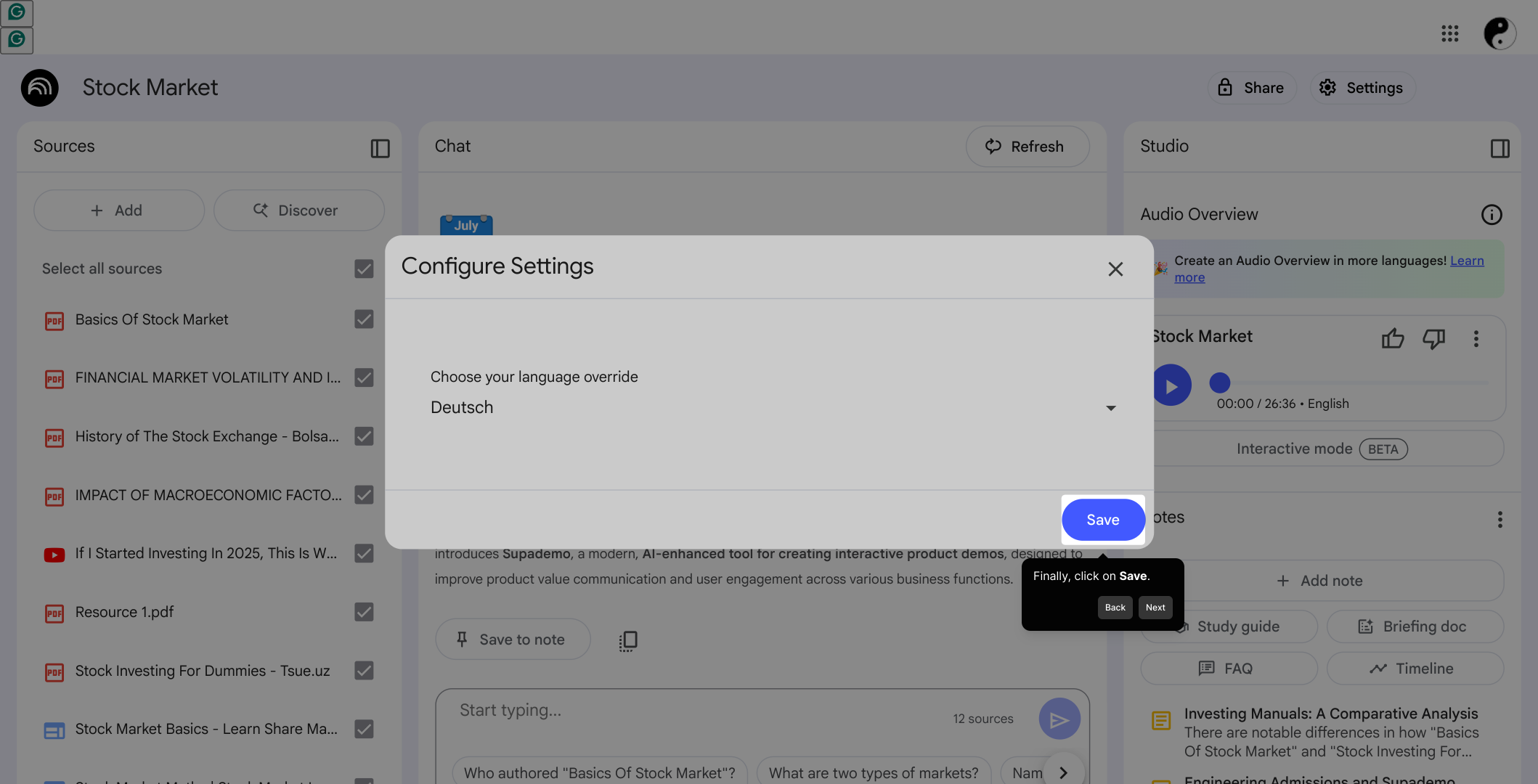
6. Finally, click on Save.
7. Create a Supademo in seconds
This interactive demo/guided walkthrough on How to Change the Output Language in NotebookLM was created using Supademo.
How to Change the Output Language in NotebookLM : Step-by-Step Guide
Start by opening the Notebook where you want your output language to be adjusted. This will ensure you’re making changes in the right place for your project.
Next, locate and select the "Settings" option. This is where you can customize various preferences related to your Notebook's behavior.
Within the Settings menu, find and click on "Output Language". This section lets you decide the language your Notebook will use when generating content.
After entering the Output Language area, click on the "Default" option to view the currently set language and prepare to make a selection.
From the list that appears, pick the output language you prefer. This selection will determine how your Notebook presents its results going forward.
When you’ve made your language choice, be sure to click Save to apply these new settings and ensure your changes take effect.
With your output language set, you’re ready to create a Supademo quickly and efficiently. This streamlined process helps you get your work done faster.
Create your own interactive demos in < 5 mins with Supademo
You can create your own interactive product demo in minutes using Supademo. Drive growth, scale enablement, and supercharge product-led onboarding with Supademo. Sign up for free here with no credit card required.
FAQs
Commonly asked questions about this topic.
How do I change the output language in NotebookLM?
Can I switch the output language for each Notebook individually?
What happens if I don’t save after changing the output language?
Are all languages supported as output languages in NotebookLM?
Can I revert to the default output language after changing it?
Is changing the output language in NotebookLM a permanent change?
Do output language settings impact the user interface language?
Can I preview the output in a new language before saving?
What should I do if the desired language is not listed in Output Language?
Does changing the output language affect existing Notebook content?

Product Operations Associate
Vimal Kumar helps build and grow Supademo’s team and GTM efforts, with a focus on figuring out growth levers and improving product traction.


