How to Generate a Reading Summary Using NotebookLM

Vimal Kumar
Vimal Kumar·
How to Generate a Reading Summary Using NotebookLM
Interactive demo powered by Supademo

1. First, open NotebookLM on your device.

2. Next, click on the Notebook that you want to summarize.

3. Now, navigate to the Chatbox.

4. Here, type a prompt to summarize the documents.

5. Once that's done, click on the Send button.

6. Your reading summary is ready.

7. Create a Supademo in seconds

This interactive demo/guided walkthrough on How to Generate a Reading Summary Using NotebookLM was created using Supademo.


How to Generate a Reading Summary Using NotebookLM : Step-by-Step Guide

To get started, open the NotebookLM app on your device. This is where you’ll manage all your notebooks and access powerful summarization features.
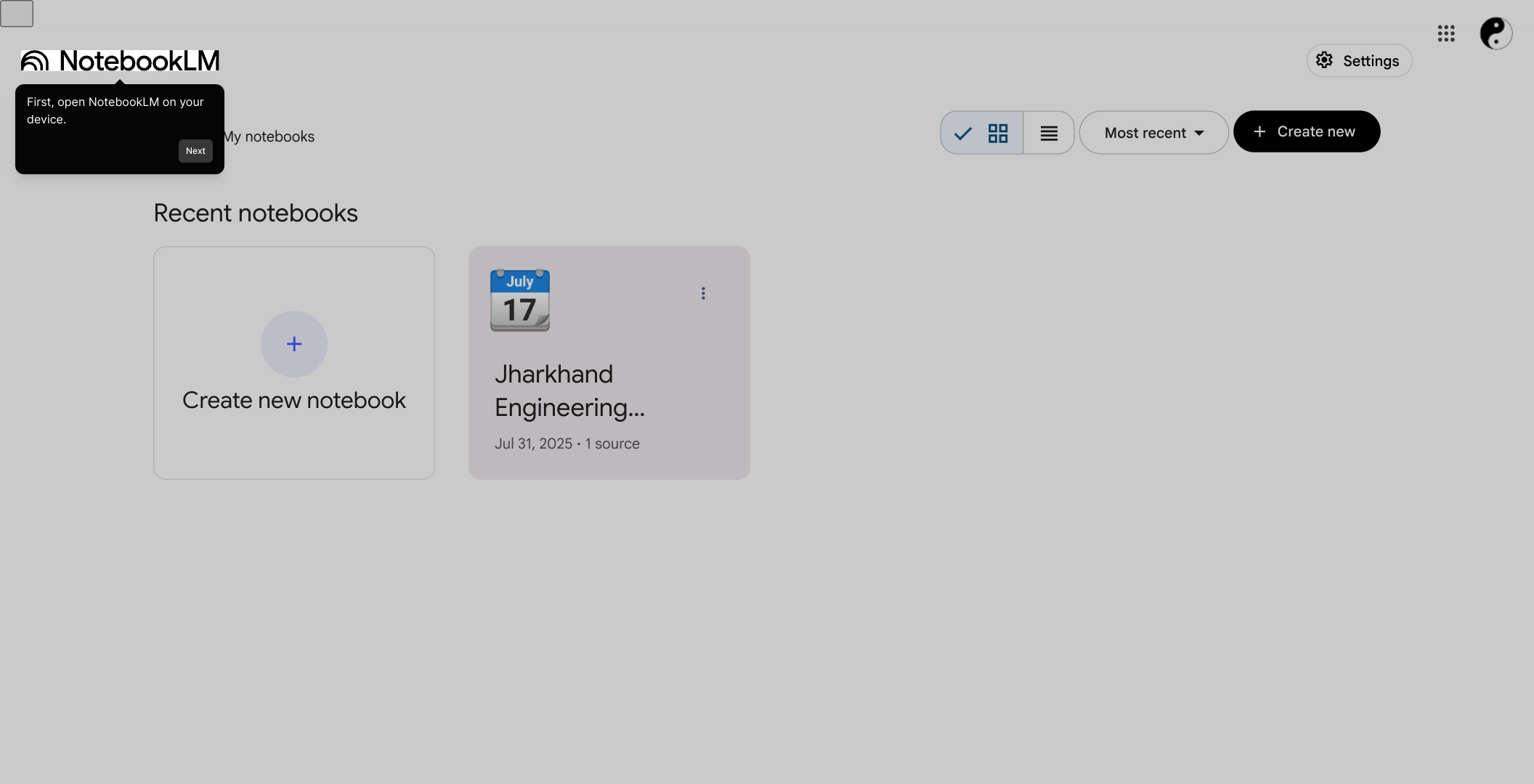
1

Once you're in the app, locate the Notebook you'd like to work with. Click on it to open and view the contents you want summarized.
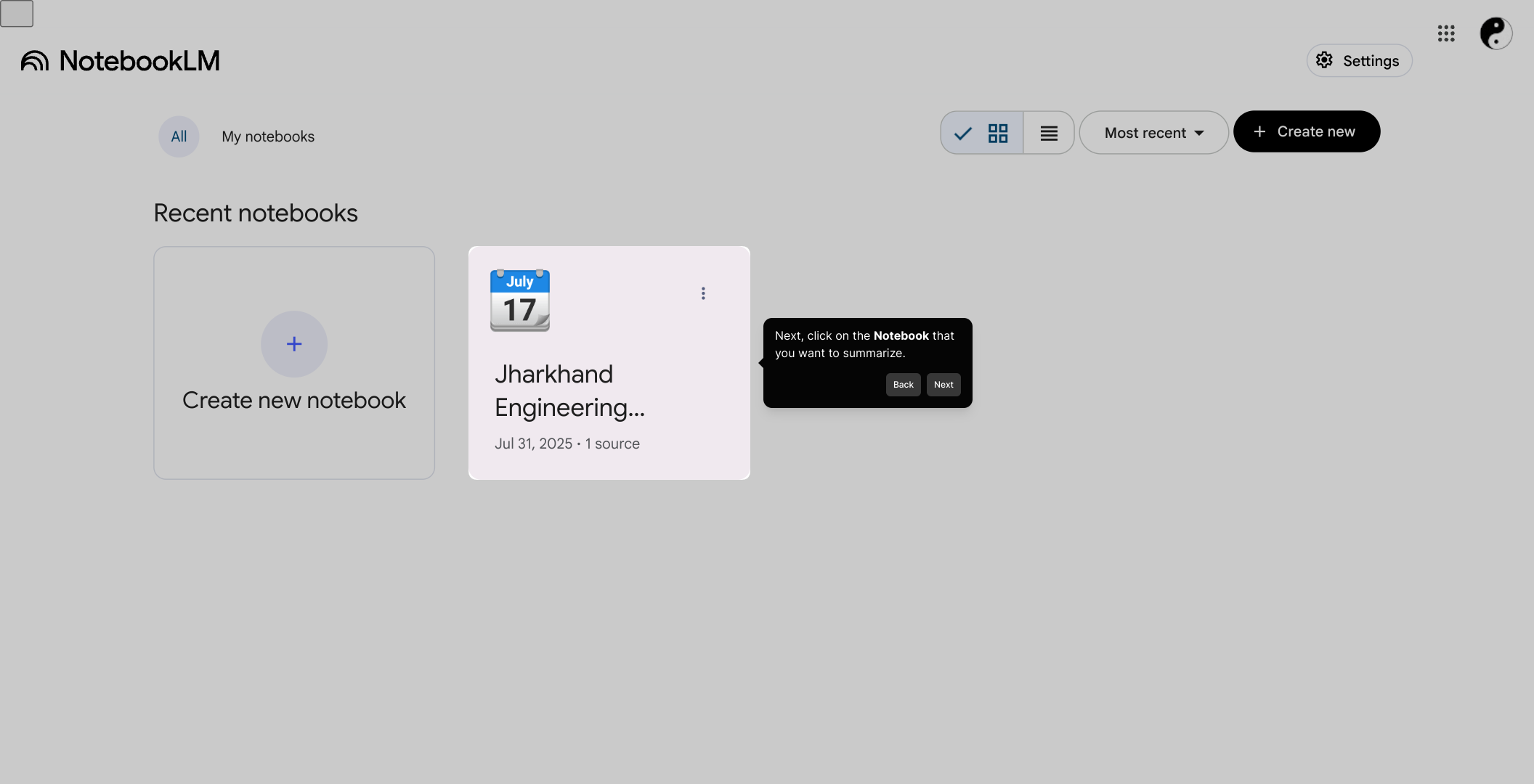
2

After opening your notebook, move over to the Chatbox section. This is where you can interact directly with the summarization AI and enter your requests.
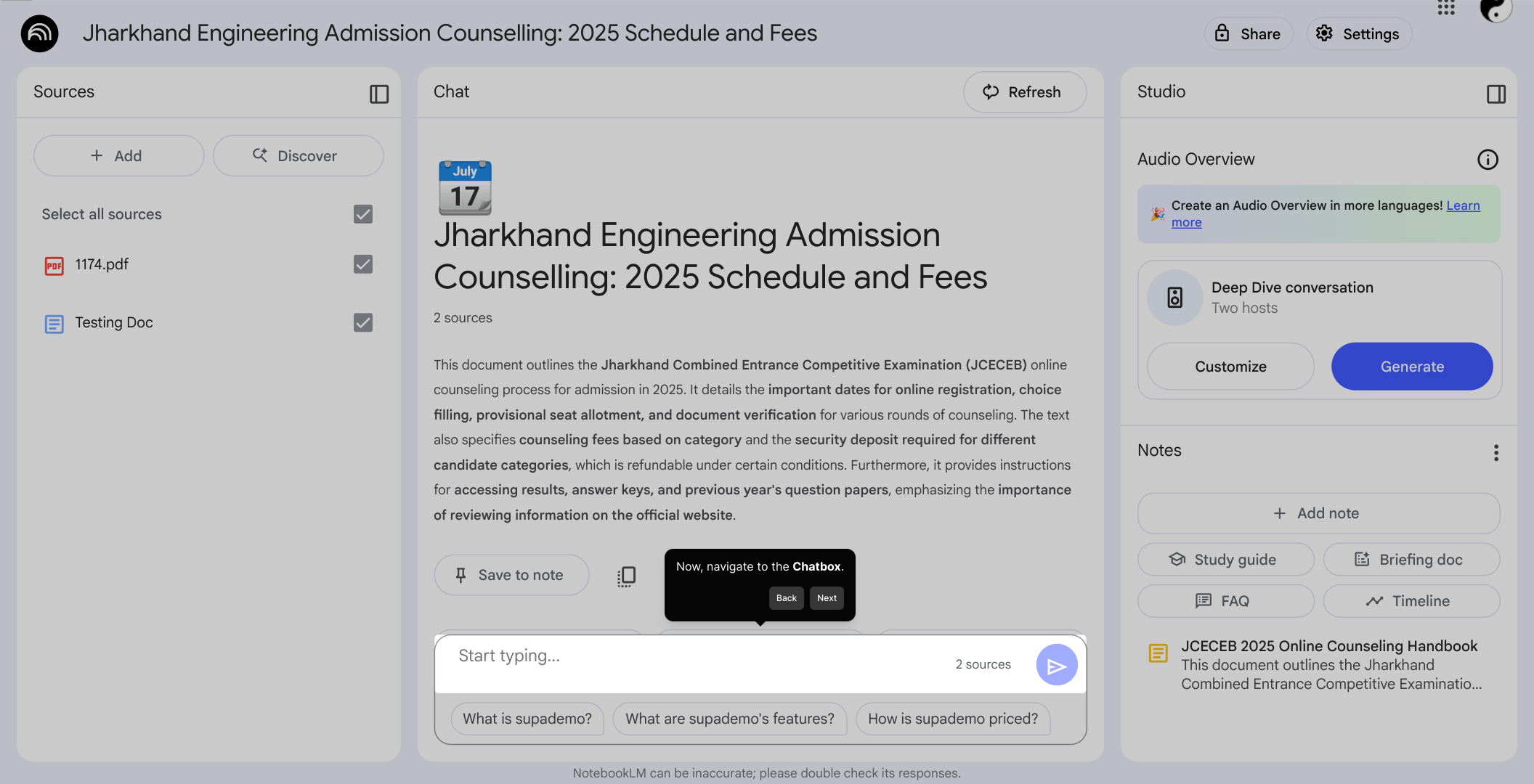
3

In the Chatbox, type a clear and concise prompt asking the system to summarize the documents or notes you have in your notebook. This helps the AI understand exactly what you need.
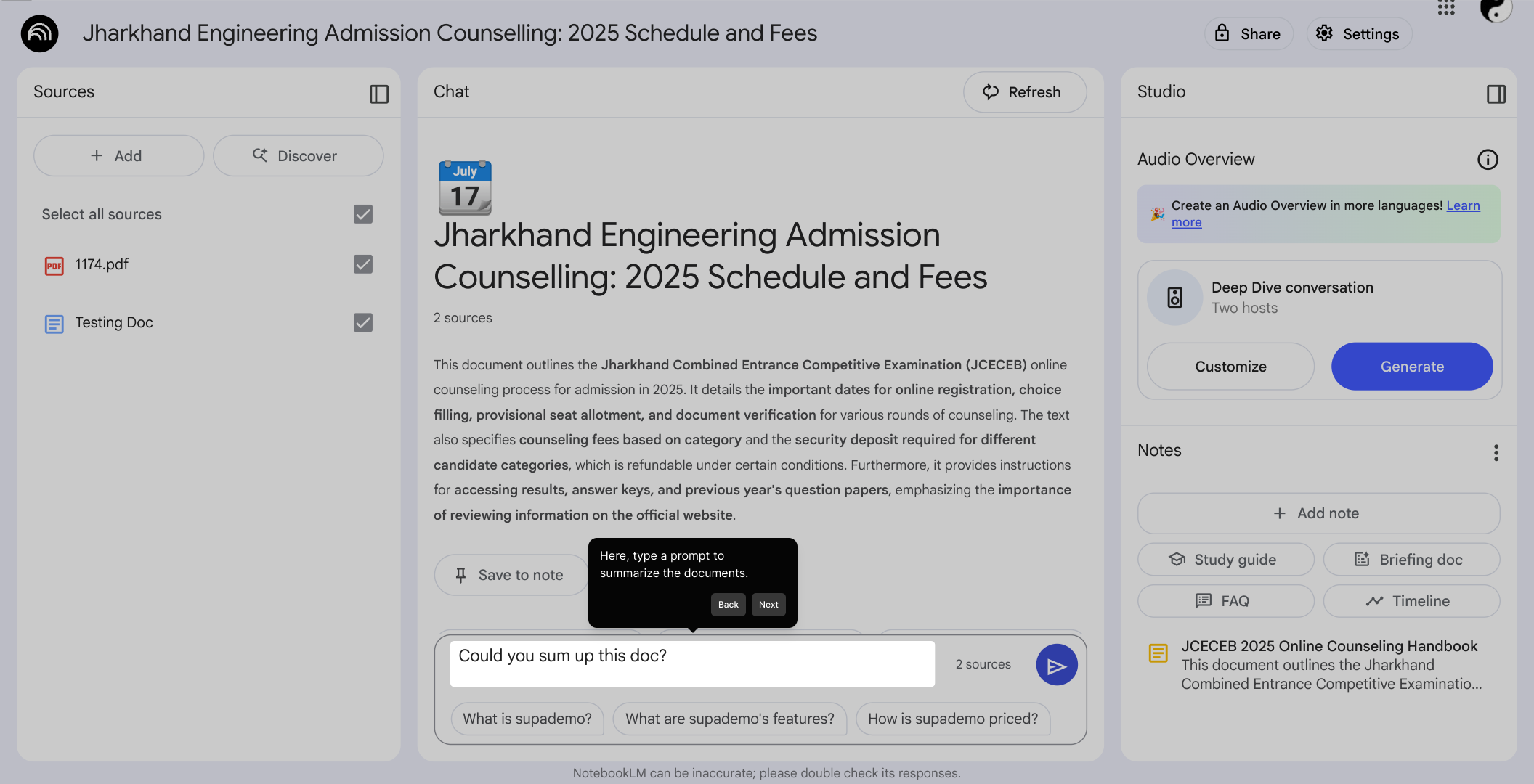
4

When your prompt is ready, click the Send button to submit your request. The AI will then process the information and prepare your summary.
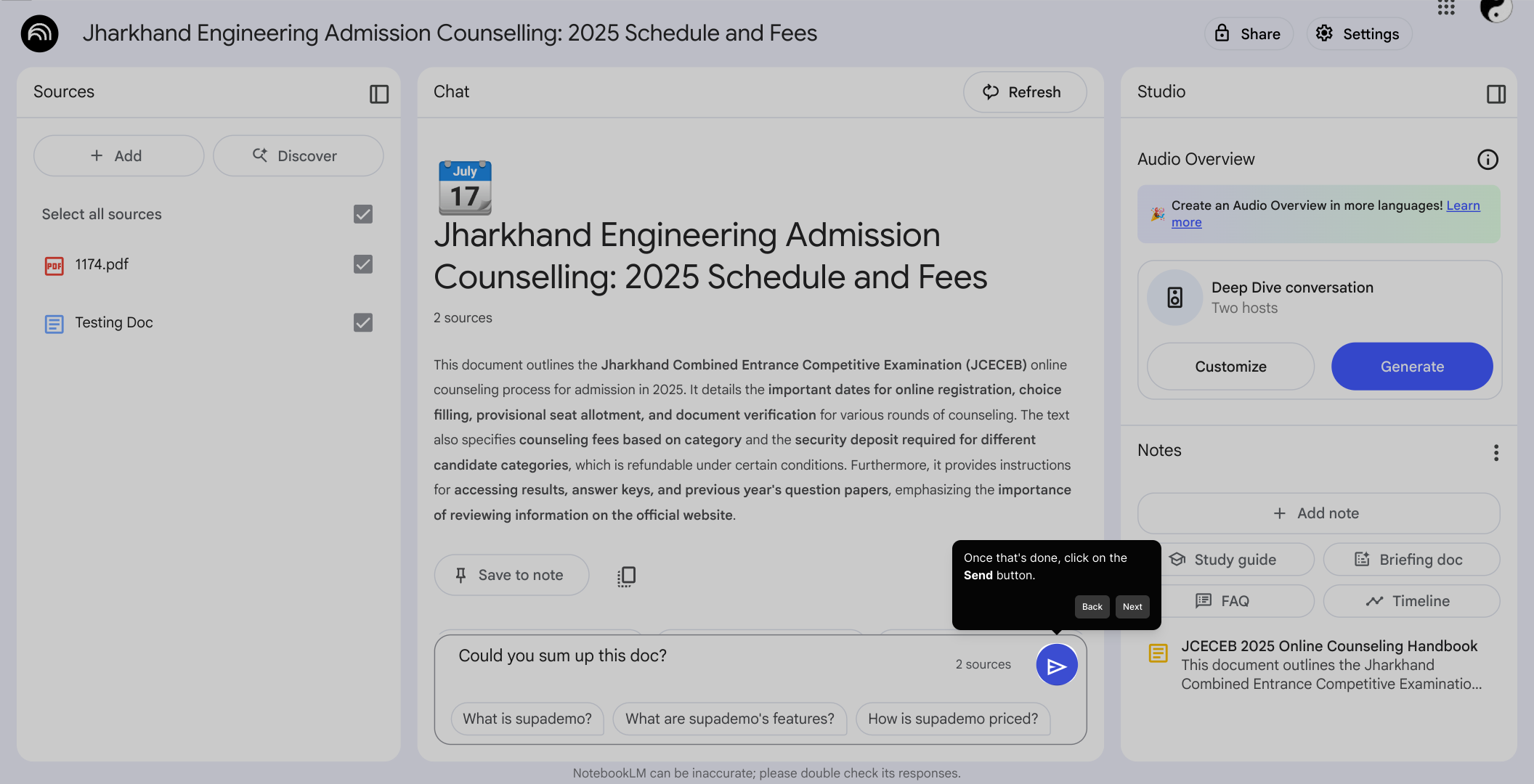
5

Shortly after sending your prompt, your summarized reading will be generated and displayed. You can review it here to quickly grasp the key points.
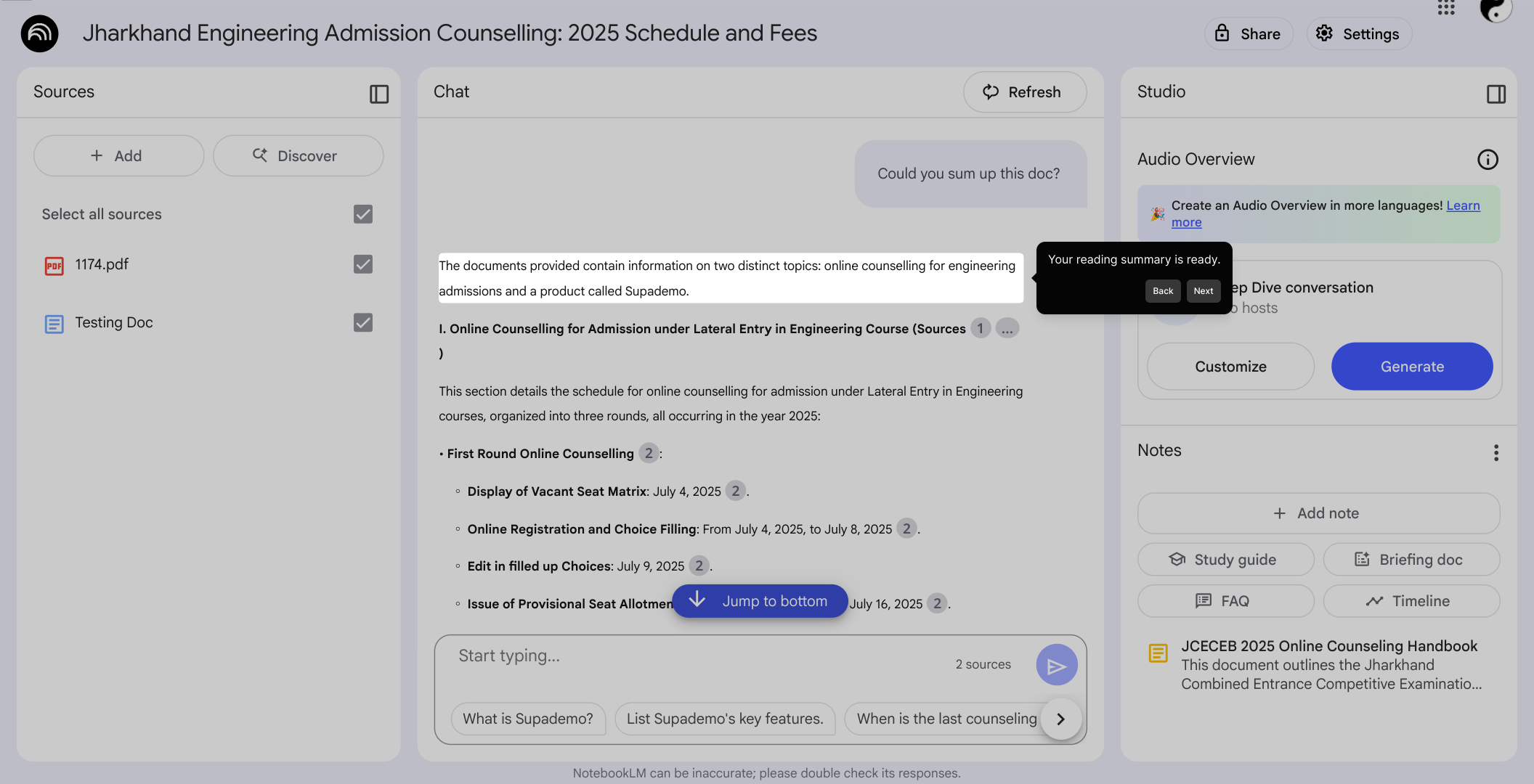
6

With your summary ready, you can now create a Supademo in just a few seconds to share your insights effortlessly.
7

Create your own interactive demos in < 5 mins with Supademo

You can create your own interactive product demo in minutes using Supademo. Drive growth, scale enablement, and supercharge product-led onboarding with Supademo. Sign up for free here with no credit card required.


FAQs

Commonly asked questions about this topic.

What is NotebookLM?

NotebookLM is a tool powered by AI designed to help users organize, understand, and summarize their notes and documents efficiently within notebooks.

How do I start generating a summary in NotebookLM?

Begin by opening the NotebookLM app and selecting the specific notebook you want to summarize. Then, use the Chatbox to prompt the AI to create a summary of the content.

Can I summarize multiple documents at once?

Yes, as long as the documents are added into a single notebook, you can prompt NotebookLM to summarize all the contents collectively in one summary.

What kind of prompts should I use to get the best summary?

Use clear, concise prompts specifying you want a summary of the notes or documents. For example: “Please summarize key points from this notebook” helps the AI provide focused results.

Is NotebookLM available on mobile devices?

Yes, NotebookLM supports multiple devices including mobile phones and tablets, allowing you to access your notebooks and create summaries on the go.

How quickly does NotebookLM generate summaries?

Once you submit your prompt, the summary is typically generated within seconds to a few moments, depending on the notebook size and complexity.

Can I edit the summary generated by NotebookLM?

Currently, NotebookLM primarily focuses on AI-generated summaries. While direct editing might be limited, you can copy the summary text for external editing or note-taking.

Is my data safe when using NotebookLM?

NotebookLM follows strict data privacy protocols, ensuring your notes and documents are securely stored and processed, though always review their privacy policy for details.

Can I share summaries created with NotebookLM?

Yes, you can share your summaries by exporting text or creating interactive demos such as those with Supademo, making it easy to share insights with others.

Do I need technical skills to use NotebookLM for summaries?

No technical expertise is needed. NotebookLM offers a user-friendly interface and uses natural language prompts to generate summaries, making it accessible for all users.
Vimal Kumar
Vimal Kumar

Product Operations Associate

Vimal Kumar helps build and grow Supademo’s team and GTM efforts, with a focus on figuring out growth levers and improving product traction.

More from the blog

How to Use NotebookLM for Academic Research

How to Use NotebookLM for Academic Research

Learn how to effectively use NotebookLM for academic research with step-by-step guidance, tips for organization, and ways to maximize productivity in your studies.

Vimal Kumar
Vimal KumarSep 5, 2025
How to Export Notes from NotebookLM

How to Export Notes from NotebookLM

Learn how to easily export your notes from NotebookLM with our step-by-step guide, ensuring seamless backup and sharing of your important information.

Vimal Kumar
Vimal KumarSep 15, 2025
How to Collaborate with Others in NotebookLM

How to Collaborate with Others in NotebookLM

Learn effective strategies for collaborating with others in NotebookLM, enhancing teamwork and productivity through seamless sharing, real-time editing, and organized note management.

Vimal Kumar
Vimal KumarSep 15, 2025